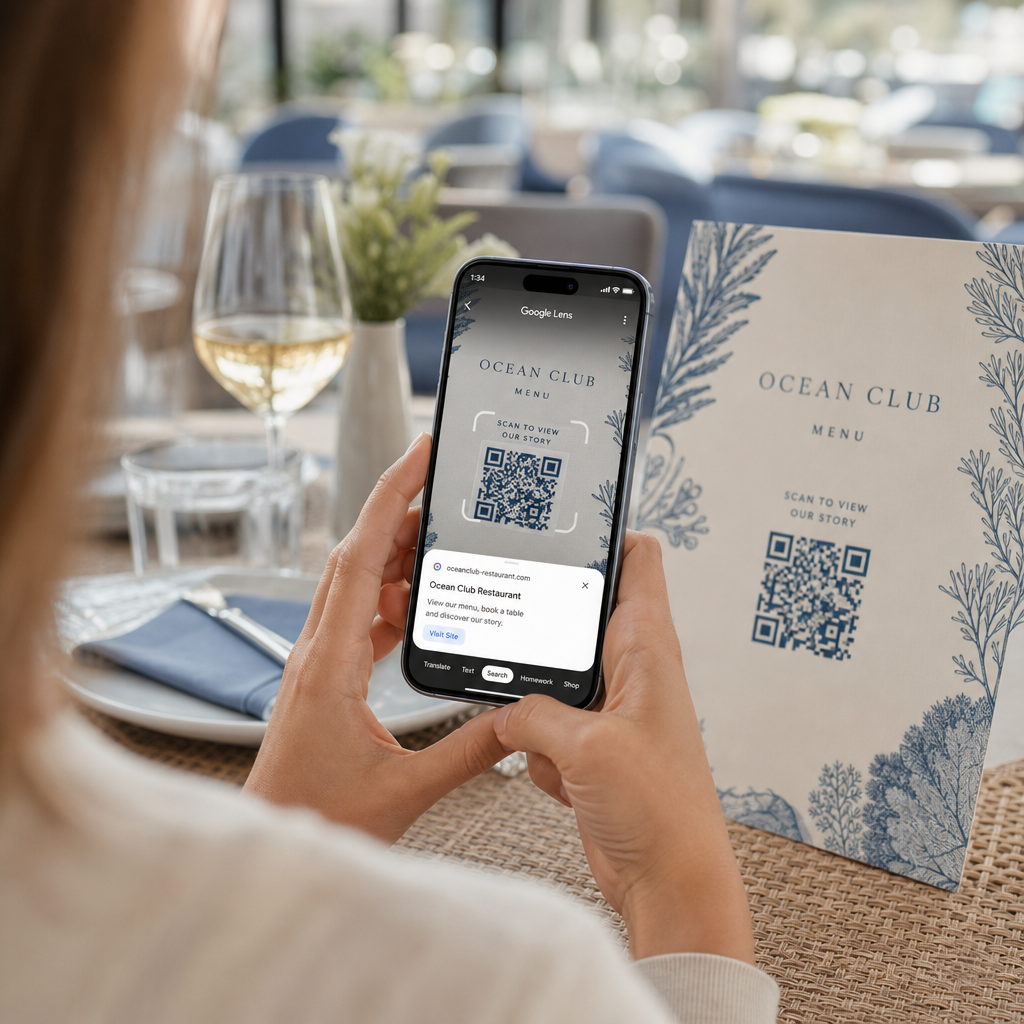
Struggling to open a digital menu or website because your phone will not read a QR code? Failing to scan codes quickly causes unnecessary delays and frustration when you need instant access to information. Learning how to use Google Lens allows you to scan physical codes and saved images effortlessly using your smartphone.
How to Scan Live QR Codes with the Google App
Google Lens uses visual recognition software to analyze the visual pattern of a QR code. It converts the arrangement of dark and light squares into readable digital data, such as web links or contact information. On most Android devices, Google Lens is integrated directly into the system, while on iOS devices, it is accessible through the standard Google app.
To scan a physical QR code in front of you:
- Open the Google app or locate the Google Search bar widget on your phone home screen.
- Tap the Lens icon located on the right side of the search bar.
- Select the camera option if your device prompts you to grant camera permissions.
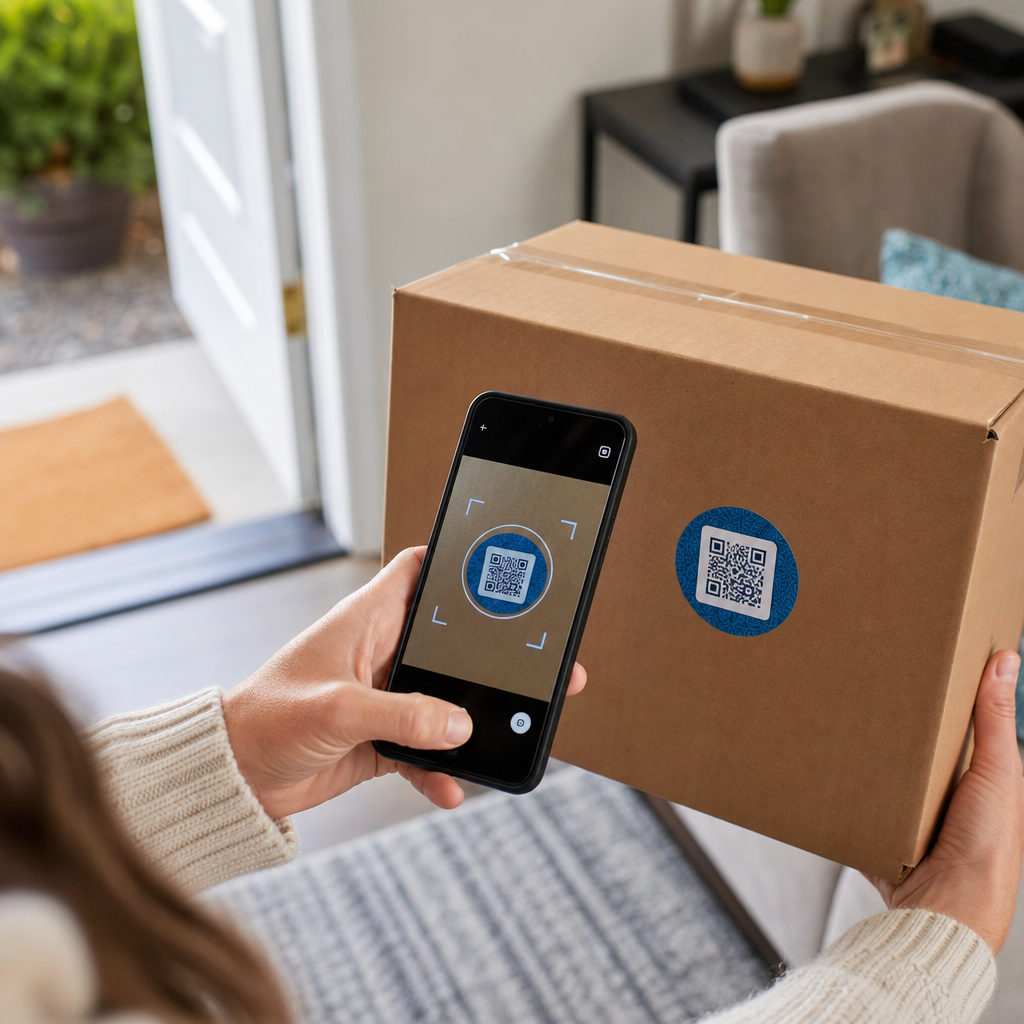
- Point your camera frame at the target QR code while keeping the square centered on your screen.
- Tap the pop-up link that overlays the code to open the associated web page or document.
If you use an Android smartphone, you can often scan codes directly inside your primary camera app without opening a separate tool. Access your camera settings menu and turn on Google Lens suggestions. Once enabled, your standard camera automatically detects QR codes whenever they enter the frame. For detailed device-specific configuration instructions, read our full guide on how to scan a QR code on Android.
How to Scan a QR Code from a Saved Photo or Screenshot
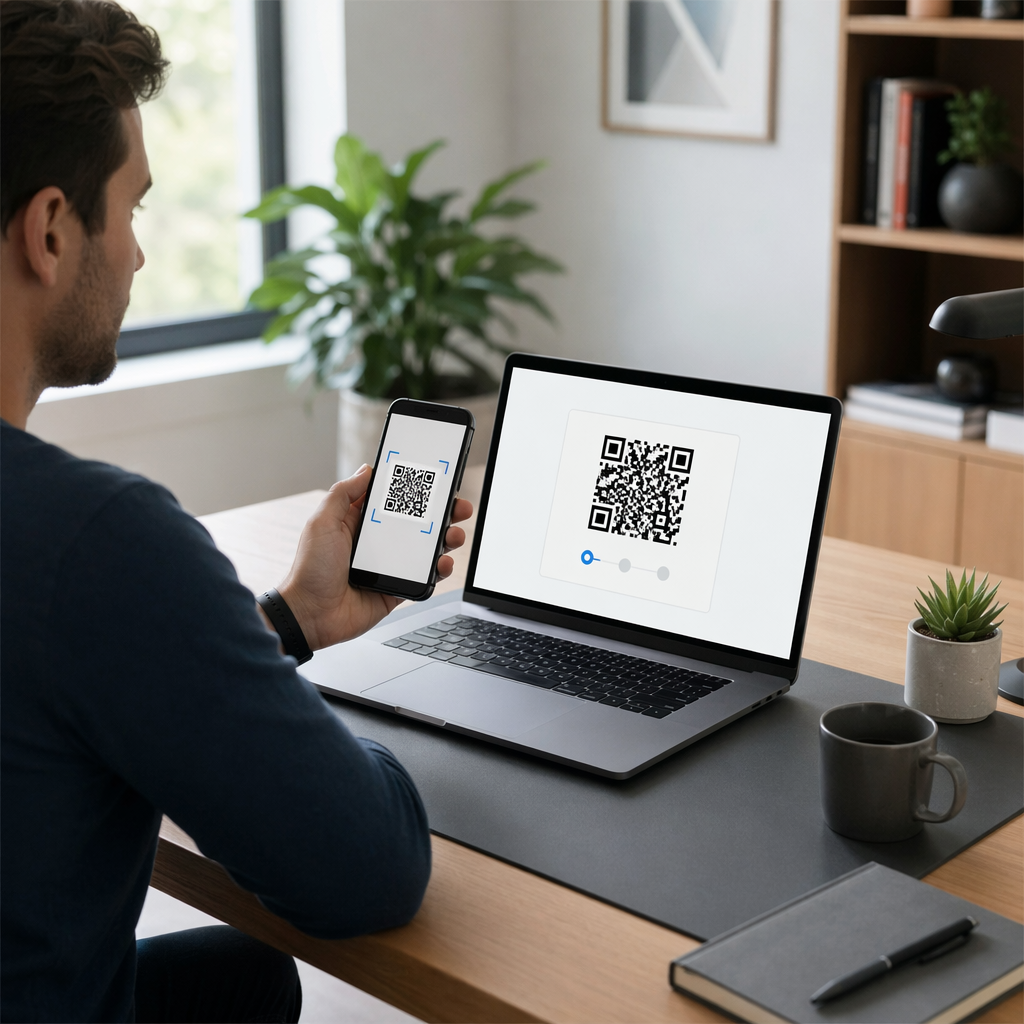
You do not need a second device to scan a QR code that arrives via email, text message, or social media. Google Lens can analyze stored image files directly from your photo gallery by reading the pixel matrix saved in the image file.
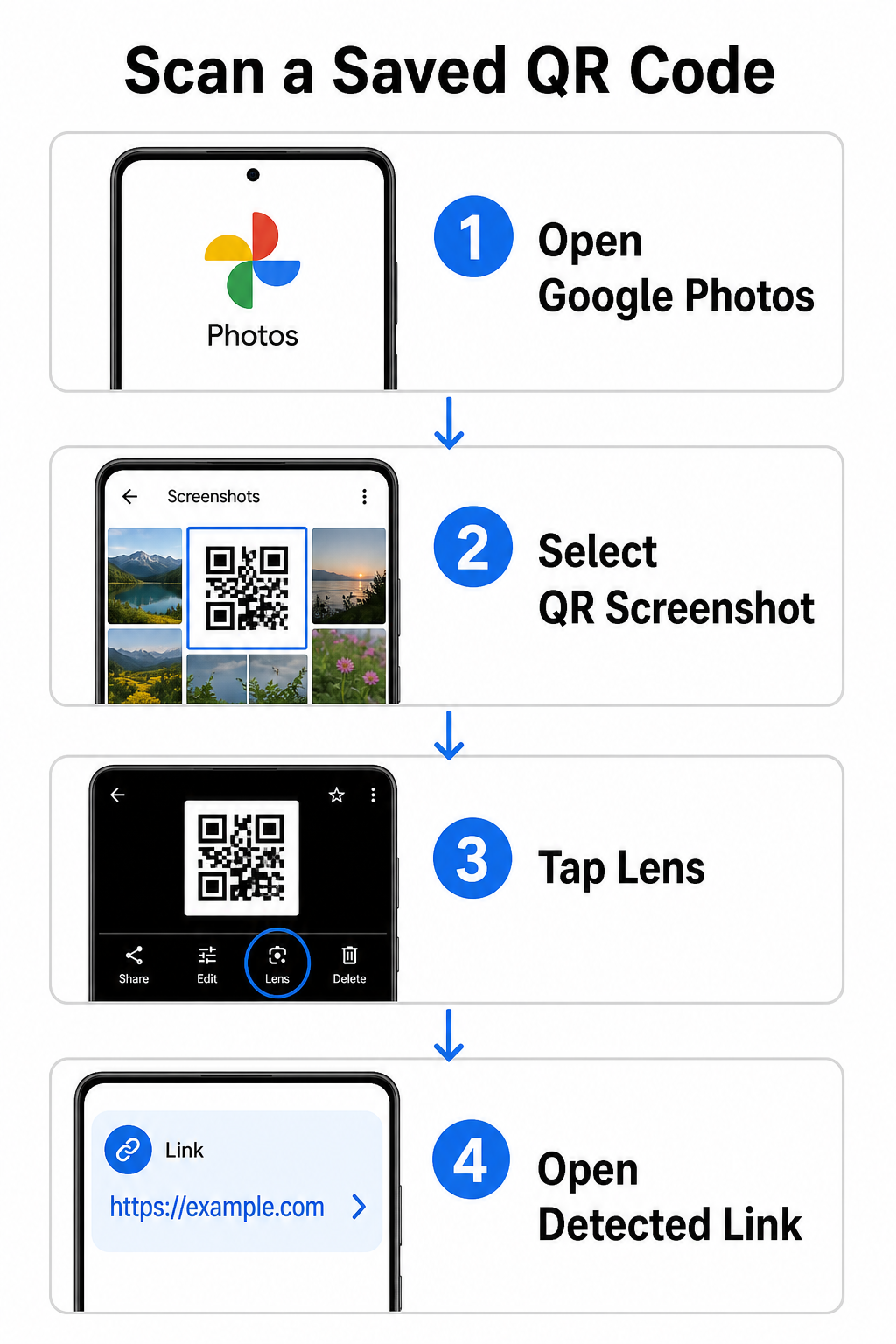
To decode a QR code from a saved picture on an Android device:
- Open the Google Photos app on your smartphone.
- Select the photo or screenshot containing the target QR code.
- Tap the Lens icon positioned along the bottom menu bar.
- Tap the detected link displayed over the QR code to open the web page.
On an iPhone, open the primary Google app, tap the Lens camera icon inside the search bar, and select the Photos button to choose an image from your camera roll. For additional methods across different mobile platforms, consult our comprehensive tutorial on scanning QR codes with smartphones.
Scan QR Codes Directly in Your Browser Need to decode a saved image or use your camera without opening Google Lens? Use the Online QR Code Scanner to instantly view encoded content from any web browser.
Troubleshooting Common Google Lens Scanning Issues
When Google Lens fails to recognize a code, environmental factors or dirty hardware components are usually responsible. Camera sensors rely on high visual contrast between black data modules and white background spaces. Smudges, poor lighting, or improper distance blur these module edges, making the code unreadable to optical software.
To resolve scanning failures quickly, follow these steps:
- Wipe the camera lens with a clean cloth to eliminate smudges that obscure data modules.
- Improve ambient lighting around physical signs so visual sensors can process high-contrast patterns.
- Adjust your reading distance to roughly 8 to 12 inches to allow proper camera autofocus.
- Inspect the physical surface for damage, folds, or glare that distorts the square shape.
If Google Lens still does not detect the code, check your device camera settings to confirm that Google Lens suggestions remain active. If issues persist, exploring dedicated scanning utilities can restore scanning capabilities. Compare reliable alternatives in our detailed review of the best QR code scanning apps.
Maintaining Security When Scanning QR Codes
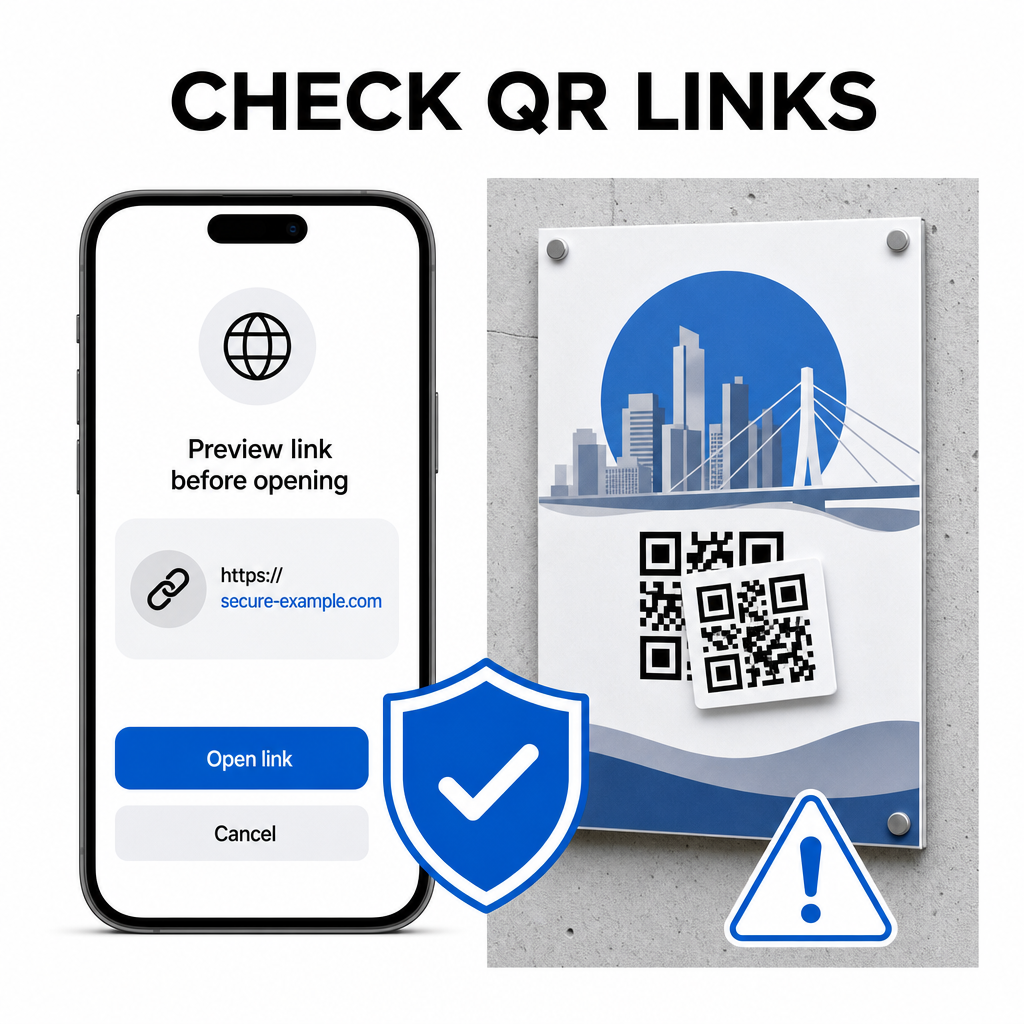
Because QR codes can direct mobile browsers to external web destinations automatically, practicing basic security precautions protects your personal device from deceptive links. Physical QR codes printed on public signage lack built-in security certificates, which means bad actors can occasionally place malicious sticker overlays on original signs.
Follow these practical safety habits when scanning codes:
- Inspect the preview URL in Google Lens before tapping to verify the web address matches the expected site.
- Check for physical tampering on printed signs, such as a sticker placed over an original code.
- Avoid typing sensitive credentials like logins or banking details on pages reached through unexpected codes.
- Download mobile apps safely by visiting official app stores directly rather than using embedded links.
Checking destination links before interacting with web pages ensures your personal data remains protected. For broader advice on camera detection settings and safety best practices, explore our complete guide on how to scan QR codes.
Fast and Secure QR Code Scanning
Mastering Google Lens makes retrieving menus, payment portals, and promotional links simple on any smartphone. Keeping your camera clean, maintaining proper focal distance, and verifying preview links before tapping them ensures a smooth scanning experience. If you need to decode a code quickly without relying on an app, use the free QR scanner online to instantly view encoded links from any web browser.
Frequently Asked Questions
No, most modern Android devices have Google Lens features built directly into the default Google Search bar, Google Assistant, or native Camera app settings.
Google Lens scans image files like JPEGs or PNGs. To scan a PDF, take a screenshot of the QR code inside the document and open that screenshot in Google Lens or an online reader.
Close the browser tab immediately without entering any information. Check whether the physical QR code has a sticker placed over it or if your camera misread an adjacent code.