Gondot okoz digitális menü vagy weboldal megnyitása, mert telefonja nem olvassa be a QR-kódot? A kódok gyors beolvasásának elmulasztása felesleges késedelmeket és frusztrációt okoz, amikor azonnali információra van szüksége. A Google Lens használatának elsajátítása lehetővé teszi, hogy okostelefonja segítségével könnyedén beolvassa a fizikai kódokat és a mentett képeket.
Hogyan olvashatók be élő QR-kódok a Google alkalmazással
A Google Lens vizuális felismerő szoftvert használ a QR-kód vizuális mintázatának elemzésére. A sötét és világos négyzetek elrendezését olvasható digitális adatokká, például webes linkekké vagy kapcsolattartási információkká alakítja. A legtöbb Android-eszközön a Google Lens közvetlenül be van építve a rendszerbe, míg iOS-eszközökön a szabványos Google alkalmazáson keresztül érhető el.
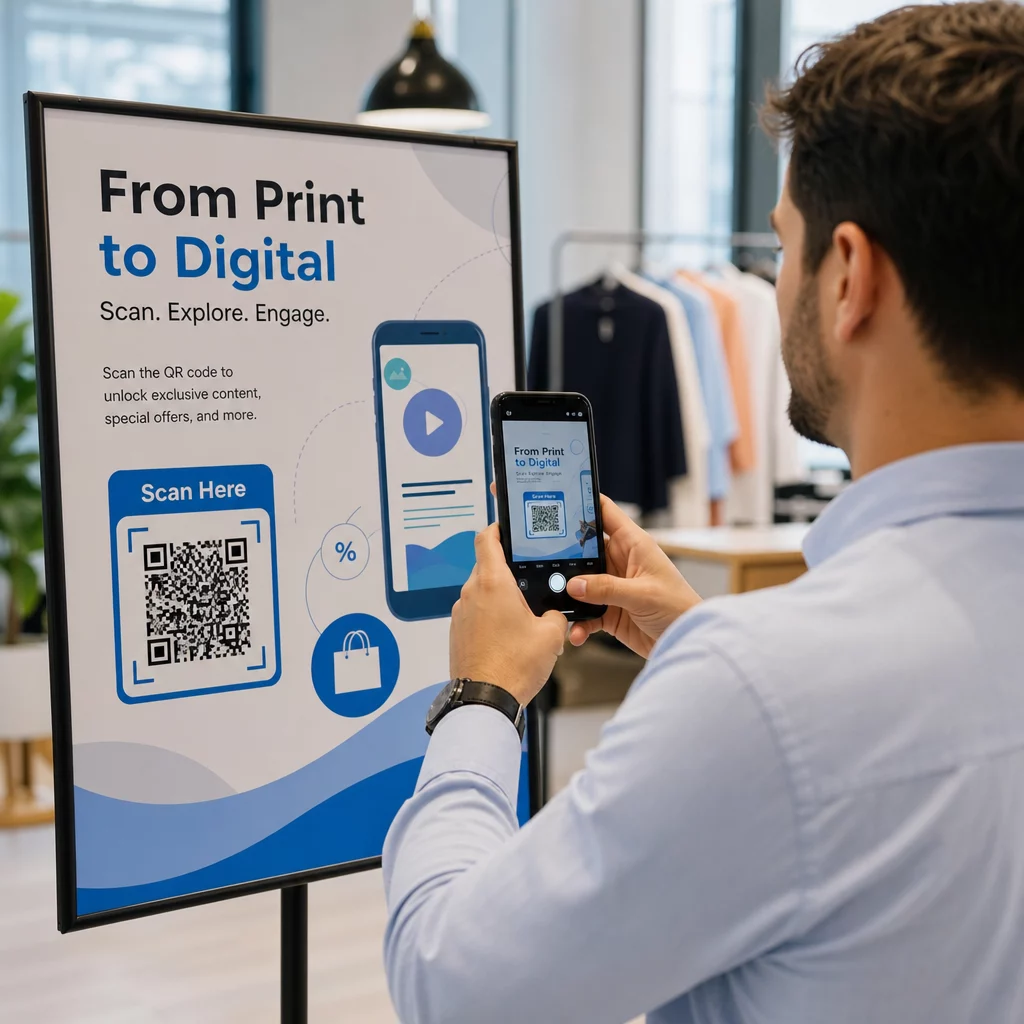
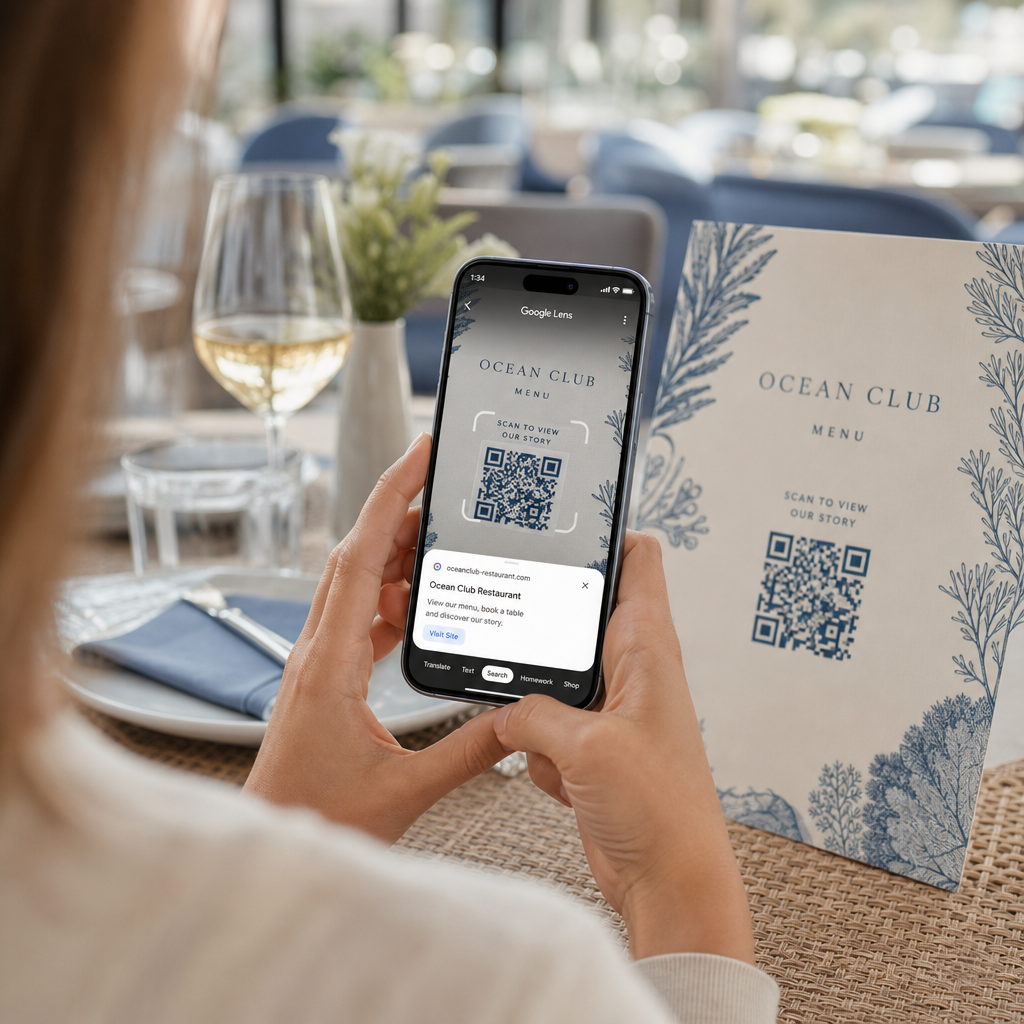
Fizikai QR-kód beolvasásához, ha előtted van:
- Nyissa meg a Google alkalmazást vagy keresse meg a Google Keresősáv widgetet telefonja kezdőképernyőjén.
- Érintse meg a Lens ikont amely a keresősáv jobb oldalán található.
- Válassza ki a kamera opciót ha az eszköze arra kéri, hogy adjon kamerahozzáférési engedélyeket.
- Irányítsa a kamera keretét a cél QR-kódra, miközben a négyzetet középen tartja a képernyőn.
- Érintse meg a felugró linket amely átfedi a kódot, hogy megnyissa a kapcsolódó weboldalt vagy dokumentumot.
Ha Android okostelefont használ, gyakran közvetlenül a fő kameraalkalmazásban beolvashatja a kódokat anélkül, hogy külön eszközt nyitna meg. Lépjen be a kamera beállításai menübe, és kapcsolja be a Google Lens javaslatokat. Engedélyezés után a standard kamerája automatikusan felismeri a QR-kódokat, amikor azok a képmezőbe kerülnek. Részletes, eszközspecifikus konfigurációs utasításokért olvassa el teljes útmutatónkat a következőkről: hogyan olvasható be QR-kód Androidon.
Hogyan olvasható be QR-kód mentett fotóról vagy képernyőfotóról
Nincs szüksége második eszközre egy e-mailben, szöveges üzenetben vagy közösségi médián keresztül érkező QR-kód beolvasásához. A Google Lens közvetlenül elemezheti a tárolt képfájlokat a fotógalériájából, beolvasva a képfájlban mentett pixelmátrixot.
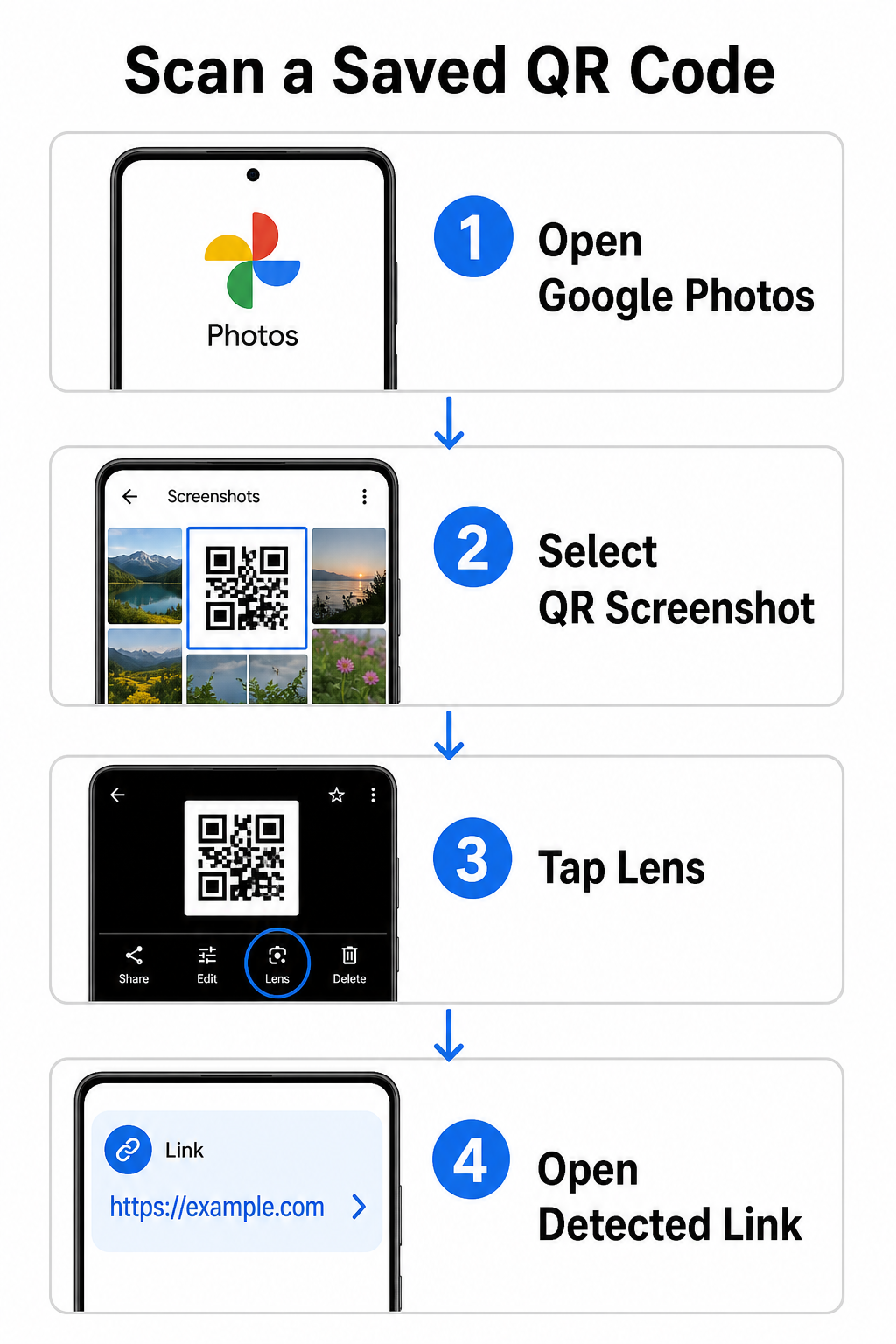
QR-kód dekódolása mentett képből Android-eszközön:
- Nyissa meg a Google Fotók alkalmazást okostelefonján.
- Válassza ki a fényképet vagy képernyőképet, amely a cél QR-kódot tartalmazza.
- Érintse meg a Lens ikont az alsó menüsávon elhelyezve.
- Érintse meg az észlelt linket amely a QR-kód felett jelenik meg a weboldal megnyitásához.
iPhone-on nyissa meg az elsődleges Google alkalmazást, érintse meg a Lens kamera ikont a keresősávon belül, majd válassza ki a Fényképek gombot a kamera tekercséből származó kép kiválasztásához. A különböző mobilplatformokon elérhető további módszerekért tekintse meg átfogó útmutatónkat a QR-kódok szkenneléséről okostelefonnal.
QR-kódok beolvasása közvetlenül a böngészőjében Szeretne dekódolni egy elmentett képet, vagy használni a kameráját anélkül, hogy megnyitná a Google Lens-t? Használja az Online QR-kód olvasót az azonnali kódolt tartalom megtekintéséhez bármely webböngészőből.
Gyakori Google Lens szkennelési problémák elhárítása
Amikor a Google Lens nem ismeri fel a kódot, általában környezeti tényezők vagy szennyezett hardverkomponensek felelősek. A kameraérzékelők a fekete adatmodulok és a fehér háttér közötti magas vizuális kontrasztra támaszkodnak. Foltok, rossz megvilágítás vagy nem megfelelő távolság elmossa ezeket a moduléleket, olvashatatlanná téve a kódot az optikai szoftver számára.
A szkennelési hibák gyors elhárításához kövesse az alábbi lépéseket:
- Törölje le a kamera lencséjét egy tiszta ruhával, hogy eltávolítsa az adatmodulokat elhomályosító foltokat.
- Javítsa a környezeti megvilágítást a fizikai jelek körül, hogy a vizuális érzékelők feldolgozhassák a nagy kontrasztú mintákat.
- Állítsa be az olvasási távolságot körülbelül 8-12 hüvelykre, hogy megfelelő kamera autofókuszt biztosítson.
- Vizsgálja meg a fizikai felületet károk, gyűrődések vagy tükröződések szempontjából, amelyek torzítják a négyzet alakját.
Ha a Google Lens továbbra sem észleli a kódot, ellenőrizze eszköze kamera beállításait, hogy a Google Lens javaslatok aktívak maradnak-e. Ha a problémák továbbra is fennállnak, a dedikált szkennelő segédprogramok felfedezése visszaállíthatja a szkennelési képességeket. Hasonlítsa össze a megbízható alternatívákat részletes áttekintésünkben a legjobb QR-kód olvasó alkalmazásokról.
Biztonság fenntartása QR-kódok szkennelésekor
Mivel a QR-kódok automatikusan külső webhelyekre irányíthatják a mobilböngészőket, az alapvető biztonsági óvintézkedések gyakorlása megvédi személyes eszközét a megtévesztő linkektől. A nyilvános táblákon nyomtatott fizikai QR-kódok nem rendelkeznek beépített biztonsági tanúsítványokkal, ami azt jelenti, hogy rosszindulatú szereplők időnként rosszindulatú matricafedéseket helyezhetnek el az eredeti táblákon.
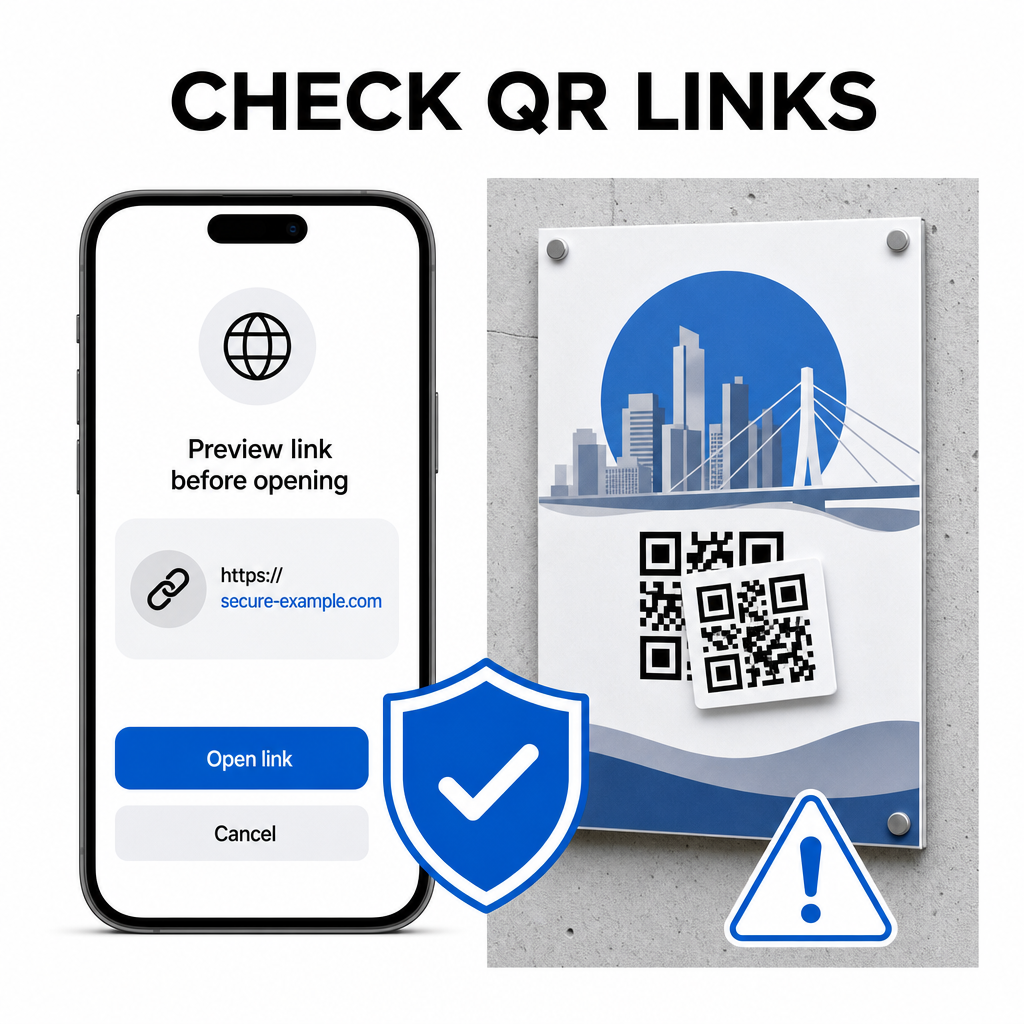
Kövesse ezeket a gyakorlati biztonsági szokásokat kódok beolvasásakor:
- Ellenőrizze az előnézeti URL-t a Google Lensben koppintás előtt, hogy ellenőrizze, a webcím megegyezik-e a várt oldallal.
- Ellenőrizze a fizikai manipulációt nyomtatott táblákon, például egy eredeti kódra helyezett matricán.
- Kerülje az érzékeny hitelesítő adatok beírását például bejelentkezési adatok vagy banki adatok olyan oldalakon, amelyekre váratlan kódokon keresztül jut el.
- Töltse le biztonságosan a mobilalkalmazásokat közvetlenül a hivatalos alkalmazásboltok felkeresésével, a beágyazott linkek használata helyett.
A céloldalra mutató linkek ellenőrzése a weboldalakkal való interakció előtt biztosítja, hogy személyes adatai védettek maradjanak. A kameradetektálási beállításokkal és a biztonsági legjobb gyakorlatokkal kapcsolatos szélesebb körű tanácsokért fedezze fel teljes útmutatónkat a témában: hogyan lehet beolvasni a QR-kódokat.
Gyors és biztonságos QR-kód beolvasás
A Google Lens elsajátításával egyszerűvé válik a menük, fizetési portálok és promóciós linkek lekérése bármely okostelefonon. A kamera tisztán tartása, a megfelelő fókusztávolság fenntartása és az előnézeti linkek ellenőrzése koppintás előtt zökkenőmentes szkennelési élményt biztosít. Ha gyorsan dekódolni szeretne egy kódot alkalmazás használata nélkül, használja a ingyenes online QR-szkenner az azonnali kódolt linkek megtekintéséhez bármely webböngészőből.
Gyakori kérdések
Nem, a legtöbb modern Android-eszközbe közvetlenül be vannak építve a Google Lens funkciók az alapértelmezett Google keresősávba, a Google Asszisztensbe vagy a natív kameraalkalmazás beállításaiba.
A Google Lens képfájlokat, például JPEG-eket vagy PNG-ket szkennel. PDF szkenneléséhez készítsen képernyőképet a dokumentumban lévő QR-kódról, majd nyissa meg azt a képernyőképet a Google Lensben vagy egy online olvasóban.
Azonnal zárja be a böngészőfülét anélkül, hogy bármilyen információt megadna. Ellenőrizze, hogy a fizikai QR-kódra nem ragasztottak-e fel matricát, vagy a kamerája tévedésből egy szomszédos kódot olvasott-e be.