首页 > 指南 > How to Scan a QR Code with Google Lens
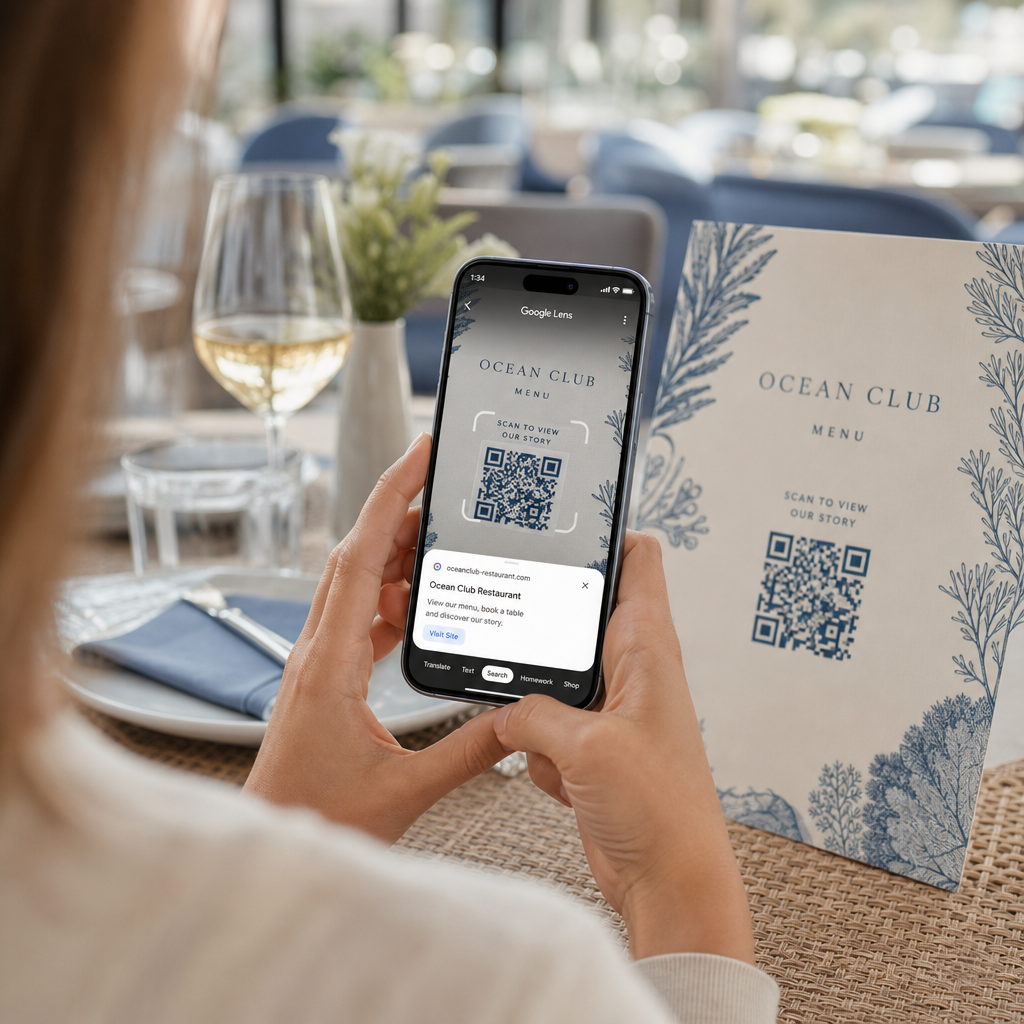
Scanning restaurant QR code

How to Scan a QR Code with Google Lens

Learn how to scan QR codes with Google Lens from your live camera or saved photos on Android and iPhone, along with safety and troubleshooting tips.
Updated on 7 月 27, 2026
目录

Struggling to open a digital menu or website because your phone will not read a QR code? Failing to scan codes quickly causes unnecessary delays and frustration when you need instant access to information. Learning how to use Google Lens allows you to scan physical codes and saved images effortlessly using your smartphone.

How to Scan Live QR Codes with the Google App

Google Lens uses visual recognition software to analyze the visual pattern of a QR code. It converts the arrangement of dark and light squares into readable digital data, such as web links or contact information. On most Android devices, Google Lens is integrated directly into the system, while on iOS devices, it is accessible through the standard Google app.

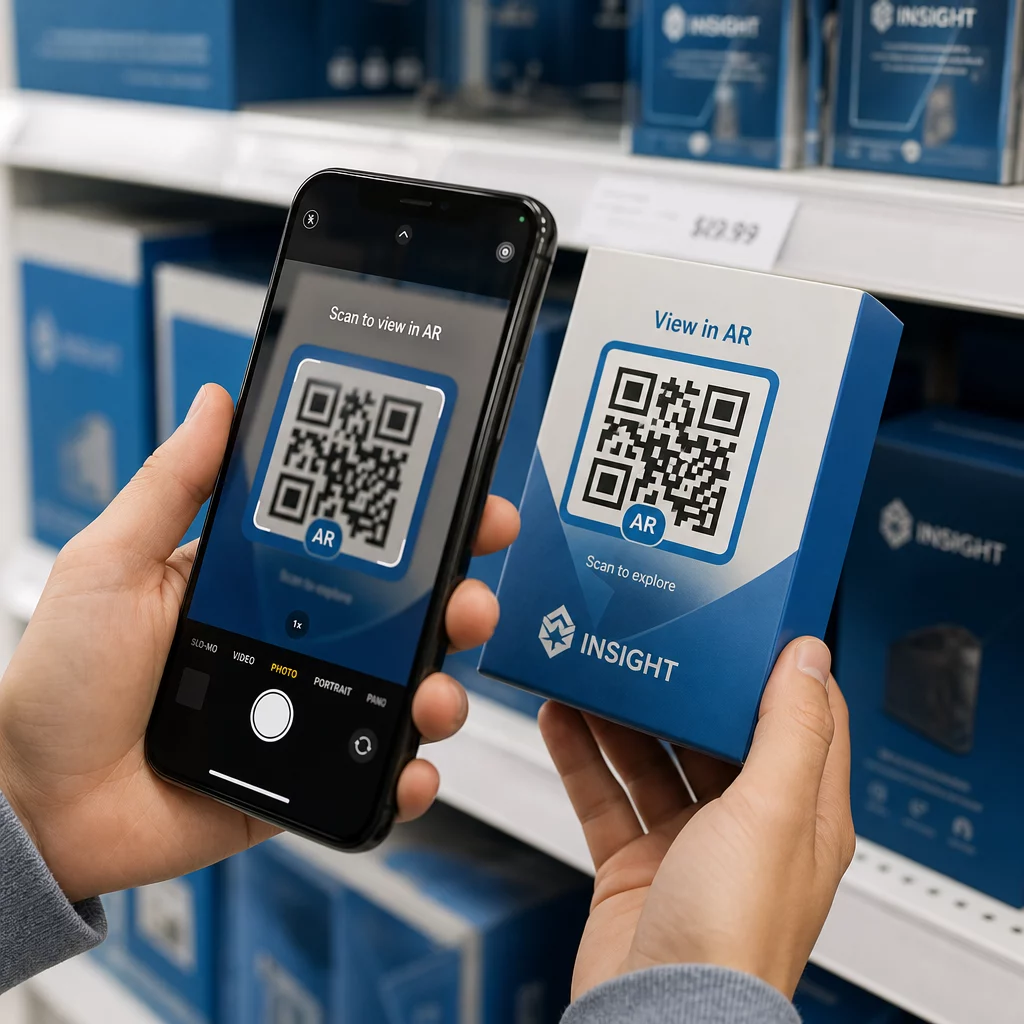
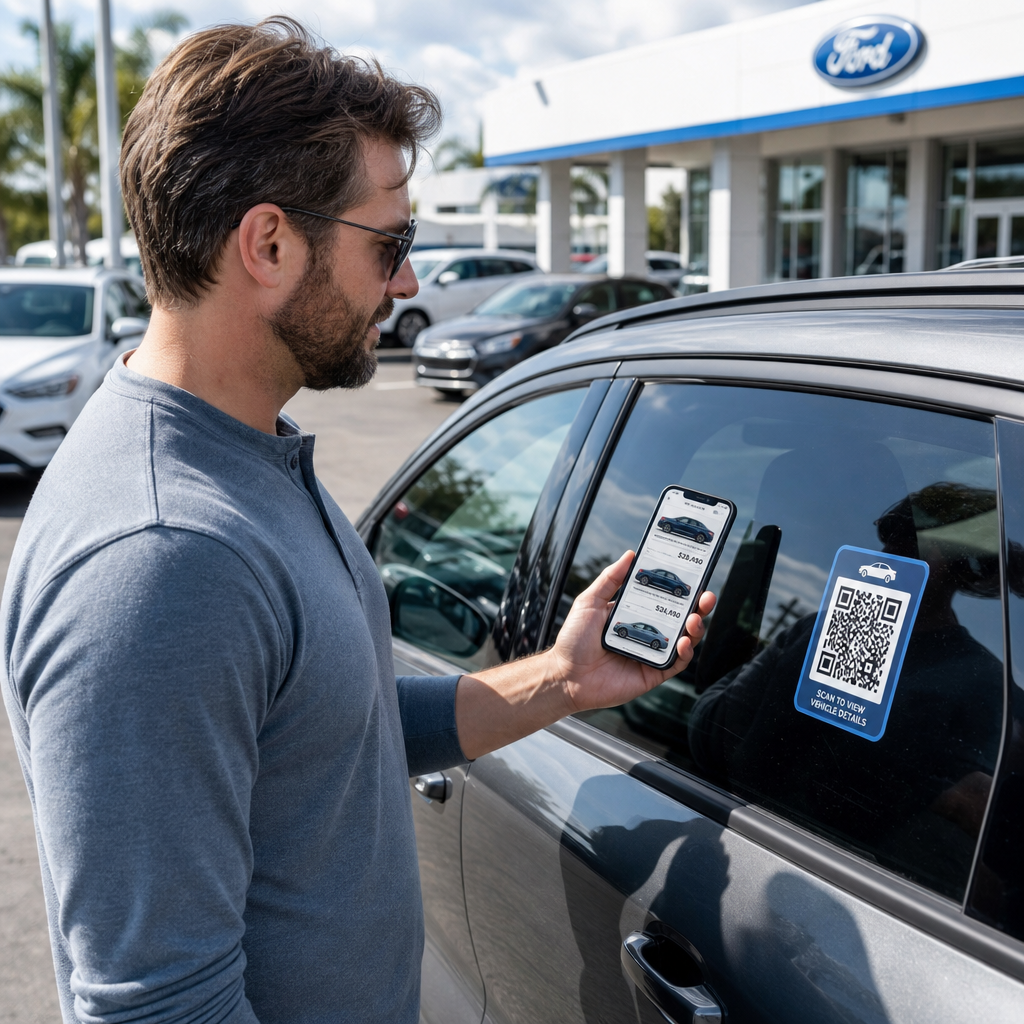
To scan a physical QR code in front of you:

  • Open the Google app or locate the Google Search bar widget on your phone home screen.
  • Tap the Lens icon located on the right side of the search bar.
  • Select the camera option if your device prompts you to grant camera permissions.
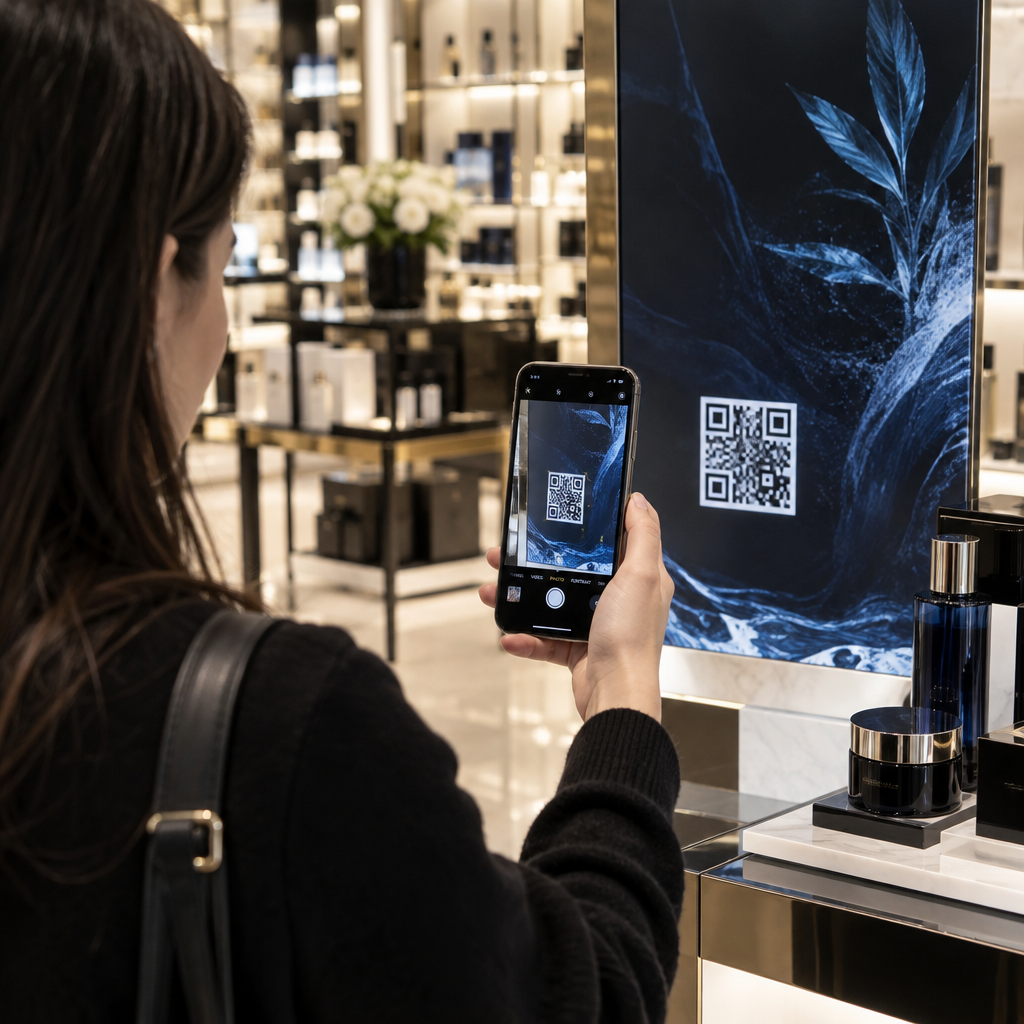
  • Point your camera frame at the target QR code while keeping the square centered on your screen.
  • Tap the pop-up link that overlays the code to open the associated web page or document.

If you use an Android smartphone, you can often scan codes directly inside your primary camera app without opening a separate tool. Access your camera settings menu and turn on Google Lens suggestions. Once enabled, your standard camera automatically detects QR codes whenever they enter the frame. For detailed device-specific configuration instructions, read our full guide on how to scan a QR code on Android.

How to Scan a QR Code from a Saved Photo or Screenshot

You do not need a second device to scan a QR code that arrives via email, text message, or social media. Google Lens can analyze stored image files directly from your photo gallery by reading the pixel matrix saved in the image file.

Scan saved QR image

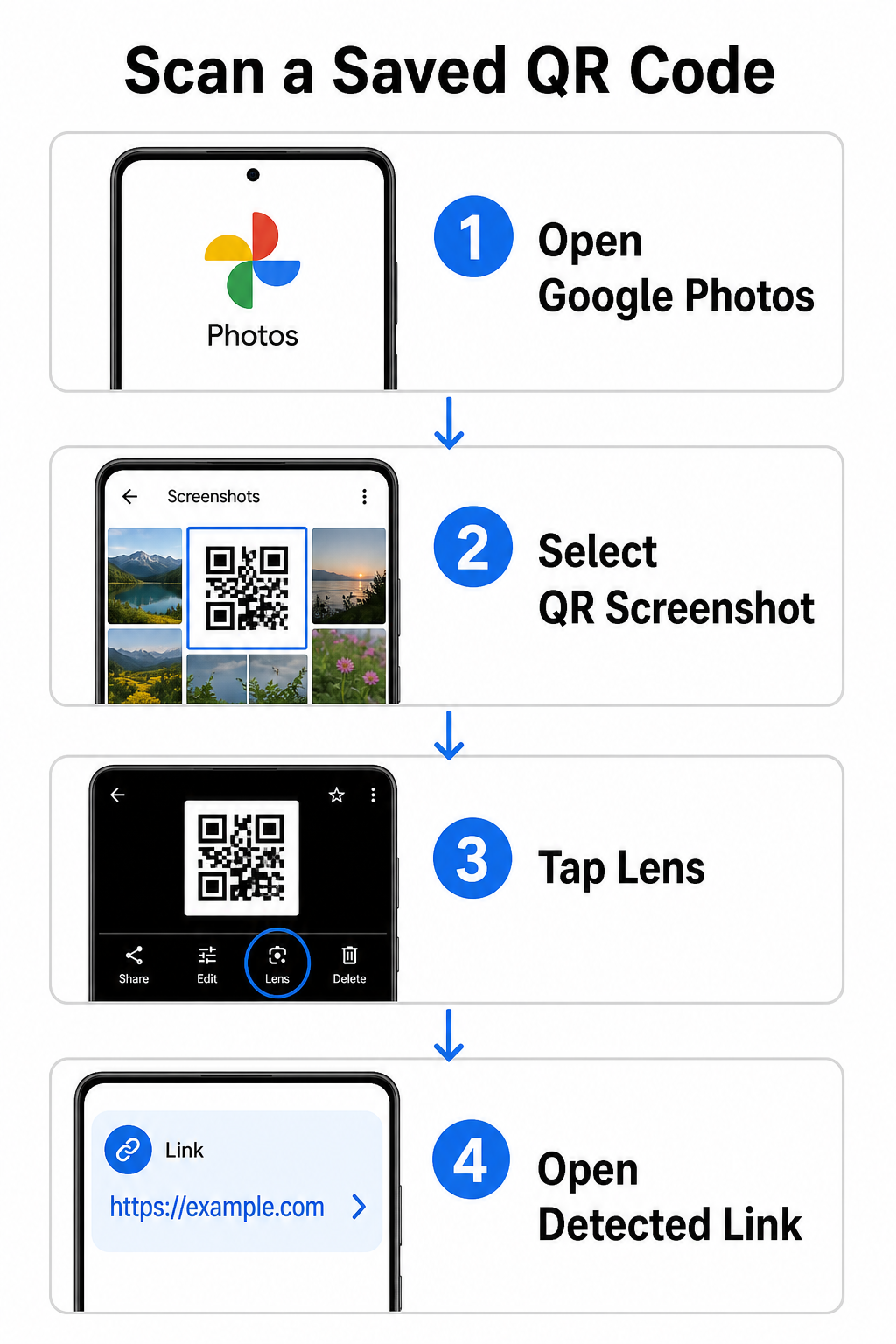
To decode a QR code from a saved picture on an Android device:

  • Open the Google Photos app on your smartphone.
  • Select the photo or screenshot containing the target QR code.
  • Tap the Lens icon positioned along the bottom menu bar.
  • Tap the detected link displayed over the QR code to open the web page.

On an iPhone, open the primary Google app, tap the Lens camera icon inside the search bar, and select the Photos button to choose an image from your camera roll. For additional methods across different mobile platforms, consult our comprehensive tutorial on scanning QR codes with smartphones.

Scan QR Codes Directly in Your Browser Need to decode a saved image or use your camera without opening Google Lens? Use the Online QR Code Scanner to instantly view encoded content from any web browser.

Troubleshooting Common Google Lens Scanning Issues

When Google Lens fails to recognize a code, environmental factors or dirty hardware components are usually responsible. Camera sensors rely on high visual contrast between black data modules and white background spaces. Smudges, poor lighting, or improper distance blur these module edges, making the code unreadable to optical software.

To resolve scanning failures quickly, follow these steps:

  • Wipe the camera lens with a clean cloth to eliminate smudges that obscure data modules.
  • Improve ambient lighting around physical signs so visual sensors can process high-contrast patterns.
  • Adjust your reading distance to roughly 8 to 12 inches to allow proper camera autofocus.
  • Inspect the physical surface for damage, folds, or glare that distorts the square shape.

If Google Lens still does not detect the code, check your device camera settings to confirm that Google Lens suggestions remain active. If issues persist, exploring dedicated scanning utilities can restore scanning capabilities. Compare reliable alternatives in our detailed review of the best QR code scanning apps.

Maintaining Security When Scanning QR Codes

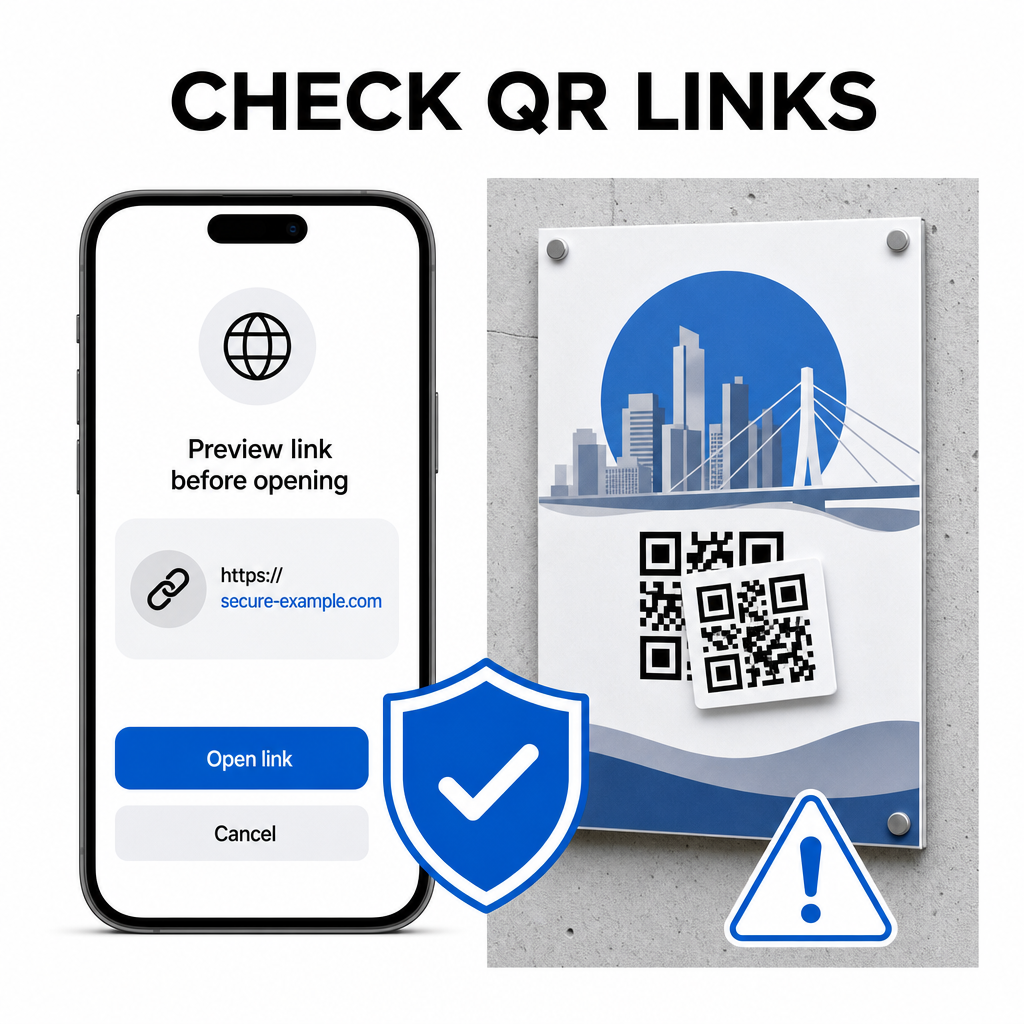
Because QR codes can direct mobile browsers to external web destinations automatically, practicing basic security precautions protects your personal device from deceptive links. Physical QR codes printed on public signage lack built-in security certificates, which means bad actors can occasionally place malicious sticker overlays on original signs.

Check QR links safely

Follow these practical safety habits when scanning codes:

  • Inspect the preview URL in Google Lens before tapping to verify the web address matches the expected site.
  • Check for physical tampering on printed signs, such as a sticker placed over an original code.
  • Avoid typing sensitive credentials like logins or banking details on pages reached through unexpected codes.
  • Download mobile apps safely by visiting official app stores directly rather than using embedded links.

Checking destination links before interacting with web pages ensures your personal data remains protected. For broader advice on camera detection settings and safety best practices, explore our complete guide on 如何扫描二维码.

Fast and Secure QR Code Scanning

Mastering Google Lens makes retrieving menus, payment portals, and promotional links simple on any smartphone. Keeping your camera clean, maintaining proper focal distance, and verifying preview links before tapping them ensures a smooth scanning experience. If you need to decode a code quickly without relying on an app, use the free QR scanner online to instantly view encoded links from any web browser.

常见问题

Do I need to install Google Lens separately on Android?

No, most modern Android devices have Google Lens features built directly into the default Google Search bar, Google Assistant, or native Camera app settings.

Can Google Lens scan a QR code saved as a PDF?

Google Lens scans image files like JPEGs or PNGs. To scan a PDF, take a screenshot of the QR code inside the document and open that screenshot in Google Lens or an online reader.

What should I do if Google Lens opens the wrong website?

Close the browser tab immediately without entering any information. Check whether the physical QR code has a sticker placed over it or if your camera misread an adjacent code.

关于作者

Siim Kostabi 是 Pageloot 的内容主管,负责撰写关于我们创新型二维码生成器服务的文章。凭借五年多来在二维码领域积累的深厚专业知识,Siim 是该领域的专家。他致力于利用二维码技术简化和增强数字交互,并取得了显著的成果。.

类别
了解更多关于
QR QR码的#1解决方案

如果您需要在线创建QR码,则可以 制作二维码 就在这里免费!
Pageloot是 #1转到解决方案 创建和扫描QR码。

BL-0338

博客扫描

受到超过 20,000 个品牌的信赖,可获得更多销售、评论和关注者。

客户徽标
受到顶级品牌的信赖
评分为 4.8(共 5)

4.86 / 5 星评级

雨果·劳伦特
雨果·劳伦特
餐馆老板
有史以来最容易和最可靠的QR码生成器。PDF文件可以立即上传。我们的餐厅菜单现在是数字化的。
卢卡斯-詹森
卢卡斯-詹森
房地产开发商
这是一个很好的工具,二维码带你到你想要的地方。我们只使用位置二维码,但有许多有用的功能。
艾玛-莫雷蒂
艾玛-莫雷蒂
零售产品
易于使用和快速。它工作得很好,创造了一个完美的图像,所以员工可以下载我的vCard。
雨果·劳伦特
雨果·劳伦特
餐馆老板
有史以来最容易和最可靠的QR码生成器。PDF文件可以立即上传。我们的餐厅菜单现在是数字化的。
卢卡斯-詹森
卢卡斯-詹森
房地产开发商
这是一个很好的工具,二维码带你到你想要的地方。我们只使用位置二维码,但有许多有用的功能。
艾玛-莫雷蒂
艾玛-莫雷蒂
零售产品
易于使用和快速。它工作得很好,创造了一个完美的图像,所以员工可以下载我的vCard。
查看更多QR码
将一切转化为数字体验 不到3分钟。

免费试用 14 天。

无需信用卡。

首次购买可享受 30% 折扣

使用代码:

分享您的 MP3 文件

注册以创建 PDF QR 码

上传和显示你需要的一切。

  • 音频文件
  • 播客
  • 音乐

注册即可享 14 天免费试用。.
试用期结束后,二维码将失效。.

注册以创建音频 mp3 二维码

使用边框获得更多扫描

注册以向您的二维码添加更多框架

呼叫行动框架帮助您的客户与QR码轻松互动。试试吧!

注册即可享 14 天免费试用。.
试用期结束后,二维码将失效。.

注册以向您的二维码添加更多框架

使用形状添加更多样式

注册以创建更多形状

二维码不一定是方形的。试着改变它以适应你的品牌形象。

注册即可享 14 天免费试用。.
试用期结束后,二维码将失效。.

注册以创建更多形状

为您的二维码添加徽标

注册以将您的徽标添加到二维码中

通过在二维码上添加你的标志和品牌,使你的二维码脱颖而出。

注册即可享 14 天免费试用。.
试用期结束后,二维码将失效。.

注册以将您的徽标添加到二维码中

智能应用商店重定向

注册以创建应用商店二维码

将您的应用程序链接添加到我们的智能应用程序商店QR码。用户会根据他们的设备被重新定向。

注册即可享 14 天免费试用。.
试用期结束后,二维码将失效。.

注册以创建应用商店二维码

将图片上传到二维码

注册以创建图像二维码

轻松分享你的图像。在几秒钟内动态地改变任何图像。

注册即可享 14 天免费试用。.
试用期结束后,二维码将失效。.

注册以创建图像二维码

分享您的 PDF 文件

注册以创建 PDF QR 码

上传和显示你需要的一切。

  • 菜单和价格表
  • 使用说明
  • 任何文件

注册即可享 14 天免费试用。.
试用期结束后,二维码将失效。.

注册以创建 PDF QR 码

稍后编辑,无需打印

注册即可编辑您的二维码,无需再次打印

动态QR码让你改变你的QR码的内容,而不需要打印新的QR码。

注册即可享 14 天免费试用。.
试用期结束后,二维码将失效。.

注册即可编辑您的二维码,无需再次打印

何时?何地?追踪您的二维码扫描

注册以追踪您的二维码

发现你的哪些二维码收到了最多的扫描,以及什么最能让你的客户兴奋。

注册即可享 14 天免费试用。.
试用期结束后,二维码将失效。.

注册以追踪您的二维码

提供可打印文件

注册以创建 PDF 和 SVG 等矢量二维码

.EPS, .PDF, .SVG

想下载高清分辨率的QR码吗?获得矢量或像素格式,可随时打印。

注册即可享 14 天免费试用。.
试用期结束后,二维码将失效。.

注册以创建 PDF 和 SVG 等矢量二维码

请等待。您的二维码是 正在加载... 正在加载...

打造专属

注册以保存您的二维码以供日后使用

通过创建具有不同颜色、标识和行动呼吁框架的出色的QR码,获得更多的扫描。

注册即可享 14 天免费试用。.
试用期结束后,二维码将失效。.

注册以保存您的二维码以供日后使用