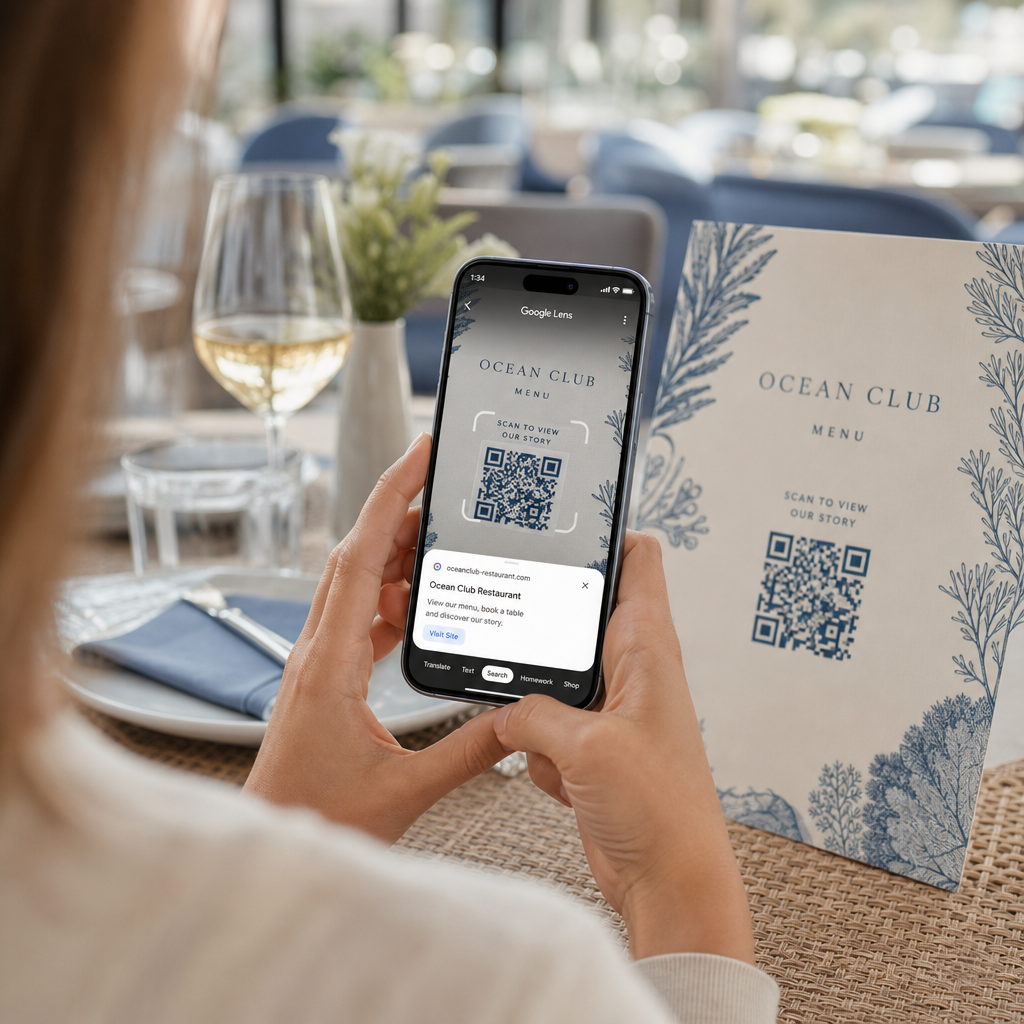
Imate težave z odpiranjem digitalnega menija ali spletne strani, ker vaš telefon ne prebere QR kode? Neuspešno hitro skeniranje kod povzroča nepotrebne zamude in frustracije, ko potrebujete takojšen dostop do informacij. Z učenjem uporabe Google Lens lahko brez truda skenirate fizične kode in shranjene slike z uporabo vašega pametnega telefona.
Kako skenirati QR kode v živo z aplikacijo Google
Google Lens uporablja programsko opremo za vizualno prepoznavanje za analizo vizualnega vzorca QR kode. Razporeditev temnih in svetlih kvadratov pretvori v berljive digitalne podatke, kot so spletne povezave ali kontaktni podatki. Na večini naprav Android je Google Lens neposredno integriran v sistem, medtem ko je na napravah iOS dostopen prek standardne aplikacije Google.
Za skeniranje fizične QR kode pred vami:
- Odprite aplikacijo Google ali poiščite pripomoček iskalne vrstice Google na začetnem zaslonu telefona.
- Tapnite ikono Lens nahaja se na desni strani iskalne vrstice.
- Izberite možnost kamere če vas naprava pozove k dodelitvi dovoljenj za kamero.
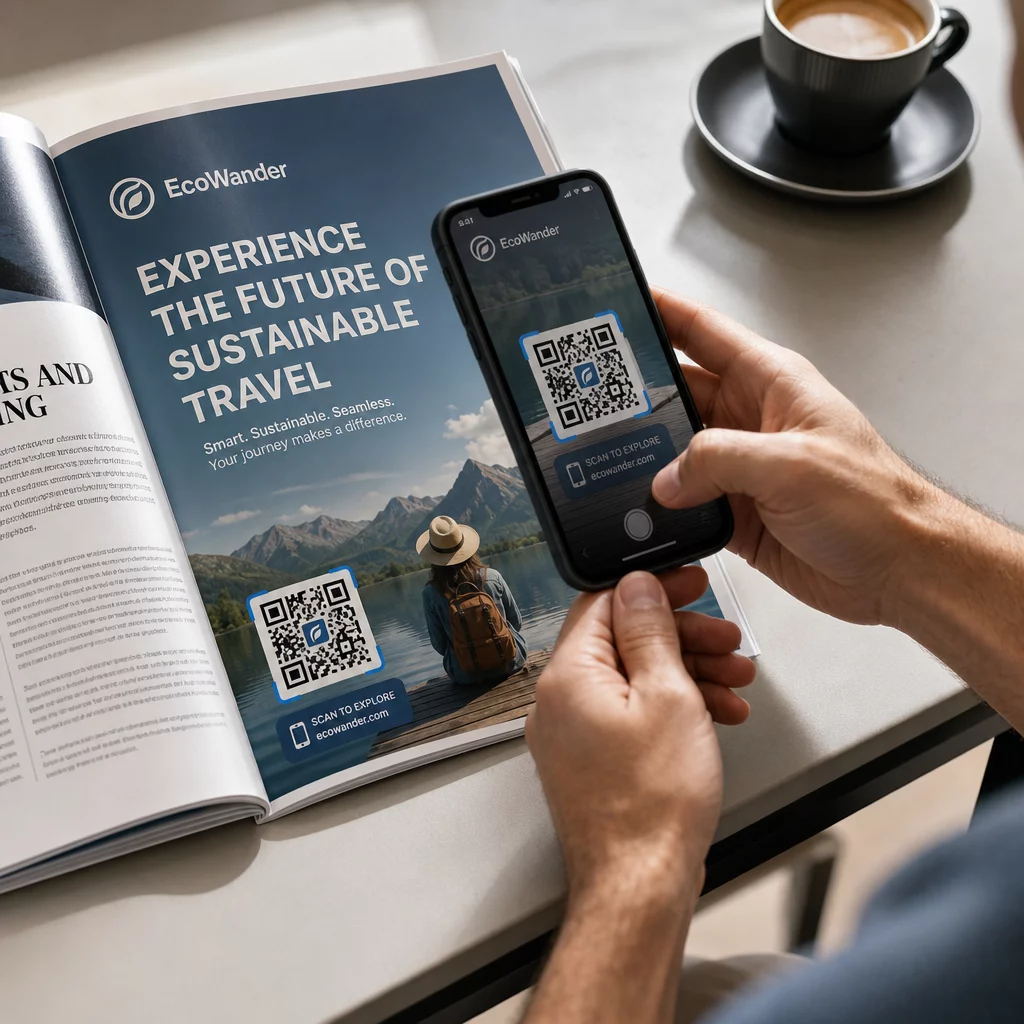
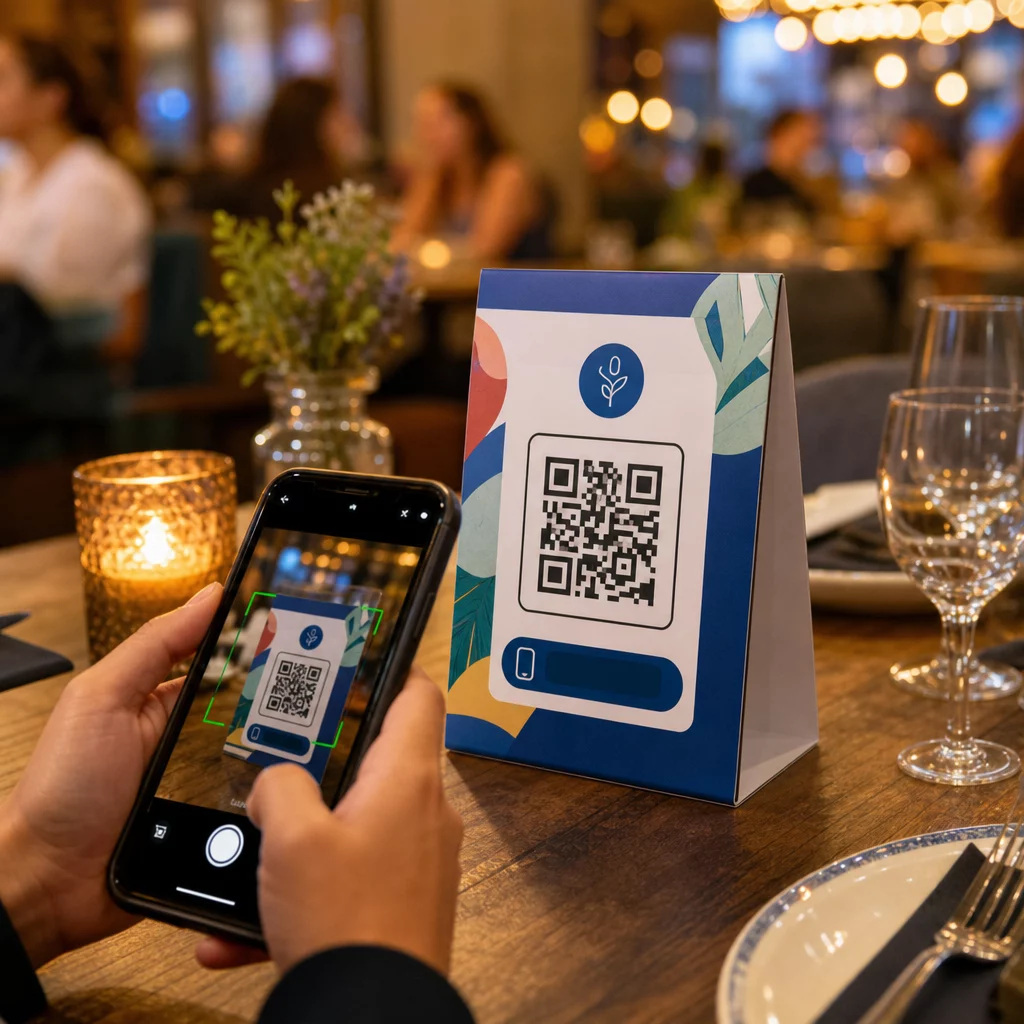
- Usmerite okvir kamere na ciljno QR kodo, medtem ko kvadrat ostane centriran na vašem zaslonu.
- Tapnite pojavno povezavo ki prekriva kodo, da odprete povezano spletno stran ali dokument.
Če uporabljate pametni telefon Android, lahko pogosto skenirate kode neposredno v glavni aplikaciji kamere, ne da bi odprli ločeno orodje. Dostopite do menija nastavitev kamere in vklopite predloge Google Lens. Ko je omogočeno, vaša standardna kamera samodejno zazna QR kode, kadar koli se pojavijo v kadru. Za podrobna navodila za konfiguracijo, specifična za napravo, preberite naš celoten vodnik o tem, kako skenirati QR kodo na Androidu.
Kako skenirati QR kodo iz shranjene fotografije ali posnetka zaslona
Ne potrebujete druge naprave za skeniranje QR kode, ki prispe prek e-pošte, besedilnega sporočila ali družbenih medijev. Google Lens lahko analizira shranjene slikovne datoteke neposredno iz vaše galerije fotografij z branjem matričnega zapisa pikslov, shranjenega v slikovni datoteki.
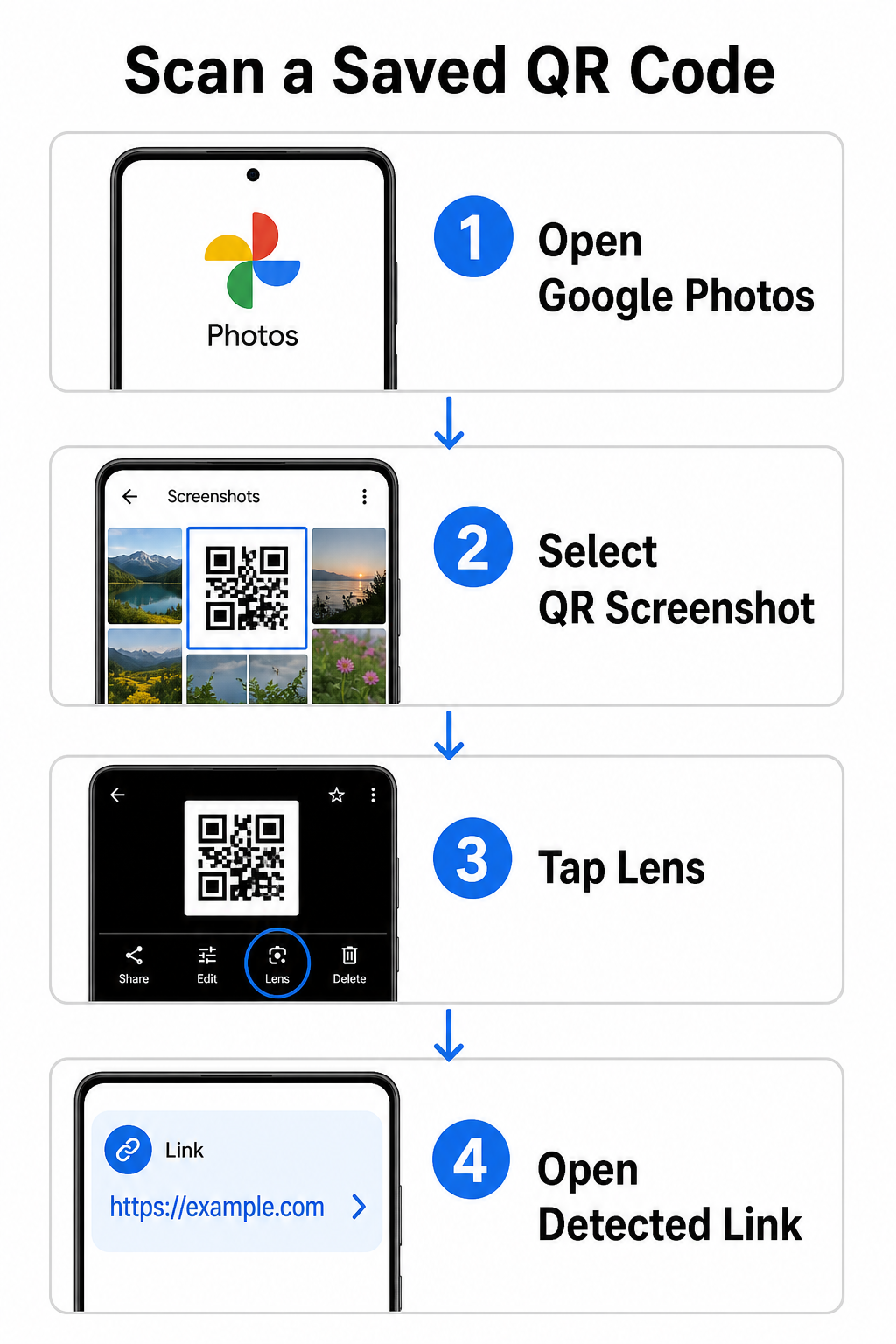
Za dekodiranje QR kode iz shranjene slike na napravi Android:
- Odprite aplikacijo Google Photos na vašem pametnem telefonu.
- Izberite fotografijo ali posnetek zaslona, ki vsebuje ciljno QR kodo.
- Tapnite ikono Lens ki se nahaja na spodnji menijski vrstici.
- Tapnite zaznano povezavo prikazano nad QR kodo, da odprete spletno stran.
Na iPhonu odprite glavno aplikacijo Google, tapnite ikono kamere Lens znotraj iskalne vrstice in izberite gumb Fotografije za izbiro slike iz vaše galerije. Za dodatne metode na različnih mobilnih platformah si oglejte našo izčrpno vadnico o skeniranju QR kod s pametnimi telefoni.
Skenirajte QR kode neposredno v brskalniku Morate dekodirati shranjeno sliko ali uporabiti kamero, ne da bi odprli Google Lens? Uporabite Spletni čitalnik QR kod za takojšen ogled kodirane vsebine iz katerega koli spletnega brskalnika.
Odpravljanje pogostih težav pri skeniranju z Google Lens
Ko Google Lens ne prepozna kode, so običajno krivi okoljski dejavniki ali umazane komponente strojne opreme. Senzorji kamere se zanašajo na visok vizualni kontrast med črnimi podatkovnimi moduli in belimi ozadnimi prostori. Madeži, slaba osvetlitev ali neustrezna razdalja zabrišejo robove teh modulov, zaradi česar je koda nečitljiva za optično programsko opremo.
Za hitro odpravljanje napak pri skeniranju sledite tem korakom:
- Obrišite objektiv kamere s čisto krpo, da odstranite madeže, ki zakrivajo podatkovne module.
- Izboljšajte ambientalno osvetlitev okoli fizičnih znakov, da lahko vizualni senzorji obdelajo visokokontrastne vzorce.
- Prilagodite razdaljo branja na približno 8 do 12 palcev, da omogočite pravilno samodejno ostrenje kamere.
- Preverite fizično površino za poškodbe, gube ali bleščanje, ki izkrivlja kvadratno obliko.
Če Google Lens še vedno ne zazna kode, preverite nastavitve kamere naprave, da potrdite, da so predlogi Google Lens še vedno aktivni. Če težave ostajajo, lahko raziskovanje namenskih orodij za skeniranje obnovi zmožnosti skeniranja. Primerjajte zanesljive alternative v našem podrobnem pregledu najboljših aplikacij za skeniranje QR kod.
Ohranjanje varnosti pri skeniranju QR kod
Ker lahko kode QR samodejno usmerijo mobilne brskalnike na zunanje spletne destinacije, osnovni varnostni ukrepi ščitijo vašo osebno napravo pred zavajajočimi povezavami. Fizične kode QR, natisnjene na javnih napisih, nimajo vgrajenih varnostnih certifikatov, kar pomeni, da lahko slabi akterji občasno namestijo zlonamerne nalepke čez originalne napise.
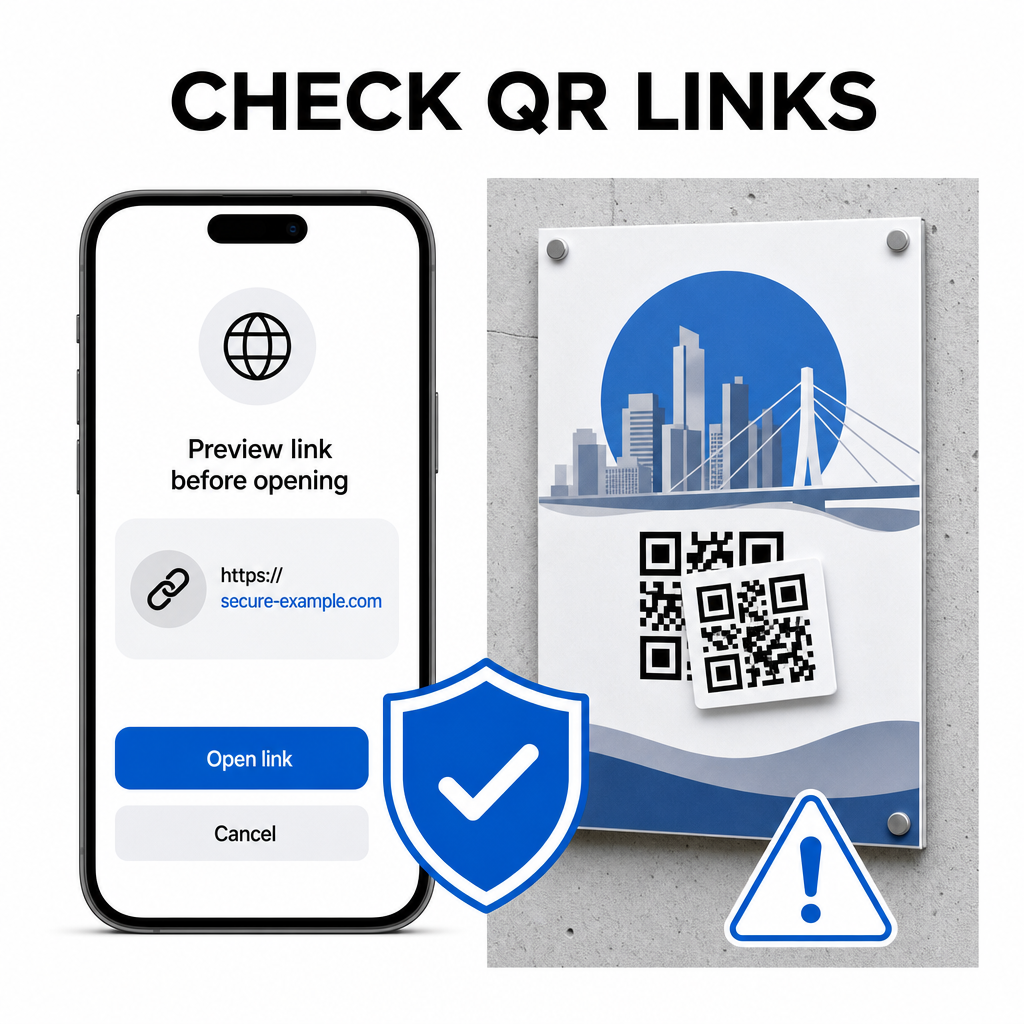
Upoštevajte te praktične varnostne navade pri skeniranju kod:
- Preglejte predogledni URL v Google Lensu, preden tapnete, da preverite, ali se spletni naslov ujema s pričakovano spletno stranjo.
- Preverite fizično poseganje na natisnjenih znakih, kot je nalepka, nameščena čez originalno kodo.
- Izogibajte se vnašanju občutljivih podatkov kot so prijave ali bančni podatki na straneh, doseženih preko nepričakovanih kod.
- Varno prenesite mobilne aplikacije z neposrednim obiskom uradnih trgovin z aplikacijami, namesto da bi uporabljali vgrajene povezave.
Preverjanje ciljnih povezav, preden komunicirate s spletnimi stranmi, zagotavlja, da vaši osebni podatki ostanejo zaščiteni. Za širše nasvete o nastavitvah zaznavanja kamere in najboljših varnostnih praksah, raziščite naš celoten vodnik o kako skenirati QR kode.
Hitro in varno skeniranje QR kod
Obvladovanje Google Lensa poenostavi pridobivanje menijev, plačilnih portalov in promocijskih povezav na katerem koli pametnem telefonu. Skrb za čisto kamero, vzdrževanje pravilne goriščne razdalje in preverjanje predoglednih povezav, preden jih tapnete, zagotavlja gladko izkušnjo skeniranja. Če morate hitro dekodirati kodo, ne da bi se zanašali na aplikacijo, uporabite brezplačen spletni skener QR kod za takojšen ogled kodiranih povezav iz katerega koli spletnega brskalnika.
Pogosta vprašanja
Ne, večina sodobnih naprav Android ima funkcije Google Lens vgrajene neposredno v privzeto iskalno vrstico Google Iskanje, Google Pomočnika ali nastavitve izvorne aplikacije Kamera.
Google Lens skenira slikovne datoteke, kot so JPEG-i ali PNG-ji. Za skeniranje PDF-ja, posnemite posnetek zaslona QR kode znotraj dokumenta in odprite ta posnetek zaslona v Google Lensu ali spletnem bralniku.
Takoj zaprite zavihek brskalnika, ne da bi vnesli kakršnekoli podatke. Preverite, ali je fizična QR koda prelepljena z nalepko ali pa je vaša kamera napačno prebrala sosednjo kodo.