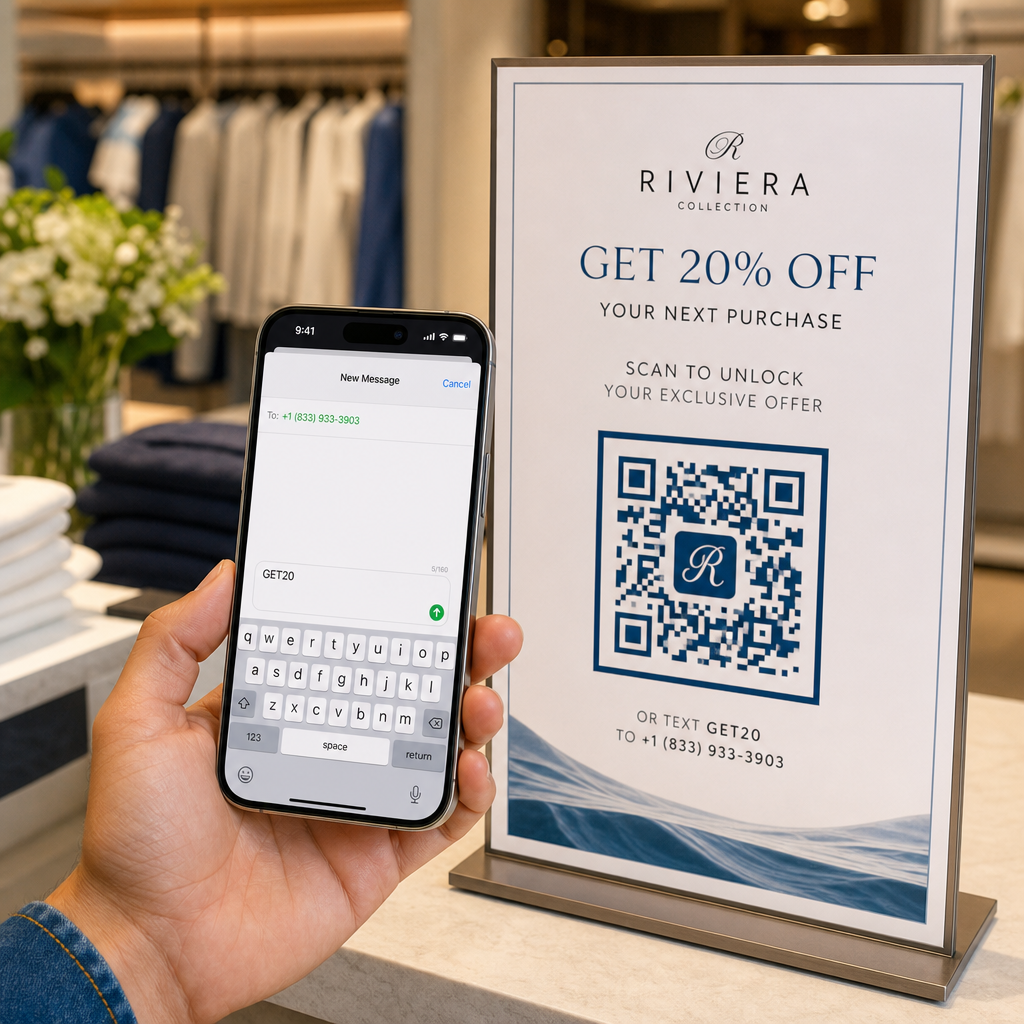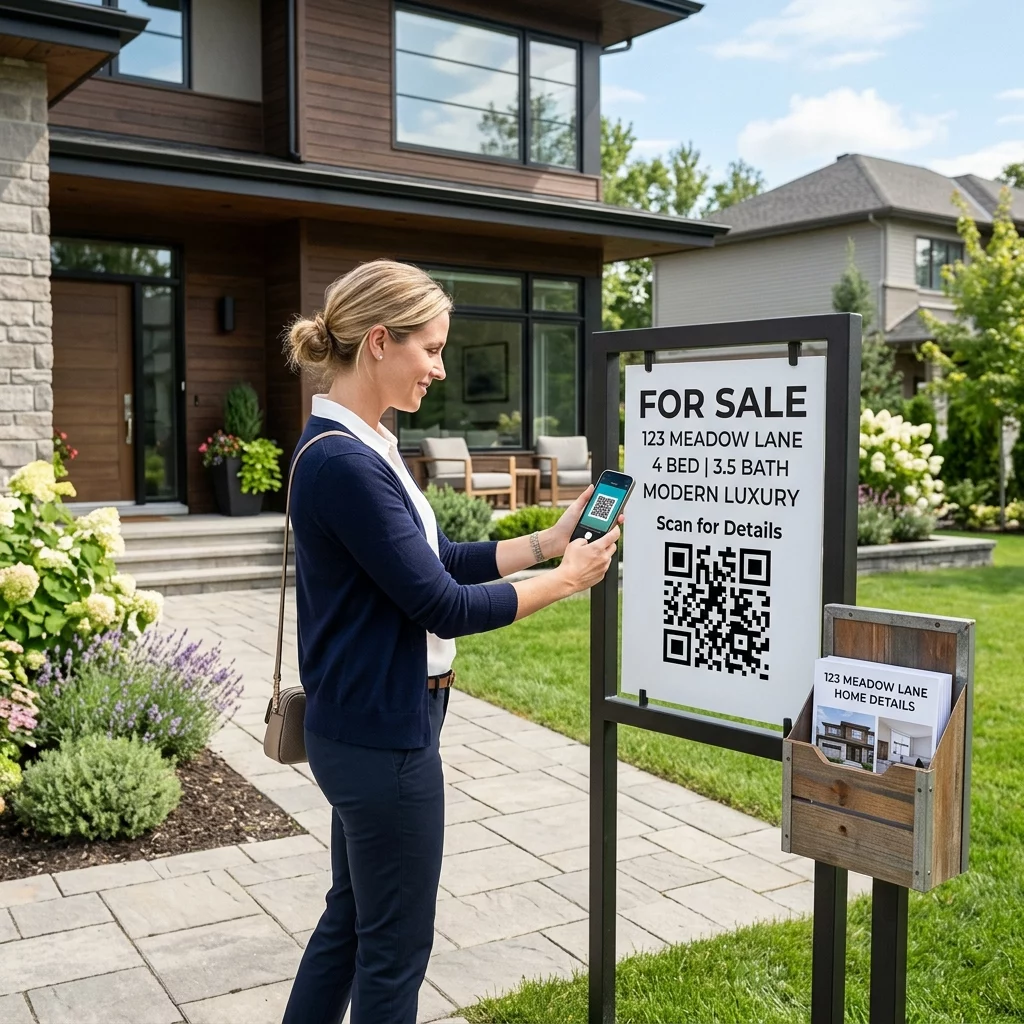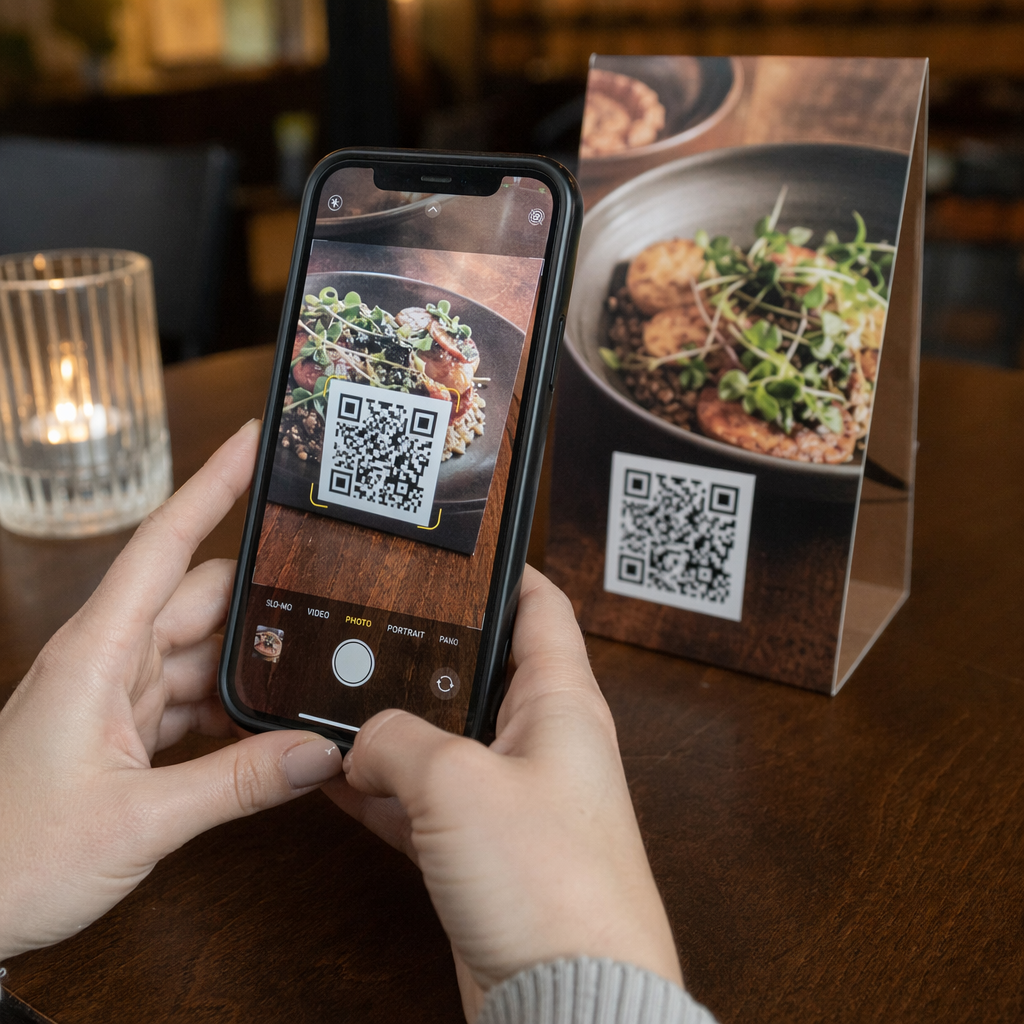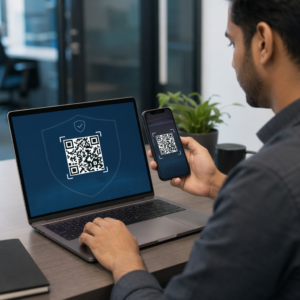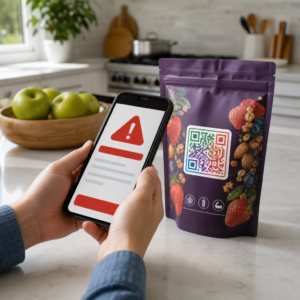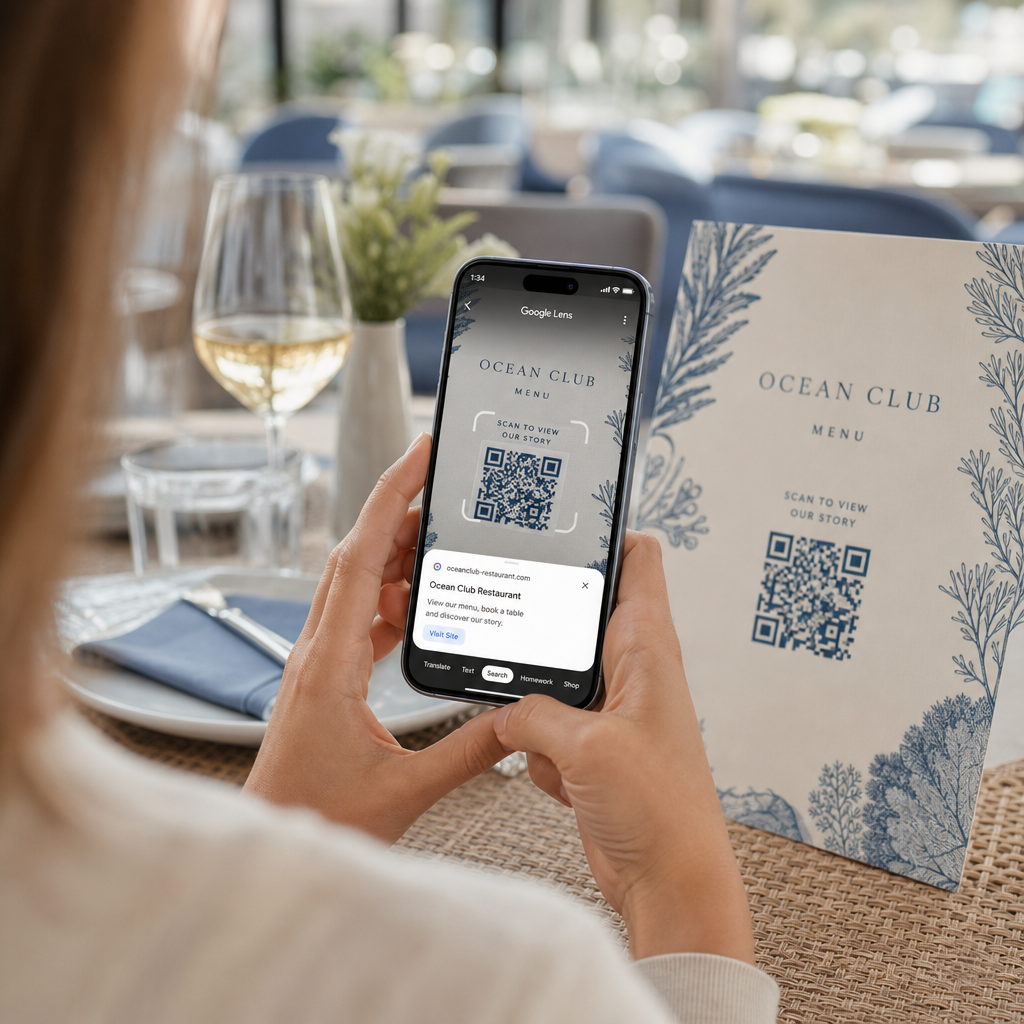
Kesulitan membuka menu digital atau situs web karena ponsel Anda tidak dapat membaca kode QR? Gagal memindai kode dengan cepat menyebabkan penundaan dan frustrasi yang tidak perlu saat Anda membutuhkan akses instan ke informasi. Belajar menggunakan Google Lens memungkinkan Anda memindai kode fisik dan gambar tersimpan dengan mudah menggunakan ponsel cerdas Anda.
Cara Memindai Kode QR Langsung dengan Aplikasi Google
Google Lens menggunakan perangkat lunak pengenalan visual untuk menganalisis pola visual kode QR. Ini mengubah susunan kotak gelap dan terang menjadi data digital yang dapat dibaca, seperti tautan web atau informasi kontak. Pada sebagian besar perangkat Android, Google Lens terintegrasi langsung ke dalam sistem, sedangkan pada perangkat iOS, dapat diakses melalui aplikasi Google standar.
Untuk memindai kode QR fisik di depan Anda:
- Buka aplikasi Google atau temukan widget bilah Pencarian Google di layar beranda ponsel Anda.
- Ketuk ikon Lens yang terletak di sisi kanan bilah pencarian.
- Pilih opsi kamera jika perangkat Anda meminta Anda untuk memberikan izin kamera.
- Arahkan bingkai kamera Anda ke kode QR target sambil menjaga kotak tetap di tengah layar Anda.
- Ketuk tautan pop-up yang melapisi kode untuk membuka halaman web atau dokumen terkait.
Jika Anda menggunakan ponsel pintar Android, Anda sering dapat memindai kode langsung di dalam aplikasi kamera utama Anda tanpa membuka alat terpisah. Akses menu pengaturan kamera Anda dan aktifkan saran Google Lens. Setelah diaktifkan, kamera standar Anda secara otomatis mendeteksi kode QR setiap kali mereka masuk ke dalam bingkai. Untuk instruksi konfigurasi spesifik perangkat yang terperinci, baca panduan lengkap kami tentang Cara scan barcode dan kode QR di Android.
Cara Memindai Kode QR dari Foto Tersimpan atau Tangkapan Layar
Anda tidak memerlukan perangkat kedua untuk memindai kode QR yang tiba melalui email, pesan teks, atau media sosial. Google Lens dapat menganalisis file gambar yang tersimpan langsung dari galeri foto Anda dengan membaca matriks piksel yang tersimpan dalam file gambar.
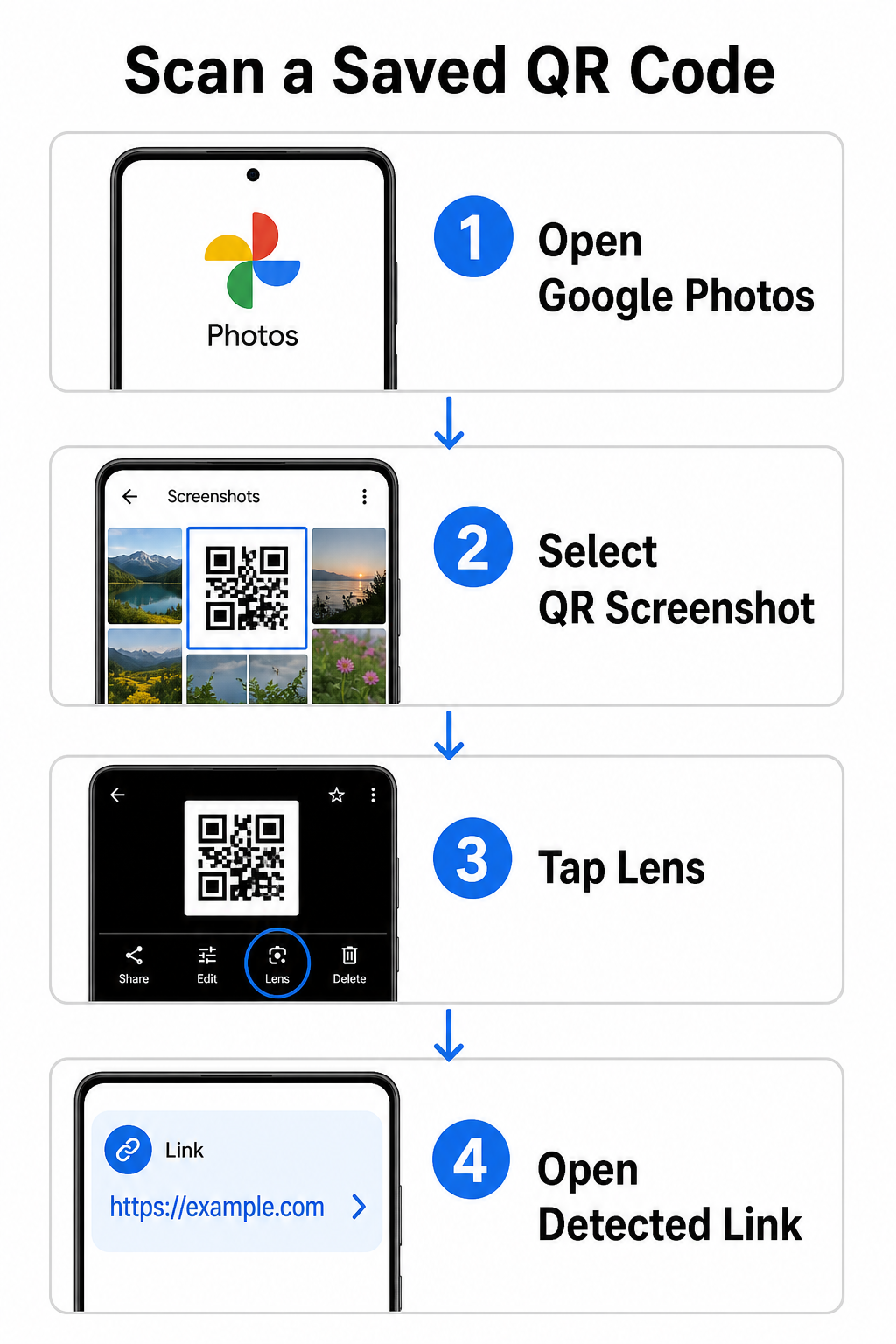
Untuk mendekode kode QR dari gambar tersimpan di perangkat Android:
- Buka aplikasi Google Photos di ponsel cerdas Anda.
- Pilih foto atau tangkapan layar yang berisi kode QR target.
- Ketuk ikon Lens terletak di sepanjang bilah menu bawah.
- Ketuk tautan yang terdeteksi ditampilkan di atas kode QR untuk membuka halaman web.
Di iPhone, buka aplikasi utama Google, ketuk ikon kamera Lens di dalam bilah pencarian, dan pilih tombol Foto untuk memilih gambar dari galeri Anda. Untuk metode tambahan di berbagai platform seluler, lihat tutorial lengkap kami tentang memindai kode QR dengan ponsel cerdas.
Pindai Kode QR Langsung di Browser Anda Perlu mendekode gambar yang tersimpan atau menggunakan kamera Anda tanpa membuka Google Lens? Gunakan Pemindai Kode QR Online untuk langsung melihat konten yang dienkode dari peramban web mana pun.
Mengatasi Masalah Pemindaian Google Lens Umum
Ketika Google Lens gagal mengenali kode, faktor lingkungan atau komponen perangkat keras yang kotor biasanya menjadi penyebabnya. Sensor kamera mengandalkan kontras visual yang tinggi antara modul data hitam dan ruang latar belakang putih. Noda, pencahayaan yang buruk, atau jarak yang tidak tepat mengaburkan tepi modul ini, membuat kode tidak dapat dibaca oleh perangkat lunak optik.
Untuk menyelesaikan kegagalan pemindaian dengan cepat, ikuti langkah-langkah berikut:
- Bersihkan lensa kamera dengan kain bersih untuk menghilangkan noda yang mengaburkan modul data.
- Tingkatkan pencahayaan sekitar di sekitar tanda fisik agar sensor visual dapat memproses pola kontras tinggi.
- Sesuaikan jarak membaca Anda sekitar 8 hingga 12 inci untuk memungkinkan autofokus kamera yang tepat.
- Periksa permukaan fisik untuk kerusakan, lipatan, atau silau yang mendistorsi bentuk persegi.
Jika Google Lens masih tidak mendeteksi kode, periksa pengaturan kamera perangkat Anda untuk memastikan saran Google Lens tetap aktif. Jika masalah berlanjut, menjelajahi utilitas pemindaian khusus dapat mengembalikan kemampuan pemindaian. Bandingkan alternatif yang andal dalam ulasan mendetail kami tentang aplikasi pemindaian kode QR terbaik.
Menjaga Keamanan Saat Memindai Kode QR
Karena kode QR dapat mengarahkan browser seluler secara otomatis ke tujuan web eksternal, mempraktikkan tindakan pencegahan keamanan dasar melindungi perangkat pribadi Anda dari tautan yang menipu. Kode QR fisik yang dicetak di papan tanda publik tidak memiliki sertifikat keamanan bawaan, yang berarti pihak jahat kadang-kadang dapat menempatkan stiker berbahaya di atas tanda asli.
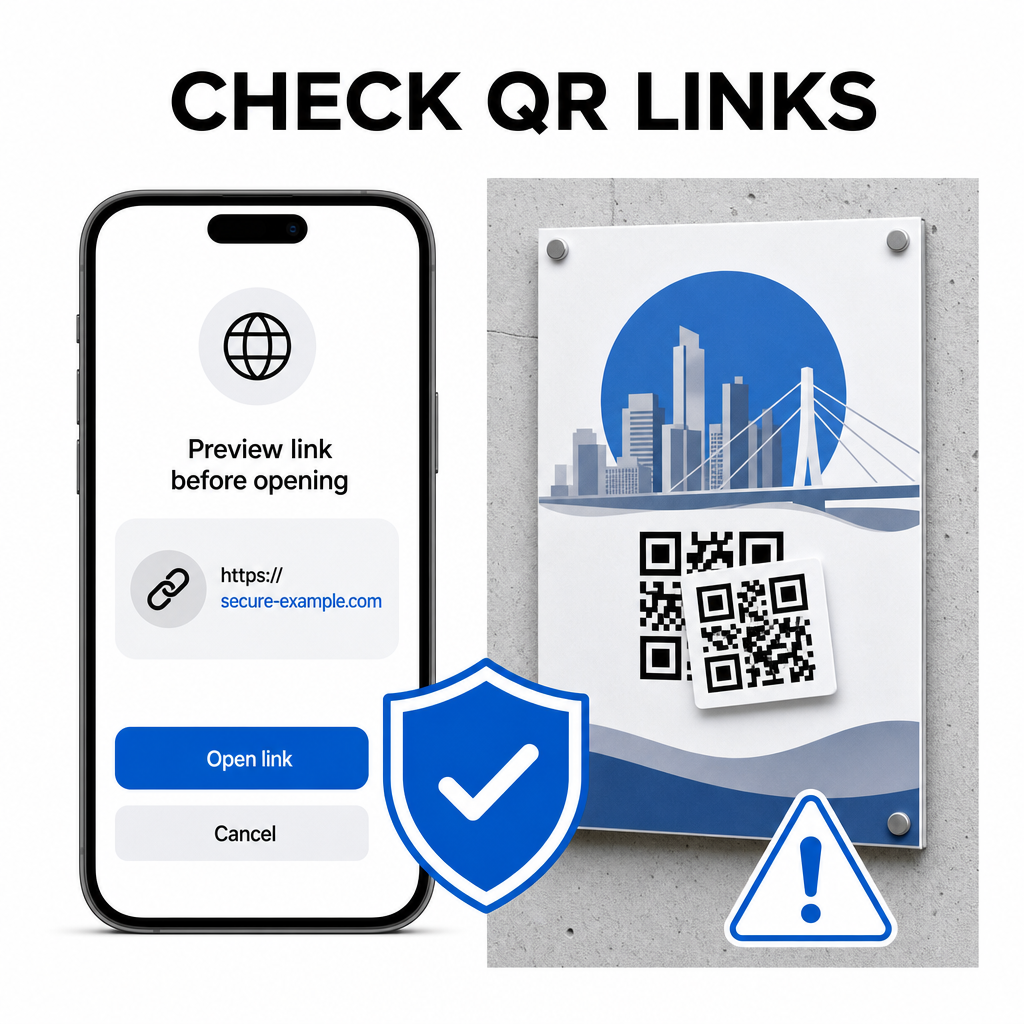
Ikuti kebiasaan keamanan praktis ini saat memindai kode:
- Periksa URL pratinjau di Google Lens sebelum mengetuk untuk memverifikasi bahwa alamat web cocok dengan situs yang diharapkan.
- Periksa adanya kerusakan fisik pada tanda cetak, seperti stiker yang ditempatkan di atas kode asli.
- Hindari mengetik kredensial sensitif seperti login atau detail perbankan di halaman yang diakses melalui kode yang tidak terduga.
- Unduh aplikasi seluler dengan aman dengan mengunjungi toko aplikasi resmi secara langsung daripada menggunakan tautan yang disematkan.
Memeriksa tautan tujuan sebelum berinteraksi dengan halaman web memastikan data pribadi Anda tetap terlindungi. Untuk saran lebih lanjut tentang pengaturan deteksi kamera dan praktik terbaik keamanan, jelajahi panduan lengkap kami tentang cara memindai kode QR.
Pemindaian Kode QR Cepat dan Aman
Menguasai Google Lens membuat pengambilan menu, portal pembayaran, dan tautan promosi menjadi sederhana di ponsel pintar mana pun. Menjaga kamera Anda tetap bersih, mempertahankan jarak fokus yang tepat, dan memverifikasi tautan pratinjau sebelum mengetuknya memastikan pengalaman pemindaian yang lancar. Jika Anda perlu mendekode kode dengan cepat tanpa mengandalkan aplikasi, gunakan pemindai QR gratis online untuk langsung melihat tautan yang dikodekan dari browser web mana pun.
Pertanyaan yang sering diajukan
Tidak, sebagian besar perangkat Android modern memiliki fitur Google Lens yang terintegrasi langsung ke dalam bilah Pencarian Google default, Google Assistant, atau pengaturan aplikasi Kamera bawaan.
Google Lens memindai file gambar seperti JPEG atau PNG. Untuk memindai PDF, ambil tangkapan layar kode QR di dalam dokumen dan buka tangkapan layar tersebut di Google Lens atau pembaca daring.
Tutup tab browser segera tanpa memasukkan informasi apa pun. Periksa apakah kode QR fisik memiliki stiker yang ditempel di atasnya atau jika kamera Anda salah membaca kode di sebelahnya.