บ้าน > คำแนะนำ > How to Scan a QR Code with Google Lens
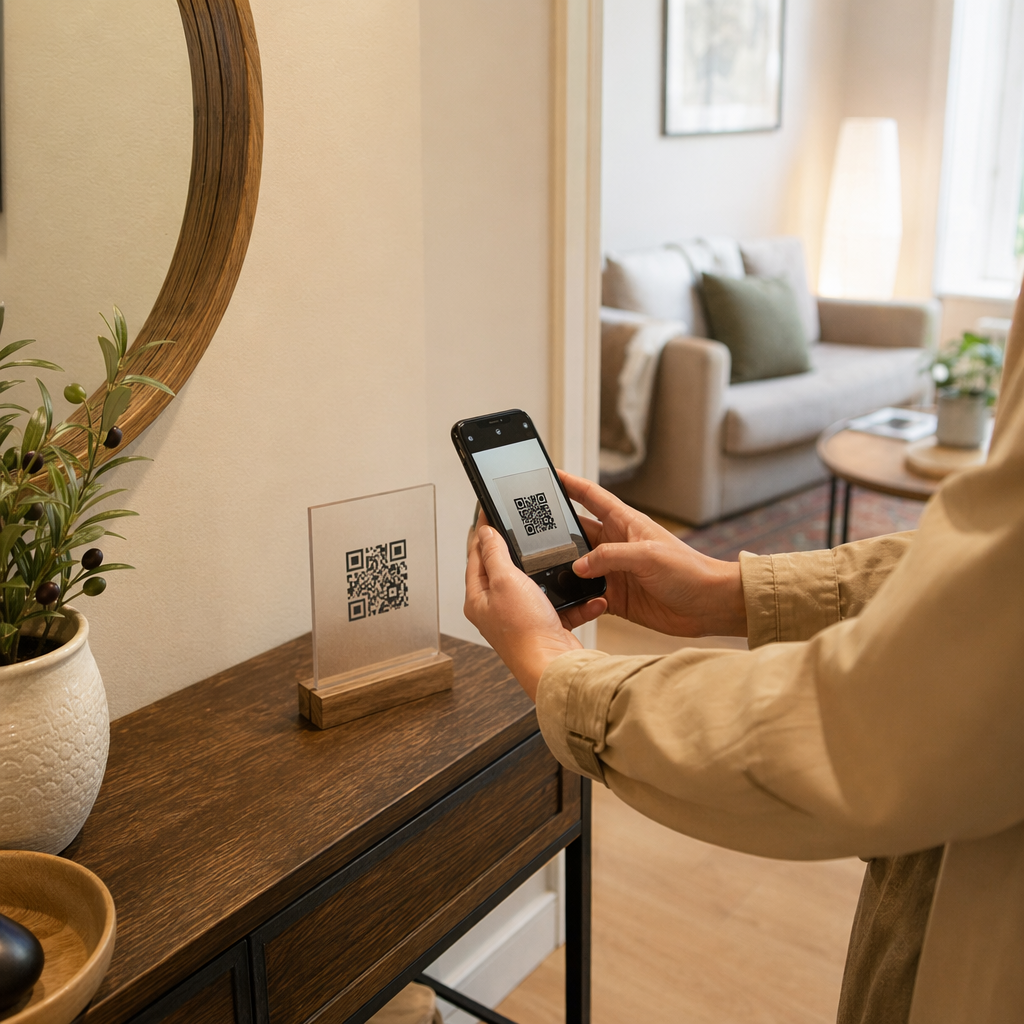
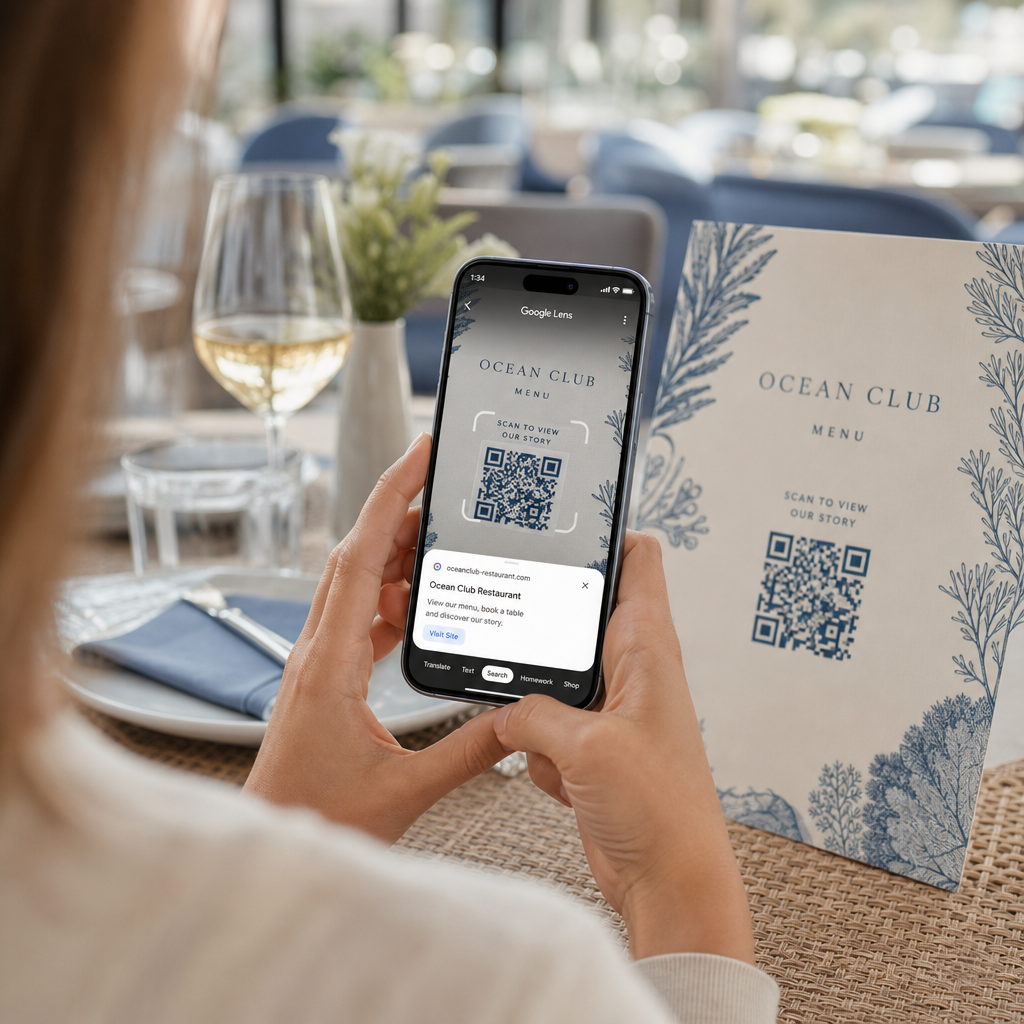
Scanning restaurant QR code

How to Scan a QR Code with Google Lens

Learn how to scan QR codes with Google Lens from your live camera or saved photos on Android and iPhone, along with safety and troubleshooting tips.
Updated on กรกฎาคม 27, 2026
สารบัญ

Struggling to open a digital menu or website because your phone will not read a QR code? Failing to scan codes quickly causes unnecessary delays and frustration when you need instant access to information. Learning how to use Google Lens allows you to scan physical codes and saved images effortlessly using your smartphone.

How to Scan Live QR Codes with the Google App

Google Lens uses visual recognition software to analyze the visual pattern of a QR code. It converts the arrangement of dark and light squares into readable digital data, such as web links or contact information. On most Android devices, Google Lens is integrated directly into the system, while on iOS devices, it is accessible through the standard Google app.

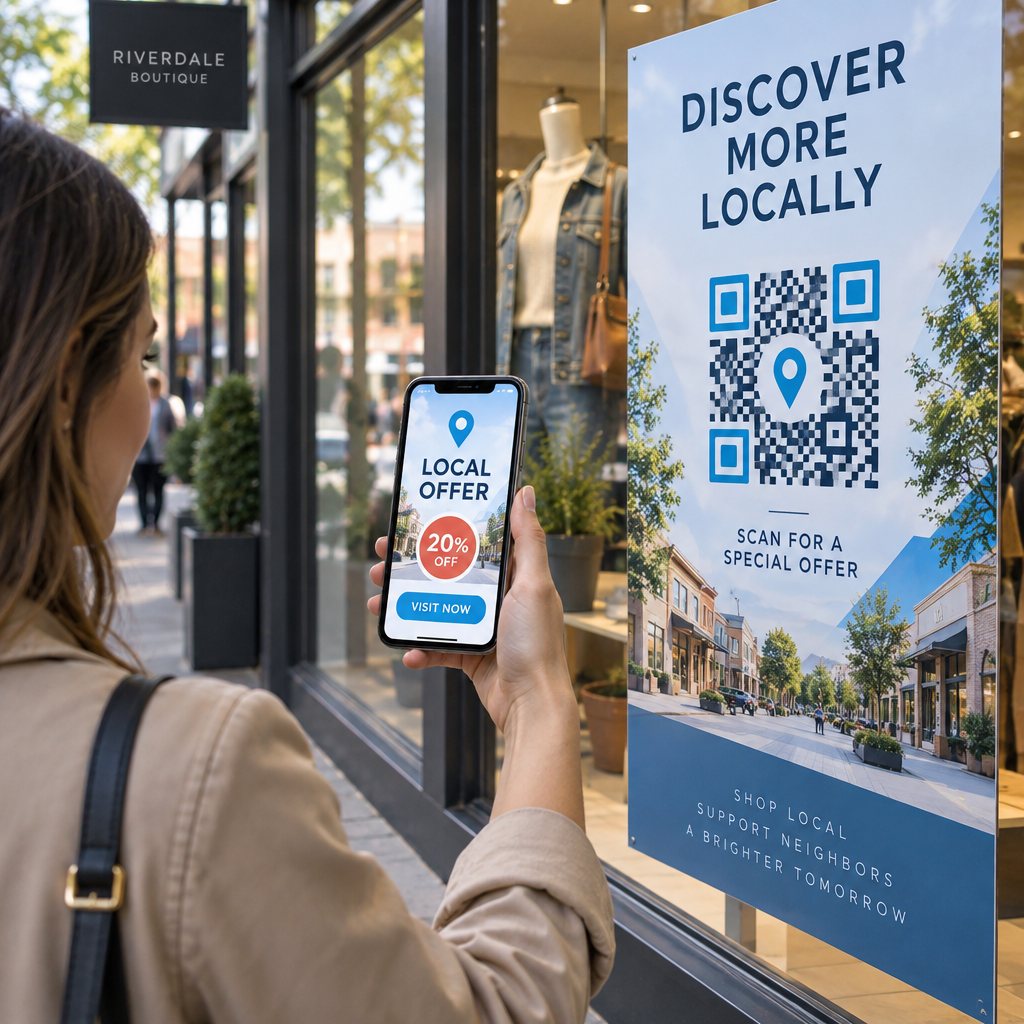
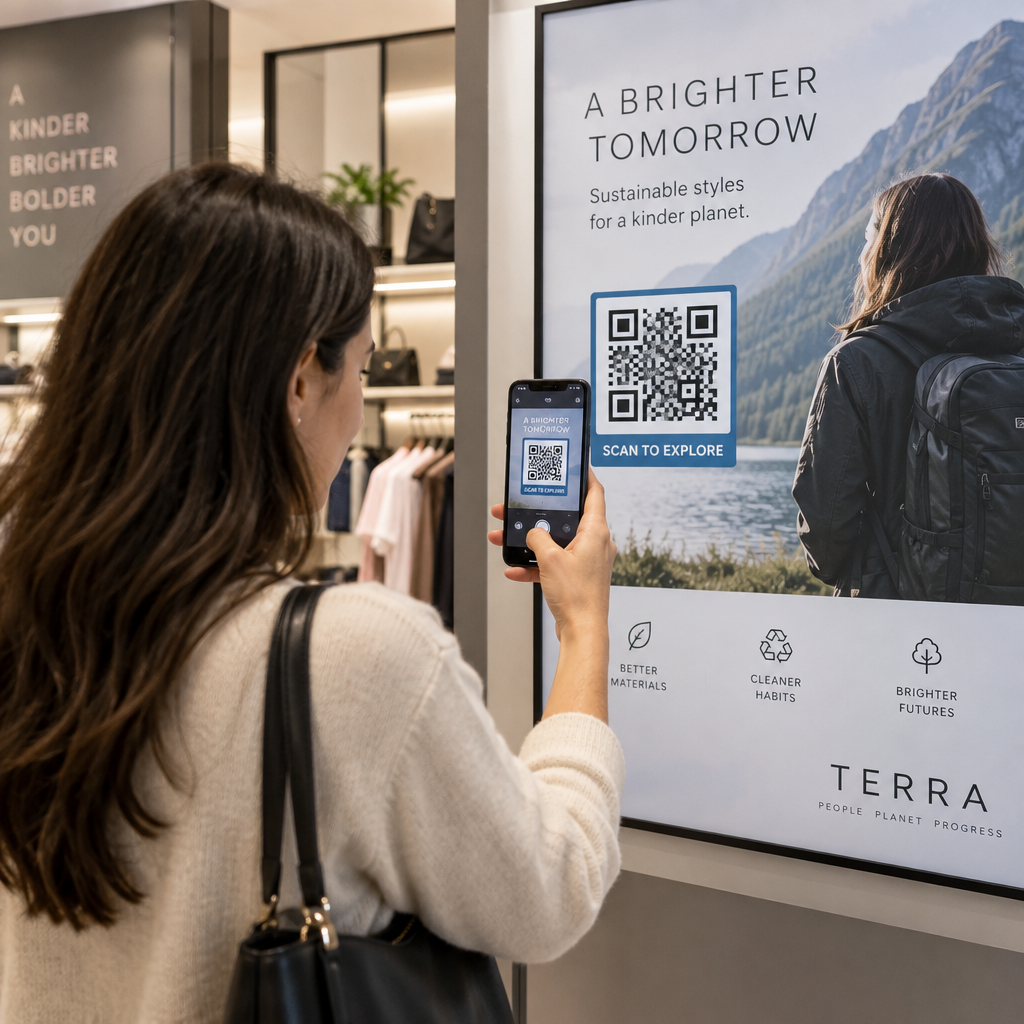
To scan a physical QR code in front of you:

  • Open the Google app or locate the Google Search bar widget on your phone home screen.
  • Tap the Lens icon located on the right side of the search bar.
  • Select the camera option if your device prompts you to grant camera permissions.
  • Point your camera frame at the target QR code while keeping the square centered on your screen.
  • Tap the pop-up link that overlays the code to open the associated web page or document.

If you use an Android smartphone, you can often scan codes directly inside your primary camera app without opening a separate tool. Access your camera settings menu and turn on Google Lens suggestions. Once enabled, your standard camera automatically detects QR codes whenever they enter the frame. For detailed device-specific configuration instructions, read our full guide on how to scan a QR code on Android.

How to Scan a QR Code from a Saved Photo or Screenshot

You do not need a second device to scan a QR code that arrives via email, text message, or social media. Google Lens can analyze stored image files directly from your photo gallery by reading the pixel matrix saved in the image file.

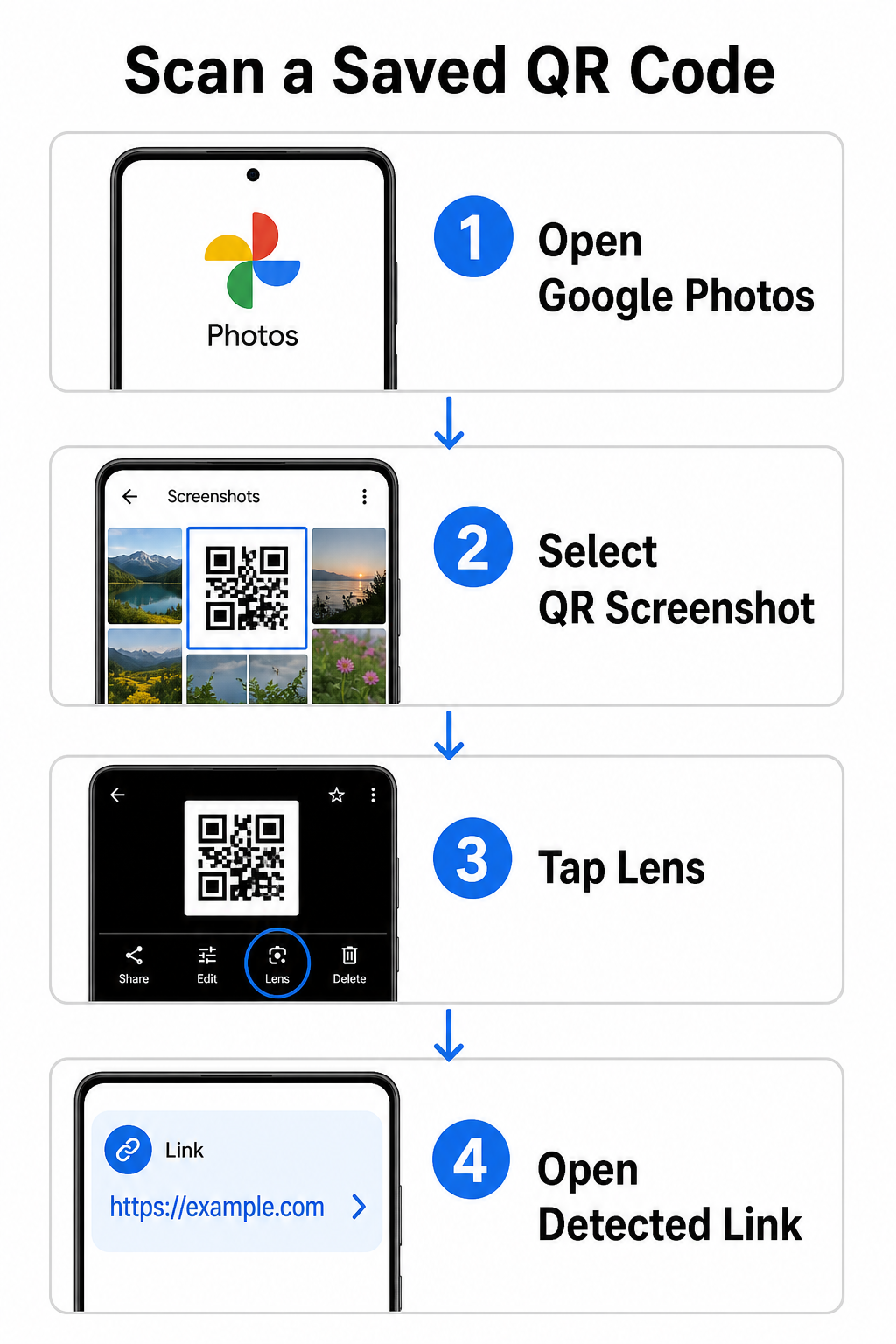
Scan saved QR image

To decode a QR code from a saved picture on an Android device:

  • Open the Google Photos app on your smartphone.
  • Select the photo or screenshot containing the target QR code.
  • Tap the Lens icon positioned along the bottom menu bar.
  • Tap the detected link displayed over the QR code to open the web page.

On an iPhone, open the primary Google app, tap the Lens camera icon inside the search bar, and select the Photos button to choose an image from your camera roll. For additional methods across different mobile platforms, consult our comprehensive tutorial on scanning QR codes with smartphones.

Scan QR Codes Directly in Your Browser Need to decode a saved image or use your camera without opening Google Lens? Use the Online QR Code Scanner to instantly view encoded content from any web browser.

Troubleshooting Common Google Lens Scanning Issues

When Google Lens fails to recognize a code, environmental factors or dirty hardware components are usually responsible. Camera sensors rely on high visual contrast between black data modules and white background spaces. Smudges, poor lighting, or improper distance blur these module edges, making the code unreadable to optical software.

To resolve scanning failures quickly, follow these steps:

  • Wipe the camera lens with a clean cloth to eliminate smudges that obscure data modules.
  • Improve ambient lighting around physical signs so visual sensors can process high-contrast patterns.
  • Adjust your reading distance to roughly 8 to 12 inches to allow proper camera autofocus.
  • Inspect the physical surface for damage, folds, or glare that distorts the square shape.

If Google Lens still does not detect the code, check your device camera settings to confirm that Google Lens suggestions remain active. If issues persist, exploring dedicated scanning utilities can restore scanning capabilities. Compare reliable alternatives in our detailed review of the best QR code scanning apps.

Maintaining Security When Scanning QR Codes

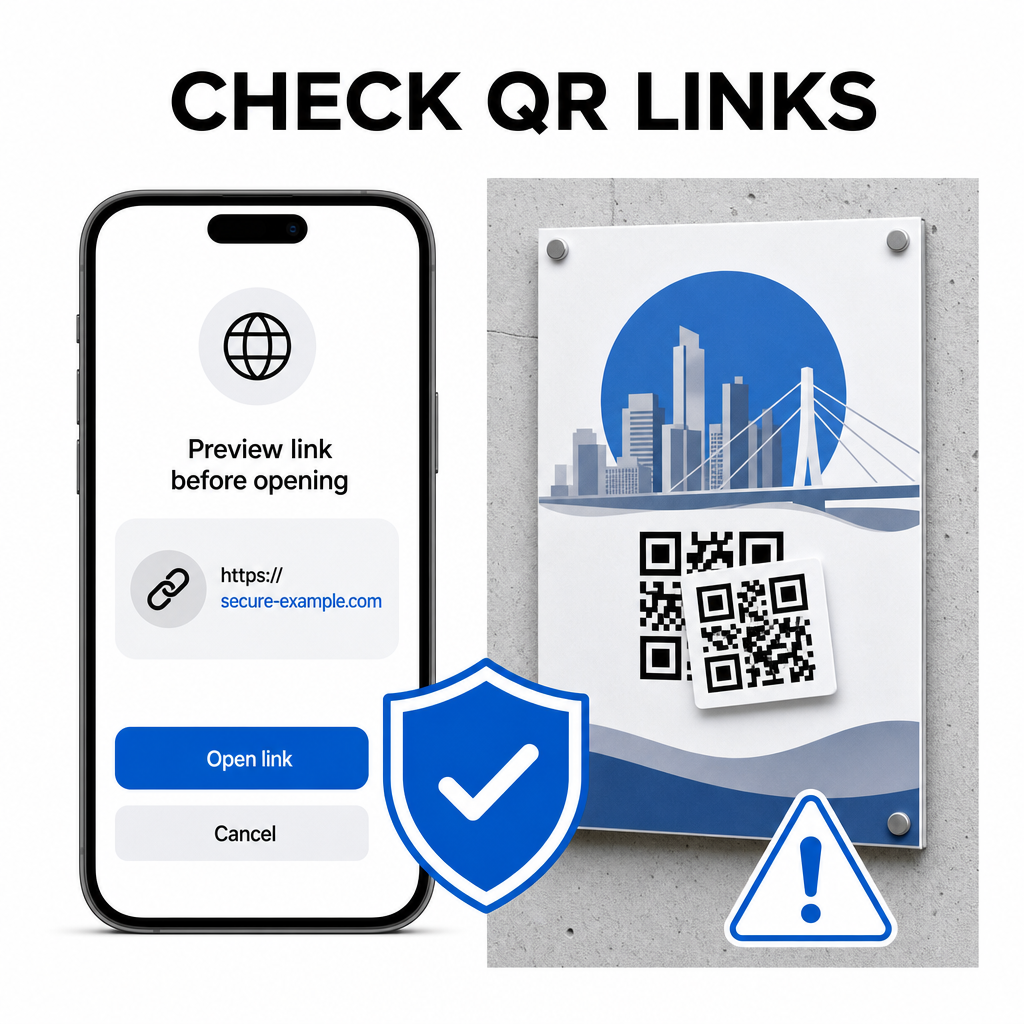
Because QR codes can direct mobile browsers to external web destinations automatically, practicing basic security precautions protects your personal device from deceptive links. Physical QR codes printed on public signage lack built-in security certificates, which means bad actors can occasionally place malicious sticker overlays on original signs.

Check QR links safely

Follow these practical safety habits when scanning codes:

  • Inspect the preview URL in Google Lens before tapping to verify the web address matches the expected site.
  • Check for physical tampering on printed signs, such as a sticker placed over an original code.
  • Avoid typing sensitive credentials like logins or banking details on pages reached through unexpected codes.
  • Download mobile apps safely by visiting official app stores directly rather than using embedded links.

Checking destination links before interacting with web pages ensures your personal data remains protected. For broader advice on camera detection settings and safety best practices, explore our complete guide on วิธีสแกนรหัส QR.

Fast and Secure QR Code Scanning

Mastering Google Lens makes retrieving menus, payment portals, and promotional links simple on any smartphone. Keeping your camera clean, maintaining proper focal distance, and verifying preview links before tapping them ensures a smooth scanning experience. If you need to decode a code quickly without relying on an app, use the free QR scanner online to instantly view encoded links from any web browser.

คำถามที่พบบ่อย

Do I need to install Google Lens separately on Android?

No, most modern Android devices have Google Lens features built directly into the default Google Search bar, Google Assistant, or native Camera app settings.

Can Google Lens scan a QR code saved as a PDF?

Google Lens scans image files like JPEGs or PNGs. To scan a PDF, take a screenshot of the QR code inside the document and open that screenshot in Google Lens or an online reader.

What should I do if Google Lens opens the wrong website?

Close the browser tab immediately without entering any information. Check whether the physical QR code has a sticker placed over it or if your camera misread an adjacent code.

เกี่ยวกับผู้เขียน

Siim Kostabi เป็นหัวหน้าฝ่ายเนื้อหาของ Pageloot เขาเขียนบทความเกี่ยวกับบริการสร้างรหัส QR ที่ล้ำสมัยของเรา ด้วยความเชี่ยวชาญอย่างลึกซึ้งในด้านรหัส QR มากว่าห้าปี Siim จึงเป็นผู้เชี่ยวชาญในสาขานี้ เขาได้สร้างความก้าวหน้าอย่างมากในการใช้เทคโนโลยี QR เพื่อทำให้การโต้ตอบทางดิจิทัลง่ายขึ้นและมีประสิทธิภาพมากขึ้น.

หมวดหมู่
ดูข้อมูลเพิ่มเติมเกี่ยวกับ
การสแกนรหัส QR ที่มีแบรนด์
ทำอย่างไร ฝังภาพ

หากคุณต้องการสร้างรหัส QR ออนไลน์คุณสามารถทำได้ สร้างรหัส QR ที่นี่ฟรี!
Pageloot คือไฟล์ โซลูชัน Go-To #1 เพื่อสร้างและสแกนรหัส QR

BL-0338

สแกนบล็อก

ได้รับความไว้วางใจจากแบรนด์ต่างๆ มากกว่า 20,000 แบรนด์เพื่อเพิ่มยอดขาย รีวิว และจำนวนผู้ติดตาม

โลโก้ของลูกค้า
ได้รับความไว้วางใจจากแบรนด์ชั้นนำ
ให้คะแนน 4.8 จาก 5

คะแนน 4.86 / 5 ดาว

Hugo Laurent
Hugo Laurent
เจ้าของร้านอาหาร
เครื่องสร้างรหัส QR ที่ง่ายและน่าเชื่อถือที่สุดเท่าที่เคยมีมา ไฟล์ PDF สามารถอัพโหลดได้ทันที เมนูร้านอาหารของเราเป็นแบบดิจิทัล
ลูคัส แจนเซ่น
ลูคัส แจนเซ่น
ผู้พัฒนาอสังหาฯ
นี่เป็นเครื่องมือที่ยอดเยี่ยมและรหัส QR จะพาคุณไปยังที่ที่คุณต้องการ เราใช้รหัส QR ของตำแหน่งเท่านั้น แต่มีคุณสมบัติที่มีประโยชน์มากมาย
Emma Moretti
Emma Moretti
สินค้าขายปลีก
ใช้งานง่ายและรวดเร็ว มันใช้งานได้ดีและสร้างภาพที่สมบูรณ์แบบ ดังนั้นพนักงานสามารถดาวน์โหลด vCard ของฉันได้
Hugo Laurent
Hugo Laurent
เจ้าของร้านอาหาร
เครื่องสร้างรหัส QR ที่ง่ายและน่าเชื่อถือที่สุดเท่าที่เคยมีมา ไฟล์ PDF สามารถอัพโหลดได้ทันที เมนูร้านอาหารของเราเป็นแบบดิจิทัล
ลูคัส แจนเซ่น
ลูคัส แจนเซ่น
ผู้พัฒนาอสังหาฯ
นี่เป็นเครื่องมือที่ยอดเยี่ยมและรหัส QR จะพาคุณไปยังที่ที่คุณต้องการ เราใช้รหัส QR ของตำแหน่งเท่านั้น แต่มีคุณสมบัติที่มีประโยชน์มากมาย
Emma Moretti
Emma Moretti
สินค้าขายปลีก
ใช้งานง่ายและรวดเร็ว มันใช้งานได้ดีและสร้างภาพที่สมบูรณ์แบบ ดังนั้นพนักงานสามารถดาวน์โหลด vCard ของฉันได้
ดูรหัส QR เพิ่มเติม
Students scanning QR codes
รหัส QR สำหรับ โรงเรียนและการศึกษา
เปลี่ยนทุกสิ่งให้กลายเป็นประสบการณ์ดิจิทัล ในเวลาไม่ถึง 3 นาที

ทดลองใช้งานฟรี 14 วัน

ไม่ต้องใช้บัตรเครดิต

รับส่วนลด 30% จากการซื้อครั้งแรกของคุณ

ใช้โค้ด:

แชร์ไฟล์ MP3 ของคุณ

ลงทะเบียนเพื่อสร้างรหัส PDF QR

อัปโหลดและแสดงทุกสิ่งที่คุณต้องการ:

  • ไฟล์เสียง
  • พอดคาสต์
  • ดนตรี

ทดลองใช้ฟรี 14 วันเมื่อลงทะเบียน.
รหัส QR จะหมดอายุหลังจากการทดลองใช้.

ลงทะเบียนเพื่อสร้างรหัส QR เสียง mp3

รับการสแกนเพิ่มขึ้นด้วยกรอบ

ลงทะเบียนเพื่อเพิ่มเฟรมให้กับโค้ด QR ของคุณ

กรอบคำกระตุ้นการตัดสินใจช่วยให้ลูกค้าโต้ตอบกับ QR Code ได้อย่างง่ายดาย ลองพวกเขา!

ทดลองใช้ฟรี 14 วันเมื่อลงทะเบียน.
รหัส QR จะหมดอายุหลังจากการทดลองใช้.

ลงทะเบียนเพื่อเพิ่มเฟรมให้กับโค้ด QR ของคุณ

เพิ่มสไตล์ด้วยรูปทรง

ลงทะเบียนเพื่อสร้างรูปร่างเพิ่มเติม

รหัส QR ไม่จำเป็นต้องเป็นรูปสี่เหลี่ยมจัตุรัส ลองเปลี่ยนให้เหมาะกับภาพลักษณ์ของแบรนด์คุณ

ทดลองใช้ฟรี 14 วันเมื่อลงทะเบียน.
รหัส QR จะหมดอายุหลังจากการทดลองใช้.

ลงทะเบียนเพื่อสร้างรูปร่างเพิ่มเติม

เพิ่มโลโก้ลงในรหัส QR ของคุณ

ลงทะเบียนเพื่อเพิ่มโลโก้ของคุณลงในรหัส QR

ทำให้รหัส QR ของคุณโดดเด่นด้วยการเพิ่มโลโก้และแบรนด์ของคุณลงไป

ทดลองใช้ฟรี 14 วันเมื่อลงทะเบียน.
รหัส QR จะหมดอายุหลังจากการทดลองใช้.

ลงทะเบียนเพื่อเพิ่มโลโก้ของคุณลงในรหัส QR

การเปลี่ยนเส้นทางไปยัง App Store อัจฉริยะ

ลงทะเบียนเพื่อสร้างรหัส QR ของ App Store

เพิ่มลิงค์แอพของคุณไปยัง QR Code ของ App Store อันชาญฉลาดของเรา ผู้ใช้จะถูกเปลี่ยนเส้นทางตามอุปกรณ์ของพวกเขา

ทดลองใช้ฟรี 14 วันเมื่อลงทะเบียน.
รหัส QR จะหมดอายุหลังจากการทดลองใช้.

ลงทะเบียนเพื่อสร้างรหัส QR ของ App Store

อัปโหลดรูปภาพไปยังรหัส QR

ลงทะเบียนเพื่อสร้างรหัส QR รูปภาพ

แบ่งปันภาพของคุณได้อย่างง่ายดาย เปลี่ยนภาพแบบไดนามิกภายในไม่กี่วินาที

ทดลองใช้ฟรี 14 วันเมื่อลงทะเบียน.
รหัส QR จะหมดอายุหลังจากการทดลองใช้.

ลงทะเบียนเพื่อสร้างรหัส QR รูปภาพ

แชร์ไฟล์ PDF ของคุณ

ลงทะเบียนเพื่อสร้างรหัส PDF QR

อัปโหลดและแสดงทุกสิ่งที่คุณต้องการ:

  • รายการเมนูและราคา
  • คำแนะนำ
  • เอกสารใด ๆ

ทดลองใช้ฟรี 14 วันเมื่อลงทะเบียน.
รหัส QR จะหมดอายุหลังจากการทดลองใช้.

ลงทะเบียนเพื่อสร้างรหัส PDF QR

แก้ไขภายหลังโดยไม่ต้องพิมพ์

ลงทะเบียนเพื่อแก้ไขรหัส QR ของคุณโดยไม่ต้องพิมพ์อีกครั้ง

รหัส QR แบบไดนามิกช่วยให้คุณเปลี่ยนเนื้อหาของรหัส QR ของคุณโดยไม่ต้องพิมพ์ใหม่

ทดลองใช้ฟรี 14 วันเมื่อลงทะเบียน.
รหัส QR จะหมดอายุหลังจากการทดลองใช้.

ลงทะเบียนเพื่อแก้ไขรหัส QR ของคุณโดยไม่ต้องพิมพ์อีกครั้ง

เมื่อไหร่? ที่ไหน? ติดตามการสแกนรหัส QR ของคุณ

ลงทะเบียนเพื่อติดตามรหัส QR ของคุณ

ค้นพบว่ารหัส QR ใดของคุณได้รับการสแกนมากที่สุดและอะไรที่ทำให้ลูกค้าของคุณตื่นเต้นมากที่สุด

ทดลองใช้ฟรี 14 วันเมื่อลงทะเบียน.
รหัส QR จะหมดอายุหลังจากการทดลองใช้.

ลงทะเบียนเพื่อติดตามรหัส QR ของคุณ

มีไฟล์พร้อมพิมพ์

ลงทะเบียนเพื่อสร้างโค้ด QR เวกเตอร์ เช่น PDF และ SVG

.EPS, .PDF, .SVG

ต้องการดาวน์โหลดรหัส QR ของคุณในความละเอียดระดับ HD หรือไม่? รับรูปแบบเวกเตอร์หรือพิกเซลที่พร้อมพิมพ์

ทดลองใช้ฟรี 14 วันเมื่อลงทะเบียน.
รหัส QR จะหมดอายุหลังจากการทดลองใช้.

ลงทะเบียนเพื่อสร้างโค้ด QR เวกเตอร์ เช่น PDF และ SVG

โปรดรอ. รหัส QR ของคุณคือ กำลังโหลด... กำลังโหลด...

สร้างสรรค์ในแบบของคุณเอง

ลงทะเบียนเพื่อบันทึกรหัส QR ของคุณไว้ใช้ในภายหลัง

รับการสแกนมากขึ้นด้วยการสร้างรหัส QR ที่ยอดเยี่ยมด้วยสี โลโก้ และกรอบคำกระตุ้นการตัดสินใจที่แตกต่างกัน

ทดลองใช้ฟรี 14 วันเมื่อลงทะเบียน.
รหัส QR จะหมดอายุหลังจากการทดลองใช้.

ลงทะเบียนเพื่อบันทึกรหัส QR ของคุณไว้ใช้ในภายหลัง