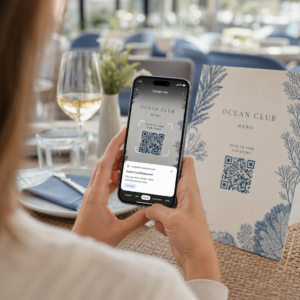
Mengalami kesukaran untuk membuka menu digital atau laman web kerana telefon anda tidak dapat membaca kod QR? Gagal mengimbas kod dengan cepat menyebabkan kelewatan yang tidak perlu dan kekecewaan apabila anda memerlukan akses segera kepada maklumat. Mempelajari cara menggunakan Google Lens membolehkan anda mengimbas kod fizikal dan imej yang disimpan dengan mudah menggunakan telefon pintar anda.
Cara Mengimbas Kod QR Langsung dengan Aplikasi Google
Google Lens menggunakan perisian pengecaman visual untuk menganalisis corak visual kod QR. Ia menukar susunan petak gelap dan terang kepada data digital yang boleh dibaca, seperti pautan web atau maklumat hubungan. Pada kebanyakan peranti Android, Google Lens disepadukan secara langsung ke dalam sistem, manakala pada peranti iOS, ia boleh diakses melalui aplikasi Google standard.
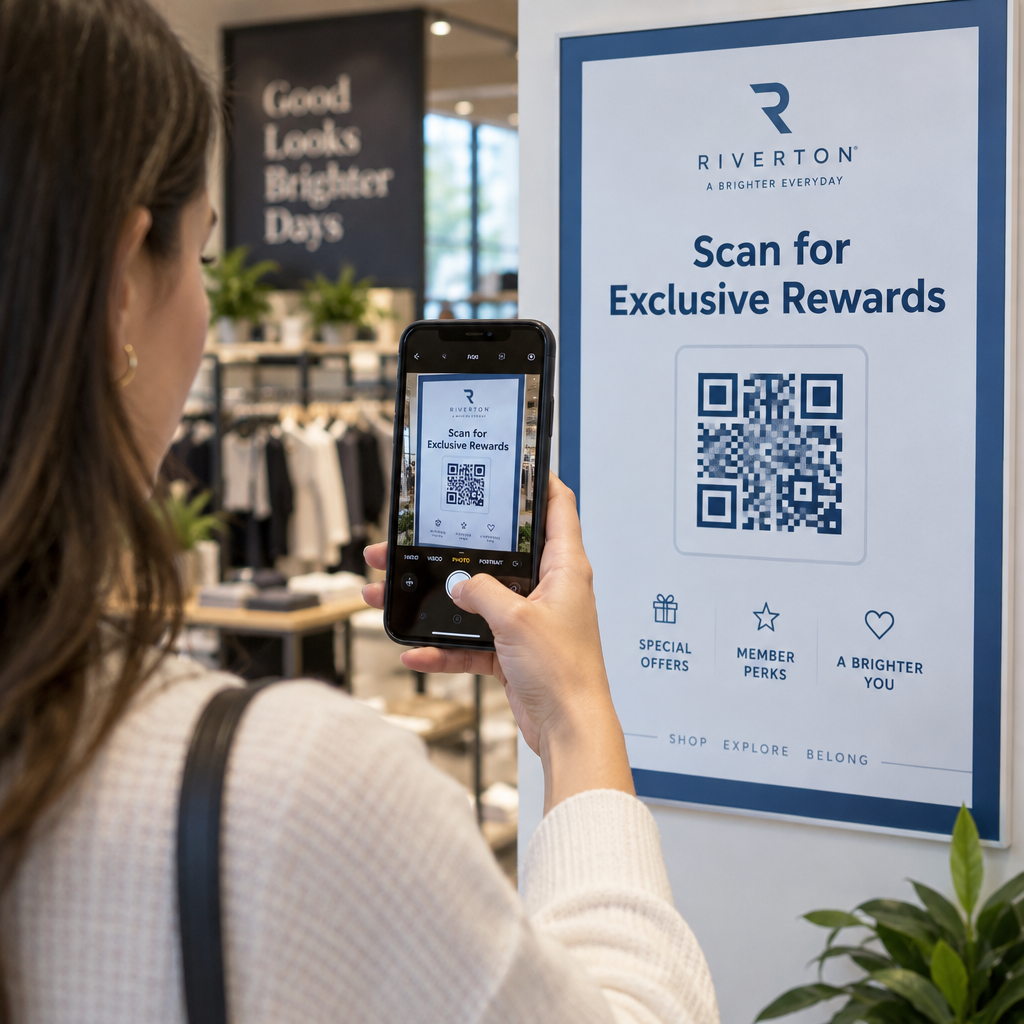
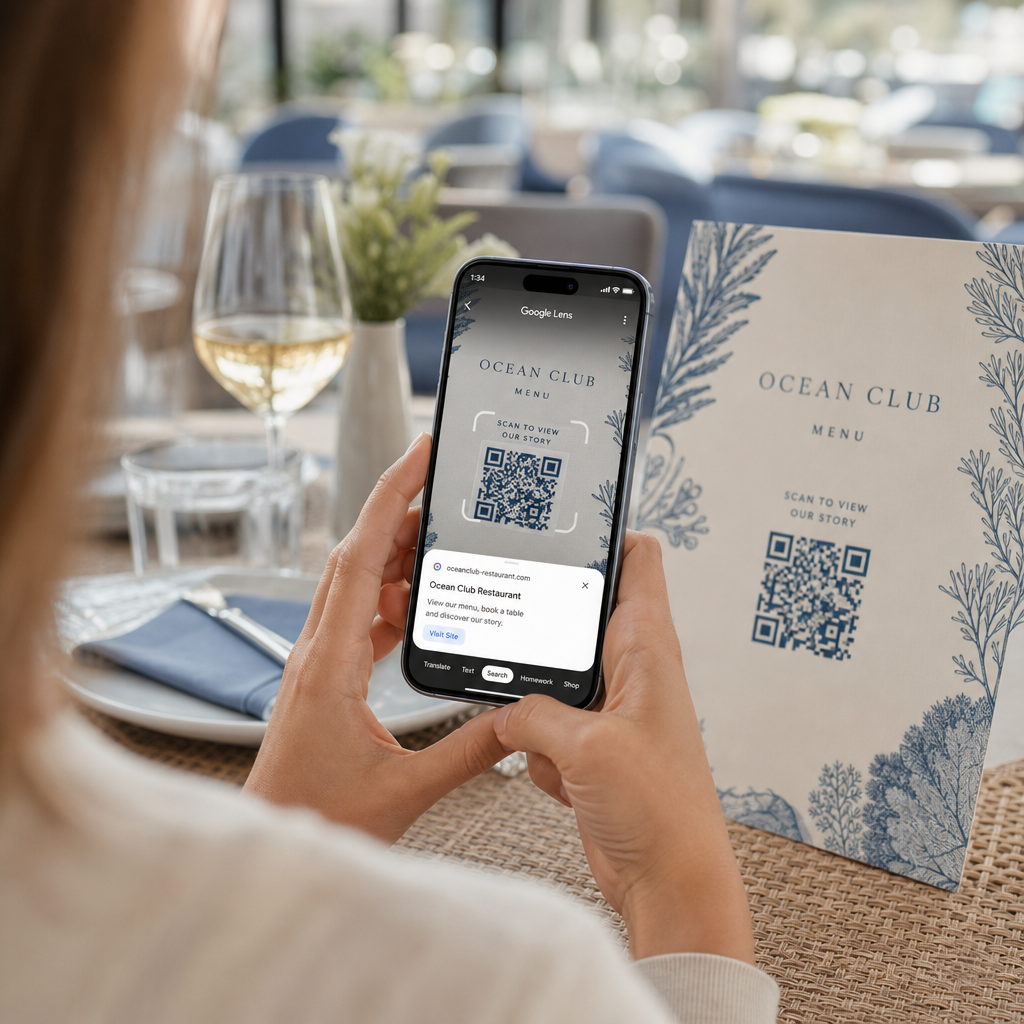
Untuk mengimbas kod QR fizikal di hadapan anda:
- Buka aplikasi Google atau cari widget bar Carian Google pada skrin utama telefon anda.
- Ketik ikon Lens terletak di sebelah kanan bar carian.
- Pilih pilihan kamera jika peranti anda meminta anda untuk memberikan kebenaran kamera.
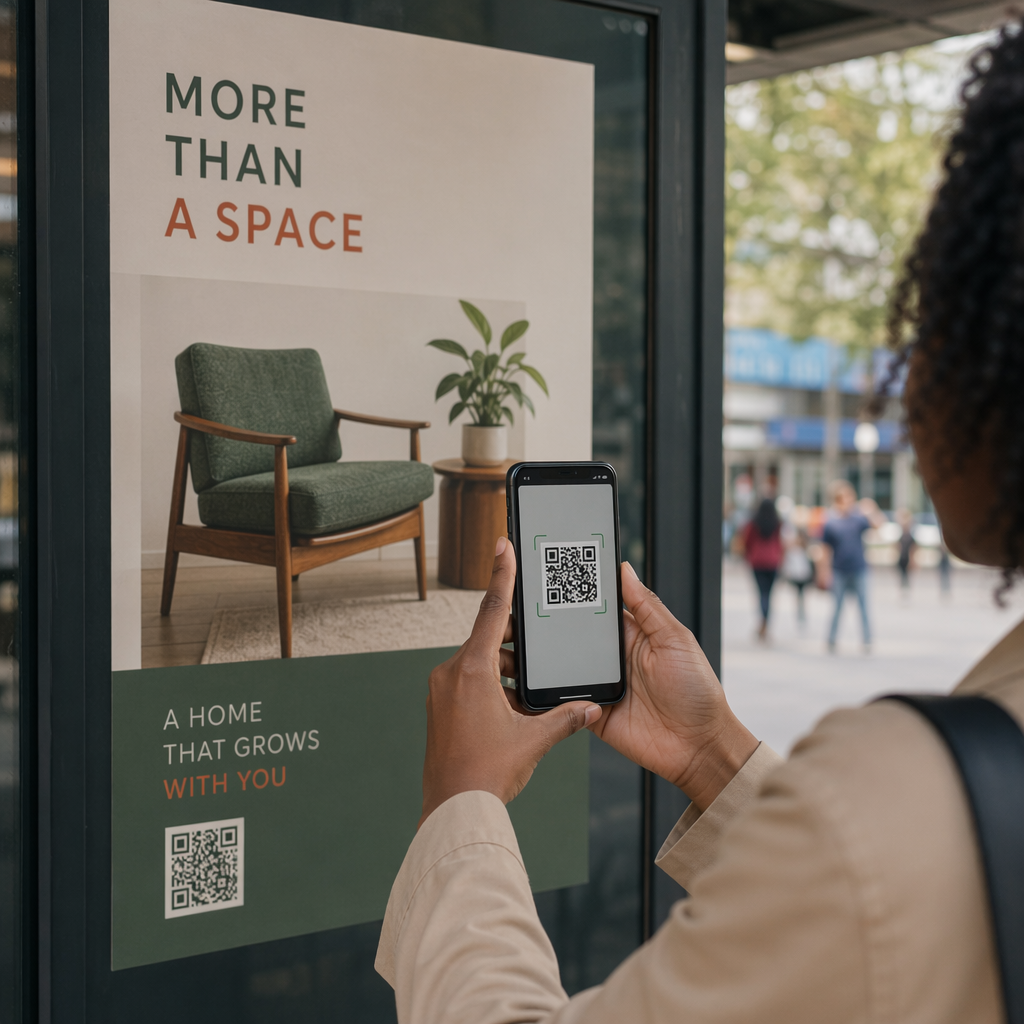
- Halakan bingkai kamera anda ke kod QR sasaran sambil memastikan petak berada di tengah skrin anda.
- Ketik pautan pop-up yang melapisi kod untuk membuka laman web atau dokumen yang berkaitan.
Jika anda menggunakan telefon pintar Android, anda sering boleh mengimbas kod secara langsung dalam aplikasi kamera utama anda tanpa membuka alat berasingan. Akses menu tetapan kamera anda dan hidupkan cadangan Google Lens. Setelah diaktifkan, kamera standard anda secara automatik mengesan kod QR apabila ia memasuki bingkai. Untuk arahan konfigurasi khusus peranti yang terperinci, baca panduan penuh kami mengenai cara mengimbas kod QR pada Android.
Cara Mengimbas Kod QR daripada Foto atau Tangkapan Skrin yang Disimpan
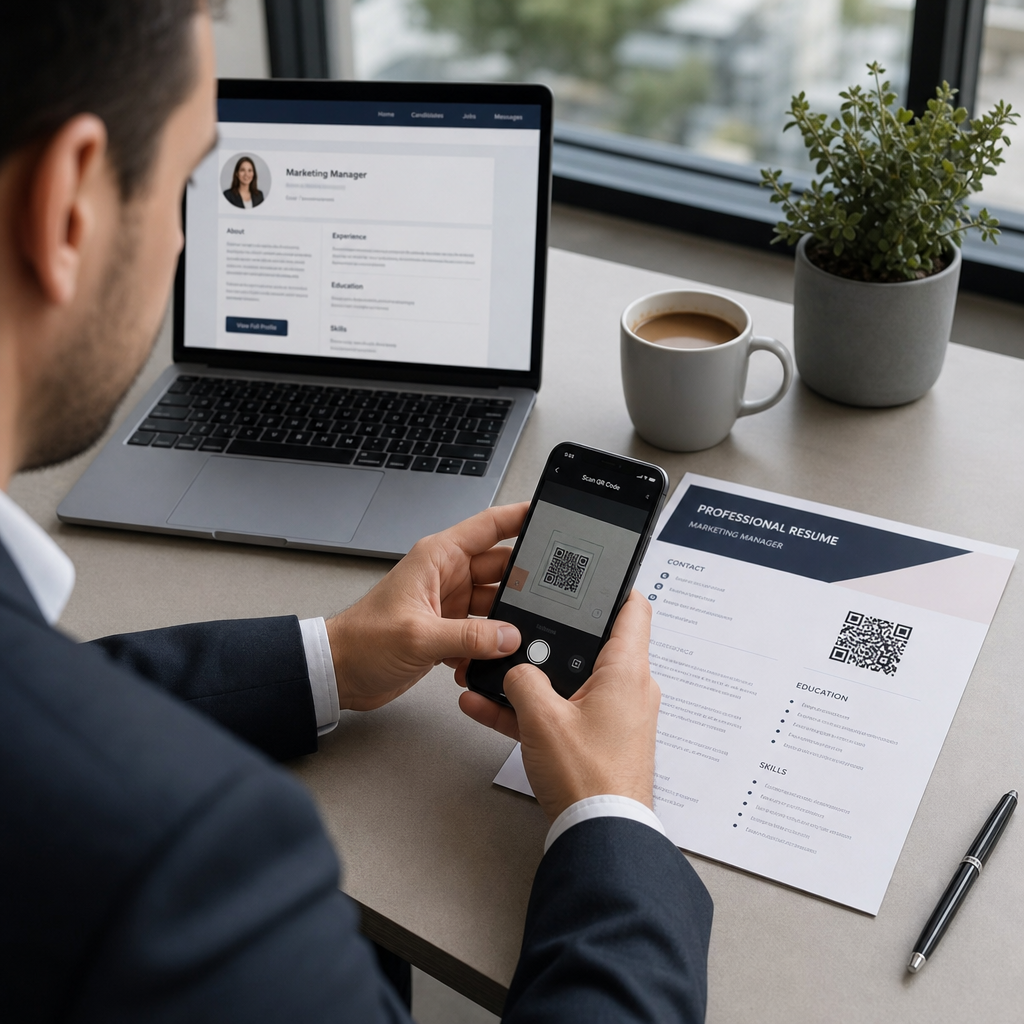
Anda tidak memerlukan peranti kedua untuk mengimbas kod QR yang tiba melalui e-mel, mesej teks atau media sosial. Google Lens boleh menganalisis fail imej yang disimpan terus dari galeri foto anda dengan membaca matriks piksel yang disimpan dalam fail imej.
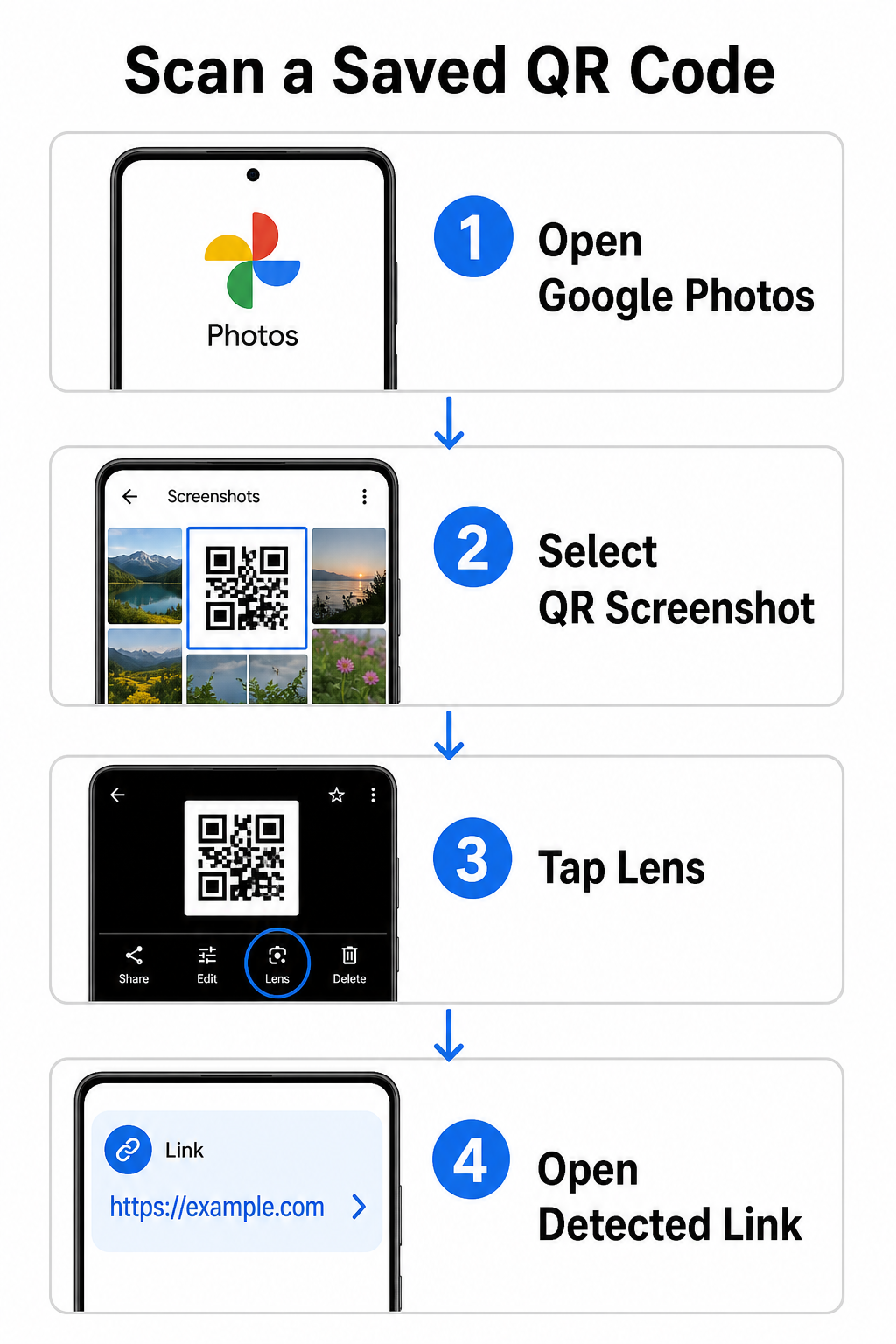
Untuk menyahkod kod QR daripada gambar yang disimpan pada peranti Android:
- Buka aplikasi Google Photos pada telefon pintar anda.
- Pilih foto atau tangkapan skrin yang mengandungi kod QR sasaran.
- Ketik ikon Lens terletak di sepanjang bar menu bawah.
- Ketik pautan yang dikesan dipaparkan di atas kod QR untuk membuka halaman web.
Pada iPhone, buka aplikasi Google utama, ketik ikon kamera Lens di dalam bar carian, dan pilih butang Foto untuk memilih imej daripada gulungan kamera anda. Untuk kaedah tambahan merentasi platform mudah alih yang berbeza, rujuk tutorial komprehensif kami mengenai mengimbas kod QR dengan telefon pintar.
Imbas Kod QR Terus dalam Pelayar Anda Perlu menyahkod imej yang disimpan atau menggunakan kamera anda tanpa membuka Google Lens? Gunakan Pengimbas Kod QR Dalam Talian untuk melihat kandungan yang dikodkan serta-merta dari mana-mana pelayar web.
Penyelesaian Masalah Isu Pengimbasan Google Lens Biasa
Apabila Google Lens gagal mengecam kod, faktor persekitaran atau komponen perkakasan yang kotor biasanya menjadi puncanya. Sensor kamera bergantung pada kontras visual yang tinggi antara modul data hitam dan ruang latar belakang putih. Kotoran, pencahayaan yang kurang baik, atau jarak yang tidak sesuai mengaburkan tepi modul ini, menjadikan kod tidak dapat dibaca oleh perisian optik.
Untuk menyelesaikan kegagalan pengimbasan dengan cepat, ikuti langkah-langkah ini:
- Lap kanta kamera dengan kain bersih untuk menghilangkan kotoran yang mengaburkan modul data.
- Perbaiki pencahayaan ambien di sekitar papan tanda fizikal supaya sensor visual dapat memproses corak kontras tinggi.
- Laraskan jarak bacaan anda kepada kira-kira 8 hingga 12 inci untuk membolehkan autofokus kamera yang betul.
- Periksa permukaan fizikal untuk kerosakan, lipatan, atau silau yang memesongkan bentuk segi empat sama.
Jika Google Lens masih tidak mengesan kod, semak tetapan kamera peranti anda untuk mengesahkan bahawa cadangan Google Lens kekal aktif. Jika masalah berterusan, meneroka utiliti pengimbasan khusus boleh memulihkan keupayaan pengimbasan. Bandingkan alternatif yang boleh dipercayai dalam ulasan terperinci kami tentang aplikasi pengimbasan kod QR terbaik.
Mengekalkan Keselamatan Semasa Mengimbas Kod QR
Oleh kerana kod QR boleh mengarahkan pelayar mudah alih ke destinasi web luaran secara automatik, mengamalkan langkah berjaga-jaga keselamatan asas melindungi peranti peribadi anda daripada pautan yang menipu. Kod QR fizikal yang dicetak pada papan tanda awam tidak mempunyai sijil keselamatan terbina dalam, yang bermaksud pelaku jahat kadangkala boleh meletakkan tindanan pelekat berniat jahat pada papan tanda asal.
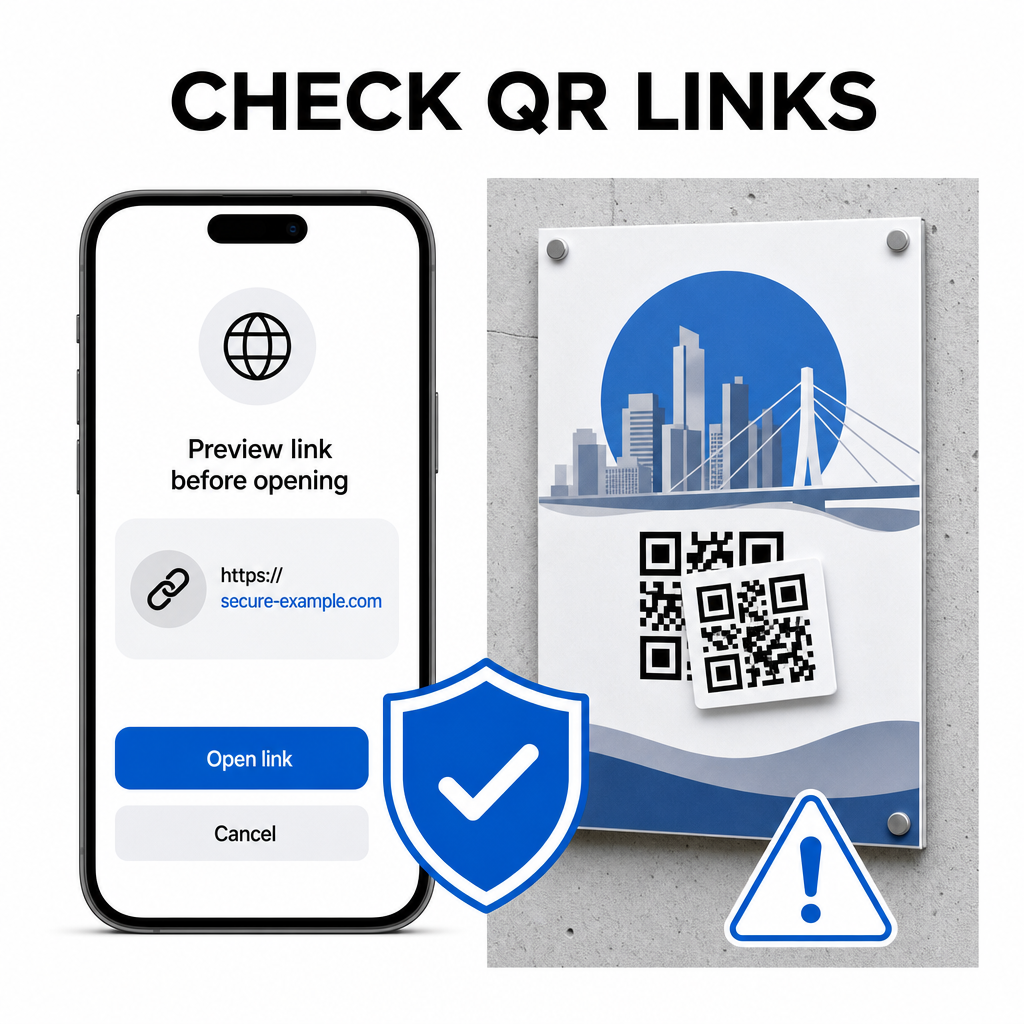
Ikuti tabiat keselamatan praktikal ini semasa mengimbas kod:
- Periksa URL pratonton dalam Google Lens sebelum mengetik untuk mengesahkan alamat web sepadan dengan tapak yang dijangka.
- Periksa untuk pengubahan fizikal pada papan tanda bercetak, seperti pelekat yang diletakkan di atas kod asal.
- Elakkan menaip kelayakan sensitif seperti log masuk atau butiran perbankan pada halaman yang dicapai melalui kod yang tidak dijangka.
- Muat turun aplikasi mudah alih dengan selamat dengan melawat kedai aplikasi rasmi secara terus daripada menggunakan pautan terbenam.
Memeriksa pautan destinasi sebelum berinteraksi dengan halaman web memastikan data peribadi anda kekal dilindungi. Untuk nasihat yang lebih luas mengenai tetapan pengesanan kamera dan amalan terbaik keselamatan, terokai panduan lengkap kami tentang cara mengimbas kod QR.
Pengimbasan Kod QR Pantas dan Selamat
Menguasai Google Lens menjadikan pengambilan menu, portal pembayaran, dan pautan promosi mudah pada mana-mana telefon pintar. Menjaga kebersihan kamera anda, mengekalkan jarak fokus yang betul, dan mengesahkan pautan pratonton sebelum mengetiknya memastikan pengalaman pengimbasan yang lancar. Jika anda perlu menyahkod kod dengan cepat tanpa bergantung pada aplikasi, gunakan pengimbas QR percuma dalam talian untuk melihat pautan berkod serta-merta daripada mana-mana pelayar web.
Soalan lazim
Tidak, kebanyakan peranti Android moden mempunyai ciri Google Lens yang terbina terus dalam bar Carian Google lalai, Google Assistant, atau tetapan aplikasi Kamera asli.
Google Lens mengimbas fail imej seperti JPEG atau PNG. Untuk mengimbas PDF, ambil tangkapan skrin kod QR di dalam dokumen dan buka tangkapan skrin itu di Google Lens atau pembaca dalam talian.
Tutup tab pelayar serta-merta tanpa memasukkan sebarang maklumat. Semak sama ada kod QR fizikal mempunyai pelekat yang diletakkan di atasnya atau jika kamera anda tersalah baca kod bersebelahan.