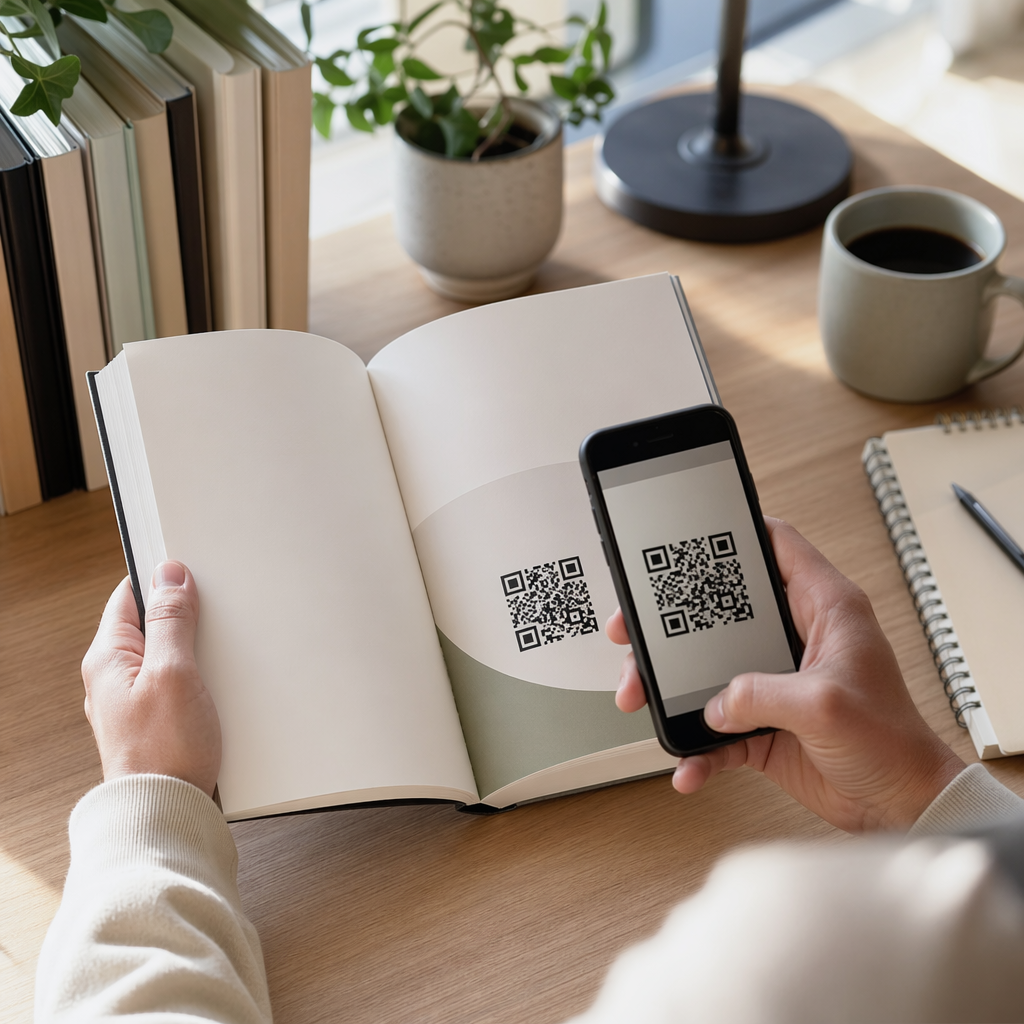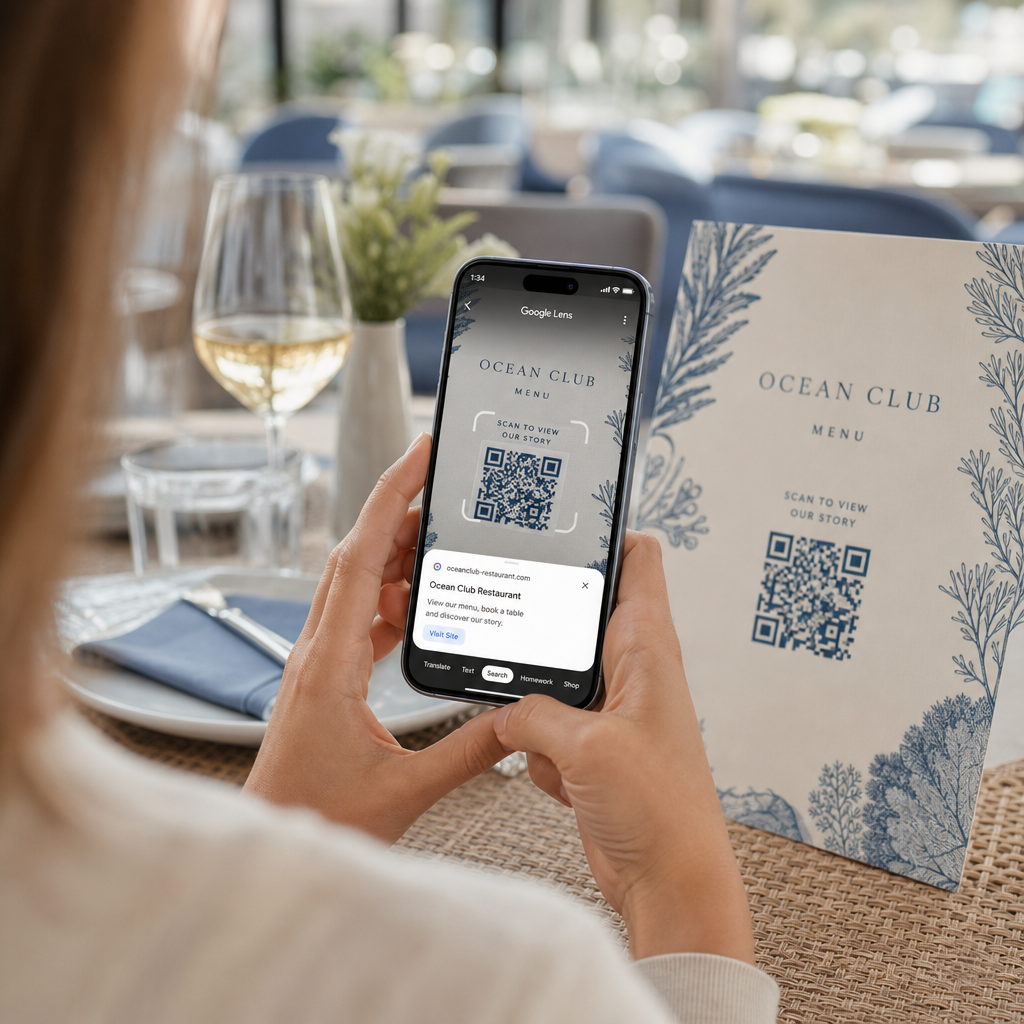
Schwierigkeiten, ein digitales Menü oder eine Webseite zu öffnen, weil Ihr Telefon keinen QR-Code lesen kann? Ein schnelles Scannen von Codes führt zu unnötigen Verzögerungen und Frustration, wenn Sie sofortigen Zugriff auf Informationen benötigen. Mit Google Lens können Sie physische Codes und gespeicherte Bilder mühelos mit Ihrem Smartphone scannen.
So scannen Sie Live-QR-Codes mit der Google App
Google Lens verwendet eine visuelle Erkennungssoftware, um das visuelle Muster eines QR-Codes zu analysieren. Es wandelt die Anordnung der dunklen und hellen Quadrate in lesbare digitale Daten um, wie z.B. Weblinks oder Kontaktinformationen. Auf den meisten Android-Geräten ist Google Lens direkt in das System integriert, während es auf iOS-Geräten über die Standard-Google-App zugänglich ist.
So scannen Sie einen physischen QR-Code vor sich:
- Öffnen Sie die Google App oder suchen Sie das Google Suchleisten-Widget auf dem Startbildschirm Ihres Telefons.
- Tippen Sie auf das Lens-Symbol rechts neben der Suchleiste.
- Wählen Sie die Kameraoption falls Ihr Gerät Sie auffordert, Kameraberechtigungen zu erteilen.
- Richten Sie Ihren Kameraausschnitt auf den Ziel-QR-Code, während Sie das Quadrat auf Ihrem Bildschirm zentriert halten.
- Tippen Sie auf den Pop-up-Link der den Code überlagert, um die zugehörige Webseite oder das Dokument zu öffnen.
Wenn Sie ein Android-Smartphone verwenden, können Sie Codes oft direkt in Ihrer primären Kamera-App scannen, ohne ein separates Tool öffnen zu müssen. Rufen Sie das Menü Ihrer Kameraeinstellungen auf und aktivieren Sie Google Lens-Vorschläge. Nach der Aktivierung erkennt Ihre Standardkamera QR-Codes automatisch, sobald sie ins Bild kommen. Detaillierte gerätespezifische Konfigurationsanweisungen finden Sie in unserem vollständigen Leitfaden zum Thema QR-Code scannen auf Android: So scannen Sie einen QR-Code.
So scannen Sie einen QR-Code von einem gespeicherten Foto oder Screenshot
Sie benötigen kein zweites Gerät, um einen QR-Code zu scannen, der per E-Mail, Textnachricht oder über soziale Medien eingeht. Google Lens kann gespeicherte Bilddateien direkt aus Ihrer Fotogalerie analysieren, indem es die in der Bilddatei gespeicherte Pixelmatrix liest.
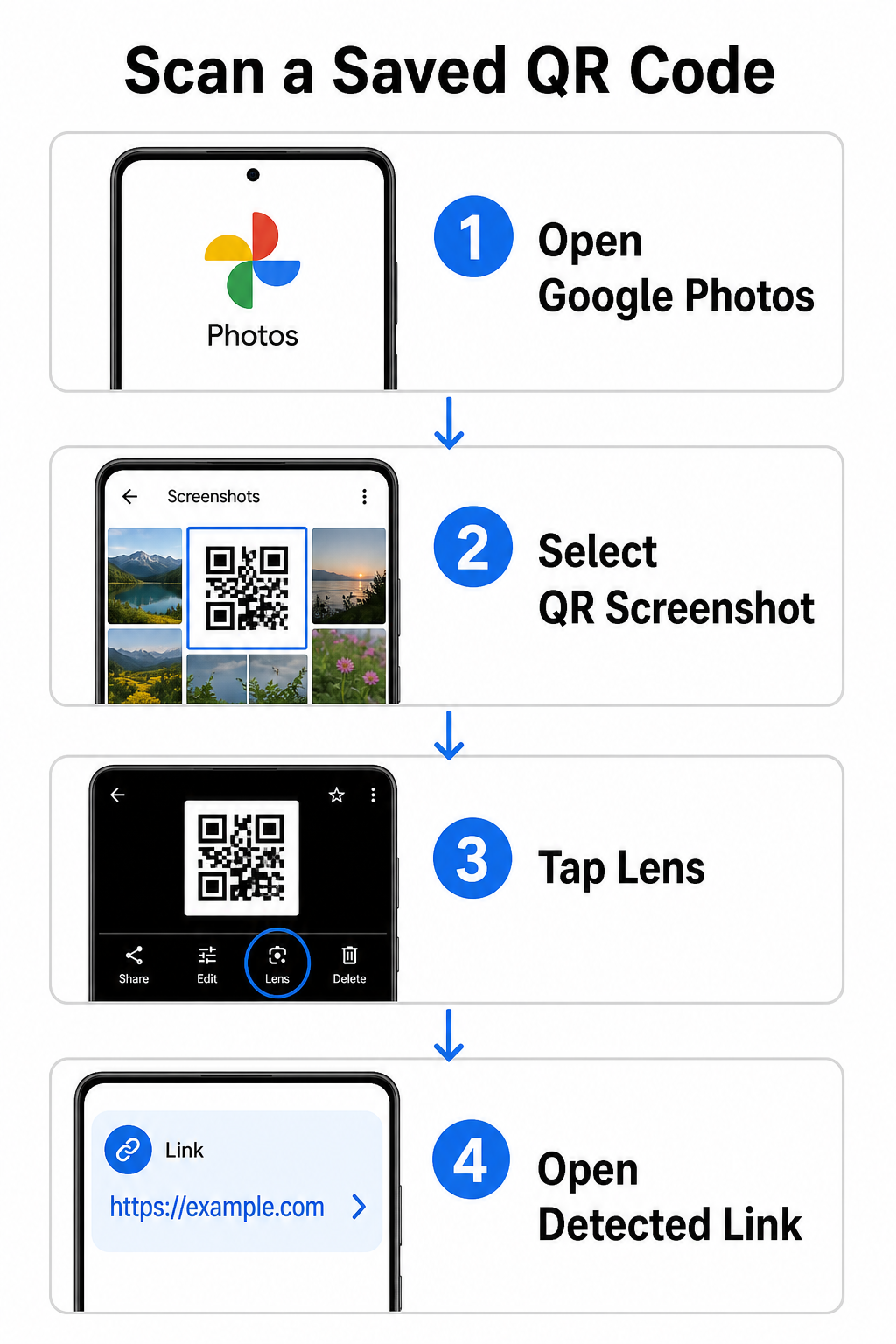
So entschlüsseln Sie einen QR-Code von einem gespeicherten Bild auf einem Android-Gerät:
- Öffnen Sie die Google Fotos App auf Ihrem Smartphone.
- Wählen Sie das Foto aus oder den Screenshot, der den Ziel-QR-Code enthält.
- Tippen Sie auf das Lens-Symbol in der unteren Menüleiste positioniert.
- Tippen Sie auf den erkannten Link, der über dem QR-Code angezeigt wird, um die Webseite zu öffnen.
Öffnen Sie auf einem iPhone die primäre Google-App, tippen Sie auf das Kamerasymbol von Lens in der Suchleiste und wählen Sie die Schaltfläche Fotos um ein Bild aus Ihrer Kamerarolle auszuwählen. Für weitere Methoden auf verschiedenen mobilen Plattformen lesen Sie unser umfassendes Tutorial zum Thema QR-Codes mit Smartphones scannen.
QR-Codes direkt in Ihrem Browser scannen Möchten Sie ein gespeichertes Bild dekodieren oder Ihre Kamera verwenden, ohne Google Lens zu öffnen? Nutzen Sie den Online QR-Code-Scanner um kodierte Inhalte sofort von jedem Webbrowser aus anzuzeigen.
Fehlerbehebung bei häufigen Google Lens Scanproblemen
Wenn Google Lens einen Code nicht erkennt, sind meist Umweltfaktoren oder verschmutzte Hardwarekomponenten verantwortlich. Kamerasensoren benötigen einen hohen visuellen Kontrast zwischen schwarzen Datenmodulen und weißen Hintergrundflächen. Verschmutzungen, schlechte Beleuchtung oder ein ungeeigneter Abstand verwischen diese Modulkanten, wodurch der Code für die optische Software unlesbar wird.
Um Scanfehler schnell zu beheben, befolgen Sie diese Schritte:
- Wischen Sie die Kameralinse ab mit einem sauberen Tuch, um Verschmutzungen zu entfernen, die Datenmodule verdecken.
- Verbessern Sie die Umgebungsbeleuchtung um physische Schilder herum, damit visuelle Sensoren kontrastreiche Muster verarbeiten können.
- Passen Sie Ihren Leseabstand an auf etwa 8 bis 12 Zoll (ca. 20 bis 30 cm) an, um einen korrekten Kamera-Autofokus zu ermöglichen.
- Überprüfen Sie die physische Oberfläche auf Beschädigungen, Falten oder Blendungen, die die quadratische Form verzerren.
Wenn Google Lens den Code immer noch nicht erkennt, überprüfen Sie die Kameraeinstellungen Ihres Geräts, um sicherzustellen, dass die Google Lens-Vorschläge aktiv bleiben. Wenn die Probleme weiterhin bestehen, können spezielle Scan-Dienstprogramme die Scan-Funktionen wiederherstellen. Vergleichen Sie zuverlässige Alternativen in unserem detaillierten Test der besten QR-Code-Scan-Apps.
Sicherheit beim Scannen von QR-Codes gewährleisten
Da QR-Codes mobile Browser automatisch zu externen Webseiten leiten können, schützen grundlegende Sicherheitsvorkehrungen Ihr persönliches Gerät vor irreführenden Links. Physische QR-Codes, die auf öffentlichen Schildern gedruckt sind, verfügen nicht über integrierte Sicherheitszertifikate, was bedeutet, dass böswillige Akteure gelegentlich schädliche Aufkleber über die Originalschilder anbringen können.
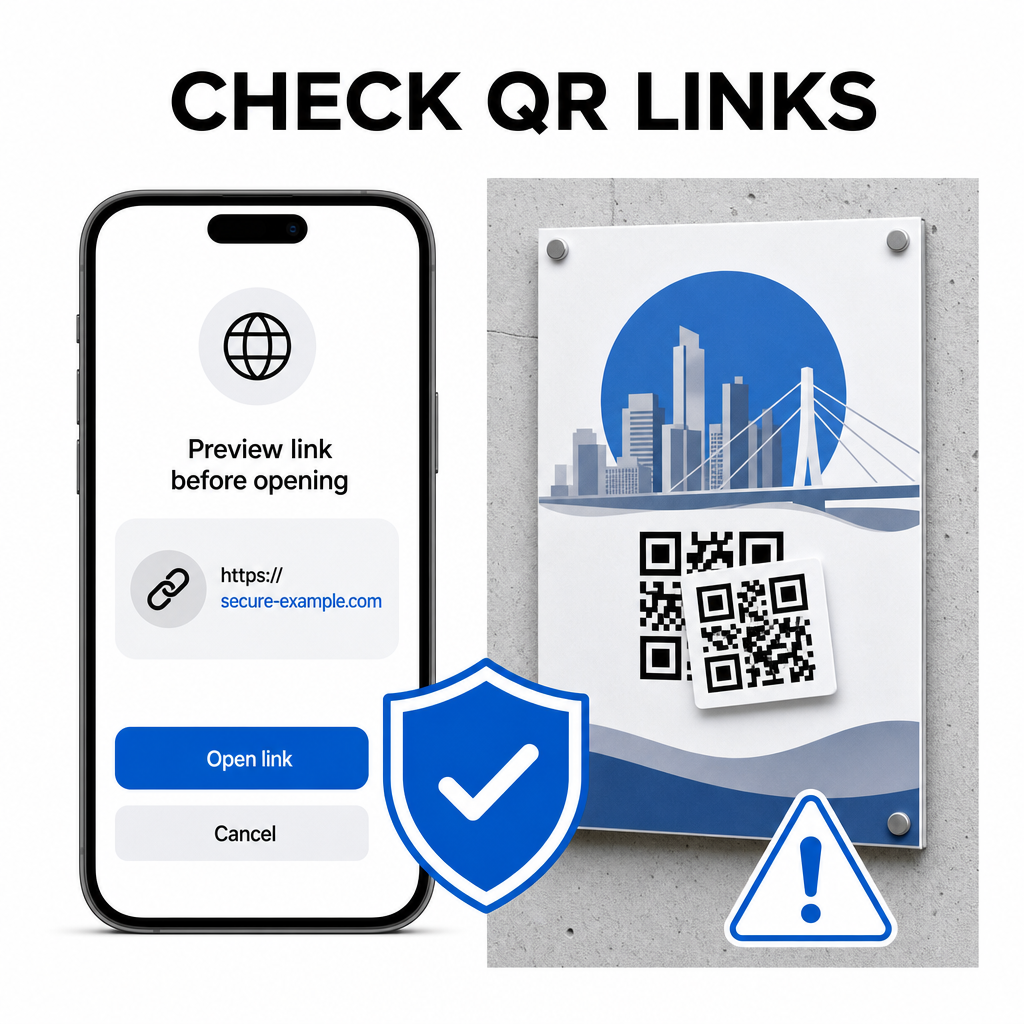
Befolgen Sie diese praktischen Sicherheitsgewohnheiten beim Scannen von Codes:
- Überprüfen Sie die Vorschau-URL in Google Lens, bevor Sie tippen, um zu überprüfen, ob die Webadresse mit der erwarteten Seite übereinstimmt.
- Auf physische Manipulationen prüfen auf gedruckten Schildern, wie einem Aufkleber, der über einen Originalcode geklebt wurde.
- Vermeiden Sie die Eingabe sensibler Zugangsdaten wie Anmeldeinformationen oder Bankdaten auf Seiten, die über unerwartete Codes erreicht wurden.
- Mobile Apps sicher herunterladen indem Sie offizielle App Stores direkt besuchen, anstatt eingebettete Links zu verwenden.
Das Überprüfen von Ziellinks, bevor Sie mit Webseiten interagieren, stellt sicher, dass Ihre persönlichen Daten geschützt bleiben. Für weitere Ratschläge zu Kameraerkennungseinstellungen und besten Sicherheitspraktiken, erkunden Sie unseren vollständigen Leitfaden zu wie man QR-Codes scannt.
Schnelles und sicheres QR-Code-Scannen
Mit Google Lens ist das Abrufen von Menüs, Zahlungsportalen und Werbelinks auf jedem Smartphone einfach. Die Kamera sauber zu halten, den richtigen Fokusabstand einzuhalten und Vorschau-Links vor dem Antippen zu überprüfen, gewährleistet ein reibungsloses Scan-Erlebnis. Wenn Sie einen Code schnell dekodieren müssen, ohne sich auf eine App zu verlassen, verwenden Sie den kostenlosen Online-QR-Scanner um kodierte Links sofort von jedem Webbrowser aus anzuzeigen.
Häufig gestellte Fragen
Nein, die meisten modernen Android-Geräte haben Google Lens-Funktionen direkt in der standardmäßigen Google-Suchleiste, dem Google Assistant oder den Einstellungen der nativen Kamera-App integriert.
Google Lens scannt Bilddateien wie JPEGs oder PNGs. Um ein PDF zu scannen, machen Sie einen Screenshot des QR-Codes im Dokument und öffnen Sie diesen Screenshot in Google Lens oder einem Online-Lesegerät.
Schließen Sie den Browser-Tab sofort, ohne Informationen einzugeben. Überprüfen Sie, ob über dem physischen QR-Code ein Aufkleber angebracht ist oder ob Ihre Kamera einen benachbarten Code falsch gelesen hat.