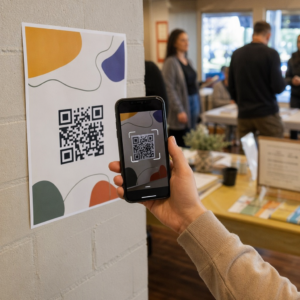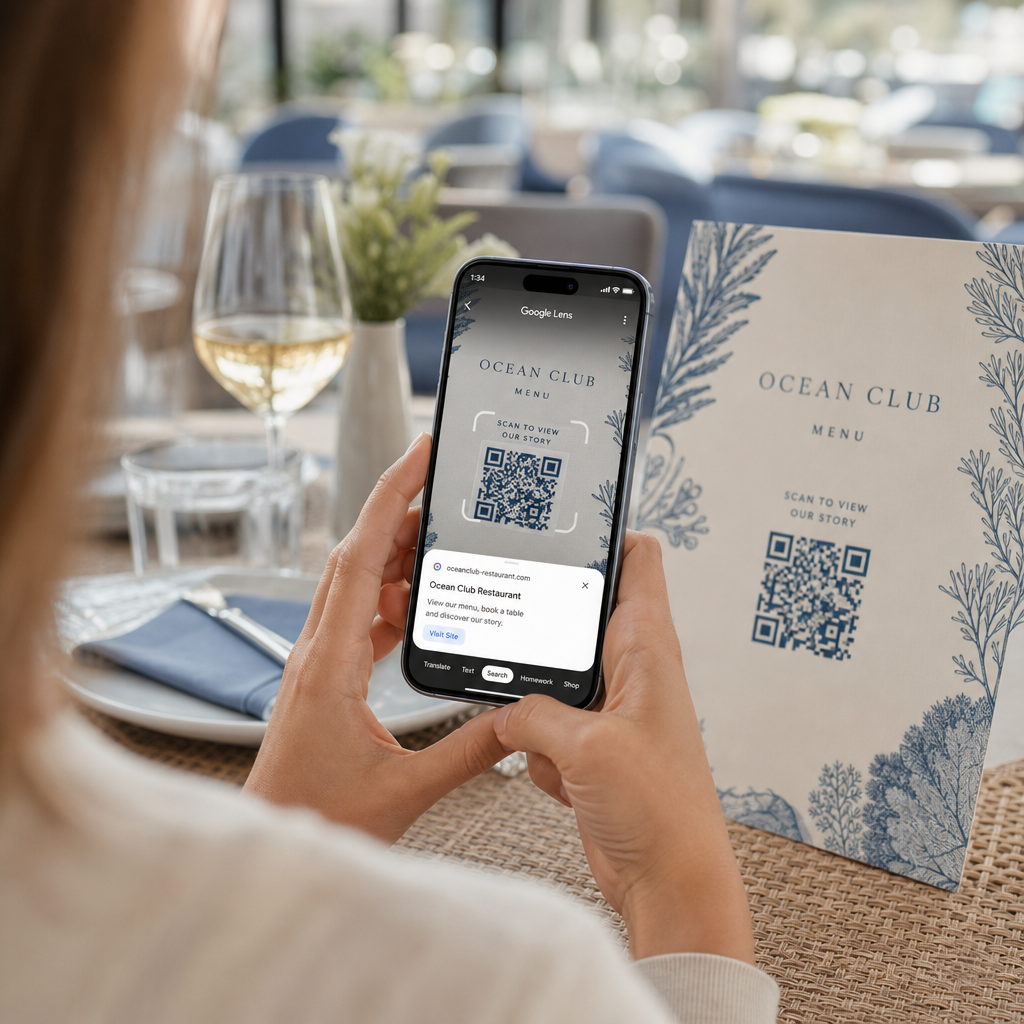
Moeite met het openen van een digitaal menu of website omdat uw telefoon geen QR-code leest? Het niet snel kunnen scannen van codes veroorzaakt onnodige vertragingen en frustratie wanneer u direct toegang tot informatie nodig heeft. Leren hoe u Google Lens gebruikt, stelt u in staat om moeiteloos fysieke codes en opgeslagen afbeeldingen te scannen met uw smartphone.
Hoe live QR-codes te scannen met de Google-app
Google Lens gebruikt visuele herkenningssoftware om het visuele patroon van een QR-code te analyseren. Het zet de rangschikking van donkere en lichte vierkantjes om in leesbare digitale gegevens, zoals weblinks of contactinformatie. Op de meeste Android-apparaten is Google Lens direct in het systeem geïntegreerd, terwijl het op iOS-apparaten toegankelijk is via de standaard Google-app.
Om een fysieke QR-code voor u te scannen:
- Open de Google-app of zoek de Google-zoekbalkwidget op het startscherm van uw telefoon.
- Tik op het Lens-pictogram rechts van de zoekbalk.
- Selecteer de camera-optie als uw apparaat u vraagt om camerapermissies te verlenen.
- Richt uw cameraframe op de doel-QR-code terwijl u het vierkant gecentreerd op uw scherm houdt.
- Tik op de pop-up link die over de code verschijnt om de bijbehorende webpagina of het document te openen.
Als u een Android-smartphone gebruikt, kunt u codes vaak rechtstreeks scannen in uw primaire camera-app zonder een aparte tool te openen. Ga naar het instellingenmenu van uw camera en schakel Google Lens-suggestiesin. Eenmaal ingeschakeld detecteert uw standaard camera automatisch QR-codes zodra deze in beeld komen. Voor gedetailleerde apparaatspecifieke configuratie-instructies, lees onze volledige handleiding over QR-code scannen op Android: zo doe je dat.
Hoe een QR-code te scannen van een opgeslagen foto of screenshot
U heeft geen tweede apparaat nodig om een QR-code te scannen die via e-mail, sms of sociale media binnenkomt. Google Lens kan opgeslagen afbeeldingsbestanden rechtstreeks vanuit uw fotogalerij analyseren door de pixelmatrix in het afbeeldingsbestand te lezen.
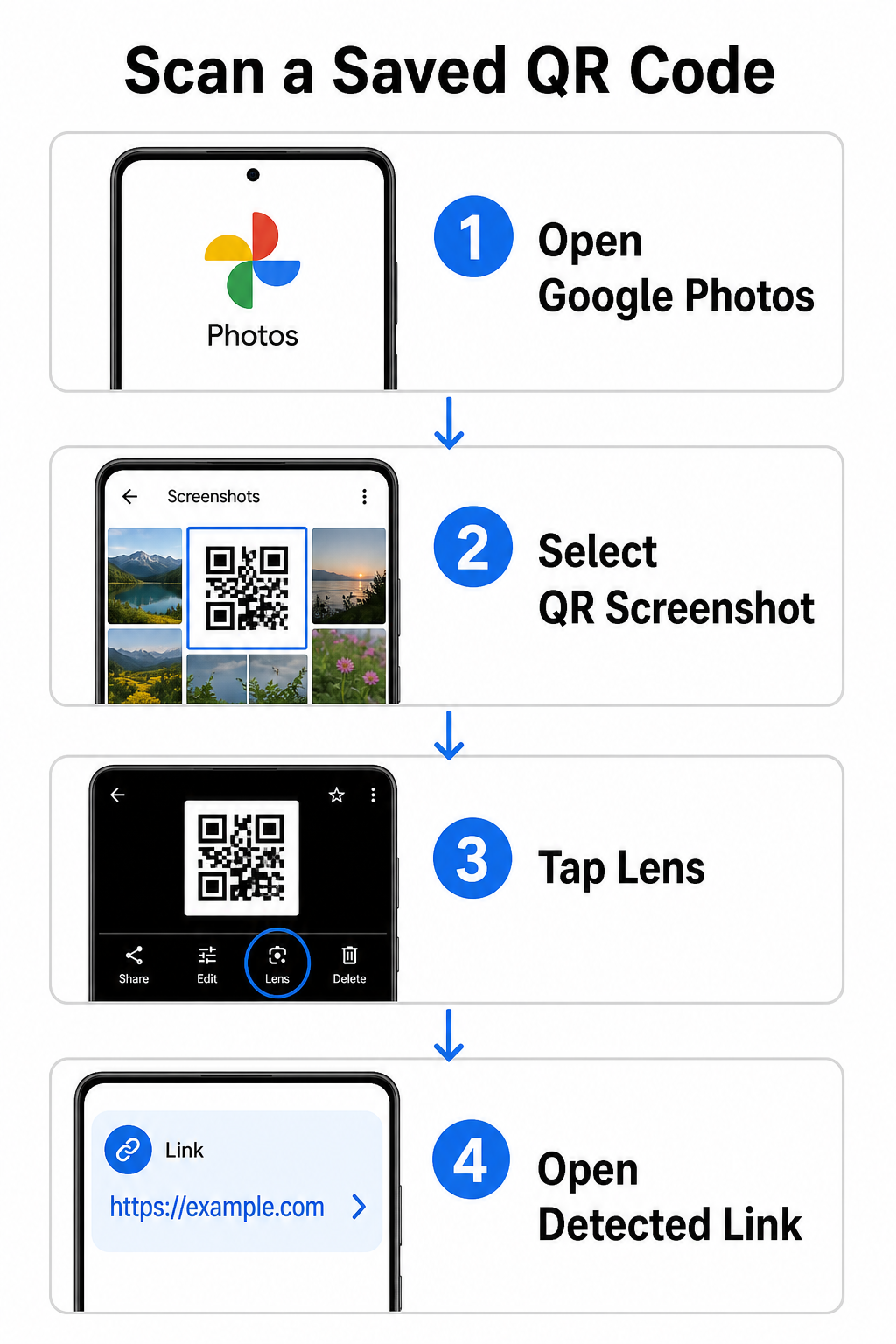
Om een QR-code te decoderen van een opgeslagen afbeelding op een Android-apparaat:
- Open de Google Foto's-app op uw smartphone.
- Selecteer de foto of de screenshot met de gewenste QR-code.
- Tik op het Lens-pictogram gepositioneerd langs de onderste menubalk.
- Tik op de gedetecteerde link die boven de QR-code verschijnt om de webpagina te openen.
Open op een iPhone de primaire Google-app, tik op het Lens camera-icoon in de zoekbalk en selecteer de Foto's-knop om een afbeelding uit uw camerarol te kiezen. Voor aanvullende methoden op verschillende mobiele platforms, raadpleeg onze uitgebreide handleiding over QR-codes scannen met smartphones.
QR-codes direct in je browser scannen Wilt u een opgeslagen afbeelding decoderen of uw camera gebruiken zonder Google Lens te openen? Gebruik de Online QR-codescanner om direct gecodeerde inhoud vanuit elke webbrowser te bekijken.
Oplossen van veelvoorkomende scanproblemen met Google Lens
Wanneer Google Lens een code niet herkent, zijn omgevingsfactoren of vuile hardwarecomponenten meestal de oorzaak. Camerasensoren zijn afhankelijk van een hoog visueel contrast tussen zwarte datamodules en witte achtergrondruimtes. Vlekken, slechte verlichting of een onjuiste afstand vervagen deze module-randen, waardoor de code onleesbaar wordt voor optische software.
Om scanfouten snel op te lossen, volgt u deze stappen:
- Reinig de cameralens met een schone doek om vlekken te verwijderen die de datamodules belemmeren.
- Verbeter de omgevingsverlichting rond fysieke borden, zodat visuele sensoren patronen met een hoog contrast kunnen verwerken.
- Pas uw leesafstand aan tot ongeveer 20 tot 30 centimeter om een correcte autofocus van de camera mogelijk te maken.
- Inspecteer het fysieke oppervlak op schade, vouwen of schittering die de vierkante vorm vervormt.
Als Google Lens de code nog steeds niet detecteert, controleer dan de camera-instellingen van uw apparaat om te bevestigen dat Google Lens-suggesties actief blijven. Als de problemen aanhouden, kan het verkennen van speciale scanhulpmiddelen de scanmogelijkheden herstellen. Vergelijk betrouwbare alternatieven in onze gedetailleerde recensie van de beste QR-code scan-apps.
Beveiliging handhaven bij het scannen van QR-codes
Omdat QR-codes mobiele browsers automatisch naar externe webbestemmingen kunnen leiden, beschermt het nemen van basisveiligheidsmaatregelen uw persoonlijke apparaat tegen misleidende links. Fysieke QR-codes die op openbare borden zijn afgedrukt, hebben geen ingebouwde beveiligingscertificaten, wat betekent dat kwaadwillenden af en toe kwaadaardige stickeroverlays op originele borden kunnen plaatsen.
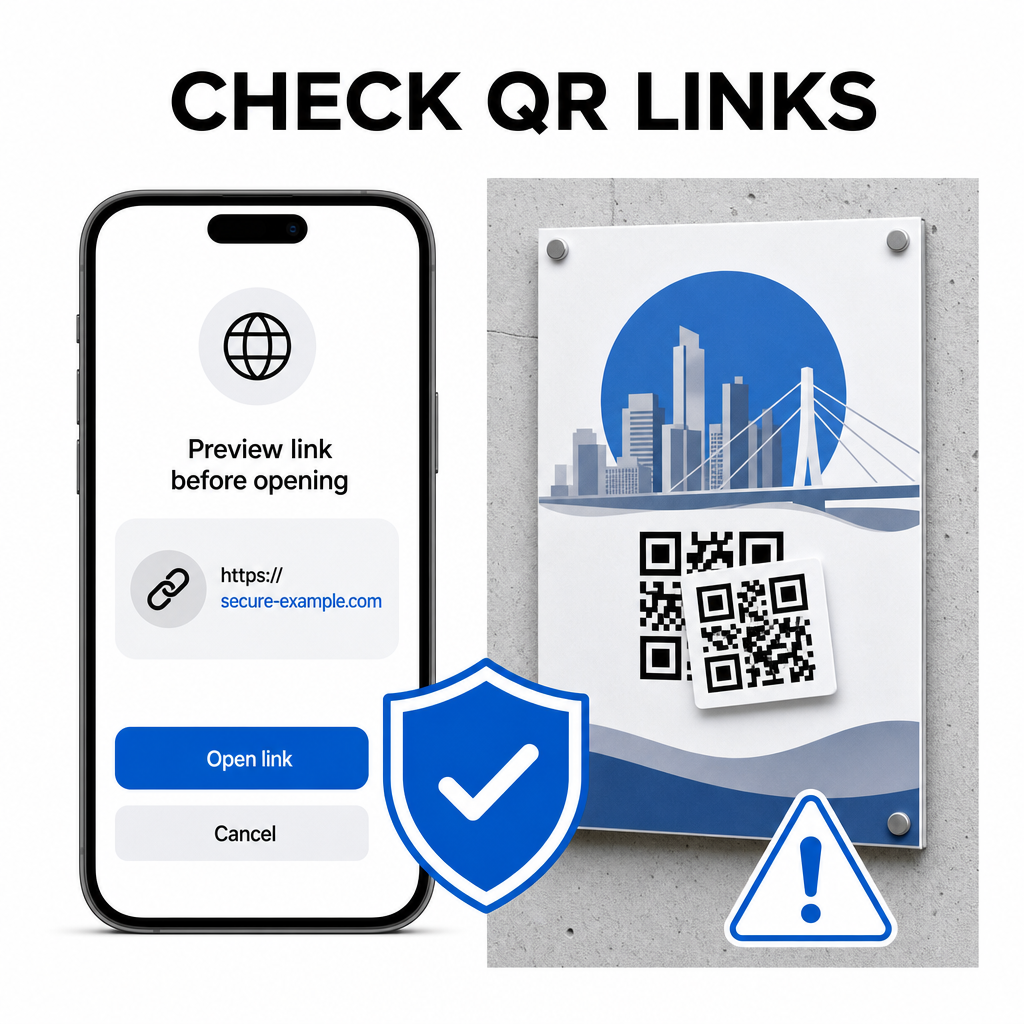
Volg deze praktische veiligheidsgewoonten bij het scannen van codes:
- Controleer de voorvertonings-URL in Google Lens voordat u tikt om te controleren of het webadres overeenkomt met de verwachte site.
- Controleer op fysieke manipulatie op afgedrukte borden, zoals een sticker die over een originele code is geplaatst.
- Vermijd het typen van gevoelige inloggegevens zoals inloggegevens of bankgegevens op pagina's die via onverwachte codes zijn bereikt.
- Download mobiele apps veilig door officiële app-winkels rechtstreeks te bezoeken in plaats van ingesloten links te gebruiken.
Het controleren van bestemmingslinks voordat u interactie aangaat met webpagina's, zorgt ervoor dat uw persoonlijke gegevens beschermd blijven. Voor uitgebreider advies over camera detectie-instellingen en veiligheidsbest practices, bekijk onze complete gids over hoe kan ik QR-codes scannen?.
Snel en veilig QR-codes scannen
Met Google Lens is het ophalen van menu's, betaalportals en promotionele links eenvoudig op elke smartphone. Door uw camera schoon te houden, de juiste focusafstand te handhaven en voorvertoningslinks te controleren voordat u erop tikt, bent u verzekerd van een soepele scanervaring. Als u snel een code wilt decoderen zonder een app te gebruiken, gebruikt u de gratis QR-scanner online om gecodeerde links direct vanuit elke webbrowser te bekijken.
Veelgestelde vragen
Nee, de meeste moderne Android-apparaten hebben Google Lens-functies direct ingebouwd in de standaard Google Zoekbalk, Google Assistent of de instellingen van de native camera-app.
Google Lens scant afbeeldingsbestanden zoals JPEGs of PNGs. Om een PDF te scannen, maak een screenshot van de QR-code in het document en open die screenshot in Google Lens of een online lezer.
Sluit het browsertabblad onmiddellijk zonder enige informatie in te voeren. Controleer of de fysieke QR-code een sticker heeft die eroverheen is geplaatst of dat uw camera een aangrenzende code verkeerd heeft gelezen.