ホーム > ガイド > How to Scan a QR Code with Google Lens
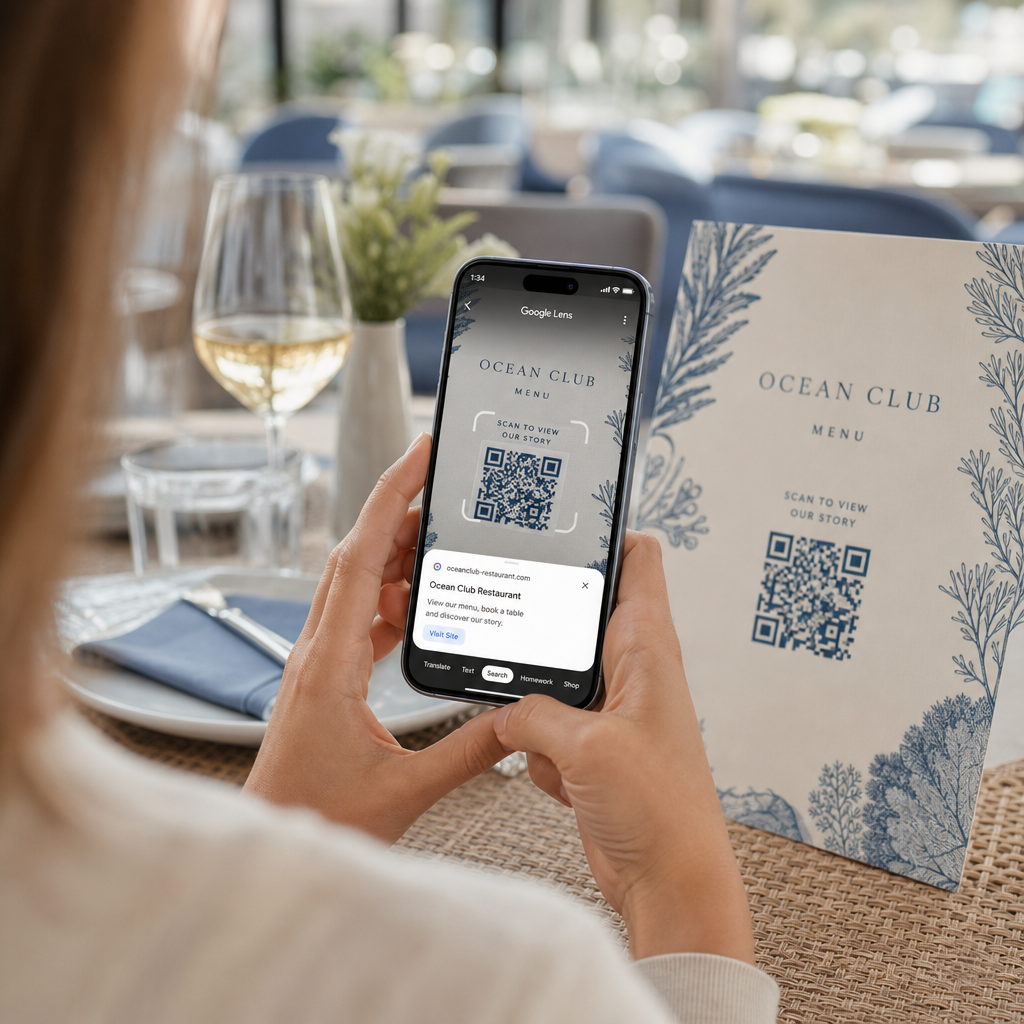
Scanning restaurant QR code

How to Scan a QR Code with Google Lens

Learn how to scan QR codes with Google Lens from your live camera or saved photos on Android and iPhone, along with safety and troubleshooting tips.
Updated on 7月 27, 2026
目次

Struggling to open a digital menu or website because your phone will not read a QR code? Failing to scan codes quickly causes unnecessary delays and frustration when you need instant access to information. Learning how to use Google Lens allows you to scan physical codes and saved images effortlessly using your smartphone.

How to Scan Live QR Codes with the Google App

Google Lens uses visual recognition software to analyze the visual pattern of a QR code. It converts the arrangement of dark and light squares into readable digital data, such as web links or contact information. On most Android devices, Google Lens is integrated directly into the system, while on iOS devices, it is accessible through the standard Google app.

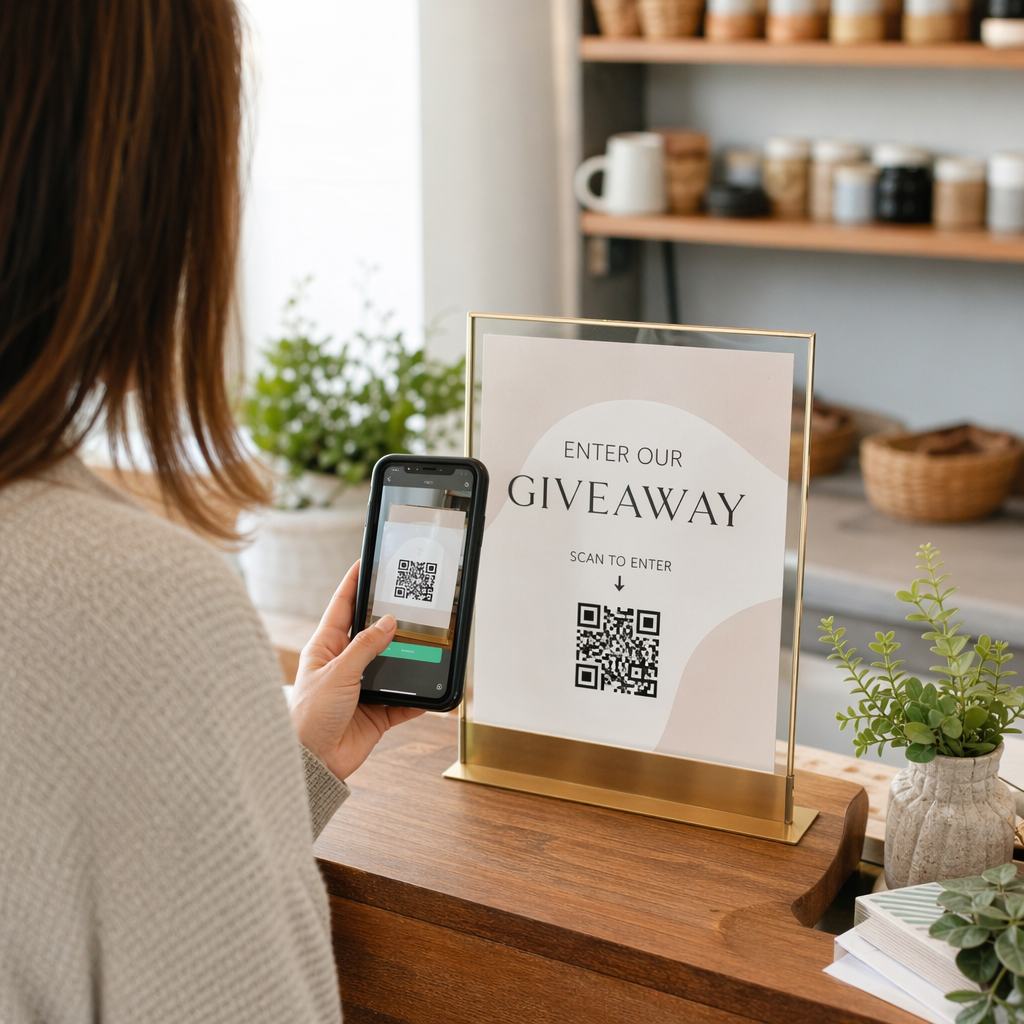
To scan a physical QR code in front of you:

  • Open the Google app or locate the Google Search bar widget on your phone home screen.
  • Tap the Lens icon located on the right side of the search bar.
  • Select the camera option if your device prompts you to grant camera permissions.
  • Point your camera frame at the target QR code while keeping the square centered on your screen.
  • Tap the pop-up link that overlays the code to open the associated web page or document.

If you use an Android smartphone, you can often scan codes directly inside your primary camera app without opening a separate tool. Access your camera settings menu and turn on Google Lens suggestions. Once enabled, your standard camera automatically detects QR codes whenever they enter the frame. For detailed device-specific configuration instructions, read our full guide on how to scan a QR code on Android.

How to Scan a QR Code from a Saved Photo or Screenshot

You do not need a second device to scan a QR code that arrives via email, text message, or social media. Google Lens can analyze stored image files directly from your photo gallery by reading the pixel matrix saved in the image file.

Scan saved QR image

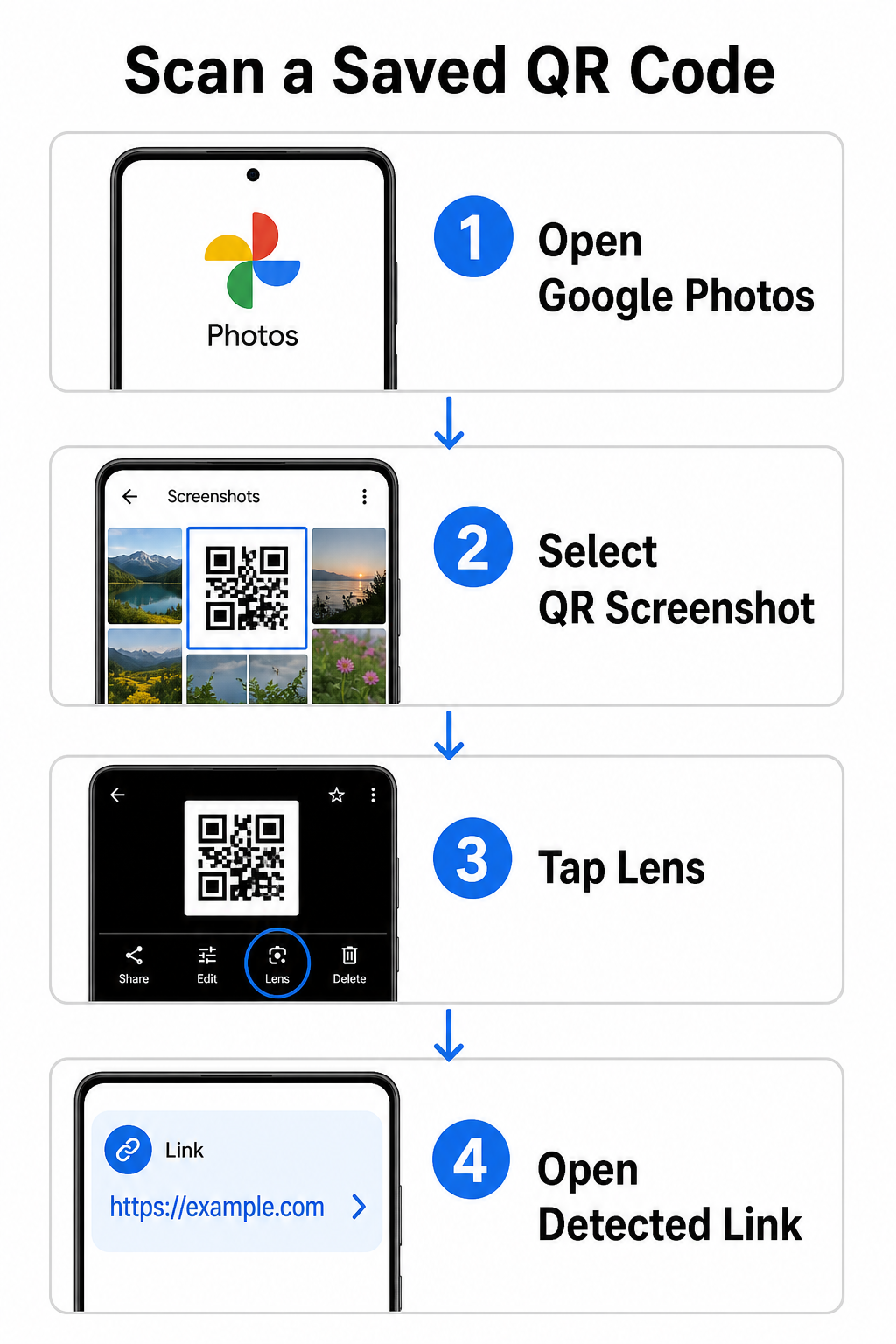
To decode a QR code from a saved picture on an Android device:

  • Open the Google Photos app on your smartphone.
  • Select the photo or screenshot containing the target QR code.
  • Tap the Lens icon positioned along the bottom menu bar.
  • Tap the detected link displayed over the QR code to open the web page.

On an iPhone, open the primary Google app, tap the Lens camera icon inside the search bar, and select the Photos button to choose an image from your camera roll. For additional methods across different mobile platforms, consult our comprehensive tutorial on scanning QR codes with smartphones.

Scan QR Codes Directly in Your Browser Need to decode a saved image or use your camera without opening Google Lens? Use the Online QR Code Scanner to instantly view encoded content from any web browser.

Troubleshooting Common Google Lens Scanning Issues

When Google Lens fails to recognize a code, environmental factors or dirty hardware components are usually responsible. Camera sensors rely on high visual contrast between black data modules and white background spaces. Smudges, poor lighting, or improper distance blur these module edges, making the code unreadable to optical software.

To resolve scanning failures quickly, follow these steps:

  • Wipe the camera lens with a clean cloth to eliminate smudges that obscure data modules.
  • Improve ambient lighting around physical signs so visual sensors can process high-contrast patterns.
  • Adjust your reading distance to roughly 8 to 12 inches to allow proper camera autofocus.
  • Inspect the physical surface for damage, folds, or glare that distorts the square shape.

If Google Lens still does not detect the code, check your device camera settings to confirm that Google Lens suggestions remain active. If issues persist, exploring dedicated scanning utilities can restore scanning capabilities. Compare reliable alternatives in our detailed review of the best QR code scanning apps.

Maintaining Security When Scanning QR Codes

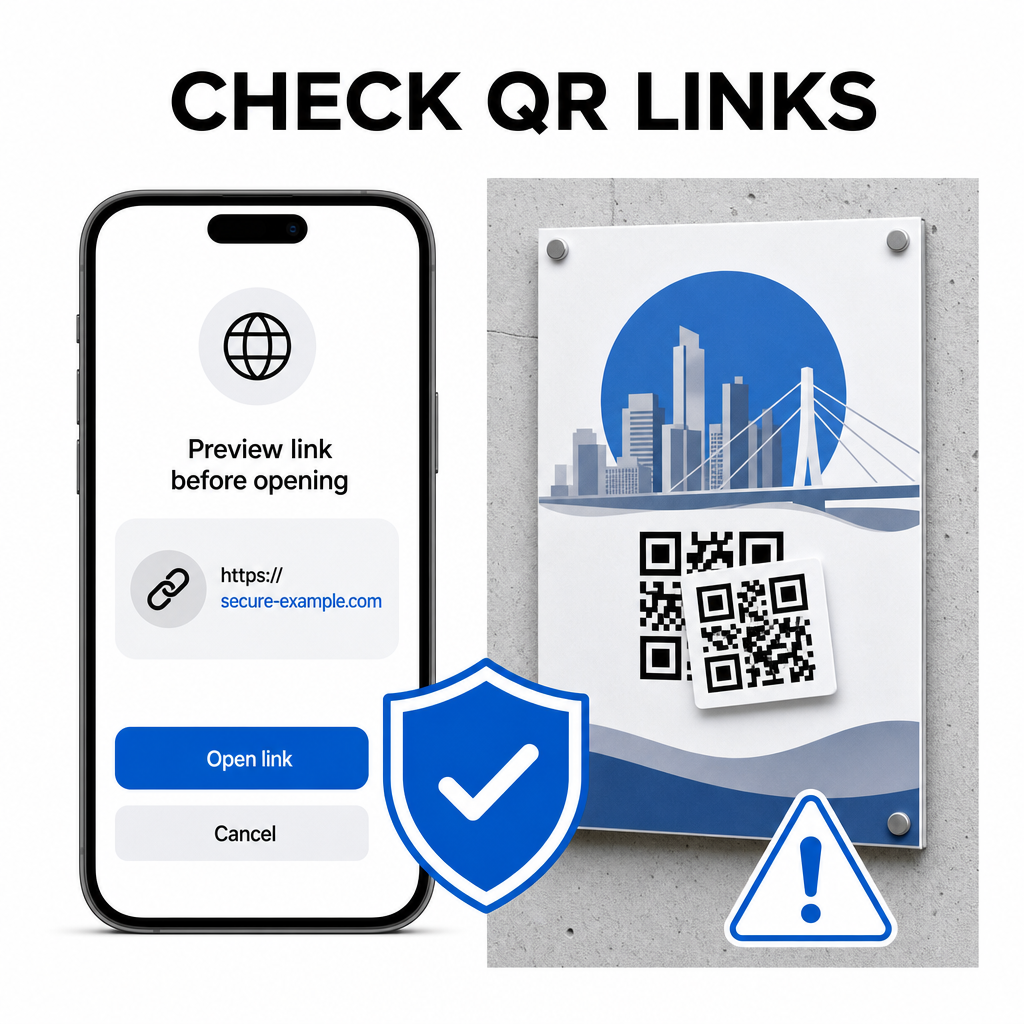
Because QR codes can direct mobile browsers to external web destinations automatically, practicing basic security precautions protects your personal device from deceptive links. Physical QR codes printed on public signage lack built-in security certificates, which means bad actors can occasionally place malicious sticker overlays on original signs.

Check QR links safely

Follow these practical safety habits when scanning codes:

  • Inspect the preview URL in Google Lens before tapping to verify the web address matches the expected site.
  • Check for physical tampering on printed signs, such as a sticker placed over an original code.
  • Avoid typing sensitive credentials like logins or banking details on pages reached through unexpected codes.
  • Download mobile apps safely by visiting official app stores directly rather than using embedded links.

Checking destination links before interacting with web pages ensures your personal data remains protected. For broader advice on camera detection settings and safety best practices, explore our complete guide on QRコードの読み取り方.

Fast and Secure QR Code Scanning

Mastering Google Lens makes retrieving menus, payment portals, and promotional links simple on any smartphone. Keeping your camera clean, maintaining proper focal distance, and verifying preview links before tapping them ensures a smooth scanning experience. If you need to decode a code quickly without relying on an app, use the free QR scanner online to instantly view encoded links from any web browser.

よくある質問

Do I need to install Google Lens separately on Android?

No, most modern Android devices have Google Lens features built directly into the default Google Search bar, Google Assistant, or native Camera app settings.

Can Google Lens scan a QR code saved as a PDF?

Google Lens scans image files like JPEGs or PNGs. To scan a PDF, take a screenshot of the QR code inside the document and open that screenshot in Google Lens or an online reader.

What should I do if Google Lens opens the wrong website?

Close the browser tab immediately without entering any information. Check whether the physical QR code has a sticker placed over it or if your camera misread an adjacent code.

著者について

Siim KostabiはPagelootのコンテンツリードです。Pagelootの革新的なQRコード生成サービスについて執筆しています。5年以上にわたるQRコードに関する深い専門知識を持つSiimは、この分野の専門家です。QRテクノロジーを活用してデジタルインタラクションを簡素化・拡張する上で、大きな進歩を遂げています。.

カテゴリー
について詳しくはこちら
✅ QRコードの#1ソリューション

オンラインでQRコードを作成する必要がある場合は QRコードを作る ここで無料で
ページルートは #1のGo-Toソリューション でQRコードを作成してスキャンすることができます。

BL-0338

ブログスキャン

売上、レビュー、フォロワーを増やすために 20,000 を超えるブランドから信頼されています。

クライアントのロゴ
トップブランドから信頼される
5 のうち 4.8 と評価しました

4.86 / 5つ星評価

ユーゴ・ローラン
ユーゴ・ローラン
レストランオーナー
最も簡単で信頼性の高いQRコードジェネレータです。PDFファイルを即座にアップロードできます。レストランのメニューがデジタル化されました。
ルーカス・ジャンセン
ルーカス・ジャンセン
不動産開発業者
これは優れたツールで、QRコードでちょうど欲しいところに連れて行ってくれます。私たちは位置情報のQRコードしか使っていませんが、とても便利な機能がたくさんあります。
エマ・モレッティ
エマ・モレッティ
小売製品
使いやすいし、早い。素晴らしい機能で、完璧な画像を作成してくれるので、社員は私のvCardをダウンロードすることができます。
ユーゴ・ローラン
ユーゴ・ローラン
レストランオーナー
最も簡単で信頼性の高いQRコードジェネレータです。PDFファイルを即座にアップロードできます。レストランのメニューがデジタル化されました。
ルーカス・ジャンセン
ルーカス・ジャンセン
不動産開発業者
これは優れたツールで、QRコードでちょうど欲しいところに連れて行ってくれます。私たちは位置情報のQRコードしか使っていませんが、とても便利な機能がたくさんあります。
エマ・モレッティ
エマ・モレッティ
小売製品
使いやすいし、早い。素晴らしい機能で、完璧な画像を作成してくれるので、社員は私のvCardをダウンロードすることができます。
QRコードをもっと見る
iPhoneでのQRコードスキャン
QRコードをスキャンして アイフォン
あらゆるものをデジタル体験に変えよう 3分以内に。

14日間の無料トライアル。

クレジットカードは必要ありません。

初回購入で30%オフ

次のコードを使用してください:

MP3ファイルを共有

PDF QRコードを作成するにはサインアップしてください

必要なものをすべてアップロードして表示する。

  • オーディオファイル
  • ポッドキャスト
  • 音楽

サインアップで14日間無料トライアル。.
トライアル終了後、QRコードは期限切れになります。.

オーディオmp3 QRコードを作成するにはサインアップしてください

フレームでより多くのスキャンを獲得

QRコードにフレームを追加するにはサインアップしてください

コールトゥアクションフレームは、お客様が簡単にQRコードと対話できるようにします。ぜひお試しください。

サインアップで14日間無料トライアル。.
トライアル終了後、QRコードは期限切れになります。.

QRコードにフレームを追加するにはサインアップしてください

シェイプでスタイルを追加

より多くの図形を作成するにはサインアップしてください

QRコードは四角いものである必要はありません。あなたのブランドのイメージに合わせて変えてみてください。

サインアップで14日間無料トライアル。.
トライアル終了後、QRコードは期限切れになります。.

より多くの図形を作成するにはサインアップしてください

QRコードにロゴを追加

QRコードにロゴを追加するにはサインアップしてください

QRコードにロゴやブランドを入れることで、目立たせることができます。

サインアップで14日間無料トライアル。.
トライアル終了後、QRコードは期限切れになります。.

QRコードにロゴを追加するにはサインアップしてください

スマートなApp Storeリダイレクト

アプリストアのQRコードを作成するにはサインアップしてください

スマートなApp StoreのQRコードに、あなたのアプリのリンクを追加します。ユーザーは、デバイスに応じてリダイレクトされます。

サインアップで14日間無料トライアル。.
トライアル終了後、QRコードは期限切れになります。.

アプリストアのQRコードを作成するにはサインアップしてください

QRコードに画像をアップロード

画像QRコードを作成するにはサインアップしてください

画像を簡単に共有できます。どんな画像も、数秒でダイナミックに変化します。

サインアップで14日間無料トライアル。.
トライアル終了後、QRコードは期限切れになります。.

画像QRコードを作成するにはサインアップしてください

PDFファイルを共有

PDF QRコードを作成するにはサインアップしてください

必要なものをすべてアップロードして表示する。

  • メニュー&プライスリスト
  • 指示
  • 任意の書類

サインアップで14日間無料トライアル。.
トライアル終了後、QRコードは期限切れになります。.

PDF QRコードを作成するにはサインアップしてください

印刷せずに後で編集

再度印刷せずにQRコードを編集するにはサインアップしてください

ダイナミックQRコードは、新たにQRコードを印刷することなく、QRコードの内容を変更することができます。

サインアップで14日間無料トライアル。.
トライアル終了後、QRコードは期限切れになります。.

再度印刷せずにQRコードを編集するにはサインアップしてください

いつ?どこで?QRコードのスキャンを追跡

QRコードを追跡するにはサインアップしてください

どのQRコードが最も多くスキャンされ、何が最も顧客を喜ばせているのかを知ることができます。

サインアップで14日間無料トライアル。.
トライアル終了後、QRコードは期限切れになります。.

QRコードを追跡するにはサインアップしてください

印刷可能なファイルが利用可能

PDFやSVGのようなベクターQRコードを作成するにはサインアップしてください

.eps、.pdf、.svg

QRコードをHD解像度でダウンロードしたいですか?すぐに印刷できるベクターまたはピクセル形式を入手しましょう。

サインアップで14日間無料トライアル。.
トライアル終了後、QRコードは期限切れになります。.

PDFやSVGのようなベクターQRコードを作成するにはサインアップしてください

しばらくお待ちください。あなたのQRコードは ロード... ロード...

あなただけのものに

サインアップしてQRコードを後で保存してください

異なる色、ロゴ、コールトゥアクションフレームで素晴らしいQRコードを作成することで、より多くのスキャンを得ることができます。

サインアップで14日間無料トライアル。.
トライアル終了後、QRコードは期限切れになります。.

サインアップしてQRコードを後で保存してください