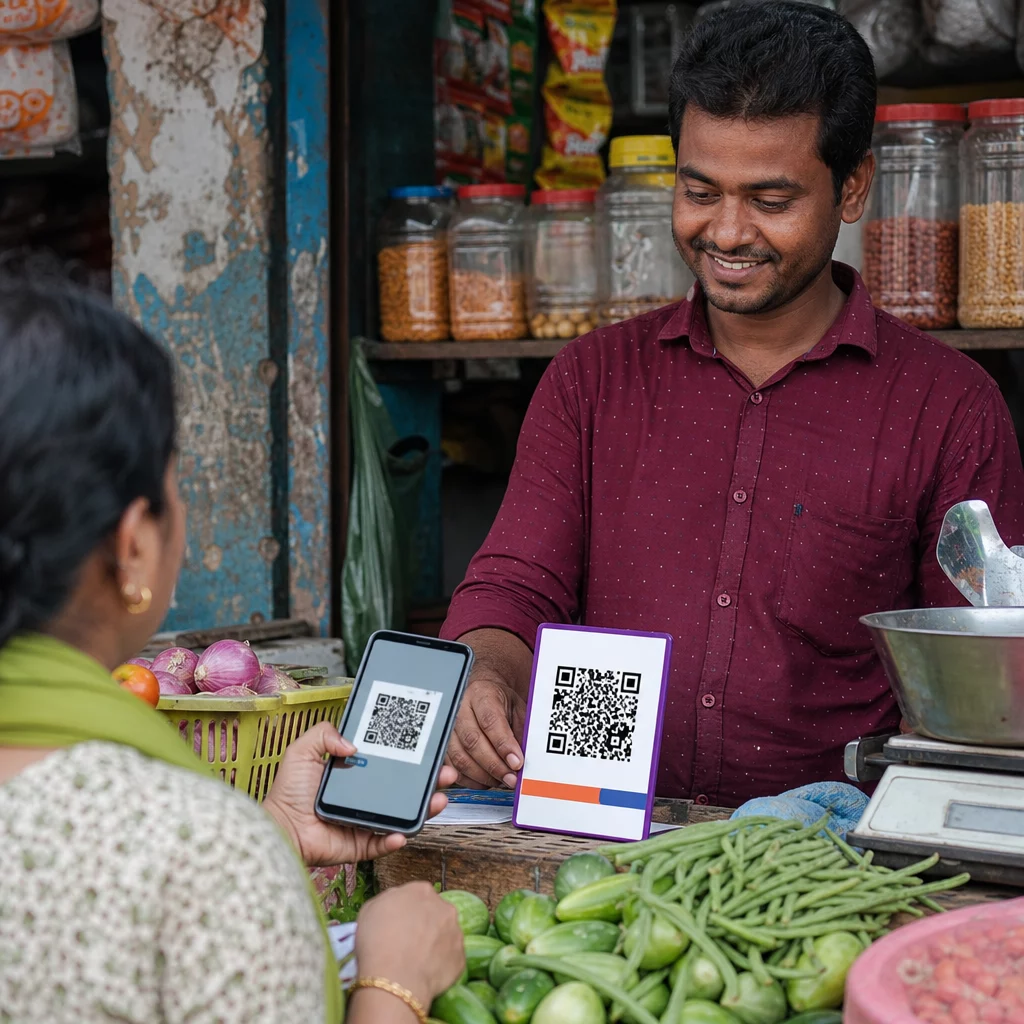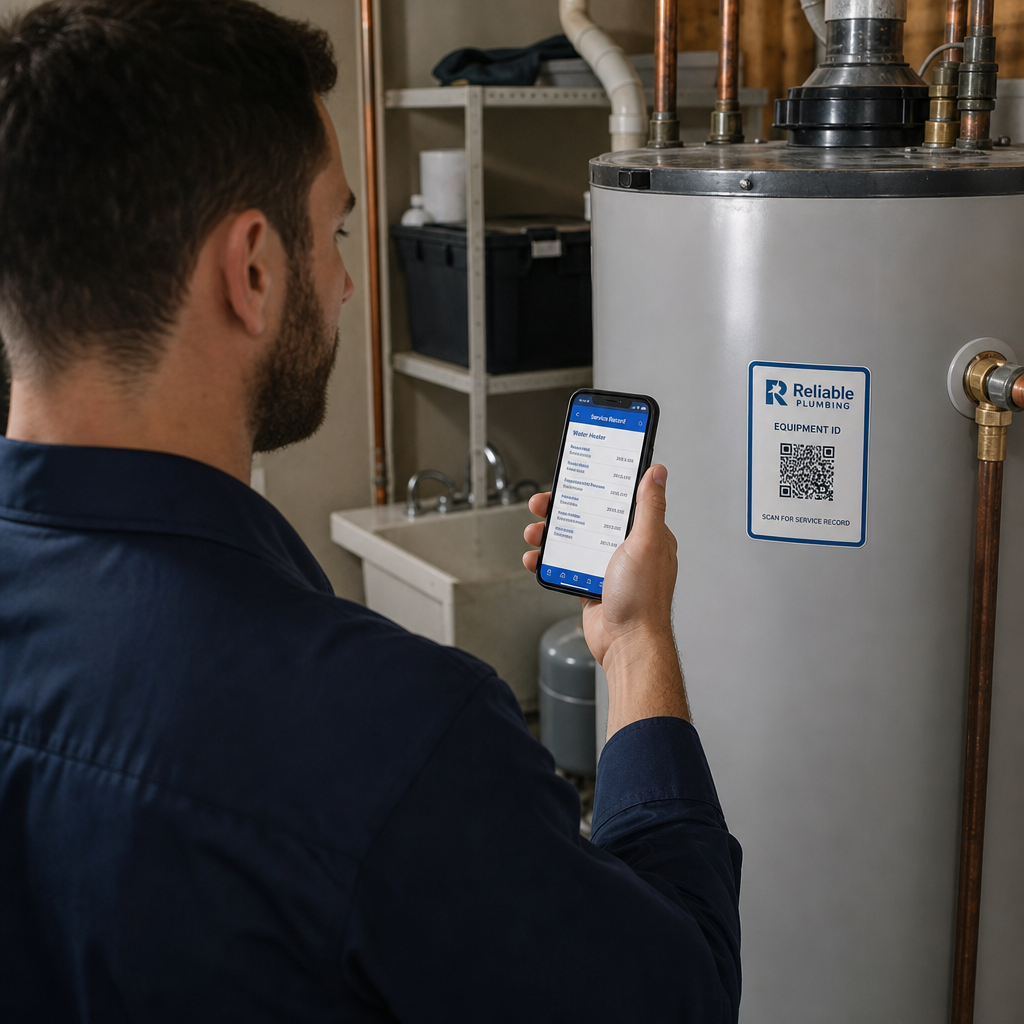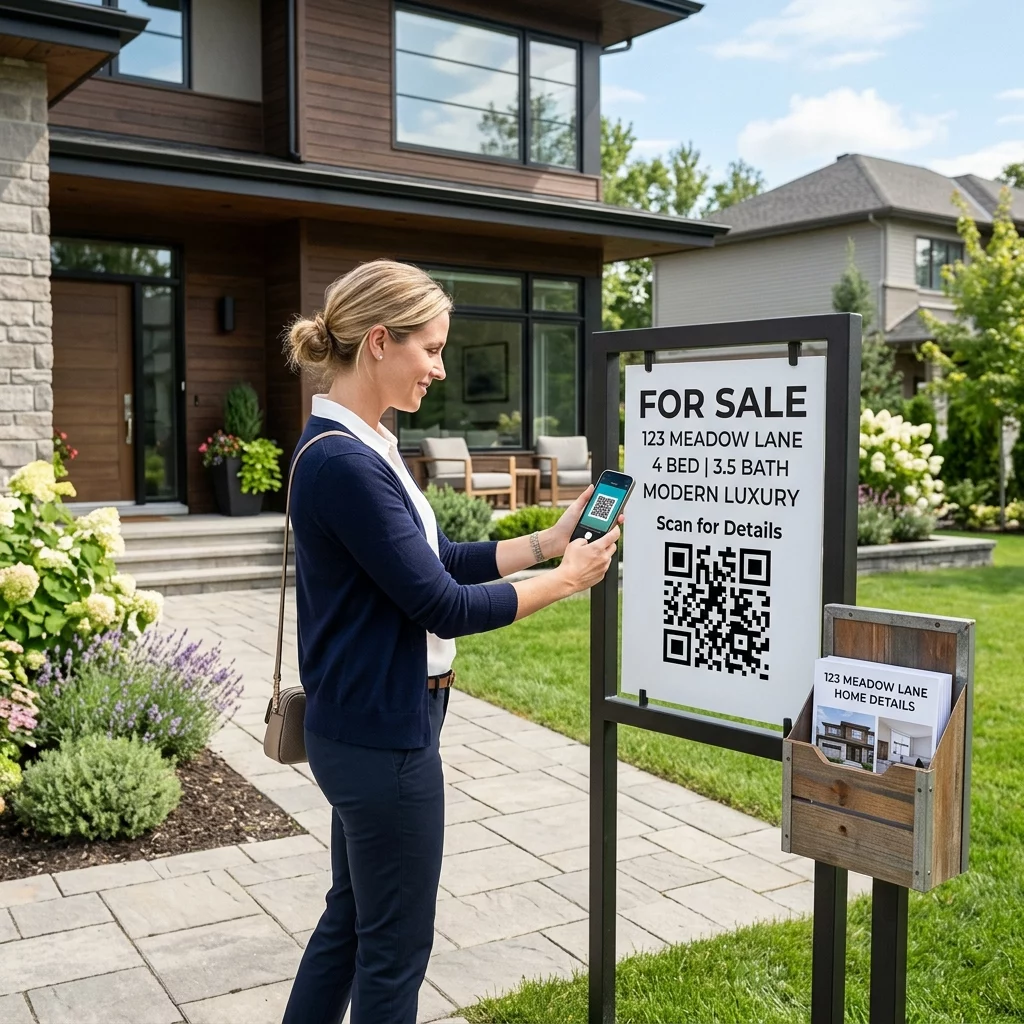
Har du svårt att öppna en digital meny eller webbplats för att din telefon inte kan läsa en QR-kod? Att misslyckas med att snabbt skanna koder orsakar onödiga förseningar och frustration när du behöver omedelbar tillgång till information. Att lära sig hur man använder Google Lens gör att du enkelt kan skanna fysiska koder och sparade bilder med din smartphone.
Hur man skannar live QR-koder med Google-appen
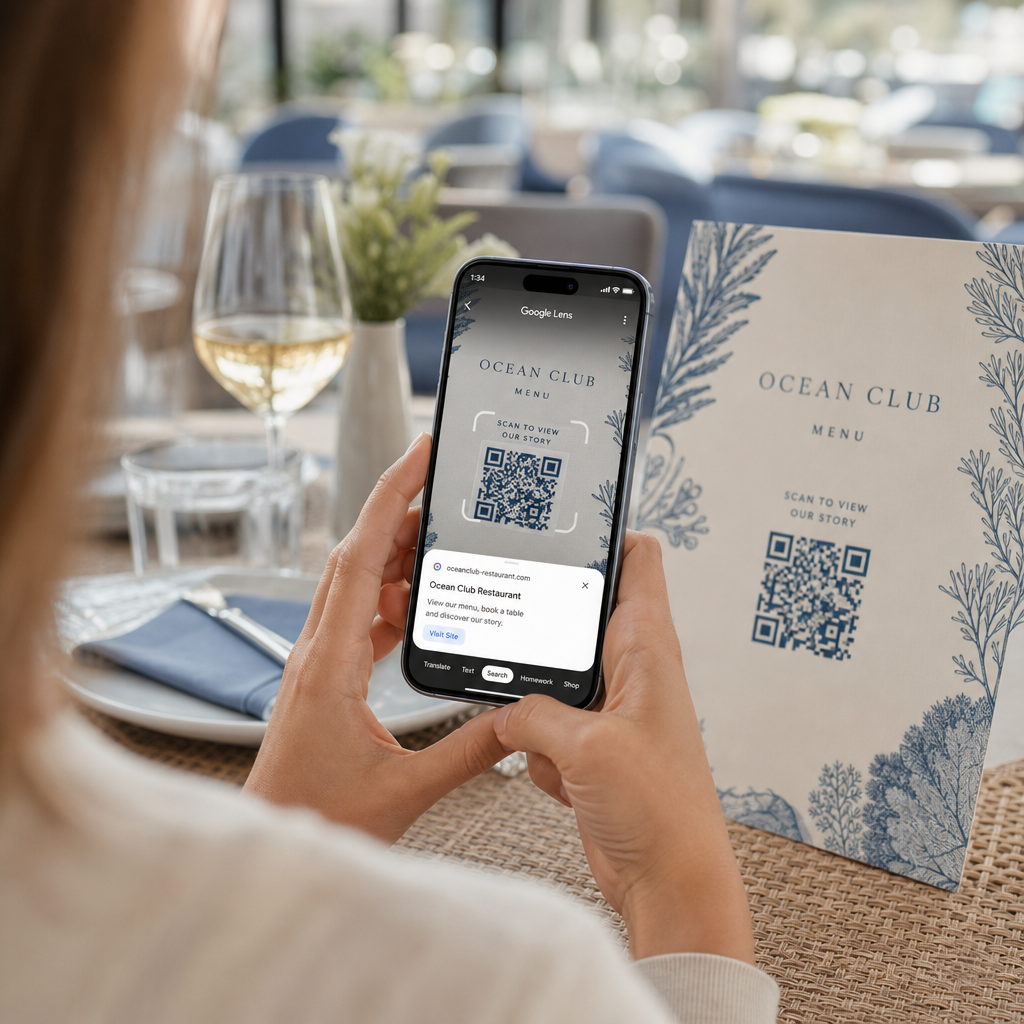
Google Lens använder programvara för visuell igenkänning för att analysera det visuella mönstret i en QR-kod. Den omvandlar arrangemanget av mörka och ljusa rutor till läsbar digital data, som webblänkar eller kontaktinformation. På de flesta Android-enheter är Google Lens direkt integrerat i systemet, medan det på iOS-enheter är tillgängligt via den vanliga Google-appen.
För att skanna en fysisk QR-kod framför dig:
- Öppna Google-appen eller hitta widgeten för Google-sökfältet på telefonens startskärm.
- Tryck på Lens-ikonen som finns på höger sida av sökfältet.
- Välj kameraalternativet om din enhet uppmanar dig att bevilja kamerabehörigheter.
- Rikta din kamera mot QR-koden och håll rutan centrerad på skärmen.
- Tryck på popup-länken som överlagrar koden för att öppna den associerade webbsidan eller dokumentet.
Om du använder en Android-smartphone kan du ofta skanna koder direkt i din primära kameraapp utan att öppna ett separat verktyg. Gå till kamerainställningarna och aktivera Google Lens-förslag. När det är aktiverat, upptäcker din vanliga kamera automatiskt QR-koder så snart de kommer in i ramen. För detaljerade enhetsspecifika konfigurationsinstruktioner, läs vår fullständiga guide om Skanna QR-kod på Android: så gör du.
Hur man skannar en QR-kod från ett sparat foto eller en skärmdump
Du behöver ingen andra enhet för att skanna en QR-kod som kommer via e-post, textmeddelande eller sociala medier. Google Lens kan analysera lagrade bildfiler direkt från ditt fotogalleri genom att läsa pixelmatrisen som sparats i bildfilen.
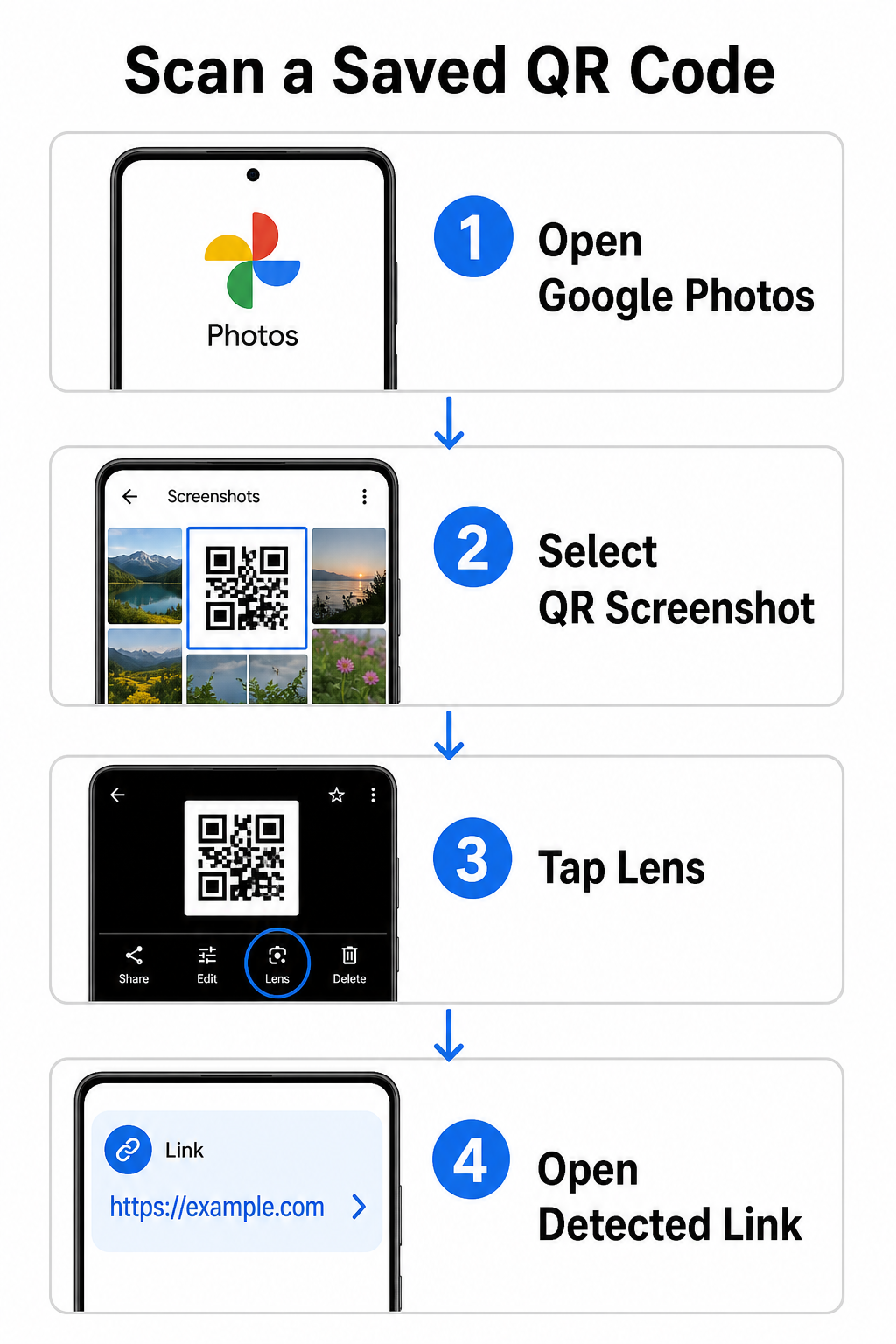
För att avkoda en QR-kod från en sparad bild på en Android-enhet:
- Öppna Google Photos-appen på din smartphone.
- Välj fotot eller skärmdumpen som innehåller mål-QR-koden.
- Tryck på Lens-ikonen placerad längs den nedre menyraden.
- Tryck på den upptäckta länken som visas över QR-koden för att öppna webbsidan.
På en iPhone, öppna den primära Google-appen, tryck på Lens-kameraikonen inuti sökfältet, och välj Foton-knappen för att välja en bild från din kamerarulle. För ytterligare metoder över olika mobilplattformar, se vår omfattande handledning om skanna QR-koder med smartphones.
Skanna QR-koder direkt i din webbläsare Behöver du avkoda en sparad bild eller använda din kamera utan att öppna Google Lens? Använd den Online QR-kodläsare för att omedelbart se kodat innehåll från vilken webbläsare som helst.
Felsökning av vanliga skanningsproblem med Google Lens
När Google Lens misslyckas med att känna igen en kod är miljöfaktorer eller smutsiga hårdvarukomponenter oftast orsaken. Kamerasensorer förlitar sig på hög visuell kontrast mellan svarta datamoduler och vita bakgrundsytor. Fläckar, dålig belysning eller felaktigt avstånd suddar ut dessa modulkanter, vilket gör koden oläsbar för optisk programvara.
För att snabbt lösa skanningsfel, följ dessa steg:
- Torka av kameralinsen med en ren trasa för att eliminera fläckar som skymmer datamodulerna.
- Förbättra omgivande belysning runt fysiska skyltar så att visuella sensorer kan bearbeta högkontrastmönster.
- Justera ditt läsavstånd till cirka 20 till 30 cm för att möjliggöra korrekt kameraautofokus.
- Inspektera den fysiska ytan för skador, veck eller bländning som förvränger den fyrkantiga formen.
Om Google Lens fortfarande inte upptäcker koden, kontrollera enhetens kamerainställningar för att bekräfta att Google Lens-förslag förblir aktiva. Om problemen kvarstår kan utforskning av dedikerade skanningsverktyg återställa skanningsförmågan. Jämför tillförlitliga alternativ i vår detaljerade recension av de bästa apparna för QR-kodskanning.
Upprätthålla säkerhet vid skanning av QR-koder
Eftersom QR-koder automatiskt kan dirigera mobila webbläsare till externa webbdestinationer, skyddar grundläggande säkerhetsåtgärder din personliga enhet från vilseledande länkar. Fysiska QR-koder tryckta på offentlig skyltning saknar inbyggda säkerhetscertifikat, vilket innebär att bedragare ibland kan placera skadliga klistermärken över de ursprungliga skyltarna.
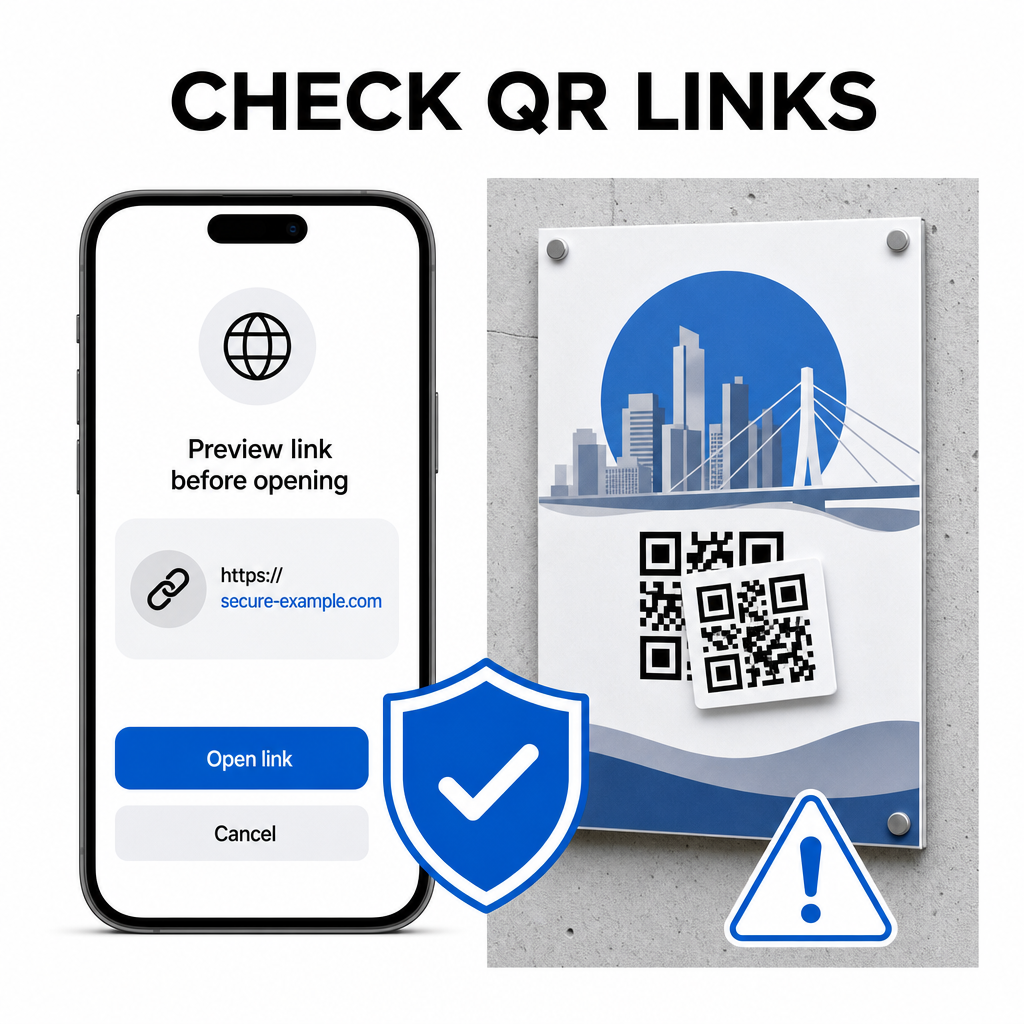
Följ dessa praktiska säkerhetsvanor när du skannar koder:
- Granska förhandsvisningens URL i Google Lens innan du trycker för att verifiera att webbadressen matchar den förväntade webbplatsen.
- Kontrollera efter fysisk manipulering på tryckta skyltar, som ett klistermärke placerat över en originalkod.
- Undvik att skriva in känsliga uppgifter som inloggningar eller bankuppgifter på sidor som nås via oväntade koder.
- Ladda ner mobilappar säkert genom att besöka officiella appbutiker direkt istället för att använda inbäddade länkar.
Att kontrollera destinationslänkar innan du interagerar med webbsidor säkerställer att dina personliga data förblir skyddade. För bredare råd om kameradetekteringsinställningar och bästa säkerhetspraxis, utforska vår kompletta guide om hur man skannar QR-koder.
Snabb och säker QR-kodskanning
Att behärska Google Lens gör det enkelt att hämta menyer, betalningsportaler och kampanjlänkar på vilken smartphone som helst. Att hålla kameran ren, upprätthålla rätt fokusavstånd och verifiera förhandsgranskningslänkar innan du trycker på dem säkerställer en smidig skanningsupplevelse. Om du snabbt behöver avkoda en kod utan att förlita dig på en app, använd den gratis QR-skanner online för att omedelbart visa kodade länkar från vilken webbläsare som helst.
Vanliga frågor
Nej, de flesta moderna Android-enheter har Google Lens-funktioner inbyggda direkt i standard-sökfältet i Google, Google Assistent eller inställningarna för den inbyggda kameraappen.
Google Lens skannar bildfiler som JPEG eller PNG. För att skanna en PDF, ta en skärmdump av QR-koden inuti dokumentet och öppna den skärmdumpen i Google Lens eller en online-läsare.
Stäng webbläsarfliken omedelbart utan att ange någon information. Kontrollera om den fysiska QR-koden har en dekal placerad över sig eller om din kamera läste fel på en intilliggande kod.