Are you struggling to find the setup QR code to secure your LastPass vault? Without two-factor authentication, your sensitive passwords remain vulnerable to unauthorized access and data breaches. This guide explains where to locate your setup barcode and how to scan it using any major authenticator app.
Locating the Setup QR Code in Your Account
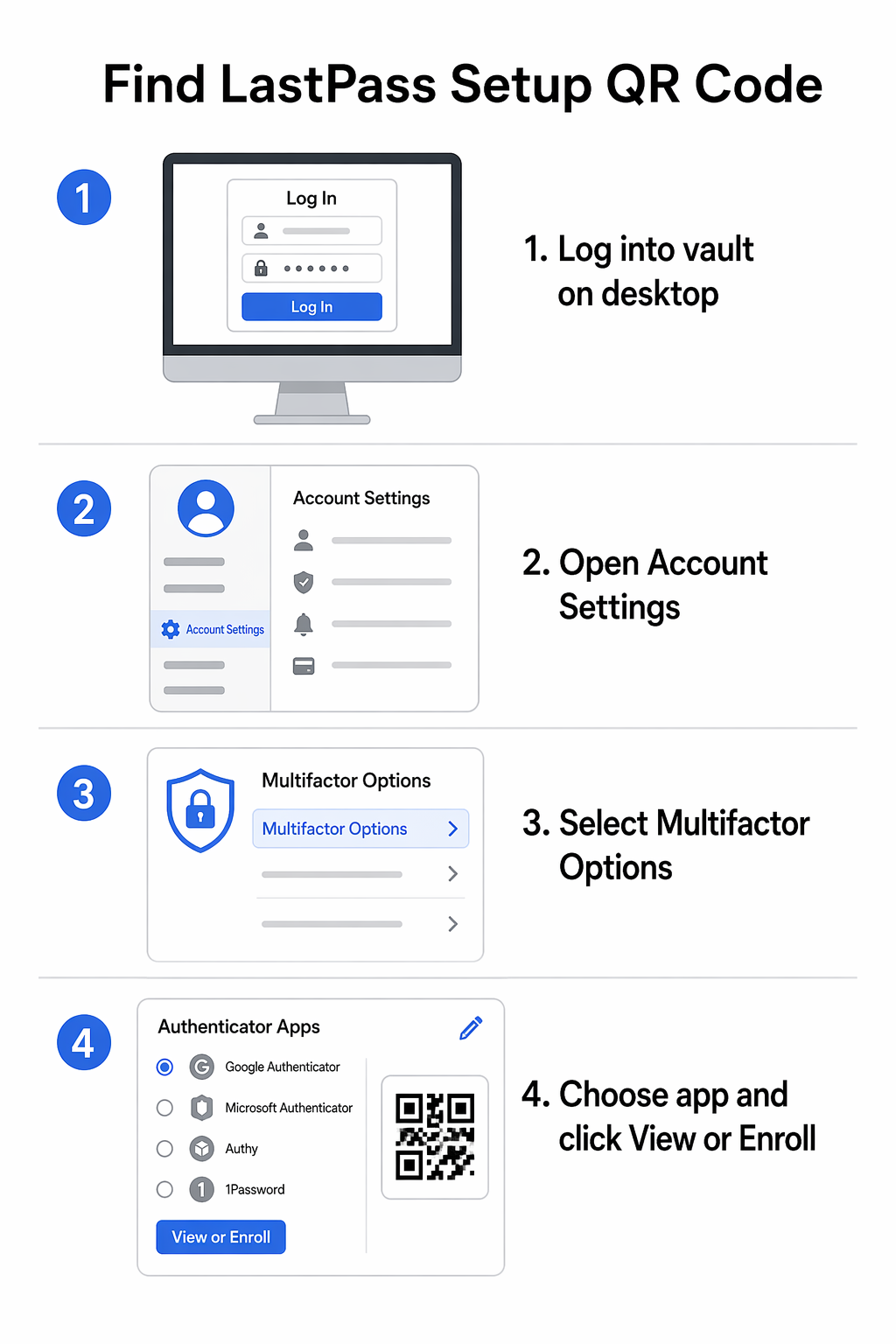
Finding the setup barcode is the most common hurdle for users trying to secure their accounts. Because LastPass treats multifactor authentication (MFA) as a high-level security setting, the QR code is tucked away within your vault settings rather than on the login screen. You must first log into your account using a desktop browser to access these configurations, as many of these deep security settings are not available for initial setup through the mobile app alone.
Once you are logged in, click on your profile icon or the “Account Settings” link at the bottom of the left-hand sidebar. From the settings window, select the Multifactor Options tab. This menu displays a list of all supported authentication methods, including the LastPass Authenticator, Google Authenticator, and Microsoft Authenticator. To generate the code, click the edit icon (represented by a pencil) next to your preferred app, ensure the “Enabled” status is set to “Yes,” and then click the “View” or “Enroll” button to display the barcode on your screen.
If you are evaluating other MFA options for your organization, you might also find our Duo QR code setup guide helpful for comparison, as the logic for finding setup keys is similar across most enterprise security platforms.
How to Scan the Code with Your Smartphone
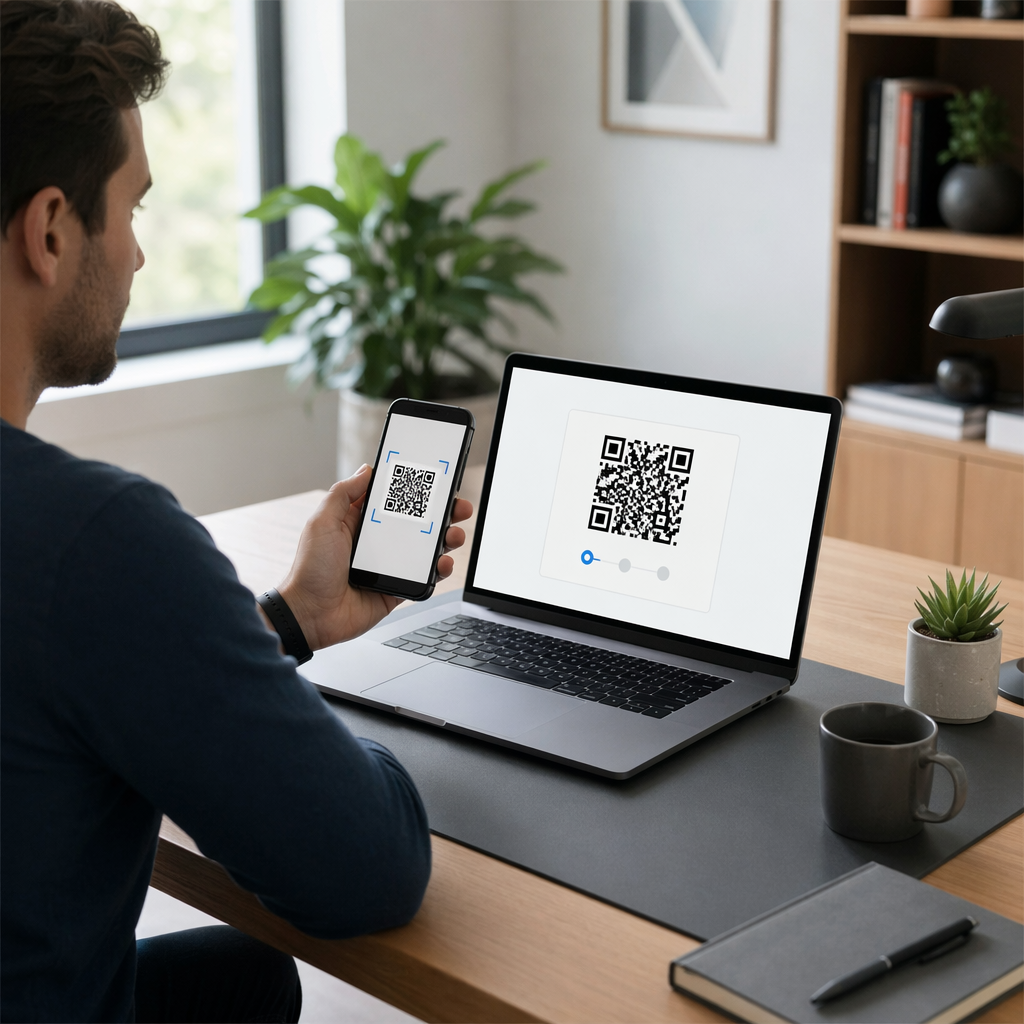
Once the barcode is visible on your computer screen, you need to use your mobile device to bridge the gap between your physical hardware and your digital vault. The scanning process effectively pairs your phone as a trusted “second factor” that proves your identity. Most modern smartphones have built-in capabilities to handle this, but for the most secure experience, you should use the dedicated scanner tool within your chosen authenticator app.
Open the LastPass Authenticator, Google Authenticator, or Microsoft Authenticator app on your phone and tap the plus (+) icon to add a new account. Select the “Scan QR Code” option, which will activate your phone’s camera. Position your phone so the barcode on your computer screen is centered within the viewfinder. If your camera has trouble focusing, you can refer to this guide on how to scan a QR code for tips on distance and lighting.
Tips for a Successful Scan
- Ensure your screen brightness is turned up to provide enough contrast for the camera.
- Clean your camera lens with a microfiber cloth to remove smudges that can cause blurriness.
- Hold the phone approximately 6 to 8 inches away from the screen and move it slowly until the app recognizes the pattern.
- Avoid glare from overhead lights or windows that might reflect off your monitor and obscure the code.
Troubleshooting Common Scanning Issues
Sometimes, hardware limitations or software glitches prevent the camera from recognizing the setup code. One common error message users encounter is “Device not paired, unrecognized QR code,” which often stems from a timeout or a mismatch in the account’s security state. If the camera simply refuses to read the code, you do not have to start over from scratch.
Most security platforms provide a “secret key” or “manual entry” option as a fallback. On the LastPass screen where the QR code is displayed, look for a link that says “cannot scan barcode” or “reveal secret key.” Clicking this will provide a string of alphanumeric characters. You can then select “Enter key manually” in your mobile authenticator app and type this string in. This achieves the exact same security handshake as the QR code scan, just through manual input.
If you are testing your device’s camera to see if the issue is hardware-related, you can use a free QR code scanner online to verify that your camera is functioning correctly and can read standard codes.
The Importance of Backup and Recovery
Enabling QR-based authentication significantly hardens your security, but it also creates a dependency on your mobile device. If you lose your phone or it becomes damaged, you could be locked out of your vault. To prevent this, LastPass generates a set of one-time recovery codes during the MFA setup process. It is critical to save these codes in a secure, physical location or a secondary encrypted drive.
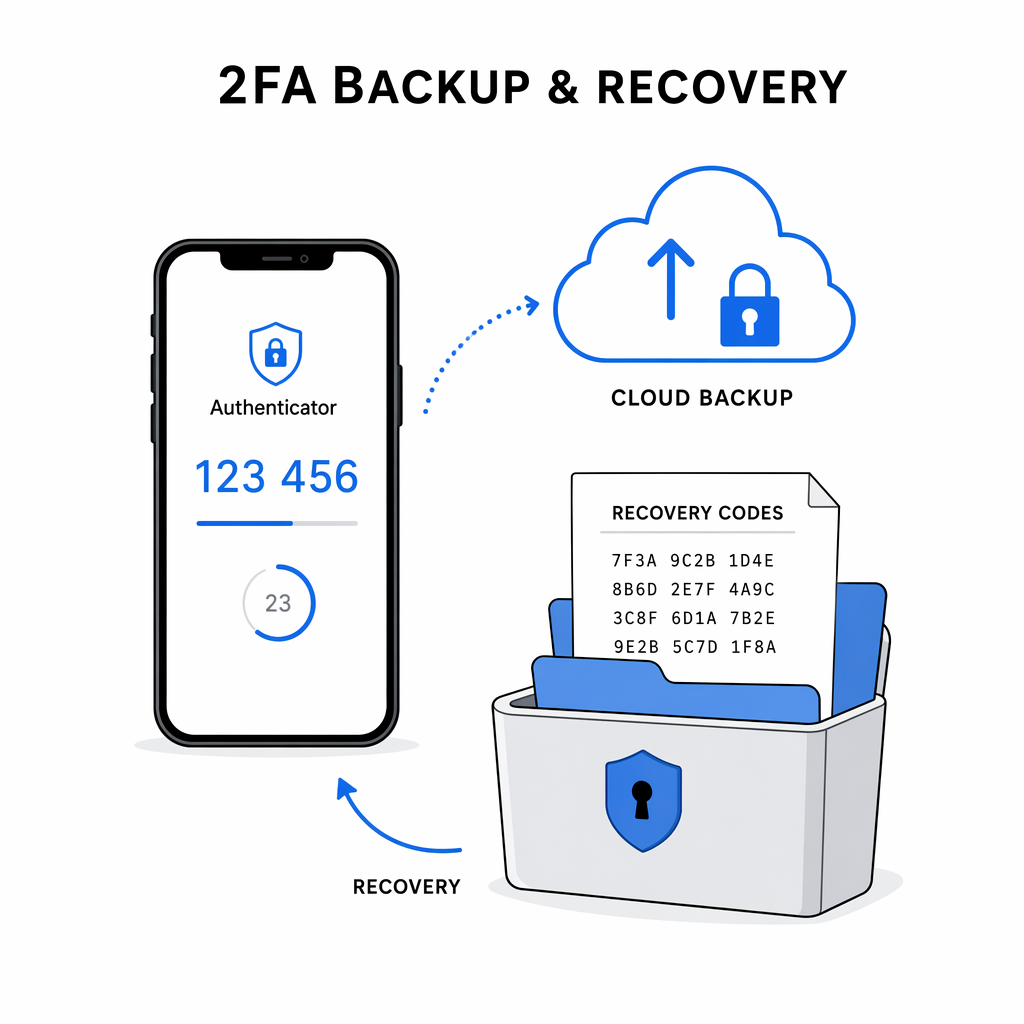
You should also consider enabling the “Cloud Backup” feature within the LastPass Authenticator app. This allows you to restore your linked accounts to a new phone using your mobile number or an encrypted backup file. By taking these steps now, you ensure that your transition to a more secure, passwordless-style login remains convenient even if your hardware changes.
Secure Your Digital Identity Want to simplify access for your team? Use the Dynamic QR Code Generator to create trackable, secure entry points for any application.
Frequently Asked Questions
You can find the code by logging into your vault on a computer, going to Account Settings, selecting the Multifactor Options tab, and clicking the edit icon next to your chosen authenticator app. Click “View” or “Pair” to see the barcode again.
Use the manual entry method by clicking “Reveal Secret Key” on your computer screen. You can then type this alphanumeric code directly into your authenticator app instead of scanning the image.
Yes, LastPass is compatible with most TOTP-based apps, including Google Authenticator and Microsoft Authenticator. You just need to select the correct app type in your Multifactor Options menu before scanning.