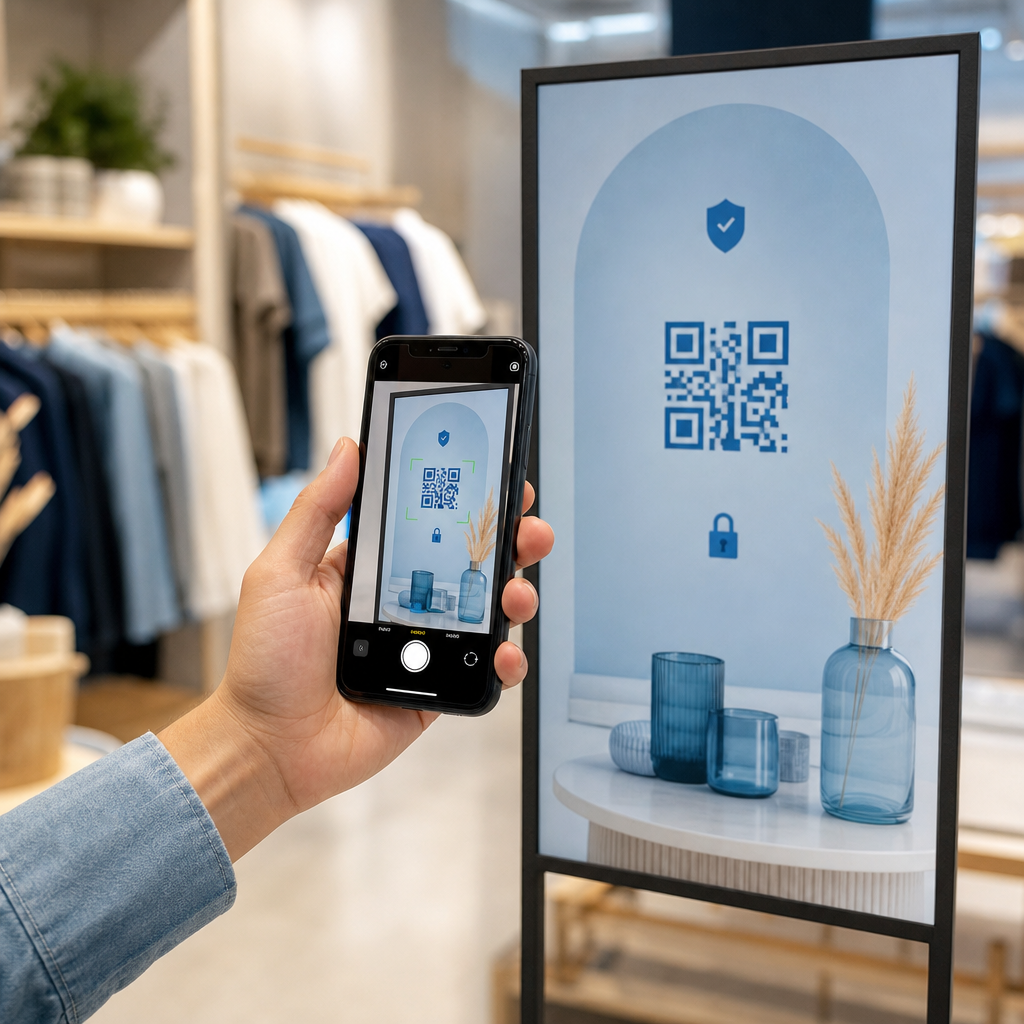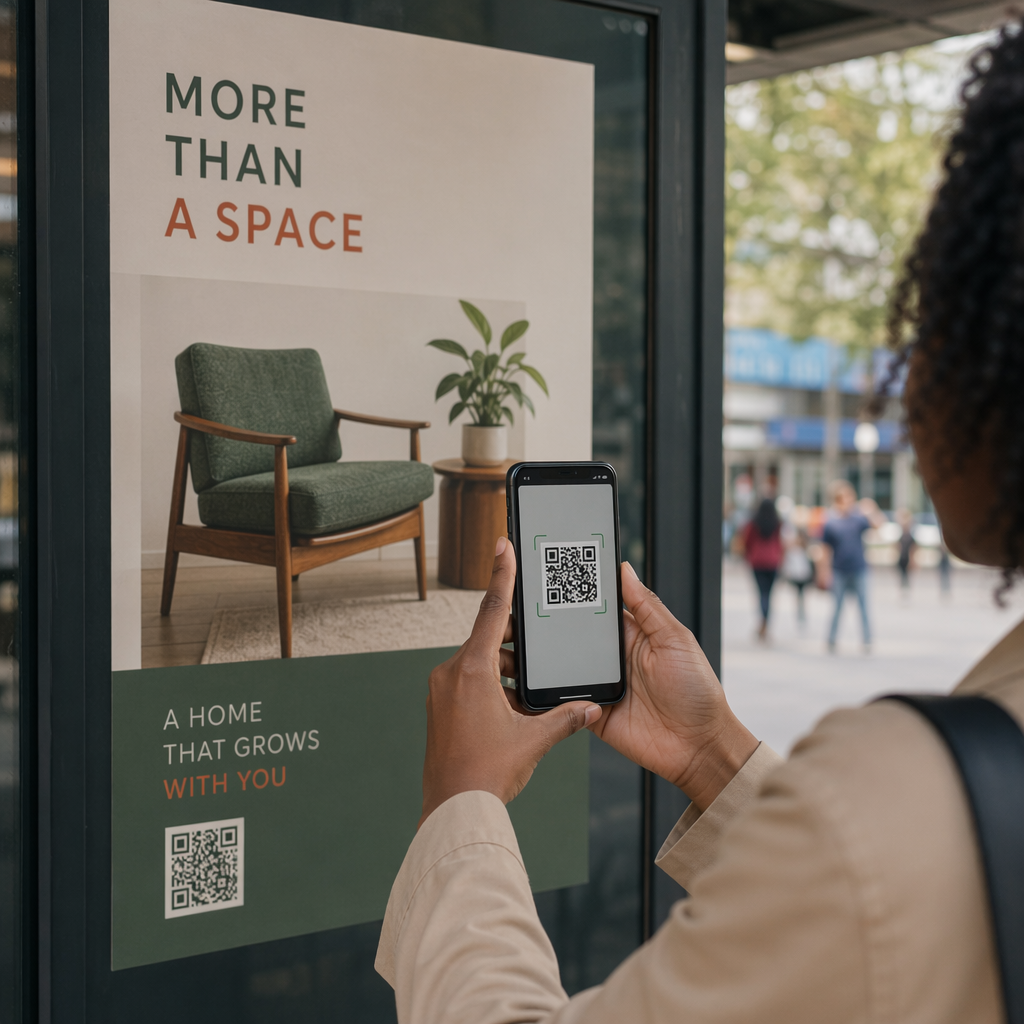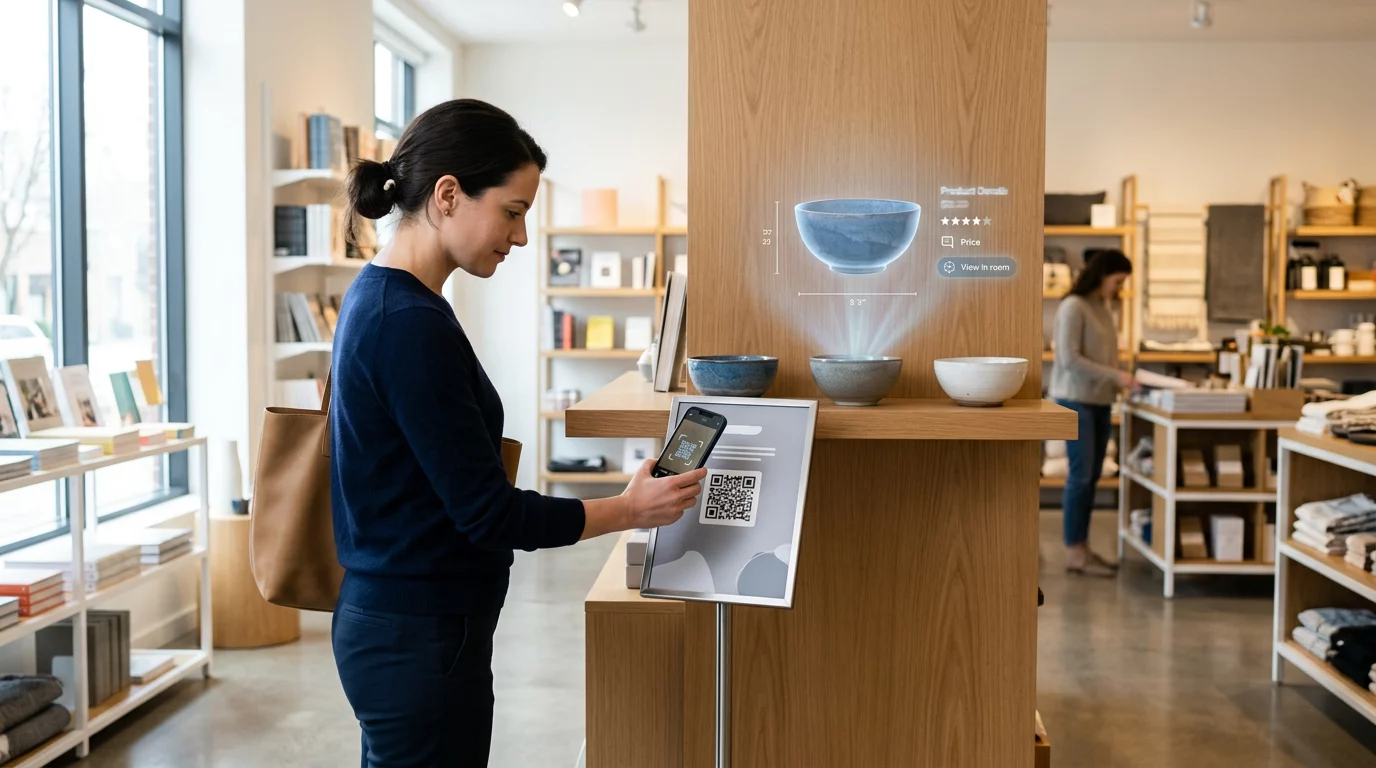
Kas teil on raskusi digitaalse menüü või veebisaidi avamisega, sest teie telefon ei loe QR-koodi? Koodide kiire skannimata jätmine põhjustab tarbetuid viivitusi ja frustratsiooni, kui vajate teabele kohest juurdepääsu. Õppides kasutama Google Lensi, saate nutitelefoni abil vaevata skannida füüsilisi koode ja salvestatud pilte.
Kuidas skannida otseülekande QR-koode Google'i rakendusega
Google Lens kasutab visuaalset tuvastustarkvara QR-koodi visuaalse mustri analüüsimiseks. See teisendab tumedate ja heledate ruutude paigutuse loetavateks digitaalseteks andmeteks, näiteks veebilinkideks või kontaktandmeteks. Enamikus Android-seadmetes on Google Lens süsteemi otse integreeritud, samas kui iOS-i seadmetes on see ligipääsetav standardse Google'i rakenduse kaudu.
Füüsilise QR-koodi skannimiseks enda ees:
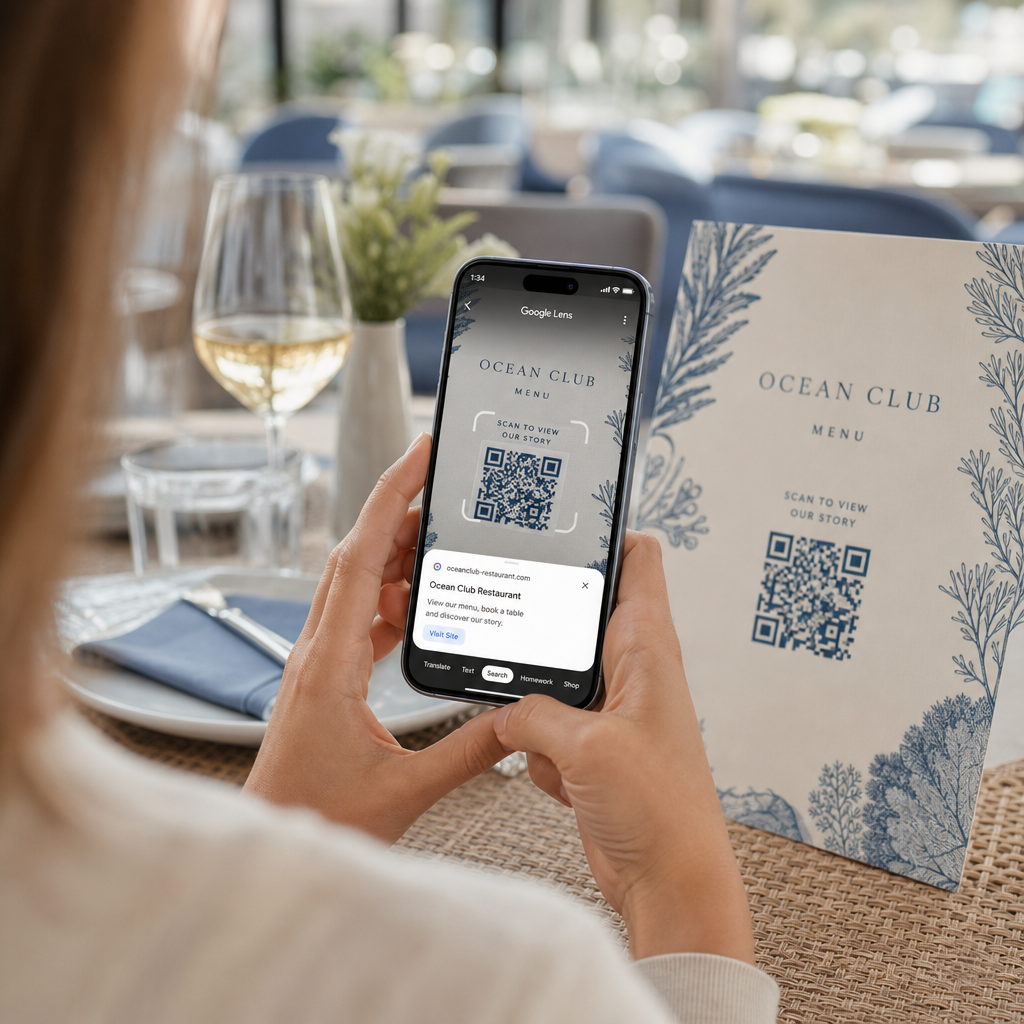
- Avage Google'i rakendus või leidke Google'i otsinguriba vidin oma telefoni avakuval.
- Puudutage Lensi ikooni mis asub otsinguriba paremal küljel.
- Valige kaamera valik kui teie seade palub teil anda kaamera õigused.
- Suunake oma kaamera kaader siht-QR-koodile, hoides samal ajal ruutu ekraani keskel.
- Puudutage hüpiklinki mis koodi üle katab, et avada seotud veebileht või dokument.
Kui kasutate Androidi nutitelefoni, saate sageli skannida koode otse oma esmases kaamerarakenduses, avamata eraldi tööriista. Avage oma kaamera seadete menüü ja lülitage sisse Google Lensi soovitused. Kui see on lubatud, tuvastab teie standardkaamera QR-koodid automaatselt iga kord, kui need kaadrisse ilmuvad. Seadmele spetsiifiliste üksikasjalike konfiguratsioonijuhiste saamiseks lugege meie täielikku juhendit teemal kuidas skannida QR-koodi Androidis.
Kuidas skannida QR-koodi salvestatud fotolt või ekraanipildilt
Te ei vaja teist seadet QR-koodi skannimiseks, mis saabub e-posti, tekstisõnumi või sotsiaalmeedia kaudu. Google Lens suudab analüüsida salvestatud pildifaile otse teie fotogaleriist, lugedes pildifaili salvestatud pikslimaatriksit.
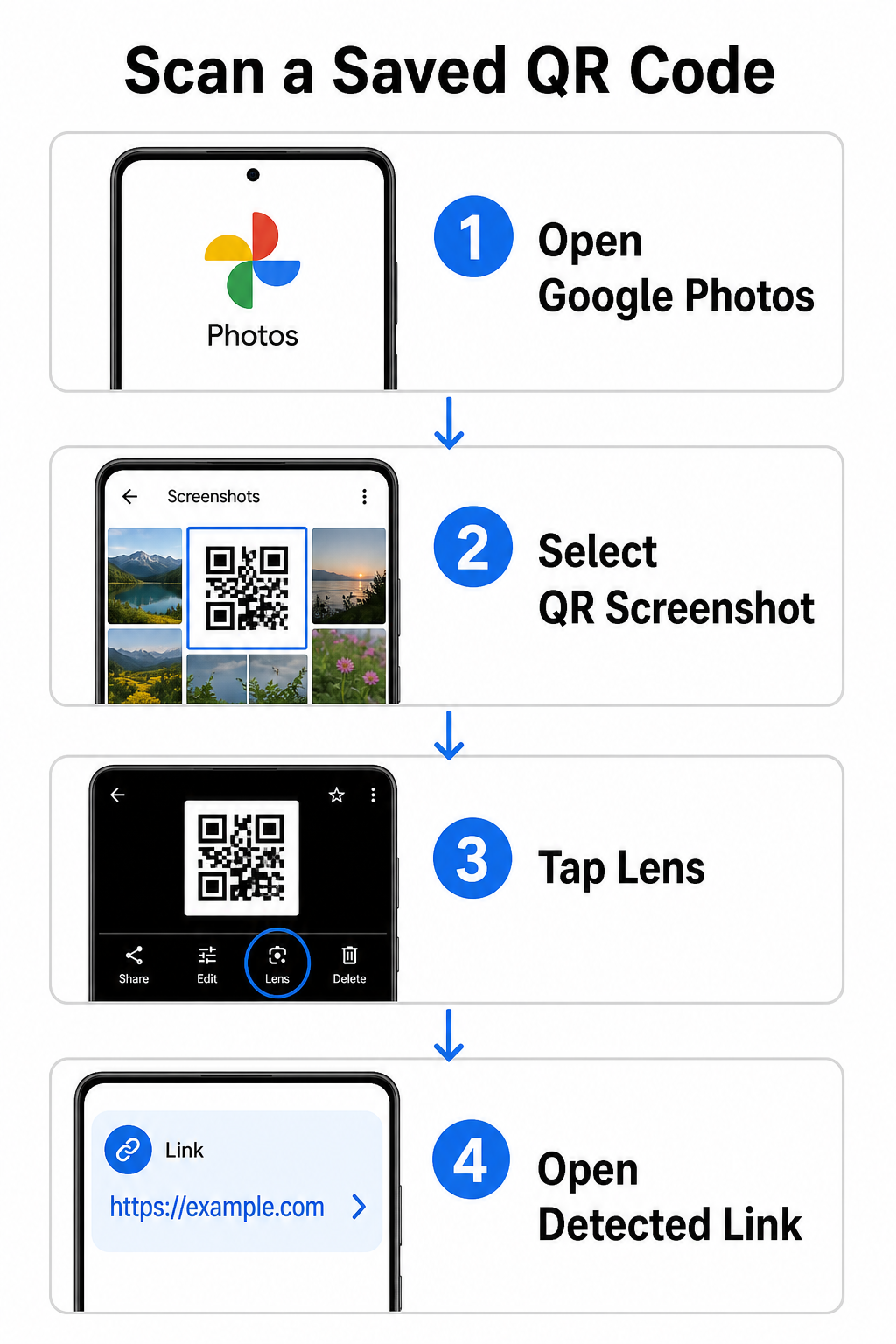
QR-koodi dekodeerimiseks salvestatud pildilt Android-seadmes:
- Avage Google Photos rakendus nutitelefonis.
- Vali foto või ekraanipilt, mis sisaldab siht-QR-koodi.
- Puudutage Lensi ikooni mis asub alumisel menüüribal.
- Puuduta tuvastatud linki mis kuvatakse QR-koodi kohal veebilehe avamiseks.
iPhone'is ava peamine Google'i rakendus, puuduta objektiivi kaamera ikooni otsinguribal ja vali Fotode nupp pildi valimiseks oma kaamerarullist. Lisameetodite kohta erinevatel mobiiliplatvormidel vaata meie põhjalikku juhendit QR-koodide skannimine nutitelefonidega.
Skannige QR-koode otse oma brauseris Kas pead dekodeerima salvestatud pilti või kasutama kaamerat Google Lens'i avamata? Kasuta Veebipõhist QR-koodi skannerit et koheselt vaadata kodeeritud sisu mis tahes veebibrauserist.
Levinud Google Lens'i skannimisprobleemide tõrkeotsing
Kui Google Lens ei suuda koodi ära tunda, on tavaliselt süüdi keskkonnategurid või määrdunud riistvarakomponendid. Kaamera sensorid tuginevad mustade andmemoodulite ja valgete taustade vahelisele kõrgele visuaalsele kontrastile. Plekid, halb valgustus või ebaõige kaugus hägustavad nende moodulite servi, muutes koodi optilise tarkvara jaoks loetamatuks.
Skannimistõrgete kiireks lahendamiseks järgi neid samme:
- Pühi kaamera objektiiv puhta lapiga, et eemaldada andmemooduleid varjavad plekid.
- Paranda ümbritsevat valgustust füüsiliste siltide ümber, et visuaalsensorid saaksid töödelda kõrge kontrastsusega mustreid.
- Kohanda lugemiskaugust ligikaudu 8–12 tolli peale, et kaamera saaks korralikult autofookustada.
- Kontrolli füüsilist pinda kahjustuste, voltide või peegelduste suhtes, mis moonutavad ruudukujulist kuju.
Kui Google Lens ikka veel koodi ei tuvasta, kontrolli oma seadme kaamera seadeid, et veenduda, et Google Lens'i soovitused on aktiivsed. Kui probleemid püsivad, võivad spetsiaalsed skannimisutiliidid skannimisvõimalused taastada. Võrdle usaldusväärseid alternatiive meie üksikasjalikus ülevaates parimatest QR-koodi skannimise rakendustest.
Turvalisuse säilitamine QR-koodide skannimisel
Kuna QR-koodid saavad mobiilibrausereid automaatselt välistele veebisihtkohtadele suunata, kaitseb põhiliste turvameetmete järgimine teie isiklikku seadet petlike linkide eest. Füüsilistel avalikule sildile trükitud QR-koodidel puuduvad sisseehitatud turvasertifikaadid, mis tähendab, et pahatahtlikud isikud võivad aeg-ajalt algsetele siltidele pahavara sisaldavaid kleebiseid asetada.
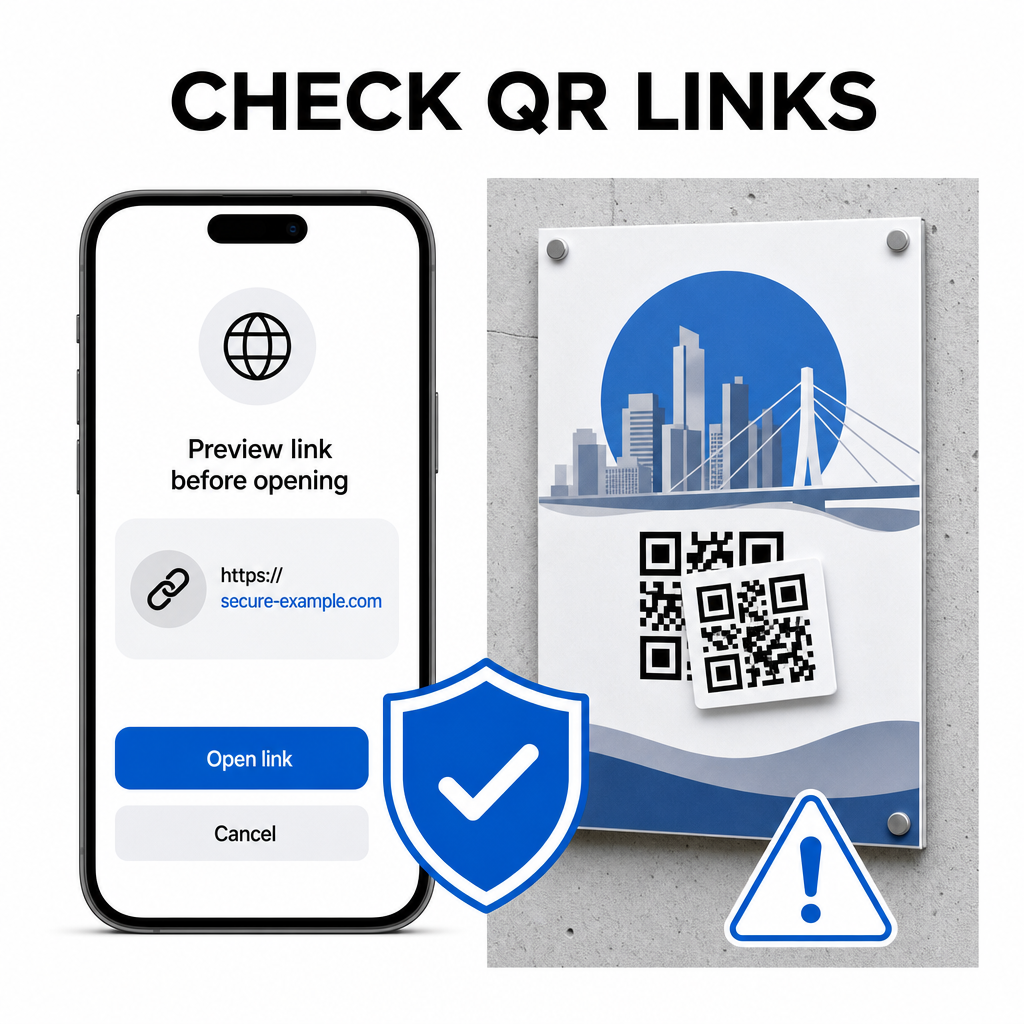
Koodide skaneerimisel järgige neid praktilisi ohutusharjumusi:
- Kontrollige eelvaate URL-i Google Lensis enne puudutamist, et veenduda, kas veebiaadress vastab ootuspärasele saidile.
- Kontrollige füüsilist rikkumist trükitud siltidel, näiteks algse koodi peale asetatud kleebist.
- Vältige tundlike andmete sisestamist nagu sisselogimisandmed või pangadetailid lehtedel, mis on avatud ootamatute koodide kaudu.
- Laadige mobiilirakendusi turvaliselt alla külastades otse ametlikke rakendustepoode, mitte kasutades manustatud linke.
Sihtlinkide kontrollimine enne veebilehtedega suhtlemist tagab teie isikuandmete kaitse. Laiemate nõuannete saamiseks kaamera tuvastusseadete ja ohutuspõhimõtete kohta, uurige meie täielikku juhendit teemal kuidas QR-koode skannida.
Kiire ja turvaline QR-koodi skaneerimine
Google Lensiga töötamine muudab menüüde, makseportaalide ja sooduslinkide leidmise lihtsaks igas nutitelefonis. Kaamera puhtana hoidmine, õige fookuskauguse säilitamine ja eelvaate linkide kontrollimine enne nende puudutamist tagab sujuva skaneerimiskogemuse. Kui teil on vaja kood kiiresti dešifreerida ilma rakendusele tuginemata, kasutage tasuta QR-skannerit internetis et vaadata koheselt kodeeritud linke mis tahes veebibrauserist.
Korduma kippuvad küsimused
Ei, enamikul kaasaegsetel Android-seadmetel on Google Lensi funktsioonid sisseehitatud otse vaikimisi Google'i otsinguribale, Google Assistanti või natiivse kaamerarakenduse seadetesse.
Google Lens skannib pildifaile, nagu JPEG-d või PNG-d. PDF-i skannimiseks tehke dokumendis oleva QR-koodi ekraanipilt ja avage see ekraanipilt Google Lensis või veebilugejas.
Sulge brauseri vaheleht kohe ilma infot sisestamata. Kontrolli, kas füüsilise QR-koodi peal on kleebis või kas su kaamera luges valesti lähedalasuvat koodi.