Want your QR code to look like part of your brand instead of a generic black-and-white square? A plain QR code works, but a branded one with your logo and colors builds recognition and gets scanned more. This guide shows you how to create a custom QR code that looks professional without sacrificing scannability.
Why Branded QR Codes Perform Better
A standard QR code tells a scanner nothing about your business. A branded one does more work before anyone even scans it. When your logo sits inside the code and your brand colors frame the design, customers recognize the source immediately. That recognition builds trust – and trust drives scans.
Research covered in 7 examples of branded QR codes shows that branded QR codes with logos can boost scan rates by 30–70% compared to generic ones. Beyond the numbers, a branded code reinforces your visual identity every time it appears on packaging, signage, or print materials.
Businesses that are still shaping their visual identity can explore ideas for a unique logo for business before applying it across QR codes, packaging, and other branded materials. The key is knowing which design choices help and which ones break scannability.
How QR Code Error Correction Makes Logo Integration Possible
Before customizing your code, it helps to understand why logos can be added at all without breaking it. QR codes include built-in error correction based on Reed–Solomon codes, which adds redundant data so scanners can reconstruct the pattern even when part of it is obscured.
There are four error correction levels:
- Level L – recovers up to 7% of damaged codewords; smallest code size; best for clean indoor use
- Level M – recovers up to 15%; the standard choice for most marketing applications
- Level Q – recovers up to 25%; suitable for outdoor use or textured surfaces
- Level H – recovers up to 30%; recommended whenever you add a logo
When you embed a logo in the center of a QR code, you’re intentionally obscuring part of the pattern. Level H error correction compensates for that, allowing the scanner to reconstruct the missing data. Without it, even a small logo can cause scan failures.
For a deeper look at how this works in practice, see how error correction works in editable QR codes.
Create a Branded QR Code with a Logo Ready to build a QR code that reflects your brand? Use the QR Code Generator with Logo to upload your logo, choose your colors, and generate a scannable, on-brand code in minutes.
Logo Placement: Rules That Protect Scannability
Adding a logo incorrectly is one of the most common reasons branded QR codes fail. Follow these guidelines to keep your code reliable:
- Keep the logo centered. The center of a QR code contains data modules that benefit most from error correction coverage. Centering the logo avoids the three corner position markers, which are critical for scanner orientation and must never be covered.
- Limit logo coverage to around 20–25% of the code area. Covering more than 30% pushes beyond what even Level H error correction can recover. Closer to 20% gives you a comfortable safety margin.
- Use a high-resolution logo file. A blurry or pixelated logo at the center of a code adds visual noise that can interfere with scanning, especially on older devices. Use PNG or a vector format like SVG for the best result.
- Prefer simple, square or circular logos. Vertical rectangular logos risk overlapping the timing patterns that run along the edges of the code. Horizontal or compact shapes are safer.
- Test on multiple devices before printing. A code that scans perfectly on a new iPhone may fail on an older Android with a lower-resolution camera. Test across platforms and lighting conditions.
Learn more about safe logo integration in the guide on how to add logos to QR codes.
Color and Contrast: Keeping Your Brand Colors Scannable
You can use your brand colors in a QR code, but color choices directly affect whether the code scans reliably. Scanners read the difference between dark modules and a light background – not specific hues. When that contrast disappears, so does scannability.
The Contrast Rules to Follow
- Use dark foreground modules on a light background. This is the baseline requirement. Classic black on white offers a contrast ratio of 21:1 and is the most universally reliable combination.
- Maintain a minimum contrast ratio of 4.5:1 for smaller codes. For large-format codes viewed at a distance, a 4:1 ratio is acceptable. You can verify this with any web accessibility contrast checker.
- Never invert colors. A light-on-dark (white on black) scheme may look striking, but many QR scanners fail on reversed color schemes.
- Avoid gradients within the module pattern. Gradients create mid-tones that reduce local contrast and confuse scanners. If you want a gradient effect, apply it only to decorative elements outside the code pattern, such as a frame or background.
- Keep the quiet zone clear. The quiet zone is the blank margin surrounding the QR code. The ISO standard requires at least four modules of empty space on all sides. If each module is 2 mm wide, the quiet zone must be at least 8 mm on every side. Placing text, decorative elements, or even your logo too close to this border can cause scan failures.
For a full breakdown of which color combinations work and which to avoid, see the guide on QR code color contrast best practices.
Size and Resolution: Getting It Right for Print
A beautifully branded QR code that’s too small to scan defeats the purpose. Size affects both readability and scan distance.
- Minimum size for close-range use is 0.8 × 0.8 inches (about 2 × 2 cm). Below this, most scanners struggle.
- Apply the 10:1 rule for scanning distance. For every 10 cm of expected scanning distance, the code should be at least 1 cm wide. A code meant to be scanned from 50 cm away should be at least 5 cm wide.
- Export in vector formats for print. SVG, EPS, and PDF formats scale without losing quality. A rasterized PNG at low resolution will appear blurry when printed, and a blurry code may not scan. Always export at 300 DPI or higher for print applications.
For context-specific sizing guidance, see best practices for QR code readability.
Step-by-Step: Creating a Branded QR Code with a Logo
Here is a practical workflow for building a branded QR code that scans reliably.
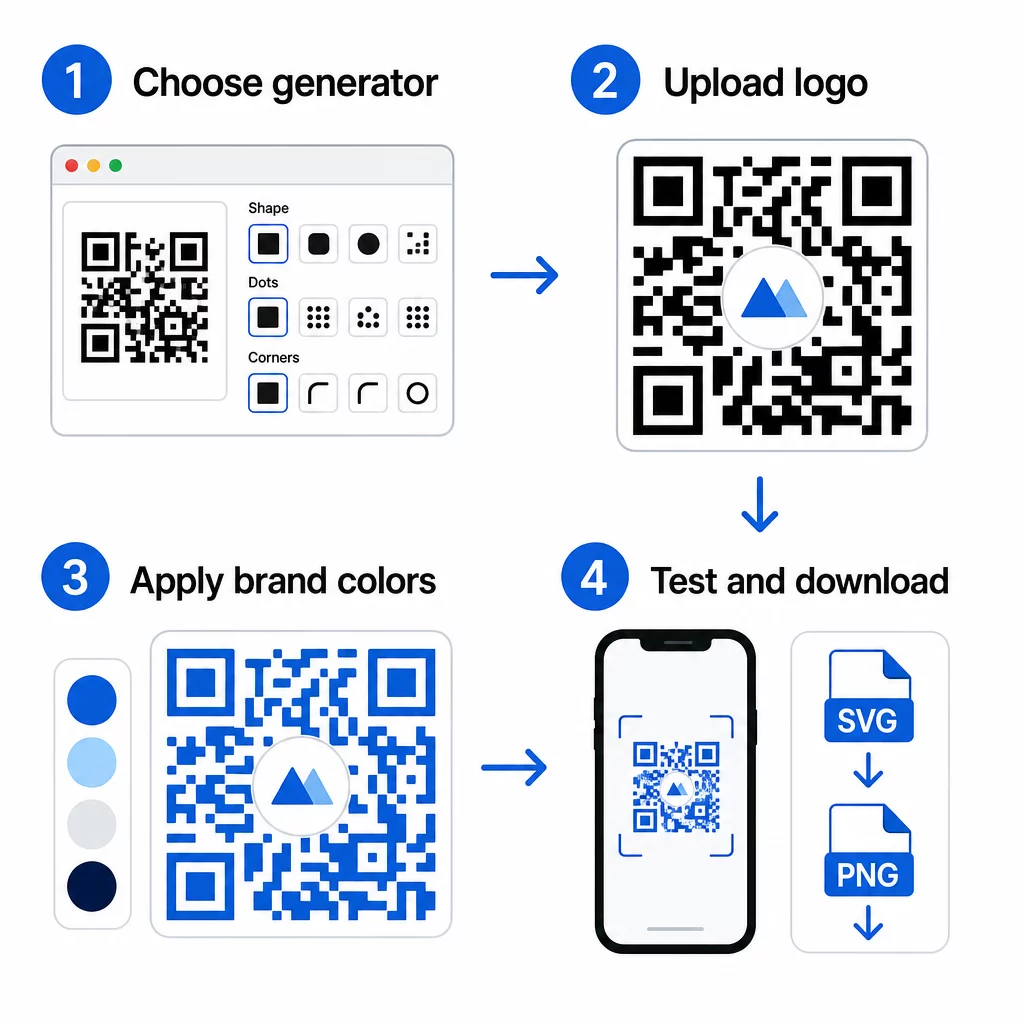
- Choose a generator that supports logo embedding and color customization. Not all tools do. Look for one that lets you set error correction levels, upload a logo, and adjust colors independently. Pageloot’s QR code generator covers all of these.
- Set your error correction level to H before adding a logo. Some generators default to Level M, which is not sufficient when a logo is present.
- Enter your destination URL or content. If you’re creating a code for a campaign or printed material, consider using a dynamic QR code so you can update the destination later without reprinting.
- Upload your logo. Use a PNG or SVG file. Keep the logo simple – avoid fine text or complex illustrations that lose clarity at small sizes.
- Apply your brand colors. Choose a dark foreground color that aligns with your brand palette and pair it with a light or white background. Test the contrast ratio before finalizing.
- Add a frame with a call-to-action. A short phrase like “Scan to view our menu” or “Scan for exclusive offers” removes ambiguity and increases scan rates. You can match QR code frames to your brand colors and logo.
- Preview and test. Scan the code on at least two different devices before downloading. Check it in different lighting conditions and from the distances you expect users to scan from.
- Download in the right format. Use SVG or EPS for print, high-resolution PNG for digital use.
For ready-made branded designs you can adapt quickly, explore QR code templates.
Using Dynamic QR Codes for Branded Campaigns
If your branded QR code will appear on printed materials, a dynamic code gives you a significant advantage. With a static code, the destination is locked in permanently. With a dynamic code, the URL encoded in the pattern points to a short redirect that you control. You can change where it leads at any time without reprinting or redesigning the code.
This matters for branded codes in particular because:
- You may want to rotate seasonal offers or campaign landing pages
- You can fix broken links without touching the physical material
- You get scan analytics – real-time data on when, where, and how often the code is scanned
Dynamic codes also pair well with branded designs because you invest more effort in a code that looks professional. Protecting that investment with updateable content makes practical sense. Learn more about the full feature set available for custom QR codes.
Real-World Applications by Industry
Understanding how other businesses use branded QR codes can help you identify the right approach for your own materials.
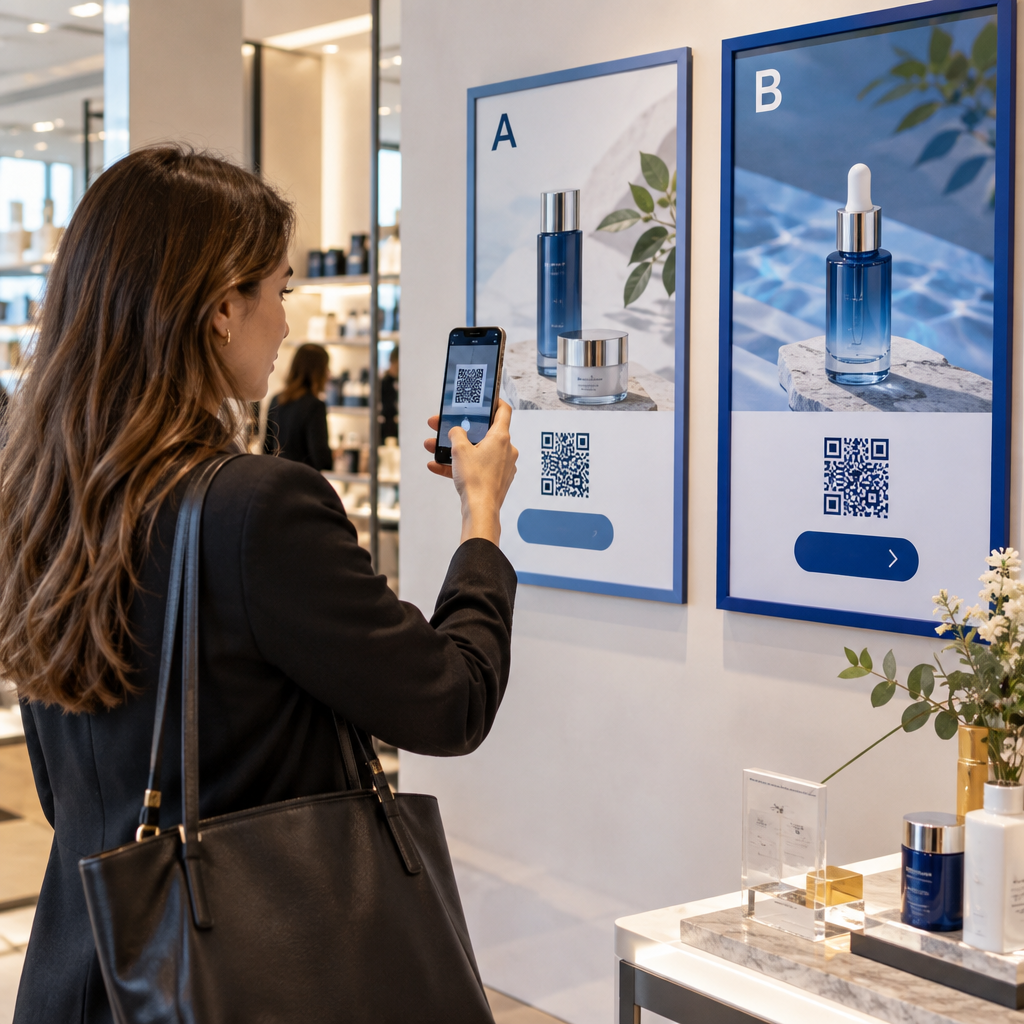
- Retail: Clothing brands embed QR codes with their logo on hangtags, linking to style guides, size charts, or the online store. The logo in the center makes the code recognizable and on-brand at the point of sale.
- Restaurants: A QR code on a table tent or menu cover can link to the digital menu, reservation system, or loyalty program. Matching the code colors to the restaurant’s palette keeps the design cohesive.
- Events: Event organizers use branded QR codes on badges, signage, and printed programs to drive app downloads, check-ins, or session schedules. High error correction is especially important here since codes may be scanned in variable lighting.
- Product packaging: A branded QR code on packaging can link to assembly instructions, warranty registration, or product reviews. Using a dynamic code here means you can update the destination as the product evolves.
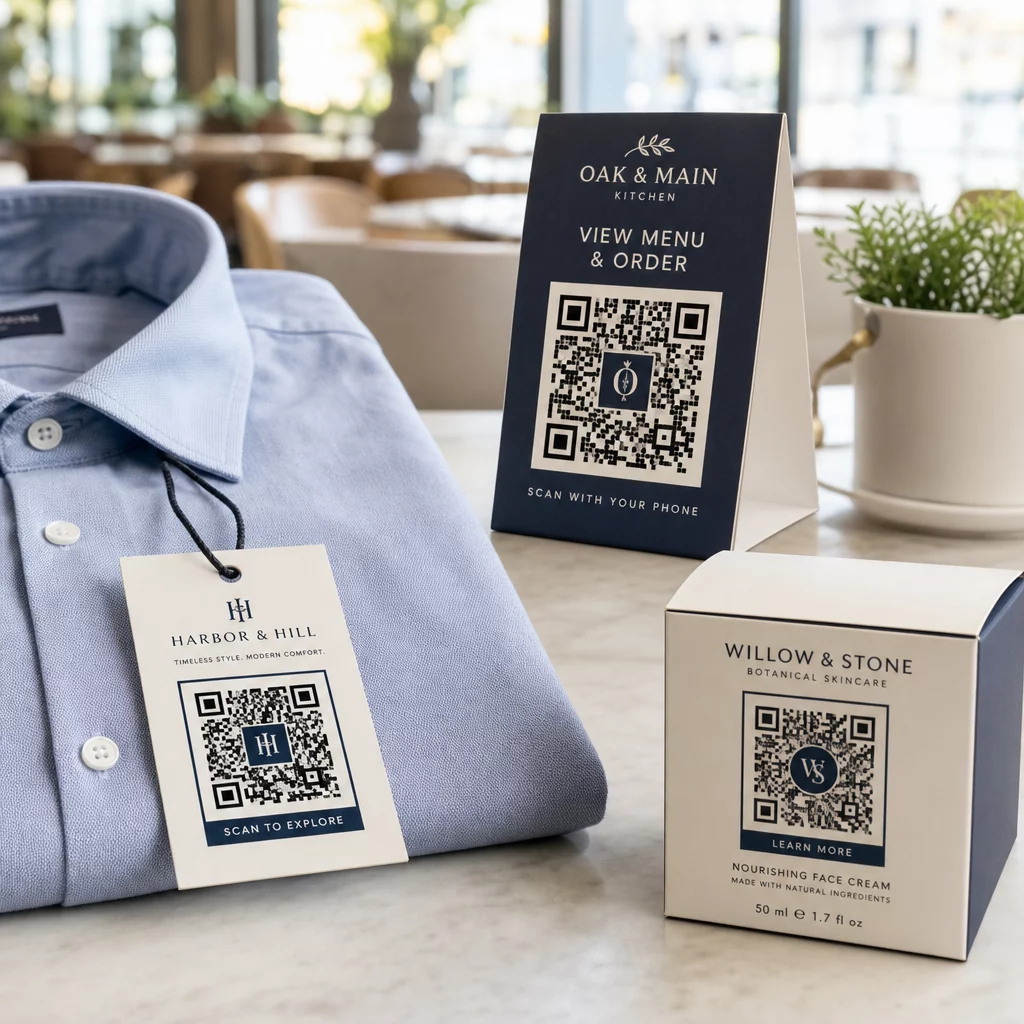
For more detailed examples, see 7 examples of branded QR codes.
Frequently Asked Questions
Not if you follow the right guidelines. Set error correction to Level H before adding a logo, keep the logo centered, and limit its coverage to around 20–25% of the total code area. Avoid covering the three corner position markers. Test the final code on multiple devices before printing.
Yes, as long as you maintain sufficient contrast between the dark modules and the light background. Aim for a contrast ratio of at least 4.5:1. Avoid gradients within the module pattern, never invert the colors to light-on-dark, and always keep the quiet zone (the blank margin around the code) completely clear.
The minimum recommended size for close-range scanning is 0.8 × 0.8 inches (approximately 2 × 2 cm). For codes meant to be scanned from greater distances, use the 10:1 rule: for every 10 cm of expected scan distance, the code should be at least 1 cm wide. Always export print files in a vector format such as SVG or EPS to avoid pixelation.