Managing event attendance manually is slow, error-prone, and disconnected from the systems that matter. This guide shows you how to build dynamic QR codes that feed check-in data directly into your CRM, eliminating manual entry and giving you a real-time attendance record for every contact.
Why Dynamic QR Codes Work for CRM Check-Ins
A static QR code encodes a fixed URL and cannot be tracked or changed after printing. A dynamic QR code, by contrast, uses a short redirect link as an intermediary. You can update that destination at any time without reprinting, and every scan is logged with data including timestamp, device type, and geographic location.
For CRM check-ins, that distinction matters enormously. When each attendee receives a unique dynamic code tied to their contact record, scanning it at the door does three things simultaneously: it verifies identity, marks attendance, and pushes data into your CRM – all without a staff member typing anything.
Platforms like HubSpot track registration status, attendance state, cancellations, and no-show indicators against individual contact records through their marketing events tools. Systems that use form-based check-ins can update an existing contact record by appending the contact’s unique ID to the form URL, so the submission merges with the right profile rather than creating a duplicate. The same logic applies whether you are using a dedicated event platform or a general-purpose CRM with form integrations.
To understand the full difference between code types before building your workflow, see the comparison of static vs dynamic QR codes.
Create Trackable Check-In Codes in Minutes Use the Dynamic QR Code Generator to build editable, analytics-ready QR codes that connect directly to your event forms and CRM workflows.
What You Need Before You Start
Before generating a single code, make sure three things are in place:
- A CRM web form that accepts URL parameters. Most CRM and form tools – including Google Forms, HubSpot forms, and similar platforms – let you pre-fill fields by passing values through query strings in the URL (e.g., `?email=value&first_name=value`). Confirm your form supports this before building the workflow.
- Contact records with merge fields. Your CRM must be able to pull data like email, first name, and last name from existing contact records and insert those values dynamically into a URL template.
- A dynamic QR code generator with analytics. You need a platform that generates unique codes per contact, tracks each scan, and lets you update destinations without reprinting. The attendance QR code tool is built for exactly this use case.
Step-by-Step: Building Dynamic QR Codes for CRM Check-Ins
Set Up Your Check-In Form
Create a web form in your CRM or form tool with fields that capture the data you need at check-in: at minimum, email address, first name, and last name. If you are using Google Forms, the Google Form QR Code Generator lets you link directly to your form and track scans alongside submissions.
Your form should also be configured to update an existing contact record rather than create a new one. In systems that allow it, appending a contact identifier to the URL – such as `?contact_id={{contact.id}}` – links the form submission to the correct CRM record automatically.
Build the Dynamic URL with Merge Fields
A dynamic check-in URL uses your CRM’s merge field syntax to insert each contact’s data as query parameters. A template looks like this:
“`
https://yourform.com/checkin?email=[Contact.Email]&firstname=[Contact.FirstName]&lastname=[Contact.LastName]
“`
When your CRM processes this template for an individual contact, the placeholders are replaced with real values:
“`
https://yourform.com/[email protected]&firstname=Jane&lastname=Smith
“`
The exact merge field syntax depends on your CRM. Keep/Infusionsoft uses bracket-style tags; HubSpot uses its own personalization token format. Check your platform’s documentation for the correct syntax.
Encode the URL Correctly
URLs break when they contain unencoded special characters. Spaces, ampersands, and equal signs inside parameter values must be percent-encoded so browsers and QR code readers interpret them correctly. Common conversions include:
- Space → `%20`
- Ampersand (`&`) → `%26`
- Equal sign (`=`) → `%3D`
Most CRM platforms include a URL-encoding function you can apply to merge field output. Use it. A single un-encoded character in a contact’s name – like an ampersand in a company name – can silently break the entire check-in flow for that attendee.
Generate a Unique Dynamic QR Code per Contact
With the encoded URL template ready, generate one dynamic QR code per attendee. Each code points to that person’s pre-filled form URL. Because these are dynamic codes, you retain the ability to update the destination later – useful if your form URL changes after codes have already been distributed.
For large events, most CRM platforms and email automation tools support bulk code generation: merge the URL template, encode it, and trigger QR code creation for each contact in a sequence. The resulting code is then included in the attendee’s confirmation email alongside their registration details.
The event QR code generator supports this workflow and allows you to customize the code’s appearance – adding your event branding, logo, or color scheme – before distribution.
Distribute and Deploy at the Door
Send each attendee their unique QR code in their confirmation email. At the event entrance, a staff member scans the code using any standard smartphone camera. The scan opens the pre-filled form, the attendee confirms or submits, and the CRM record is updated with the attendance timestamp.
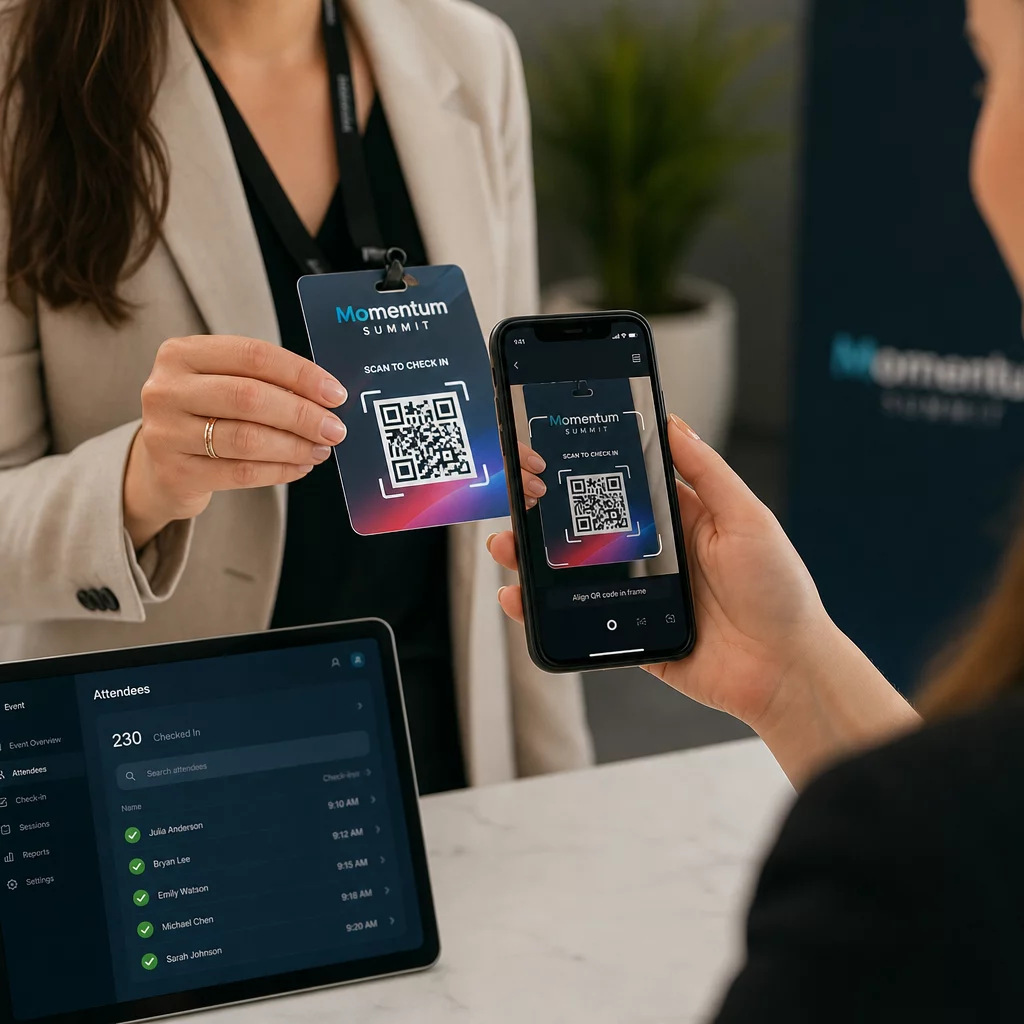
For larger events, consider setting up dedicated scanning stations. Train staff to hold the scanning device approximately 30 cm from the code and to enable camera flash in low-light environments. If you are printing codes on badges or wristbands, use matte materials rather than glossy finishes to prevent glare from interfering with the scan. More detail on physical deployment best practices is available in the ultimate guide to QR codes for event check-ins.
How Attendance Data Flows Into Your CRM
The check-in scan triggers a chain of events that ends with an updated contact record. Here is what happens at each step:
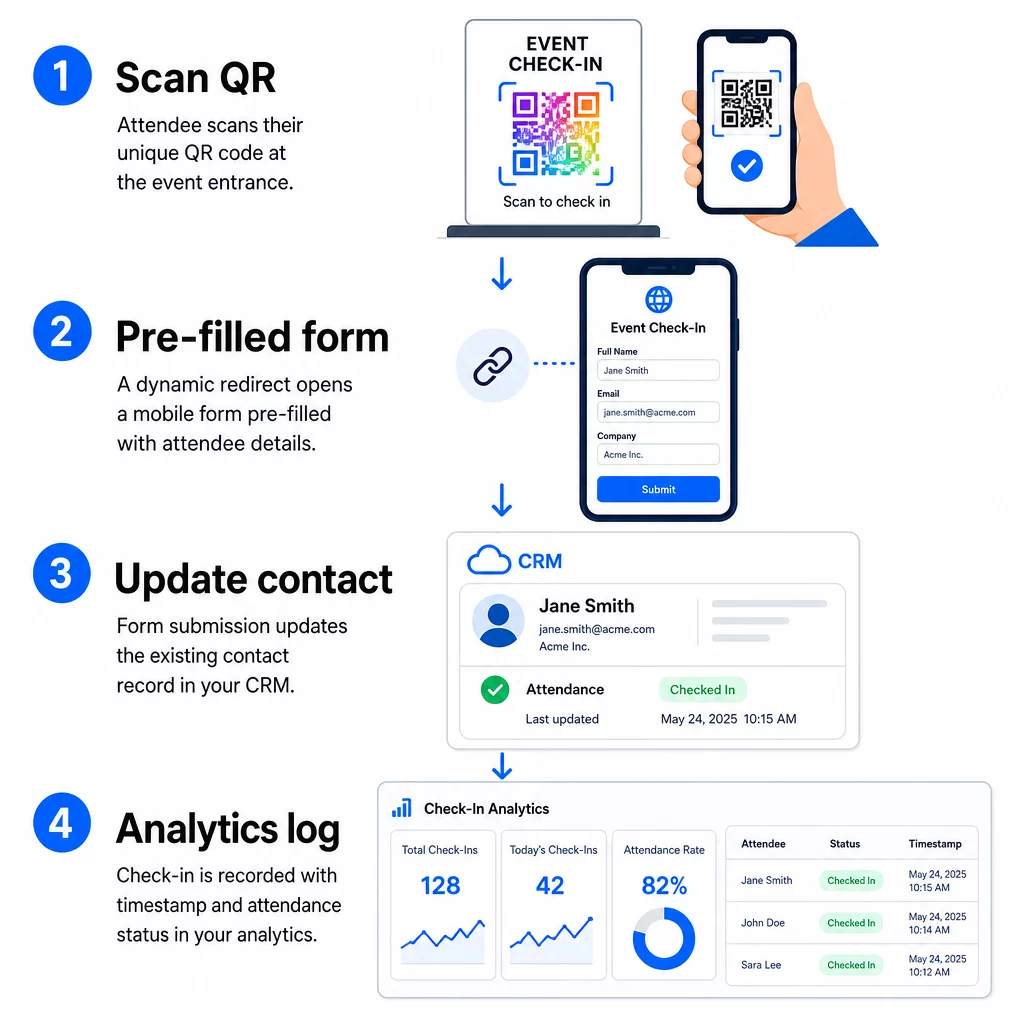
- The attendee’s unique QR code is scanned at the entrance.
- The dynamic redirect loads the pre-filled check-in form in the attendee’s browser.
- The attendee submits the form (or the form auto-submits after a brief confirmation).
- The form submission, tied to the contact’s unique ID, updates the existing CRM record with check-in status, timestamp, and any additional fields captured.
- If your CRM supports webhook-based automation, the submission can simultaneously trigger downstream actions: assigning a follow-up task, sending a post-event email, or updating a campaign status.
Platforms like HubSpot store participation states – Registered, Attended, No Show, Canceled – directly on the contact’s marketing events card, giving your team a full attendance history for every contact without any manual reconciliation. To learn how to connect scans to automated CRM actions more broadly, see the guide on QR code scanning workflow automation.
Tracking Check-In Performance With Analytics
Because you are using dynamic codes, every scan generates analytics data – not just a completed form. Your QR code dashboard captures:
- Total scans vs. unique scans – useful for identifying whether anyone scanned their code multiple times
- Scan timestamps – lets you reconstruct arrival patterns and identify peak check-in periods
- Device type and operating system – helps you optimize the mobile experience of your check-in form
- Geographic location – confirms scans are occurring at the expected venue
This data sits alongside your CRM attendance records and gives you a second layer of verification. If a contact’s form submission failed but their QR scan was logged, you have a record to investigate. For a deeper look at what to measure and how to act on it, the guide on enterprise QR code analytics and key metrics covers the full picture.
You can also track QR code scans and analytics at the campaign level, segmenting by event, date range, or individual code to compare performance across multiple check-in points.
Monitor Attendance in Real Time See exactly who scanned, when, and from which location. Use the Attendance QR Code tool to deploy check-in codes with full scan analytics built in.
Common Issues and How to Fix Them
Broken URLs after merge field substitution. Always test your encoded URL with real contact data before sending codes to attendees. Pay particular attention to contacts whose names or email addresses include special characters.
Duplicate CRM records created on check-in. This happens when the form URL does not carry the contact identifier. Add the contact ID parameter to your URL template and confirm your CRM is configured to match on that field rather than create a new record.
QR codes that stop working after distribution. This is where dynamic codes prove their value. If your form URL changes – because you switched form tools or updated your domain – you can update the destination in your QR code management dashboard without redistributing new codes to attendees.
Codes that scan correctly but do not pre-fill the form. Check whether your form tool requires specific query parameter names. Some platforms use `email` while others require `entry.12345` (Google Forms) or a custom field key. Align your URL template with your form tool’s expected parameter names.
Low-light scanning failures at the entrance. Ensure your printed QR codes meet the 10:1 size-to-distance ratio: a code scanned from 10 inches away should be at least 1 inch wide. Use high-contrast printing – dark modules on a white background – and avoid glossy paper or laminate.
Key Takeaways
Dynamic QR codes for CRM check-ins work because each code carries a contact’s identity encoded in its destination URL, routes that data into a form tied to an existing record, and logs the scan itself as a separate analytics event. The result is an attendance record that is accurate, timestamped, and connected to your CRM without any manual data entry.
The technical requirements are straightforward: a CRM with merge fields and web forms that accept URL parameters, properly encoded dynamic URLs, and a QR code platform that supports per-contact code generation and scan tracking. Get those three elements right, and the check-in workflow largely runs itself.
Start building your check-in system with the Dynamic QR Code Generator – no credit card required for the 14-day trial.
Frequently Asked Questions
A static QR code encodes a fixed URL directly into its pattern and cannot be changed or tracked after printing. A dynamic QR code uses a short redirect link that you can update at any time from your dashboard, and every scan is logged with data including timestamp, device type, and location. For CRM check-ins, dynamic codes are essential because they allow per-contact URL personalization and provide the analytics needed to verify attendance.
Append your contact’s unique CRM identifier as a query parameter in the check-in URL – for example, `?contact_id={{contact.id}}`. When the form is submitted, your CRM uses that identifier to match the submission to the existing record rather than creating a new one. Most CRM platforms also have a setting to merge on email address as a fallback when no contact ID is present.
Yes. Because the codes are dynamic, you can change the destination URL in your QR code management dashboard at any time. The printed or distributed code stays exactly the same – only the redirect target changes. This means that if your form URL changes after confirmation emails have gone out, attendees with the original codes will still reach the correct form.