Ever wondered what that square or striped code on your boarding pass actually does? Understanding it can save you from a frustrating hold-up at security or the gate. This guide explains exactly how boarding pass codes work and what to expect when you scan them at the airport.
What Type of Code Is on a Boarding Pass
Not all boarding pass codes are the same, and the difference matters when you’re standing at a scanner.
Airlines follow a global standard called the IATA Bar Coded Boarding Pass (BCBP), defined under Resolution 792. This standard specifies which barcode formats airlines can use and how the data inside them must be structured so that any airport scanner in the world can read the same pass.
Under this standard, two broad code families are used:
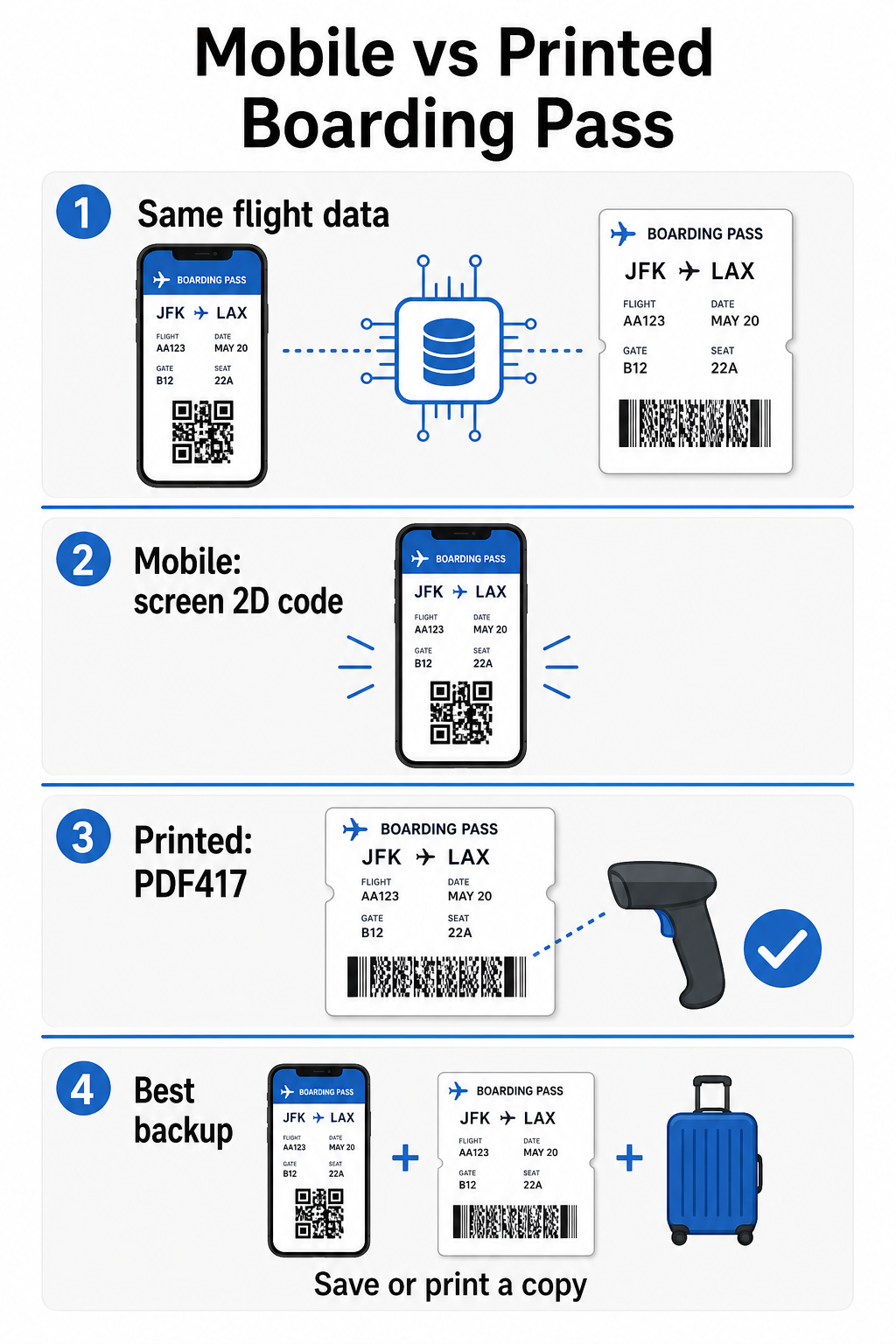
- PDF417 – A rectangular, stacked barcode that looks like a series of horizontal lines divided into columns. This is the default format for printed boarding passes and is the most common format you’ll see on paper.
- 2D matrix codes (Aztec, Data Matrix, QR code) – Square or compact grid-based codes. These are the standard formats for mobile boarding passes displayed on a phone screen, though they can also appear on printed passes under the current version of the BCBP standard.
So while many people call it a “QR code,” your boarding pass may technically carry an Aztec code, a Data Matrix code, or a PDF417 barcode depending on the airline and whether you’re using a mobile or printed version. The key point is that all of them encode the same structured data. To understand more about how QR codes are used specifically across airlines and airports, the QR codes for airlines and airports overview is a useful reference.
What Data Is Stored Inside the Code
The barcode on your boarding pass is not just a ticket number. It encodes a structured data message that contains a specific set of mandatory fields, including:
- Your full passenger name
- The PNR (Passenger Name Record) – your booking reference code
- Origin and destination airport codes (e.g., JFK → LAX)
- Operating carrier code and flight number
- Date of flight
- Seat number and cabin class code
- Check-in sequence number
- Passenger status
The standard also supports encoding multiple flight legs into a single barcode, which is why a connecting itinerary can sometimes appear as one scannable code on your boarding pass rather than two separate ones.
Some airlines also include an optional security field containing a digital signature. This allows airport systems to verify the barcode hasn’t been altered or forged, adding a layer of protection against counterfeit passes.
How the Scanning Process Works at the Airport
When you present your boarding pass at a checkpoint or gate, the scanner reads all of those encoded fields in a fraction of a second. Here’s what happens at each stage.
At TSA security: The officer or automated reader checks your identity and confirms you have a valid, checked-in booking for a departing flight. At more than 225 U.S. airports, the TSA has installed Credential Authentication Technology (CAT), which can pull up your flight details by scanning your government-issued ID alone – meaning you may not need to show a boarding pass at the security checkpoint at all. However, if the CAT equipment at a given lane is unavailable, an officer can still ask for your boarding pass.
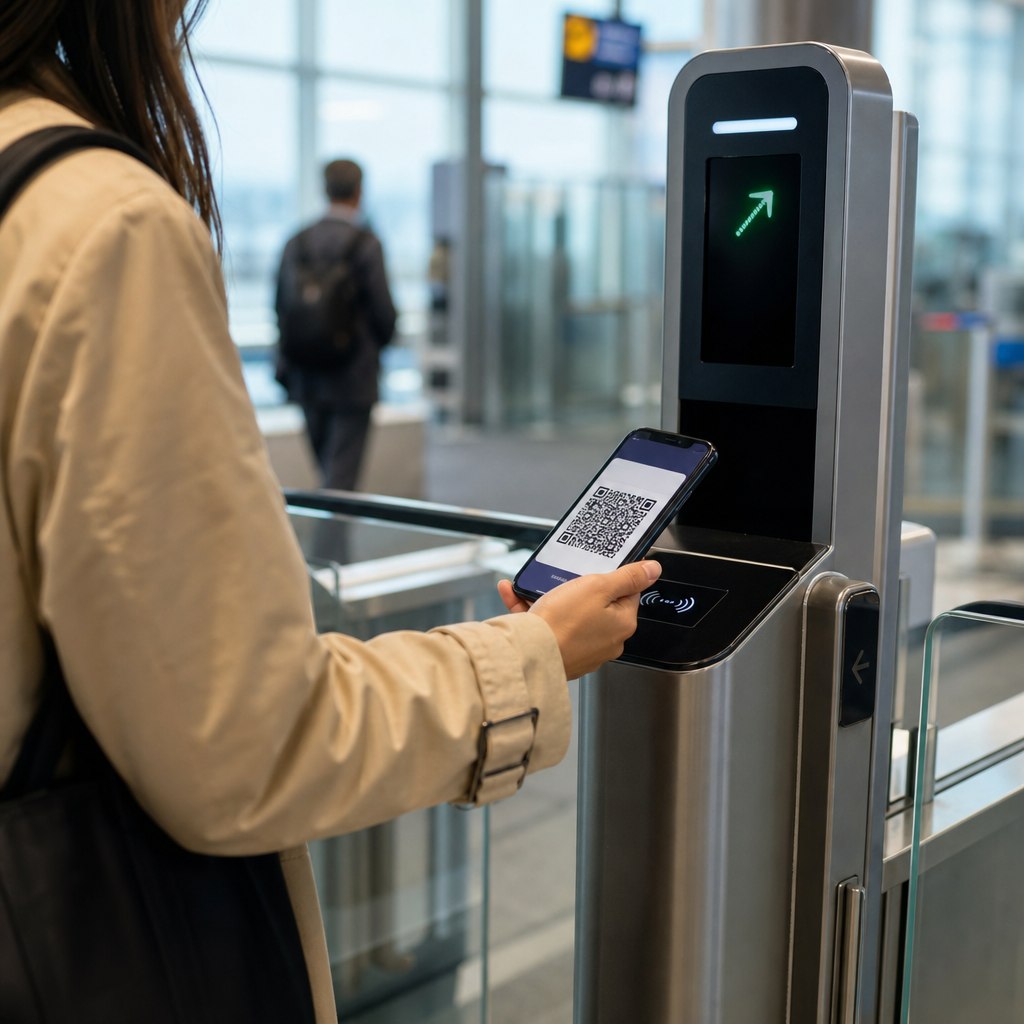
At the boarding gate: This is where the scan always happens, regardless of which airport you’re at. The gate agent’s scanner reads your boarding pass code, confirms your seat and passenger status, and logs that you’ve boarded. You will need your boarding pass – mobile or printed – at this point every time.
Scan Any Boarding Pass Format Instantly Need to verify what’s encoded in a QR or barcode? Use the Pageloot QR Code Scanner or Barcode Scanner to read and decode any supported format directly from your browser – no app needed.
Mobile vs. Printed Boarding Passes: Practical Differences
Both formats encode identical data. The distinction is entirely about how reliably that data can be read in real-world airport conditions.
| Factor | Mobile Boarding Pass | Printed Boarding Pass |
|---|---|---|
| Accepted format | Aztec, Data Matrix, or QR code | PDF417 (default); also Aztec, Data Matrix, QR |
| Scanner compatibility | Most modern 2D scanners; some older laser scanners may struggle | Broadly compatible with all airport scanners |
| Screen glare risk | Yes – bright airport lighting can cause reflections | None |
| Moiré pattern risk | Yes – LCD/LED screens can create visual interference bands | None |
| Physical damage risk | Cracked or dirty screen can obstruct the code | Paper can crease, tear, or smudge |
| Convenience | No printing needed; always on your phone | Works everywhere, no battery required |
| Airport acceptance | Not universal – some U.S. airports require printed passes | Accepted at all airports |
The core challenge with mobile boarding passes is that traditional laser scanners are optimized for light reflected off paper, not light emitted from a screen. When you hold a phone under bright terminal lighting, the screen can create glare or reflective interference that reduces the contrast the scanner needs to decode the barcode accurately. Moiré patterns – visual bands that LCD and LED screens can produce – are another source of interference that printed passes simply don’t have.
To minimize these issues when using a mobile boarding pass:
- Maximize your screen brightness before approaching the scanner
- Clean your screen – fingerprints and smudges directly over the barcode disrupt decoding
- Keep the entire barcode visible on screen without being cropped or partially hidden by notification bars
- Rotate if needed – some scanners prefer the code in a specific orientation
For more on what affects barcode readability in general, the best practices for QR code readability guide covers contrast, sizing, and environmental factors in detail.
When You Should Carry a Printed Boarding Pass
A mobile pass works smoothly at the vast majority of major U.S. airports. However, there are specific situations where having a printed copy is the safer choice:
- Smaller regional airports that have not yet upgraded their scanners to reliably read mobile screen codes
- International connections, where boarding pass acceptance policies vary significantly by country and carrier
- Long trips or travel to areas with limited charging access, where your phone battery may be a concern
- Older or damaged devices where screen cracks or low brightness make the code difficult to read
If you’re unsure whether your departure airport accepts mobile passes, check directly with your airline before you travel. Some airlines explicitly list airport compatibility on their mobile boarding pass pages. If you’re interested in how the same QR code principles apply to other types of tickets and event passes, the QR codes on tickets page covers that use case in depth.
What Happens If Your Boarding Pass Won’t Scan
If a scanner rejects your boarding pass – mobile or printed – the most common causes are worth knowing before you’re at the front of a busy boarding line.
Screen glare or low brightness is the leading culprit with mobile passes. Try tilting the phone slightly or cupping your hand around the screen to block ambient light, and always set your display to full brightness before approaching a scanner. Fingerprints or smudges over the barcode are another frequent issue that a quick wipe can resolve. For printed passes, a heavily creased or partially torn barcode may not decode correctly, so folding a paper pass directly through the code is worth avoiding.
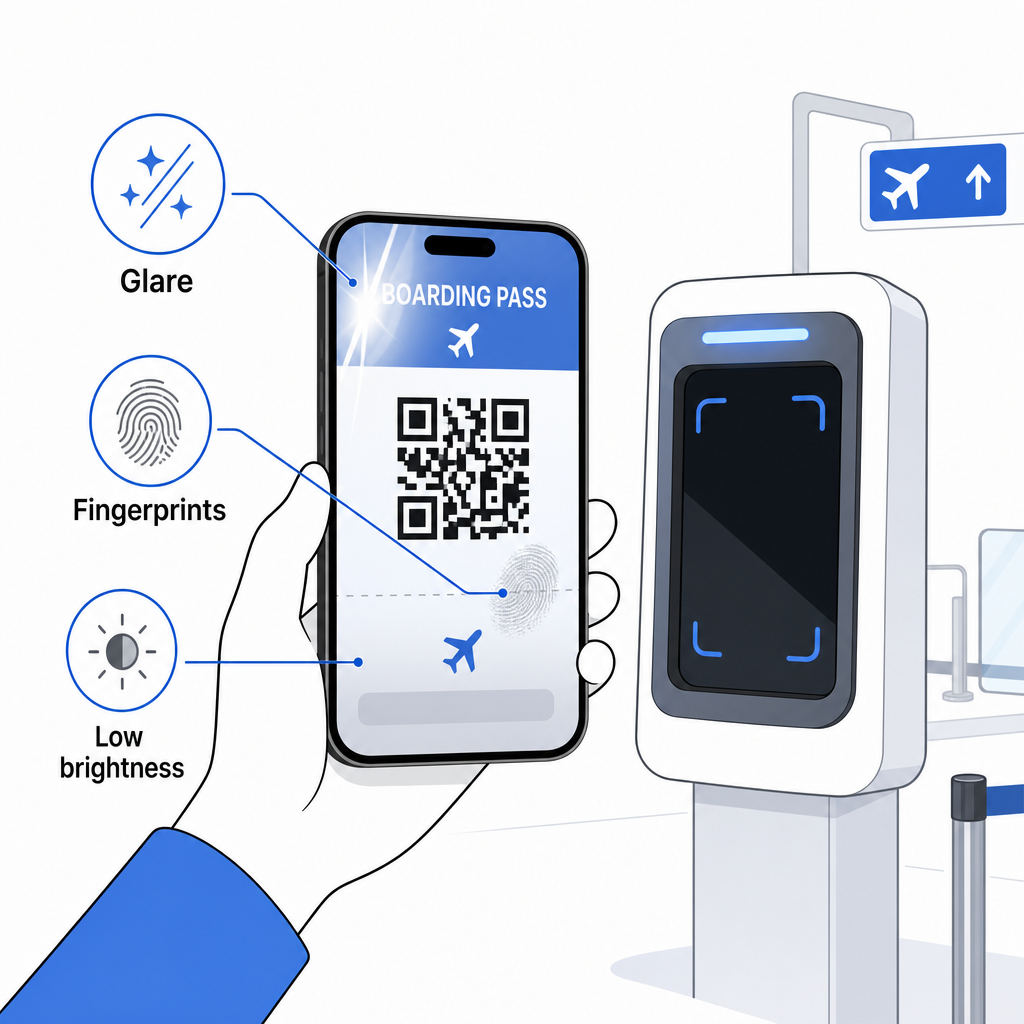
An incomplete display is also a common problem – make sure the full code is visible and not obscured by your phone case or a notification banner. Gate agents deal with scanning failures routinely and can look up your booking manually using your name and PNR. A failed scan is rarely a serious problem, but it does slow things down during high-traffic boarding.
Understanding how QR codes improve travel experiences more broadly can also help you get the most out of the digital tools airlines now offer throughout the journey.
Your boarding pass barcode – whether it’s a QR code, Aztec code, or PDF417 stripe – carries a precise, standardized data payload that airport systems rely on to verify your identity and seat assignment in real time. Mobile passes are convenient and work well at most major U.S. airports, but printed passes remain the most universally compatible option. The safest approach is to know your airports in advance and keep a backup option available when traveling on less familiar routes.
If you want to decode what’s actually stored in a boarding pass barcode, the Pageloot Barcode Scanner lets you read any supported format directly from your browser without installing an app.
Frequently Asked Questions
Not always. Printed boarding passes most commonly use a PDF417 barcode – the rectangular striped format – as the default under the IATA BCBP standard. Mobile boarding passes use 2D matrix formats such as Aztec, Data Matrix, or QR code. All of these encode the same structured passenger data; the format varies by medium and airline.
Not necessarily. At more than 225 U.S. airports equipped with TSA Credential Authentication Technology (CAT), your government-issued ID is enough to confirm your flight details at the security checkpoint – no boarding pass required. However, you still need to check in with your airline to obtain a boarding pass (mobile or printed), and you will always need to scan it at the boarding gate when you board the aircraft.
The most common causes are screen glare from bright airport lighting, fingerprints or smudges over the barcode, low screen brightness, and moiré patterns that LCD or LED screens can produce. To improve reliability, clean your screen before reaching the scanner, set your brightness to maximum, and make sure the entire barcode is fully visible and unobstructed.