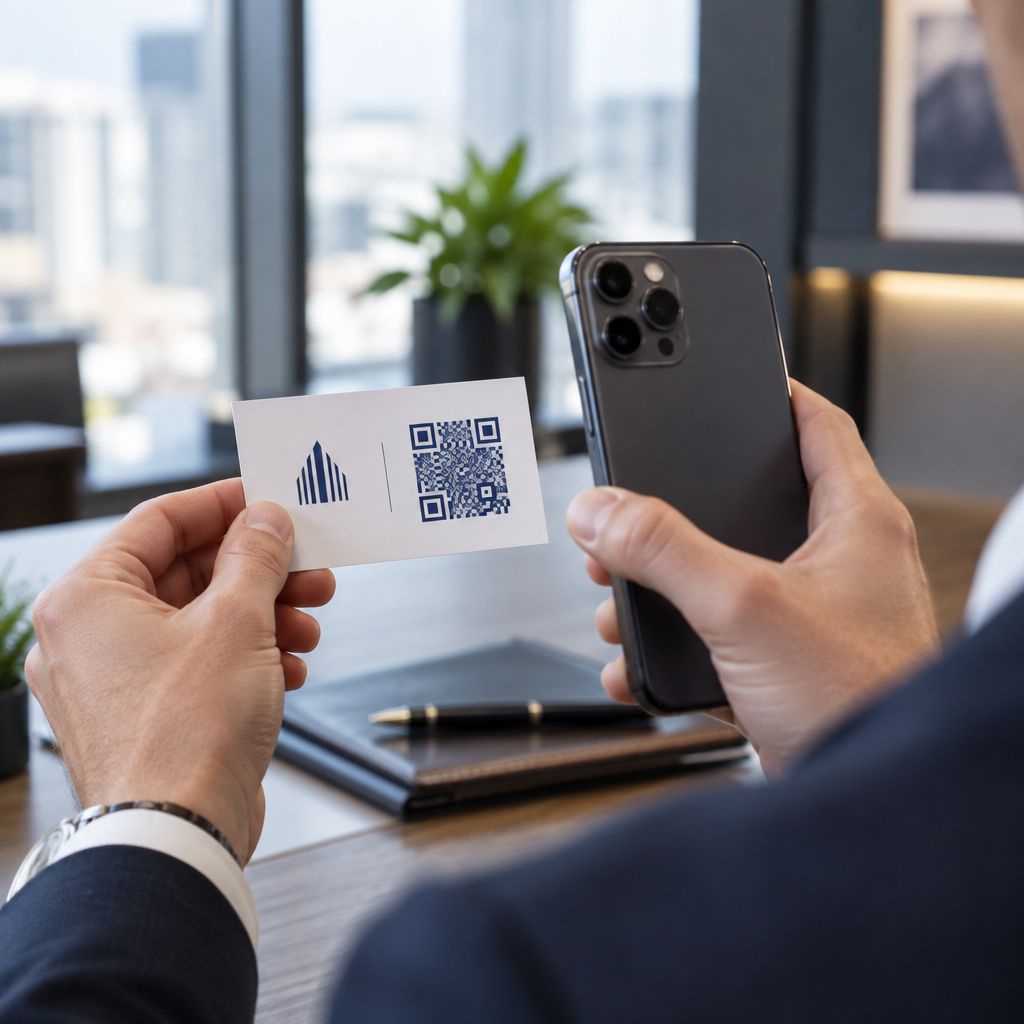
The minimum QR code size for a business card is about 0.6 x 0.6 inches (1.5 x 1.5 cm), and only if the code holds a short link, prints sharp and has strong contrast. For reliable scanning, make it at least 0.8 x 0.8 inches (2 x 2 cm). This guide gives the exact sizes, the print rules behind them and a checklist to test your card before you order.
How Big Should a QR Code Be on a Business Card?
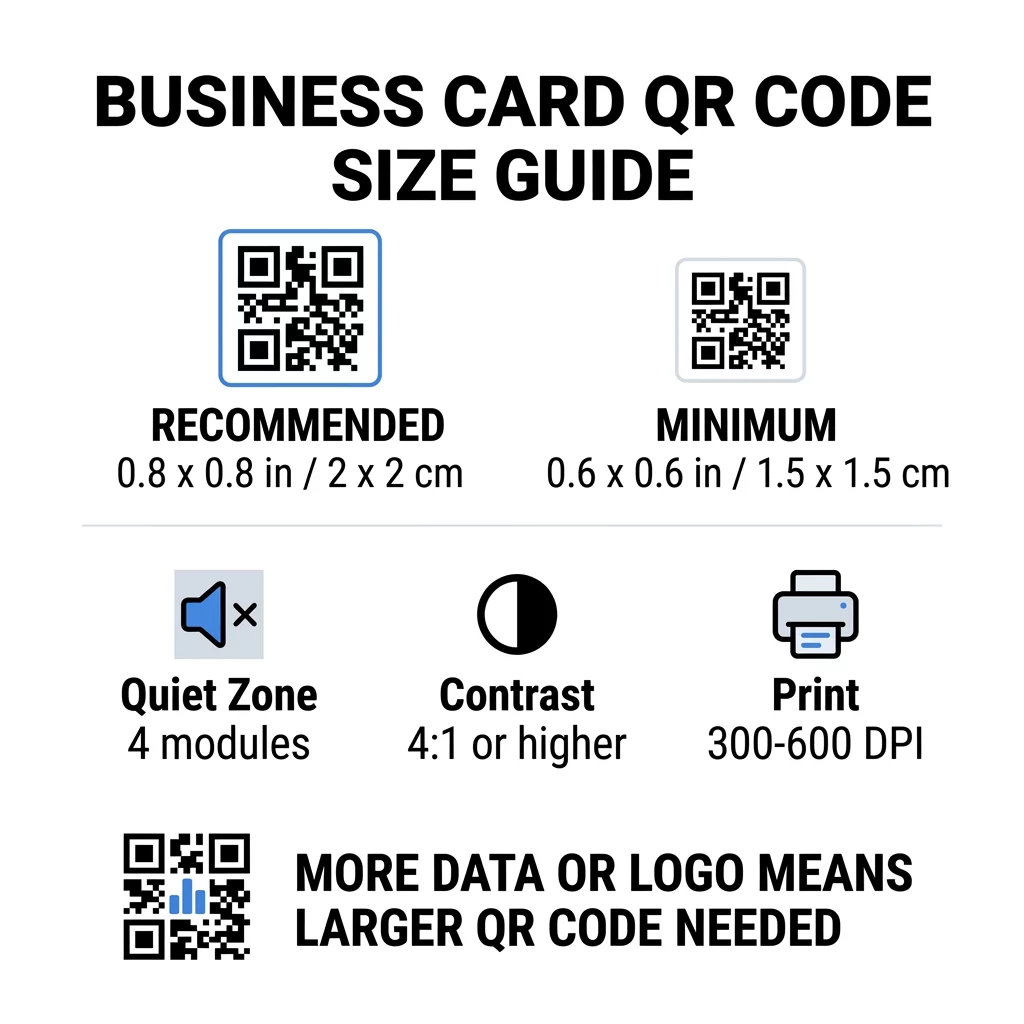
For a standard business card, the recommended size is 0.8 x 0.8 inches (2 x 2 cm). At that size, phone cameras focus fast, even in dim light or at a slight angle. People usually hold a card 4 to 10 inches (10 to 25 cm) from the phone, so the code needs to be big enough to fill a good part of the camera view at that distance.
A common rule is a 10:1 ratio: for every 10 cm of scanning distance, the code should be at least 1 cm wide. At a 10 inch (25 cm) distance that gives about 1 inch (2.5 cm) for the easiest scan, and shorter distances allow smaller codes. This is why 0.8 inches works for most cards and anything below 0.6 inches starts to fail on older phones.
Minimum QR Code Size and Recommended Size
Business cards leave little room, so it helps to decide the code size first and then design around it. The recommended size is 0.8 x 0.8 inches (2 x 2 cm). If the card is crowded, the minimum is 0.6 x 0.6 inches (1.5 x 1.5 cm). This is the answer to how small can a QR code be on a business card: 0.6 inches, with a short link, high contrast and a clean print.
| Size Category | Dimensions (Inches) | Dimensions (cm) | Reliability | Best Use Case |
|---|---|---|---|---|
| Minimum | 0.6 x 0.6 in | 1.5 x 1.5 cm | Moderate | Short URLs and low-density data |
| Recommended | 0.8 x 0.8 in | 2.0 x 2.0 cm | High | Standard business cards and contact links |
| High Density | 1.0 x 1.0 in+ | 2.5 x 2.5 cm+ | High | Detailed contact cards and embedded logos |
These sizes are for the black squares only. The empty margin around the code is extra, so a 0.8 inch code needs about 0.1 inch of clear space on each side (see the quiet zone below).
QR Code Size on a Business Card by Card Format
- US standard card (3.5 x 2 inches): a 0.8 inch code takes 40% of the card height. Place it on the back so the front stays clean.
- European standard card (85 x 55 mm): use 20 to 25 mm. The same 2 cm rule applies.
- Folded or square cards: you have more room, so use 1 inch (2.5 cm) or larger and keep the code away from the fold.
- Back of the card only: if the front is full, put a 1 inch code on the back with a short line such as “Scan to save my contact”.
How Data Density Dictates Code Size
The size of your QR code depends on how much data it holds. A QR code is a grid of small squares called modules. Version 1 has 21 x 21 modules and Version 40 has 177 x 177 modules. More data means more modules, and each module gets smaller when the code size stays the same. If the modules print smaller than a camera can resolve, the scan fails.
Here is the math for a 2 cm (0.8 inch) code. A short link usually fits in a Version 2 code (25 modules), so each module is about 0.8 mm. A full contact record can need Version 10 or higher (57 modules or more), and each module drops to about 0.35 mm. The second code is much harder to print and scan at the same size.
A direct vCard with your name, phone numbers, email addresses and office address creates a dense grid. Using a vCard QR code generator to create a direct static file often needs a code of 1 inch (2.5 cm) or more to stay readable.
To keep your code compact and easy to scan on a small card:
- Encode a short link to your contact page instead of long raw contact text.
- Keep only the essential contact channels.
- Keep the module count low so each square stays large and sharp.
- Follow the principles for how to design a business card with a QR code to balance layout and function.
A short link is the simplest way to do this. A dynamic QR code stores a short link and lets you change the destination page after the cards are printed. Pageloot offers dynamic codes with a 14-day free trial, and you can see the plans at pageloot.com/pricing. A static code is enough if your link will never change.
Create Your Custom Business Card Code Ready to build a scannable, trackable contact code? Use the business card QR code generator to design high-resolution codes and share your details with one scan.
Are QR Codes on Business Cards Good or Bad?
QR codes on business cards are good when the code is big enough, easy to scan and leads to something useful. They are bad when the code is tiny, the link is broken or the page is not made for phones.
The benefits are real. The person can save your contact or open your portfolio in two seconds, and you can fit more information than the card allows. The risks are also real: a code that does not scan looks careless, and a printed code with a wrong link cannot be fixed on a static code. Use these rules:
- Make the code at least 0.8 inches (2 cm).
- Point it to a page that opens fast on a phone.
- Add a short line next to it that says what the person gets, such as “Save my contact” or “See my work”.
- Test the printed proof before you order the full run.
Essential Technical Standards for Reliable Scanning
Size alone does not guarantee a good scan. These print rules decide whether a camera can read the pattern.
Maintaining the Quiet Zone
The quiet zone is the empty margin around the whole QR code. The ISO/IEC standard requires at least four modules on every side. For a 2 cm code with 25 modules, that margin is about 3 mm. The empty space tells the scanner where the code starts. Text, borders or background images inside this margin are one of the most common causes of failed scans.
Applying High Color Contrast
Scanners read the difference in brightness between the dark modules and the light background. Black on white is the safest choice. Dark blue, dark green or black on a light background also work well. Avoid light modules on a dark background (inverted codes), because some default camera apps cannot read them. Do not use two mid-tone colors, such as orange on red. Read the QR code color contrast guidelines to choose a safe color pair.
Exporting Vector Print Formats
Low-resolution files, such as a 72 DPI JPEG, print with blurry edges. For printing, send the file as SVG, EPS or PDF (vector), which stay sharp at any size. If you can only send a PNG, export it at 300 DPI or higher at the final print size. These best practices for QR code readability help you avoid problems before the file reaches the print shop.
Error Correction and Logo Integration
QR codes use Reed-Solomon error correction. It lets a scanner rebuild the data when part of the code is scuffed, creased or covered. There are four levels:
- Level L restores about 7% of damaged data. Use it for small, simple codes without a logo.
- Level M restores about 15% of damaged data. It is a common default for business cards.
- Level Q restores about 25% of damaged data. It is a good choice for cards that live in wallets.
- Level H restores about 30% of damaged data. Use it if you place a logo in the center.
Higher levels add more modules, so the grid gets denser. If you use Level H for a center logo, increase the printed size to at least 1.0 x 1.0 inch (2.5 x 2.5 cm), and keep the logo small, around one fifth of the code width.
Selecting Card Stock and Finishes
The card surface changes how light reaches the phone camera. Matte and uncoated stock scan best because they spread light evenly.
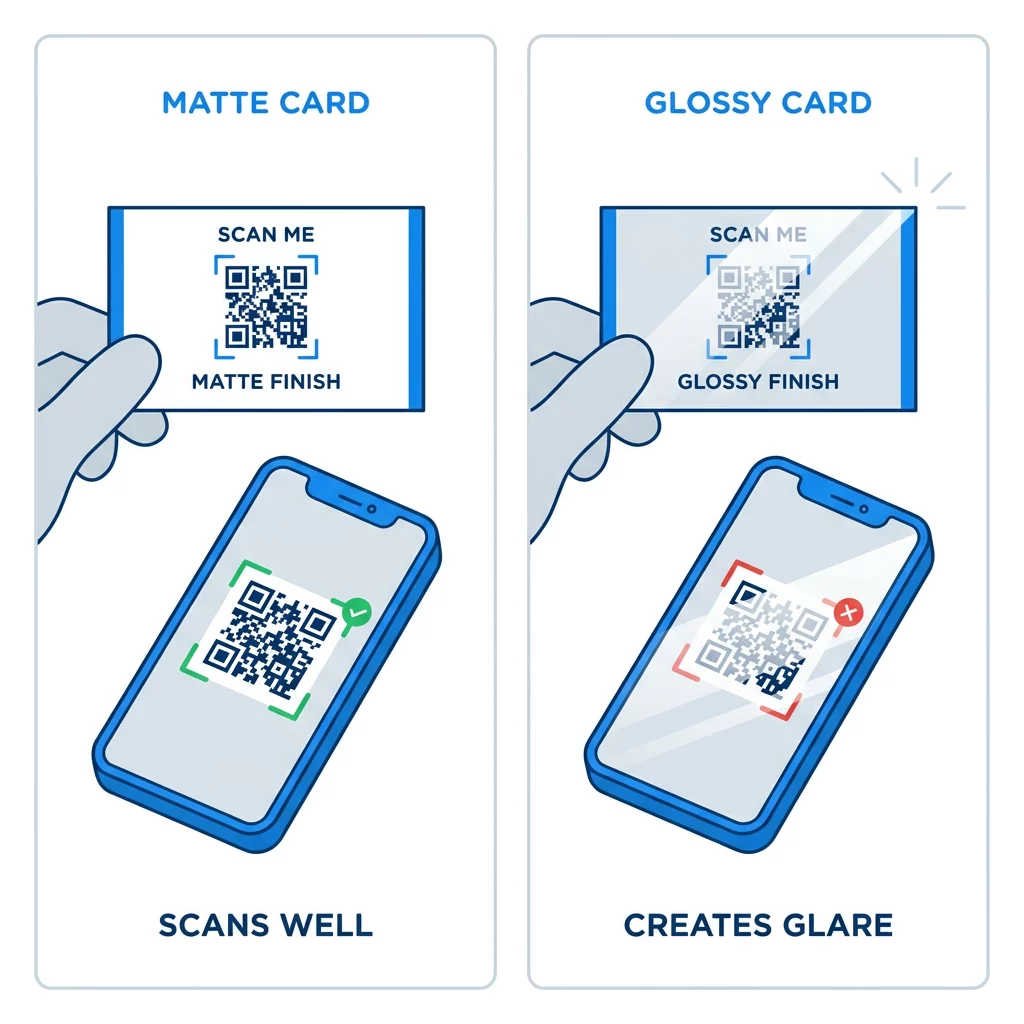
High-gloss coatings, metallic foil and reflective laminate create glare under spotlights, and the glare washes out the contrast. If you use a special finish, keep the code on a flat matte area. Keep the code away from folds, rounded corners and the edge where thumbs hold the card.
Test Your Business Card QR Code Before You Print
- Print a proof on the real card stock at 100% scale. Do not judge the code on a screen.
- Scan it with at least one iPhone and one Android phone.
- Scan it in bright daylight and in a dim room.
- Scan from about 4 inches (10 cm) and from about 10 inches (25 cm).
- Open the destination page on mobile data and confirm it loads fast.
- Only then order the full print run.
Business Card QR Code Not Scanning? Check These
- The code is smaller than 0.6 inches (1.5 cm), or the link is long and the modules are tiny. Enlarge the code or shorten the link.
- Text or a border sits inside the quiet zone. Move it away by at least four modules.
- The contrast is too low or the colors are inverted. Use dark modules on a light background.
- The file is a low-resolution image. Reprint from a vector file or a 300 DPI PNG at the final size.
- Glare from a gloss or foil finish. Move the code to a matte area.
- The destination link is wrong or the page is slow. Open the link on your phone and fix it.
A properly sized QR code makes your business card a reliable bridge between a handshake and your online profile. Keep the code at 0.8 x 0.8 inches or larger, protect the quiet zone and print from clean vector files. To build and test your next card, use the Pageloot QR code generator.
Frequently Asked Questions
Plan for 0.8 x 0.8 inches (2 x 2 cm). This size scans quickly on current smartphones from a normal holding distance. Use 1 inch (2.5 cm) or more if the code holds a lot of data or a logo.
The smallest size is about 0.6 x 0.6 inches (1.5 x 1.5 cm). It works only with a short link, high contrast, a clear quiet zone and a sharp print. For older phones, keep the code at 0.8 inches (2 cm) or larger.
About 0.6 inches (1.5 cm) per side in the best case. Smaller than that, most phone cameras cannot focus on a card held at a normal distance. Shortening the link makes the squares bigger and helps small codes scan.
Yes, but use Level H error correction so the code can recover the hidden data. Level H adds modules, so enlarge the code to at least 1.0 x 1.0 inch (2.5 cm) and keep the logo small.
Common causes are a quiet zone that is too small, low color contrast, a low-resolution file, glare from a glossy finish or a code that is too small. Check each one on the printed proof and fix it before the next print run.
They are good when the code is at least 0.8 inches, scans well and opens a page made for phones. They are bad when the code is tiny, hard to scan or leads to a broken link. Always test a printed proof.
A static code is enough if the link will never change, and static codes never expire. A dynamic code is worth it if you may change jobs, websites or contact pages, because you can edit the destination without reprinting. Pageloot dynamic codes come with a 14-day free trial, and plans are listed at pageloot.com/pricing.