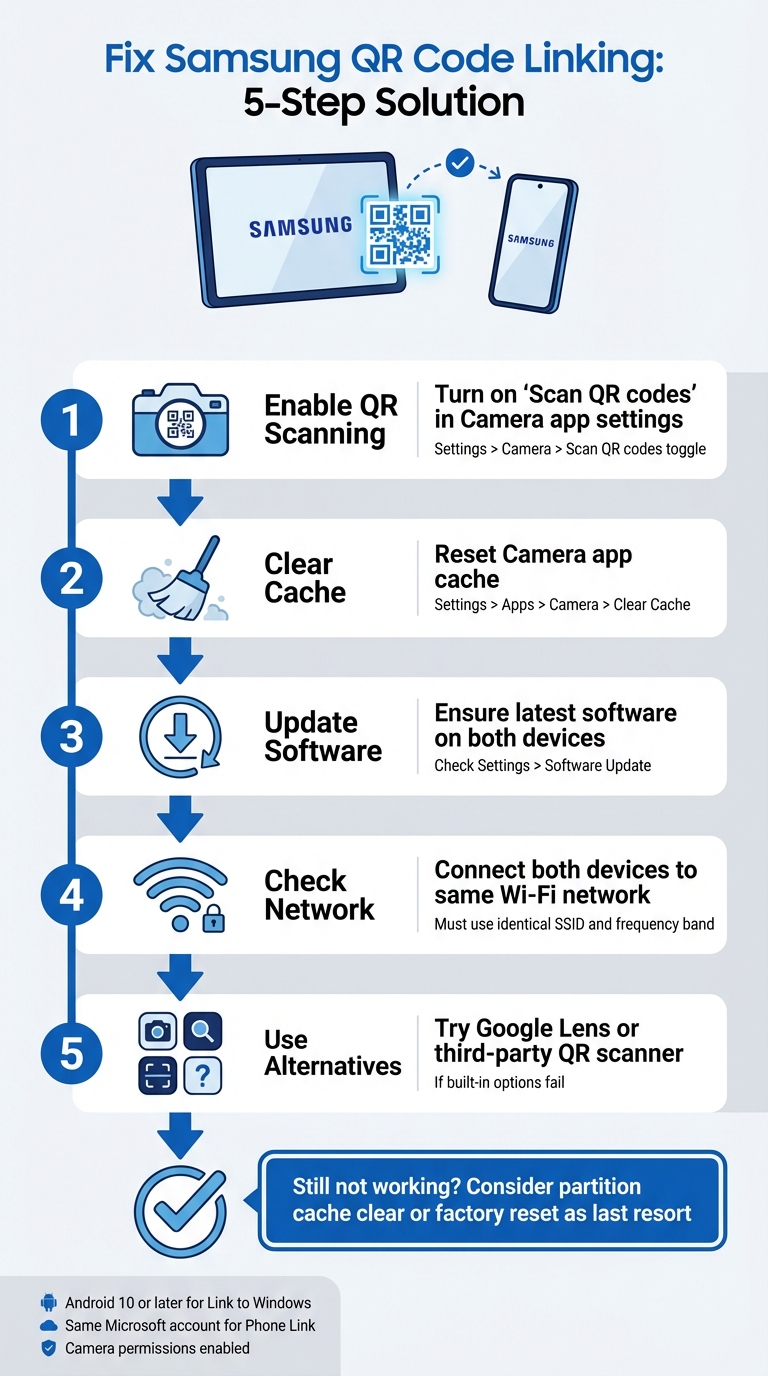
When your Samsung tablet can’t connect to your phone using a QR code, it’s typically due to camera settings, software glitches, or network issues. This problem disrupts workflows, forcing users to rely on less convenient alternatives like manual codes. Here’s how to fix it:
- Enable QR Scanning: Check if the “Scan QR codes” option is turned on in the Camera app settings.
- Clear Cache: Reset the Camera app by clearing its cache via Settings > Apps > Camera > Clear Cache.
- Update Software: Ensure both devices are running the latest software versions.
- Check Network: Both devices must be on the same Wi-Fi network.
- Use Alternatives: Try Google Lens or a third-party QR scanner app if built-in options fail.
If these steps don’t work, consider performing a partition cache clear or, as a last resort, a factory reset. For QR codes that are blurry or poorly printed, tools like Pageloot can generate better-quality codes to avoid scanning issues.
5 Steps to Fix Samsung QR Code Linking Issues Between Tablet and Phone
How To Fix Samsung Galaxy Tab A9/ A9+ QR Code Not Working To Start
sbb-itb-74874c9
How Samsung QR Code Linking Works
Before diving into troubleshooting, it’s helpful to understand how Samsung’s QR code linking operates and what might cause it to fail.
Samsung Device Linking with QR Codes
Samsung devices use their built-in Camera app to automatically detect and process QR codes. For example, when linking a tablet to a phone (such as through Smart Switch), the camera scans the QR code displayed on one device and decodes the connection details embedded in the pattern.
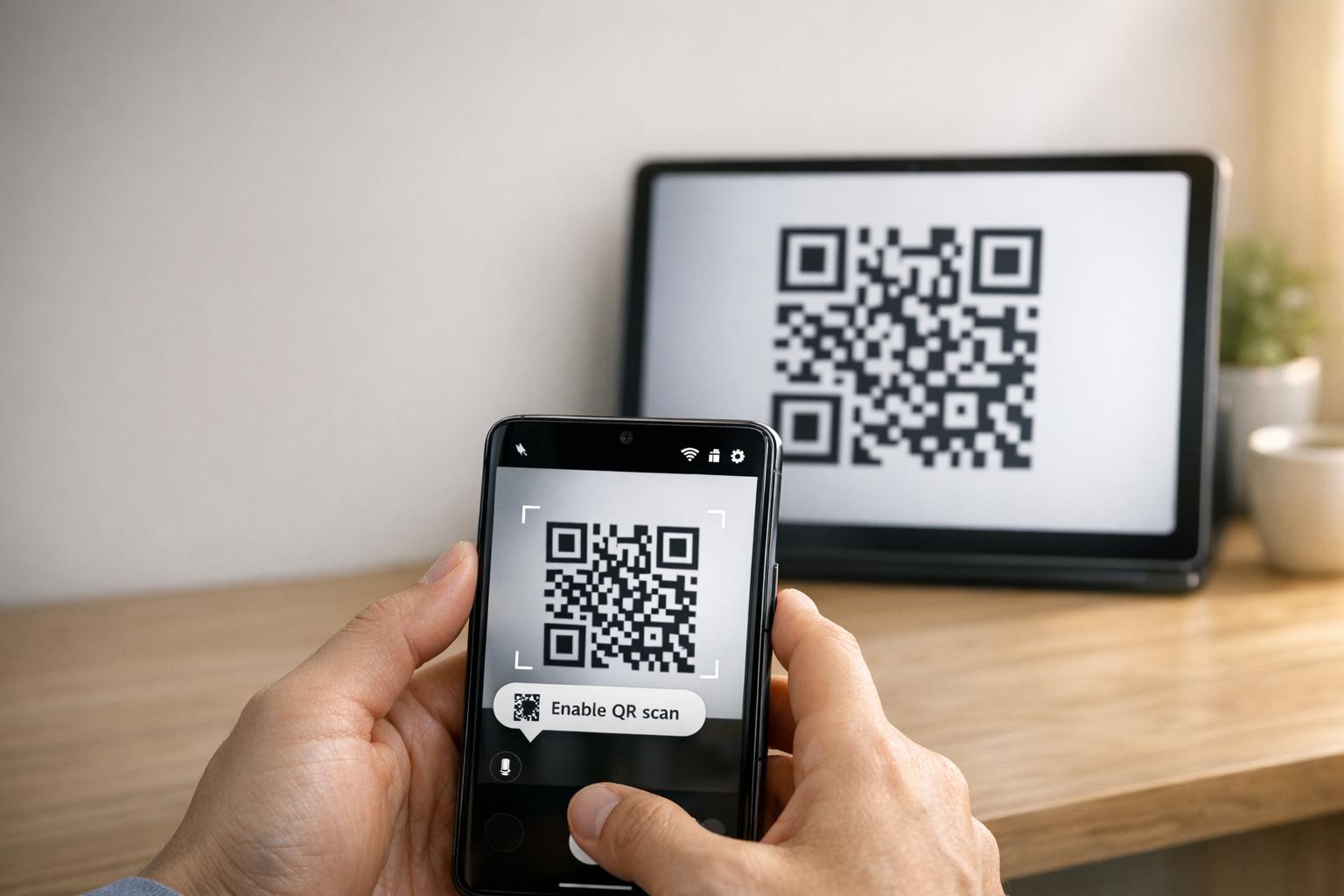
To enable QR scanning, ensure the “Scan QR codes” option is active in the Camera app settings. You can also access QR scanning through a Quick Settings tile. If the native camera struggles, alternatives like Google Lens or the QR scanner in the Samsung Internet browser menu can help.
For a QR code to work properly, it must meet specific standards:
- High contrast: Ideally black on white for easy detection.
- Quiet zone: A clear margin around the code to avoid interference.
- Sufficient resolution: Avoid pixelation or blurry prints.
- Appropriate size: Printed QR codes should be large enough for reliable scanning.
Understanding these basics can make it easier to pinpoint why QR code linking might not work as expected.
Why QR Code Linking Fails
One of the most common reasons for failure is that the “Scan QR codes” setting is turned off in the Camera app. This can happen after a software update, which might reset user preferences and disable scanning by default.
Other reasons include environmental factors like poor lighting, glare, or a dirty camera lens, as well as technical issues such as software glitches or QR codes that are damaged or poorly printed. For instance, after an operating system update, scanning functionality may be disrupted, requiring a cache partition clear to fix the issue.
“A non-functional QR Code serves as a barrier rather than a bridge. It frustrates users and wastes your budget.” – QR Code Generator PRO
The QR code itself can also be the culprit. If it’s damaged, printed at a resolution below 300 DPI, or lacks the necessary quiet zone (about four modules wide), even a perfectly working camera may fail to scan it. Additionally, static QR codes with too much encoded data can result in overly dense patterns that older devices or budget models may struggle to process.
Fixing Samsung QR Code Linking Problems
Now that you know why QR code linking might fail, let’s explore practical ways to fix connection issues between your Samsung tablet and phone.
Check Device Compatibility and Requirements
Before diving into fixes, make sure both devices meet the necessary requirements. For starters, your Samsung tablet must be running Android 10 or later to support features like Link to Windows QR code pairing. You can check this by navigating to Settings > About Tablet > Software Information on your tablet.
Additionally, both devices need to be connected to the same Wi-Fi network (using the exact same SSID). If you’re using Microsoft’s Phone Link, ensure you’re signed into the same Microsoft account on both devices.
For devices running Android 13 or newer, you’ll also need to grant runtime notification permissions to enable smooth data transfer between linked devices. Don’t forget to double-check that the Camera app has permission to scan QR codes. You can do this by going to Settings > Apps > [App Name] > Permissions and ensuring Camera access is enabled.
Once you’ve confirmed compatibility, it’s time to enable QR scanning.
Turn On QR Code Scanning in Camera Settings
Sometimes, the issue is as simple as enabling the QR scanner. Open the Camera app, tap the Settings gear icon (usually in the top-left corner), and look for the Scan QR codes option. Make sure this toggle is switched on.
If you don’t see this option in the Camera app, try using the Quick Settings panel instead. Swipe down twice from the top of your screen to expand the panel, then look for a Imbas kod QR tile. If it’s not visible, swipe right in Quick Settings, tap Add (+), and include the QR scanner tile. This method is especially handy if the Camera app struggles to recognize QR codes.
For older Samsung models, you may need to use Bixby Vision to scan QR codes.
If enabling QR scanning doesn’t fix the issue, the next step is to reset the Camera app and check for software updates.
Reset Camera App and Update Software
If the scanner freezes or isn’t working properly, clearing the Camera app’s cache can often resolve the problem. To do this, go to Settings > Apps > Camera > Force stop, then navigate to Storage and tap Clear Cache. After clearing the cache, restart your device by holding the Side button and selecting Restart.
“If this started after a recent security or OS update I recommend performing a partition cache clear which is good for weeding out the software bugs they sometimes bring.” – Belaythatorder, Supernova, Samsung Community
If clearing the cache doesn’t help, you might need to perform a partition cache clear. This can address deeper software glitches caused by recent updates.
Finally, check for any pending software updates in your device’s settings. While updates can occasionally introduce temporary bugs, they often include fixes for system-level issues with QR code scanning. If your tablet struggles to read QR codes after an update, try increasing the tablet’s brightness, disabling Dark Mode, and turning off features like Extra Dim atau Eye Comfort shields to improve the contrast of the QR code.
Other Ways to Link Devices
If resetting settings or updating software doesn’t solve the issue, there are additional ways to link your Samsung tablet and phone. These backup methods can help when traditional fixes fall short.
Use Quick Settings for QR Scanning
Samsung devices running Android 9.0 (Pie) or later with One UI 2.5 or newer include a handy shortcut for QR scanning in the Quick Settings panel. Here’s how to use it:
- Swipe down from the top of your screen to access the Quick Settings menu.
- If “Scan QR code” isn’t visible, tap the + (Plus) icon or the three-dot menu. Locate the tile in the available buttons section and drag it into the active grid.
- Tap the “Scan QR code” tile to activate the scanner, then point your camera at the QR code.
Once the code is detected, tap the pop-up link or notification to access the content. Remember, the Camera app must have QR scanning enabled for this feature to work. If it’s still not functioning, a third-party QR scanner might be worth considering.
Download a QR Scanner App
When the built-in scanner doesn’t work, downloading a QR scanner app from the Gedung Google Play can be a reliable alternative. Look for apps with good user reviews to ensure reliability. Google Lens is a popular option, often pre-installed on Samsung devices, offering advanced image recognition features. Other apps, like Pembaca Kod QR, may work offline but could include ads or require internet access for security checks.
Factory Reset
A factory reset should only be used as a last resort after all other troubleshooting methods have been exhausted. Before taking this step, try clearing the partition cache through the recovery menu. This less invasive method can often resolve software glitches without deleting your data. Additionally, test a third-party QR scanner app to rule out software-specific issues with Samsung’s built-in tools.
If you opt for a factory reset, back up all your personal data first, as this process will erase everything on your device. If the camera itself isn’t working – for example, it can’t take photos or record videos – the problem might be hardware-related. In such cases, contacting Samsung support for a professional diagnosis is the best course of action. These additional methods can help you troubleshoot and link your devices when QR code issues persist.
Improve QR Code Performance with Pageloot
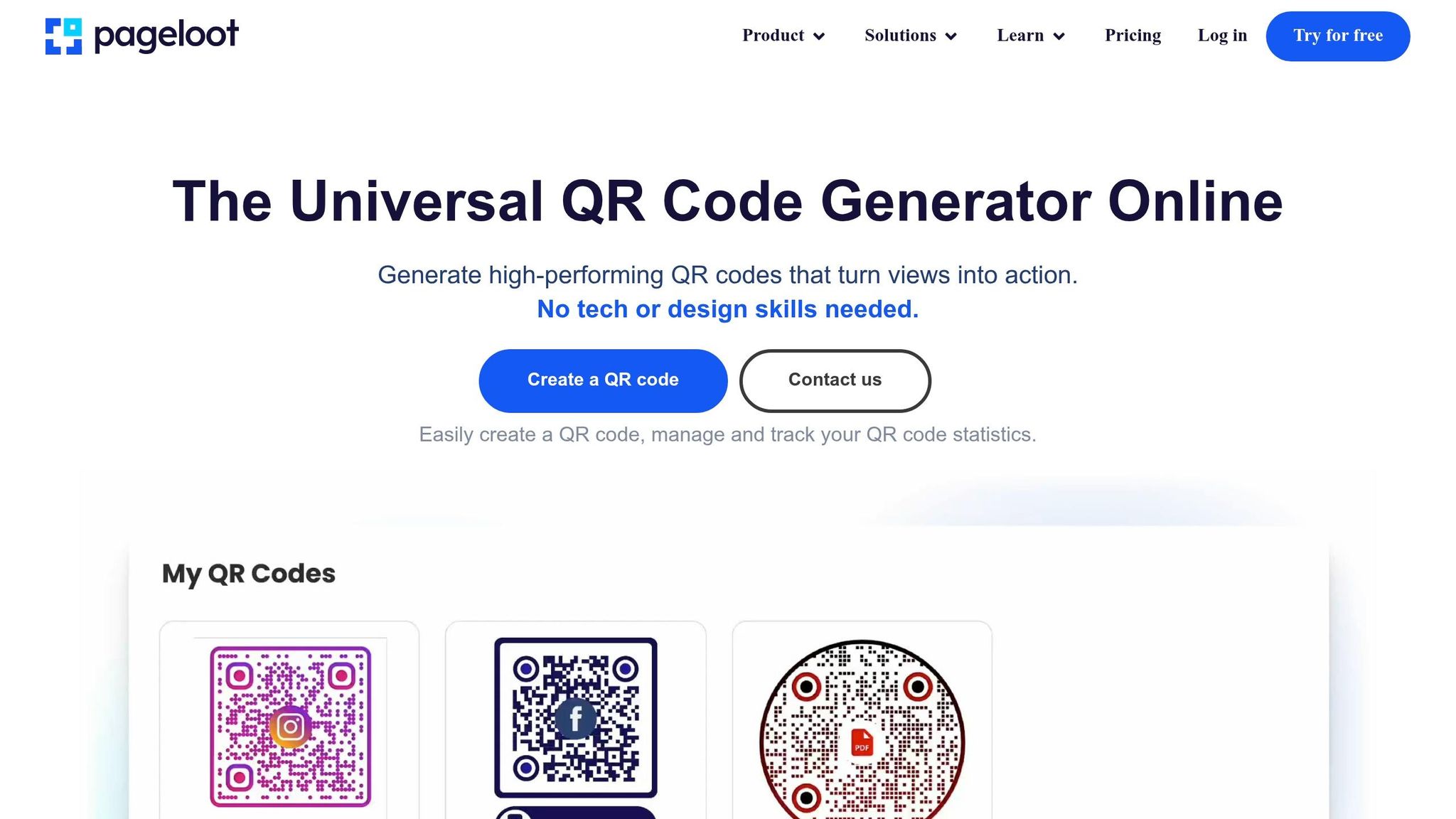
Sometimes, persistent QR code issues between your Samsung tablet and phone can trace back to the quality of the QR code itself. Problems like low resolution, poor contrast, or overly dense patterns can make even top-tier Samsung cameras struggle to scan effectively. Pageloot’s QR code tools tackle these issues head-on, ensuring your codes are not only functional but also optimized for seamless scanning.
Pageloot Features for Business QR Codes
Pageloot provides high-resolution QR code downloads in both PNG and SVG formats. This is crucial for avoiding the blurriness that often causes scanning failures. With SVG files, the vector format ensures the code scales perfectly without losing sharpness, keeping those edges clean and crisp. To further improve readability, Pageloot allows customization of colors and logos, ensuring high contrast for quicker, more reliable scans.
Another standout feature is Pageloot’s dynamic QR codes. These use a short redirect URL to reduce data density, creating simpler patterns that scan faster – especially on older or less advanced cameras. Even better, you can update the destination URL directly through your dashboard without needing to reprint the code, saving time and avoiding “404 Not Found” errors. These features address many of the common scanning challenges businesses face.
How Pageloot Reduces QR Code Errors
Pageloot’s dynamic QR codes solve two major problems: overly complex patterns and link maintenance. Long URLs in static codes can create dense designs that some scanners can’t handle. By simplifying the pattern, Pageloot makes scanning faster and more reliable. If a link is broken or contains an error, you can fix it instantly – no need to reprint or reconfigure devices.
For printed materials like business cards or flyers, downloading codes in SVG or EPS formats ensures sharp, professional results. To further enhance scanning performance, maintain a quiet zone – about four modules of blank space – around the QR code. Always test the code on both your devices to ensure compatibility before printing. These optimizations make Pageloot an excellent choice for businesses that rely on dependable QR code performance.
Kesimpulannya
Connecting your Samsung tablet and phone using QR codes doesn’t have to be a hassle. Most issues arise from minor configuration problems, like camera settings needing adjustment, devices operating on different Wi-Fi bands, or battery settings interrupting background processes. As Robin621k, an Honored Contributor, suggests:
“Go into settings in the camera app and toggle on Scan QR codes”.
Once you’ve tweaked your device settings, it’s essential to ensure the network environment is stable. A consistent network connection makes all the difference. Both devices must be connected to the same Wi-Fi network and frequency band (2.4GHz or 5GHz). Microsoft Support emphasizes:
“The Phone screen feature only works when your Android device and your PC can communicate with each other. They’ll both need to be turned on and connected to the same Wi-Fi network”.
If everything checks out but the issue persists, consider amalan terbaik kebolehbacaan kod QR. Blurry images, low contrast, or overly complex patterns can make scanning difficult, even for advanced cameras. Tools like Pageloot’s penjana kod QR dinamik solve these issues by creating high-resolution, easy-to-scan codes. For businesses using QR codes on kad perniagaan, risalah, atau label produk, optimizing for mobile scanning is key. As Patrick Augstein points out:
“A non-functional QR Code serves as a barrier rather than a bridge. It frustrates users and wastes your budget”.
Whether you’re troubleshooting personal device connections or managing QR codes for a marketing agency atau e-commerce business, these simple steps can help you resolve issues effectively. By fine-tuning your settings, ensuring network consistency, and using well-designed QR codes, you’ll achieve seamless connections without unnecessary frustration.
For additional help with common device and software problems, these technology troubleshooting guides provide clear, practical solutions.
Soalan Lazim
Why can’t my Samsung tablet detect the QR code at all?
Your Samsung tablet might have trouble detecting a QR code for a few common reasons, like compatibility issues, scanning technique, or connectivity glitches. To improve detection, make sure the camera lens is clean, hold the device steady, and check that the QR code is well-lit and free from damage. If the camera struggles to focus or the QR code is poorly printed, it might not scan. Proper lighting and positioning can make a big difference.
Do my tablet and phone have to be on the same Wi‑Fi to link?
Your tablet and phone don’t necessarily have to be on the same Wi-Fi network to connect using a QR code. That said, having both devices on the same network can help things run more smoothly and reduce potential connectivity hiccups. If you’re having trouble linking them, the issue might stem from device settings or other network-related problems that require a bit of troubleshooting.
What should I try if the QR code is blurry or won’t scan?
If the QR code looks blurry or doesn’t scan, take a closer look to ensure it’s clear, undamaged, and printed at an adequate size – at least 2 cm x 2 cm for smaller materials. Make sure you’re in a well-lit area, hold your device steady, and keep it about 6–12 inches away from the code. Also, check that your device’s camera can properly focus on the QR code pattern to ensure it scans correctly.
Kiriman Blog Berkaitan