Kui teie Samsung tahvelarvuti ei saa QR-koodi abil telefoniga ühendust luua, on see tavaliselt tingitud kaamera seadetest, tarkvaraprobleemidest või võrguprobleemidest. See probleem häirib töövooge, sundides kasutajaid tuginema vähem mugavatele alternatiividele, nagu käsitsi sisestatavad koodid. Siin on, kuidas seda parandada:
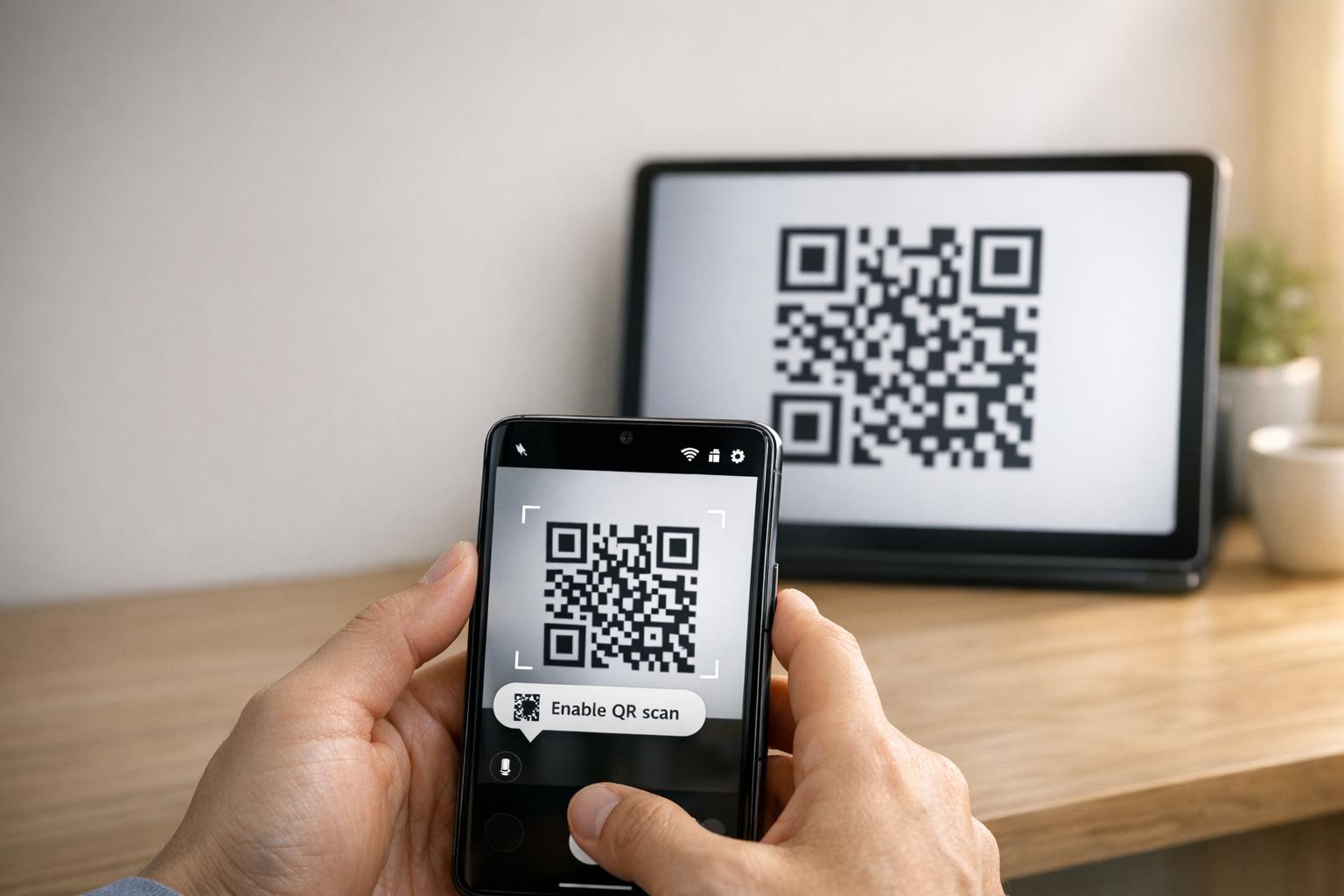
- Luba QR-skannimine: Kontrollige, kas kaamerarakenduse seadetes on sisse lülitatud valik “Skanni QR-koode”.
- Tühjenda vahemälu: Lähtestage kaamerarakendus, tühjendades selle vahemälu kaudu Seaded > Rakendused > Kaamera > Tühjenda vahemälu.
- Uuenda tarkvara: Veenduge, et mõlemad seadmed kasutaksid uusimaid tarkvaraversioone.
- Kontrolli võrku: Mõlemad seadmed peavad olema samas Wi-Fi võrgus.
- Kasuta alternatiive: Proovige Google Lens või kolmanda osapoole QR-skanneri rakendust, kui sisseehitatud valikud ebaõnnestuvad.
Kui need sammud ei aita, kaaluge partitsiooni vahemälu tühjendamist või viimase abinõuna tehaseseadete lähtestamist. Häguste või halvasti prinditud QR-koodide puhul saavad tööriistad nagu Pageloot saavad genereerida parema kvaliteediga koode, et vältida skannimisprobleeme.
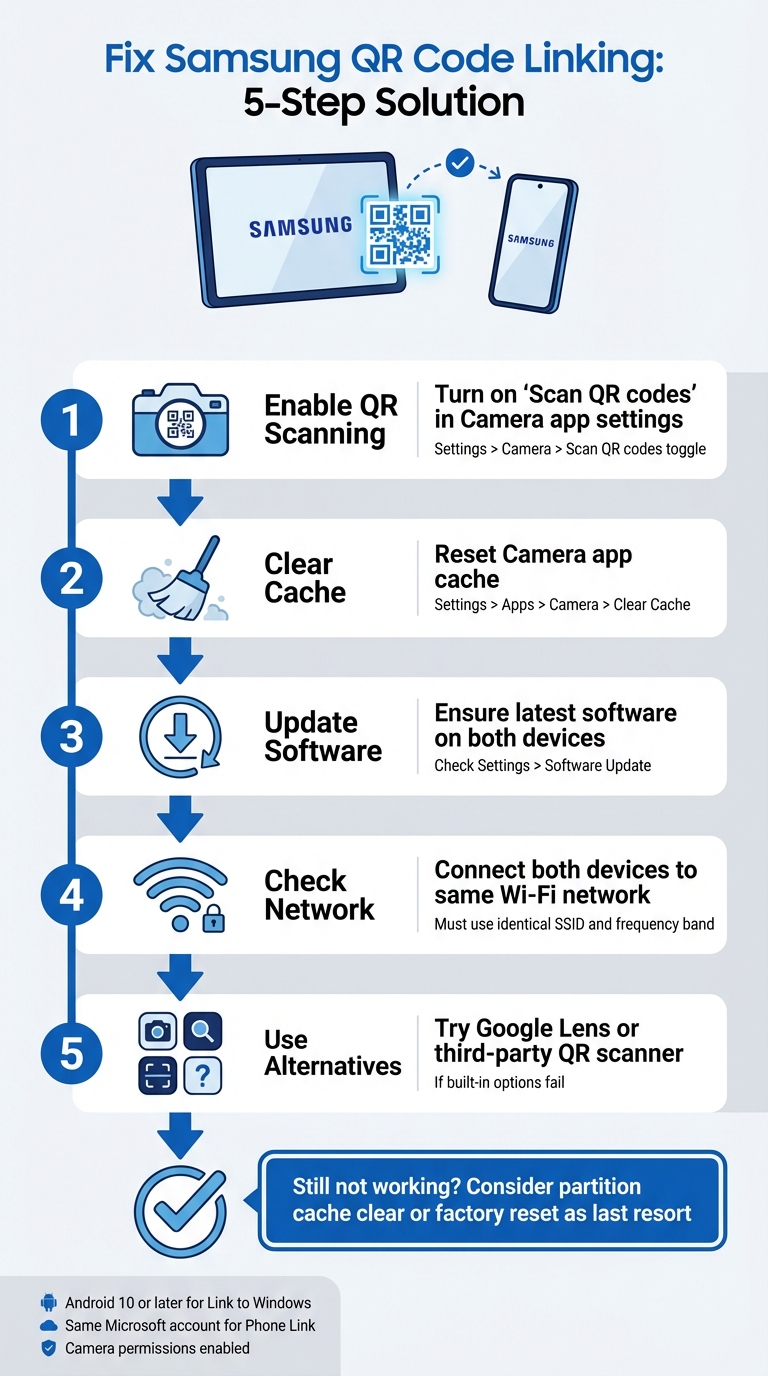
5 sammu Samsungi QR-koodi linkimise probleemide lahendamiseks tahvelarvuti ja telefoni vahel
Kuidas parandada Samsung Galaxy Tab A9/ A9+ QR-kood ei tööta käivitamisel
sbb-itb-74874c9
Kuidas Samsungi QR-koodi linkimine töötab
Enne tõrkeotsingusse süvenemist on kasulik mõista, kuidas Samsungi QR-koodi linkimine toimib ja mis võib selle ebaõnnestumist põhjustada.
Samsungi seadmete linkimine QR-koodidega
Samsungi seadmed kasutavad oma sisseehitatud kaamerarakendust QR-koodide automaatseks tuvastamiseks ja töötlemiseks. Näiteks tahvelarvuti telefoniga linkimisel (näiteks läbi Smart Switchi), skannib kaamera ühel seadmel kuvatavat QR-koodi ja dekodeerib mustrisse manustatud ühenduse üksikasjad.
QR-skannimise lubamiseks veenduge, et valik “Skanni QR-koode” oleks kaamerarakenduse seadetes aktiivne. QR-skannimisele pääseb ligi ka kiirseadete paani kaudu. Kui sisseehitatud kaamera hätta jääb, saavad aidata alternatiivid nagu Google Lens või Samsung Interneti brauseri menüüs olev QR-skanner.
Selleks, et QR-kood korralikult töötaks, peab see vastama kindlatele standarditele:
- Kõrge kontrast: Ideaalis must valgel, et oleks lihtne tuvastada.
- Vaikne tsoon: Selge äär koodi ümber, et vältida häireid.
- Piisav resolutsioon: Vältige pikseliseerumist või uduseid väljatrükke.
- Sobiv suurus: Prinditud QR-koodid peaksid olema piisavalt suured usaldusväärseks skaneerimiseks.
Nende põhitõdede mõistmine aitab hõlpsamini kindlaks teha, miks QR-koodi linkimine ei pruugi ootuspäraselt töötada.
Miks QR-koodi linkimine ebaõnnestub
Üks levinumaid ebaõnnestumise põhjuseid on see, et “Skaneeri QR-koode” säte on välja lülitatud kaamerarakenduses. See võib juhtuda pärast tarkvarauuendust, mis võib lähtestada kasutaja eelistused ja keelata skaneerimise vaikimisi.
Muud põhjused hõlmavad keskkonnategureid, nagu halb valgustus, pimestamine või määrdunud kaameraobjektiiv, samuti tehnilisi probleeme, nagu tarkvaravead või kahjustatud või halvasti prinditud QR-koodid. Näiteks pärast operatsioonisüsteemi uuendust võib skaneerimisfunktsioon olla häiritud, nõudes probleemi lahendamiseks vahemälu partitsiooni tühjendamist.
“Mittetoimiv QR-kood on pigem takistus kui sild. See frustreerib kasutajaid ja raiskab teie eelarvet.” – QR Code Generator PRO
Süüdlaseks võib olla ka QR-kood ise. Kui see on kahjustatud, prinditud alla 300 DPI eraldusvõimega või puudub vajalik vaikne tsoon (umbes neli moodulit lai), ei pruugi isegi täiesti töökorras kaamera seda skaneerida. Lisaks võivad liiga palju kodeeritud andmetega staatilised QR-koodid põhjustada liiga tihedaid mustreid, mida vanemad seadmed või eelarvemudelid võivad raskustega töödelda.
Samsungi QR-koodi linkimise probleemide lahendamine
Nüüd, kui teate, miks QR-koodi linkimine võib ebaõnnestuda, uurime praktilisi viise Samsungi tahvelarvuti ja telefoni vaheliste ühendusprobleemide lahendamiseks.
Kontrollige seadme ühilduvust ja nõudeid
Enne paranduste juurde asumist veenduge, et mõlemad seadmed vastavad vajalikele nõuetele. Alustuseks peab teie Samsungi tahvelarvutis töötama Android 10 või uuem funktsioonide toetamiseks, nagu Link Windowsiga QR-koodi sidumine. Saate seda kontrollida, navigeerides Seaded > Teave tahvelarvuti kohta > Tarkvarateave oma tahvelarvutis.
Lisaks peavad mõlemad seadmed olema ühendatud samasse Wi-Fi võrku (kasutades täpselt sama SSID-d). Kui kasutate Microsofti Phone Link, veenduge, et olete sisse logitud sama Microsofti konto mõlemal seadmel.
Android 13 või uuema versiooniga seadmete puhul peate andma ka käitusaja teavituste load, et võimaldada sujuvat andmeedastust lingitud seadmete vahel. Ärge unustage üle kontrollida, et kaamerarakendusel oleks QR-koodide skannimiseks luba. Seda saate teha, minnes jaotisse Seaded > Rakendused > [Rakenduse nimi] > Load ja veendudes Kaamera juurdepääs on lubatud.
Kui olete ühilduvuse kinnitanud, on aeg lubada QR-skannimine.
Lülita QR-koodi skannimine kaamera seadetes sisse
Mõnikord on probleem sama lihtne kui QR-skanneri lubamine. Ava kaamerarakendus, puuduta Seadete hammasratta ikooni (tavaliselt vasakus ülanurgas) ja otsi Skanni QR-koode valikut. Veendu, et see lüliti on sisse lülitatud.
Kui sa seda valikut kaamerarakenduses ei näe, proovi kasutada Kiirseadete paneeli asemel. Pühkige ekraani ülaosast kaks korda alla, et paneeli laiendada, seejärel otsige Skannige QR-koodi paani. Kui see pole nähtav, pühkige kiirseadetes paremale, puudutage Lisa (+), ja lisage QR-skanneri paan. See meetod on eriti mugav, kui kaamerarakendusel on raskusi QR-koodide tuvastamisega.
Vanemate Samsungi mudelite puhul peate võib-olla kasutama Bixby Visioni QR-koodide skannimiseks.
Kui QR-skannimise lubamine probleemi ei lahenda, on järgmine samm kaamerarakenduse lähtestamine ja tarkvarauuenduste kontrollimine.
Lähtesta kaamerarakendus ja värskenda tarkvara
Kui skanner hangub või ei tööta korralikult, võib kaamerarakenduse vahemälu tühjendamine probleemi sageli lahendada. Selleks minge Seaded > Rakendused > Kaamera > Sundpeatamine, seejärel navigeerige Salvestus ja puudutage Tühjenda vahemälu. Pärast vahemälu tühjendamist taaskäivitage seade, hoides all külgnuppu ja valides Taaskäivita.
“Kui see algas pärast hiljutist turva- või OS-i värskendust, soovitan teha partitsiooni vahemälu tühjendamise, mis on hea tarkvaravigade kõrvaldamiseks, mida need mõnikord kaasa toovad.” – Belaythatorder, Supernova, Samsungi kogukond
Kui vahemälu tühjendamine ei aita, peate võib-olla tegema partitsiooni vahemälu tühjendamise. See võib lahendada sügavamaid tarkvaraprobleeme, mis on põhjustatud hiljutistest värskendustest.
Lõpuks kontrollige oma seadme seadetest kõiki ootel olevaid tarkvarauuendusi. Kuigi uuendused võivad aeg-ajalt tuua kaasa ajutisi vigu, sisaldavad need sageli parandusi süsteemitasandi probleemidele QR-koodi skannimisega. Kui teie tahvelarvutil on pärast värskendust raskusi QR-koodide lugemisega, proovige suurendada tahvelarvuti heledust, keelata Tume režiim, ja lülitada välja funktsioonid nagu Eriti tume või Silmade mugavus kilbid, et parandada QR-koodi kontrasti.
Muud viisid seadmete linkimiseks
Kui seadete lähtestamine või tarkvara värskendamine probleemi ei lahenda, on teie Samsungi tahvelarvuti ja telefoni linkimiseks lisavõimalusi. Need varumeetodid võivad aidata, kui traditsioonilised lahendused ei toimi.
Kasuta kiirseadeid QR-skannimiseks
Samsungi seadmed, mis kasutavad Android 9.0 (Pie) või uuemat versiooni koos One UI-ga 5 või uuemaga sisaldavad mugavat otseteed QR-skannimiseks kiirseadete paneelil. Siin on, kuidas seda kasutada:
- Pühkige ekraani ülaosast alla, et pääseda juurde kiirseadete menüüle.
- Kui “Skanni QR-koodi” pole nähtav, puudutage + (Pluss) ikooni või kolme punkti menüüd. Leidke paan saadaolevate nuppude jaotisest ja lohistage see aktiivsesse ruudustikku.
- Puudutage “Skanni QR-koodi” paani, et skanner aktiveerida, seejärel suunake kaamera QR-koodile.
Kui kood on tuvastatud, puudutage sisu avamiseks hüpiklinki või teatist. Pidage meeles, et kaamerarakendusel peab olema QR-skannimine lubatud, et see funktsioon töötaks. Kui see ikka ei tööta, tasub kaaluda kolmanda osapoole QR-skannerit.
Laadi alla QR-skanneri rakendus
Kui sisseehitatud skanner ei tööta, võib QR-skanneri rakenduse allalaadimine Google Play pood olla usaldusväärne alternatiiv. Otsige rakendusi, millel on head kasutajaarvustused, et tagada usaldusväärsus. Google Lens on populaarne valik, sageli eelinstallitud Samsungi seadmetesse, pakkudes täiustatud pildituvastuse funktsioone. Teised rakendused, nagu QR-koodi lugeja, võivad töötada võrguühenduseta, kuid võivad sisaldada reklaame või nõuda turvakontrolliks internetiühendust.
Tehase lähtestamine
Tehase lähtestamist tuleks kasutada ainult viimase abinõuna pärast kõigi muude tõrkeotsingu meetodite ammendamist. Enne selle sammu astumist proovige taastemenüü kaudu partitsiooni vahemälu tühjendada. See vähem invasiivne meetod võib sageli lahendada tarkvaraprobleeme ilma teie andmeid kustutamata. Lisaks testige kolmanda osapoole QR-skanneri rakendust, et välistada tarkvaraspetsiifilised probleemid Samsungi sisseehitatud tööriistadega.
Kui valite tehase lähtestamise, varundage esmalt kõik oma isiklikud andmed, kuna see protsess kustutab kõik teie seadmest. Kui kaamera ise ei tööta – näiteks ei saa see fotosid teha ega videoid salvestada – võib probleem olla riistvaraga seotud. Sellistel juhtudel on parim tegevussuund Samsungi toe poole pöördumine professionaalse diagnoosi saamiseks. Need lisameetodid aitavad teil tõrkeotsingut teha ja seadmeid linkida, kui QR-koodi probleemid püsivad.
Paranda QR-koodi jõudlust koos Pageloot
Mõnikord võivad püsivad QR-koodi probleemid teie Samsungi tahvelarvuti ja telefoni vahel tuleneda QR-koodi enda kvaliteedist. Probleemid nagu madal eraldusvõime, halb kontrast või liiga tihedad mustrid võivad panna isegi tipptasemel Samsungi kaamerad tõhusalt skannimisega vaevlema. Pagelooti QR-koodi tööriistad lahendavad need probleemid otse, tagades, et teie koodid pole mitte ainult funktsionaalsed, vaid ka optimeeritud sujuvaks skannimiseks.
Pagelooti funktsioonid äri QR-koodide jaoks
Pageloot pakub kõrge eraldusvõimega QR-koodi allalaadimisi nii PNG kui ka SVG formaadis. See on ülioluline hägususe vältimiseks, mis sageli põhjustab skannimisvigu. SVG-failidega tagab vektormaat, et kood skaleerub täiuslikult teravust kaotamata, hoides need servad puhtad ja teravad. Edasi loetavuse parandamiseks, Pageloot võimaldab kohandada värve ja logosid, tagades kõrge kontrasti kiiremaks ja usaldusväärsemaks skannimiseks.
Teine silmapaistev funktsioon on Pagelooti dünaamilised QR-koodid. Need kasutavad lühikest ümbersuunamise URL-i andmete tiheduse vähendamiseks, luues lihtsamaid mustreid, mis skannivad kiiremini – eriti vanemate või vähem arenenud kaamerate puhul. Veelgi parem, saate siht-URL-i otse oma armatuurlaua kaudu värskendada, ilma et peaksite koodi uuesti printima, säästes aega ja vältides “404 Not Found” vigu. Need funktsioonid lahendavad paljud tavalised skannimisprobleemid, millega ettevõtted kokku puutuvad.
Kuidas Pageloot vähendab QR-koodi vigu
Pagelooti dünaamilised QR-koodid lahendavad kaks peamist probleemi: liiga keerulised mustrid ja linkide hooldus. Pikkad URL-id staatilistes koodides võivad luua tihedaid kujundusi, mida mõned skannerid ei suuda käsitleda. Mustri lihtsustamisega muudab Pageloot skannimise kiiremaks ja usaldusväärsemaks. Kui link on katki või sisaldab viga, saate selle koheselt parandada – pole vaja uuesti printida ega seadmeid ümber konfigureerida.
Trükitud materjalide, näiteks visiitkaartide või flaierite jaoks tagab koodide allalaadimine SVG- või EPS-vormingus teravad, professionaalsed tulemused. Skannimisjõudluse edasiseks parandamiseks hoidke QR-koodi ümber vaikne tsoon – umbes neli moodulit tühja ruumi. Testige koodi alati mõlemas oma seadmes, et tagada ühilduvus enne printimist. Need optimeerimised teevad Pagelootist suurepärase valiku ettevõtetele, kes toetuvad usaldusväärsele QR-koodi jõudlusele.
Järeldus
Samsungi tahvelarvuti ja telefoni ühendamine QR-koodide abil ei pea olema tülikas. Enamik probleeme tuleneb väikestest konfiguratsiooniprobleemidest, nagu kaamera seadete kohandamise vajadus, seadmed, mis töötavad erinevatel Wi-Fi sagedusaladel, või aku seaded, mis katkestavad taustaprotsesse. Nagu Robin621k, austatud kaastöötaja, soovitab:
“Minge kaamerarakenduse seadetesse ja lülitage sisse QR-koodide skannimine”.
Kui olete oma seadme seadeid kohandanud, on oluline tagada võrgukeskkonna stabiilsus. Järjepidev võrguühendus teeb kogu vahe. Mõlemad seadmed peavad olema ühendatud sama Wi-Fi võrgu ja sagedusribaga (2.4GHz või 5GHz). Microsofti tugi rõhutab:
“Telefoni ekraani funktsioon töötab ainult siis, kui teie Android-seade ja teie arvuti saavad omavahel suhelda. Mõlemad peavad olema sisse lülitatud ja ühendatud sama Wi-Fi võrguga”.
Kui kõik on korras, kuid probleem püsib, kaaluge QR-koodi loetavuse parimate tavadega. Hägused pildid, madal kontrast või liiga keerulised mustrid võivad skannimise keeruliseks muuta, isegi arenenud kaamerate jaoks. Tööriistad nagu Pagelooti Dünaamilise QR koodi generaator lahendavad need probleemid, luues kõrge eraldusvõimega, hõlpsasti skannitavaid koode. Ettevõtetele, kes kasutavad QR-koode Visiitkaardid, Flaierid, või tootesildid, mobiilse skannimise optimeerimine on võtmetähtsusega. Nagu Patrick Augstein märgib:
“Mittefunktsionaalne QR-kood on pigem takistus kui sild. See frustreerib kasutajaid ja raiskab teie eelarvet”.
Olenemata sellest, kas lahendate isiklike seadmete ühenduvusprobleeme või haldate QR-koode turundusagentuuri või e-kaubanduse ettevõtte, need lihtsad sammud aitavad teil probleeme tõhusalt lahendada. Seadete peenhäälestamise, võrgu järjepidevuse tagamise ja hästi kujundatud QR-koodide kasutamisega saavutate sujuvad ühendused ilma tarbetu frustratsioonita.
Täiendava abi saamiseks tavaliste seadme- ja tarkvaraprobleemide korral on need tehnoloogia tõrkeotsingu juhendid pakuvad selgeid, praktilisi lahendusi.
KKK
Miks minu Samsungi tahvelarvuti QR-koodi üldse ei tuvasta?
Teie Samsungi tahvelarvutil võib olla probleeme QR-koodi tuvastamisega mitmel levinud põhjusel, nagu ühilduvusprobleemid, skannimistehnika või ühenduvuse tõrked. Tuvastamise parandamiseks veenduge, et kaamera objektiiv on puhas, hoidke seadet stabiilselt ja kontrollige, et QR-kood oleks hästi valgustatud ja kahjustusteta. Kui kaamera ei suuda fookustada või QR-kood on halvasti prinditud, ei pruugi see skannida. Õige valgustus ja positsioneerimine võivad suurt vahet teha.
Kas mu tahvelarvuti ja telefon peavad linkimiseks olema samas Wi‑Fi-s?
Teie tahvelarvuti ja telefon ei pea tingimata olema samas Wi-Fi võrgus, et QR-koodi abil ühenduda. Sellegipoolest aitab mõlema seadme samas võrgus hoidmine asjadel sujuvamalt kulgeda ja vähendada võimalikke ühenduvuse tõrkeid. Kui teil on nende linkimisega probleeme, võib probleem tuleneda seadme seadetest või muudest võrguga seotud probleemidest, mis nõuavad veidi tõrkeotsingut.
Mida peaksin proovima, kui QR-kood on udune või ei skaneeri?
Kui QR-kood näeb udune välja või ei skaneeri, vaadake lähemalt, et veenduda, et see on selge, kahjustamata ja trükitud piisavas suuruses – vähemalt 2 cm x 2 cm väiksemate materjalide jaoks. Veenduge, et olete hästi valgustatud piirkonnas, hoidke oma seadet stabiilselt ja hoidke seda koodist umbes 6–12 tolli kaugusel. Samuti kontrollige, et teie seadme kaamera suudab korralikult fokuseerida QR-koodi mustrile, et tagada selle õige skaneerimine.
Seotud blogipostitused