Khi thiết bị Samsung máy tính bảng của bạn không thể kết nối với điện thoại bằng mã QR, nguyên nhân thường là do cài đặt camera, lỗi phần mềm hoặc sự cố mạng. Vấn đề này làm gián đoạn quy trình làm việc, buộc người dùng phải dựa vào các giải pháp thay thế kém tiện lợi hơn như mã thủ công. Dưới đây là cách khắc phục:
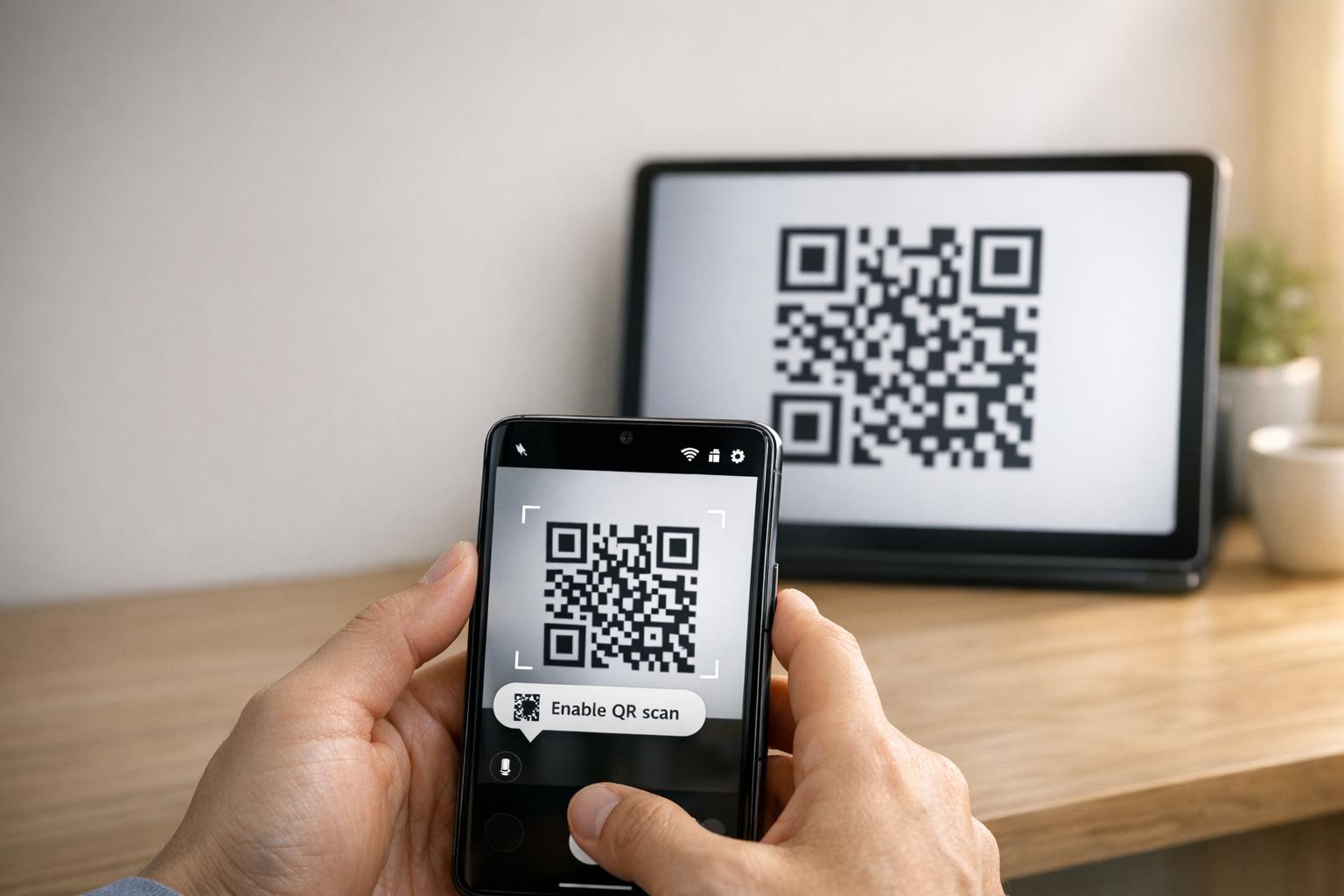
- Bật tính năng quét QR: Kiểm tra xem tùy chọn “Quét mã QR” có được bật trong cài đặt ứng dụng Camera hay không.
- Xóa bộ nhớ đệm: Đặt lại ứng dụng Camera bằng cách xóa bộ nhớ đệm của ứng dụng qua Cài đặt > Ứng dụng > Camera > Xóa bộ nhớ đệm.
- Cập nhật phần mềm: Đảm bảo cả hai thiết bị đang chạy các phiên bản phần mềm mới nhất.
- Kiểm tra mạng: Cả hai thiết bị phải ở trên cùng một mạng Wi-Fi.
- Sử dụng các giải pháp thay thế: Thử Google Lens hoặc ứng dụng quét QR của bên thứ ba nếu các tùy chọn tích hợp không hoạt động.
Nếu các bước này không hiệu quả, hãy cân nhắc thực hiện xóa bộ nhớ đệm phân vùng hoặc, như một phương sách cuối cùng, khôi phục cài đặt gốc. Đối với các mã QR bị mờ hoặc in kém chất lượng, các công cụ như Pageloot có thể tạo mã chất lượng tốt hơn để tránh các vấn đề quét.
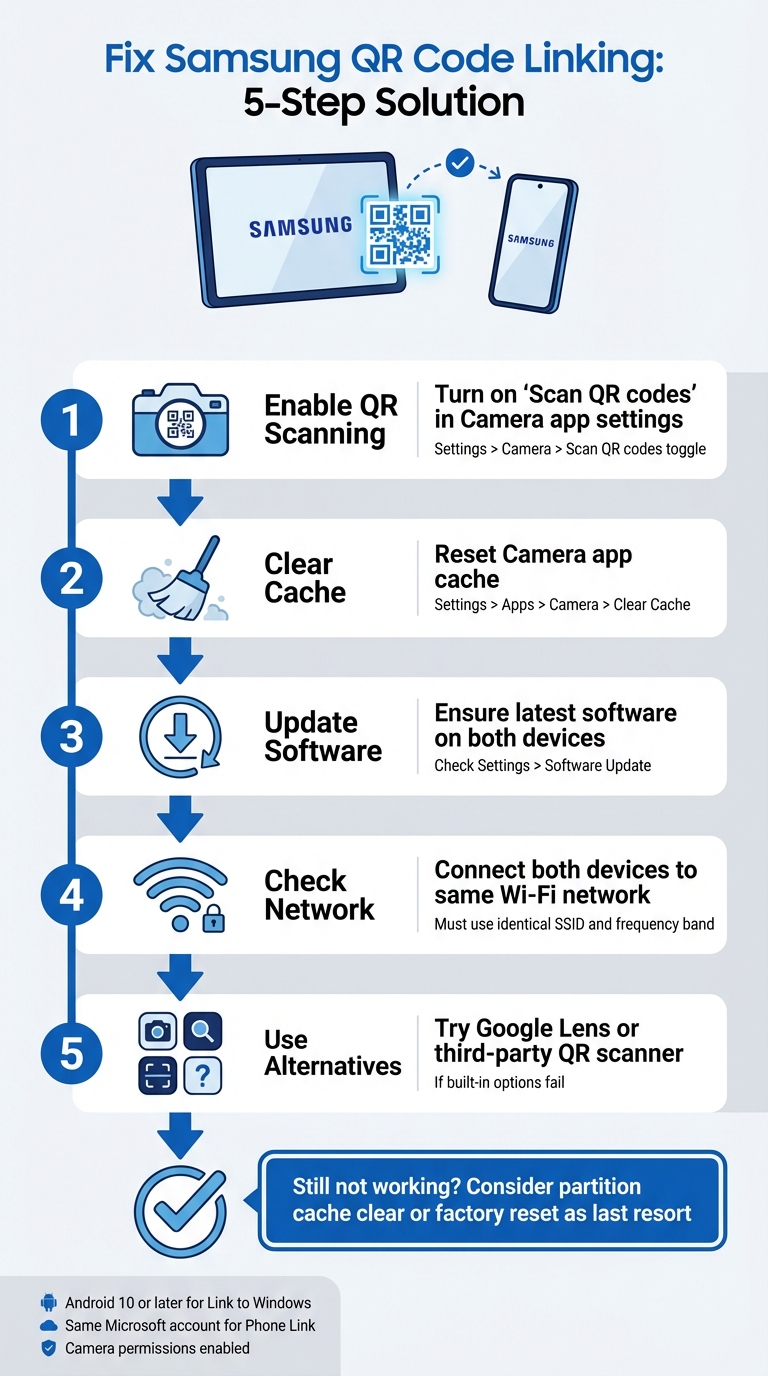
5 Bước để khắc phục sự cố liên kết mã QR của Samsung giữa máy tính bảng và điện thoại
Cách khắc phục Samsung Mã QR của Galaxy Tab A9/ A9+ không hoạt động để bắt đầu
sbb-itb-74874c9
Cách thức hoạt động của liên kết mã QR của Samsung
Trước khi đi sâu vào khắc phục sự cố, bạn nên hiểu cách thức hoạt động của liên kết mã QR của Samsung và điều gì có thể khiến nó không thành công.
Liên kết thiết bị Samsung bằng mã QR
Các thiết bị Samsung sử dụng ứng dụng Camera tích hợp để tự động phát hiện và xử lý mã QR. Ví dụ, khi liên kết máy tính bảng với điện thoại (chẳng hạn như thông qua Chuyển đổi thông minh), camera sẽ quét mã QR hiển thị trên một thiết bị và giải mã các chi tiết kết nối được nhúng trong mẫu.
Để bật tính năng quét QR, hãy đảm bảo tùy chọn “Quét mã QR” được bật trong cài đặt ứng dụng Camera. Bạn cũng có thể truy cập tính năng quét QR thông qua ô Cài đặt nhanh. Nếu camera gốc gặp khó khăn, các giải pháp thay thế như Google Lens hoặc trình quét QR trong menu trình duyệt Samsung Internet có thể giúp ích.
Để mã QR hoạt động bình thường, nó phải đáp ứng các tiêu chuẩn cụ thể:
- Độ tương phản cao: Lý tưởng nhất là màu đen trên nền trắng để dễ phát hiện.
- Vùng yên tĩnh: Một lề rõ ràng xung quanh mã để tránh nhiễu.
- Độ phân giải đủ: Tránh bị pixel hóa hoặc in mờ.
- Kích thước phù hợp: Mã QR được in phải đủ lớn để quét đáng tin cậy.
Hiểu những điều cơ bản này có thể giúp dễ dàng xác định lý do tại sao liên kết mã QR có thể không hoạt động như mong đợi.
Tại sao liên kết mã QR không thành công
Một trong những lý do phổ biến nhất dẫn đến lỗi là “cài đặt ”Quét mã QR” bị tắt trong ứng dụng Camera. Điều này có thể xảy ra sau khi cập nhật phần mềm, có thể đặt lại tùy chọn người dùng và tắt tính năng quét theo mặc định.
Các lý do khác bao gồm các yếu tố môi trường như ánh sáng kém, chói hoặc ống kính camera bẩn, cũng như các vấn đề kỹ thuật như lỗi phần mềm hoặc mã QR bị hỏng hoặc in kém chất lượng. Ví dụ, sau khi cập nhật hệ điều hành, chức năng quét có thể bị gián đoạn, yêu cầu xóa phân vùng bộ nhớ đệm để khắc phục sự cố.
“Mã QR không hoạt động đóng vai trò là rào cản chứ không phải cầu nối. Nó làm người dùng thất vọng và lãng phí ngân sách của bạn.” – QR Code Generator PRO
Bản thân mã QR cũng có thể là thủ phạm. Nếu nó bị hỏng, được in ở độ phân giải dưới 300 DPI hoặc thiếu vùng yên tĩnh cần thiết (khoảng bốn mô-đun rộng), ngay cả một camera hoạt động hoàn hảo cũng có thể không quét được nó. Ngoài ra, các mã QR tĩnh với quá nhiều dữ liệu được mã hóa có thể dẫn đến các mẫu quá dày mà các thiết bị cũ hơn hoặc các mẫu giá rẻ có thể gặp khó khăn khi xử lý.
Khắc phục sự cố liên kết mã QR của Samsung
Giờ đây bạn đã biết tại sao liên kết mã QR có thể không thành công, hãy cùng khám phá các cách thực tế để khắc phục sự cố kết nối giữa máy tính bảng và điện thoại Samsung của bạn.
Kiểm tra khả năng tương thích và yêu cầu của thiết bị
Trước khi đi sâu vào các bản sửa lỗi, hãy đảm bảo cả hai thiết bị đáp ứng các yêu cầu cần thiết. Để bắt đầu, máy tính bảng Samsung của bạn phải chạy Android 10 trở lên để hỗ trợ các tính năng như Liên kết với Windows ghép nối mã QR. Bạn có thể kiểm tra điều này bằng cách điều hướng đến Cài đặt > Giới thiệu về máy tính bảng > Thông tin phần mềm trên máy tính bảng của bạn.
Ngoài ra, cả hai thiết bị cần được kết nối với cùng một mạng Wi-Fi (sử dụng cùng một SSID). Nếu bạn đang sử dụng Liên kết Điện thoại, của Microsoft, hãy đảm bảo bạn đã đăng nhập vào cùng một tài khoản Microsoft trên cả hai thiết bị.
Đối với các thiết bị chạy Android 13 trở lên, bạn cũng sẽ cần cấp quyền thông báo thời gian chạy để cho phép truyền dữ liệu mượt mà giữa các thiết bị được liên kết. Đừng quên kiểm tra kỹ xem ứng dụng Camera có quyền quét mã QR hay không. Bạn có thể thực hiện việc này bằng cách đi tới Cài đặt > Ứng dụng > [Tên ứng dụng] > Quyền và đảm bảo Camera quyền truy cập được bật.
Sau khi bạn đã xác nhận khả năng tương thích, đã đến lúc bật tính năng quét QR.
Bật tính năng quét mã QR trong Cài đặt camera
Đôi khi, vấn đề đơn giản chỉ là bật trình quét QR. Mở ứng dụng Máy ảnh, chạm vào biểu tượng bánh răng Cài đặt (thường ở góc trên bên trái), và tìm tùy chọn Quét mã QR Đảm bảo công tắc này được bật.
Nếu bạn không thấy tùy chọn này trong ứng dụng Máy ảnh, hãy thử sử dụng bảng Cài đặt Nhanh thay thế. Vuốt xuống hai lần từ đầu màn hình để mở rộng bảng, sau đó tìm một Quét mã QR ô. Nếu không hiển thị, hãy vuốt sang phải trong Cài đặt Nhanh, chạm vào Thêm (+), và thêm ô quét QR. Phương pháp này đặc biệt tiện lợi nếu ứng dụng Máy ảnh gặp khó khăn trong việc nhận diện mã QR.
Đối với các mẫu Samsung cũ hơn, bạn có thể cần sử dụng Bixby Thị giác để quét mã QR.
Nếu việc bật quét QR không khắc phục được sự cố, bước tiếp theo là đặt lại ứng dụng Máy ảnh và kiểm tra các bản cập nhật phần mềm.
Đặt lại ứng dụng Máy ảnh và Cập nhật phần mềm
Nếu trình quét bị treo hoặc không hoạt động bình thường, việc xóa bộ nhớ đệm của ứng dụng Máy ảnh thường có thể giải quyết vấn đề. Để thực hiện việc này, hãy đi tới Cài đặt > Ứng dụng > Máy ảnh > Buộc dừng, sau đó điều hướng đến Lưu trữ và chạm vào Xóa bộ nhớ đệm. Sau khi xóa bộ nhớ đệm, hãy khởi động lại thiết bị bằng cách giữ nút Nguồn và chọn Khởi động lại.
“Nếu điều này bắt đầu sau một bản cập nhật bảo mật hoặc hệ điều hành gần đây, tôi khuyên bạn nên thực hiện xóa bộ nhớ đệm phân vùng, điều này tốt để loại bỏ các lỗi phần mềm mà chúng đôi khi mang lại.” – Belaythatorder, Supernova, Cộng đồng Samsung
Nếu việc xóa bộ nhớ đệm không giúp ích, bạn có thể cần thực hiện xóa bộ nhớ đệm phân vùng. Điều này có thể giải quyết các trục trặc phần mềm sâu hơn do các bản cập nhật gần đây gây ra.
Cuối cùng, hãy kiểm tra mọi bản cập nhật phần mềm đang chờ xử lý trong cài đặt thiết bị của bạn. Mặc dù các bản cập nhật đôi khi có thể gây ra lỗi tạm thời, nhưng chúng thường bao gồm các bản sửa lỗi cho các vấn đề cấp hệ thống với tính năng quét mã QR. Nếu máy tính bảng của bạn gặp khó khăn khi đọc mã QR sau khi cập nhật, hãy thử tăng độ sáng của máy tính bảng, tắt Chế độ tối, và tắt các tính năng như Giảm độ sáng bổ sung hoặc là Chế độ bảo vệ mắt để cải thiện độ tương phản của mã QR.
Các cách khác để liên kết thiết bị
Nếu việc đặt lại cài đặt hoặc cập nhật phần mềm không giải quyết được vấn đề, có những cách bổ sung để liên kết máy tính bảng và điện thoại Samsung của bạn. Các phương pháp dự phòng này có thể giúp ích khi các cách khắc phục truyền thống không hiệu quả.
Sử dụng Cài đặt Nhanh để quét QR
Các thiết bị Samsung chạy Android 9.0 (Pie) trở lên với One UI 5 trở lên bao gồm một phím tắt tiện lợi để quét QR trong bảng Cài đặt Nhanh. Đây là cách sử dụng:
- Vuốt xuống từ đầu màn hình để truy cập menu Cài đặt Nhanh.
- Nếu “Quét mã QR” không hiển thị, hãy chạm vào biểu tượng + (Thêm) hoặc menu ba chấm. Định vị ô trong phần nút có sẵn và kéo nó vào lưới hoạt động.
- Chạm vào ô “Quét mã QR” để kích hoạt trình quét, sau đó hướng máy ảnh của bạn vào mã QR.
Sau khi mã được phát hiện, hãy chạm vào liên kết bật lên hoặc thông báo để truy cập nội dung. Hãy nhớ rằng, ứng dụng Máy ảnh phải bật tính năng quét QR để tính năng này hoạt động. Nếu vẫn không hoạt động, một trình quét QR của bên thứ ba có thể đáng để xem xét.
Tải xuống ứng dụng quét QR
Khi trình quét tích hợp không hoạt động, việc tải xuống ứng dụng quét QR từ Cửa hàng Google Play có thể là một giải pháp thay thế đáng tin cậy. Tìm kiếm các ứng dụng có đánh giá tốt từ người dùng để đảm bảo độ tin cậy. Google Lens là một tùy chọn phổ biến, thường được cài đặt sẵn trên các thiết bị Samsung, cung cấp các tính năng nhận dạng hình ảnh nâng cao. Các ứng dụng khác, như Trình đọc mã QR, có thể hoạt động ngoại tuyến nhưng có thể bao gồm quảng cáo hoặc yêu cầu truy cập internet để kiểm tra bảo mật.
Khôi phục cài đặt gốc
Khôi phục cài đặt gốc chỉ nên được sử dụng như một phương sách cuối cùng sau khi tất cả các phương pháp khắc phục sự cố khác đã được thử. Trước khi thực hiện bước này, hãy thử xóa bộ nhớ đệm phân vùng thông qua menu khôi phục. Phương pháp ít xâm lấn này thường có thể giải quyết các trục trặc phần mềm mà không xóa dữ liệu của bạn. Ngoài ra, hãy thử một ứng dụng quét QR của bên thứ ba để loại trừ các vấn đề cụ thể về phần mềm với các công cụ tích hợp của Samsung.
Nếu bạn chọn khôi phục cài đặt gốc, hãy sao lưu tất cả dữ liệu cá nhân của bạn trước, vì quá trình này sẽ xóa mọi thứ trên thiết bị của bạn. Nếu bản thân máy ảnh không hoạt động – ví dụ, nó không thể chụp ảnh hoặc quay video – vấn đề có thể liên quan đến phần cứng. Trong những trường hợp như vậy, liên hệ với bộ phận hỗ trợ của Samsung để được chẩn đoán chuyên nghiệp là hành động tốt nhất. Các phương pháp bổ sung này có thể giúp bạn khắc phục sự cố và liên kết các thiết bị của mình khi các vấn đề về mã QR vẫn tiếp diễn.
Cải thiện hiệu suất mã QR với Pageloot
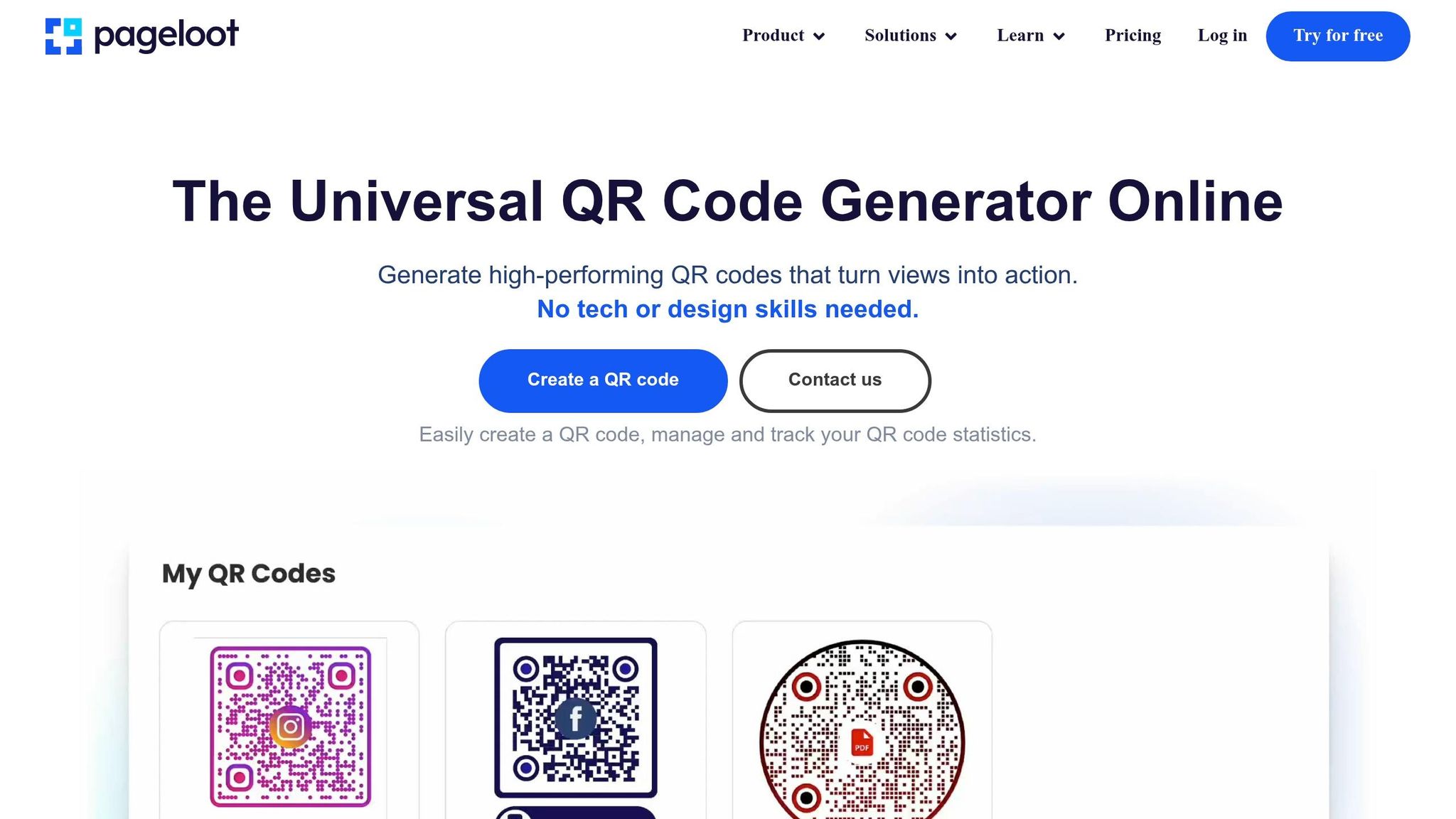
Đôi khi, các vấn đề về mã QR dai dẳng giữa máy tính bảng và điện thoại Samsung của bạn có thể bắt nguồn từ chất lượng của chính mã QR. Các vấn đề như độ phân giải thấp, độ tương phản kém hoặc các mẫu quá dày đặc có thể khiến ngay cả những máy ảnh Samsung hàng đầu cũng khó quét hiệu quả. Các công cụ mã QR của Pageloot giải quyết trực tiếp những vấn đề này, đảm bảo mã của bạn không chỉ hoạt động mà còn được tối ưu hóa để quét liền mạch.
Tính năng của Pageloot dành cho Mã QR Doanh nghiệp
Pageloot cung cấp các bản tải xuống mã QR độ phân giải cao ở cả định dạng PNG và SVG. Điều này rất quan trọng để tránh hiện tượng mờ thường gây ra lỗi quét. Với các tệp SVG, định dạng vector đảm bảo mã có thể mở rộng hoàn hảo mà không mất độ sắc nét, giữ cho các cạnh đó sạch sẽ và rõ ràng. Để cải thiện hơn nữa khả năng đọc, Pageloot cho phép tùy chỉnh màu sắc và logo, đảm bảo độ tương phản cao để quét nhanh hơn, đáng tin cậy hơn.
Một tính năng nổi bật khác là mã QR động của Pageloot. Chúng sử dụng một URL chuyển hướng ngắn để giảm mật độ dữ liệu, tạo ra các mẫu đơn giản hơn giúp quét nhanh hơn – đặc biệt trên các máy ảnh cũ hơn hoặc kém tiên tiến hơn. Tuyệt vời hơn nữa, bạn có thể cập nhật URL đích trực tiếp thông qua bảng điều khiển của mình mà không cần in lại mã, tiết kiệm thời gian và tránh các lỗi “404 Not Found”. Những tính năng này giải quyết nhiều thách thức quét phổ biến mà các doanh nghiệp phải đối mặt.
Cách Pageloot Giảm Lỗi Mã QR
Mã QR động của Pageloot giải quyết hai vấn đề lớn: các mẫu quá phức tạp và việc duy trì liên kết. Các URL dài trong mã tĩnh có thể tạo ra các thiết kế dày đặc mà một số máy quét không thể xử lý. Bằng cách đơn giản hóa mẫu, Pageloot giúp quét nhanh hơn và đáng tin cậy hơn. Nếu một liên kết bị hỏng hoặc chứa lỗi, bạn có thể khắc phục ngay lập tức – không cần in lại hoặc cấu hình lại thiết bị.
Đối với các tài liệu in ấn như danh thiếp hoặc tờ rơi, việc tải xuống mã ở định dạng SVG hoặc EPS đảm bảo kết quả sắc nét, chuyên nghiệp. Để nâng cao hơn nữa hiệu suất quét, hãy duy trì một vùng yên tĩnh – khoảng bốn mô-đun không gian trống – xung quanh mã QR. Luôn kiểm tra mã trên cả hai thiết bị của bạn để đảm bảo khả năng tương thích trước khi in. Những tối ưu hóa này khiến Pageloot trở thành một lựa chọn tuyệt vời cho các doanh nghiệp dựa vào hiệu suất mã QR đáng tin cậy.
Phần kết luận
Việc kết nối máy tính bảng và điện thoại Samsung của bạn bằng mã QR không nhất thiết phải là một rắc rối. Hầu hết các vấn đề phát sinh từ các sự cố cấu hình nhỏ, như cài đặt máy ảnh cần điều chỉnh, thiết bị hoạt động trên các băng tần Wi-Fi khác nhau, hoặc cài đặt pin làm gián đoạn các quy trình nền. Như Robin621k, một Cộng tác viên Danh dự, gợi ý:
“Vào cài đặt trong ứng dụng máy ảnh và bật Quét mã QR”.
Sau khi bạn đã điều chỉnh cài đặt thiết bị của mình, điều cần thiết là đảm bảo môi trường mạng ổn định. Kết nối mạng ổn định tạo nên sự khác biệt lớn. Cả hai thiết bị phải được kết nối với cùng một mạng Wi-Fi và băng tần (2.4GHz hoặc 5GHz). Hỗ trợ của Microsoft nhấn mạnh:
“Tính năng Màn hình điện thoại chỉ hoạt động khi thiết bị Android và PC của bạn có thể giao tiếp với nhau. Cả hai đều cần được bật và kết nối với cùng một mạng Wi-Fi”.
Nếu mọi thứ đều ổn nhưng vấn đề vẫn tiếp diễn, hãy cân nhắc các phương pháp hay nhất về khả năng đọc mã QR. Hình ảnh mờ, độ tương phản thấp hoặc các mẫu quá phức tạp có thể khiến việc quét trở nên khó khăn, ngay cả đối với các máy ảnh tiên tiến. Các công cụ như của Pageloot Tạo mã QR động giải quyết những vấn đề này bằng cách tạo ra các mã có độ phân giải cao, dễ quét. Đối với các doanh nghiệp sử dụng mã QR trên Danh thiếp, Tờ rơi, hoặc nhãn sản phẩm, tối ưu hóa để quét trên thiết bị di động là chìa khóa. Như Patrick Augstein chỉ ra:
“Một Mã QR không hoạt động đóng vai trò là rào cản chứ không phải là cầu nối. Nó làm người dùng thất vọng và lãng phí ngân sách của bạn”.
Cho dù bạn đang khắc phục sự cố kết nối thiết bị cá nhân hay quản lý mã QR cho một công ty tiếp thị hoặc là doanh nghiệp thương mại điện tử, những bước đơn giản này có thể giúp bạn giải quyết vấn đề hiệu quả. Bằng cách tinh chỉnh cài đặt của bạn, đảm bảo tính nhất quán của mạng và sử dụng mã QR được thiết kế tốt, bạn sẽ đạt được các kết nối liền mạch mà không gặp phải sự khó chịu không cần thiết.
Để được trợ giúp thêm về các vấn đề phổ biến về thiết bị và phần mềm, những hướng dẫn khắc phục sự cố công nghệ cung cấp các giải pháp rõ ràng, thiết thực.
Câu hỏi thường gặp
Tại sao máy tính bảng Samsung của tôi không thể phát hiện mã QR?
Máy tính bảng Samsung của bạn có thể gặp khó khăn trong việc phát hiện mã QR vì một vài lý do phổ biến, như vấn đề tương thích, kỹ thuật quét hoặc trục trặc kết nối. Để cải thiện khả năng phát hiện, hãy đảm bảo ống kính máy ảnh sạch, giữ thiết bị ổn định và kiểm tra xem mã QR có đủ ánh sáng và không bị hỏng. Nếu máy ảnh khó lấy nét hoặc mã QR được in kém chất lượng, nó có thể không quét được. Ánh sáng và vị trí phù hợp có thể tạo ra sự khác biệt lớn.
Máy tính bảng và điện thoại của tôi có phải ở cùng một mạng Wi-Fi để liên kết không?
Máy tính bảng và điện thoại của bạn không nhất thiết phải ở cùng một mạng Wi-Fi để kết nối bằng mã QR. Mặc dù vậy, việc có cả hai thiết bị trên cùng một mạng có thể giúp mọi thứ chạy mượt mà hơn và giảm các sự cố kết nối tiềm ẩn. Nếu bạn gặp sự cố khi liên kết chúng, vấn đề có thể xuất phát từ cài đặt thiết bị hoặc các vấn đề liên quan đến mạng khác cần một chút khắc phục sự cố.
Tôi nên thử gì nếu mã QR bị mờ hoặc không quét được?
Nếu mã QR trông mờ hoặc không quét được, hãy xem xét kỹ hơn để đảm bảo nó rõ ràng, không bị hỏng và được in với kích thước phù hợp – ít nhất 2 cm x 2 cm đối với các vật liệu nhỏ hơn. Đảm bảo bạn đang ở trong khu vực đủ ánh sáng, giữ thiết bị của bạn ổn định và giữ nó cách mã khoảng 6–12 inch. Ngoài ra, hãy kiểm tra xem camera của thiết bị của bạn có thể lấy nét chính xác vào mẫu mã QR để đảm bảo nó quét đúng cách.
Bài viết blog liên quan