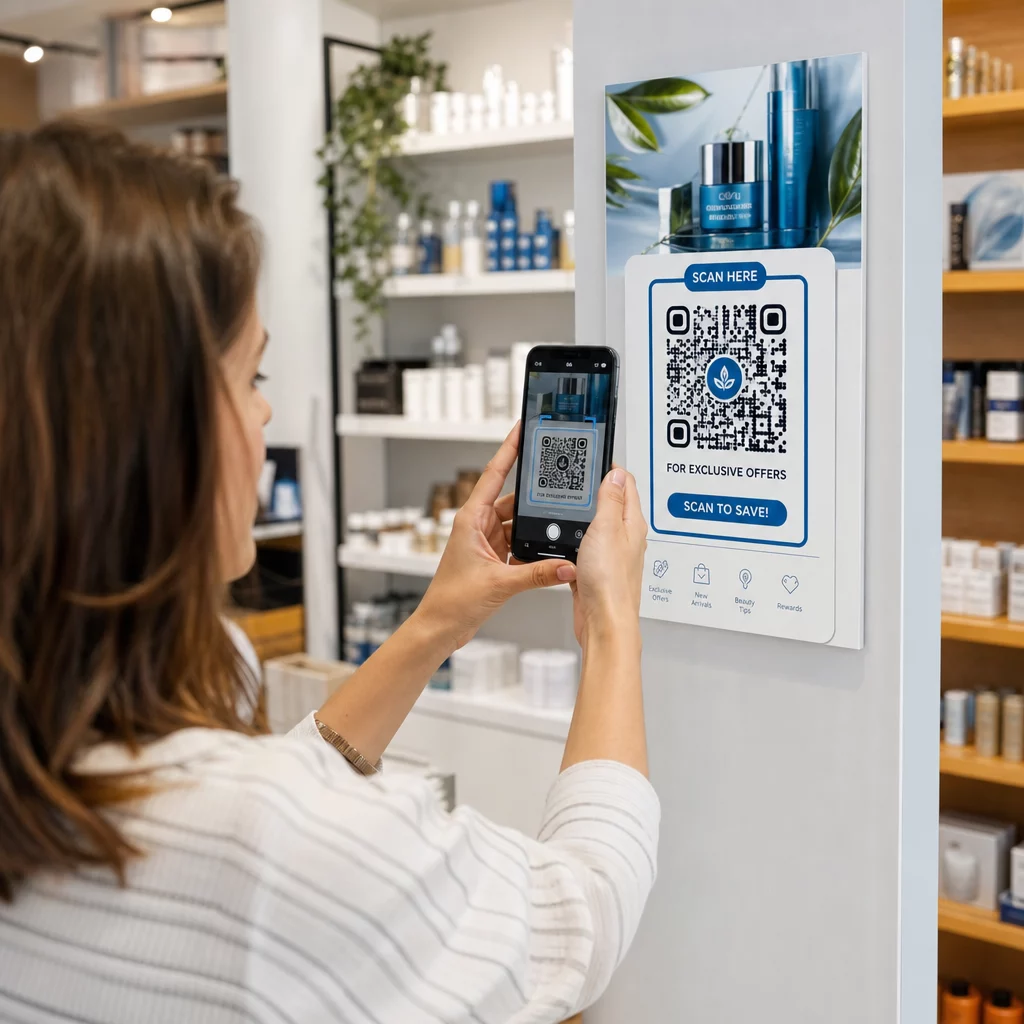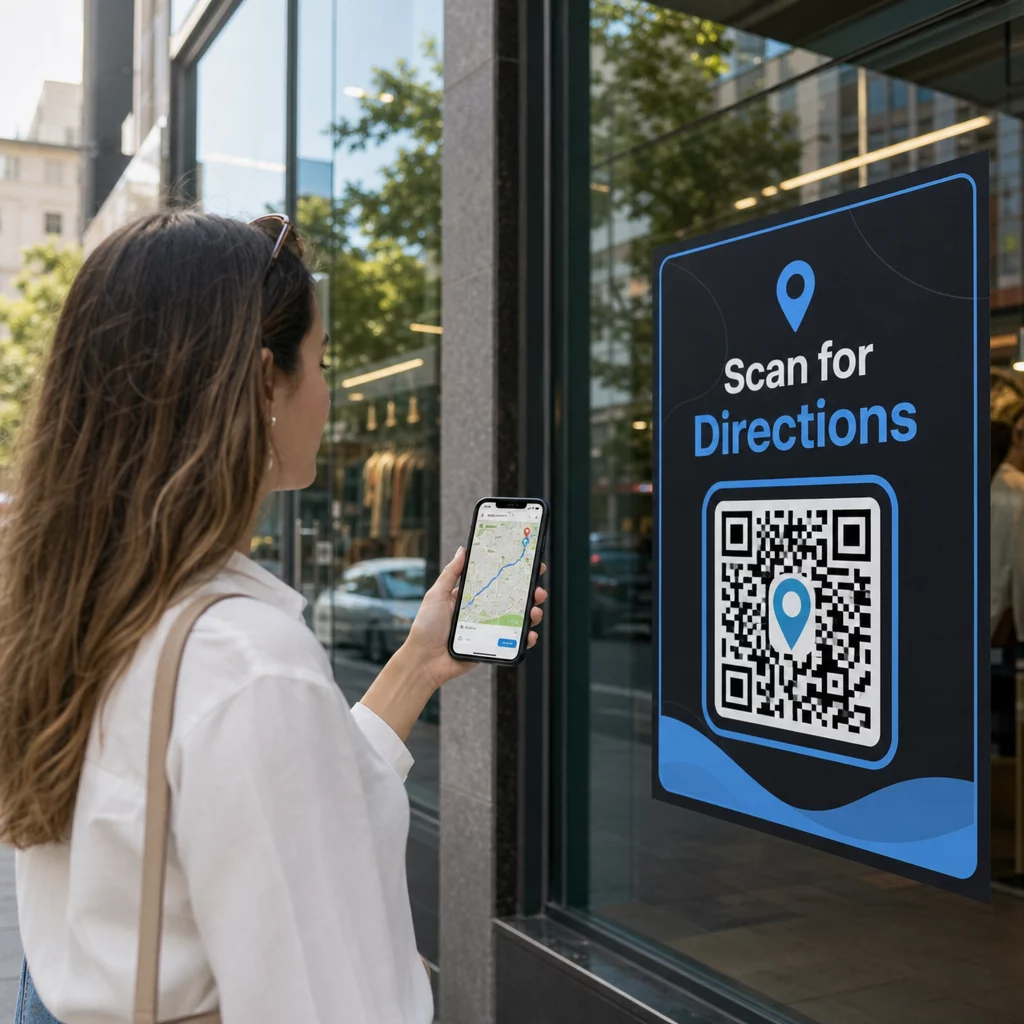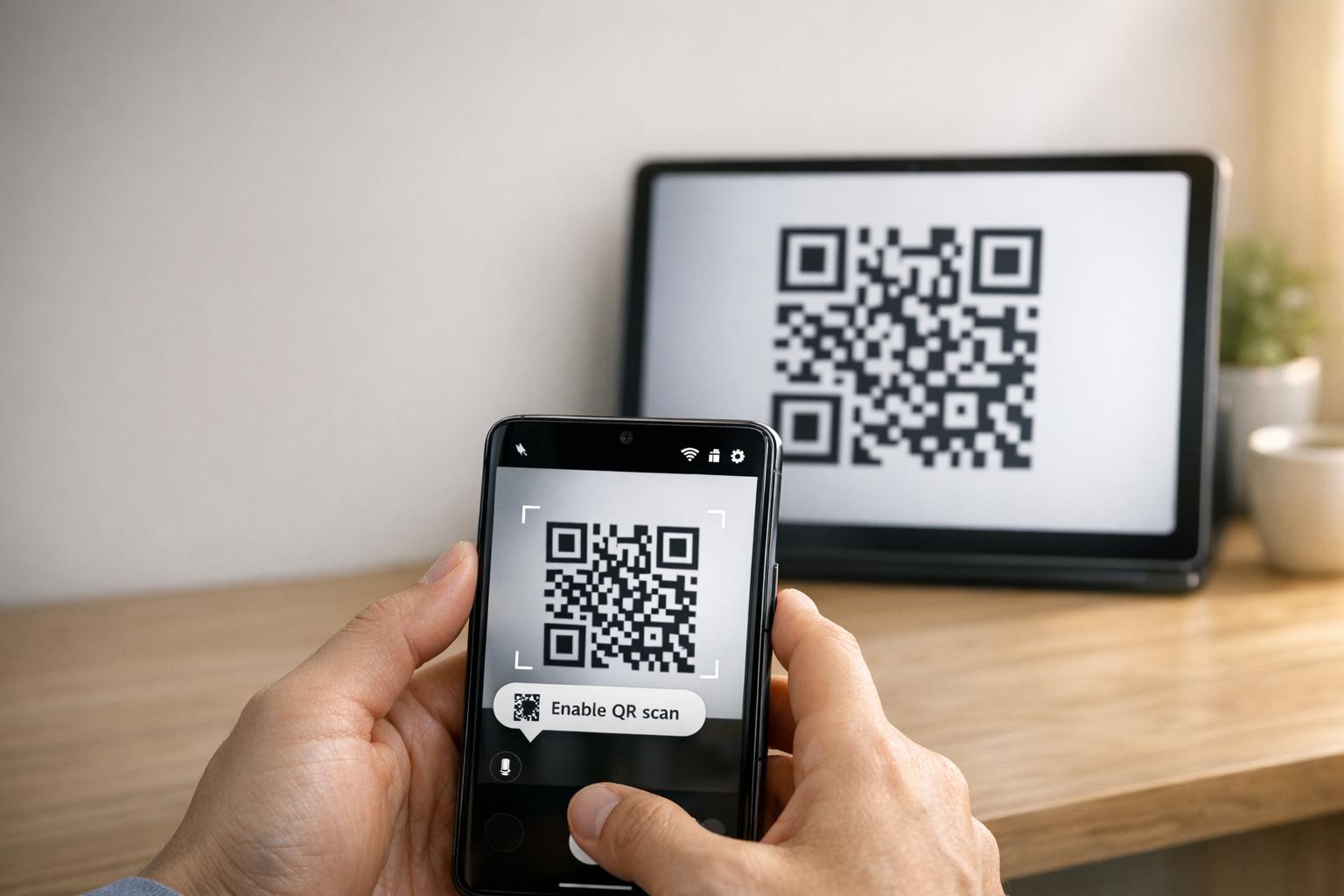
Kad jūsu Samsung planšetdators nevar izveidot savienojumu ar jūsu tālruni, izmantojot QR kodu, tas parasti ir saistīts ar kameras iestatījumiem, programmatūras kļūdām vai tīkla problēmām. Šī problēma traucē darba plūsmas, liekot lietotājiem paļauties uz mazāk ērtām alternatīvām, piemēram, manuāliem kodiem. Lūk, kā to novērst:
- Iespējot QR skenēšanu: Pārbaudiet, vai kameras lietotnes iestatījumos ir ieslēgta opcija “Skenēt QR kodus”.
- Notīrīt kešatmiņu: Atiestatiet kameras lietotni, notīrot tās kešatmiņu, izmantojot Iestatījumi > Lietotnes > Kamera > Notīrīt kešatmiņu.
- Atjaunināt programmatūru: Pārliecinieties, vai abās ierīcēs darbojas jaunākās programmatūras versijas.
- Pārbaudīt tīklu: Abām ierīcēm jābūt vienā Wi-Fi tīklā.
- Izmantot alternatīvas: Izmēģiniet Google Lens vai trešās puses QR skenera lietotni, ja iebūvētās opcijas nedarbojas.
Ja šīs darbības nedarbojas, apsveriet iespēju veikt nodalījuma kešatmiņas notīrīšanu vai, kā pēdējo līdzekli, rūpnīcas datu atiestatīšanu. QR kodiem, kas ir izplūduši vai slikti izdrukāti, rīki, piemēram, Pageloot var ģenerēt labākas kvalitātes kodus, lai izvairītos no skenēšanas problēmām.
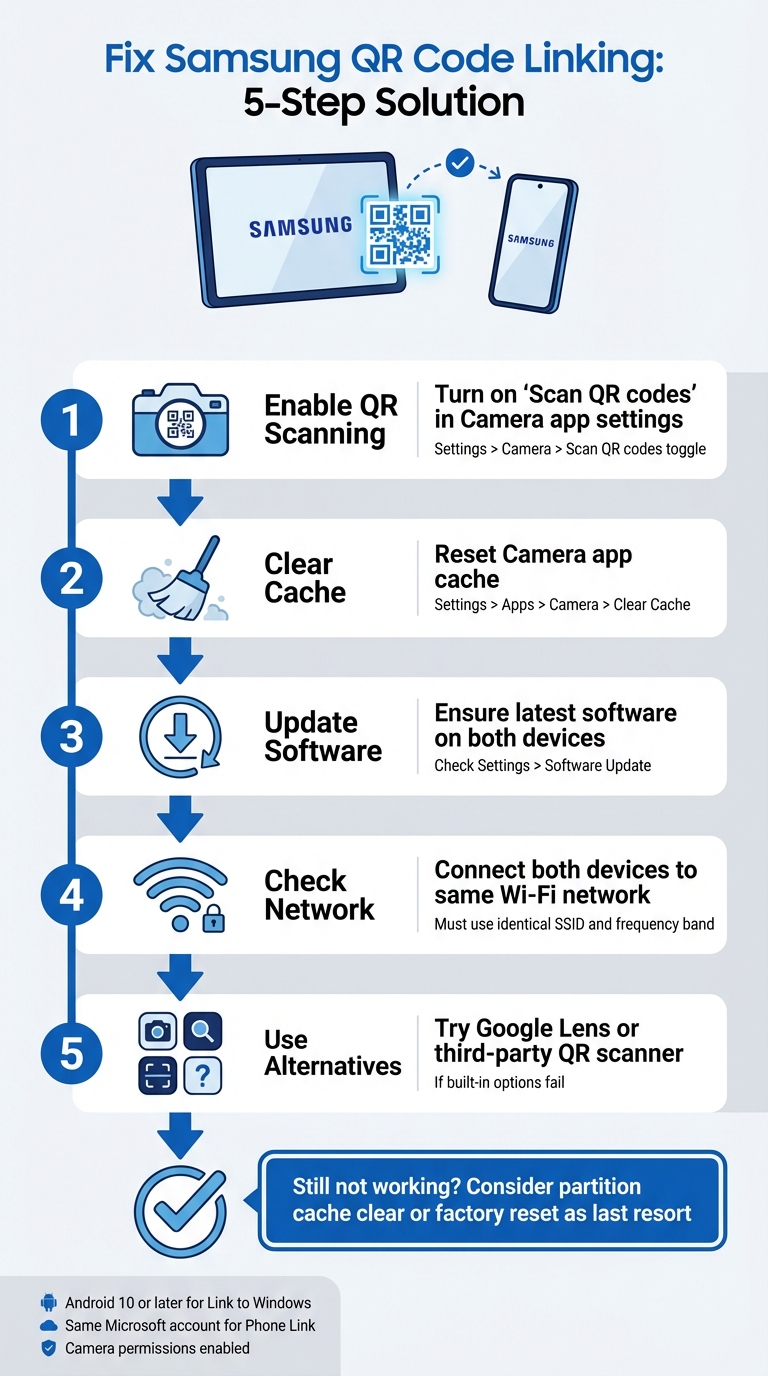
5 soļi, lai novērstu Samsung QR kodu savienošanas problēmas starp planšetdatoru un tālruni
Kā novērst Samsung Galaxy Tab A9/ A9+ QR kods nedarbojas, lai sāktu
sbb-itb-74874c9
Kā darbojas Samsung QR kodu savienošana
Pirms iedziļināties problēmu novēršanā, ir noderīgi saprast, kā darbojas Samsung QR kodu savienošana un kas var izraisīt tās neveiksmi.
Samsung ierīču savienošana ar QR kodiem
Samsung ierīces izmanto savu iebūvēto kameras lietotni lai automātiski noteiktu un apstrādātu QR kodus. Piemēram, savienojot planšetdatoru ar tālruni (piemēram, izmantojot Smart Switch), kamera skenē QR kodu, kas tiek parādīts vienā ierīcē, un atšifrē savienojuma detaļas, kas iegultas rakstā.
Lai iespējotu QR skenēšanu, pārliecinieties, vai kameras lietotnes iestatījumos ir aktīva opcija “Skenēt QR kodus”. QR skenēšanai var piekļūt arī, izmantojot ātro iestatījumu elementu. Ja vietējā kamera cīnās, var palīdzēt alternatīvas, piemēram, Google Lens vai QR skeneris Samsung interneta pārlūkprogrammas izvēlnē.
Lai QR kods darbotos pareizi, tam jāatbilst noteiktiem standartiem:
- Augsts kontrasts: Ideālā gadījumā melns uz balta, lai to viegli noteiktu.
- Klusā zona: Skaidra mala ap kodu, lai izvairītos no traucējumiem.
- Pietiekama izšķirtspēja: Izvairieties no pikseļiem vai izplūdušām izdrukām.
- Atbilstošs izmērs: Izdrukātiem QR kodiem jābūt pietiekami lieliem uzticamai skenēšanai.
Izpratne par šiem pamatiem var atvieglot precīzu noteikšanu, kāpēc QR kodu savienošana var nedarboties, kā paredzēts.
Kāpēc QR kodu savienošana neizdodas
Viens no visbiežāk sastopamajiem neveiksmes iemesliem ir tas, ka “iestatījums ”Skenēt QR kodus” ir izslēgts kameras lietotnē. Tas var notikt pēc programmatūras atjaunināšanas, kas var atiestatīt lietotāja preferences un pēc noklusējuma atspējot skenēšanu.
Citi iemesli ietver vides faktorus, piemēram, sliktu apgaismojumu, atspīdumu vai netīru kameras objektīvu, kā arī tehniskas problēmas, piemēram, programmatūras kļūdas vai bojātus vai slikti izdrukātus QR kodus. Piemēram, pēc operētājsistēmas atjaunināšanas skenēšanas funkcionalitāte var tikt traucēta, un problēmas novēršanai ir nepieciešams notīrīt kešatmiņas nodalījumu.
“Nefunkcionējošs QR kods kalpo kā šķērslis, nevis tilts. Tas frustrē lietotājus un tērē jūsu budžetu.” – QR Code Generator PRO
Pats QR kods arī var būt vainīgais. Ja tas ir bojāts, izdrukāts ar izšķirtspēju, kas ir zemāka par 300 DPI, vai tam trūkst nepieciešamās klusās zonas (apmēram četru moduļu platumā), pat perfekti funkcionējoša kamera var nespēt to skenēt. Turklāt statiski QR kodi ar pārāk daudz kodētiem datiem var radīt pārmērīgi blīvus modeļus, kurus vecākas ierīces vai budžeta modeļi var nespēt apstrādāt.
Samsung QR kodu savienošanas problēmu novēršana
Tagad, kad zināt, kāpēc QR kodu savienošana var neizdoties, aplūkosim praktiskus veidus, kā novērst savienojuma problēmas starp jūsu Samsung planšetdatoru un tālruni.
Pārbaudiet ierīces saderību un prasības
Pirms iedziļināties labojumos, pārliecinieties, vai abas ierīces atbilst nepieciešamajām prasībām. Sākumā jūsu Samsung planšetdatoram jādarbojas ar Android 10 vai jaunāku versiju lai atbalstītu tādas funkcijas kā Saite uz Windows QR kodu savienošana pārī. To var pārbaudīt, dodoties uz Iestatījumi > Par planšetdatoru > Programmatūras informācija jūsu planšetdatorā.
Turklāt abām ierīcēm jābūt savienotām ar vienu un to pašu Wi-Fi tīklu (izmantojot tieši to pašu SSID). Ja izmantojat Microsoft Tālruņa saite, pārliecinieties, vai esat pierakstījies vienā un tajā pašā Microsoft kontā abās ierīcēs.
Ierīcēm, kurās darbojas Android 13 vai jaunāka versija, jums būs jāpiešķir arī izpildlaika paziņojumu atļaujas, lai nodrošinātu vienmērīgu datu pārsūtīšanu starp saistītajām ierīcēm. Neaizmirstiet vēlreiz pārbaudīt, vai kameras lietotnei ir atļauja skenēt QR kodus. To var izdarīt, dodoties uz Iestatījumi > Lietotnes > [Lietotnes nosaukums] > Atļaujas un nodrošinot, ka Kamera piekļuve ir iespējota.
Kad esat apstiprinājis saderību, ir pienācis laiks iespējot QR skenēšanu.
Ieslēgt QR kodu skenēšanu kameras iestatījumos
Dažreiz problēma ir tik vienkārša kā QR skenera iespējošana. Atveriet kameras lietotni, pieskarieties Iestatījumu zobrata ikonai (parasti augšējā kreisajā stūrī) un meklējiet Skenēt QR kodus opcijai. Pārliecinieties, ka šis slēdzis ir ieslēgts.
Ja neredzat šo opciju kameras lietotnē, mēģiniet izmantot Ātro iestatījumu paneli vietā. Velciet uz leju divreiz no ekrāna augšdaļas, lai izvērstu paneli, pēc tam meklējiet QR koda skenēšana elementu. Ja tas nav redzams, velciet pa labi Ātrajos iestatījumos, pieskarieties Pievienot (+), un iekļaujiet QR skenera elementu. Šī metode ir īpaši noderīga, ja kameras lietotnei ir grūtības atpazīt QR kodus.
Vecākiem Samsung modeļiem, iespējams, būs jāizmanto Bixby Vision lai skenētu QR kodus.
Ja QR skenēšanas iespējošana neatrisina problēmu, nākamais solis ir atiestatīt kameras lietotni un pārbaudīt programmatūras atjauninājumus.
Atiestatīt kameras lietotni un atjaunināt programmatūru
Ja skeneris iesalst vai nedarbojas pareizi, kameras lietotnes kešatmiņas notīrīšana bieži var atrisināt problēmu. Lai to izdarītu, dodieties uz Iestatījumi > Lietotnes > Kamera > Piespiedu apturēšana, pēc tam dodieties uz Glabāšana un pieskarieties Notīrīt kešatmiņu. Pēc kešatmiņas notīrīšanas restartējiet ierīci, turot nospiestu sānu pogu un izvēloties Restartēt.
“Ja tas sākās pēc nesena drošības vai OS atjauninājuma, es iesaku veikt nodalījuma kešatmiņas tīrīšanu, kas ir laba, lai izskaustu programmatūras kļūdas, ko tie dažreiz rada.” – Belaythatorder, Supernova, Samsung kopiena
Ja kešatmiņas notīrīšana nepalīdz, iespējams, būs jāveic nodalījuma kešatmiņas tīrīšana. Tas var novērst dziļākas programmatūras kļūmes, ko radījuši nesenie atjauninājumi.
Visbeidzot, pārbaudiet, vai ierīces iestatījumos nav gaidošu programmatūras atjauninājumu. Lai gan atjauninājumi reizēm var ieviest pagaidu kļūdas, tie bieži ietver labojumus sistēmas līmeņa problēmām ar QR kodu skenēšanu. Ja planšetdatoram ir grūtības nolasīt QR kodus pēc atjauninājuma, mēģiniet palielināt planšetdatora spilgtumu, atspējojot Tumšo režīmu, un izslēdzot tādas funkcijas kā Papildu aptumšojums vai Acu komforts vairogi, lai uzlabotu QR koda kontrastu.
Citi veidi, kā savienot ierīces
Ja iestatījumu atiestatīšana vai programmatūras atjaunināšana neatrisina problēmu, ir papildu veidi, kā savienot jūsu Samsung planšetdatoru un tālruni. Šīs rezerves metodes var palīdzēt, ja tradicionālie labojumi nav pietiekami.
Izmantojiet ātros iestatījumus QR skenēšanai
Samsung ierīces, kas darbojas ar Android 9.0 (Pie) vai jaunāku versiju ar One UI 5 vai jaunāku versiju, ietver ērtu saīsni QR skenēšanai Ātro iestatījumu panelī. Lūk, kā to izmantot:
- Velciet uz leju no ekrāna augšdaļas, lai piekļūtu Ātro iestatījumu izvēlnei.
- Ja “Skenēt QR kodu” nav redzams, pieskarieties + (Pluss) ikonai vai trīs punktu izvēlnei. Atrodiet elementu pieejamo pogu sadaļā un velciet to aktīvajā režģī.
- Pieskarieties elementam “Skenēt QR kodu”, lai aktivizētu skeneri, pēc tam pavērsiet kameru pret QR kodu.
Kad kods ir atklāts, pieskarieties uznirstošajai saitei vai paziņojumam, lai piekļūtu saturam. Atcerieties, ka kameras lietotnei jābūt iespējotai QR skenēšanai, lai šī funkcija darbotos. Ja tā joprojām nedarbojas, varētu būt vērts apsvērt trešās puses QR skeneri.
Lejupielādēt QR skenera lietotni
Ja iebūvētais skeneris nedarbojas, QR skenera lietotnes lejupielāde no Google Play veikals var būt uzticama alternatīva. Meklējiet lietotnes ar labām lietotāju atsauksmēm, lai nodrošinātu uzticamību. Google Lens ir populāra opcija, bieži vien iepriekš instalēta Samsung ierīcēs, piedāvājot uzlabotas attēlu atpazīšanas funkcijas. Citas lietotnes, piemēram, QR kodu lasītājs, var darboties bezsaistē, taču var ietvert reklāmas vai pieprasīt piekļuvi internetam drošības pārbaudēm.
Rūpnīcas atiestatīšana
Rūpnīcas atiestatīšana jāizmanto tikai kā pēdējais līdzeklis pēc tam, kad visas citas problēmu novēršanas metodes ir izsmeltas. Pirms šī soļa veikšanas mēģiniet notīrīt nodalījuma kešatmiņu, izmantojot atkopšanas izvēlni. Šī mazāk invazīvā metode bieži var atrisināt programmatūras kļūmes, neizdzēšot jūsu datus. Turklāt pārbaudiet trešās puses QR skenera lietotni, lai izslēgtu programmatūras specifiskas problēmas ar Samsung iebūvētajiem rīkiem.
Ja izvēlaties rūpnīcas atiestatīšanu, vispirms dublējiet visus savus personas datus, jo šis process izdzēsīs visu jūsu ierīcē. Ja pati kamera nedarbojas – piemēram, tā nevar uzņemt fotoattēlus vai ierakstīt video – problēma var būt saistīta ar aparatūru. Šādos gadījumos sazināšanās ar Samsung atbalsta dienestu, lai saņemtu profesionālu diagnozi, ir labākais rīcības veids. Šīs papildu metodes var palīdzēt jums novērst problēmas un savienot ierīces, ja QR kodu problēmas saglabājas.
Uzlabojiet QR koda veiktspēju ar Pageloot
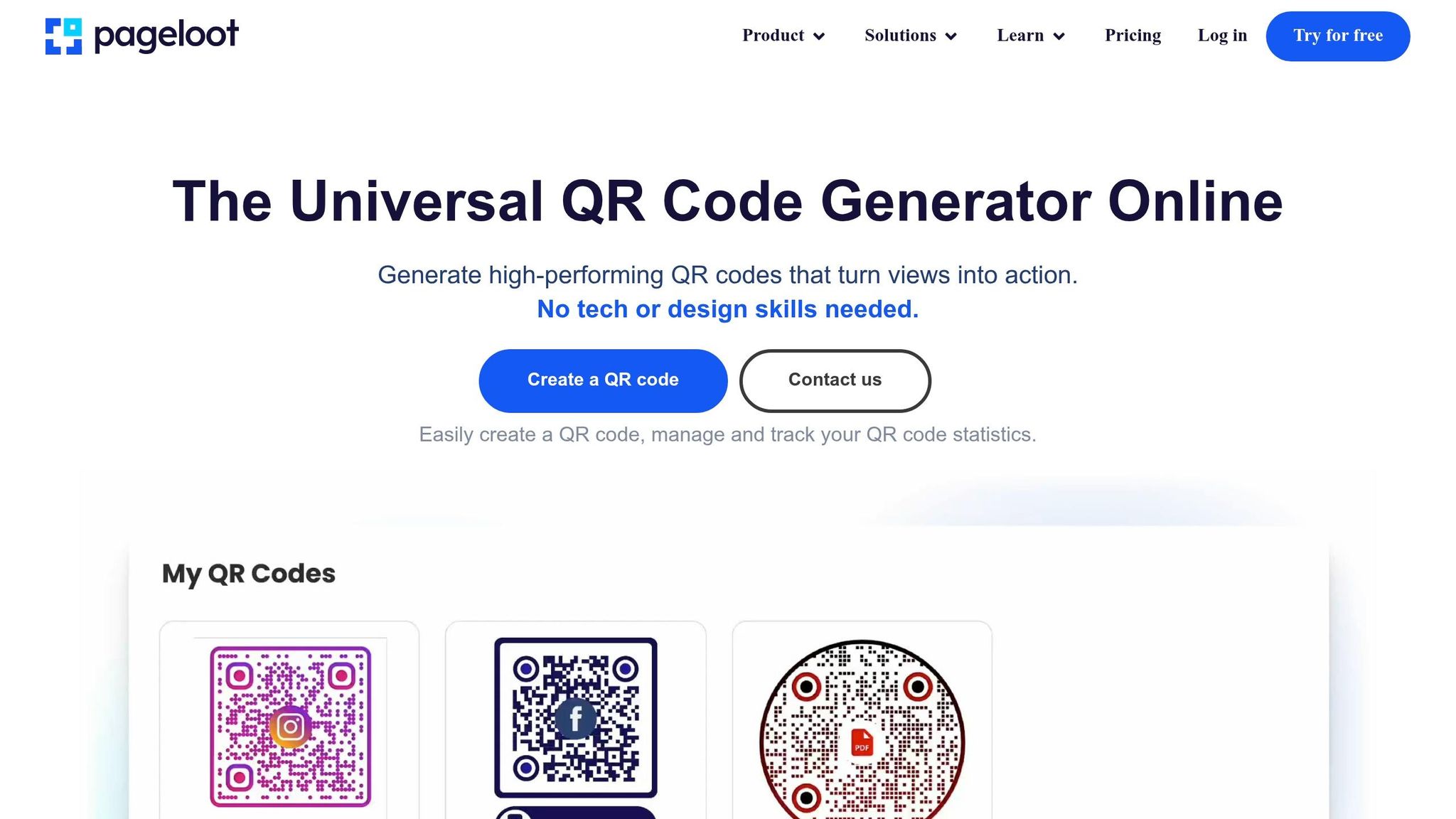
Dažkārt pastāvīgas QR kodu problēmas starp jūsu Samsung planšetdatoru un tālruni var būt saistītas ar paša QR koda kvalitāti. Tādas problēmas kā zema izšķirtspēja, vājš kontrasts vai pārāk blīvi raksti var apgrūtināt pat augstākās klases Samsung kameru efektīvu skenēšanu. Pageloot QR kodu rīki risina šīs problēmas tieši, nodrošinot, ka jūsu kodi ir ne tikai funkcionāli, bet arī optimizēti nevainojamai skenēšanai.
Pageloot funkcijas biznesa QR kodiem
Pageloot nodrošina augstas izšķirtspējas QR kodu lejupielādes gan PNG, gan SVG formātos. Tas ir ļoti svarīgi, lai izvairītos no izplūšanas, kas bieži izraisa skenēšanas kļūmes. Izmantojot SVG failus, vektoru formāts nodrošina, ka kods perfekti mērogojas, nezaudējot asumu, saglabājot malas tīras un asas. Lai vēl vairāk uzlabotu lasāmību, Pageloot ļauj pielāgot krāsas un logotipus, nodrošinot augstu kontrastu ātrākai un uzticamākai skenēšanai.
Vēl viena izcila funkcija ir Pageloot dinamiskie QR kodi. Tie izmanto īsu novirzīšanas URL, lai samazinātu datu blīvumu, radot vienkāršākus rakstus, kas skenējas ātrāk – īpaši vecākās vai mazāk modernās kamerās. Vēl labāk, jūs varat atjaunināt galamērķa URL tieši caur savu informācijas paneli, nepieprasot koda atkārtotu drukāšanu, tādējādi ietaupot laiku un izvairoties no “404 Not Found” kļūdām. Šīs funkcijas risina daudzas izplatītas skenēšanas problēmas, ar kurām saskaras uzņēmumi.
Kā Pageloot samazina QR kodu kļūdas
Pageloot dinamiskie QR kodi atrisina divas galvenās problēmas: pārāk sarežģītus rakstus un saišu uzturēšanu. Gari URL statiskajos kodos var radīt blīvus dizainus, ko daži skeneri nespēj apstrādāt. Vienkāršojot rakstu, Pageloot padara skenēšanu ātrāku un uzticamāku. Ja saite ir bojāta vai satur kļūdu, varat to nekavējoties labot – nav nepieciešams atkārtoti drukāt vai pārkonfigurēt ierīces.
Drukātiem materiāliem, piemēram, vizītkartēm vai skrejlapām, kodu lejupielāde SVG vai EPS formātos nodrošina asus, profesionālus rezultātus. Lai vēl vairāk uzlabotu skenēšanas veiktspēju, saglabājiet klusu zonu – apmēram četrus tukšas vietas moduļus – ap QR kodu. Vienmēr pārbaudiet kodu abās savās ierīcēs, lai nodrošinātu saderību pirms drukāšanas. Šīs optimizācijas padara Pageloot par lielisku izvēli uzņēmumiem, kas paļaujas uz uzticamu QR kodu veiktspēju.
Secinājums
Samsung planšetdatora un tālruņa savienošana, izmantojot QR kodus, nav jābūt apgrūtinājumam. Lielākā daļa problēmu rodas no nelielām konfigurācijas problēmām, piemēram, kameras iestatījumu pielāgošanas nepieciešamības, ierīcēm, kas darbojas dažādās Wi-Fi joslās, vai akumulatora iestatījumiem, kas pārtrauc fona procesus. Kā iesaka Robin621k, godātais līdzstrādnieks:
“Ieiet kameras lietotnes iestatījumos un ieslēgt QR kodu skenēšanu”.
Kad esat pielāgojis ierīces iestatījumus, ir svarīgi nodrošināt stabilu tīkla vidi. Konsekvents tīkla savienojums ir vissvarīgākais. Abām ierīcēm jābūt savienotām ar vienu un to pašu Wi-Fi tīklu un frekvenču joslu (2.4GHz vai 5GHz). Microsoft atbalsts uzsver:
“Tālruņa ekrāna funkcija darbojas tikai tad, ja jūsu Android ierīce un jūsu dators var sazināties savā starpā. Abām jābūt ieslēgtām un savienotām ar vienu un to pašu Wi-Fi tīklu”.
Ja viss ir kārtībā, bet problēma joprojām pastāv, apsveriet ar QR kodu lasāmības labāko praksi. Izplūduši attēli, zems kontrasts vai pārāk sarežģīti raksti var apgrūtināt skenēšanu pat modernām kamerām. Tādi rīki kā Pageloot Dinamisks QR kodu ģenerators atrisina šīs problēmas, izveidojot augstas izšķirtspējas, viegli skenējamus kodus. Uzņēmumiem, kas izmanto QR kodus Vizītkartes, Skrejlapasvai produktu etiķetēm, optimizācija mobilajai skenēšanai ir galvenais. Kā norāda Patriks Augšteins:
“Nefunkcionējošs QR kods kalpo kā barjera, nevis tilts. Tas frustrē lietotājus un izšķiež jūsu budžetu”.
Neatkarīgi no tā, vai risināt personīgo ierīču savienojumu problēmas vai pārvaldāt QR kodus mārketinga aģentūrai vai e-komercijas uzņēmumam, šie vienkāršie soļi var palīdzēt efektīvi atrisināt problēmas. Precizējot iestatījumus, nodrošinot tīkla konsekvenci un izmantojot labi izstrādātus QR kodus, jūs panāksiet nevainojamus savienojumus bez nevajadzīgas vilšanās.
Lai saņemtu papildu palīdzību ar bieži sastopamām ierīču un programmatūras problēmām, šie tehnoloģiju problēmu novēršanas ceļveži sniedz skaidrus, praktiskus risinājumus.
Bieži uzdotie jautājumi
Kāpēc mans Samsung planšetdators vispār nespēj noteikt QR kodu?
Jūsu Samsung planšetdatoram var būt grūtības noteikt QR kodu dažu bieži sastopamu iemeslu dēļ, piemēram, saderības problēmu, skenēšanas tehnikas vai savienojamības kļūmju dēļ. Lai uzlabotu noteikšanu, pārliecinieties, ka kameras objektīvs ir tīrs, turiet ierīci stabili un pārbaudiet, vai QR kods ir labi apgaismots un bez bojājumiem. Ja kamera nespēj fokusēties vai QR kods ir slikti izdrukāts, tas var netikt skenēts. Pareizs apgaismojums un pozicionēšana var radīt lielu atšķirību.
Vai manam planšetdatoram un tālrunim ir jābūt vienā Wi-Fi, lai savienotu?
Jūsu planšetdatoram un tālrunim nav obligāti jābūt vienā Wi-Fi tīklā, lai izveidotu savienojumu, izmantojot QR kodu. Tomēr, ja abas ierīces ir vienā tīklā, tas var palīdzēt lietām darboties raitāk un samazināt iespējamās savienojuma problēmas. Ja jums ir problēmas ar to savienošanu, problēma var rasties no ierīces iestatījumiem vai citām ar tīklu saistītām problēmām, kurām nepieciešama neliela problēmu novēršana.
Ko man vajadzētu mēģināt, ja QR kods ir izplūdis vai neskenējas?
Ja QR kods izskatās izplūdis vai neskenējas, rūpīgāk pārbaudiet, vai tas ir skaidrs, nebojāts un izdrukāts atbilstošā izmērā – vismaz 2 cm x 2 cm mazākiem materiāliem. Pārliecinieties, ka atrodaties labi apgaismotā vietā, turiet ierīci stabili un turiet to aptuveni 6–12 collu attālumā no koda. Tāpat pārbaudiet, vai jūsu ierīces kamera var pareizi fokusēties uz QR koda rakstu, lai nodrošinātu pareizu skenēšanu.
Saistītie emuāra ieraksti