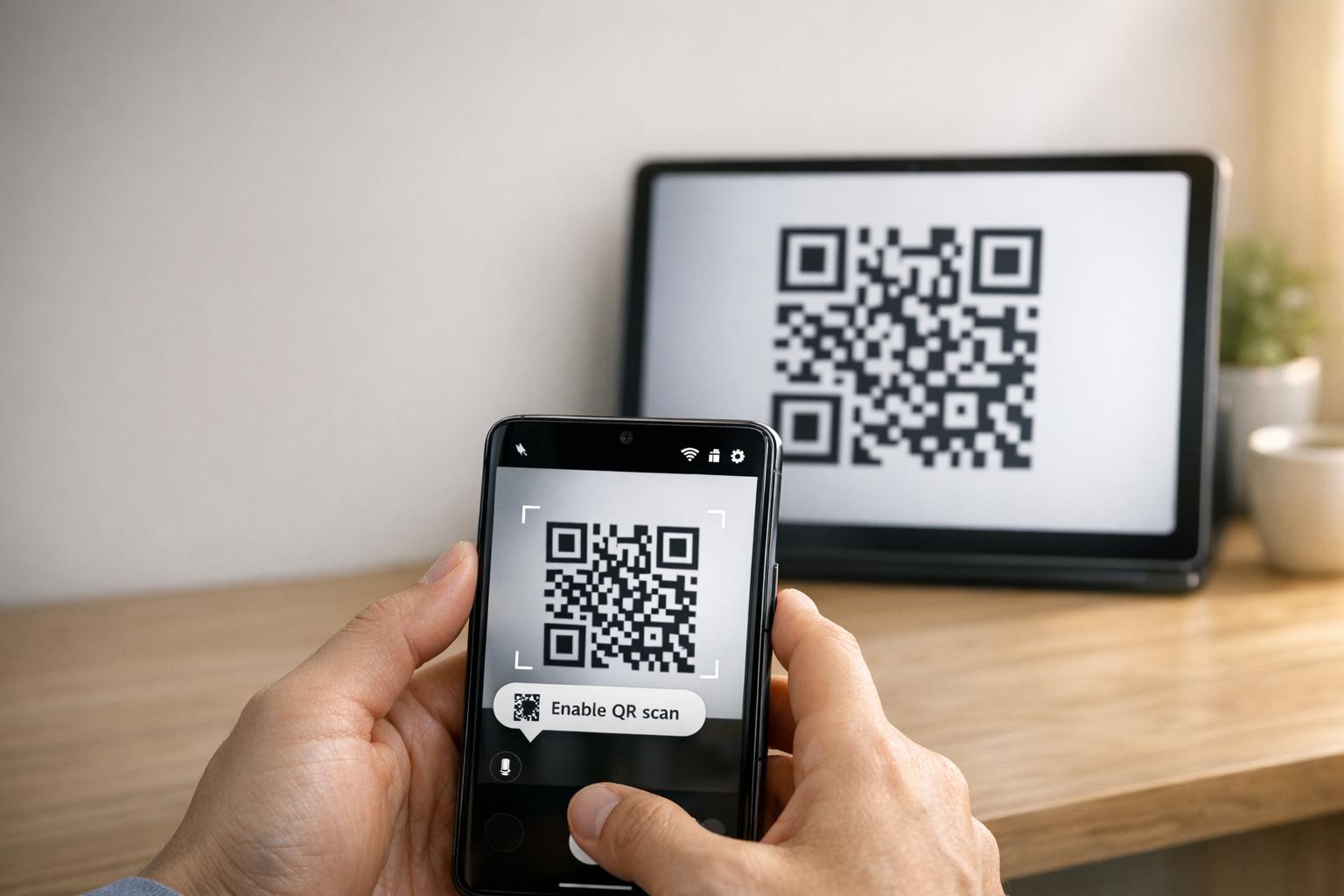
Když váš Samsung tablet se nemůže připojit k telefonu pomocí QR kódu, je to obvykle způsobeno nastavením fotoaparátu, softwarovými chybami nebo problémy se sítí. Tento problém narušuje pracovní postupy a nutí uživatele spoléhat se na méně pohodlné alternativy, jako jsou ruční kódy. Zde je návod, jak to opravit:
- Povolit skenování QR: Zkontrolujte, zda je v nastavení aplikace Fotoaparát zapnutá možnost “Skenovat QR kódy”.
- Vymazat mezipaměť: Resetujte aplikaci Fotoaparát vymazáním její mezipaměti přes Nastavení > Aplikace > Fotoaparát > Vymazat mezipaměť.
- Aktualizovat software: Ujistěte se, že obě zařízení používají nejnovější verze softwaru.
- Zkontrolovat síť: Obě zařízení musí být ve stejné Wi-Fi síti.
- Použít alternativy: Zkuste Google Lens nebo aplikaci pro skenování QR kódů třetí strany, pokud vestavěné možnosti selžou.
Pokud tyto kroky nefungují, zvažte vymazání mezipaměti oddílu nebo, jako poslední možnost, obnovení továrního nastavení. Pro QR kódy, které jsou rozmazané nebo špatně vytištěné, nástroje jako Pageloot mohou generovat kvalitnější kódy, aby se předešlo problémům se skenováním.
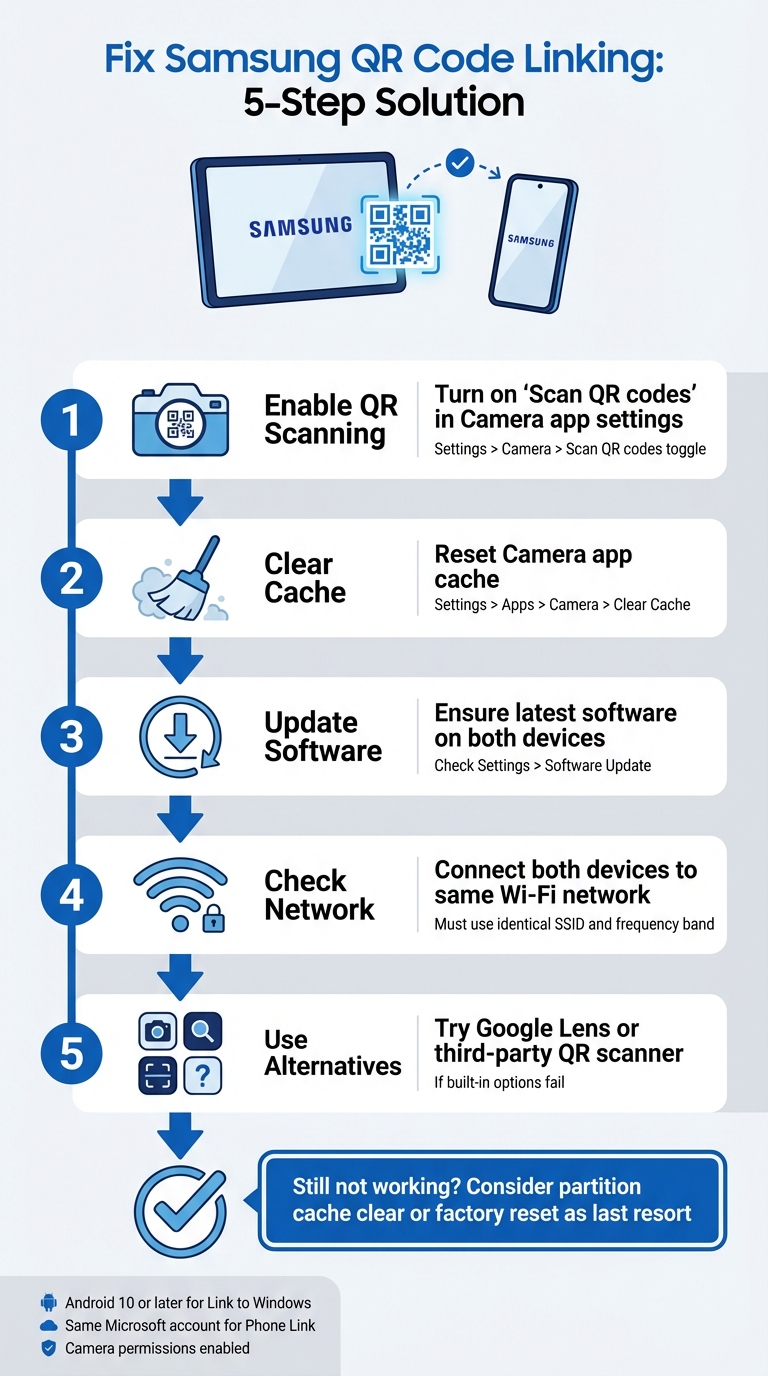
5 kroků k opravě problémů s propojením QR kódu Samsung mezi tabletem a telefonem
Jak opravit Samsung QR kód Galaxy Tab A9/ A9+ nefunguje při spuštění
sbb-itb-74874c9
Jak funguje propojení QR kódu Samsung
Než se pustíte do řešení problémů, je užitečné pochopit, jak funguje propojení QR kódu Samsung a co by mohlo způsobit jeho selhání.
Propojení zařízení Samsung pomocí QR kódů
Zařízení Samsung používají svou vestavěnou aplikaci Fotoaparát k automatické detekci a zpracování QR kódů. Například při propojení tabletu s telefonem (například přes Smart Switch), fotoaparát naskenuje QR kód zobrazený na jednom zařízení a dekóduje podrobnosti připojení vložené do vzoru.
Chcete-li povolit skenování QR, ujistěte se, že je v nastavení aplikace Fotoaparát aktivní možnost “Skenovat QR kódy”. Ke skenování QR můžete také přistupovat prostřednictvím dlaždice Rychlého nastavení. Pokud má nativní fotoaparát potíže, mohou pomoci alternativy jako Google Lens nebo skener QR v nabídce prohlížeče Samsung Internet.
Aby QR kód správně fungoval, musí splňovat specifické standardy:
- Vysoký kontrast: Ideálně černý na bílém pro snadnou detekci.
- Klidová zóna: Jasný okraj kolem kódu, aby se zabránilo rušení.
- Dostatečné rozlišení: Vyhněte se pixelaci nebo rozmazaným tiskům.
- Vhodná velikost: Tištěné QR kódy by měly být dostatečně velké pro spolehlivé skenování.
Pochopení těchto základů může usnadnit určení, proč propojení QR kódu nemusí fungovat podle očekávání.
Proč propojení QR kódu selhává
Jedním z nejčastějších důvodů selhání je, že “nastavení ”Skenovat QR kódy“ je vypnuto v aplikaci Fotoaparát. K tomu může dojít po aktualizaci softwaru, která může resetovat uživatelské preference a ve výchozím nastavení zakázat skenování.
Mezi další důvody patří faktory prostředí, jako je špatné osvětlení, odlesky nebo znečištěná čočka fotoaparátu, a také technické problémy, jako jsou softwarové chyby nebo poškozené či špatně vytištěné QR kódy. Například po aktualizaci operačního systému může být narušena funkce skenování, což vyžaduje vymazání oddílu mezipaměti k vyřešení problému.
“Nefunkční QR kód slouží spíše jako bariéra než jako most. Frustruje uživatele a plýtvá vaším rozpočtem.” – QR Code Generator PRO
Viníkem může být i samotný QR kód. Pokud je poškozený, vytištěný v rozlišení pod 300 DPI nebo mu chybí nezbytná tichá zóna (asi čtyři moduly široká), i dokonale fungující fotoaparát jej nemusí naskenovat. Navíc statické QR kódy s příliš velkým množstvím zakódovaných dat mohou vést k příliš hustým vzorům, které starší zařízení nebo levnější modely mohou mít potíže zpracovat.
Řešení problémů s propojením QR kódu Samsung
Nyní, když víte, proč propojení QR kódu může selhat, pojďme prozkoumat praktické způsoby, jak opravit problémy s připojením mezi vaším tabletem a telefonem Samsung.
Zkontrolujte kompatibilitu a požadavky zařízení
Než se pustíte do oprav, ujistěte se, že obě zařízení splňují nezbytné požadavky. Pro začátek musí váš tablet Samsung běžet na Android 10 nebo novější pro podporu funkcí, jako je Propojení s Windows párování QR kódem. To můžete zkontrolovat tak, že přejdete na Nastavení > O tabletu > Informace o softwaru na vašem tabletu.
Kromě toho musí být obě zařízení připojena ke stejné Wi-Fi síti (používající přesně stejné SSID). Pokud používáte Microsoft Propojení s telefonem, ujistěte se, že jste přihlášeni do stejný účet Microsoft na obou zařízeních.
Pro zařízení se systémem Android 13 nebo novějším budete také muset udělit oprávnění k oznámením za běhu, aby byl umožněn plynulý přenos dat mezi propojenými zařízeními. Nezapomeňte dvakrát zkontrolovat, zda má aplikace Fotoaparát oprávnění skenovat QR kódy. Můžete to provést tak, že přejdete do Nastavení > Aplikace > [Název aplikace] > Oprávnění a zajistit, že Kamera přístup je povolen.
Jakmile potvrdíte kompatibilitu, je čas povolit skenování QR kódů.
Zapnout skenování QR kódů v nastavení fotoaparátu
Někdy je problém tak jednoduchý jako povolení QR skeneru. Otevřete aplikaci Fotoaparát, klepněte na ikonu ozubeného kola Nastavení (obvykle v levém horním rohu) a vyhledejte možnost Skenovat QR kódy Ujistěte se, že je tento přepínač zapnutý.
Pokud tuto možnost v aplikaci Fotoaparát nevidíte, zkuste použít panel Rychlého nastavení místo toho. Dvakrát přejeďte prstem dolů z horní části obrazovky, abyste rozbalili panel, a poté vyhledejte Naskenujte QR kód dlaždici. Pokud není viditelná, přejeďte prstem doprava v Rychlém nastavení, klepněte na Přidat (+), a zahrňte dlaždici QR skeneru. Tato metoda je obzvláště užitečná, pokud má aplikace Fotoaparát potíže s rozpoznáváním QR kódů.
U starších modelů Samsung možná budete muset použít Bixby Vision ke skenování QR kódů.
Pokud povolení skenování QR kódů problém nevyřeší, dalším krokem je resetování aplikace Fotoaparát a kontrola aktualizací softwaru.
Resetovat aplikaci Fotoaparát a aktualizovat software
Pokud se skener zasekne nebo nefunguje správně, vymazání mezipaměti aplikace Fotoaparát může často problém vyřešit. Chcete-li to provést, přejděte na Nastavení > Aplikace > Fotoaparát > Vynucené zastavení, poté přejděte na Úložiště a klepněte na Vymazat mezipaměť. Po vymazání mezipaměti restartujte zařízení podržením bočního tlačítka a výběrem možnosti Restartovat.
“Pokud to začalo po nedávné aktualizaci zabezpečení nebo operačního systému, doporučuji provést vymazání mezipaměti oddílu, což je dobré pro odstranění softwarových chyb, které někdy přinášejí.” – Belaythatorder, Supernova, Samsung Community
Pokud vymazání mezipaměti nepomůže, možná budete muset provést vymazání mezipaměti oddílu. To může vyřešit hlubší softwarové závady způsobené nedávnými aktualizacemi.
Nakonec zkontrolujte, zda v nastavení vašeho zařízení nejsou čekající aktualizace softwaru. I když aktualizace mohou občas zavést dočasné chyby, často obsahují opravy systémových problémů se skenováním QR kódů. Pokud má váš tablet po aktualizaci potíže se čtením QR kódů, zkuste zvýšit jas tabletu, vypnout Tmavý režim, a vypnout funkce jako Extra ztlumení nebo Komfort pro oči štítů pro zlepšení kontrastu QR kódu.
Jiné způsoby propojení zařízení
Pokud resetování nastavení nebo aktualizace softwaru problém nevyřeší, existují další způsoby, jak propojit váš tablet a telefon Samsung. Tyto záložní metody mohou pomoci, když tradiční opravy selžou.
Použijte Rychlé nastavení pro skenování QR kódů
Zařízení Samsung s Androidem 9.0 (Pie) nebo novějším s One UI 5 nebo novějším obsahují praktickou zkratku pro skenování QR kódů v panelu Rychlého nastavení. Zde je návod, jak ji použít:
- Přejeďte prstem dolů z horní části obrazovky pro přístup k nabídce Rychlého nastavení.
- Pokud “Skenovat QR kód” není viditelné, klepněte na + (Plus) ikonu nebo nabídku se třemi tečkami. Najděte dlaždici v sekci dostupných tlačítek a přetáhněte ji do aktivní mřížky.
- Klepněte na dlaždici “Skenovat QR kód” pro aktivaci skeneru a poté namiřte fotoaparát na QR kód.
Jakmile je kód detekován, klepněte na vyskakovací odkaz nebo oznámení pro přístup k obsahu. Pamatujte, že aplikace Fotoaparát musí mít povolené skenování QR kódů, aby tato funkce fungovala. Pokud stále nefunguje, může stát za zvážení skener QR kódů třetí strany.
Stáhněte si aplikaci QR skeneru
Pokud vestavěný skener nefunguje, stažení aplikace QR skeneru z Obchod Google Play může být spolehlivou alternativou. Hledejte aplikace s dobrými uživatelskými recenzemi, abyste zajistili spolehlivost. Google Lens je populární volbou, často předinstalovanou na zařízeních Samsung, nabízející pokročilé funkce rozpoznávání obrazu. Jiné aplikace, jako například Čtečka QR kódů, mohou fungovat offline, ale mohou obsahovat reklamy nebo vyžadovat přístup k internetu pro bezpečnostní kontroly.
Obnovení továrního nastavení
Obnovení továrního nastavení by mělo být použito pouze jako poslední možnost poté, co byly vyčerpány všechny ostatní metody řešení problémů. Před provedením tohoto kroku zkuste vymazat mezipaměť oddílu prostřednictvím nabídky pro obnovení. Tato méně invazivní metoda může často vyřešit softwarové závady bez smazání vašich dat. Kromě toho otestujte aplikaci QR skeneru třetí strany, abyste vyloučili problémy specifické pro software s vestavěnými nástroji Samsung.
Pokud se rozhodnete pro obnovení továrního nastavení, nejprve zálohujte všechna svá osobní data, protože tento proces vymaže všechna data z vašeho zařízení. Pokud samotný fotoaparát nefunguje – například nemůže pořizovat fotografie nebo nahrávat videa – problém může souviset s hardwarem. V takových případech je nejlepším řešením kontaktování podpory Samsung pro profesionální diagnostiku. Tyto dodatečné metody vám mohou pomoci s řešením problémů a propojením vašich zařízení, když problémy s QR kódy přetrvávají.
Zlepšete výkon QR kódů pomocí Pageloot
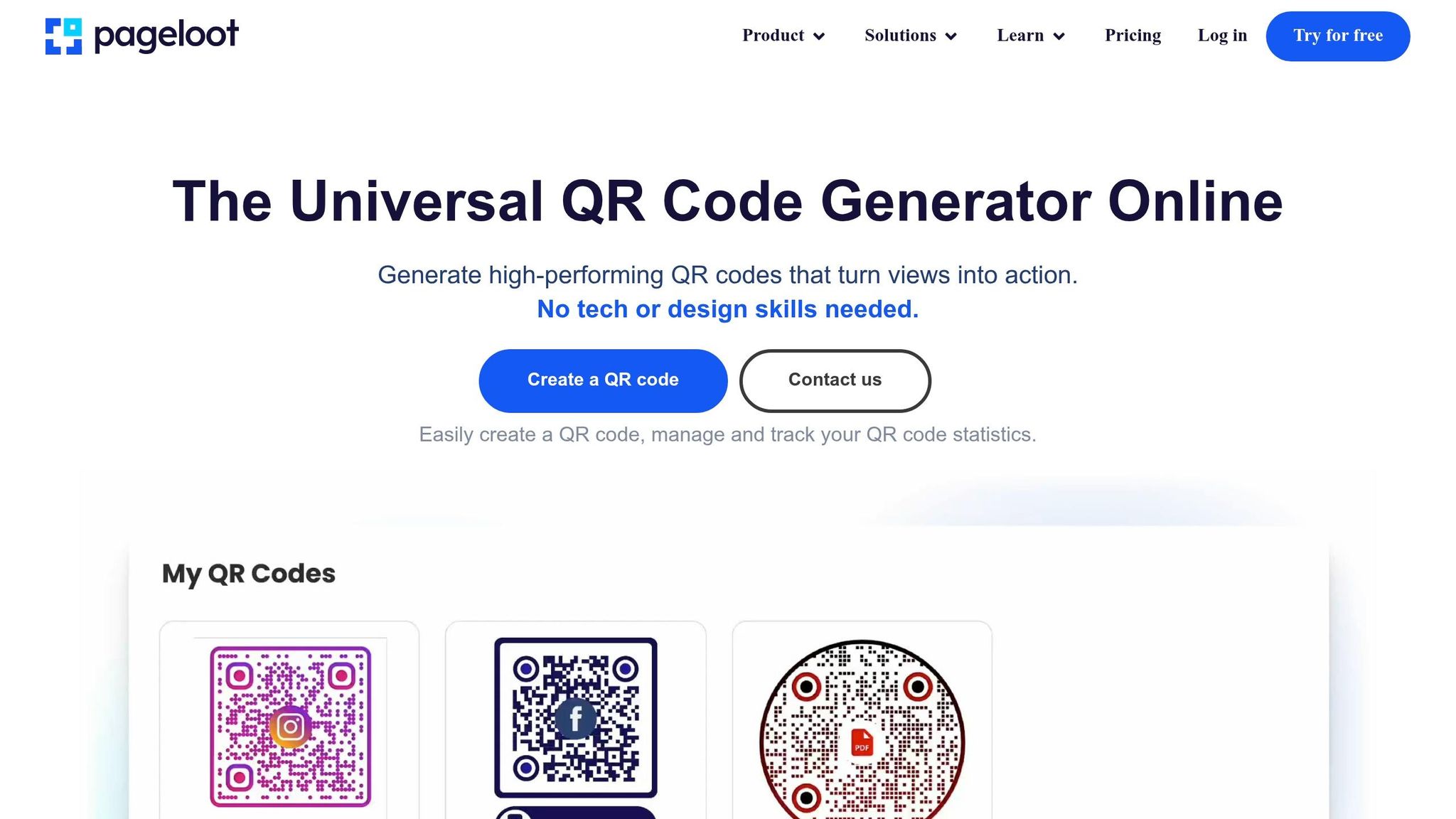
Někdy se přetrvávající problémy s QR kódem mezi tabletem a telefonem Samsung mohou vrátit ke kvalitě samotného QR kódu. Problémy jako nízké rozlišení, špatný kontrast nebo příliš husté vzory mohou způsobit, že i špičkové fotoaparáty Samsung budou mít potíže s efektivním skenováním. Nástroje pro QR kódy od Pageloot řeší tyto problémy přímo, zajišťují, že vaše kódy jsou nejen funkční, ale také optimalizované pro bezproblémové skenování.
Funkce Pageloot pro firemní QR kódy
Pageloot poskytuje stahování QR kódů ve vysokém rozlišení ve formátech PNG i SVG. To je klíčové pro zabránění rozmazání, které často způsobuje selhání skenování. U souborů SVG vektorový formát zajišťuje, že se kód dokonale škáluje bez ztráty ostrosti, udržuje hrany čisté a ostré. Pro další zlepšení čitelnosti, Pageloot umožňuje přizpůsobení barev a log, zajišťuje vysoký kontrast pro rychlejší a spolehlivější skenování.
Další vynikající funkcí jsou dynamické QR kódy Pageloot. Ty používají krátkou přesměrovací URL pro snížení hustoty dat, vytváří jednodušší vzory, které se skenují rychleji – zejména na starších nebo méně pokročilých fotoaparátech. Ještě lépe, můžete aktualizovat cílovou URL přímo přes svůj panel bez nutnosti kód znovu tisknout, šetříte čas a zabraňujete chybám “404 Not Found”. Tyto funkce řeší mnoho běžných problémů se skenováním, kterým čelí firmy.
Jak Pageloot snižuje chyby QR kódů
Dynamické QR kódy Pageloot řeší dva hlavní problémy: příliš složité vzory a údržbu odkazů. Dlouhé URL v statických kódech mohou vytvářet husté vzory, které některé skenery nezvládnou. Zjednodušením vzoru Pageloot zrychluje a zpřesňuje skenování. Pokud je odkaz nefunkční nebo obsahuje chybu, můžete jej okamžitě opravit – není třeba znovu tisknout nebo překonfigurovat zařízení.
Pro tištěné materiály, jako jsou vizitky nebo letáky, stahování kódů ve formátech SVG nebo EPS zajišťuje ostré, profesionální výsledky. Pro další zlepšení výkonu skenování udržujte tichou zónu – asi čtyři moduly prázdného prostoru – kolem QR kódu. Vždy otestujte kód na obou svých zařízeních, abyste zajistili kompatibilitu před tiskem. Tyto optimalizace činí z Pageloot vynikající volbu pro firmy, které spoléhají na spolehlivý výkon QR kódů.
Závěr
Propojení tabletu a telefonu Samsung pomocí QR kódů nemusí být potíž. Většina problémů pramení z drobných konfiguračních problémů, jako je potřeba úpravy nastavení fotoaparátu, zařízení fungující na různých Wi-Fi pásmech nebo nastavení baterie přerušující procesy na pozadí. Jak Robin621k, vážený přispěvatel, navrhuje:
“Přejděte do nastavení v aplikaci fotoaparátu a zapněte Skenovat QR kódy”.
Jakmile upravíte nastavení zařízení, je nezbytné zajistit stabilní síťové prostředí. Konzistentní síťové připojení dělá velký rozdíl. Obě zařízení musí být připojena ke stejné Wi-Fi síti a frekvenčnímu pásmu (2.4GHz nebo 5GHz). Podpora Microsoftu zdůrazňuje:
“Funkce obrazovky telefonu funguje pouze tehdy, když vaše zařízení Android a váš počítač mohou vzájemně komunikovat. Oba budou muset být zapnuté a připojeny ke stejné Wi-Fi síti”.
Pokud je vše v pořádku, ale problém přetrvává, zvažte osvědčené postupy čitelnosti QR kódů. Rozmazané obrázky, nízký kontrast nebo příliš složité vzory mohou ztížit skenování i pro pokročilé fotoaparáty. Nástroje jako Pageloot Dynamický QR kód řeší tyto problémy vytvářením kódů s vysokým rozlišením, které se snadno skenují. Pro firmy používající QR kódy na Vizitky, Letákynebo etikety produktů, optimalizace pro mobilní skenování je klíčová. Jak Patrick Augstein poukazuje:
“Nefunkční QR kód slouží spíše jako bariéra než jako most. Frustruje uživatele a plýtvá vaším rozpočtem”.
Ať už řešíte problémy s připojením osobních zařízení nebo spravujete QR kódy pro marketingovou agenturu nebo e-commerce podnikání, tyto jednoduché kroky vám mohou pomoci efektivně vyřešit problémy. Díky doladění nastavení, zajištění konzistence sítě a používání dobře navržených QR kódů dosáhnete bezproblémových připojení bez zbytečné frustrace.
Pro další pomoc s běžnými problémy se zařízením a softwarem, tyto průvodci řešením technologických problémů poskytují jasná, praktická řešení.
Často kladené otázky
Proč můj tablet Samsung vůbec nedokáže detekovat QR kód?
Váš tablet Samsung může mít potíže s detekcí QR kódu z několika běžných důvodů, jako jsou problémy s kompatibilitou, technika skenování nebo chyby připojení. Pro zlepšení detekce se ujistěte, že je objektiv fotoaparátu čistý, držte zařízení stabilně a zkontrolujte, zda je QR kód dobře osvětlen a bez poškození. Pokud se fotoaparát snaží zaostřit nebo je QR kód špatně vytištěn, nemusí se naskenovat. Správné osvětlení a umístění mohou udělat velký rozdíl.
Musí být můj tablet a telefon na stejné Wi‑Fi pro propojení?
Váš tablet a telefon nemusí být nutně na stejné Wi-Fi síti pro připojení pomocí QR kódu. Nicméně, mít obě zařízení na stejné síti může pomoci, aby věci běžely plynuleji a snížit potenciální problémy s připojením. Pokud máte potíže s jejich propojením, problém může pramenit z nastavení zařízení nebo jiných problémů souvisejících se sítí, které vyžadují trochu řešení potíží.
Co bych měl zkusit, pokud je QR kód rozmazaný nebo se nenasnímá?
Pokud QR kód vypadá rozmazaně nebo se nenasnímá, podívejte se blíže, abyste se ujistili, že je jasný, nepoškozený a vytištěný v dostatečné velikosti – alespoň 2 cm x 2 cm pro menší materiály. Ujistěte se, že jste v dobře osvětlené oblasti, držte zařízení stabilně a držte ho asi 6–12 palců od kódu. Také zkontrolujte, zda se fotoaparát vašeho zařízení dokáže správně zaostřit na vzor QR kódu, aby se zajistilo správné naskenování.
Související blogové příspěvky