Saat Anda Samsung tablet Anda tidak dapat terhubung ke ponsel Anda menggunakan kode QR, biasanya ini disebabkan oleh pengaturan kamera, gangguan perangkat lunak, atau masalah jaringan. Masalah ini mengganggu alur kerja, memaksa pengguna untuk mengandalkan alternatif yang kurang nyaman seperti kode manual. Berikut cara memperbaikinya:
- Aktifkan Pemindaian QR: Periksa apakah opsi “Pindai kode QR” diaktifkan di pengaturan aplikasi Kamera.
- Hapus Cache: Setel ulang aplikasi Kamera dengan menghapus cache-nya melalui Pengaturan > Aplikasi > Kamera > Hapus Cache.
- Perbarui Perangkat Lunak: Pastikan kedua perangkat menjalankan versi perangkat lunak terbaru.
- Periksa Jaringan: Kedua perangkat harus berada di jaringan Wi-Fi yang sama.
- Gunakan Alternatif: Coba Google Lens atau aplikasi pemindai QR pihak ketiga jika opsi bawaan gagal.
Jika langkah-langkah ini tidak berhasil, pertimbangkan untuk melakukan penghapusan cache partisi atau, sebagai upaya terakhir, reset pabrik. Untuk kode QR yang buram atau tercetak dengan buruk, alat seperti Pageloot dapat menghasilkan kode berkualitas lebih baik untuk menghindari masalah pemindaian.
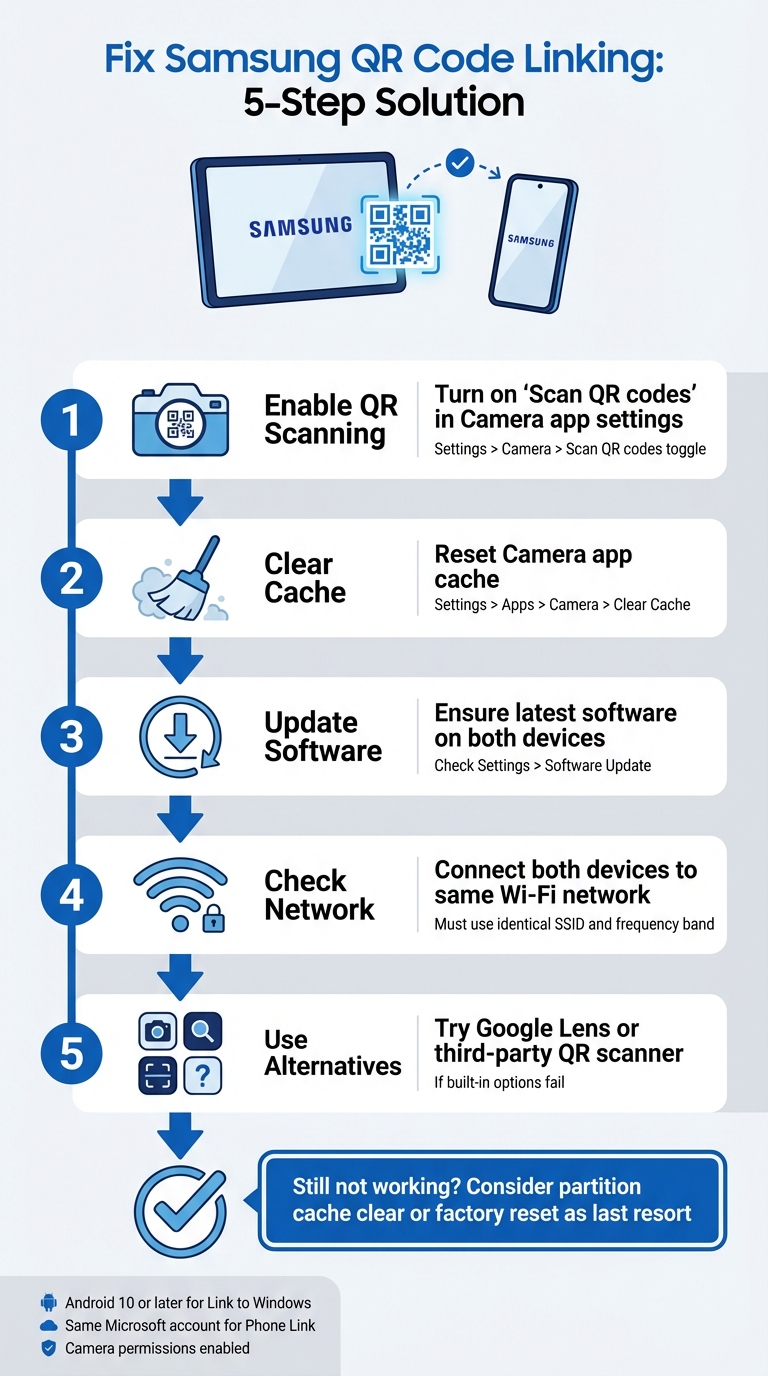
5 Langkah untuk Memperbaiki Masalah Penghubungan Kode QR Samsung Antara Tablet dan Ponsel
Cara Memperbaiki Samsung Kode QR Galaxy Tab A9/ A9+ Tidak Berfungsi untuk Memulai
sbb-itb-74874c9
Cara Kerja Penghubungan Kode QR Samsung
Sebelum masuk ke pemecahan masalah, ada baiknya memahami cara kerja penghubungan kode QR Samsung dan apa yang mungkin menyebabkannya gagal.
Penghubungan Perangkat Samsung dengan Kode QR
Perangkat Samsung menggunakan aplikasi Kamera bawaan untuk secara otomatis mendeteksi dan memproses kode QR. Misalnya, saat menghubungkan tablet ke ponsel (seperti melalui Smart Switch), kamera memindai kode QR yang ditampilkan di satu perangkat dan mendekode detail koneksi yang tertanam dalam pola tersebut.
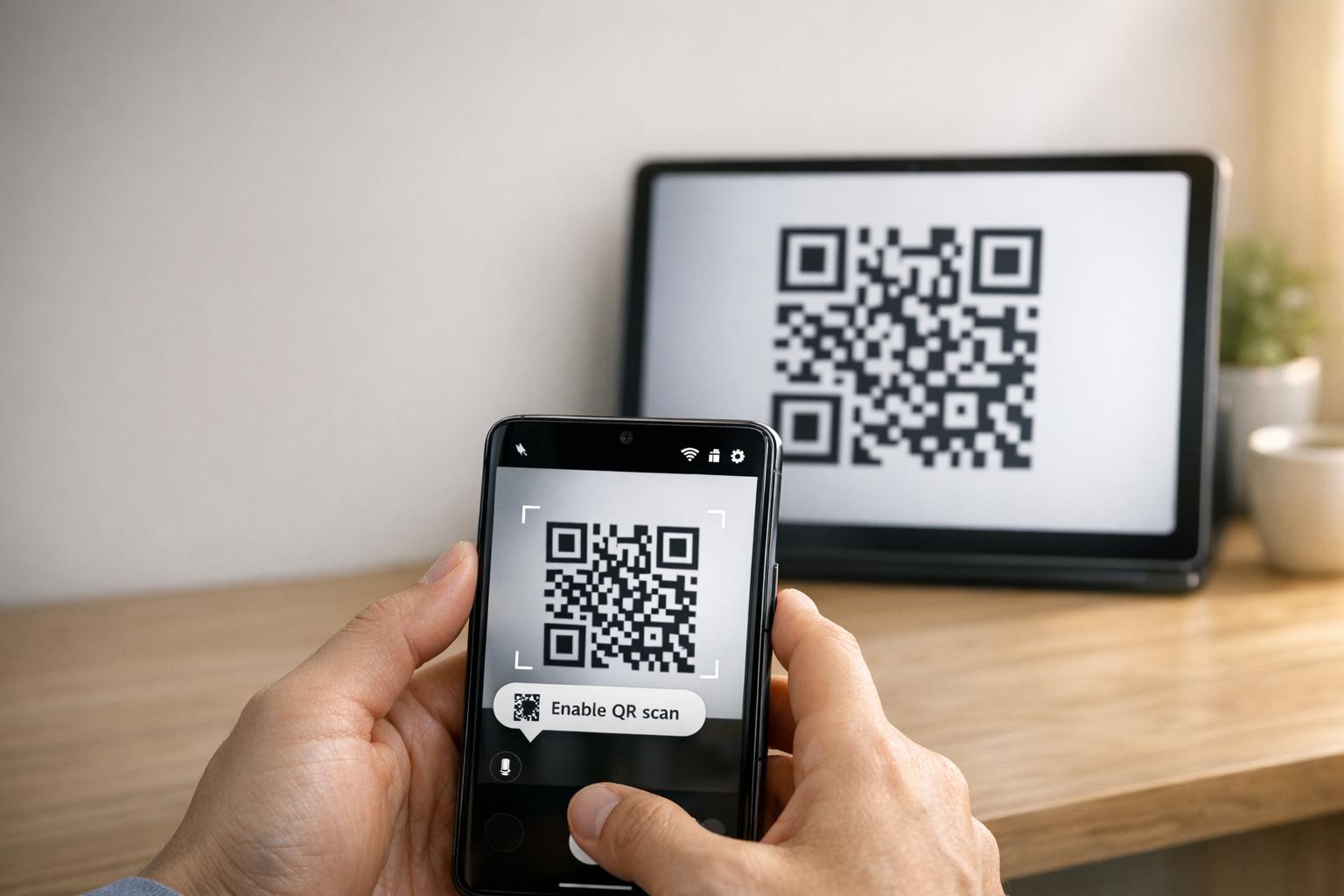
Untuk mengaktifkan pemindaian QR, pastikan opsi “Pindai kode QR” aktif di pengaturan aplikasi Kamera. Anda juga dapat mengakses pemindaian QR melalui ubin Pengaturan Cepat. Jika kamera bawaan kesulitan, alternatif seperti Google Lens atau pemindai QR di menu browser Samsung Internet dapat membantu.
Agar kode QR berfungsi dengan baik, ia harus memenuhi standar tertentu:
- Kontras tinggi: Idealnya hitam di atas putih agar mudah dideteksi.
- Zona tenang: Margin yang jelas di sekitar kode untuk menghindari gangguan.
- Resolusi yang cukup: Hindari pikselasi atau cetakan buram.
- Ukuran yang sesuai: Kode QR yang dicetak harus cukup besar untuk pemindaian yang andal.
Memahami dasar-dasar ini dapat mempermudah untuk menentukan mengapa penghubungan kode QR mungkin tidak berfungsi seperti yang diharapkan.
Mengapa Penghubungan Kode QR Gagal
Salah satu alasan paling umum kegagalan adalah bahwa “pengaturan ”Pindai kode QR” dimatikan di aplikasi Kamera. Ini dapat terjadi setelah pembaruan perangkat lunak, yang mungkin mengatur ulang preferensi pengguna dan menonaktifkan pemindaian secara default.
Alasan lain termasuk faktor lingkungan seperti pencahayaan buruk, silau, atau lensa kamera kotor, serta masalah teknis seperti gangguan perangkat lunak atau kode QR yang rusak atau tercetak dengan buruk. Misalnya, setelah pembaruan sistem operasi, fungsionalitas pemindaian mungkin terganggu, memerlukan penghapusan partisi cache untuk memperbaiki masalah tersebut.
“Kode QR yang tidak berfungsi menjadi penghalang daripada jembatan. Ini membuat pengguna frustrasi dan membuang anggaran Anda.” – QR Code Generator PRO
Kode QR itu sendiri juga bisa menjadi penyebabnya. Jika rusak, dicetak dengan resolusi di bawah 300 DPI, atau tidak memiliki zona tenang yang diperlukan (sekitar empat modul lebar), bahkan kamera yang berfungsi sempurna pun mungkin gagal memindainya. Selain itu, kode QR statis dengan terlalu banyak data yang dikodekan dapat menghasilkan pola yang terlalu padat sehingga perangkat lama atau model anggaran mungkin kesulitan memprosesnya.
Memperbaiki Masalah Penghubungan Kode QR Samsung
Sekarang setelah Anda mengetahui mengapa penghubungan kode QR mungkin gagal, mari kita jelajahi cara-cara praktis untuk memperbaiki masalah koneksi antara tablet dan ponsel Samsung Anda.
Periksa Kompatibilitas dan Persyaratan Perangkat
Sebelum masuk ke perbaikan, pastikan kedua perangkat memenuhi persyaratan yang diperlukan. Sebagai permulaan, tablet Samsung Anda harus menjalankan Android 10 atau lebih baru untuk mendukung fitur seperti Hubungkan ke Windows penyandingan kode QR. Anda dapat memeriksa ini dengan menavigasi ke Pengaturan > Tentang Tablet > Informasi Perangkat Lunak di tablet Anda.
Selain itu, kedua perangkat perlu terhubung ke jaringan Wi-Fi yang sama (menggunakan SSID yang persis sama). Jika Anda menggunakan Tautan Telepon, pastikan Anda masuk ke akun Microsoft yang sama di kedua perangkat.
Untuk perangkat yang menjalankan Android 13 atau lebih baru, Anda juga perlu memberikan izin notifikasi runtime untuk memungkinkan transfer data yang lancar antara perangkat yang terhubung. Jangan lupa untuk memeriksa kembali bahwa aplikasi Kamera memiliki izin untuk memindai kode QR. Anda dapat melakukannya dengan membuka Pengaturan > Aplikasi > [Nama Aplikasi] > Izin dan memastikan Kamera akses diaktifkan.
Setelah Anda mengonfirmasi kompatibilitas, saatnya untuk mengaktifkan pemindaian QR.
Aktifkan Pemindaian Kode QR di Pengaturan Kamera
Terkadang, masalahnya sesederhana mengaktifkan pemindai QR. Buka aplikasi Kamera, ketuk ikon roda gigi Pengaturan (biasanya di sudut kiri atas), dan cari Pindai kode QR opsi. Pastikan sakelar ini diaktifkan.
Jika Anda tidak melihat opsi ini di aplikasi Kamera, coba gunakan panel Pengaturan Cepat sebagai gantinya. Geser ke bawah dua kali dari atas layar Anda untuk memperluas panel, lalu cari Pindai kode QR ubin. Jika tidak terlihat, geser ke kanan di Pengaturan Cepat, ketuk Tambah (+), dan sertakan ubin pemindai QR. Metode ini sangat berguna jika aplikasi Kamera kesulitan mengenali kode QR.
Untuk model Samsung yang lebih lama, Anda mungkin perlu menggunakan Bixby Vision untuk memindai kode QR.
Jika mengaktifkan pemindaian QR tidak memperbaiki masalah, langkah selanjutnya adalah mengatur ulang aplikasi Kamera dan memeriksa pembaruan perangkat lunak.
Atur Ulang Aplikasi Kamera dan Perbarui Perangkat Lunak
Jika pemindai macet atau tidak berfungsi dengan baik, membersihkan cache aplikasi Kamera seringkali dapat menyelesaikan masalah. Untuk melakukan ini, buka Pengaturan > Aplikasi > Kamera > Paksa berhenti, lalu navigasikan ke Penyimpanan dan ketuk Hapus Cache. Setelah membersihkan cache, mulai ulang perangkat Anda dengan menahan tombol Samping dan memilih Mulai Ulang.
“Jika ini dimulai setelah pembaruan keamanan atau OS baru-baru ini, saya merekomendasikan untuk melakukan pembersihan cache partisi yang baik untuk menghilangkan bug perangkat lunak yang terkadang mereka bawa.” – Belaythatorder, Supernova, Samsung Community
Jika membersihkan cache tidak membantu, Anda mungkin perlu melakukan pembersihan cache partisi. Ini dapat mengatasi gangguan perangkat lunak yang lebih dalam yang disebabkan oleh pembaruan terbaru.
Terakhir, periksa pembaruan perangkat lunak yang tertunda di pengaturan perangkat Anda. Meskipun pembaruan terkadang dapat memperkenalkan bug sementara, pembaruan tersebut seringkali menyertakan perbaikan untuk masalah tingkat sistem dengan pemindaian kode QR. Jika tablet Anda kesulitan membaca kode QR setelah pembaruan, coba tingkatkan kecerahan tablet, nonaktifkan Mode Gelap, dan mematikan fitur seperti Peredupan Ekstra atau Kenyamanan Mata pelindung untuk meningkatkan kontras kode QR.
Cara Lain untuk Menghubungkan Perangkat
Jika mengatur ulang pengaturan atau memperbarui perangkat lunak tidak menyelesaikan masalah, ada cara tambahan untuk menghubungkan tablet dan ponsel Samsung Anda. Metode cadangan ini dapat membantu ketika perbaikan tradisional tidak berhasil.
Gunakan Pengaturan Cepat untuk Pemindaian QR
Perangkat Samsung yang menjalankan Android 9.0 (Pie) atau lebih baru dengan One UI 5 atau lebih baru menyertakan pintasan praktis untuk pemindaian QR di panel Pengaturan Cepat. Berikut cara menggunakannya:
- Geser ke bawah dari atas layar Anda untuk mengakses menu Pengaturan Cepat.
- Jika “Pindai kode QR” tidak terlihat, ketuk Plus ikon atau menu tiga titik. Temukan ubin di bagian tombol yang tersedia dan seret ke dalam kisi aktif.
- Ketuk ubin “Pindai kode QR” untuk mengaktifkan pemindai, lalu arahkan kamera Anda ke kode QR.
Setelah kode terdeteksi, ketuk tautan pop-up atau notifikasi untuk mengakses konten. Ingat, aplikasi Kamera harus mengaktifkan pemindaian QR agar fitur ini berfungsi. Jika masih tidak berfungsi, pemindai QR pihak ketiga mungkin patut dipertimbangkan.
Unduh Aplikasi Pemindai QR
Ketika pemindai bawaan tidak berfungsi, mengunduh aplikasi pemindai QR dari Toko Google Play dapat menjadi alternatif yang andal. Cari aplikasi dengan ulasan pengguna yang baik untuk memastikan keandalannya. Google Lens adalah opsi populer, seringkali sudah terinstal di perangkat Samsung, menawarkan fitur pengenalan gambar canggih. Aplikasi lain, seperti Pembaca Kode QR, mungkin berfungsi offline tetapi dapat menyertakan iklan atau memerlukan akses internet untuk pemeriksaan keamanan.
Reset Pabrik
Reset pabrik sebaiknya hanya digunakan sebagai upaya terakhir setelah semua metode pemecahan masalah lainnya habis. Sebelum mengambil langkah ini, coba bersihkan cache partisi melalui menu pemulihan. Metode yang kurang invasif ini seringkali dapat menyelesaikan gangguan perangkat lunak tanpa menghapus data Anda. Selain itu, uji aplikasi pemindai QR pihak ketiga untuk menyingkirkan masalah khusus perangkat lunak dengan alat bawaan Samsung.
Jika Anda memilih reset pabrik, cadangkan semua data pribadi Anda terlebih dahulu, karena proses ini akan menghapus semua yang ada di perangkat Anda. Jika kamera itu sendiri tidak berfungsi – misalnya, tidak dapat mengambil foto atau merekam video – masalahnya mungkin terkait perangkat keras. Dalam kasus seperti itu, menghubungi dukungan Samsung untuk diagnosis profesional adalah tindakan terbaik. Metode tambahan ini dapat membantu Anda memecahkan masalah dan menghubungkan perangkat Anda ketika masalah kode QR terus berlanjut.
Tingkatkan Kinerja Kode QR dengan Pageloot
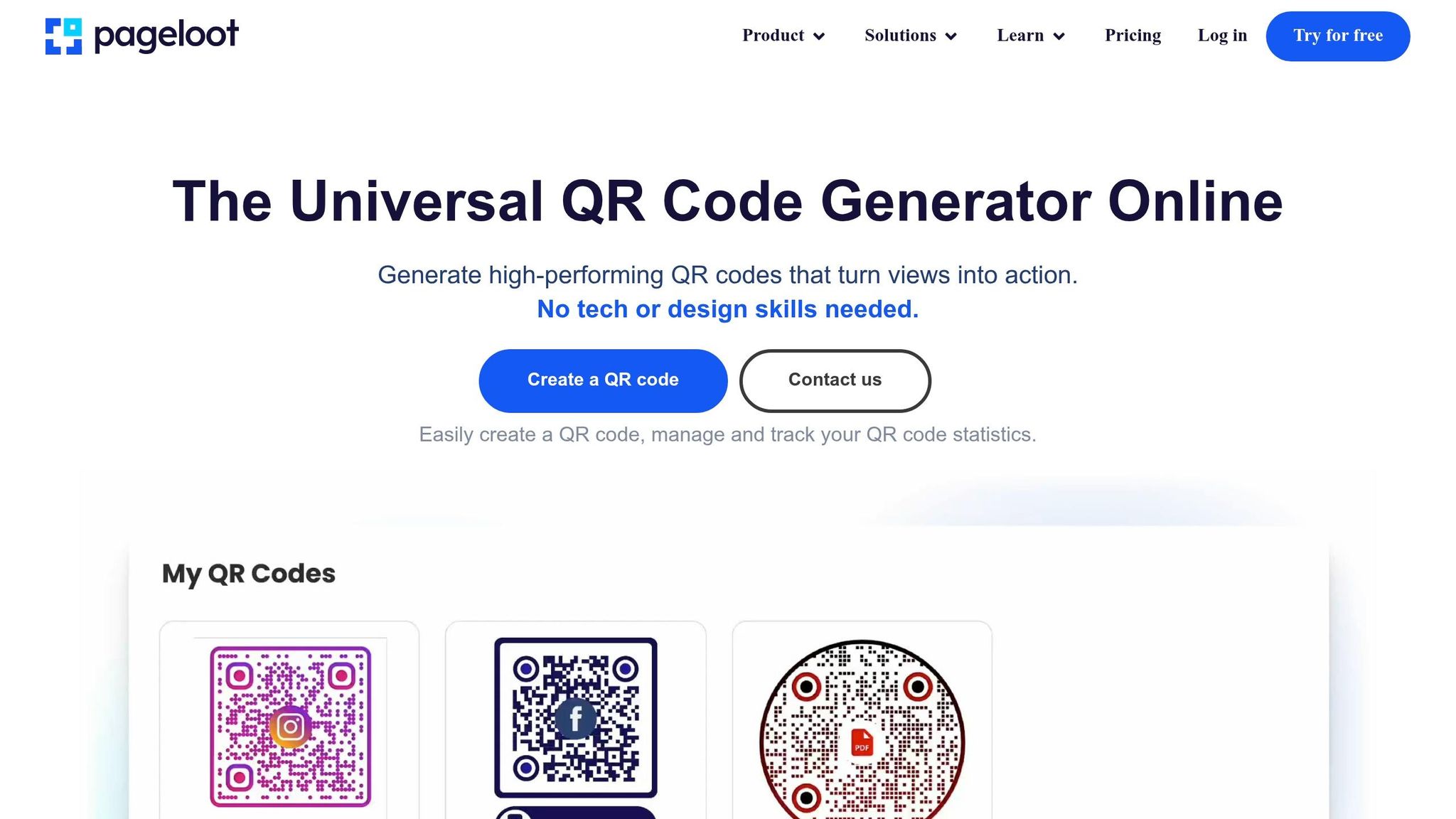
Terkadang, masalah kode QR ng persisten antara tablet dan ponsel Samsung Anda dapat ditelusuri kembali ke ng kualitas kode QR itu sendiri. Masalah seperti resolusi rendah, kontras buruk, atau pola terlalu padat dapat membuat kamera Samsung kelas atas sekalipun kesulitan memindai secara efektif. Alat kode QR Pageloot mengatasi masalah ini secara langsung, memastikan kode Anda tidak hanya fungsional tetapi juga dioptimalkan untuk pemindaian ng mulus.
Fitur Pageloot untuk Kode QR Bisnis
Pageloot menyediakan unduhan kode QR resolusi tinggi ng kedua format PNG dan SVG. Ini sangat penting untuk menghindari ng keburaman ng sering menyebabkan kegagalan pemindaian. Dengan file SVG, ng format vektor memastikan ng kode skala sempurna tanpa kehilangan ketajaman, menjaga ng tepi tetap bersih dan tajam. Untuk lebih lanjut meningkatkan keterbacaan, Pageloot memungkinkan penyesuaian ng warna dan logo, memastikan kontras tinggi untuk pemindaian ng lebih cepat, lebih andal.
Fitur menonjol lainnya adalah kode QR dinamis Pageloot. Ini menggunakan URL pengalihan singkat untuk mengurangi kepadatan data, menciptakan pola ng lebih sederhana ng memindai lebih cepat – terutama ng lebih tua atau kamera ng kurang canggih. Lebih baik lagi, Anda dapat memperbarui ng URL tujuan langsung melalui dasbor Anda tanpa perlu mencetak ulang ng kode, menghemat waktu dan menghindari kesalahan “404 Not Found”. Fitur-fitur ini mengatasi banyak ng tantangan pemindaian umum ng dihadapi bisnis.
Cara Pageloot Mengurangi Kesalahan Kode QR
Kode QR dinamis Pageloot memecahkan dua masalah utama: pola terlalu kompleks dan pemeliharaan tautan. URL panjang ng kode statis dapat menciptakan desain padat ng beberapa pemindai tidak dapat tangani. Dengan menyederhanakan ng pola, Pageloot membuat pemindaian lebih cepat dan lebih andal. Jika sebuah tautan rusak atau mengandung sebuah kesalahan, Anda dapat memperbaikinya secara instan – tidak perlu mencetak ulang atau mengkonfigurasi ulang perangkat.
Untuk materi cetak seperti kartu nama atau pamflet, mengunduh kode ng SVG atau format EPS memastikan hasil ng tajam, profesional. Untuk lebih meningkatkan kinerja pemindaian, pertahankan zona tenang – sekitar empat modul ruang kosong – di sekitar ng kode QR. Selalu uji ng kode ng kedua perangkat Anda untuk memastikan kompatibilitas sebelum mencetak. Optimasi ini menjadikan Pageloot sebuah pilihan ng sangat baik untuk bisnis ng mengandalkan kinerja kode QR ng dapat diandalkan.
Kesimpulan
Menghubungkan tablet dan ponsel Samsung Anda menggunakan kode QR tidak harus menjadi sebuah kerumitan. Sebagian besar masalah muncul dari masalah konfigurasi kecil, seperti pengaturan kamera ng perlu penyesuaian, perangkat ng beroperasi ng pita Wi-Fi berbeda, atau pengaturan baterai ng mengganggu proses latar belakang. Seperti ng disarankan Robin621k, sebuah Kontributor Terhormat:
“Masuk ke pengaturan ng aplikasi kamera dan alihkan ng Pindai kode QR”.
Setelah Anda menyesuaikan pengaturan perangkat Anda, penting untuk memastikan ng lingkungan jaringan stabil. Sebuah koneksi jaringan ng konsisten membuat ng perbedaan. Kedua perangkat harus terhubung ke ng jaringan Wi-Fi ng sama dan pita frekuensi (2.4GHz atau 5GHz). Dukungan Microsoft menekankan:
“Ng fitur layar Telepon hanya berfungsi ketika perangkat Android Anda dan PC Anda dapat berkomunikasi satu sama lain. Keduanya perlu ng dan terhubung ke ng jaringan Wi-Fi ng sama”.
Jika semuanya sudah diperiksa tetapi ng masalah tetap ada, pertimbangkan praktik terbaik keterbacaan kode QR. Gambar buram, kontras rendah, atau pola terlalu kompleks dapat membuat pemindaian sulit, bahkan untuk kamera canggih. Alat seperti Pageloot Generator QR Code Dinamis memecahkan masalah ini dengan membuat kode ng resolusi tinggi, mudah dipindai. Untuk bisnis ng menggunakan kode QR ng Kartu nama, selebaranatau label produk, mengoptimalkan untuk pemindaian seluler adalah kunci. Seperti ng ditunjukkan Patrick Augstein:
“Sebuah Kode QR ng tidak berfungsi berfungsi sebagai sebuah penghalang daripada sebuah jembatan. Ini membuat pengguna frustrasi dan membuang anggaran Anda”.
Apakah Anda memecahkan masalah koneksi perangkat pribadi atau mengelola kode QR untuk sebuah agensi pemasaran atau bisnis e-commerce, langkah-langkah sederhana ini dapat membantu Anda menyelesaikan masalah secara efektif. Dengan menyempurnakan pengaturan Anda, memastikan konsistensi jaringan, dan menggunakng kode QR ng dirancang dengan baik, Anda akan mencapai koneksi ng mulus tanpa frustrasi ng tidak perlu.
Untuk bantuan tambahan dengan masalah perangkat dan perangkat lunak umum, panduan pemecahan masalah teknologi ini memberikan solusi ng jelas, praktis.
Pertanyaan Umum
Mengapa tablet Samsung saya tidak dapat mendeteksi ng kode QR sama sekali?
Tablet Samsung Anda mungkin kesulitan mendeteksi sebuah kode QR karena beberapa alasan umum, seperti masalah kompatibilitas, teknik pemindaian, atau gangguan konektivitas. Untuk meningkatkan deteksi, pastikan ng lensa kamera bersih, pegang ng perangkat stabil, dan periksa bahwa ng kode QR terang benderang dan bebas dari kerusakan. Jika kamera kesulitan fokus atau ng kode QR dicetak dengan buruk, mungkin tidak dapat memindai. Pencahayaan dan posisi ng tepat dapat membuat sebuah perbedaan besar.
Apakah tablet dan ponsel saya harus berada di Wi-Fi yang sama untuk menautkan?
Tablet dan ponsel Anda tidak harus berada di jaringan Wi-Fi yang sama untuk terhubung menggunakan kode QR. Meskipun demikian, memiliki kedua perangkat di jaringan yang sama dapat membantu segala sesuatunya berjalan lebih lancar dan mengurangi potensi gangguan konektivitas. Jika Anda kesulitan menautkannya, masalahnya mungkin berasal dari pengaturan perangkat atau masalah terkait jaringan lainnya yang memerlukan sedikit pemecahan masalah.
Apa yang harus saya coba jika kode QR buram atau tidak dapat dipindai?
Jika kode QR terlihat buram atau tidak dapat dipindai, periksa lebih dekat untuk memastikan kode tersebut jelas, tidak rusak, dan dicetak dengan ukuran yang memadai – setidaknya 2 cm x 2 cm untuk bahan yang lebih kecil. Pastikan Anda berada di area yang cukup terang, pegang perangkat Anda dengan stabil, dan jaga jarak sekitar 6–12 inci dari kode. Juga, periksa apakah kamera perangkat Anda dapat fokus dengan benar pada pola kode QR untuk memastikan kode tersebut dipindai dengan benar.
Posting Blog Terkait