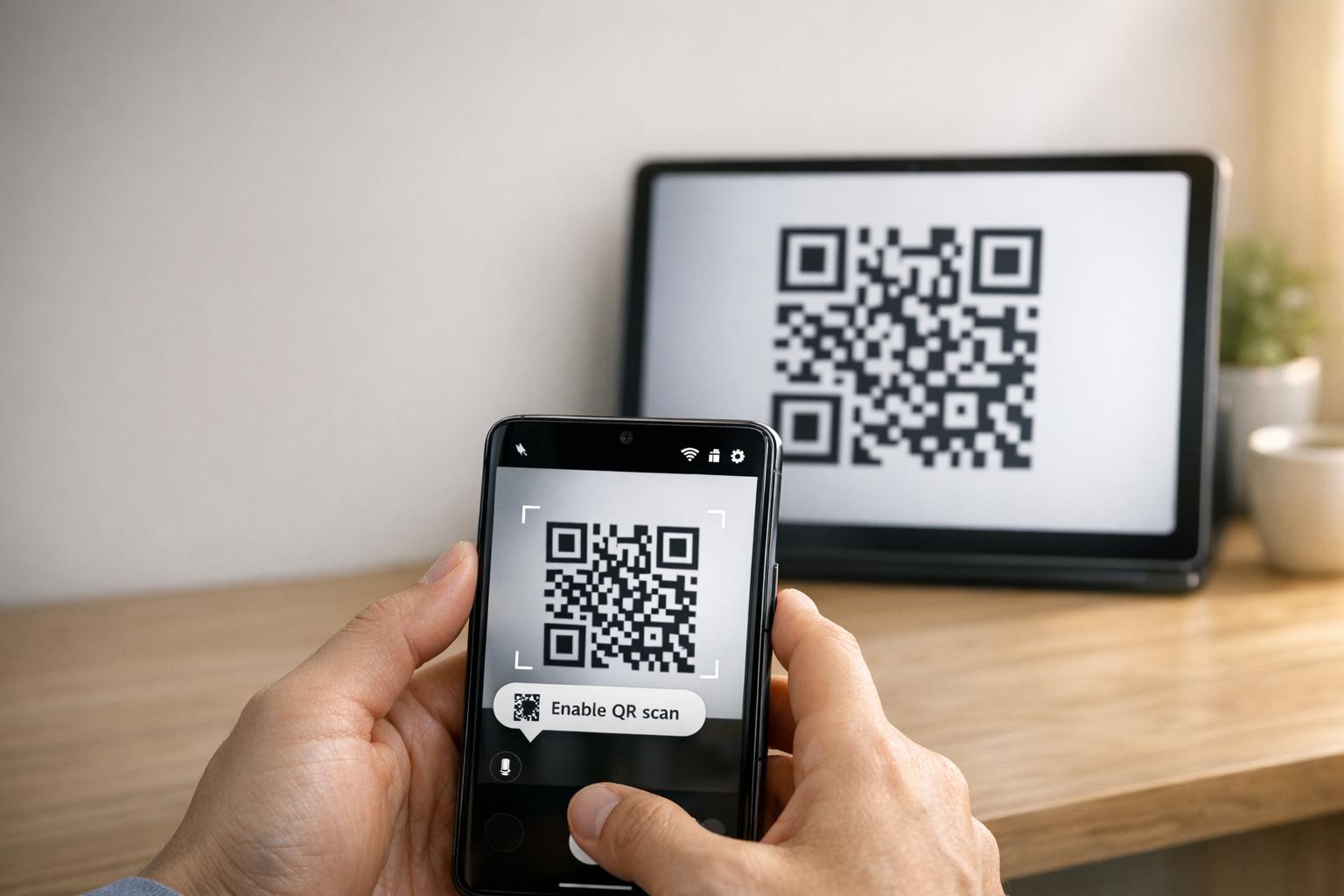
Quando o seu Samsung tablet não consegue conectar-se ao seu telefone usando um código QR, isso geralmente se deve a configurações da câmera, falhas de software ou problemas de rede. Este problema interrompe os fluxos de trabalho, forçando os usuários a depender de alternativas menos convenientes, como códigos manuais. Veja como corrigi-lo:
- Ativar Digitalização de QR: Verifique se a opção “Digitalizar códigos QR” está ativada nas configurações do aplicativo Câmera.
- Limpar Cache: Reinicie o aplicativo Câmera limpando seu cache via Configurações > Aplicativos > Câmera > Limpar Cache.
- Atualizar Software: Certifique-se de que ambos os dispositivos estejam executando as versões de software mais recentes.
- Verificar Rede: Ambos os dispositivos devem estar na mesma rede Wi-Fi.
- Usar Alternativas: Tente Google Lens ou um aplicativo de scanner QR de terceiros se as opções integradas falharem.
Se essas etapas não funcionarem, considere realizar uma limpeza de cache de partição ou, como último recurso, uma redefinição de fábrica. Para códigos QR que estão borrados ou mal impressos, ferramentas como Pageloot podem gerar códigos de melhor qualidade para evitar problemas de digitalização.
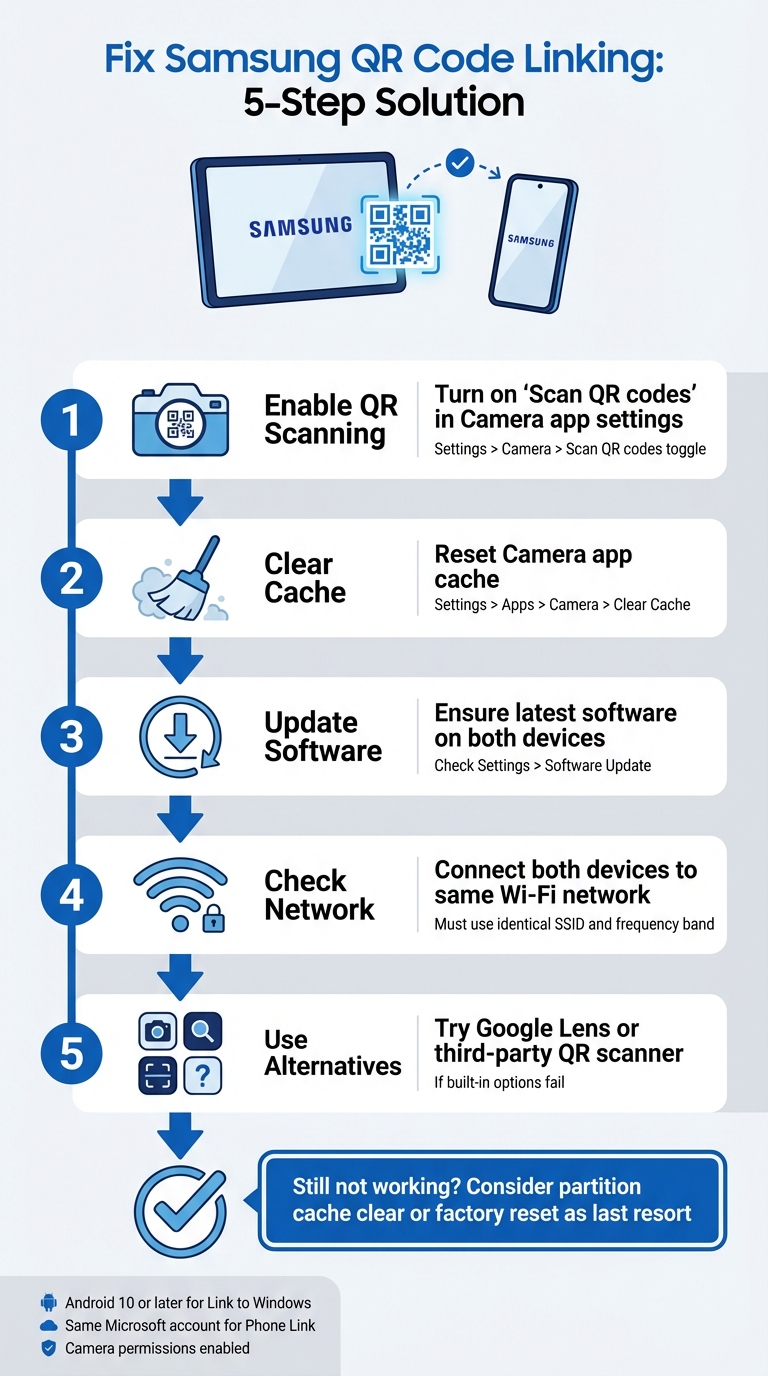
5 Etapas para Corrigir Problemas de Vinculação de Código QR da Samsung Entre Tablet e Telefone
Como Corrigir Samsung Código QR do Galaxy Tab A9/ A9+ Não Funcionando Para Começar
sbb-itb-74874c9
Como Funciona a Vinculação de Código QR da Samsung
Antes de mergulhar na solução de problemas, é útil entender como a vinculação de código QR da Samsung funciona e o que pode fazer com que ela falhe.
Vinculação de Dispositivos Samsung com Códigos QR
Dispositivos Samsung usam seu aplicativo Câmera integrado para detectar e processar automaticamente códigos QR. Por exemplo, ao vincular um tablet a um telefone (como através do Smart Switch), a câmera digitaliza o código QR exibido em um dispositivo e decodifica os detalhes da conexão incorporados no padrão.
Para ativar a digitalização de QR, certifique-se de que a opção “Digitalizar códigos QR” esteja ativa nas configurações do aplicativo Câmera. Você também pode acessar a digitalização de QR através de um bloco de Configurações Rápidas. Se a câmera nativa tiver dificuldades, alternativas como o Google Lens ou o scanner QR no menu do navegador Samsung Internet podem ajudar.
Para que um código QR funcione corretamente, ele deve atender a padrões específicos:
- Alto contraste: Idealmente preto no branco para fácil detecção.
- Zona de silêncio: Uma margem clara ao redor do código para evitar interferência.
- Resolução suficiente: Evite pixelização ou impressões borradas.
- Tamanho apropriado: Códigos QR impressos devem ser grandes o suficiente para uma digitalização confiável.
Compreender esses conceitos básicos pode facilitar a identificação do motivo pelo qual a vinculação de código QR pode não funcionar como esperado.
Por Que a Vinculação de Código QR Falha
Uma das razões mais comuns para a falha é que a “configuração ”Digitalizar códigos QR” está desativada no aplicativo Câmera. Isso pode acontecer após uma atualização de software, que pode redefinir as preferências do usuário e desativar a digitalização por padrão.
Outras razões incluem fatores ambientais como pouca iluminação, brilho ou uma lente de câmera suja, bem como problemas técnicos como falhas de software ou códigos QR danificados ou mal impressos. Por exemplo, após uma atualização do sistema operacional, a funcionalidade de digitalização pode ser interrompida, exigindo uma limpeza da partição de cache para corrigir o problema.
“Um Código QR não funcional serve como uma barreira em vez de uma ponte. Ele frustra os usuários e desperdiça seu orçamento.” – QR Code Generator PRO
O próprio código QR também pode ser o culpado. Se estiver danificado, impresso com uma resolução abaixo de 300 DPI, ou se faltar a zona de silêncio necessária (cerca de quatro módulos de largura), mesmo uma câmera perfeitamente funcional pode falhar ao digitalizá-lo. Além disso, códigos QR estáticos com muitos dados codificados podem resultar em padrões excessivamente densos que dispositivos mais antigos ou modelos de baixo custo podem ter dificuldade em processar.
Corrigindo Problemas de Vinculação de Código QR da Samsung
Agora que você sabe por que a vinculação de código QR pode falhar, vamos explorar maneiras práticas de corrigir problemas de conexão entre seu tablet e telefone Samsung.
Verificar Compatibilidade e Requisitos do Dispositivo
Antes de mergulhar nas correções, certifique-se de que ambos os dispositivos atendam aos requisitos necessários. Para começar, seu tablet Samsung deve estar executando Android 10 ou posterior para suportar recursos como Link para Windows emparelhamento de código QR. Você pode verificar isso navegando para Configurações > Sobre o Tablet > Informações do Software no seu tablet.
Além disso, ambos os dispositivos precisam estar conectados à mesma rede Wi-Fi (usando o mesmo SSID exato). Se você estiver usando o Vincular ao Celular, certifique-se de estar conectado à mesma conta Microsoft em ambos os dispositivos.
Para dispositivos executando Android 13 ou mais recente, você também precisará conceder permissões de notificação em tempo de execução para permitir a transferência suave de dados entre dispositivos vinculados. Não se esqueça de verificar novamente se o aplicativo Câmera tem permissão para digitalizar códigos QR. Você pode fazer isso indo para Configurações > Aplicativos > [Nome do Aplicativo] > Permissões e garantindo que o Câmera acesso esteja ativado.
Depois de confirmar a compatibilidade, é hora de ativar a digitalização de QR.
Ativar Digitalização de Código QR nas Configurações da Câmera
Por vezes, o problema é tão simples como ativar o scanner QR. Abra a aplicação Câmara, toque no ícone de engrenagem das Definições (geralmente no canto superior esquerdo) e procure a opção Digitalizar códigos QR Certifique-se de que este botão está ativado.
Se não vir esta opção na aplicação Câmara, tente usar o painel de Definições Rápidas em vez disso. Deslize para baixo duas vezes a partir do topo do ecrã para expandir o painel, depois procure um Leia o código QR bloco. Se não estiver visível, deslize para a direita nas Definições Rápidas, toque em Adicionar (+), e inclua o bloco do scanner QR. Este método é especialmente útil se a aplicação Câmara tiver dificuldade em reconhecer códigos QR.
Para modelos Samsung mais antigos, poderá precisar de usar Bixby Vision para digitalizar códigos QR.
Se ativar a digitalização de QR não resolver o problema, o próximo passo é repor a aplicação Câmara e verificar se há atualizações de software.
Repor Aplicação Câmara e Atualizar Software
Se o scanner congelar ou não estiver a funcionar corretamente, limpar a cache da aplicação Câmara pode muitas vezes resolver o problema. Para fazer isso, vá a Definições > Aplicações > Câmara > Forçar paragem, depois navegue para Armazenamento e toque em Limpar Cache. Depois de limpar a cache, reinicie o seu dispositivo mantendo o botão Lateral premido e selecionando Reiniciar.
“Se isto começou depois de uma atualização recente de segurança ou do SO, recomendo realizar uma limpeza da cache da partição, o que é bom para eliminar os erros de software que por vezes trazem.” – Belaythatorder, Supernova, Samsung Community
Se limpar a cache não ajudar, poderá precisar de realizar uma limpeza da cache da partição. Isto pode resolver falhas de software mais profundas causadas por atualizações recentes.
Finalmente, verifique se há atualizações de software pendentes nas definições do seu dispositivo. Embora as atualizações possam ocasionalmente introduzir erros temporários, muitas vezes incluem correções para problemas de nível de sistema com a digitalização de códigos QR. Se o seu tablet tiver dificuldade em ler códigos QR após uma atualização, tente aumentar o brilho do tablet, desativando Modo Escuro, e desativando funcionalidades como Escurecimento Extra ou Conforto Ocular filtros para melhorar o contraste do código QR.
Outras Formas de Ligar Dispositivos
Se repor as definições ou atualizar o software não resolver o problema, existem formas adicionais de ligar o seu tablet e telemóvel Samsung. Estes métodos de backup podem ajudar quando as soluções tradicionais falham.
Usar Definições Rápidas para Digitalização de QR
Dispositivos Samsung com Android 9.0 (Pie) ou posterior com One UI 5 ou mais recente incluem um atalho útil para a digitalização de QR no painel de Definições Rápidas. Veja como usá-lo:
- Deslize para baixo a partir do topo do ecrã para aceder ao menu de Definições Rápidas.
- Se “Digitalizar código QR” não estiver visível, toque no + (Mais) ícone ou no menu de três pontos. Localize o bloco na secção de botões disponíveis e arraste-o para a grelha ativa.
- Toque no bloco “Digitalizar código QR” para ativar o scanner, depois aponte a sua câmara para o código QR.
Assim que o código for detetado, toque no link pop-up ou na notificação para aceder ao conteúdo. Lembre-se, a aplicação Câmara deve ter a digitalização de QR ativada para que esta funcionalidade funcione. Se ainda não estiver a funcionar, um scanner QR de terceiros pode ser uma opção a considerar.
Descarregar uma Aplicação de Scanner QR
Quando o scanner integrado não funciona, descarregar uma aplicação de scanner QR da Loja Google Play pode ser uma alternativa fiável. Procure aplicações com boas avaliações de utilizadores para garantir a fiabilidade. Google Lens é uma opção popular, muitas vezes pré-instalada em dispositivos Samsung, oferecendo funcionalidades avançadas de reconhecimento de imagem. Outras aplicações, como Leitor de Código QR, podem funcionar offline, mas podem incluir anúncios ou exigir acesso à internet para verificações de segurança.
Reposição de Fábrica
Uma reposição de fábrica só deve ser usada como último recurso depois de todos os outros métodos de resolução de problemas terem sido esgotados. Antes de dar este passo, tente limpar a cache da partição através do menu de recuperação. Este método menos invasivo pode muitas vezes resolver falhas de software sem apagar os seus dados. Além disso, teste uma aplicação de scanner QR de terceiros para descartar problemas específicos de software com as ferramentas integradas da Samsung.
Se optar por uma reposição de fábrica, faça primeiro uma cópia de segurança de todos os seus dados pessoais, pois este processo apagará tudo no seu dispositivo. Se a própria câmara não estiver a funcionar – por exemplo, não consegue tirar fotos ou gravar vídeos – o problema pode estar relacionado com o hardware. Nesses casos, contactar o suporte da Samsung para um diagnóstico profissional é o melhor curso de ação. Estes métodos adicionais podem ajudá-lo a resolver problemas e a ligar os seus dispositivos quando os problemas com códigos QR persistem.
Melhorar o Desempenho do Código QR com Pageloot
Às vezes, problemas persistentes com códigos QR entre o seu tablet e telefone Samsung podem ser rastreados até a qualidade do próprio código QR. Problemas como baixa resolução, contraste fraco ou padrões excessivamente densos podem fazer com que até mesmo as câmeras Samsung de ponta tenham dificuldade em digitalizar de forma eficaz. As ferramentas de código QR da Pageloot abordam esses problemas diretamente, garantindo que seus códigos não sejam apenas funcionais, mas também otimizados para uma digitalização perfeita.
Recursos da Pageloot para Códigos QR de Negócios
A Pageloot oferece downloads de códigos QR de alta resolução nos formatos PNG e SVG. Isso é crucial para evitar o desfoque que frequentemente causa falhas na digitalização. Com arquivos SVG, o formato vetorial garante que o código seja dimensionado perfeitamente sem perder a nitidez, mantendo as bordas limpas e nítidas. Para ainda mais melhorar a legibilidade, a Pageloot permite a personalização de cores e logotipos, garantindo alto contraste para digitalizações mais rápidas e confiáveis.
Outra característica de destaque são os códigos QR dinâmicos da Pageloot. Estes usam um URL de redirecionamento curto para reduzir a densidade de dados, criando padrões mais simples que digitalizam mais rapidamente – especialmente em câmeras mais antigas ou menos avançadas. Melhor ainda, você pode atualizar o URL de destino diretamente através do seu painel sem precisar reimprimir o código, economizando tempo e evitando erros “404 Not Found”. Esses recursos abordam muitos dos desafios comuns de digitalização que as empresas enfrentam.
Como a Pageloot Reduz Erros de Código QR
Os códigos QR dinâmicos da Pageloot resolvem dois problemas principais: padrões excessivamente complexos e manutenção de links. URLs longos em códigos estáticos podem criar designs densos que alguns scanners não conseguem lidar. Ao simplificar o padrão, a Pageloot torna a digitalização mais rápida e confiável. Se um link estiver quebrado ou contiver um erro, você pode corrigi-lo instantaneamente – sem necessidade de reimprimir ou reconfigurar dispositivos.
Para materiais impressos como cartões de visita ou folhetos, baixar códigos nos formatos SVG ou EPS garante resultados nítidos e profissionais. Para aprimorar ainda mais o desempenho da digitalização, mantenha uma zona de silêncio – cerca de quatro módulos de espaço em branco – ao redor do código QR. Sempre teste o código em ambos os seus dispositivos para garantir a compatibilidade antes de imprimir. Essas otimizações tornam a Pageloot uma excelente escolha para empresas que dependem de um desempenho confiável de códigos QR.
Conclusão
Conectar seu tablet e telefone Samsung usando códigos QR não precisa ser um incômodo. A maioria dos problemas surge de pequenas configurações, como configurações da câmera que precisam de ajuste, dispositivos operando em diferentes bandas de Wi-Fi ou configurações de bateria interrompendo processos em segundo plano. Como Robin621k, um Colaborador Homenageado, sugere:
“Vá para as configurações no aplicativo da câmera e ative a digitalização de códigos QR”.
Depois de ajustar as configurações do seu dispositivo, é essencial garantir que o ambiente de rede esteja estável. Uma conexão de rede consistente faz toda a diferença. Ambos os dispositivos devem estar conectados à mesma rede Wi-Fi e banda de frequência (2.4GHz ou 5GHz). O Suporte da Microsoft enfatiza:
“O recurso Tela do telefone só funciona quando seu dispositivo Android e seu PC podem se comunicar. Ambos precisarão estar ligados e conectados à mesma rede Wi-Fi”.
Se tudo estiver correto, mas o problema persistir, considere as melhores práticas de legibilidade de códigos QR. Imagens borradas, baixo contraste ou padrões excessivamente complexos podem dificultar a digitalização, mesmo para câmeras avançadas. Ferramentas como as da Pageloot Gerador de QR Code Dinâmico resolvem esses problemas criando códigos de alta resolução e fáceis de digitalizar. Para empresas que usam códigos QR em Cartões de visita, Flyersou etiquetas de produtos, otimizar para digitalização móvel é fundamental. Como Patrick Augstein aponta:
“Um Código QR não funcional serve como uma barreira em vez de uma ponte. Ele frustra os usuários e desperdiça seu orçamento”.
Seja para solucionar problemas de conexão de dispositivos pessoais ou gerenciar códigos QR para uma agência de marketing ou negócio de e-commerce, essas etapas simples podem ajudá-lo a resolver problemas de forma eficaz. Ao ajustar suas configurações, garantir a consistência da rede e usar códigos QR bem projetados, você alcançará conexões perfeitas sem frustrações desnecessárias.
Para ajuda adicional com problemas comuns de dispositivo e software, estes guias de solução de problemas de tecnologia fornecem soluções claras e práticas.
Perguntas Frequentes
Por que meu tablet Samsung não consegue detectar o código QR de forma alguma?
Seu tablet Samsung pode ter problemas para detectar um código QR por algumas razões comuns, como problemas de compatibilidade, técnica de digitalização ou falhas de conectividade. Para melhorar a detecção, certifique-se de que a lente da câmera esteja limpa, segure o dispositivo firmemente e verifique se o código QR está bem iluminado e livre de danos. Se a câmera tiver dificuldade para focar ou o código QR estiver mal impresso, ele pode não digitalizar. Iluminação e posicionamento adequados podem fazer uma grande diferença.
Meu tablet e telefone têm que estar na mesma rede Wi‑Fi para vincular?
Seu tablet e telefone não precisam necessariamente estar na mesma rede Wi-Fi para conectar usando um código QR. Dito isso, ter ambos os dispositivos na mesma rede pode ajudar as coisas a funcionar mais suavemente e reduzir possíveis problemas de conectividade. Se você estiver tendo problemas para vinculá-los, o problema pode vir das configurações do dispositivo ou de outros problemas relacionados à rede que exigem um pouco de solução de problemas.
O que devo tentar se o código QR estiver borrado ou não digitalizar?
Se o código QR parecer borrado ou não digitalizar, dê uma olhada mais de perto para garantir que esteja claro, sem danos e impresso em um tamanho adequado – pelo menos 2 cm x 2 cm para materiais menores. Certifique-se de estar em uma área bem iluminada, segure seu dispositivo firmemente e mantenha-o a cerca de 6–12 polegadas de distância do código. Além disso, verifique se a câmera do seu dispositivo consegue focar corretamente no padrão do código QR para garantir que ele digitalize corretamente.
Postagens de Blog Relacionadas