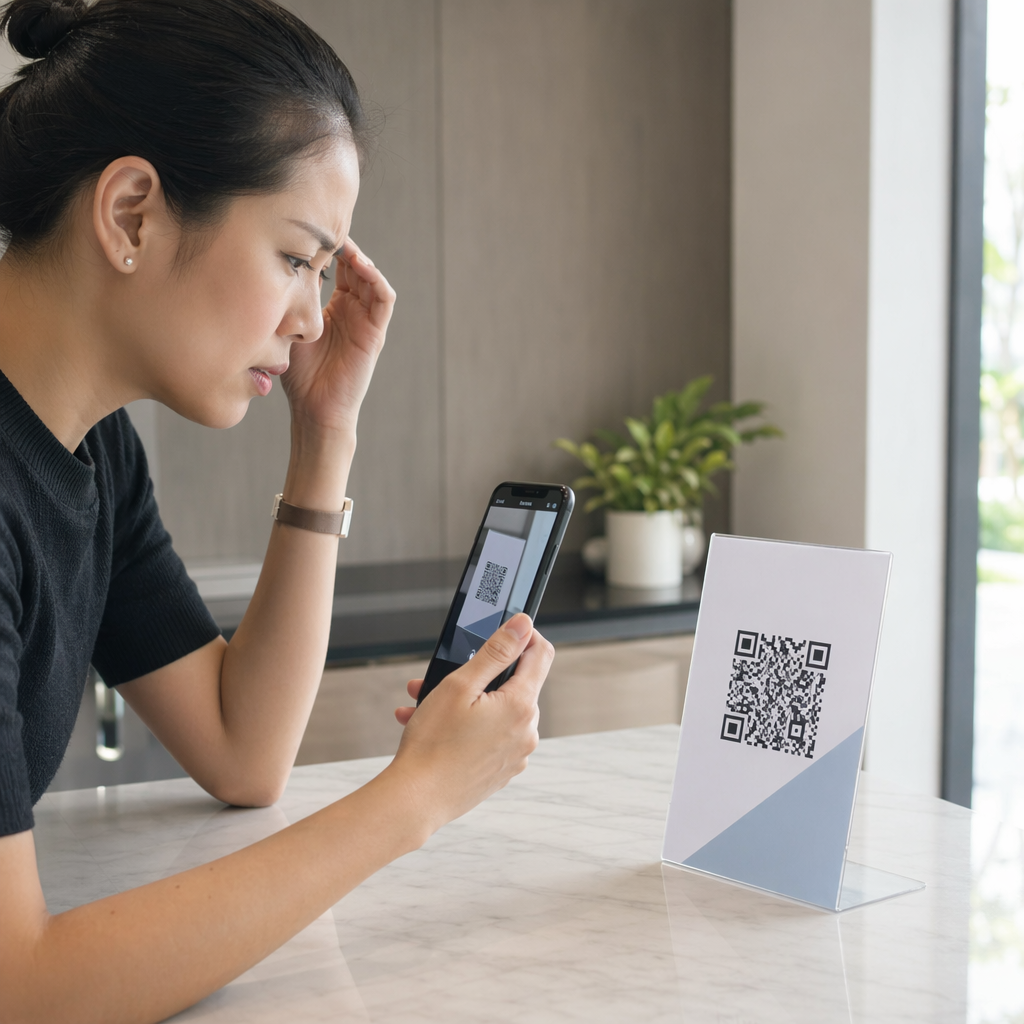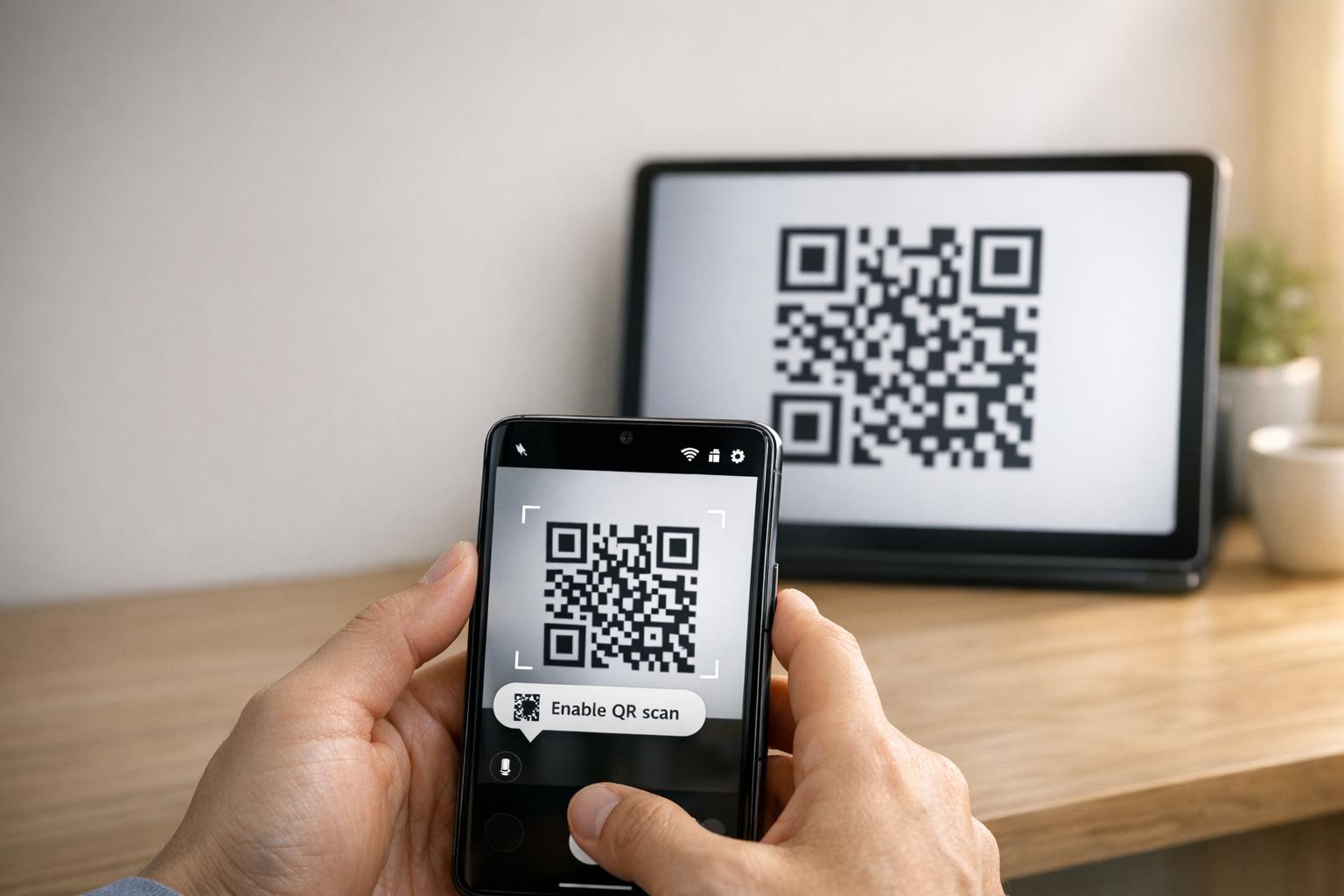
Tabletiniz Samsung tabletiniz telefonunuza bir QR kodu kullanarak bağlanamıyorsa, bu genellikle kamera ayarları, yazılım aksaklıkları veya ağ sorunlarından kaynaklanır. Bu sorun iş akışlarını bozar ve kullanıcıları manuel kodlar gibi daha az uygun alternatiflere güvenmeye zorlar. İşte nasıl düzelteceğiniz:
- QR Tarama özelliğini etkinleştirin: Kamera uygulaması ayarlarında “QR kodlarını tara” seçeneğinin açık olup olmadığını kontrol edin.
- Önbelleği Temizle: Kamera uygulamasını önbelleğini temizleyerek sıfırlayın: Ayarlar > Uygulamalar > Kamera > Önbelleği Temizle.
- Yazılımı Güncelle: Her iki cihazın da en son yazılım sürümlerini çalıştırdığından emin olun.
- Ağı Kontrol Edin: Her iki cihaz da aynı Wi-Fi ağında olmalıdır.
- Alternatifleri Kullanın: Deneyin Google Lens veya yerleşik seçenekler başarısız olursa üçüncü taraf bir QR tarayıcı uygulaması kullanın.
Bu adımlar işe yaramazsa, bir bölüm önbelleği temizlemeyi veya son çare olarak fabrika ayarlarına sıfırlamayı düşünün. Bulanık veya kötü basılmış QR kodları için, gibi araçlar Pageloot tarama sorunlarını önlemek için daha kaliteli kodlar oluşturabilir.
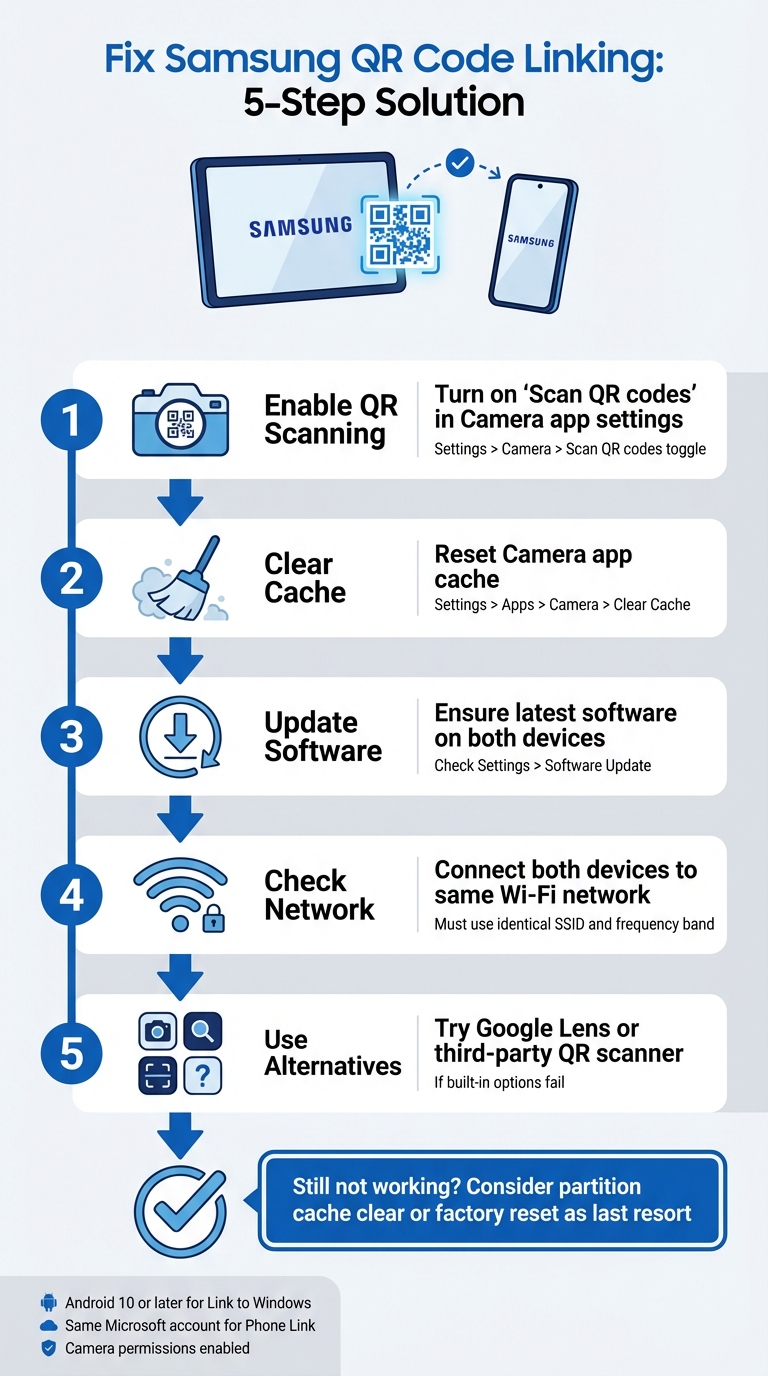
Tablet ve Telefon Arasındaki Samsung QR Kodu Bağlantı Sorunlarını Düzeltmek İçin 5 Adım
Nasıl Düzeltilir Samsung Galaxy Tab A9/ A9+ QR Kodu Çalışmıyor Başlamak İçin
sbb-itb-74874c9
Samsung QR Kodu Bağlantısı Nasıl Çalışır
Sorun gidermeye dalmadan önce, Samsung'un QR kodu bağlantısının nasıl çalıştığını ve neyin başarısız olmasına neden olabileceğini anlamak faydalıdır.
QR Kodları ile Samsung Cihaz Bağlantısı
Samsung cihazları kendi yerleşik Kamera uygulamasını QR kodlarını otomatik olarak algılamak ve işlemek için kullanır. Örneğin, bir tableti bir telefona bağlarken (gibi aracılığıyla Akıllı Anahtar), kamera bir cihazda görüntülenen QR kodunu tarar ve desene gömülü bağlantı ayrıntılarını çözer.
QR taramasını etkinleştirmek için, Kamera uygulaması ayarlarında “QR kodlarını tara” seçeneğinin etkin olduğundan emin olun. QR taramasına Hızlı Ayarlar kutucuğu aracılığıyla da erişebilirsiniz. Yerel kamera zorlanırsa, Google Lens veya Samsung İnternet tarayıcı menüsündeki QR tarayıcı gibi alternatifler yardımcı olabilir.
Bir QR kodunun düzgün çalışması için belirli standartları karşılaması gerekir:
- Yüksek kontrast: Kolay algılama için ideal olarak beyaz üzerine siyah.
- Sessiz bölge: Paraziti önlemek için kodun etrafında net bir kenar boşluğu.
- Yeterli çözünürlük: Pikselleşmeden veya bulanık baskılardan kaçının.
- Uygun boyut: Basılı QR kodları güvenilir tarama için yeterince büyük olmalıdır.
Bu temel bilgileri anlamak, QR kodu bağlantısının neden beklendiği gibi çalışmayabileceğini belirlemeyi kolaylaştırabilir.
QR Kodu Bağlantısı Neden Başarısız Olur
Başarısızlığın en yaygın nedenlerinden biri, “QR kodlarını tara” ayarının kapalı olmasıdır Kamera uygulamasında. Bu, kullanıcı tercihlerini sıfırlayabilen ve taramayı varsayılan olarak devre dışı bırakabilen bir yazılım güncellemesinden sonra olabilir.
Diğer nedenler arasında zayıf aydınlatma, parlama veya kirli bir kamera lensi gibi çevresel faktörlerin yanı sıra yazılım aksaklıkları veya hasarlı veya kötü basılmış QR kodları gibi teknik sorunlar yer alır. Örneğin, bir işletim sistemi güncellemesinden sonra tarama işlevselliği bozulabilir ve sorunu düzeltmek için bir önbellek bölümü temizliği gerekebilir.
“Çalışmayan bir QR Kodu, bir köprüden ziyade bir engel görevi görür. Kullanıcıları hayal kırıklığına uğratır ve bütçenizi boşa harcar.” – QR Code Generator PRO
QR kodunun kendisi de suçlu olabilir. Hasarlıysa, 300 DPI'nin altında bir çözünürlükte basılmışsa veya gerekli sessiz bölgeden (yaklaşık dört modül genişliğinde) yoksunsa, mükemmel çalışan bir kamera bile onu tarayamayabilir. Ek olarak, çok fazla kodlanmış veri içeren statik QR kodları, eski cihazların veya bütçe modellerinin işlemekte zorlanabileceği aşırı yoğun desenlere neden olabilir.
Samsung QR Kodu Bağlantı Sorunlarını Düzeltme
QR kodu bağlantısının neden başarısız olabileceğini bildiğinize göre, Samsung tabletiniz ve telefonunuz arasındaki bağlantı sorunlarını düzeltmenin pratik yollarını keşfedelim.
Cihaz Uyumluluğunu ve Gereksinimlerini Kontrol Edin
Düzeltmelere dalmadan önce, her iki cihazın da gerekli gereksinimleri karşıladığından emin olun. Başlangıç olarak, Samsung tabletinizin çalışıyor olması gerekir Android 10 veya üzeri gibi özellikleri desteklemek için Windows'a Bağla QR kodu eşleştirmesi. Bunu, tabletinizde şuraya giderek kontrol edebilirsiniz: Ayarlar > Tablet Hakkında > Yazılım Bilgileri tabletinizde.
Ek olarak, her iki cihazın da şuraya bağlı olması gerekir: aynı Wi-Fi ağına (tam olarak aynı SSID'yi kullanarak). Microsoft'un uygulamasını kullanıyorsanız Telefon Bağlantısı, şurada oturum açtığınızdan emin olun: aynı Microsoft hesabında her iki cihazda da.
Android 13 veya daha yeni sürümleri çalıştıran cihazlar için, bağlı cihazlar arasında sorunsuz veri aktarımını sağlamak üzere çalışma zamanı bildirim izinleri de vermeniz gerekecektir. Kamera uygulamasının QR kodlarını tarama iznine sahip olduğunu iki kez kontrol etmeyi unutmayın. Bunu, şuraya giderek yapabilirsiniz: Ayarlar > Uygulamalar > [Uygulama Adı] > İzinler ve emin olarak Kamera erişimin etkinleştirildiğinden.
Uyumluluğu onayladıktan sonra, QR taramasını etkinleştirme zamanı.
Kamera Ayarlarında QR Kodu Taramayı Açın
Bazen sorun, QR tarayıcıyı etkinleştirmek kadar basittir. Kamera uygulamasını açın, şuna dokunun: Ayarlar dişli simgesi (genellikle sol üst köşede bulunur), ve şunu arayın: QR kodlarını Tara seçeneği. Bu geçişin açık olduğundan emin olun.
Bu seçeneği Kamera uygulamasında görmüyorsanız, şunu kullanmayı deneyin: Hızlı Ayarlar paneli yerine. Paneli genişletmek için ekranınızın üstünden iki kez aşağı kaydırın, sonra şunu arayın: QR kodunu tara kutucuk. Görünmüyorsa, Hızlı Ayarlar'da sağa kaydırın, şuna dokunun: Ekle (+), ve QR tarayıcı kutucuğunu ekleyin. Kamera uygulaması QR kodlarını tanımakta zorlanıyorsa bu yöntem özellikle kullanışlıdır.
Daha eski Samsung modelleri için şunu kullanmanız gerekebilir: Bixby Vision QR kodlarını taramak için.
QR taramasını etkinleştirmek sorunu çözmezse, bir sonraki adım Kamera uygulamasını sıfırlamak ve yazılım güncellemelerini kontrol etmektir.
Kamera Uygulamasını Sıfırla ve Yazılımı Güncelle
Tarayıcı donarsa veya düzgün çalışmıyorsa, Kamera uygulamasının önbelleğini temizlemek genellikle sorunu çözebilir. Bunu yapmak için şuraya gidin: Ayarlar > Uygulamalar > Kamera > Durmaya Zorla, sonra şuraya gidin: Depolama ve dokunun: Önbelleği Temizle. Önbelleği temizledikten sonra, Yan düğmeyi basılı tutarak ve Yeniden Başlat'ı seçerek cihazınızı yeniden başlatın.
“Bu durum yakın zamanda yapılan bir güvenlik veya işletim sistemi güncellemesinden sonra başladıysa, bazen getirdikleri yazılım hatalarını ayıklamak için iyi olan bir bölüm önbelleği temizliği yapmanızı öneririm.” – Belaythatorder, Supernova, Samsung Topluluğu
Önbelleği temizlemek yardımcı olmazsa, şunu yapmanız gerekebilir: bölüm önbelleği temizliği. Bu, son güncellemelerin neden olduğu daha derin yazılım aksaklıklarını giderebilir.
Son olarak, cihazınızın ayarlarında bekleyen yazılım güncellemelerini kontrol edin. Güncellemeler bazen geçici hatalar getirebilse de, genellikle QR kodu tarama ile ilgili sistem düzeyindeki sorunlar için düzeltmeler içerirler. Tabletiniz bir güncellemeden sonra QR kodlarını okumakta zorlanıyorsa, tabletin parlaklığını artırmayı, şunu devre dışı bırakmayı deneyin: Koyu Mod, ve şunun gibi özellikleri kapatmayı: Ekstra Loş veya Göz Konforu QR kodunun kontrastını iyileştirmek için kalkanları.
Cihazları Bağlamanın Diğer Yolları
Ayarları sıfırlamak veya yazılımı güncellemek sorunu çözmezse, Samsung tabletinizi ve telefonunuzu bağlamanın ek yolları vardır. Bu yedekleme yöntemleri, geleneksel düzeltmeler yetersiz kaldığında yardımcı olabilir.
QR Taraması için Hızlı Ayarları Kullanın
Android 9.0 (Pie) veya üzeri sürümlerde çalışan Samsung cihazları, şununla birlikte: One UI 5 veya daha yenisi, Hızlı Ayarlar panelinde QR taraması için kullanışlı bir kısayol içerir. İşte nasıl kullanılacağı:
- Hızlı Ayarlar menüsüne erişmek için ekranınızın üstünden aşağı kaydırın.
- “QR kodu Tara” görünmüyorsa, şuna dokunun: + (Artı) simgesine veya üç noktalı menüye. Kutucuğu mevcut düğmeler bölümünde bulun ve etkin ızgaraya sürükleyin.
- Tarayıcıyı etkinleştirmek için “QR kodu Tara” kutucuğuna dokunun, sonra kameranızı QR koduna doğrultun.
Kod algılandığında, içeriğe erişmek için açılır bağlantıya veya bildirime dokunun. Unutmayın, bu özelliğin çalışması için Kamera uygulamasında QR taraması etkinleştirilmiş olmalıdır. Hala çalışmıyorsa, üçüncü taraf bir QR tarayıcıyı düşünmeye değer olabilir.
Bir QR Tarayıcı Uygulaması İndirin
Dahili tarayıcı çalışmadığında, şuradan bir QR tarayıcı uygulaması indirmek: Google Play Mağazası güvenilir bir alternatif olabilir. Güvenilirliği sağlamak için iyi kullanıcı yorumlarına sahip uygulamaları arayın. Google Lens popüler bir seçenektir, genellikle Samsung cihazlarında önceden yüklenmiş olarak gelir ve gelişmiş görüntü tanıma özellikleri sunar. Şunun gibi diğer uygulamalar: QR Kod Okuyucu, çevrimdışı çalışabilir ancak reklam içerebilir veya güvenlik kontrolleri için internet erişimi gerektirebilir.
Fabrika Ayarlarına Sıfırlama
Fabrika ayarlarına sıfırlama, diğer tüm sorun giderme yöntemleri tükendikten sonra son çare olarak kullanılmalıdır. Bu adımı atmadan önce, kurtarma menüsü aracılığıyla bölüm önbelleğini temizlemeyi deneyin. Bu daha az invaziv yöntem, verilerinizi silmeden yazılım aksaklıklarını genellikle çözebilir. Ek olarak, Samsung'un dahili araçlarıyla ilgili yazılıma özgü sorunları elemek için üçüncü taraf bir QR tarayıcı uygulamasını test edin.
Fabrika ayarlarına sıfırlamayı seçerseniz, bu işlem cihazınızdaki her şeyi sileceği için önce tüm kişisel verilerinizi yedekleyin. Kameranın kendisi çalışmıyorsa – örneğin, fotoğraf çekemiyor veya video kaydedemiyorsa – sorun donanımla ilgili olabilir. Bu gibi durumlarda, profesyonel bir teşhis için Samsung desteğiyle iletişime geçmek en iyi hareket tarzıdır. Bu ek yöntemler, QR kodu sorunları devam ettiğinde cihazlarınızı sorun gidermenize ve bağlamanıza yardımcı olabilir.
QR Kodu Performansını Şununla İyileştirin: Pageloot
Bazen, Samsung tabletiniz ve telefonunuz arasındaki kalıcı QR kodu sorunları, QR kodunun kalitesine kadar uzanabilir. Düşük çözünürlük, zayıf kontrast veya aşırı yoğun desenler gibi sorunlar, en üst düzey Samsung kameralarının bile etkili bir şekilde tarama yapmakta zorlanmasına neden olabilir. Pageloot'un QR kodu araçları bu sorunları doğrudan ele alarak, kodlarınızın yalnızca işlevsel olmakla kalmayıp aynı zamanda sorunsuz tarama için optimize edilmesini sağlar.
İşletme QR Kodları için Pageloot Özellikleri
Pageloot, hem PNG hem de SVG formatlarında yüksek çözünürlüklü QR kodu indirmeleri sunar. Bu, genellikle tarama hatalarına neden olan bulanıklığı önlemek için çok önemlidir. SVG dosyalarıyla, vektör formatı kodun keskinliğini kaybetmeden mükemmel bir şekilde ölçeklenmesini sağlayarak kenarların temiz ve net kalmasını sağlar. Daha da okunabilirliği artırmak, Pageloot renk ve logo özelleştirmesine izin vererek daha hızlı, daha güvenilir taramalar için yüksek kontrast sağlar.
Bir diğer öne çıkan özellik Pageloot'un dinamik QR kodlarıdır. Bunlar, veri yoğunluğunu azaltmak için kısa bir yönlendirme URL'si kullanarak daha hızlı taranan daha basit desenler oluşturur – özellikle eski veya daha az gelişmiş kameralarda. Daha da iyisi, hedef URL'yi kodu yeniden yazdırmaya gerek kalmadan doğrudan kontrol panelinizden güncelleyebilir, böylece zamandan tasarruf edebilir ve “404 Bulunamadı” hatalarını önleyebilirsiniz. Bu özellikler, işletmelerin karşılaştığı birçok yaygın tarama sorununu ele alır.
Pageloot QR Kodu Hatalarını Nasıl Azaltır
Pageloot'un dinamik QR kodları iki ana sorunu çözer: aşırı karmaşık desenler ve bağlantı bakımı. Statik kodlardaki uzun URL'ler, bazı tarayıcıların kaldıramayacağı yoğun tasarımlar oluşturabilir. Deseni basitleştirerek Pageloot, taramayı daha hızlı ve daha güvenilir hale getirir. Bir bağlantı bozuksa veya bir hata içeriyorsa, anında düzeltebilirsiniz – yeniden yazdırmaya veya cihazları yeniden yapılandırmaya gerek kalmaz.
Kartvizitler veya el ilanları gibi basılı materyaller için kodları SVG veya EPS formatlarında indirmek, keskin ve profesyonel sonuçlar sağlar. Tarama performansını daha da artırmak için QR kodunun etrafında sessiz bir bölge – yaklaşık dört modül boş alan – bırakın. Yazdırmadan önce uyumluluğu sağlamak için kodu her iki cihazınızda da test edin. Bu optimizasyonlar, Pageloot'u güvenilir QR kodu performansına dayanan işletmeler için mükemmel bir seçim haline getirir.
Sonuç
Samsung tabletinizi ve telefonunuzu QR kodları kullanarak bağlamak zor olmak zorunda değil. Çoğu sorun, kamera ayarlarının ayarlanması gerekliliği, farklı Wi-Fi bantlarında çalışan cihazlar veya arka plan işlemlerini kesintiye uğratan pil ayarları gibi küçük yapılandırma sorunlarından kaynaklanır. Onurlu Katkıda Bulunan Robin621k'nin önerdiği gibi:
“Kamera uygulamasındaki ayarlara gidin ve QR kodlarını Tara seçeneğini açın”.
Cihaz ayarlarınızı yaptıktan sonra, ağ ortamının kararlı olduğundan emin olmak çok önemlidir. Tutarlı bir ağ bağlantısı tüm farkı yaratır. Her iki cihaz da aynı Wi-Fi ağına ve frekans bandına (2.4GHz veya 5GHz) bağlı olmalıdır. Microsoft Destek şunları vurgular:
“Telefon ekranı özelliği yalnızca Android cihazınız ve bilgisayarınız birbiriyle iletişim kurabildiğinde çalışır. Her ikisinin de açık olması ve aynı Wi-Fi ağına bağlı olması gerekir”.
Her şey yolundaysa ancak sorun devam ediyorsa, şunu göz önünde bulundurun QR kodu okunabilirlik en iyi uygulamaları. Bulanık görüntüler, düşük kontrast veya aşırı karmaşık desenler, gelişmiş kameralar için bile taramayı zorlaştırabilir. Pageloot gibi araçlar Dinamik QR Kod Oluşturucu bu sorunları yüksek çözünürlüklü, kolay taranabilir kodlar oluşturarak çözer. QR kodlarını kullanan işletmeler için Kartvizitler, El ilanlarıveya ürün etiketleri, mobil tarama için optimize etmek anahtardır. Patrick Augstein'ın belirttiği gibi:
“İşlevsel olmayan bir QR Kodu, bir köprüden ziyade bir engel görevi görür. Kullanıcıları hayal kırıklığına uğratır ve bütçenizi boşa harcar”.
İster kişisel cihaz bağlantılarını gideriyor olun, ister bir pazarlama ajansı veya e-ticaret işletmesi, için QR kodlarını yönetiyor olun, bu basit adımlar sorunları etkili bir şekilde çözmenize yardımcı olabilir. Ayarlarınızı ince ayar yaparak, ağ tutarlılığını sağlayarak ve iyi tasarlanmış QR kodları kullanarak, gereksiz hayal kırıklığı olmadan sorunsuz bağlantılar elde edeceksiniz.
Yaygın cihaz ve yazılım sorunları için ek yardım için, bu teknoloji sorun giderme kılavuzları açık, pratik çözümler sunar.
Sıkça Sorulan Sorular
Samsung tabletim QR kodunu neden hiç algılamıyor?
Samsung tabletiniz, uyumluluk sorunları, tarama tekniği veya bağlantı aksaklıkları gibi birkaç yaygın nedenden dolayı bir QR kodunu algılamakta zorlanabilir. Algılamayı iyileştirmek için kamera merceğinin temiz olduğundan emin olun, cihazı sabit tutun ve QR kodunun iyi aydınlatılmış ve hasarsız olduğunu kontrol edin. Kamera odaklanmakta zorlanıyorsa veya QR kodu kötü basılmışsa, taranamayabilir. Doğru aydınlatma ve konumlandırma büyük fark yaratabilir.
Tabletim ve telefonum bağlanmak için aynı Wi-Fi'da olmak zorunda mı?
Tabletiniz ve telefonunuz, bir QR kodu kullanarak bağlanmak için aynı Wi-Fi ağında olmak zorunda değildir. Bununla birlikte, her iki cihazın da aynı ağda olması, işlerin daha sorunsuz yürümesine yardımcı olabilir ve olası bağlantı aksaklıklarını azaltabilir. Bağlantı kurmakta sorun yaşıyorsanız, sorun cihaz ayarlarından veya biraz sorun giderme gerektiren diğer ağla ilgili sorunlardan kaynaklanabilir.
QR kodu bulanıksa veya taranmıyorsa ne denemeliyim?
QR kodu bulanık görünüyorsa veya taranmıyorsa, net, hasarsız ve yeterli boyutta basıldığından emin olmak için daha yakından bakın – en az 2 cm x 2 cm daha küçük materyaller için. İyi aydınlatılmış bir alanda olduğunuzdan emin olun, cihazınızı sabit tutun ve koddan yaklaşık 6-12 inç uzakta tutun. Ayrıca, doğru tarandığından emin olmak için cihazınızın kamerasının QR kodu desenine düzgün bir şekilde odaklanabildiğini kontrol edin.
İlgili Blog Yazıları