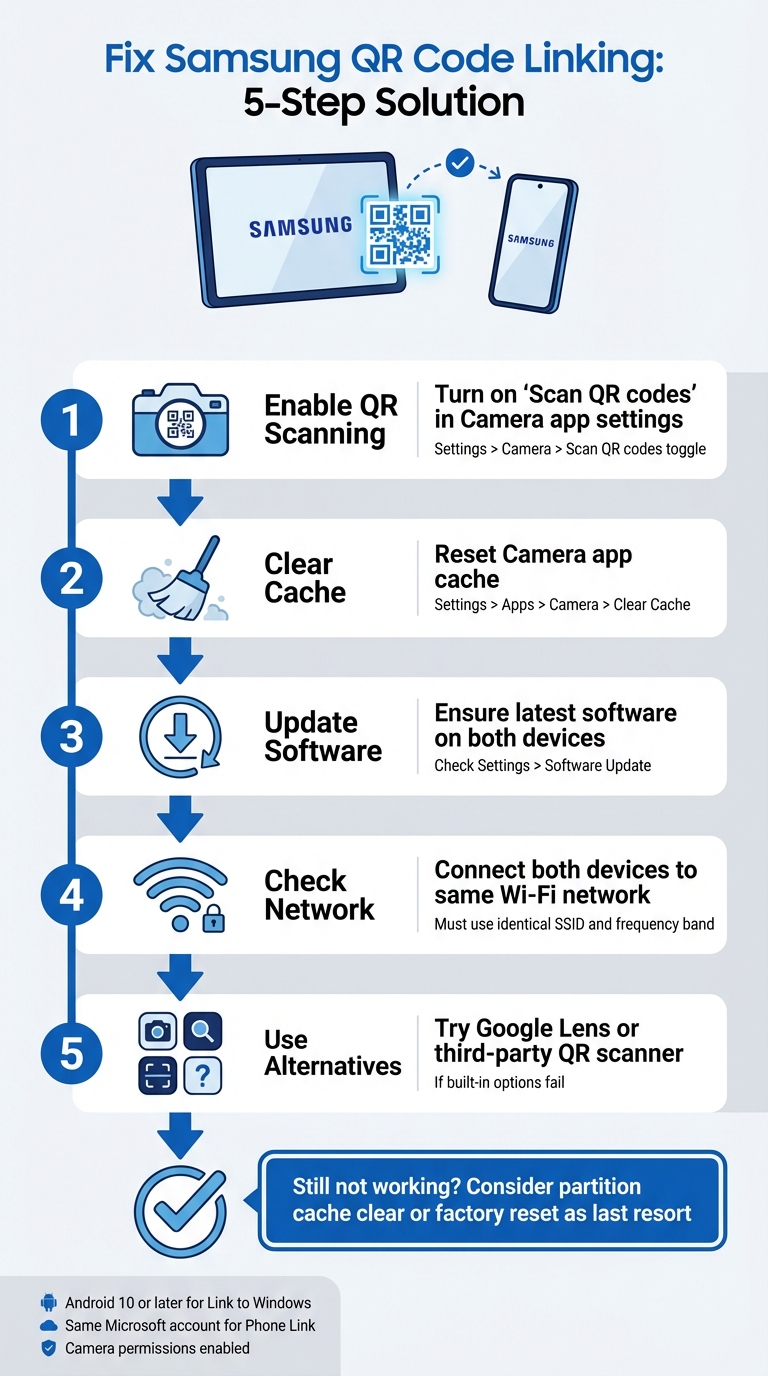
Quando il tuo Samsung tablet non riesce a connettersi al tuo telefono usando un codice QR, è tipicamente dovuto alle impostazioni della fotocamera, a problemi software o a problemi di rete. Questo problema interrompe i flussi di lavoro, costringendo gli utenti a fare affidamento su alternative meno convenienti come i codici manuali. Ecco come risolverlo:
- Abilita scansione QR: Controlla se l'opzione “Scansiona codici QR” è attivata nelle impostazioni dell'app Fotocamera.
- Svuota cache: Reimposta l'app Fotocamera svuotando la sua cache tramite Impostazioni > App > Fotocamera > Svuota cache.
- Aggiorna software: Assicurati che entrambi i dispositivi eseguano le ultime versioni del software.
- Controlla rete: Entrambi i dispositivi devono essere sulla stessa rete Wi-Fi.
- Usa alternative: Prova Google Lens o un'app scanner QR di terze parti se le opzioni integrate falliscono.
Se questi passaggi non funzionano, considera di eseguire una cancellazione della cache della partizione o, come ultima risorsa, un ripristino delle impostazioni di fabbrica. Per i codici QR sfocati o stampati male, strumenti come Pageloot possono generare codici di migliore qualità per evitare problemi di scansione.
5 Passaggi per Risolvere i Problemi di Collegamento del Codice QR Samsung tra Tablet e Telefono
Come Risolvere Samsung Codice QR del Galaxy Tab A9/ A9+ Non Funzionante per Iniziare
sbb-itb-74874c9
Come Funziona il Collegamento del Codice QR Samsung
Prima di immergerti nella risoluzione dei problemi, è utile capire come funziona il collegamento del codice QR di Samsung e cosa potrebbe causarne il fallimento.
Collegamento di Dispositivi Samsung con Codici QR
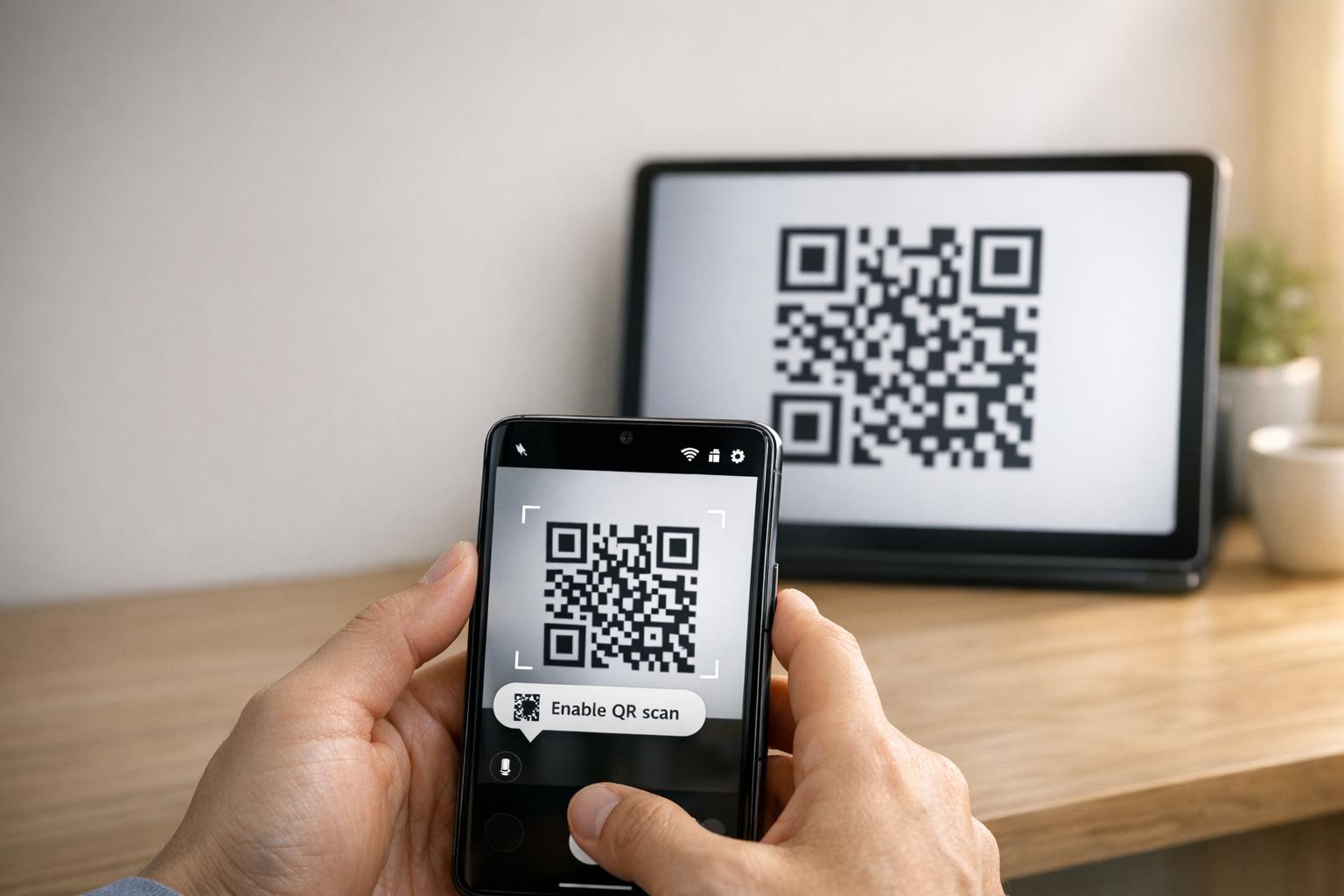
I dispositivi Samsung utilizzano la loro app Fotocamera integrata per rilevare ed elaborare automaticamente i codici QR. Ad esempio, quando si collega un tablet a un telefono (come tramite Smart Switch), la fotocamera scansiona il codice QR visualizzato su un dispositivo e decodifica i dettagli di connessione incorporati nel modello.
Per abilitare la scansione QR, assicurati che l'opzione “Scansiona codici QR” sia attiva nelle impostazioni dell'app Fotocamera. Puoi anche accedere alla scansione QR tramite un riquadro delle Impostazioni rapide. Se la fotocamera nativa ha difficoltà, alternative come Google Lens o lo scanner QR nel menu del browser Samsung Internet possono aiutare.
Affinché un codice QR funzioni correttamente, deve soddisfare standard specifici:
- Contrasto elevato: Idealmente nero su bianco per un facile rilevamento.
- Zona di silenzio: Un margine chiaro attorno al codice per evitare interferenze.
- Risoluzione sufficiente: Evita pixelature o stampe sfocate.
- Dimensione appropriata: I codici QR stampati dovrebbero essere abbastanza grandi per una scansione affidabile.
Comprendere queste basi può rendere più facile individuare il motivo per cui il collegamento del codice QR potrebbe non funzionare come previsto.
Perché il Collegamento del Codice QR Fallisce
Uno dei motivi più comuni di fallimento è che l' “impostazione ”Scansiona codici QR” è disattivata nell'app Fotocamera. Ciò può accadere dopo un aggiornamento software, che potrebbe reimpostare le preferenze dell'utente e disabilitare la scansione per impostazione predefinita.
Altri motivi includono fattori ambientali come scarsa illuminazione, riflessi o una lente della fotocamera sporca, nonché problemi tecnici come bug software o codici QR danneggiati o stampati male. Ad esempio, dopo un aggiornamento del sistema operativo, la funzionalità di scansione potrebbe essere interrotta, richiedendo una cancellazione della partizione della cache per risolvere il problema.
“Un codice QR non funzionante funge da barriera piuttosto che da ponte. Frustra gli utenti e spreca il tuo budget.” – QR Code Generator PRO
Anche il codice QR stesso può essere il colpevole. Se è danneggiato, stampato a una risoluzione inferiore a 300 DPI o privo della zona di silenzio necessaria (circa quattro moduli di larghezza), anche una fotocamera perfettamente funzionante potrebbe non riuscire a scansionarlo. Inoltre, i codici QR statici con troppi dati codificati possono risultare in modelli eccessivamente densi che i dispositivi più vecchi o i modelli economici potrebbero avere difficoltà a elaborare.
Risoluzione dei Problemi di Collegamento del Codice QR Samsung
Ora che sai perché il collegamento del codice QR potrebbe fallire, esploriamo modi pratici per risolvere i problemi di connessione tra il tuo tablet e il tuo telefono Samsung.
Controlla Compatibilità e Requisiti del Dispositivo
Prima di immergerti nelle soluzioni, assicurati che entrambi i dispositivi soddisfino i requisiti necessari. Per cominciare, il tuo tablet Samsung deve eseguire Android 10 o successiva per supportare funzionalità come Link a Windows l'accoppiamento del codice QR. Puoi verificarlo navigando su Impostazioni > Informazioni sul tablet > Informazioni software sul tuo tablet.
Inoltre, entrambi i dispositivi devono essere connessi alla stessa rete Wi-Fi (utilizzando lo stesso SSID esatto). Se stai utilizzando il Collegamento al telefono, assicurati di aver effettuato l'accesso allo stesso account Microsoft su entrambi i dispositivi.
Per i dispositivi che eseguono Android 13 o versioni successive, dovrai anche concedere le autorizzazioni di notifica in fase di esecuzione per consentire un trasferimento dati fluido tra i dispositivi collegati. Non dimenticare di ricontrollare che l'app Fotocamera abbia il permesso di scansionare i codici QR. Puoi farlo andando su Impostazioni > App > [Nome app] > Autorizzazioni e assicurandoti che l' Fotocamera accesso sia abilitato.
Una volta confermata la compatibilità, è il momento di abilitare la scansione QR.
Attiva la Scansione del Codice QR nelle Impostazioni della Fotocamera
A volte, il problema è semplice come abilitare lo scanner QR. Apri l'app Fotocamera, tocca l' icona a forma di ingranaggio Impostazioni (solitamente nell'angolo in alto a sinistra) e cerca l'opzione Scansiona codici QR Assicurati che questo interruttore sia attivato.
Se non vedi questa opzione nell'app Fotocamera, prova a usare il pannello Impostazioni rapide invece. Scorri due volte verso il basso dalla parte superiore dello schermo per espandere il pannello, quindi cerca un Scansiona il codice QR riquadro. Se non è visibile, scorri a destra in Impostazioni rapide, tocca Aggiungi (+), e includi il riquadro dello scanner QR. Questo metodo è particolarmente utile se l'app Fotocamera ha difficoltà a riconoscere i codici QR.
Per i modelli Samsung più vecchi, potrebbe essere necessario utilizzare Bixby Vision per scansionare i codici QR.
Se l'abilitazione della scansione QR non risolve il problema, il passo successivo è ripristinare l'app Fotocamera e verificare la presenza di aggiornamenti software.
Ripristina app Fotocamera e aggiorna software
Se lo scanner si blocca o non funziona correttamente, la cancellazione della cache dell'app Fotocamera può spesso risolvere il problema. Per fare ciò, vai su Impostazioni > App > Fotocamera > Forza arresto, quindi vai su Archiviazione e tocca Svuota cache. Dopo aver cancellato la cache, riavvia il dispositivo tenendo premuto il pulsante laterale e selezionando Riavvia.
“Se questo è iniziato dopo un recente aggiornamento di sicurezza o del sistema operativo, consiglio di eseguire una cancellazione della cache della partizione, utile per eliminare i bug software che a volte portano.” – Belaythatorder, Supernova, Samsung Community
Se la cancellazione della cache non aiuta, potrebbe essere necessario eseguire una cancellazione della cache della partizione. Questo può risolvere problemi software più profondi causati da aggiornamenti recenti.
Infine, verifica la presenza di aggiornamenti software in sospeso nelle impostazioni del tuo dispositivo. Sebbene gli aggiornamenti possano occasionalmente introdurre bug temporanei, spesso includono correzioni per problemi a livello di sistema con la scansione dei codici QR. Se il tuo tablet ha difficoltà a leggere i codici QR dopo un aggiornamento, prova ad aumentare la luminosità del tablet, disabilitando Modalità scura, e disattivando funzionalità come Extra scuro oppure Comfort visivo schermi per migliorare il contrasto del codice QR.
Altri modi per collegare i dispositivi
Se il ripristino delle impostazioni o l'aggiornamento del software non risolve il problema, esistono altri modi per collegare il tuo tablet e telefono Samsung. Questi metodi di backup possono aiutare quando le soluzioni tradizionali non sono sufficienti.
Usa Impostazioni rapide per la scansione QR
I dispositivi Samsung con Android 9.0 (Pie) o versioni successive con One UI 5 o più recenti includono una comoda scorciatoia per la scansione QR nel pannello Impostazioni rapide. Ecco come usarla:
- Scorri verso il basso dalla parte superiore dello schermo per accedere al menu Impostazioni rapide.
- Se “Scansiona codice QR” non è visibile, tocca l' + (Più) icona o il menu a tre punti. Individua il riquadro nella sezione dei pulsanti disponibili e trascinalo nella griglia attiva.
- Tocca il riquadro “Scansiona codice QR” per attivare lo scanner, quindi punta la fotocamera sul codice QR.
Una volta rilevato il codice, tocca il link pop-up o la notifica per accedere al contenuto. Ricorda, l'app Fotocamera deve avere la scansione QR abilitata affinché questa funzione funzioni. Se non funziona ancora, uno scanner QR di terze parti potrebbe essere da considerare.
Scarica un'app scanner QR
Quando lo scanner integrato non funziona, scaricare un'app scanner QR dal Negozio Google Play può essere un'alternativa affidabile. Cerca app con buone recensioni degli utenti per garantirne l'affidabilità. Google Lens è un'opzione popolare, spesso preinstallata sui dispositivi Samsung, che offre funzionalità avanzate di riconoscimento delle immagini. Altre app, come Lettore di codici QR, potrebbero funzionare offline ma potrebbero includere annunci o richiedere l'accesso a internet per i controlli di sicurezza.
Ripristino di fabbrica
Un ripristino di fabbrica dovrebbe essere utilizzato solo come ultima risorsa dopo che tutti gli altri metodi di risoluzione dei problemi sono stati esauriti. Prima di intraprendere questo passo, prova a cancellare la cache della partizione tramite il menu di ripristino. Questo metodo meno invasivo può spesso risolvere i problemi software senza eliminare i tuoi dati. Inoltre, testa un'app scanner QR di terze parti per escludere problemi software specifici con gli strumenti integrati di Samsung.
Se opti per un ripristino di fabbrica, esegui prima il backup di tutti i tuoi dati personali, poiché questo processo cancellerà tutto sul tuo dispositivo. Se la fotocamera stessa non funziona – ad esempio, non può scattare foto o registrare video – il problema potrebbe essere hardware. In questi casi, contattare il supporto Samsung per una diagnosi professionale è la migliore linea d'azione. Questi metodi aggiuntivi possono aiutarti a risolvere i problemi e collegare i tuoi dispositivi quando i problemi con i codici QR persistono.
Migliora le prestazioni del codice QR con Pageloot
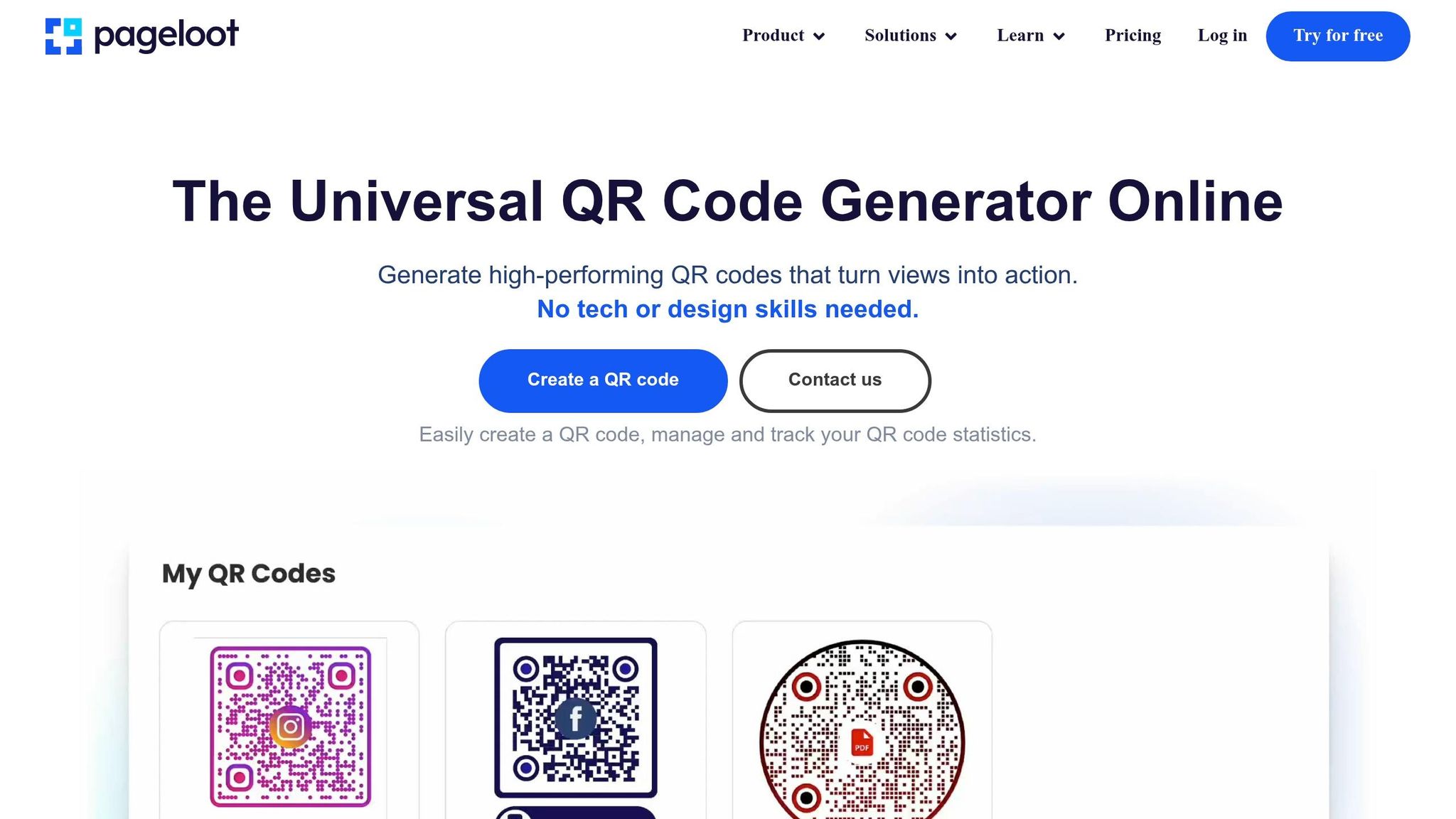
A volte, problemi persistenti con i codici QR tra il tuo tablet e telefono Samsung possono risalire alla qualità del codice QR stesso. Problemi come bassa risoluzione, scarso contrasto o schemi eccessivamente densi possono rendere difficile la scansione efficace anche per le fotocamere Samsung di fascia alta. Gli strumenti per codici QR di Pageloot affrontano questi problemi direttamente, assicurando che i tuoi codici non siano solo funzionali ma anche ottimizzati per una scansione senza interruzioni.
Funzionalità Pageloot per codici QR aziendali
Pageloot fornisce download di codici QR ad alta risoluzione nei formati PNG e SVG. Questo è cruciale per evitare la sfocatura che spesso causa errori di scansione. Con i file SVG, il formato vettoriale assicura che il codice si ridimensioni perfettamente senza perdere nitidezza, mantenendo i bordi puliti e definiti. Per migliorare ulteriormente la leggibilità, Pageloot consente la personalizzazione di colori e loghi, garantendo un contrasto elevato per scansioni più rapide e affidabili.
Un'altra caratteristica distintiva sono i codici QR dinamici di Pageloot. Questi utilizzano un URL di reindirizzamento breve per ridurre la densità dei dati, creando schemi più semplici che scansionano più velocemente – specialmente su fotocamere più vecchie o meno avanzate. Ancora meglio, puoi aggiornare l'URL di destinazione direttamente tramite la tua dashboard senza dover ristampare il codice, risparmiando tempo ed evitando errori “404 Not Found”. Queste funzionalità affrontano molte delle comuni sfide di scansione che le aziende devono affrontare.
Come Pageloot riduce gli errori dei codici QR
I codici QR dinamici di Pageloot risolvono due problemi principali: schemi eccessivamente complessi e manutenzione dei link. URL lunghi nei codici statici possono creare design densi che alcuni scanner non riescono a gestire. Semplificando lo schema, Pageloot rende la scansione più veloce e affidabile. Se un link è rotto o contiene un errore, puoi correggerlo istantaneamente – senza bisogno di ristampare o riconfigurare i dispositivi.
Per materiali stampati come biglietti da visita o volantini, scaricare i codici in formato SVG o EPS garantisce risultati nitidi e professionali. Per migliorare ulteriormente le prestazioni di scansione, mantieni una zona di silenzio – circa quattro moduli di spazio vuoto – attorno al codice QR. Testa sempre il codice su entrambi i tuoi dispositivi per assicurarti la compatibilità prima di stampare. Queste ottimizzazioni rendono Pageloot una scelta eccellente per le aziende che si affidano a prestazioni affidabili dei codici QR.
Conclusione
Connettere il tuo tablet e telefono Samsung usando i codici QR non deve essere un problema. La maggior parte dei problemi deriva da piccole difficoltà di configurazione, come le impostazioni della fotocamera che necessitano di regolazione, dispositivi che operano su diverse bande Wi-Fi o impostazioni della batteria che interrompono i processi in background. Come suggerisce Robin621k, un Contributore Onorario:
“Vai nelle impostazioni dell'app fotocamera e attiva la scansione dei codici QR”.
Una volta modificate le impostazioni del tuo dispositivo, è essenziale assicurarsi che l'ambiente di rete sia stabile. Una connessione di rete consistente fa la differenza. Entrambi i dispositivi devono essere connessi alla stessa rete Wi-Fi e banda di frequenza (2.4GHz o 5GHz). Il Supporto Microsoft sottolinea:
“La funzionalità Schermo telefono funziona solo quando il tuo dispositivo Android e il tuo PC possono comunicare tra loro. Entrambi dovranno essere accesi e connessi alla stessa rete Wi-Fi”.
Se tutto è a posto ma il problema persiste, considera le migliori pratiche di leggibilità dei codici QR. Immagini sfocate, basso contrasto o schemi eccessivamente complessi possono rendere difficile la scansione, anche per fotocamere avanzate. Strumenti come quelli di Pageloot Generatore di QR code dinamici risolvono questi problemi creando codici ad alta risoluzione e facili da scansionare. Per le aziende che utilizzano codici QR su Biglietti da visita, Volantini, oppure etichette dei prodotti, l'ottimizzazione per la scansione mobile è fondamentale. Come sottolinea Patrick Augstein:
“Un codice QR non funzionante funge da barriera piuttosto che da ponte. Frustra gli utenti e spreca il tuo budget”.
Sia che tu stia risolvendo problemi di connessione di dispositivi personali o gestendo codici QR per un' agenzia di marketing oppure attività di e-commerce, questi semplici passaggi possono aiutarti a risolvere i problemi in modo efficace. Mettendo a punto le tue impostazioni, garantendo la coerenza della rete e utilizzando codici QR ben progettati, otterrai connessioni senza interruzioni e senza frustrazioni inutili.
Per ulteriore aiuto con problemi comuni di dispositivi e software, queste guide alla risoluzione dei problemi tecnologici forniscono soluzioni chiare e pratiche.
Domande frequenti
Perché il mio tablet Samsung non riesce a rilevare affatto il codice QR?
Il tuo tablet Samsung potrebbe avere difficoltà a rilevare un codice QR per alcune ragioni comuni, come problemi di compatibilità, tecnica di scansione o problemi di connettività. Per migliorare il rilevamento, assicurati che l'obiettivo della fotocamera sia pulito, tieni fermo il dispositivo e controlla che il codice QR sia ben illuminato e privo di danni. Se la fotocamera fatica a mettere a fuoco o il codice QR è stampato male, potrebbe non scansionare. Un'illuminazione e un posizionamento adeguati possono fare una grande differenza.
Il mio tablet e il mio telefono devono essere sulla stessa rete Wi-Fi per collegarsi?
Il tuo tablet e il tuo telefono non devono necessariamente essere sulla stessa rete Wi-Fi per connettersi usando un codice QR. Detto questo, avere entrambi i dispositivi sulla stessa rete può aiutare le cose a funzionare più agevolmente e ridurre potenziali intoppi di connettività. Se hai problemi a collegarli, il problema potrebbe derivare dalle impostazioni del dispositivo o da altri problemi relativi alla rete che richiedono un po' di risoluzione dei problemi.
Cosa dovrei provare se il codice QR è sfocato o non si scansiona?
Se il codice QR appare sfocato o non si scansiona, dai un'occhiata più da vicino per assicurarti che sia chiaro, intatto e stampato in una dimensione adeguata – almeno 2 cm x 2 cm per materiali più piccoli. Assicurati di essere in un'area ben illuminata, tieni fermo il tuo dispositivo e tienilo a circa 6-12 pollici di distanza dal codice. Inoltre, controlla che la fotocamera del tuo dispositivo possa mettere a fuoco correttamente il modello del codice QR per assicurarti che si scansiona correttamente.
Articoli del blog correlati