Wanneer uw Samsung tablet geen verbinding kan maken met uw telefoon met behulp van een QR-code, is dit meestal te wijten aan camera-instellingen, softwarefouten of netwerkproblemen. Dit probleem verstoort workflows, waardoor gebruikers moeten vertrouwen op minder handige alternatieven zoals handmatige codes. Zo lost u het op:
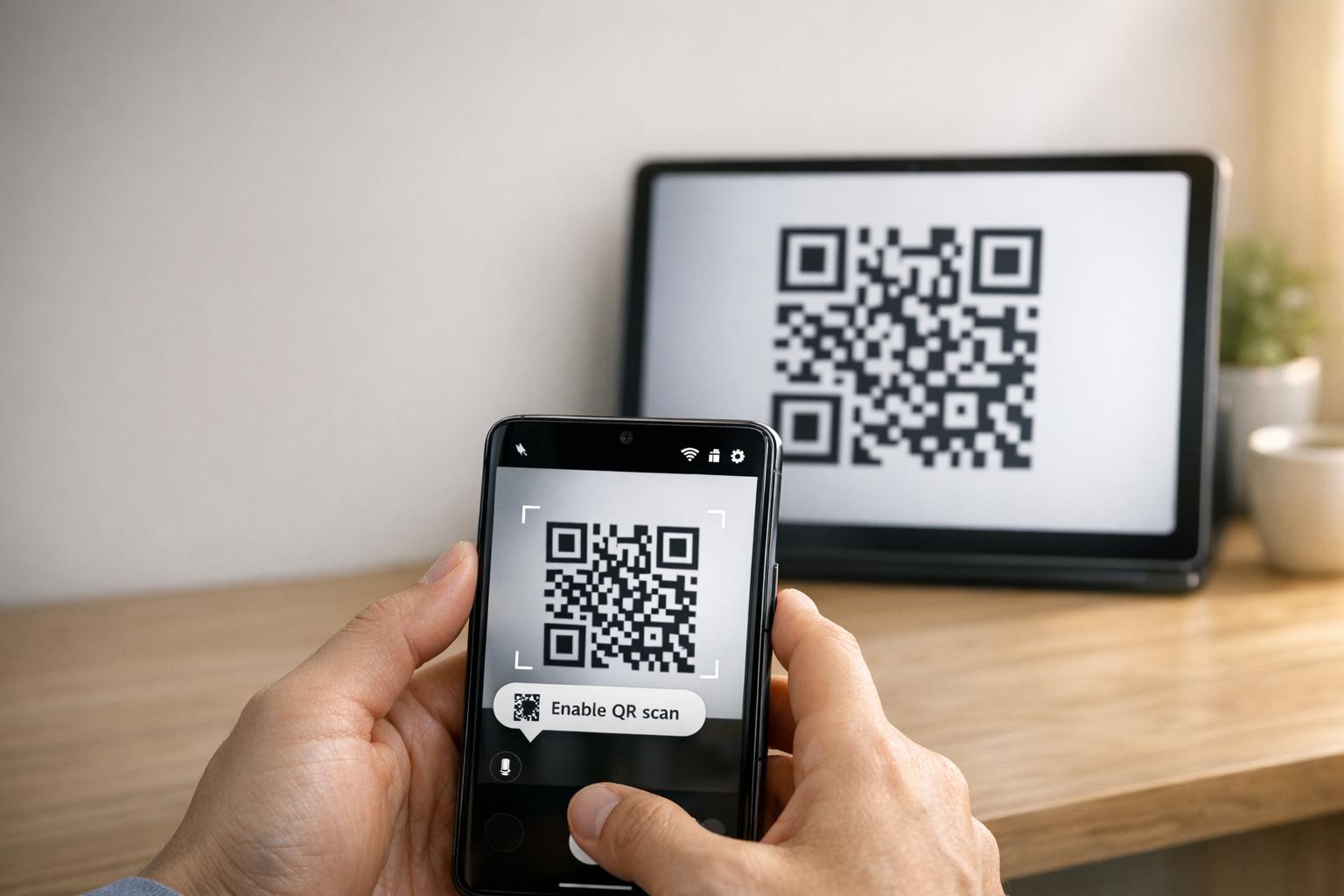
- QR-scanning inschakelen: Controleer of de optie “QR-codes scannen” is ingeschakeld in de instellingen van de Camera-app.
- Cache wissen: Reset de Camera-app door de cache te wissen via Instellingen > Apps > Camera > Cache wissen.
- Software bijwerken: Zorg ervoor dat beide apparaten de nieuwste softwareversies gebruiken.
- Netwerk controleren: Beide apparaten moeten op hetzelfde Wi-Fi-netwerk zijn.
- Alternatieven gebruiken: Probeer Google Lens of een QR-scanner-app van derden als ingebouwde opties mislukken.
Als deze stappen niet werken, overweeg dan om de cachepartitie te wissen of, als laatste redmiddel, een fabrieksreset uit te voeren. Voor QR-codes die wazig of slecht afgedrukt zijn, kunnen tools zoals Pageloot betere codes genereren om scanproblemen te voorkomen.
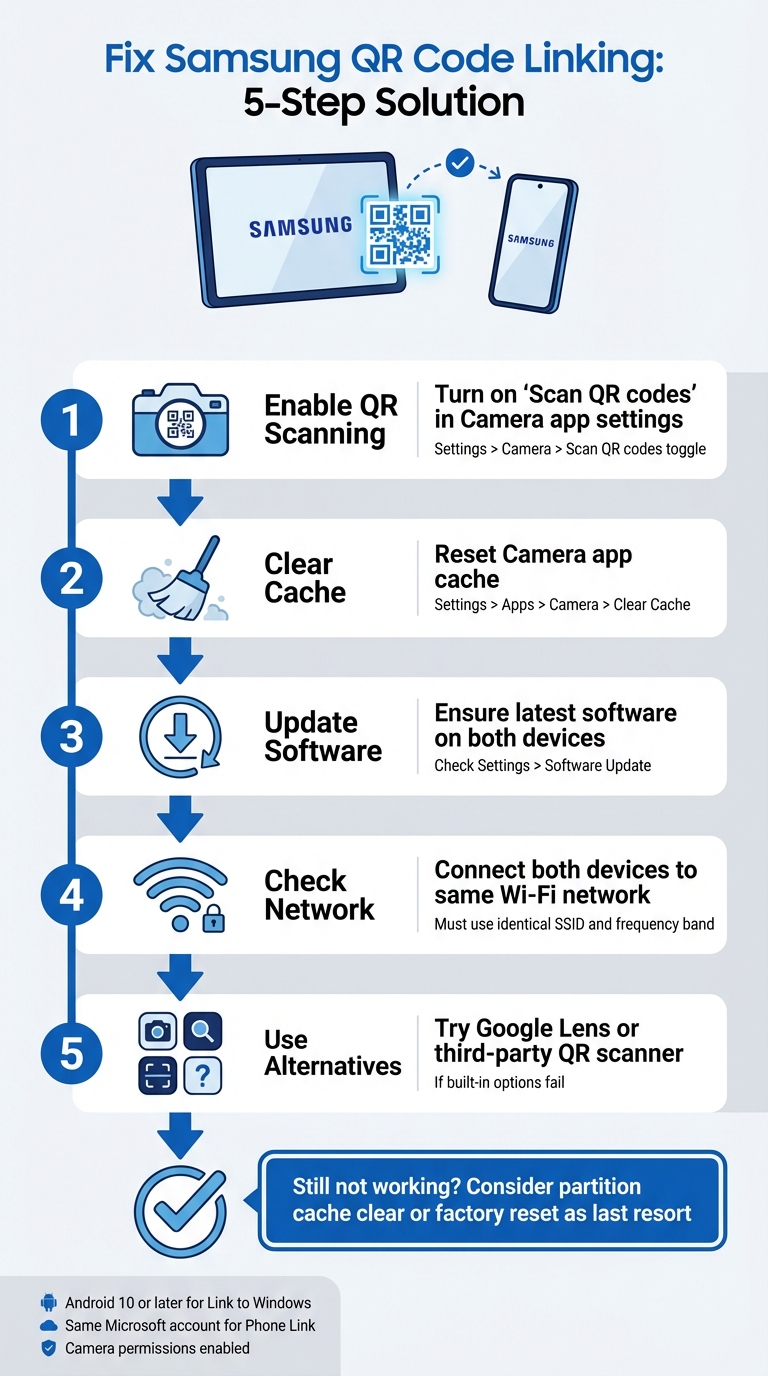
5 stappen om Samsung QR-code koppelingsproblemen tussen tablet en telefoon op te lossen
Hoe op te lossen Samsung Galaxy Tab A9/ A9+ QR-code werkt niet om te starten
sbb-itb-74874c9
Hoe Samsung QR-code koppeling werkt
Voordat u zich verdiept in het oplossen van problemen, is het nuttig om te begrijpen hoe de QR-code koppeling van Samsung werkt en wat de oorzaak kan zijn van het mislukken ervan.
Samsung apparaatkoppeling met QR-codes
Samsung-apparaten gebruiken hun ingebouwde Camera-app om QR-codes automatisch te detecteren en te verwerken. Bijvoorbeeld, bij het koppelen van een tablet aan een telefoon (zoals via Smart Switch), scant de camera de QR-code die op één apparaat wordt weergegeven en decodeert de verbindingsdetails die in het patroon zijn ingebed.
Om QR-scanning in te schakelen, zorgt u ervoor dat de optie “QR-codes scannen” actief is in de instellingen van de Camera-app. U kunt ook toegang krijgen tot QR-scanning via een tegel in de Snelle instellingen. Als de native camera moeite heeft, kunnen alternatieven zoals Google Lens of de QR-scanner in het Samsung Internet-browsermenu helpen.
Om een QR-code goed te laten werken, moet deze aan specifieke normen voldoen:
- Hoog contrast: Idealiter zwart op wit voor gemakkelijke detectie.
- Stille zone: Een duidelijke marge rond de code om interferentie te voorkomen.
- Voldoende resolutie: Vermijd pixelatie of wazige afdrukken.
- Geschikte grootte: Afgedrukte QR-codes moeten groot genoeg zijn voor betrouwbaar scannen.
Het begrijpen van deze basisprincipes kan het gemakkelijker maken om te achterhalen waarom de QR-code koppeling mogelijk niet werkt zoals verwacht.
Waarom QR-code koppeling mislukt
Een van de meest voorkomende redenen voor mislukking is dat de “instelling ”QR-codes scannen” is uitgeschakeld in de Camera-app. Dit kan gebeuren na een software-update, die gebruikersvoorkeuren kan resetten en scannen standaard kan uitschakelen.
Andere redenen zijn omgevingsfactoren zoals slechte verlichting, verblinding of een vuile cameralens, evenals technische problemen zoals softwarefouten of QR-codes die beschadigd of slecht afgedrukt zijn. Bijvoorbeeld, na een update van het besturingssysteem kan de scanfunctionaliteit worden verstoord, wat een cachepartitie wissen vereist om het probleem op te lossen.
“Een niet-functionele QR-code dient eerder als een barrière dan als een brug. Het frustreert gebruikers en verspilt uw budget.” – QR Code Generator PRO
De QR-code zelf kan ook de boosdoener zijn. Als deze beschadigd is, afgedrukt is met een resolutie onder 300 DPI, of de benodigde stille zone mist (ongeveer vier modules breed), kan zelfs een perfect werkende camera deze mogelijk niet scannen. Bovendien kunnen statische QR-codes met te veel gecodeerde gegevens resulteren in te dichte patronen die oudere apparaten of budgetmodellen mogelijk moeite hebben om te verwerken.
Samsung QR-code koppelingsproblemen oplossen
Nu u weet waarom de QR-code koppeling mogelijk mislukt, laten we praktische manieren verkennen om verbindingsproblemen tussen uw Samsung-tablet en telefoon op te lossen.
Controleer apparaatcompatibiliteit en vereisten
Voordat u zich verdiept in oplossingen, moet u ervoor zorgen dat beide apparaten voldoen aan de noodzakelijke vereisten. Om te beginnen moet uw Samsung-tablet draaien op Android 10 of hoger om functies zoals Link naar Windows QR-code koppeling te ondersteunen. U kunt dit controleren door te navigeren naar Instellingen > Over tablet > Software-informatie op uw tablet.
Bovendien moeten beide apparaten verbonden zijn met hetzelfde Wi-Fi-netwerk (met behulp van exact dezelfde SSID). Als u Microsoft’s Telefoonkoppeling, zorg ervoor dat u bent aangemeld bij hetzelfde Microsoft-account op beide apparaten.
Voor apparaten met Android 13 of nieuwer, moet u ook runtime-meldingsrechten verlenen om een soepele gegevensoverdracht tussen gekoppelde apparaten mogelijk te maken. Vergeet niet dubbel te controleren of de Camera-app toestemming heeft om QR-codes te scannen. U kunt dit doen door naar Instellingen > Apps > [App-naam] > Machtigingen en ervoor te zorgen dat Camera toegang is ingeschakeld.
Zodra u de compatibiliteit hebt bevestigd, is het tijd om QR-scanning in te schakelen.
QR-code scanning inschakelen in camera-instellingen
Soms is het probleem zo simpel als het inschakelen van de QR-scanner. Open de Camera-app, tik op de Instellingen tandwielpictogram (meestal in de linkerbovenhoek), en zoek naar de QR-codes scannen optie. Zorg ervoor dat deze schakelaar is ingeschakeld.
Als je deze optie niet ziet in de Camera-app, probeer dan de Paneel Snelle instellingen in plaats daarvan. Veeg twee keer omlaag vanaf de bovenkant van je scherm om het paneel uit te vouwen en zoek vervolgens naar een Scan QR-code tegel. Als deze niet zichtbaar is, veeg dan naar rechts in Snelle instellingen, tik op Toevoegen (+), en voeg de QR-scannertegel toe. Deze methode is vooral handig als de Camera-app moeite heeft met het herkennen van QR-codes.
Voor oudere Samsung-modellen moet je mogelijk Bixby Vision gebruiken om QR-codes te scannen.
Als het inschakelen van QR-scanning het probleem niet oplost, is de volgende stap het resetten van de Camera-app en controleren op software-updates.
Camera-app resetten en software bijwerken
Als de scanner vastloopt of niet goed werkt, kan het wissen van de cache van de Camera-app het probleem vaak oplossen. Ga hiervoor naar Instellingen > Apps > Camera > Geforceerd stoppen, navigeer vervolgens naar Opslag en tik op Cache wissen. Nadat je de cache hebt gewist, start je je apparaat opnieuw op door de zijknop ingedrukt te houden en Opnieuw opstarten te selecteren.
“Als dit begon na een recente beveiligings- of OS-update, raad ik aan een partitiecache te wissen, wat goed is voor het verwijderen van de softwarefouten die ze soms met zich meebrengen.” – Belaythatorder, Supernova, Samsung Community
Als het wissen van de cache niet helpt, moet je mogelijk een partitiecache wissen. uitvoeren. Dit kan diepere softwarefouten aanpakken die zijn veroorzaakt door recente updates.
Controleer ten slotte op openstaande software-updates in de instellingen van je apparaat. Hoewel updates af en toe tijdelijke bugs kunnen introduceren, bevatten ze vaak oplossingen voor systeemproblemen met QR-codescanning. Als je tablet moeite heeft met het lezen van QR-codes na een update, probeer dan de helderheid van de tablet te verhogen, Donkere modus, uit te schakelen en functies zoals Extra dim of Oogcomfort -schermen uit te schakelen om het contrast van de QR-code te verbeteren.
Andere manieren om apparaten te koppelen
Als het resetten van instellingen of het bijwerken van software het probleem niet oplost, zijn er aanvullende manieren om je Samsung-tablet en -telefoon te koppelen. Deze back-upmethoden kunnen helpen wanneer traditionele oplossingen tekortschieten.
Snelle instellingen gebruiken voor QR-scanning
Samsung-apparaten met Android 9.0 (Pie) of hoger met One UI 5 of nieuwer bevatten een handige snelkoppeling voor QR-scanning in het paneel Snelle instellingen. Zo gebruik je het:
- Veeg omlaag vanaf de bovenkant van je scherm om het menu Snelle instellingen te openen.
- Als “QR-code scannen” niet zichtbaar is, tik dan op het + (Plus) -pictogram of het menu met drie stippen. Zoek de tegel in het gedeelte met beschikbare knoppen en sleep deze naar het actieve raster.
- Tik op de tegel “QR-code scannen” om de scanner te activeren en richt vervolgens je camera op de QR-code.
Zodra de code is gedetecteerd, tik je op de pop-uplink of melding om de inhoud te openen. Onthoud dat de Camera-app QR-scanning ingeschakeld moet hebben om deze functie te laten werken. Als het nog steeds niet werkt, is een QR-scanner van derden wellicht het overwegen waard.
Een QR-scanner-app downloaden
Als de ingebouwde scanner niet werkt, kan het downloaden van een QR-scanner-app uit de Google Play-winkel een betrouwbaar alternatief zijn. Zoek naar apps met goede gebruikersrecensies om de betrouwbaarheid te garanderen. Google Lens is een populaire optie, vaak vooraf geïnstalleerd op Samsung-apparaten, die geavanceerde beeldherkenningsfuncties biedt. Andere apps, zoals QR-code lezer, werken mogelijk offline, maar kunnen advertenties bevatten of internettoegang vereisen voor beveiligingscontroles.
Fabrieksreset
Een fabrieksreset mag alleen als laatste redmiddel worden gebruikt nadat alle andere probleemoplossingsmethoden zijn uitgeput. Voordat je deze stap neemt, probeer je de partitiecache te wissen via het herstelmenu. Deze minder ingrijpende methode kan vaak softwarefouten oplossen zonder je gegevens te verwijderen. Test bovendien een QR-scanner-app van derden om software-specifieke problemen met de ingebouwde tools van Samsung uit te sluiten.
Als je kiest voor een fabrieksreset, maak dan eerst een back-up van al je persoonlijke gegevens, aangezien dit proces alles op je apparaat zal wissen. Als de camera zelf niet werkt – bijvoorbeeld, hij kan geen foto's maken of video's opnemen – dan is het probleem mogelijk hardware-gerelateerd. In dergelijke gevallen is contact opnemen met Samsung-ondersteuning voor een professionele diagnose de beste handelswijze. Deze aanvullende methoden kunnen je helpen bij het oplossen van problemen en het koppelen van je apparaten wanneer QR-codeproblemen aanhouden.
QR-codeprestaties verbeteren met Pageloot
Soms zijn aanhoudende QR-code problemen tussen uw Samsung tablet en telefoon terug te voeren op de kwaliteit van de QR-code zelf. Problemen zoals een lage resolutie, slecht contrast of te dichte patronen kunnen zelfs top-tier Samsung camera's moeite geven om effectief te scannen. De QR-codetools van Pageloot pakken deze problemen direct aan, zodat uw codes niet alleen functioneel zijn, maar ook geoptimaliseerd voor naadloos scannen.
Pageloot Functies voor Zakelijke QR-codes
Pageloot biedt QR-codedownloads met hoge resolutie in zowel PNG- als SVG-formaat. Dit is cruciaal voor het vermijden van de onscherpte die vaak scanfouten veroorzaakt. Met SVG-bestanden zorgt het vectorformaat ervoor dat de code perfect schaalt zonder scherpte te verliezen, waardoor de randen schoon en helder blijven. Om verder de leesbaarheid te verbeteren, maakt Pageloot aanpassing van kleuren en logo's mogelijk, wat zorgt voor een hoog contrast voor snellere, betrouwbaardere scans.
Een andere opvallende functie zijn de dynamische QR-codes van Pageloot. Deze gebruiken een korte omleidings-URL om de gegevensdichtheid te verminderen, waardoor eenvoudigere patronen ontstaan die sneller scannen – vooral op oudere of minder geavanceerde camera's. Nog beter, u kunt de doel-URL direct via uw dashboard bijwerken zonder de code opnieuw te hoeven afdrukken, wat tijd bespaart en “404 Not Found”-fouten voorkomt. Deze functies pakken veel van de veelvoorkomende scanuitdagingen aan waarmee bedrijven te maken krijgen.
Hoe Pageloot QR-codefouten vermindert
De dynamische QR-codes van Pageloot lossen twee grote problemen op: te complexe patronen en linkonderhoud. Lange URL's in statische codes kunnen dichte ontwerpen creëren die sommige scanners niet aankunnen. Door het patroon te vereenvoudigen, maakt Pageloot het scannen sneller en betrouwbaarder. Als een link kapot is of een fout bevat, kunt u deze direct herstellen – u hoeft niet opnieuw af te drukken of apparaten opnieuw te configureren.
Voor gedrukt materiaal zoals visitekaartjes of flyers zorgt het downloaden van codes in SVG- of EPS-formaat voor scherpe, professionele resultaten. Om de scanprestaties verder te verbeteren, handhaaft u een stille zone – ongeveer vier modules blanco ruimte – rond de QR-code. Test de code altijd op beide apparaten om compatibiliteit te garanderen voordat u afdrukt. Deze optimalisaties maken Pageloot een uitstekende keuze voor bedrijven die afhankelijk zijn van betrouwbare QR-codeprestaties.
Conclusie
Het verbinden van uw Samsung tablet en telefoon met behulp van QR-codes hoeft geen gedoe te zijn. De meeste problemen komen voort uit kleine configuratieproblemen, zoals camera-instellingen die moeten worden aangepast, apparaten die op verschillende Wi-Fi-banden werken, of batterij-instellingen die achtergrondprocessen onderbreken. Zoals Robin621k, een Honored Contributor, suggereert:
“Ga naar de instellingen in de camera-app en schakel ”QR-codes scannen' in”.
Zodra u de instellingen van uw apparaat hebt aangepast, is het essentieel om ervoor te zorgen dat de netwerkomgeving stabiel is. Een consistente netwerkverbinding maakt het verschil. Beide apparaten moeten zijn verbonden met hetzelfde Wi-Fi-netwerk en dezelfde frequentieband (2.4GHz of 5GHz). Microsoft Support benadrukt:
“De functie Telefoonscherm werkt alleen wanneer uw Android-apparaat en uw pc met elkaar kunnen communiceren. Ze moeten beide zijn ingeschakeld en verbonden zijn met hetzelfde Wi-Fi-netwerk”.
Als alles klopt, maar het probleem aanhoudt, overweeg best practices voor de leesbaarheid van QR-codes. Wazige afbeeldingen, laag contrast of te complexe patronen kunnen het scannen bemoeilijken, zelfs voor geavanceerde camera's. Tools zoals die van Pageloot Dynamische QR code generator lossen deze problemen op door hoge-resolutie, gemakkelijk te scannen codes te creëren. Voor bedrijven die QR-codes gebruiken op Visitekaartjes, Flyersof productlabels, optimaliseren voor mobiel scannen is essentieel. Zoals Patrick Augstein opmerkt:
“Een niet-functionele QR-code dient eerder als een barrière dan als een brug. Het frustreert gebruikers en verspilt uw budget”.
Of u nu persoonlijke apparaatverbindingen oplost of QR-codes beheert voor een marketingbureau of e-commercebedrijf, deze eenvoudige stappen kunnen u helpen problemen effectief op te lossen. Door uw instellingen te verfijnen, netwerkconsistentie te garanderen en goed ontworpen QR-codes te gebruiken, bereikt u naadloze verbindingen zonder onnodige frustratie.
Voor aanvullende hulp bij veelvoorkomende apparaat- en softwareproblemen bieden deze handleidingen voor het oplossen van technische problemen duidelijke, praktische oplossingen.
Veelgestelde vragen
Waarom kan mijn Samsung tablet de QR-code helemaal niet detecteren?
Uw Samsung tablet kan moeite hebben met het detecteren van een QR-code om een paar veelvoorkomende redenen, zoals compatibiliteitsproblemen, scantechniek of connectiviteitsstoringen. Om de detectie te verbeteren, moet u ervoor zorgen dat de cameralens schoon is, het apparaat stabiel houden en controleren of de QR-code goed verlicht en onbeschadigd is. Als de camera moeite heeft met scherpstellen of de QR-code slecht is afgedrukt, scant deze mogelijk niet. Goede verlichting en positionering kunnen een groot verschil maken.
Moeten mijn tablet en telefoon op dezelfde Wi‑Fi zijn om te koppelen?
Je tablet en telefoon hoeven niet per se op hetzelfde Wi-Fi-netwerk te zijn om verbinding te maken met een QR-code. Dat gezegd hebbende, kunnen beide apparaten op hetzelfde netwerk helpen om dingen soepeler te laten verlopen en mogelijke verbindingsproblemen te verminderen. Als je problemen hebt met het koppelen ervan, kan het probleem voortkomen uit apparaatinstellingen of andere netwerkgerelateerde problemen die wat probleemoplossing vereisen.
Wat moet ik proberen als de QR-code wazig is of niet scant?
Als de QR-code wazig lijkt of niet scant, kijk dan goed of deze duidelijk is, onbeschadigd en op een adequate grootte is afgedrukt – minimaal 2 cm x 2 cm voor kleinere materialen. Zorg ervoor dat je in een goed verlichte ruimte bent, houd je apparaat stabiel, en houd het ongeveer 6-12 inch van de code. Controleer ook of de camera van je apparaat goed kan scherpstellen op het QR-codepatroon om ervoor te zorgen dat het correct scant.
Gerelateerde blogposts