Hai bisogno di aiutare i clienti a trovare la tua posizione senza far loro digitare un indirizzo? L'inserimento manuale dell'indirizzo crea attrito e visitatori frustrati. Questa guida ti illustra come trasformare qualsiasi posizione di Google Maps in un codice QR scansionabile in pochi minuti.
Ottenere il link della tua posizione su Google Maps
Prima di generare qualsiasi cosa, hai bisogno del link corretto da Google Maps. Il link che copi determina esattamente dove gli utenti atterrano quando scansionano, quindi la precisione qui è importante.
Trova e fissa la tua posizione
Apri Google Maps e cerca la tua destinazione. Puoi inserire un nome di attività come “Starbucks Times Square”, un indirizzo stradale completo o un punto di riferimento riconoscibile. Se la posizione non ha un indirizzo formale – un luogo all'aperto, un ingresso di un parco, un parcheggio – tieni premuto sul cellulare (o clicca sul desktop) per posizionare un segnaposto nel punto esatto.
Una volta fissato, ingrandisci e conferma che il segnaposto si trovi nel punto giusto. Se stai indirizzando le persone a un ingresso specifico piuttosto che all'ingombro generale dell'edificio, regola di conseguenza. Questo passaggio extra previene la confusione quando arrivano i visitatori.
Copia il link della posizione
Con la tua posizione confermata, tocca o clicca il Condividi pulsante:
- Su mobile: Tocca il nome della posizione nella parte inferiore dello schermo, quindi tocca l'icona Condividi (freccia verso l'alto) e seleziona “Copia negli appunti”.”
- Su desktop: Clicca su Condividi nel pannello informazioni o sotto il menu a tre puntini, quindi seleziona “Copia link”.”
L'URL copiato è tipicamente un link abbreviato come `maps.app.goo.gl/xyz123`. I link più brevi producono codici QR più puliti e meno densi che scansionano in modo più affidabile. Prima di procedere, incolla il link in un browser per confermare che apra la posizione corretta.
Diversi tipi di link servono a scopi diversi:
| Tipo di link | Cosa fa | Esempio di caso d'uso |
|---|---|---|
| Link al luogo | Apre un'attività commerciale o un indirizzo specifico | Condivisione di una vetrina o di un ufficio |
| Link di ricerca | Visualizza i risultati per una query di ricerca | Mostra “ristoranti vicino alla sede” |
| Link alle indicazioni stradali | Apre un percorso di navigazione preimpostato | Instradare gli ospiti da un aeroporto a un hotel |
Per Codici QR utilizzati per indicazioni stradali e condivisione dell'indirizzo, un Link al luogo o un Link alle indicazioni stradali di solito funziona meglio – saltano il passaggio della ricerca e portano l'utente direttamente alla navigazione.
Generazione del tuo codice QR
Con il tuo link pronto, visita il Generatore di QR code Google Maps e incolla il tuo URL nel campo di input. Seleziona il tipo di codice QR – “Link” o “Mappe” – e il codice si genera istantaneamente.
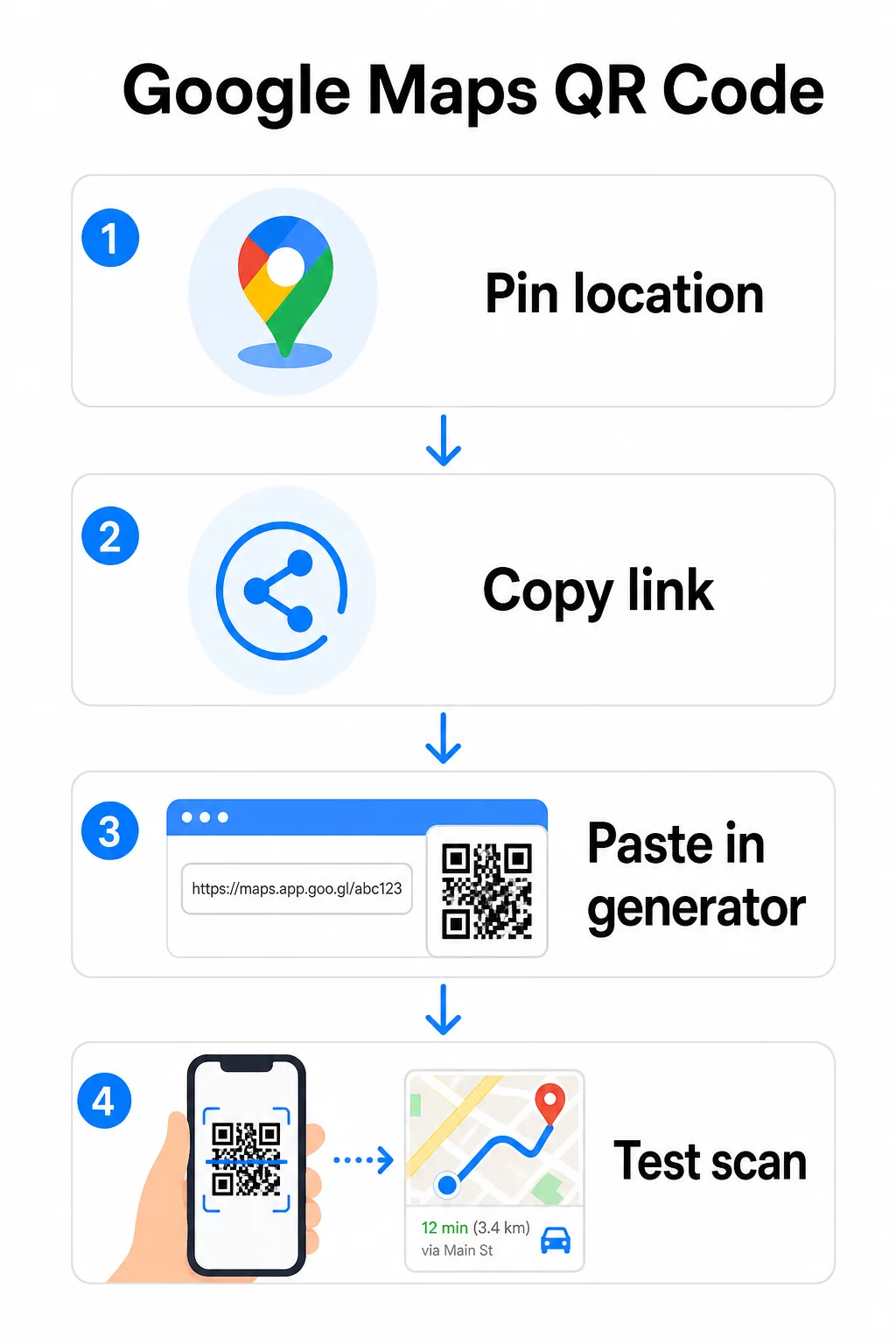
Per una posizione permanente senza necessità di cambiare la destinazione, un codice QR statico è gratuito e non scade mai. Scaricalo come PNG e sei pronto per usarlo.
Hai bisogno di aggiornare la tua posizione o tracciare i dati di scansione? Utilizzare il Generatore di codici QR di Pageloot per creare un codice dinamico che ti permette di cambiare la destinazione in qualsiasi momento dalla tua dashboard – nessuna ristampa richiesta.
Statico vs. Dinamico: Di quale hai bisogno?
Un codice QR statico codifica il link di Google Maps direttamente nel modello. È permanente, gratuito e funziona senza alcun account. Lo svantaggio: se la tua posizione cambia, devi generare e ristampare un nuovo codice.
Un codice QR dinamico memorizza invece un URL di reindirizzamento breve. Controlli dove punta quel reindirizzamento dalla tua dashboard Pageloot. Questo significa:
- Puoi aggiornare la destinazione senza toccare il codice stampato
- Ottieni analisi in tempo reale – conteggi delle scansioni, tipi di dispositivo, posizioni geografiche e tempistiche
- Puoi testare e scambiare i link di destinazione per eventi stagionali o luoghi temporanei
Se stai stampando codici su segnaletica permanente, lo statico funziona bene. Per campagne, eventi, posizioni pop-up o qualsiasi situazione in cui la destinazione potrebbe cambiare, i codici dinamici sono la scelta pratica.
Personalizzare il tuo codice QR
Un semplice codice QR in bianco e nero funziona, ma uno brandizzato funziona meglio. Le opzioni di personalizzazione di Pageloot ti permettono di:
- Aggiungere il logo della tua azienda al centro del codice
- Cambiare i colori per abbinarli alla palette del tuo brand (mantieni motivi scuri su uno sfondo chiaro per una scansione affidabile)
- Scegliere tra diverse forme di modulo: Rotondo, Trattino o Diamante
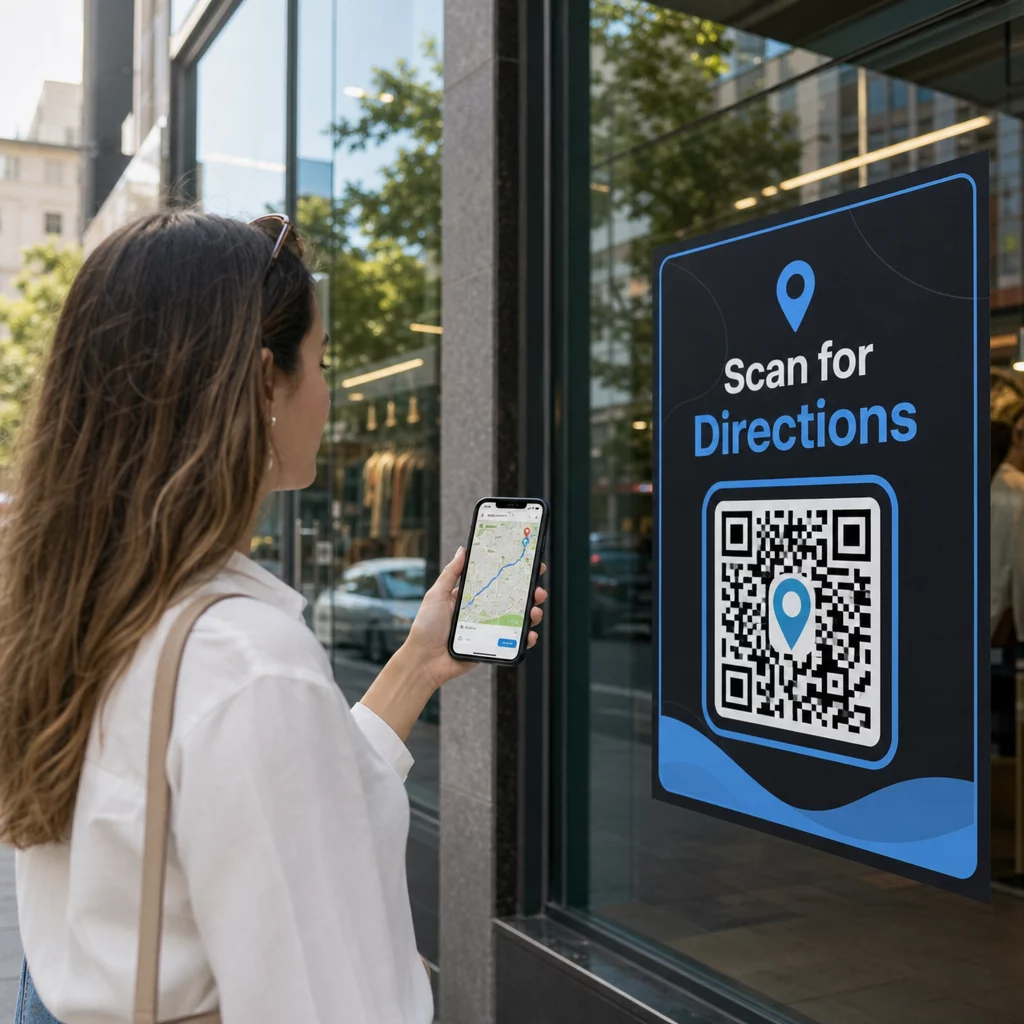
- Aggiungere una cornice Call-to-Action con testo come “Scansiona per le indicazioni” o “Trovaci su Mappe”
Quando si aggiunge un logo o dei colori, utilizzare livello di correzione degli errori Q o H. Queste impostazioni consentono al codice QR di rimanere scansionabile anche se fino al 25-30% del modello è oscurato da un logo o da danni minori. Mantenere i loghi non oltre il 30% dell'area totale del codice e assicurarsi che non si sovrappongano ai tre quadrati “di ricerca” negli angoli.
Per i materiali di stampa, scaricare il codice come file SVG, PDF o EPS. Questi formati vettoriali rimangono nitidi a qualsiasi dimensione – fondamentale per la stampa di grande formato come poster o insegne per vetrine.
Vuoi un codice di posizione completamente personalizzato? Il sito Generatore di codici QR per link supporta colori personalizzati, loghi e stili di cornice con una prova gratuita di 14 giorni – nessuna carta di credito richiesta.
Test prima della pubblicazione
Testare sempre il codice QR prima di stamparlo o di lanciarlo in una campagna live. Un codice rotto o mal indirizzato danneggia la fiducia e spreca i costi di stampa.
Seguire questa checklist:
- Scansionare con l'app fotocamera nativa del telefono sia su iOS che su Android
- Confermare che il link apra la posizione corretta in Google Maps
- Testare su un dispositivo senza l'app Google Maps installata – dovrebbe reindirizzare a Google Maps nel browser
- Scansionare da più distanze e in diverse condizioni di illuminazione
- Se hai personalizzato il design, conferma che i quadrati di ricerca negli angoli e la zona di silenzio (il bordo bianco attorno al codice) siano liberi da ostruzioni
Per l'uso in stampa, una dimensione minima di 2 × 2 pollici (circa 5 × 5 cm) assicura che la maggior parte dei dispositivi possa scansionare in modo affidabile a distanza ravvicinata. Per i materiali visualizzati da lontano – poster, striscioni, vetrine – ingrandire proporzionalmente. Una linea guida generale: il codice dovrebbe essere almeno un decimo della distanza da cui le persone lo scannerizzeranno.
Problemi comuni e soluzioni:
| Problema di scansione | Soluzione |
|---|---|
| Codice sfocato o pixelato | Esporta come SVG, PDF o EPS per la stampa |
| Lo scanner non riconosce il codice | Aumentare il contrasto; primo piano scuro su sfondo chiaro |
| Il logo blocca la scansione | Assicurarsi che il logo non copra i quadrati angolari; utilizzare una correzione degli errori più elevata |
| Codice troppo piccolo | Aumentare ad almeno 2 × 2 pollici per i materiali fisici |
| Il link apre la posizione sbagliata | Verificare nuovamente il link di condivisione copiato in Google Maps prima di generare |
Per maggiori dettagli su dimensioni, contrasto e standard di posizionamento, vedere le migliori pratiche per la leggibilità dei codici QR e linee guida sull'usabilità dei codici QR.
Dove utilizzare i codici QR di Google Maps
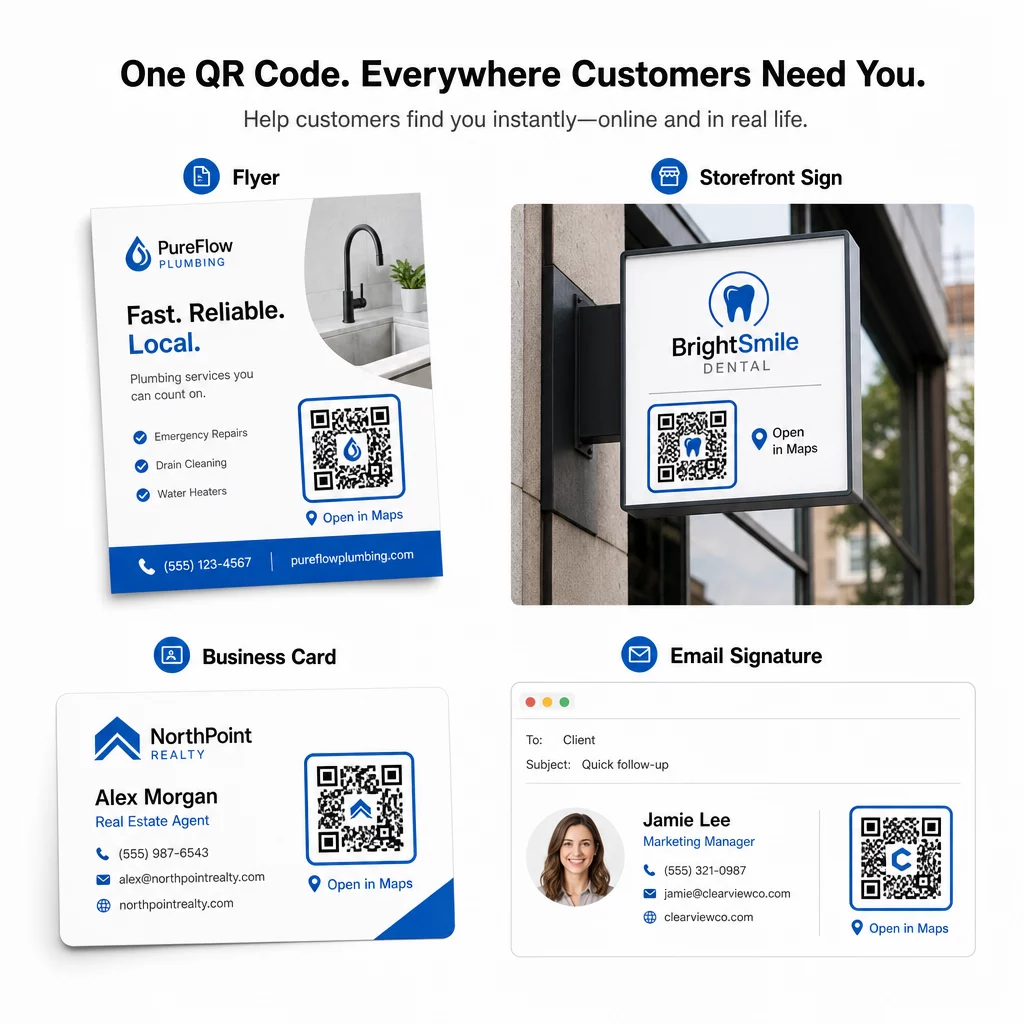
Una volta testato, il tuo codice QR è pronto per essere distribuito su canali di stampa e digitali:
Materiali di stampa:
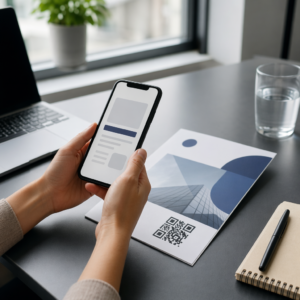
- Biglietti da visita – sostituisci gli indirizzi stampati con un codice scansionabile
- Volantini e brochure – guida gli ospiti dell'evento direttamente alla sede
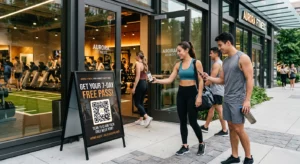
- Vetrine e insegne delle porte – aiuta i clienti a trovare parcheggio o ingressi alternativi
- Cartelli immobiliari – indirizza gli acquirenti alle posizioni delle case aperte
- Confezioni dei prodotti – collega i clienti alla tua sede di vendita al dettaglio fisica
Canali digitali:
- Firme e-mail – sostituisci gli indirizzi statici con un codice di posizione scansionabile
- Post e Storie sui social media – promuovi una nuova posizione o sede dell'evento
- Footer del sito web – consenti ai visitatori di aprire le indicazioni con un solo tocco
- Menu digitali – aiuta i commensali a trovare una seconda sede o un ufficio di catering
In ogni posizionamento, includi una chiara call-to-action vicino al codice. “Scansiona per le indicazioni” o “Apri in Mappe” dice agli utenti esattamente cosa succede quando scansionano, il che aumenta l'engagement. Per indicazioni sul posizionamento e le dimensioni su diversi materiali, il Guida al posizionamento dei codici QR per il marketing copre in dettaglio le raccomandazioni specifiche per il formato.
Confronto Piani Pageloot
| FUNZIONE | Piano Gratuito | Piano Pro | Personalizzato/Aziendale |
|---|---|---|---|
| Tipo di codice QR | Solo Statico | Dinamico e Statico | Dinamico e Statico |
| Link Modificabili | No | Sì | Sì |
| Analisi delle scansioni | Nessuno | In tempo reale (posizione, dispositivo) | Cronologia completa e approfondimenti di esperti |
| Limite di Scansioni Annuali | Illimitato (statico) | 250,000 | Personalizzato |
| Personalizzazione | Base (colori, logo) | Opzioni di design avanzate | Integrazione completa del marchio |
| Prezzo Mensile | $0 | $38.34 | $106.52 |
Il piano gratuito copre codici statici permanenti senza scadenza e scansioni illimitate. I piani a pagamento sbloccano la modifica dinamica, l'analisi in tempo reale e la personalizzazione avanzata. Un piano Starter inizia a $4.86/mese con 2 codici dinamici e 15.000 scansioni annuali – adatto per piccole imprese che testano il formato. Tutti i piani a pagamento includono una prova gratuita di 14 giorni senza carta di credito.
Come ha affermato Lucas Jansen, uno sviluppatore immobiliare che utilizza i codici QR di localizzazione di Pageloot:
“Questo è uno strumento eccellente e i codici QR ti portano esattamente dove vuoi.”
Per le posizioni permanenti, un codice statico gratuito è il percorso più semplice. Per qualsiasi cosa che richieda aggiornamenti, tracciamento o misurazione di campagne, i codici dinamici ti offrono la flessibilità e i dati per migliorare nel tempo. Inizia copiando il tuo link di Google Maps, generando il tuo codice su Generatore di QR code Google Maps, e testarlo su un dispositivo reale prima che vada online.
Domande frequenti
Per la maggior parte degli usi, copia il Link al Luogo dal pulsante Condividi in Google Maps – apre la posizione esatta direttamente in Google Maps o in un browser. Se vuoi inviare gli utenti direttamente alla navigazione passo-passo da un punto di partenza fisso, usa invece un Link alle Indicazioni. Incolla sempre il link in un browser prima per confermare che si risolva nel punto giusto prima di generare il codice.
Dopo aver fissato la tua posizione in Google Maps, usa il pulsante Condividi e copia l'URL che fornisce. Questo link è legato alle coordinate specifiche del pin, non solo a una ricerca generica. Evita di copiare l'URL dalla barra degli indirizzi del tuo browser mentre navighi sulla mappa – quella versione potrebbe non risolvere in modo affidabile il punto fissato. Incolla il link di Condivisione in un browser per verificare prima di generare il codice QR.
Utilizza un formato vettoriale – SVG, EPS o PDF – per qualsiasi applicazione di stampa.