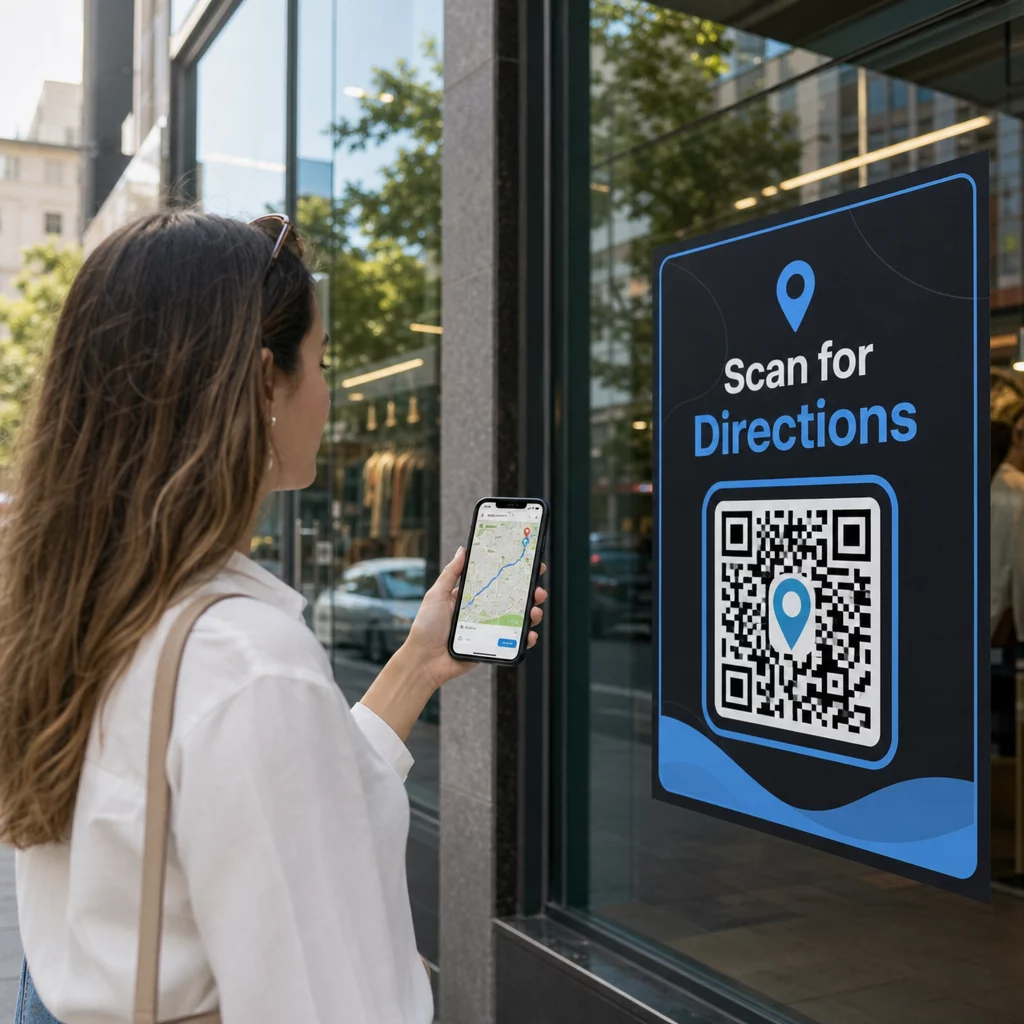
Segítenie kell az ügyfeleknek megtalálni a helyét anélkül, hogy címet kellene beírniuk? A manuális címbevitel súrlódást – és frusztrált látogatókat – okoz. Ez az útmutató végigvezeti Önt azon, hogyan alakíthat át bármely Google Térkép helyet percek alatt beolvasható QR-kóddá.
Google Térkép Helylinkjének Beszerzése
Mielőtt bármit generálna, szüksége van a megfelelő linkre a Google Térképről. A másolt link pontosan meghatározza, hová érkeznek a felhasználók szkenneléskor, ezért itt a pontosság számít.
Keresse meg és tűzze ki a helyét
Nyissa meg a Google Térképet, és keressen rá úti céljára. Megadhat egy cégnevet, például “Starbucks Times Square”, egy teljes utcacímét vagy egy felismerhető nevezetességet. Ha a helynek nincs hivatalos címe – egy szabadtéri helyszín, egy parkbejárat, egy parkoló –, nyomja meg és tartsa lenyomva mobilon (vagy kattintson asztali gépen) egy tűt a pontos helyre.
Miután kitűzte, nagyítson rá, és ellenőrizze, hogy a jelölő a megfelelő ponton van-e. Ha embereket egy adott bejárathoz irányít az általános épület alaprajza helyett, ennek megfelelően módosítsa. Ez a plusz lépés megakadályozza a zavart, amikor a látogatók megérkeznek.
Másolja a Helylinket
Miután megerősítette a helyét, koppintson vagy kattintson a Megosztás gombra:
- Mobilon: Koppintson a hely nevére a képernyő alján, majd koppintson a Megosztás ikonra (felfelé mutató nyíl), és válassza a “Másolás vágólapra” lehetőséget.”
- Asztali gépen: Kattintson a Megosztás gombra az információs panelen vagy a hárompontos menü alatt, majd válassza a “Link másolása” lehetőséget.”
A másolt URL jellemzően egy rövidített link, például `maps.app.goo.gl/xyz123`. A rövidebb linkek tisztább, kevésbé sűrű QR-kódokat eredményeznek, amelyek megbízhatóbban olvashatók be. Mielőtt továbblépne, illessze be a linket egy böngészőbe, hogy megerősítse, a megfelelő helyet nyitja meg.
Különböző linktípusok különböző célokat szolgálnak:
| Linktípus | Mit csinál | Példa felhasználási eset |
|---|---|---|
| Hely link | Megnyit egy adott vállalkozást vagy címet | Üzlethelyiség vagy iroda megosztása |
| Keresési link | Megjeleníti egy keresési lekérdezés eredményeit | “Étterem a helyszín közelében” megjelenítése” |
| Útvonal link | Megnyit egy előre beállított navigációs útvonalat | Vendégek útvonalának megtervezése repülőtérről szállodába |
Mert Útvonaltervezésre és cím megosztására használt QR-kódok, egy Hely link vagy Útvonal link általában a legjobb – kihagyják a keresési lépést, és közvetlenül a navigációba viszik a felhasználót.
QR-kód generálása
Miután elkészült a linkje, látogasson el a Google Térkép QR-kód generátor és illessze be az URL-jét a beviteli mezőbe. Válassza ki a QR-kód típusát – “Link” vagy “Térképek” – és a kód azonnal generálódik.
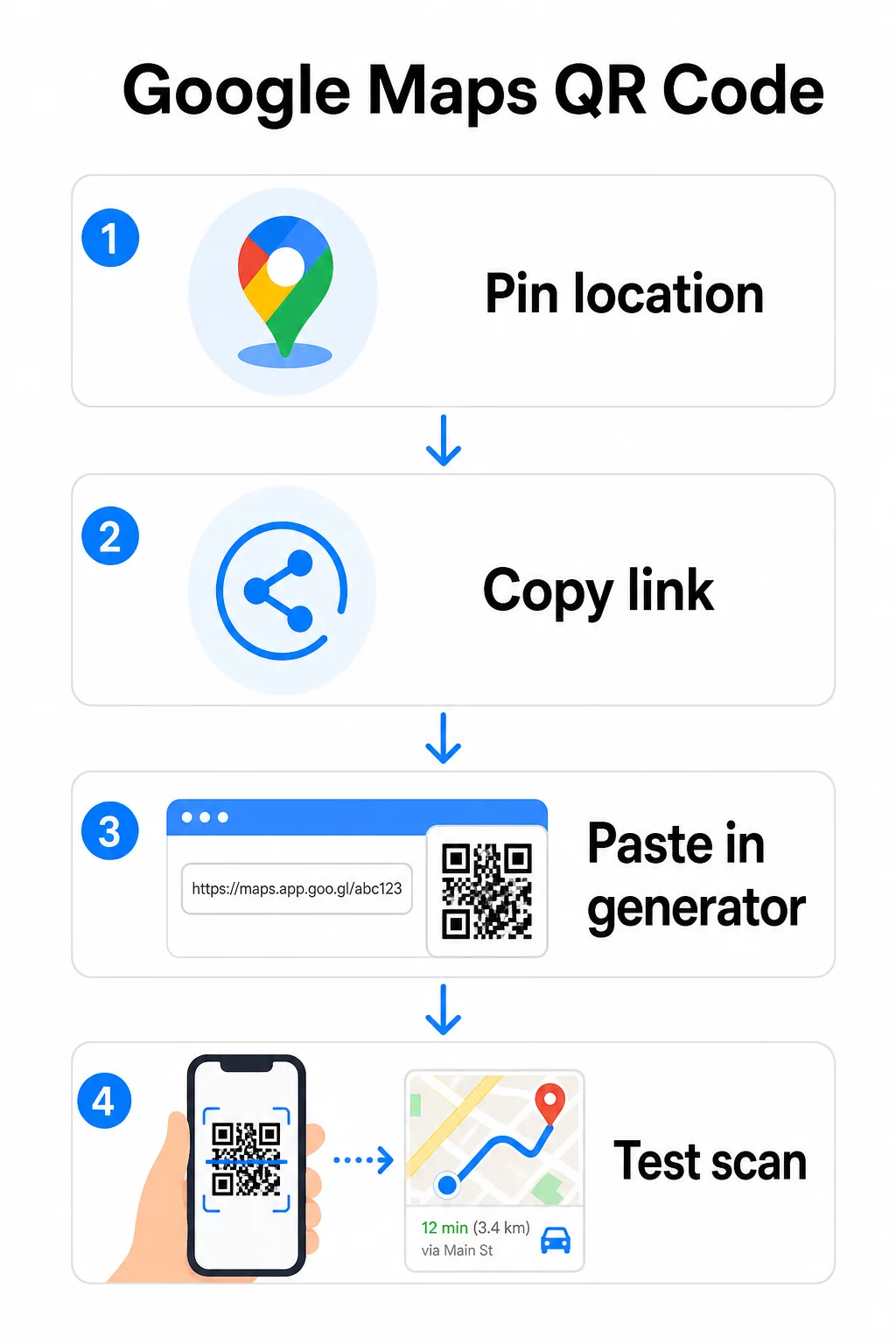
Állandó helyszín esetén, ahol nem szükséges a célállomás módosítása, egy statikus QR-kód ingyenes és soha nem jár le. Töltse le PNG-ként, és máris használhatja.
Frissítenie kell a helyét, vagy nyomon kell követnie a szkennelési adatokat? Használja a Pageloot QR Kód Generátor dinamikus kód létrehozásához, amellyel bármikor megváltoztathatja a célállomást a műszerfaláról – újranyomtatás nélkül.
Statikus vs. Dinamikus: Melyikre van szüksége?
A statikus QR-kód közvetlenül a mintába kódolja a Google Térkép linket. Állandó, ingyenes, és fiók nélkül is működik. A kompromisszum: ha a helye megváltozik, új kódot kell generálnia és újranyomtatnia.
A dinamikus QR-kód ehelyett egy rövid átirányítási URL-t tárol. Ön irányítja, hogy hová mutasson az átirányítás a Pageloot műszerfaláról. Ez azt jelenti:
- Frissítheti a célállomást anélkül, hogy hozzáérne a nyomtatott kódhoz
- Valós idejű elemzéseket kap – szkennelési számokat, eszköz típusokat, földrajzi helyeket és időzítést
- Tesztelheti és cserélheti a célállomás linkeket szezonális eseményekhez vagy ideiglenes helyszínekhez
Ha állandó táblákra nyomtat kódokat, a statikus jól működik. Kampányokhoz, eseményekhez, pop-up helyszínekhez vagy bármilyen olyan helyzethez, ahol a célállomás megváltozhat, a dinamikus kódok a praktikus választás.
QR-kód testreszabása
Egy egyszerű fekete-fehér QR-kód is működik, de egy márkás jobban teljesít. A Pageloot testreszabási lehetőségei lehetővé teszik, hogy:
- Adja hozzá cége logóját a kód közepéhez
- Változtassa meg a színeket, hogy illeszkedjenek a márka palettájához (tartsa a sötét mintákat világos háttéren a megbízható szkennelés érdekében)
- Válasszon különböző modulformák közül: Kerek, Szaggatott vagy Gyémánt
- Adjon hozzá egy cselekvésre ösztönző keretet olyan szöveggel, mint “Szkenneljen az útvonalért” vagy “Keressen minket a térképen”
Logó vagy színek hozzáadásakor használja Q vagy H hibajavítási szintet. Ezek a beállítások lehetővé teszik, hogy a QR-kód szkennelhető maradjon akkor is, ha a minta akár 25–30%-át logó vagy kisebb sérülés takarja. A logók ne haladják meg a kód teljes területének 30%-át, és ügyeljen arra, hogy ne fedjék át a három sarokban lévő “kereső” négyzetet.
Nyomtatott anyagokhoz töltse le kódját SVG, PDF vagy EPS fájlként. Ezek a vektoros formátumok bármilyen méretben élesek maradnak – ami kritikus fontosságú nagyméretű nyomtatásnál, például posztereknél vagy üzletportál-tábláknál.
Teljesen márkázott helykódot szeretne? A Link QR-kód generátor támogatja az egyedi színeket, logókat és keretstílusokat egy 14 napos ingyenes próbaverzióval – hitelkártya nem szükséges.
Tesztelés közzététel előtt
Mindig tesztelje QR-kódját, mielőtt nyomtatásra vagy élő kampányba küldi. Egy hibás vagy rossz helyre irányító kód károsítja a bizalmat és nyomtatási költségeket pazarol.
Fussa át ezt az ellenőrzőlistát:
- Szkennelje be telefonja natív kameraalkalmazásával iOS és Android rendszeren egyaránt
- Győződjön meg arról, hogy a link a megfelelő helyet nyitja meg a Google Térképen
- Tesztelje olyan eszközön, amelyen nincs telepítve a Google Térkép alkalmazás – böngészőben át kell irányítania a Google Térképre
- Szkenneljen különböző távolságokból és eltérő fényviszonyok között
- Ha testreszabta a dizájnt, győződjön meg arról, hogy a sarokban lévő kereső négyzetek és a csendes zóna (a kód körüli üres szegély) akadálytalanok
Nyomtatási célra, minimális méret: 2 × 2 hüvelyk (körülbelül 5 × 5 cm) biztosítja, hogy a legtöbb eszköz megbízhatóan tudjon szkennelni közelről. Távolról megtekintett anyagok – plakátok, bannerek, kirakatok – esetén arányosan nagyítsa. Általános iránymutatás: a kódnak legalább a szkennelési távolság egytizedének kell lennie.
Gyakori problémák és megoldások:
| Szkennelési probléma | Megoldás |
|---|---|
| Homályos vagy pixeles kód | Exportálás SVG, PDF vagy EPS formátumban nyomtatáshoz |
| A szkenner nem ismeri fel a kódot | Növelje a kontrasztot; sötét előtér világos háttéren |
| A logó akadályozza a szkennelést | Győződjön meg róla, hogy a logó nem takarja el a saroknégyzeteket; használjon magasabb hibajavítást |
| Túl kicsi a kód | Növelje legalább 2 × 2 hüvelykre fizikai anyagok esetén |
| A link rossz helyre nyílik | Ellenőrizze újra a másolt Megosztás linket a Google Térképen a generálás előtt |
A méretezésre, kontrasztra és elhelyezési szabványokra vonatkozó további részletekért lásd a QR-kód olvashatóságára vonatkozó legjobb gyakorlatokat és QR-kód használhatósági irányelvek.
Hol használhatók a Google Térkép QR-kódjai
Miután tesztelték, QR-kódja készen áll a nyomtatott és digitális csatornákon való bevetésre:
Nyomtatott anyagok:
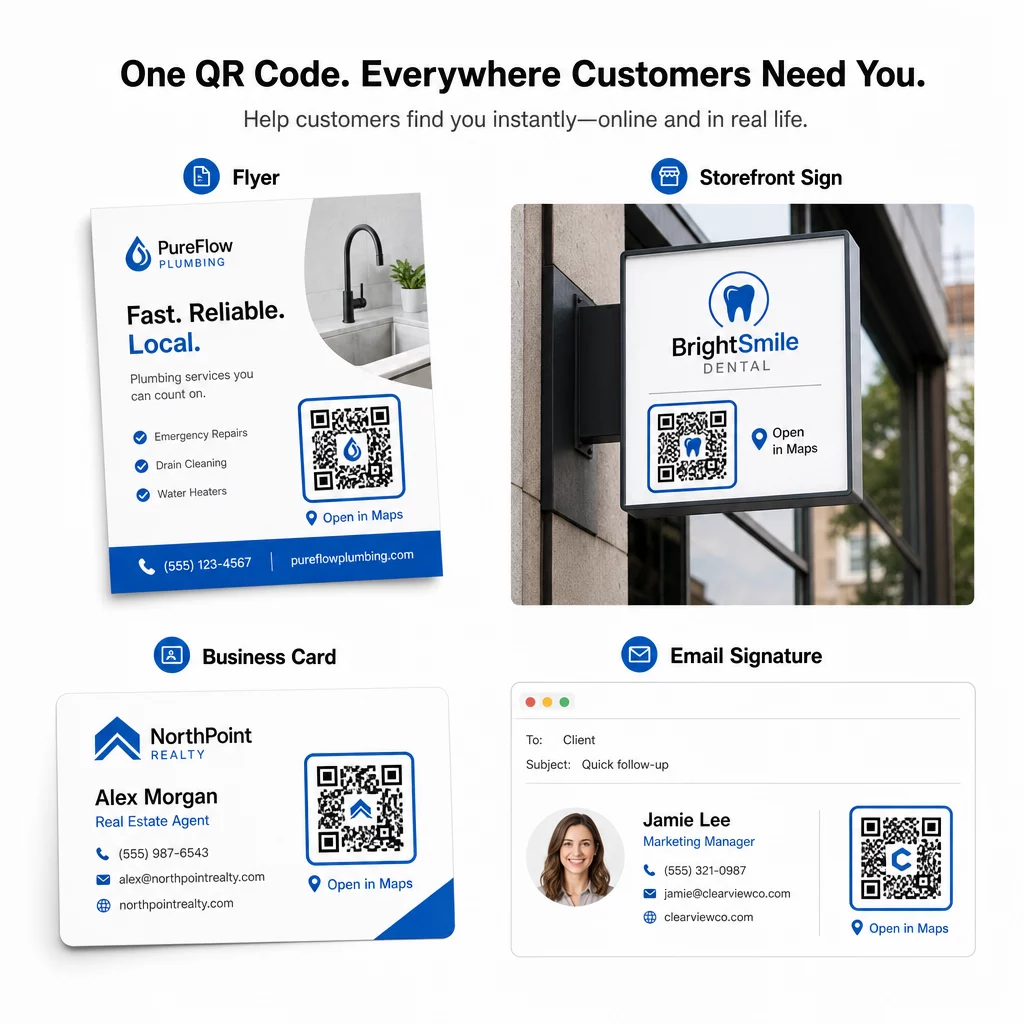
- Névjegykártyák – cserélje le a nyomtatott címeket egy beolvasható kódra
- Szórólapok és brosúrák – irányítsa az esemény vendégeit közvetlenül a helyszínre
- Üzletportálok és ajtótáblák – segítse az ügyfeleket parkolóhely vagy alternatív bejáratok megtalálásában
- Ingatlanhirdetések – irányítsa a vevőket a nyílt napok helyszíneire
- Termékcsomagolás – kapcsolja össze az ügyfeleket fizikai kiskereskedelmi üzletével
Digitális csatornák:
- E-mail aláírások – cserélje le a statikus címeket egy beolvasható helykódra
- Közösségi média posztok és történetek – népszerűsítsen új helyszínt vagy rendezvényhelyszínt
- Weboldal láblécek – engedje, hogy a látogatók egyetlen érintéssel megnyissák az útvonaltervet
- Digitális menük – segítse az étkezőket egy második helyszín vagy catering iroda megtalálásában
Minden elhelyezésnél mellékeljen egy világos cselekvésre ösztönző felhívást a kód közelében. A “Beolvasás az útvonaltervért” vagy “Megnyitás a térképen” pontosan elmondja a felhasználóknak, mi történik, amikor beolvassák, ami növeli az elkötelezettséget. A különböző anyagokon való elhelyezésre és méretezésre vonatkozó útmutatásért a QR-kód elhelyezési útmutató marketinghez részletesen tárgyalja a formátumspecifikus ajánlásokat.
Pageloot Csomagok Összehasonlítása
| FUNKCIÓ | Ingyenes Csomag | Pro csomag | Egyedi/Vállalati |
|---|---|---|---|
| QR-kód típusa | Csak statikus | Dinamikus és statikus | Dinamikus és statikus |
| Szerkeszthető linkek | Nem | Igen | Igen |
| Szkennelési analitika | Nincs | Valós idejű (helyszín, eszköz) | Teljes előzmények és szakértői betekintések |
| Éves szkennelési limit | Korlátlan (statikus) | 250,000 | Egyedi |
| Testreszabás | Alap (színek, logó) | Haladó tervezési lehetőségek | Teljes márka integráció |
| Havi ár | $0 | $38.34 | $106.52 |
Az ingyenes csomag állandó statikus kódokat tartalmaz lejárati idő nélkül és korlátlan szkenneléssel. A fizetős csomagok dinamikus szerkesztést, valós idejű analitikát és fejlett testreszabást tesznek lehetővé. A Starter csomag havi $4.86-tól kezdődik, 2 dinamikus kóddal és 15 000 éves szkenneléssel – alkalmas kisvállalkozások számára, amelyek tesztelik a formátumot. Minden fizetős csomag tartalmaz egy 14 napos ingyenes próbaidőszakot, hitelkártya megadása nélkül.
Ahogy Lucas Jansen, egy ingatlanfejlesztő, aki a Pageloot helyszín QR-kódjait használja, mondta:
“Ez egy kiváló eszköz, és a QR-kódok pontosan oda visznek, ahová szeretne.”
Állandó helyszínek esetén az ingyenes statikus kód a legegyszerűbb út. Bármihez, ami frissítéseket, nyomon követést vagy kampánymérést igényel, a dinamikus kódok biztosítják a rugalmasságot és az adatokat a folyamatos fejlesztéshez. Kezdje a Google Térkép linkjének másolásával, majd generálja a kódját a Google Térkép QR-kód generátor, és tesztelni egy valós eszközön, mielőtt élesbe kerül.
Gyakori kérdések
A legtöbb felhasználáshoz másolja ki a Hely linket a Google Térkép Megosztás gombjából – ez közvetlenül megnyitja a pontos helyet a Google Térképen vagy egy böngészőben. Ha a felhasználókat egy rögzített kiindulási pontról egyenesen a lépésről lépésre történő navigációba szeretné küldeni, használjon inkább egy Útvonaltervező linket. Mindig illessze be a linket először egy böngészőbe, hogy megerősítse, a megfelelő helyre mutat, mielőtt generálná a kódot.
Miután rögzítette a helyét a Google Térképen, használja a Megosztás gombot, és másolja ki az általa biztosított URL-t. Ez a link a konkrét rögzített koordinátákhoz kötődik, nem csupán egy általános kereséshez. Kerülje az URL másolását a böngésző címsorából, miközben a térképet böngészi – az a verzió nem feltétlenül fog megbízhatóan a rögzített pontra mutatni. Illessze be a Megosztás linket egy böngészőbe ellenőrzés céljából, mielőtt létrehozná a QR-kódot.
Használjon vektoros formátumot – SVG, EPS vagy PDF – bármilyen nyomtatási alkalmazáshoz. A vektoros fájlok bármilyen méretre skálázhatók élességvesztés nélkül, ellentétben a PNG vagy JPEG exportokkal, amelyek pixelesnek tűnhetnek nagy nyomtatási méretekben. Nyomtatott anyagokhoz győződjön meg arról is, hogy a felbontás legalább 300 DPI, és hogy a kód mérete legalább 2 × 2 hüvelyk a megbízható közeli szkennelés érdekében.