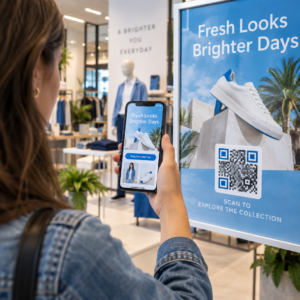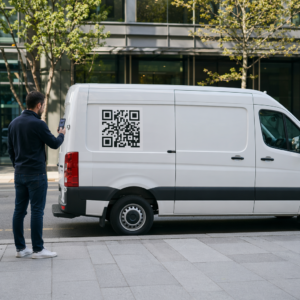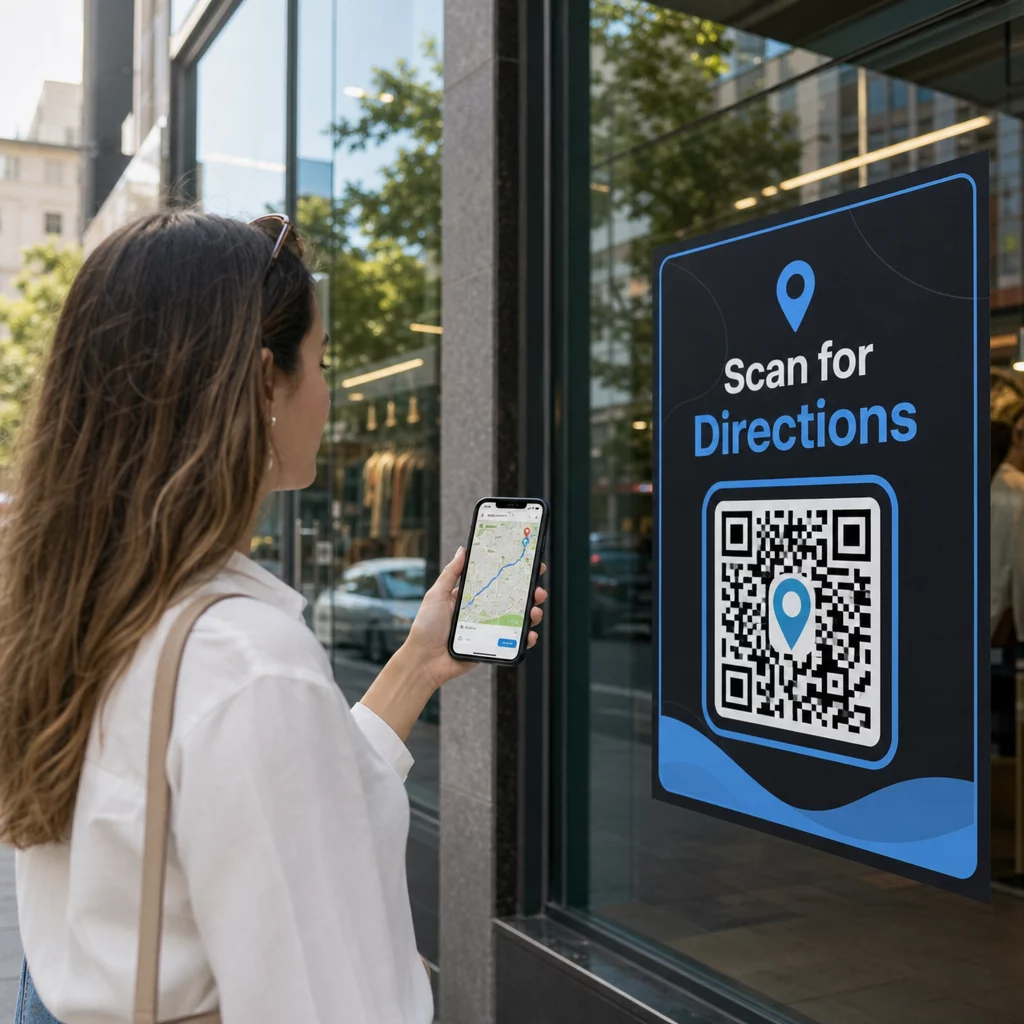
Tarvitsetko apua asiakkaiden löytämiseen sijaintiisi ilman, että heidän tarvitsee kirjoittaa osoitetta? Manuaalinen osoitteen syöttö aiheuttaa kitkaa – ja turhautuneita kävijöitä. Tämä opas opastaa sinua muuttamaan minkä tahansa Google Maps -sijainnin skannattavaksi QR-koodiksi minuuteissa.
Google Maps -sijaintilinkin hankkiminen
Ennen kuin luot mitään, tarvitset oikean linkin Google Mapsista. Kopioimasi linkki määrittää tarkalleen, minne käyttäjät päätyvät skannatessaan, joten tarkkuus on tässä tärkeää.
Etsi ja kiinnitä sijaintisi
Avaa Google Maps ja etsi määränpääsi. Voit syöttää yrityksen nimen, kuten “Starbucks Times Square”, täydellisen katuosoitteen tai tunnistettavan maamerkin. Jos sijainnilla ei ole virallista osoitetta – ulkoilmapaikka, puiston sisäänkäynti, parkkipaikka – paina ja pidä painettuna mobiililaitteella (tai napsauta työpöydällä) pudottaaksesi nastan tarkkaan kohtaan.
Kun nasta on kiinnitetty, zoomaa sisään ja varmista, että merkki on oikeassa kohdassa. Jos ohjaat ihmisiä tiettyyn sisäänkäyntiin yleisen rakennuksen pohjapiirroksen sijaan, säädä sen mukaisesti. Tämä lisäaskel estää sekaannuksia kävijöiden saapuessa.
Kopioi sijaintilinkki
Kun sijaintisi on vahvistettu, napauta tai napsauta Jaa painiketta:
- Mobiililaitteella: Napauta sijainnin nimeä näytön alareunassa, napauta sitten Jaa-kuvaketta (ylöspäin osoittava nuoli) ja valitse “Kopioi leikepöydälle”.”
- Tietokoneella: Napsauta Jaa tietopaneelissa tai kolmen pisteen valikon alta ja valitse sitten “Kopioi linkki”.”
Kopioitu URL-osoite on tyypillisesti lyhennetty linkki, kuten `maps.app.goo.gl/xyz123`. Lyhyemmät linkit tuottavat puhtaampia, vähemmän tiheitä QR-koodeja, jotka skannaavat luotettavammin. Ennen kuin jatkat, liitä linkki selaimeen varmistaaksesi, että se avaa oikean sijainnin.
Erilaiset linkkityypit palvelevat eri tarkoituksia:
| Linkkityyppi | Mitä se tekee | Esimerkkikäyttötapaus |
|---|---|---|
| Paikkalinkki | Avaa tietyn yrityksen tai osoitteen | Myymälän tai toimiston jakaminen |
| Hakulinkki | Näyttää hakukyselyn tulokset | Näyttää “ravintolat lähellä tapahtumapaikkaa” |
| Reittiohjelinkki | Avaa ennalta asetetun navigointireitin | Vieraiden ohjaaminen lentokentältä hotelliin |
Sillä QR-koodit käytössä reittiohjeiden ja osoitteiden jakamiseen, Paikkalinkki tai Reittiohjelinkki toimii yleensä parhaiten – ne ohittavat hakuaskeleen ja ohjaavat käyttäjän suoraan navigointiin.
QR-koodin luominen
Kun linkkisi on valmis, vieraile sivustolla Google Maps QR-koodi generaattori ja liitä URL-osoitteesi syöttökenttään. Valitse QR-koodin tyyppi – “Linkki” tai “Kartat” – ja koodi luodaan välittömästi.
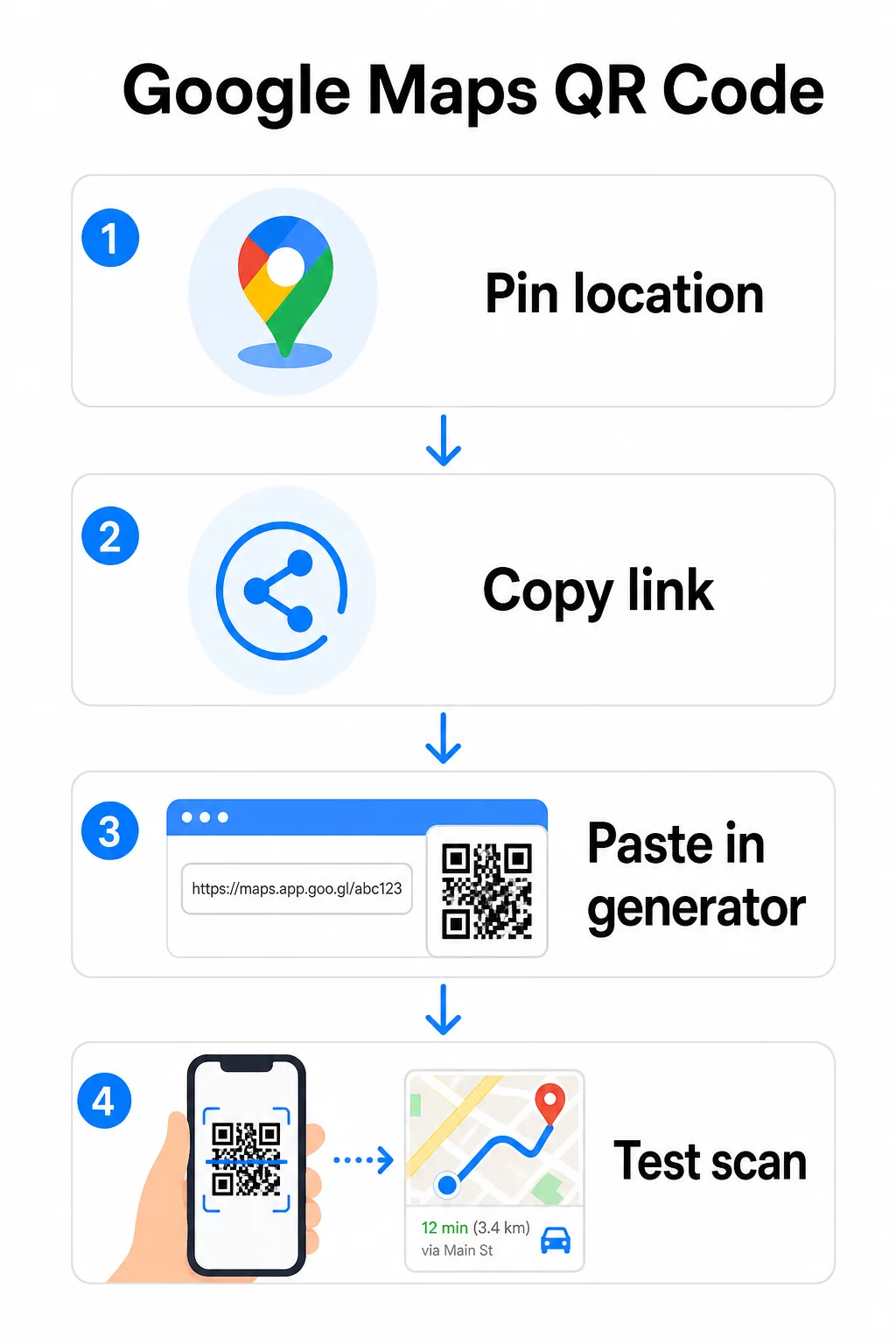
Pysyvälle sijainnille, jossa kohdetta ei tarvitse muuttaa, a staattinen QR-koodi on ilmainen eikä vanhene koskaan. Lataa se PNG-tiedostona ja olet valmis käyttämään sitä.
Tarvitseeko sinun päivittää sijaintisi tai seurata skannaustietoja? Käytä Pageloot QR-koodigeneraattori luodaksesi dynaamisen koodin, jonka avulla voit muuttaa kohdetta milloin tahansa hallintapaneelista – uudelleenpainatusta ei tarvita.
Staattinen vs. dynaaminen: Kumman tarvitset?
Staattinen QR-koodi koodaa Google Maps -linkin suoraan kuvioon. Se on pysyvä, ilmainen ja toimii ilman tiliä. Haittapuoli: jos sijaintisi muuttuu, sinun on luotava ja painettava uusi koodi.
Dynaaminen QR-koodi tallentaa sen sijaan lyhyen uudelleenohjaus-URL-osoitteen. Hallitset, mihin uudelleenohjaus osoittaa Pageloot-hallintapaneelistasi. Tämä tarkoittaa:
- Voit päivittää kohteen koskematta painettuun koodiin
- Saat reaaliaikaisen analytiikan – skannausten määrän, laitetyypit, maantieteelliset sijainnit ja ajoituksen
- Voit testata ja vaihtaa kohdelinkkejä kausiluonteisiin tapahtumiin tai väliaikaisiin paikkoihin
Jos painat koodeja pysyviin kyltteihin, staattinen toimii hyvin. Kampanjoihin, tapahtumiin, pop-up-paikkoihin tai mihin tahansa tilanteeseen, jossa kohde saattaa muuttua, dynaamiset koodit ovat käytännöllinen valinta.
QR-koodin mukauttaminen
Yksinkertainen mustavalkoinen QR-koodi toimii, mutta brändätty toimii paremmin. Pagelootin mukautusvaihtoehdot antavat sinun:
- Lisää yrityksesi logo koodin keskelle
- Vaihda värejä vastaamaan brändisi palettia (pidä tummat kuviot vaalealla taustalla luotettavan skannauksen varmistamiseksi)
- Valitse eri moduulimuodoista: Pyöreä, Viiva tai Timantti
- Lisää toimintakehys tekstillä, kuten “Skannaa reittiohjeet” tai “Löydä meidät kartalta”
Kun lisäät logon tai värejä, käytä virheenkorjaustasoa Q tai H. Nämä asetukset mahdollistavat QR-koodin skannattavuuden, vaikka jopa 25–30 % kuviosta olisi logon tai pienten vaurioiden peittämä. Pidä logot enintään 30 %:ssa koodin kokonaispinta-alasta ja varmista, etteivät ne mene päällekkäin kolmen kulmassa olevan “etsintäneliön” kanssa.
Tulostusmateriaaleja varten lataa koodisi SVG-, PDF- tai EPS-tiedostona. Nämä vektorimuodot pysyvät terävinä missä tahansa koossa – mikä on kriittistä suurikokoisessa tulostuksessa, kuten julisteissa tai myymälän kylteissä.
Haluatko täysin brändätyn sijaintikoodin? Se Linkki QR-koodigeneraattori tukee mukautettuja värejä, logoja ja kehystyylejä 14 päivän ilmaisella kokeilujaksolla – luottokorttia ei tarvita.
Testaus ennen julkaisua
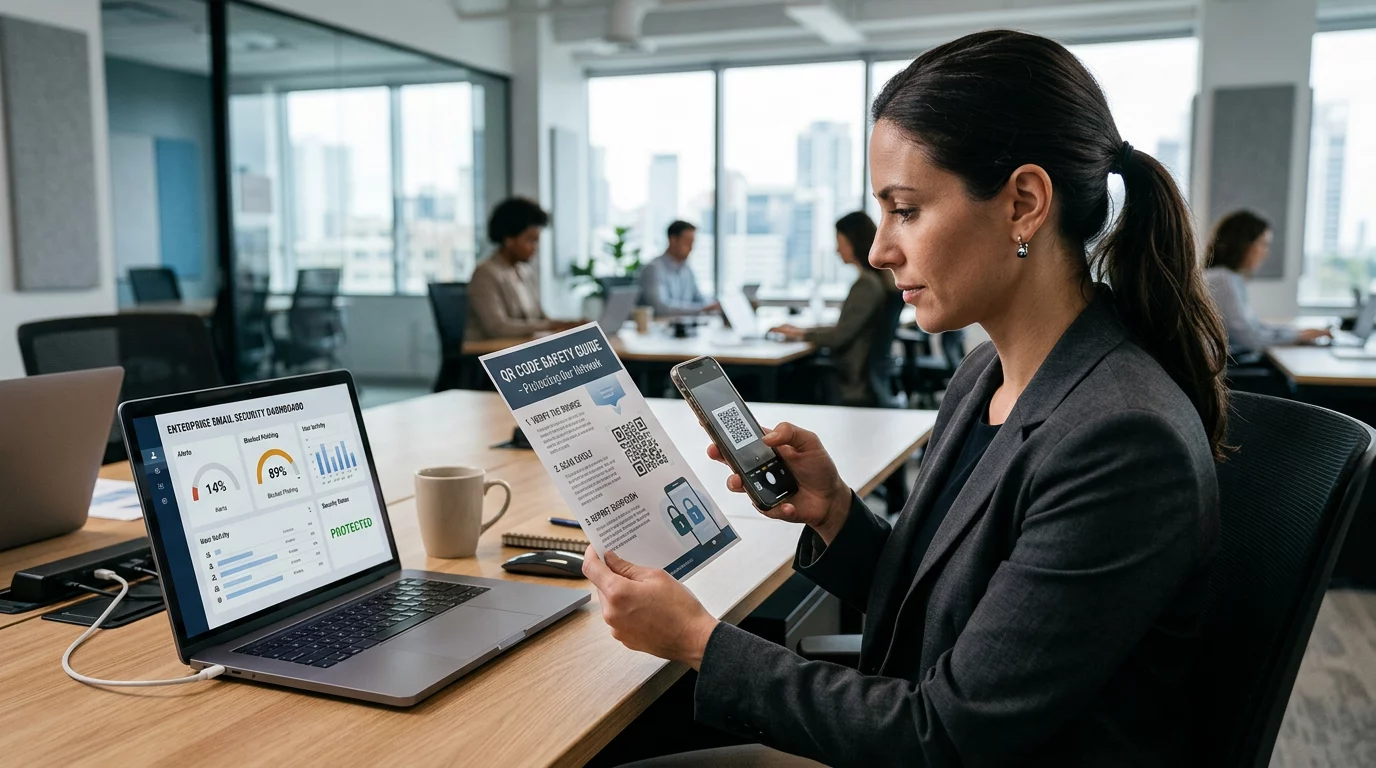
Testaa QR-koodisi aina ennen sen painamiseen tai live-kampanjaan sitoutumista. Rikkinäinen tai väärin ohjaava koodi vahingoittaa luottamusta ja tuhlaa painokustannuksia.
Käy läpi tämä tarkistuslista:
- Skannaa puhelimesi alkuperäisellä kamerasovelluksella sekä iOS:llä että Androidilla
- Varmista, että linkki avaa oikean sijainnin Google Mapsissa
- Testaa laitteella, johon Google Maps -sovellusta ei ole asennettu – sen pitäisi ohjata Google Mapsiin selaimessa
- Skannaa useilta etäisyyksiltä ja erilaisissa valaistusolosuhteissa
- Jos olet mukauttanut suunnittelua, varmista, että kulmien etsintäneliöt ja hiljainen vyöhyke (koodin ympärillä oleva tyhjä reunus) ovat esteettömiä
Tulostuskäyttöön vähimmäiskoko on 2 × 2 tuumaa (noin 5 × 5 cm) varmistaa, että useimmat laitteet voivat skannata luotettavasti lähietäisyydeltä. Etäältä katsottavien materiaalien – julisteiden, banderollien, ikkunanäyttöjen – osalta skaalaa suhteellisesti. Yleinen ohje: koodin tulisi olla vähintään yksi kymmenesosa etäisyydestä, jolta ihmiset sen skannaavat.
Yleisiä ongelmia ja korjauksia:
| Skannausongelma | Korjaus |
|---|---|
| Sumea tai pikselöity koodi | Vie SVG-, PDF- tai EPS-muodossa tulostusta varten |
| Skanneri ei tunnista koodia | Lisää kontrastia; tumma etuala vaalealla taustalla |
| Logo estää skannauksen | Varmista, ettei logo peitä kulmaneliöitä; käytä korkeampaa virheenkorjausta |
| Koodi liian pieni | Suurenna vähintään 2 × 2 tuumaan fyysisiä materiaaleja varten |
| Linkki avaa väärän sijainnin | Tarkista kopioitu Jaa-linkki Google Mapsissa uudelleen ennen luomista |
Lisätietoja koosta, kontrastista ja sijoitusstandardeista, katso parhaita käytäntöjä QR-koodin luettavuudelle ja QR-koodin käytettävyysohjeista.
Missä Google Mapsin QR-koodeja käytetään
Kun QR-koodisi on testattu, se on valmis otettavaksi käyttöön painetuissa ja digitaalisissa kanavissa:
Painetut materiaalit:
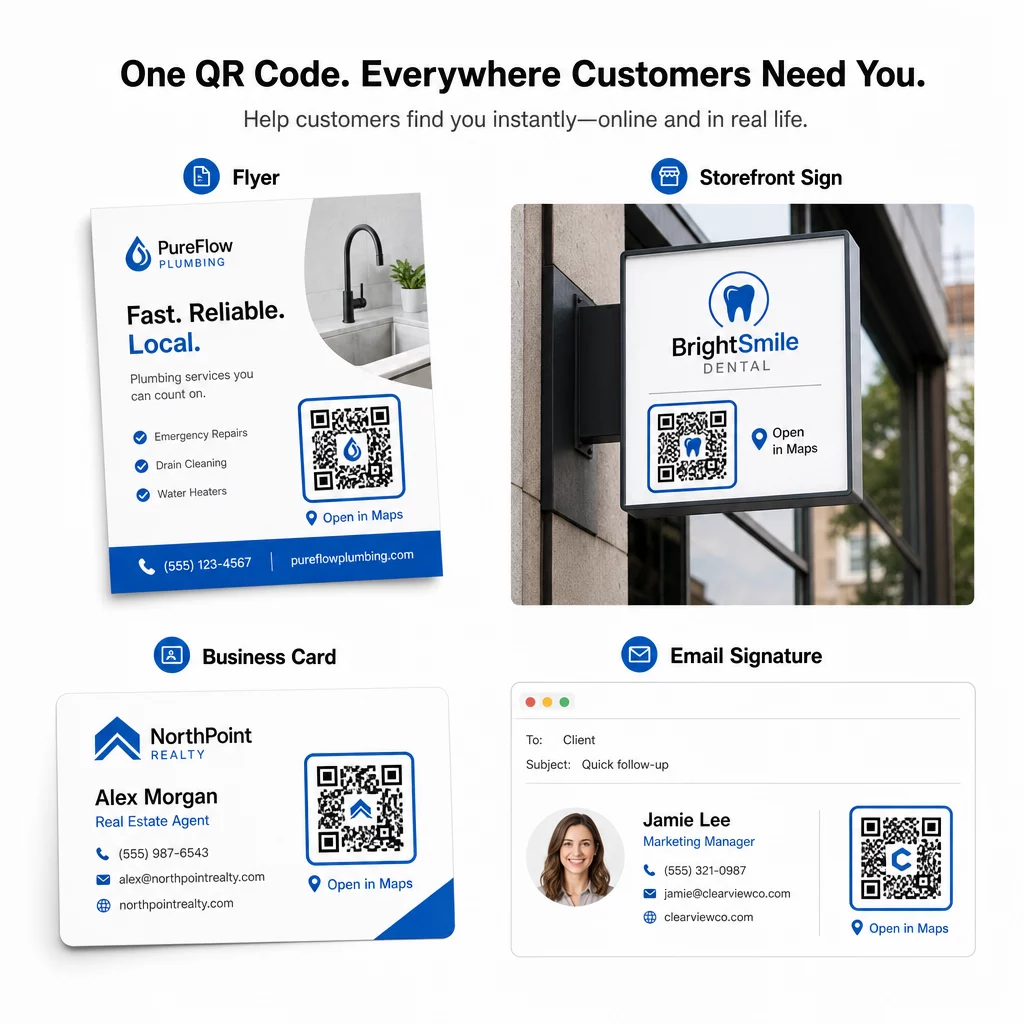
- Vierailukortit – korvaa painetut osoitteet skannattavalla koodilla
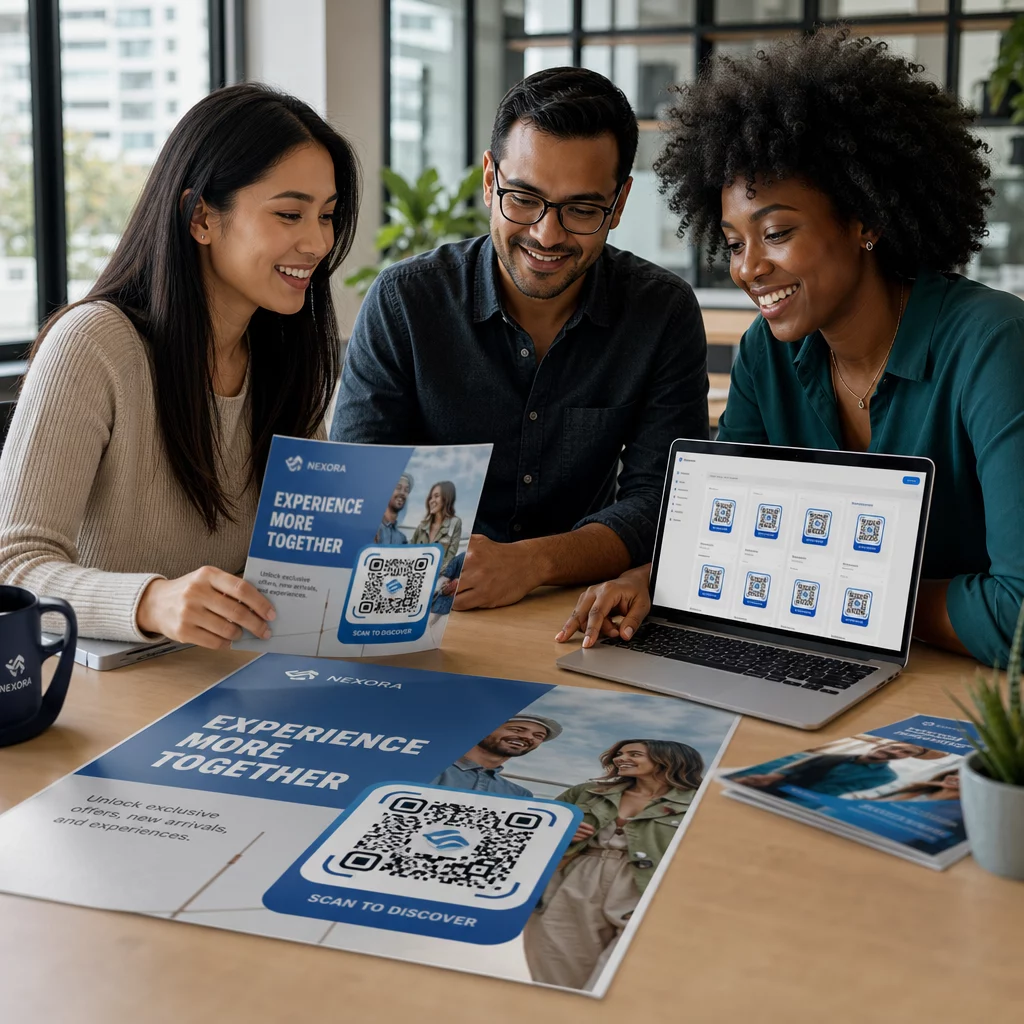
- Flyerit ja esitteet – ohjaa tapahtumavieraat suoraan tapahtumapaikalle
- Liiketilojen ikkunat ja ovikyltit – auta asiakkaita löytämään pysäköinti tai vaihtoehtoiset sisäänkäynnit
- Kiinteistöjen kyltit – ohjaa ostajat avoimien ovien kohteisiin
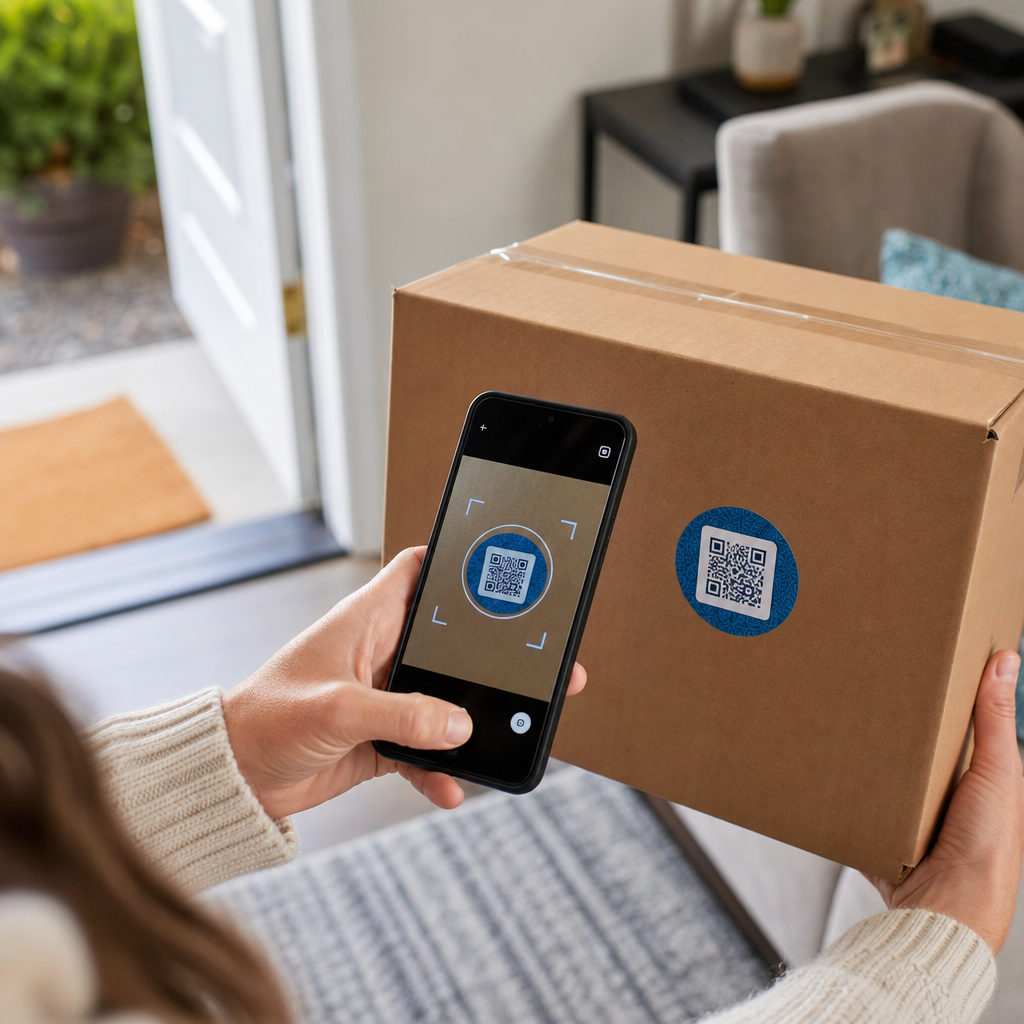
- Tuotepakkaukset – linkitä asiakkaat fyysiseen myymälääsi
Digitaaliset kanavat:
- Sähköpostiallekirjoitukset – korvaa staattiset osoitteet skannattavalla sijaintikoodilla
- Sosiaalisen median julkaisut ja tarinat – mainosta uutta sijaintia tai tapahtumapaikkaa
- Verkkosivuston alatunnisteet – anna kävijöiden avata reittiohjeet yhdellä napautuksella
- Digitaaliset menut – auta ruokailijoita löytämään toinen toimipiste tai catering-toimisto
Sisällytä jokaiseen sijoitteluun selkeä toimintakehote koodin lähelle. “Skannaa reittiohjeet” tai “Avaa kartoissa” kertoo käyttäjille tarkalleen, mitä tapahtuu heidän skannatessaan, mikä lisää sitoutumista. Ohjeita sijoitteluun ja kokoon eri materiaaleissa antaa QR-koodin sijoitteluopas markkinointiin käsittelee formaattikohtaisia suosituksia yksityiskohtaisesti.
Pageloot-suunnitelmien vertailu
| OMINAISUUS | Ilmainen suunnitelma | Pro-suunnitelma | Räätälöity/Yritys |
|---|---|---|---|
| QR-koodin tyyppi | Vain staattinen | Dynaaminen ja staattinen | Dynaaminen ja staattinen |
| Muokattavat linkit | Ei | Kyllä | Kyllä |
| Skannausanalytiikka | Ei mitään | Reaaliaikainen (sijainti, laite) | Koko historia ja asiantuntijan näkemykset |
| Vuosittainen skannausraja | Rajoittamaton (staattinen) | 250,000 | Oma linkki |
| Räätälöinti | Perus (värit, logo) | Edistyneet suunnitteluvaihtoehdot | Täysi brändi-integraatio |
| Kuukausihinta | $0 | $38.34 | $106.52 |
Ilmainen suunnitelma kattaa pysyvät staattiset koodit ilman vanhenemispäivää ja rajoittamattomat skannaukset. Maksulliset suunnitelmat avaavat dynaamisen muokkauksen, reaaliaikaisen analytiikan ja edistyneen mukauttamisen. Aloitussuunnitelma alkaa $4.86/kuukausi ja sisältää 2 dynaamista koodia ja 15 000 vuosittaista skannausta – sopii pienyrityksille, jotka testaavat formaattia. Kaikki maksulliset suunnitelmat sisältävät 14 päivän ilmaisen kokeilujakson ilman luottokorttia.
Kuten Lucas Jansen, kiinteistökehittäjä, joka käyttää Pagelootin sijainti-QR-koodeja, asian ilmaisi:
“Tämä on erinomainen työkalu ja QR-koodit vievät sinut juuri sinne, minne haluat.”
Pysyviin sijainteihin ilmainen staattinen koodi on yksinkertaisin tapa. Kaikkeen, mikä vaatii päivityksiä, seurantaa tai kampanjan mittausta, dynaamiset koodit antavat sinulle joustavuutta ja tietoa parantaa ajan myötä. Aloita kopioimalla Google Maps -linkkisi, luomalla koodisi osoitteessa Google Maps QR-koodi generaattori, ja testaamalla sitä oikealla laitteella ennen kuin se julkaistaan.
Usein kysytyt kysymykset
Useimmissa tapauksissa kopioi paikkalinkki Google Mapsin Jaa-painikkeesta – se avaa tarkan sijainnin suoraan Google Mapsissa tai selaimessa. Jos haluat lähettää käyttäjät suoraan käännös käännökseltä -navigointiin kiinteästä lähtöpisteestä, käytä sen sijaan reittiohjelinkkiä. Liitä linkki aina ensin selaimeen varmistaaksesi, että se ohjaa oikeaan paikkaan ennen koodin luomista.
Kun olet merkinnyt sijaintisi Google Mapsiin, käytä Jaa-painiketta ja kopioi sen antama URL-osoite. Tämä linkki on sidottu tiettyihin merkityn pisteen koordinaatteihin, ei vain yleiseen hakuun. Vältä kopioimasta URL-osoitetta selaimesi osoitepalkista karttaa selatessasi – kyseinen versio ei välttämättä ohjaa luotettavasti merkittyyn pisteeseen. Liitä Jaa-linkki selaimeen varmistaaksesi ennen QR-koodin luomista.
Käytä vektorimuotoa – SVG, EPS tai PDF – kaikkiin painosovelluksiin. Vektoritiedostot skaalautuvat mihin tahansa kokoon menettämättä terävyyttä, toisin kuin PNG- tai JPEG-viennit, jotka voivat näyttää pikselöityneiltä suurissa painomitoissa. Painomateriaaleissa varmista myös, että resoluutio on vähintään 300 DPI ja että koodi on kooltaan vähintään 2 × 2 tuumaa luotettavaa lähiskannausta varten.