Cần giúp khách hàng tìm địa điểm của bạn mà không bắt họ nhập địa chỉ? Việc nhập địa chỉ thủ công tạo ra sự cản trở – và những khách truy cập thất vọng. Hướng dẫn này sẽ chỉ cho bạn cách biến bất kỳ địa điểm nào trên Google Maps thành mã QR có thể quét được chỉ trong vài phút.
Lấy Liên kết Địa điểm Google Maps của Bạn
Trước khi bạn tạo bất cứ thứ gì, bạn cần có liên kết chính xác từ Google Maps. Liên kết bạn sao chép sẽ xác định chính xác nơi người dùng đến khi họ quét, vì vậy độ chính xác ở đây rất quan trọng.
Tìm và Ghim Địa điểm của Bạn
Mở Google Maps và tìm kiếm điểm đến của bạn. Bạn có thể nhập tên doanh nghiệp như “Starbucks Times Square,” một địa chỉ đường phố đầy đủ hoặc một địa danh dễ nhận biết. Nếu địa điểm không có địa chỉ chính thức – một địa điểm ngoài trời, lối vào công viên, bãi đậu xe – hãy nhấn và giữ trên thiết bị di động (hoặc nhấp trên máy tính để bàn) để thả ghim tại đúng vị trí đó.
Sau khi ghim, hãy phóng to và xác nhận điểm đánh dấu nằm đúng vị trí. Nếu bạn đang hướng dẫn mọi người đến một lối vào cụ thể thay vì toàn bộ tòa nhà, hãy điều chỉnh cho phù hợp. Bước bổ sung này giúp ngăn ngừa sự nhầm lẫn khi khách truy cập đến.
Sao chép Liên kết Địa điểm
Sau khi địa điểm của bạn được xác nhận, hãy nhấn hoặc nhấp vào Chia sẻ nút:
- Trên thiết bị di động: Nhấn vào tên địa điểm ở cuối màn hình, sau đó nhấn vào biểu tượng Chia sẻ (mũi tên hướng lên) và chọn “Sao chép vào bảng nhớ tạm.”
- Trên máy tính để bàn: Nhấp vào Chia sẻ trong bảng thông tin hoặc dưới menu ba chấm, sau đó chọn “Sao chép liên kết.”
URL đã sao chép thường là một liên kết rút gọn như `maps.app.goo.gl/xyz123`. Các liên kết ngắn hơn tạo ra mã QR rõ ràng hơn, ít dày đặc hơn và quét đáng tin cậy hơn. Trước khi tiếp tục, hãy dán liên kết vào trình duyệt để xác nhận nó mở đúng địa điểm.
Các loại liên kết khác nhau phục vụ các mục đích khác nhau:
| Loại liên kết | Chức năng | Ví dụ về Trường hợp sử dụng |
|---|---|---|
| Liên kết Địa điểm | Mở một doanh nghiệp hoặc địa chỉ cụ thể | Chia sẻ mặt tiền cửa hàng hoặc văn phòng |
| Liên kết Tìm kiếm | Hiển thị kết quả cho một truy vấn tìm kiếm | Hiển thị “nhà hàng gần địa điểm” |
| Liên kết Chỉ đường | Mở một tuyến đường điều hướng được cài đặt sẵn | Chỉ đường cho khách từ sân bay đến khách sạn |
Đối với Mã QR được sử dụng để chỉ đường và chia sẻ địa chỉ, Liên kết Địa điểm hoặc Liên kết Chỉ đường thường hoạt động tốt nhất – chúng bỏ qua bước tìm kiếm và đưa người dùng trực tiếp vào điều hướng.
Tạo Mã QR của Bạn
Khi liên kết của bạn đã sẵn sàng, hãy truy cập Tạo mã QR địa chỉ Google Map và dán URL của bạn vào trường nhập liệu. Chọn loại mã QR – “Liên kết” hoặc “Bản đồ” – và mã sẽ được tạo ngay lập tức.
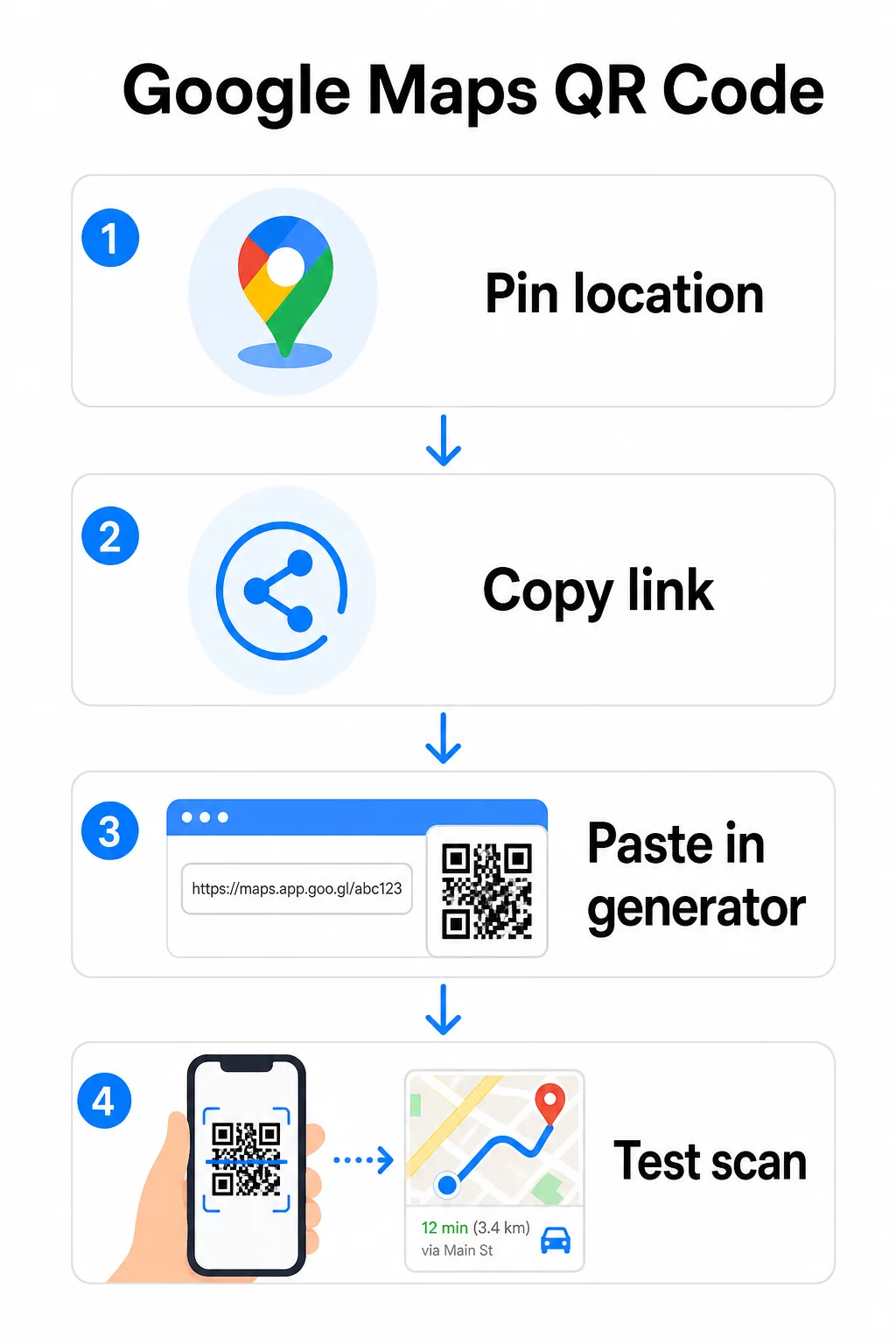
Đối với một địa điểm cố định không cần thay đổi điểm đến, một mã QR tĩnh là miễn phí và không bao giờ hết hạn. Tải xuống dưới dạng PNG và bạn đã sẵn sàng sử dụng.
Cần cập nhật vị trí của bạn hoặc theo dõi dữ liệu quét? Sử dụng Trình tạo mã QR Pageloot để tạo một mã động cho phép bạn thay đổi điểm đến bất cứ lúc nào từ bảng điều khiển của mình – không cần in lại.
Tĩnh hay Động: Bạn cần loại nào?
Mã QR tĩnh mã hóa liên kết Google Maps trực tiếp vào mẫu. Nó vĩnh viễn, miễn phí và hoạt động mà không cần bất kỳ tài khoản nào. Nhược điểm: nếu vị trí của bạn thay đổi, bạn cần tạo và in lại một mã mới.
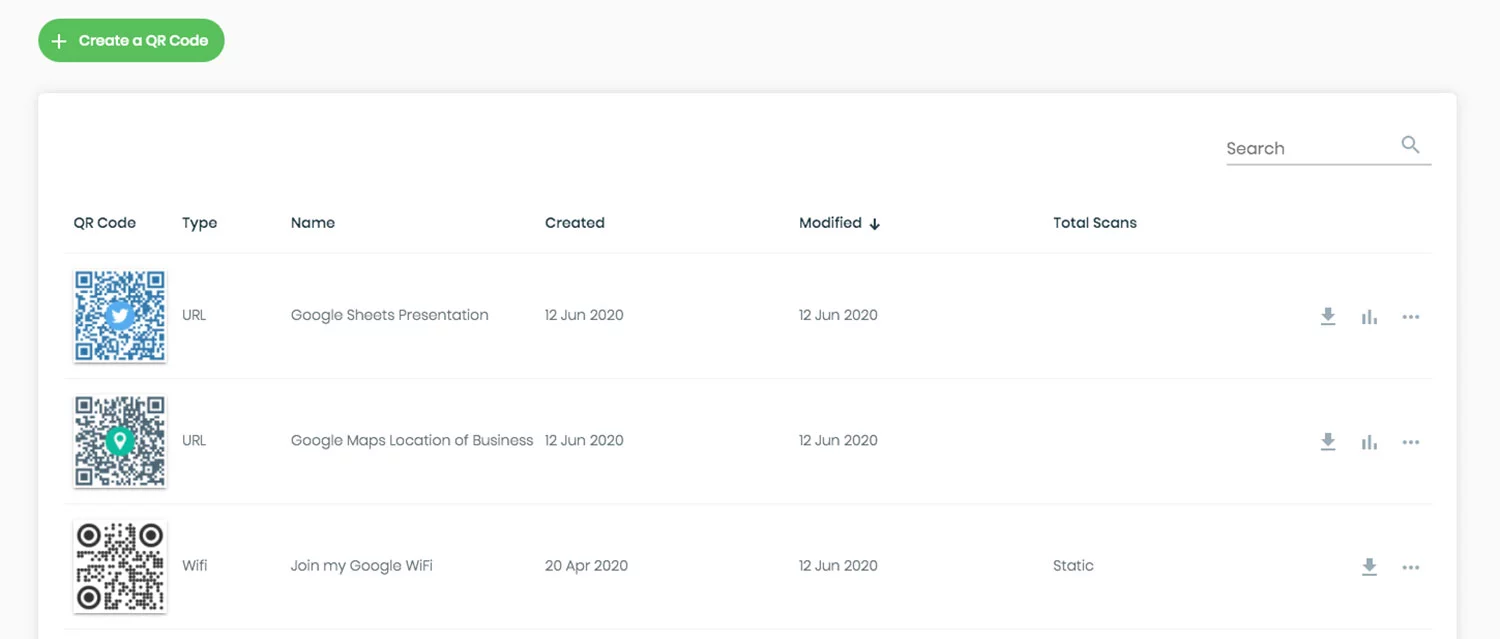
Mã QR động lưu trữ một URL chuyển hướng ngắn thay thế. Bạn kiểm soát điểm đến của URL chuyển hướng đó từ bảng điều khiển Pageloot của mình. Điều này có nghĩa là:
- Bạn có thể cập nhật điểm đến mà không cần chạm vào mã đã in
- Bạn nhận được phân tích thời gian thực – số lượt quét, loại thiết bị, vị trí địa lý và thời gian
- Bạn có thể kiểm tra và hoán đổi các liên kết điểm đến cho các sự kiện theo mùa hoặc địa điểm tạm thời
Nếu bạn in mã trên biển báo cố định, mã tĩnh hoạt động tốt. Đối với các chiến dịch, sự kiện, địa điểm tạm thời hoặc bất kỳ tình huống nào mà điểm đến có thể thay đổi, mã động là lựa chọn thực tế.
Tùy chỉnh mã QR của bạn
Mã QR đen trắng đơn giản vẫn hoạt động, nhưng một mã có thương hiệu sẽ hoạt động tốt hơn. Các tùy chọn tùy chỉnh của Pageloot cho phép bạn:
- Thêm logo công ty của bạn vào giữa mã
- Thay đổi màu sắc để phù hợp với bảng màu thương hiệu của bạn (giữ các mẫu tối trên nền sáng để quét đáng tin cậy)
- Chọn từ các hình dạng mô-đun khác nhau: Tròn, Gạch ngang hoặc Kim cương
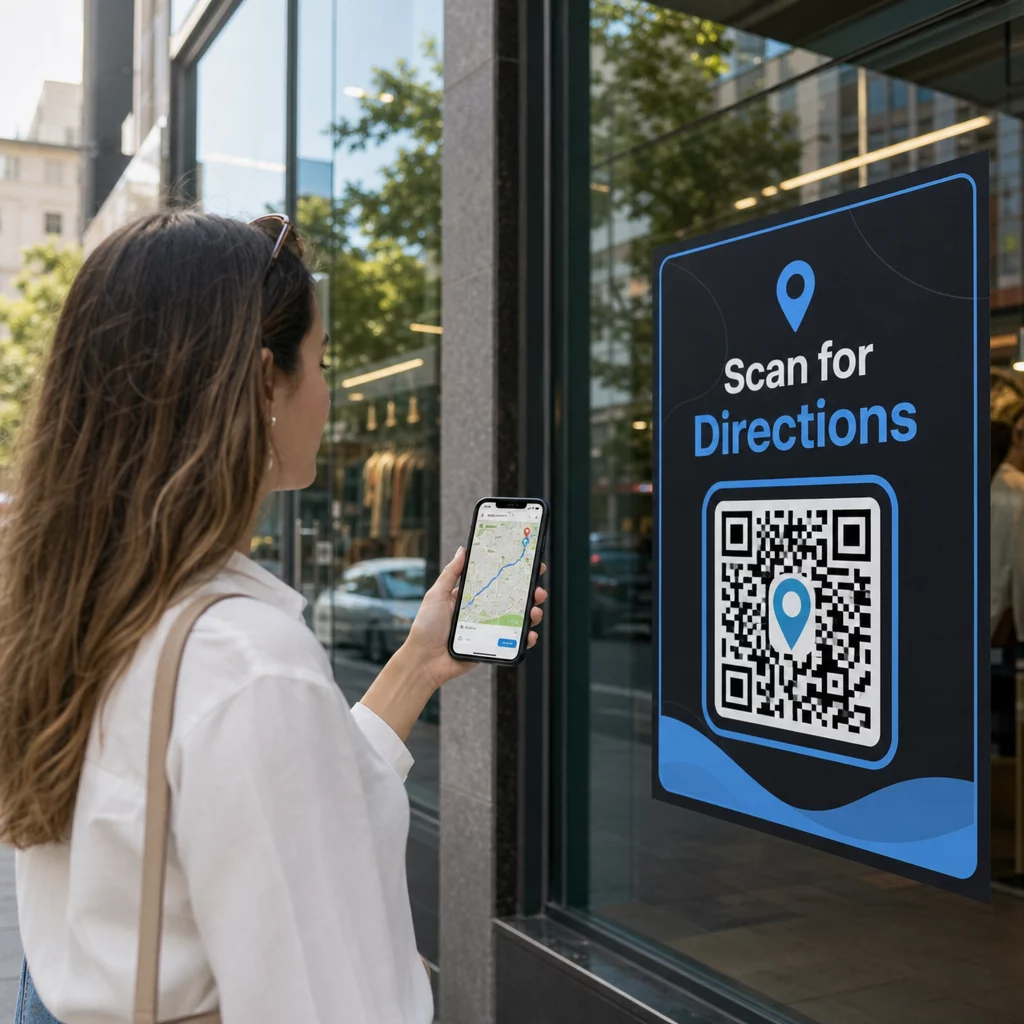
- Thêm khung Kêu gọi hành động với văn bản như “Quét để xem chỉ đường” hoặc “Tìm chúng tôi trên Bản đồ”
Khi thêm logo hoặc màu sắc, hãy sử dụng mức độ sửa lỗi Q hoặc H. Các cài đặt này cho phép mã QR vẫn có thể quét được ngay cả khi lên đến 25–30% mẫu bị che khuất bởi logo hoặc hư hỏng nhỏ. Giữ logo không quá 30% tổng diện tích mã và đảm bảo chúng không chồng lên ba ô vuông “tìm kiếm” ở góc.
Đối với tài liệu in, hãy tải mã của bạn dưới dạng tệp SVG, PDF hoặc EPS. Các định dạng vector này giữ được độ sắc nét ở mọi kích thước – rất quan trọng đối với việc in khổ lớn như áp phích hoặc biển hiệu cửa hàng.
Bạn muốn có một mã vị trí được xây dựng thương hiệu hoàn chỉnh? Các Trình tạo mã QR liên kết hỗ trợ màu sắc, logo và kiểu khung tùy chỉnh với bản dùng thử miễn phí 14 ngày – không yêu cầu thẻ tín dụng.
Kiểm tra trước khi xuất bản
Luôn kiểm tra mã QR của bạn trước khi đưa vào in ấn hoặc chiến dịch trực tiếp. Một mã bị hỏng hoặc sai hướng sẽ làm mất lòng tin và lãng phí chi phí in ấn.
Thực hiện theo danh sách kiểm tra này:
- Quét bằng ứng dụng camera gốc của điện thoại trên cả iOS và Android
- Xác nhận liên kết mở đúng vị trí trong Google Maps
- Kiểm tra trên thiết bị không cài đặt ứng dụng Google Maps – nó sẽ chuyển hướng đến Google Maps trong trình duyệt
- Quét từ nhiều khoảng cách và trong các điều kiện ánh sáng khác nhau
- Nếu bạn đã tùy chỉnh thiết kế, hãy xác nhận các ô vuông tìm kiếm ở góc và vùng yên tĩnh (viền trống xung quanh mã) không bị cản trở
Để sử dụng in ấn, kích thước tối thiểu là 2 × 2 inch (khoảng 5 × 5 cm) đảm bảo hầu hết các thiết bị có thể quét đáng tin cậy ở cự ly gần. Đối với các tài liệu được xem từ xa – áp phích, biểu ngữ, màn hình cửa sổ – hãy phóng to theo tỷ lệ. Một hướng dẫn chung: mã phải có kích thước ít nhất bằng một phần mười khoảng cách mà mọi người sẽ quét nó.
Các vấn đề và cách khắc phục thường gặp:
| Vấn đề quét | Cách khắc phục |
|---|---|
| Mã bị mờ hoặc vỡ pixel | Xuất dưới dạng SVG, PDF hoặc EPS để in |
| Máy quét không nhận dạng được mã | Tăng độ tương phản; nền tối trên nền sáng |
| Logo chặn quét | Đảm bảo logo không che các ô vuông góc; sử dụng tính năng sửa lỗi cao hơn |
| Mã quá nhỏ | Tăng lên ít nhất 2 × 2 inch đối với vật liệu vật lý |
| Liên kết mở sai vị trí | Xác minh lại liên kết Chia sẻ đã sao chép trong Google Maps trước khi tạo |
Để biết thêm chi tiết về kích thước, độ tương phản và tiêu chuẩn vị trí, hãy xem các phương pháp hay nhất để đọc mã QR và hướng dẫn sử dụng mã QR.
Nơi sử dụng mã QR Google Maps
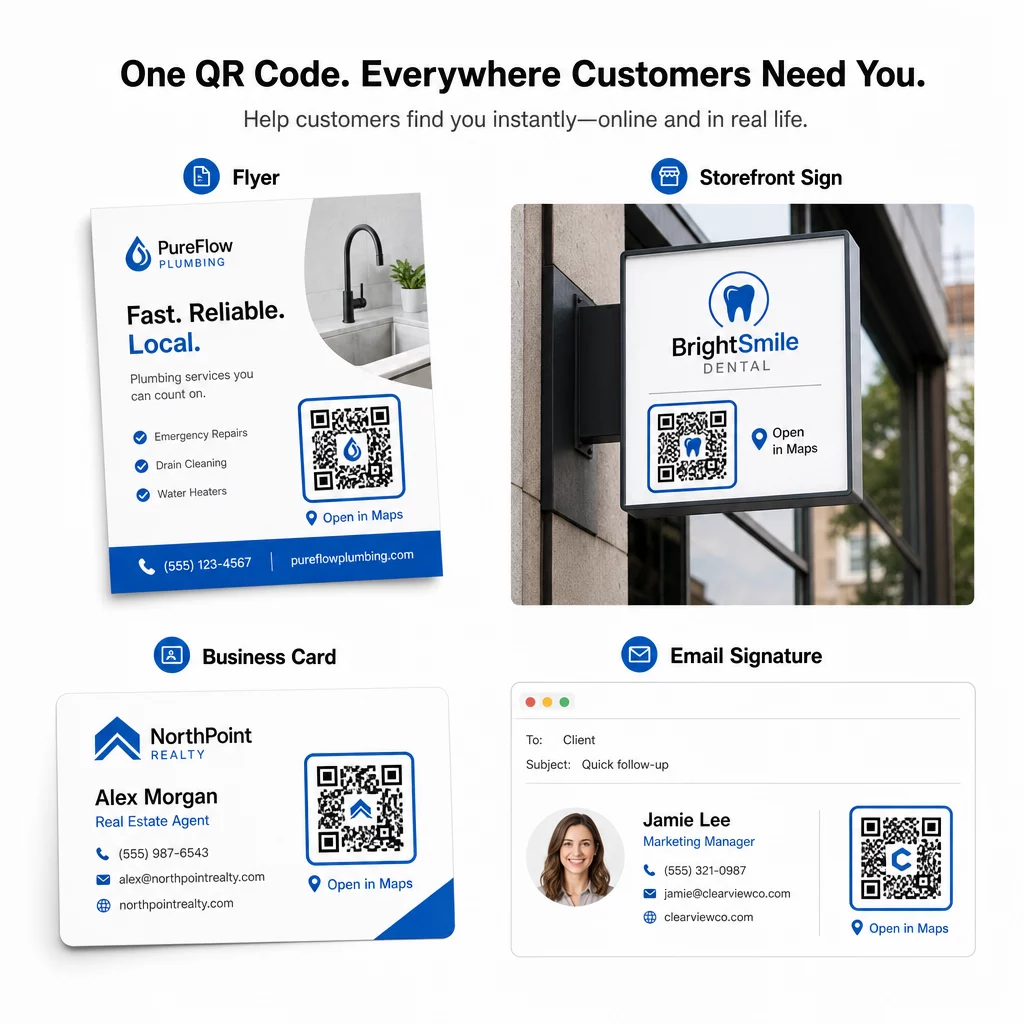
Sau khi được kiểm tra, mã QR của bạn đã sẵn sàng triển khai trên các kênh in ấn và kỹ thuật số:
Tài liệu in ấn:
- Danh thiếp – thay thế địa chỉ in bằng mã có thể quét được
- Tờ rơi và tài liệu quảng cáo – hướng dẫn khách tham dự sự kiện trực tiếp đến địa điểm
- Cửa sổ mặt tiền cửa hàng và biển hiệu cửa ra vào – giúp khách hàng tìm chỗ đậu xe hoặc lối vào thay thế
- Biển hiệu bất động sản – hướng dẫn người mua đến các địa điểm nhà mở
- Bao bì sản phẩm – liên kết khách hàng đến địa điểm bán lẻ thực tế của bạn
Kênh kỹ thuật số:
- Chữ ký email – thay thế địa chỉ tĩnh bằng mã vị trí có thể quét được
- Bài đăng và Tin trên mạng xã hội – quảng bá địa điểm mới hoặc địa điểm sự kiện
- Chân trang web – cho phép khách truy cập mở chỉ đường chỉ với một lần chạm
- Thực đơn kỹ thuật số – giúp thực khách tìm địa điểm thứ hai hoặc văn phòng phục vụ tiệc
Ở mỗi vị trí đặt, hãy bao gồm một lời kêu gọi hành động rõ ràng gần mã. “Quét để xem chỉ đường” hoặc “Mở trong Bản đồ” cho người dùng biết chính xác điều gì sẽ xảy ra khi họ quét, điều này làm tăng mức độ tương tác. Để được hướng dẫn về vị trí và kích thước trên các vật liệu khác nhau, tài liệu Hướng dẫn đặt mã QR cho tiếp thị bao gồm các khuyến nghị cụ thể về định dạng một cách chi tiết.
So sánh các gói Pageloot
| TÍNH NĂNG | Gói miễn phí | Gói Chuyên nghiệp | Tùy chỉnh/Doanh nghiệp |
|---|---|---|---|
| Loại mã QR | Chỉ tĩnh | Động & Tĩnh | Động & Tĩnh |
| Liên kết có thể chỉnh sửa | KHÔNG | Đúng | Đúng |
| Phân tích lượt quét | Không có | Thời gian thực (vị trí, thiết bị) | Lịch sử đầy đủ & thông tin chuyên sâu |
| Giới hạn quét hàng năm | Không giới hạn (tĩnh) | 250,000 | Tùy chỉnh |
| Tùy biến | Cơ bản (màu sắc, logo) | Tùy chọn thiết kế nâng cao | Tích hợp thương hiệu đầy đủ |
| Giá hàng tháng | $0 | $38.34 | $106.52 |
Gói miễn phí bao gồm các mã tĩnh vĩnh viễn không hết hạn và quét không giới hạn. Các gói trả phí mở khóa chỉnh sửa động, phân tích thời gian thực và tùy chỉnh nâng cao. Gói Khởi đầu bắt đầu từ $4.86/tháng với 2 mã động và 15.000 lượt quét hàng năm – phù hợp cho các doanh nghiệp nhỏ thử nghiệm định dạng này. Tất cả các gói trả phí đều bao gồm bản dùng thử miễn phí 14 ngày mà không yêu cầu thẻ tín dụng.
Như Lucas Jansen, một nhà phát triển bất động sản sử dụng mã QR vị trí của Pageloot, đã nói:
“Đây là một công cụ tuyệt vời và các mã QR đưa bạn đến đúng nơi bạn muốn.”
Đối với các vị trí cố định, mã tĩnh miễn phí là cách đơn giản nhất. Đối với bất kỳ thứ gì yêu cầu cập nhật, theo dõi hoặc đo lường chiến dịch, mã động cung cấp cho bạn sự linh hoạt và dữ liệu để cải thiện theo thời gian. Bắt đầu bằng cách sao chép liên kết Google Maps của bạn, tạo mã của bạn tại Tạo mã QR địa chỉ Google Map, và kiểm tra nó trên một thiết bị thực trước khi đưa vào hoạt động.
Câu hỏi thường gặp
Đối với hầu hết các trường hợp sử dụng, hãy sao chép Liên kết Địa điểm từ nút Chia sẻ trong Google Maps – nó mở vị trí chính xác trực tiếp trong Google Maps hoặc trình duyệt. Nếu bạn muốn đưa người dùng trực tiếp vào điều hướng từng chặng từ một điểm xuất phát cố định, hãy sử dụng Liên kết Chỉ đường thay thế. Luôn dán liên kết vào trình duyệt trước để xác nhận nó dẫn đến đúng vị trí trước khi tạo mã.
Sau khi ghim vị trí của bạn trên Google Maps, hãy sử dụng nút Chia sẻ và sao chép URL mà nó cung cấp. Liên kết này được gắn với tọa độ ghim cụ thể, chứ không chỉ là một tìm kiếm chung chung. Tránh sao chép URL từ thanh địa chỉ trình duyệt của bạn khi đang duyệt bản đồ – phiên bản đó có thể không đáng tin cậy để dẫn đến điểm đã ghim. Dán liên kết Chia sẻ vào trình duyệt để xác minh trước khi tạo mã QR.
Sử dụng định dạng vector – SVG, EPS, hoặc PDF – cho bất kỳ ứng dụng in ấn nào. Các tệp vector có thể mở rộng đến bất kỳ kích thước nào mà không làm mất độ sắc nét, không giống như các tệp xuất PNG hoặc JPEG có thể bị vỡ hạt ở kích thước in lớn. Đối với tài liệu in ấn, cũng đảm bảo độ phân giải của bạn ít nhất là 300 DPI và mã có kích thước ít nhất 2 × 2 inch để quét tầm gần đáng tin cậy.