Har du brug for at hjælpe kunder med at finde din placering uden at de skal indtaste en adresse? Manuel adresseindtastning skaber friktion – og frustrerede besøgende. Denne guide viser dig, hvordan du på få minutter forvandler enhver Google Maps-placering til en scanbar QR-kode.
Sådan får du dit Google Maps-lokationslink
Før du genererer noget, skal du have det rigtige link fra Google Maps. Det link, du kopierer, bestemmer præcis, hvor brugere lander, når de scanner, så præcision er vigtig her.
Find og fastgør din placering
Åbn Google Maps og søg efter din destination. Du kan indtaste et firmanavn som “Starbucks Times Square”, en fuld gadeadresse eller et genkendeligt vartegn. Hvis placeringen ikke har en formel adresse – et udendørs sted, en parkindgang, en parkeringsplads – tryk og hold på mobilen (eller klik på computeren) for at placere en nål på det nøjagtige sted.
Når nålen er placeret, zoom ind og bekræft, at markøren sidder på det rigtige punkt. Hvis du dirigerer folk til en specifik indgang snarere end bygningens generelle fodaftryk, skal du justere derefter. Dette ekstra trin forhindrer forvirring, når besøgende ankommer.
Kopier lokationslinket
Når din placering er bekræftet, tryk eller klik på Del knappen:
- På mobil: Tryk på lokationsnavnet nederst på skærmen, tryk derefter på Del-ikonet (pil opad) og vælg “Kopier til udklipsholder”.”
- På computeren: Klik på Del i informationspanelet eller under menuen med de tre prikker, og vælg derefter “Kopier link”.”
Den kopierede URL er typisk et forkortet link som `maps.app.goo.gl/xyz123`. Kortere links producerer renere, mindre tætte QR-koder, der scanner mere pålideligt. Før du går videre, indsæt linket i en browser for at bekræfte, at det åbner den korrekte placering.
Forskellige linktyper tjener forskellige formål:
| Linktype | Hvad det gør | Eksempel på brugssituation |
|---|---|---|
| Stedlink | Åbner en specifik virksomhed eller adresse | Deling af en butiksfacade eller et kontor |
| Søgelink | Viser resultater for en søgeforespørgsel | Viser “restauranter nær stedet” |
| Rutevejledningslink | Åbner en forudindstillet navigationsrute | Rutevejledning til gæster fra en lufthavn til et hotel |
Til QR-koder brugt til rutevejledning og deling af adresser, fungerer et Stedlink eller Rutevejledningslink normalt bedst – de springer søgetrinnet over og sender brugeren direkte til navigation.
Generering af din QR-kode
Når dit link er klar, besøg Google Maps QR-kode generator og indsæt din URL i inputfeltet. Vælg QR-kodetypen – “Link” eller “Kort” – og koden genereres øjeblikkeligt.
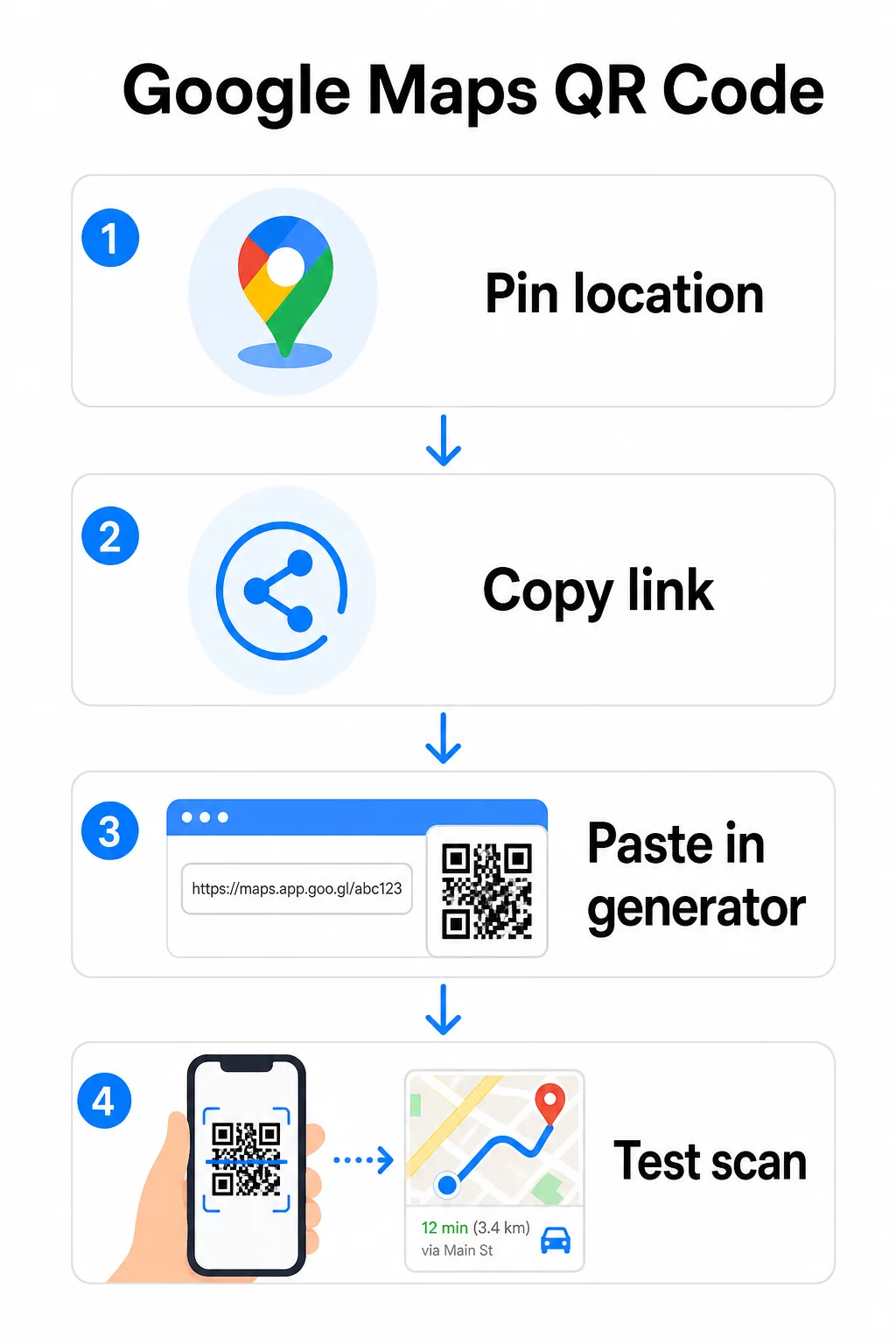
For en permanent placering uden behov for at ændre destinationen, en statisk QR-kode er gratis og udløber aldrig. Download den som en PNG, og du er klar til at bruge den.
Skal du opdatere din placering eller spore scanningsdata? Brug Pageloot QR-kodegenerator for at oprette en dynamisk kode, der lader dig ændre destinationen når som helst fra dit dashboard – ingen genprintning påkrævet.
Statisk vs. Dynamisk: Hvilken har du brug for?
En statisk QR-kode indkoder Google Maps-linket direkte i mønsteret. Den er permanent, gratis og fungerer uden nogen konto. Ulempen: hvis din placering ændres, skal du generere og genprinte en ny kode.
En dynamisk QR-kode gemmer i stedet en kort omdirigerings-URL. Du styrer, hvor den omdirigering peger hen fra dit Pageloot-dashboard. Dette betyder:
- Du kan opdatere destinationen uden at røre den printede kode
- Du får realtidsanalyse – antal scanninger, enhedstyper, geografiske placeringer og timing
- Du kan teste og udskifte destinationslinks til sæsonbestemte begivenheder eller midlertidige steder
Hvis du printer koder på permanent skiltning, fungerer statisk fint. Til kampagner, begivenheder, pop-up-lokationer eller enhver situation, hvor destinationen kan ændre sig, er dynamiske koder det praktiske valg.
Tilpasning af din QR-kode
En almindelig sort-hvid QR-kode fungerer, men en brandet en yder bedre. Pageloots tilpasningsmuligheder lader dig:
- Tilføj dit firmalogo i midten af koden
- Skift farver for at matche din brandpalet (hold mørke mønstre på en lys baggrund for pålidelig scanning)
- Vælg mellem forskellige modulformer: Rund, Streg eller Diamant
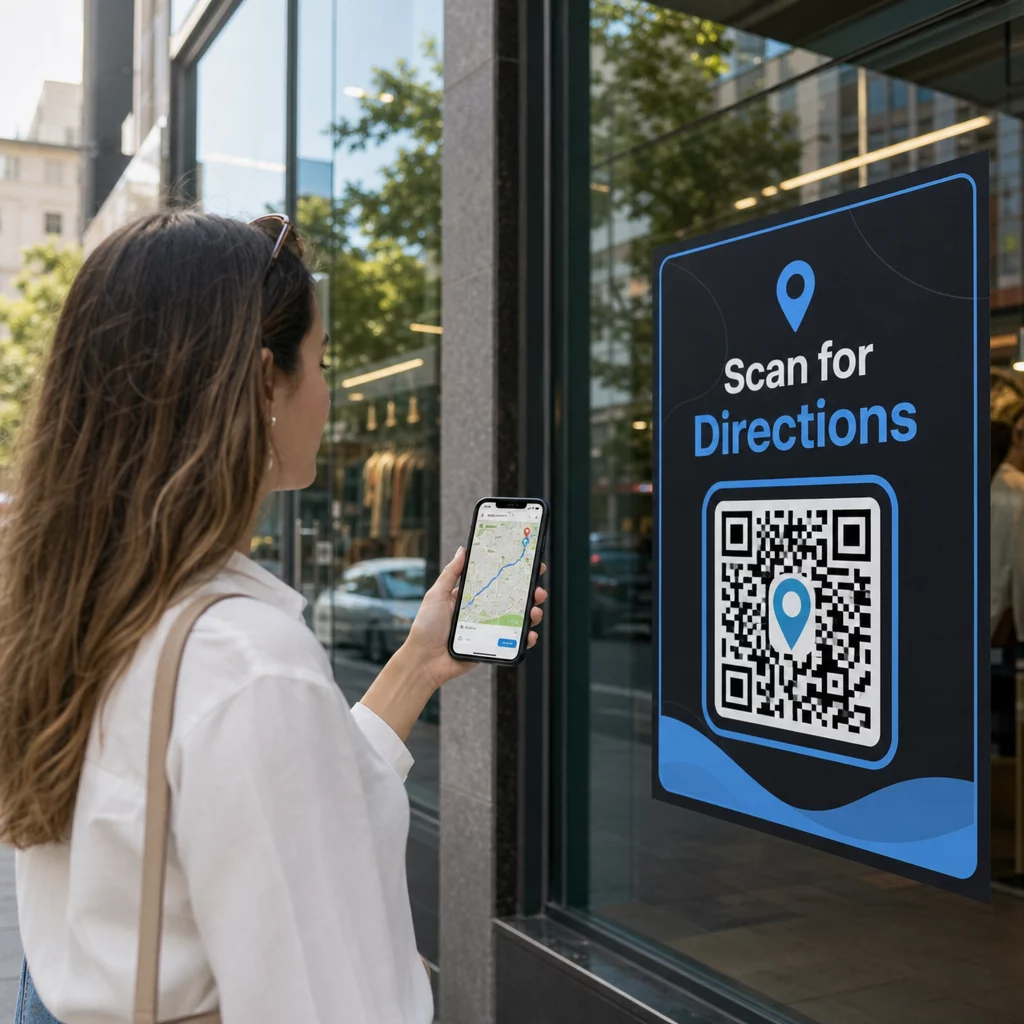
- Tilføj en Call-to-Action-ramme med tekst som “Scan for vejvisning” eller “Find os på kort”
Når du tilføjer et logo eller farver, skal du bruge fejlkorrektionsniveau Q eller H. Disse indstillinger gør det muligt for QR-koden at forblive scanbar, selvom op til 25-30% af mønsteret er skjult af et logo eller mindre skader. Hold logoer til ikke mere end 30% af kodens samlede areal, og sørg for, at de ikke overlapper de tre hjørne-“finder”-kvadrater.
Til printmaterialer skal du downloade din kode som en SVG-, PDF- eller EPS-fil. Disse vektorformater forbliver skarpe i enhver størrelse – afgørende for storformatprint som plakater eller butiksfacadeskilte.
Ønsker du en fuldt brandet lokationskode? Det Link QR-kodegenerator understøtter brugerdefinerede farver, logoer og rammestile med en 14-dages gratis prøveperiode – intet kreditkort påkrævet.
Test før du udgiver
Test altid din QR-kode, før du sender den til print eller en live kampagne. En ødelagt eller forkert dirigeret kode skader tilliden og spilder printomkostninger.
Gennemgå denne tjekliste:
- Scan med din telefons indbyggede kamera-app på både iOS og Android
- Bekræft, at linket åbner den korrekte placering i Google Maps
- Test på en enhed uden Google Maps-appen installeret – den skal omdirigere til Google Maps i browseren
- Scan fra flere afstande og under forskellige lysforhold
- Hvis du har tilpasset designet, skal du bekræfte, at hjørne-finder-kvadraterne og den stille zone (den tomme kant omkring koden) er uhindret
Til printbrug, en minimumsstørrelse på 2 × 2 tommer (ca. 5 × 5 cm) sikrer, at de fleste enheder kan scanne pålideligt på tæt hold. For materialer, der ses på afstand – plakater, bannere, vinduesudstillinger – skal du skalere proportionalt op. En generel retningslinje: koden skal være mindst en tiendedel af den afstand, hvorfra folk vil scanne den.
Almindelige problemer og løsninger:
| Scanningsproblem | Løsning |
|---|---|
| Sløret eller pixeleret kode | Eksporter som SVG, PDF eller EPS til print |
| Scanner genkender ikke koden | Øg kontrasten; mørk forgrund på lys baggrund |
| Logo blokerer scanning | Sørg for, at logoet ikke dækker hjørnefirkanterne; brug højere fejlkorrektion |
| Koden er for lille | Øg til mindst 2 × 2 tommer for fysiske materialer |
| Link åbner den forkerte placering | Dobbelttjek det kopierede delingslink i Google Maps, før du genererer |
For flere detaljer om størrelse, kontrast og placeringsstandarder, se bedste praksis for QR-kodelæsbarhed og retningslinjer for QR-koders brugervenlighed.
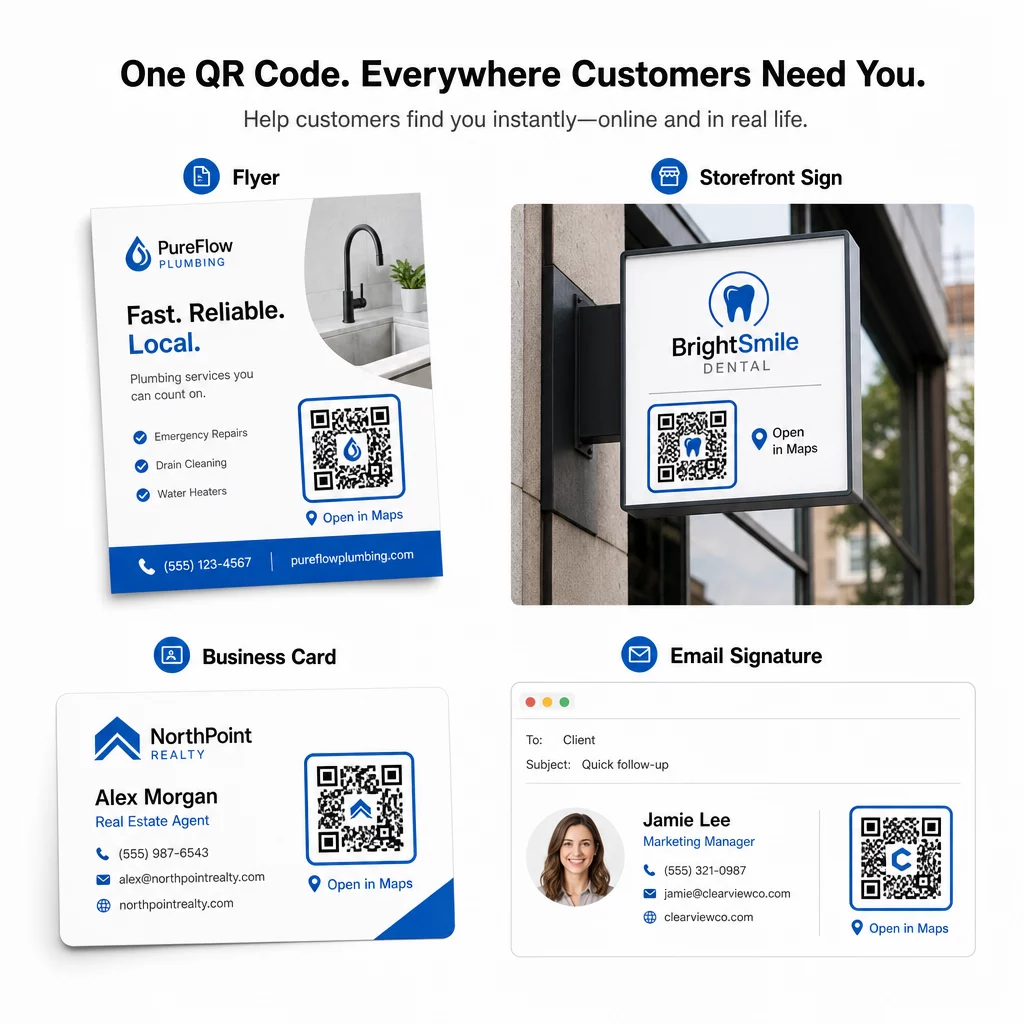
Hvor man kan bruge Google Maps QR-koder
Når den er testet, er din QR-kode klar til at blive implementeret på tværs af print- og digitale kanaler:
Printmaterialer:
- Visitkort – erstat trykte adresser med en scanningsbar kode
- Flyers og brochurer – guide eventgæster direkte til stedet
- Butiksvinduer og dørskilte – hjælp kunder med at finde parkering eller alternative indgange
- Ejendomsskilte – diriger købere til åbent hus-lokationer
- Produktemballage – link kunder til din fysiske butikslokation
Digitale kanaler:
- E-mailsignaturer – erstat statiske adresser med en scanningsbar lokationskode
- Opslag og Stories på sociale medier – promover en ny lokation eller et eventsted
- Website-footere – lad besøgende åbne rutevejledning med ét tryk
- Digitale menuer – hjælp gæster med at finde en anden lokation eller et cateringkontor
Ved hver placering skal du inkludere en klar opfordring til handling nær koden. “Scan for rutevejledning” eller “Åbn i kort” fortæller brugerne præcis, hvad der sker, når de scanner, hvilket øger engagementet. For vejledning om placering og størrelse på tværs af forskellige materialer, Vejledning til placering af QR-koder i marketing dækker formatspecifikke anbefalinger i detaljer.
Pageloot Plan Sammenligning
| FUNKTION | Gratis Plan | Proplan | Tilpasset/Virksomhed |
|---|---|---|---|
| QR-kode type | Kun statisk | Dynamisk og statisk | Dynamisk og statisk |
| Redigerbare links | Nej, det er det ikke | Ja | Ja |
| Scan-analyse | Ingen | Realtid (placering, enhed) | Fuld historik og ekspertindsigt |
| Årlig scanningsgrænse | Ubegrænset (statisk) | 250,000 | Tilpasset |
| Tilpasning | Grundlæggende (farver, logo) | Avancerede designmuligheder | Fuld brandintegration |
| Månedlig pris | $0 | $38.34 | $106.52 |
Den gratis plan dækker permanente statiske koder uden udløb og ubegrænsede scanninger. Betalte planer låser op for dynamisk redigering, realtidsanalyse og avanceret tilpasning. En Starter-plan begynder ved $4.86/måned med 2 dynamiske koder og 15.000 årlige scanninger – velegnet til små virksomheder, der tester formatet. Alle betalte planer inkluderer en 14-dages gratis prøveperiode uden krav om kreditkort.
Som Lucas Jansen, en ejendomsudvikler, der bruger Pageloots placerings-QR-koder, udtrykte det:
“Dette er et fremragende værktøj, og QR-koderne fører dig lige derhen, hvor du ønsker.”
For permanente placeringer er en gratis statisk kode den enkleste vej. For alt, der kræver opdateringer, sporing eller kampagnemåling, giver dynamiske koder dig fleksibiliteten og dataene til at forbedre dig over tid. Start med at kopiere dit Google Maps-link, og generer din kode på Google Maps QR-kode generator, og teste den på en rigtig enhed, før den går live.
Ofte stillede spørgsmål
Til de fleste formål skal du kopiere stedlinket fra Del-knappen i Google Maps – det åbner den præcise placering direkte i Google Maps eller en browser. Hvis du vil sende brugere direkte ind i trin-for-trin-navigation fra et fast startpunkt, skal du bruge et rutevejledningslink i stedet. Indsæt altid linket i en browser først for at bekræfte, at det fører til det rigtige sted, før du genererer koden.
Efter at have fastgjort din placering i Google Maps, brug Del-knappen og kopier den URL, den giver. Dette link er knyttet til de specifikke markørkoordinater, ikke kun en generel søgning. Undgå at kopiere URL'en fra din browsers adresselinje, mens du navigerer på kortet – den version løser muligvis ikke pålideligt til det fastgjorte punkt. Indsæt Del-linket i en browser for at verificere, før du genererer QR-koden.
Brug et vektorformat – SVG, EPS eller PDF – til enhver printapplikation. Vektorfiler kan skaleres til enhver størrelse uden at miste skarphed, i modsætning til PNG- eller JPEG-eksport, som kan fremstå pixeleret ved store printdimensioner. For printmaterialer skal du også sikre, at din opløsning er mindst 300 DPI, og at koden måler mindst 2 × 2 tommer for pålidelig scanning på tæt hold.