首页 > 博客 > How to Create a QR Code for Google Maps
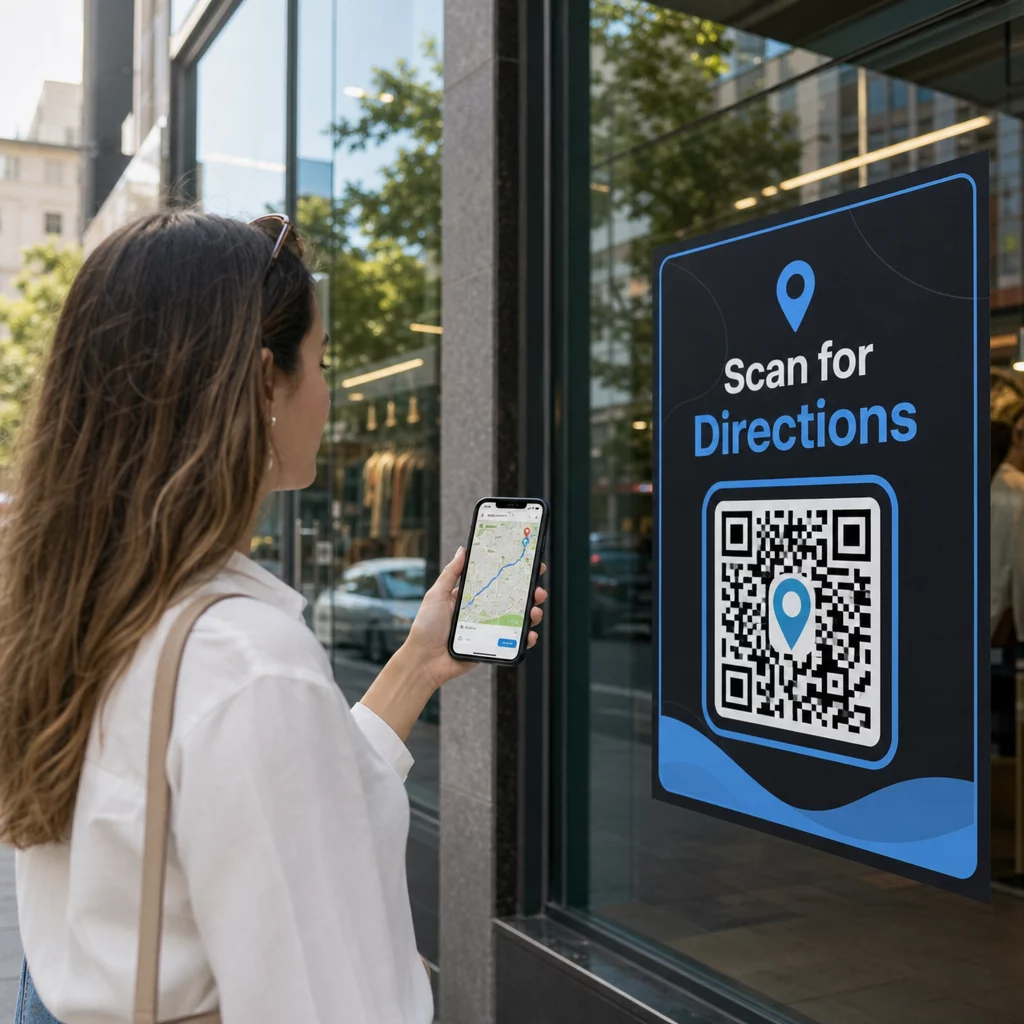
Scan for directions

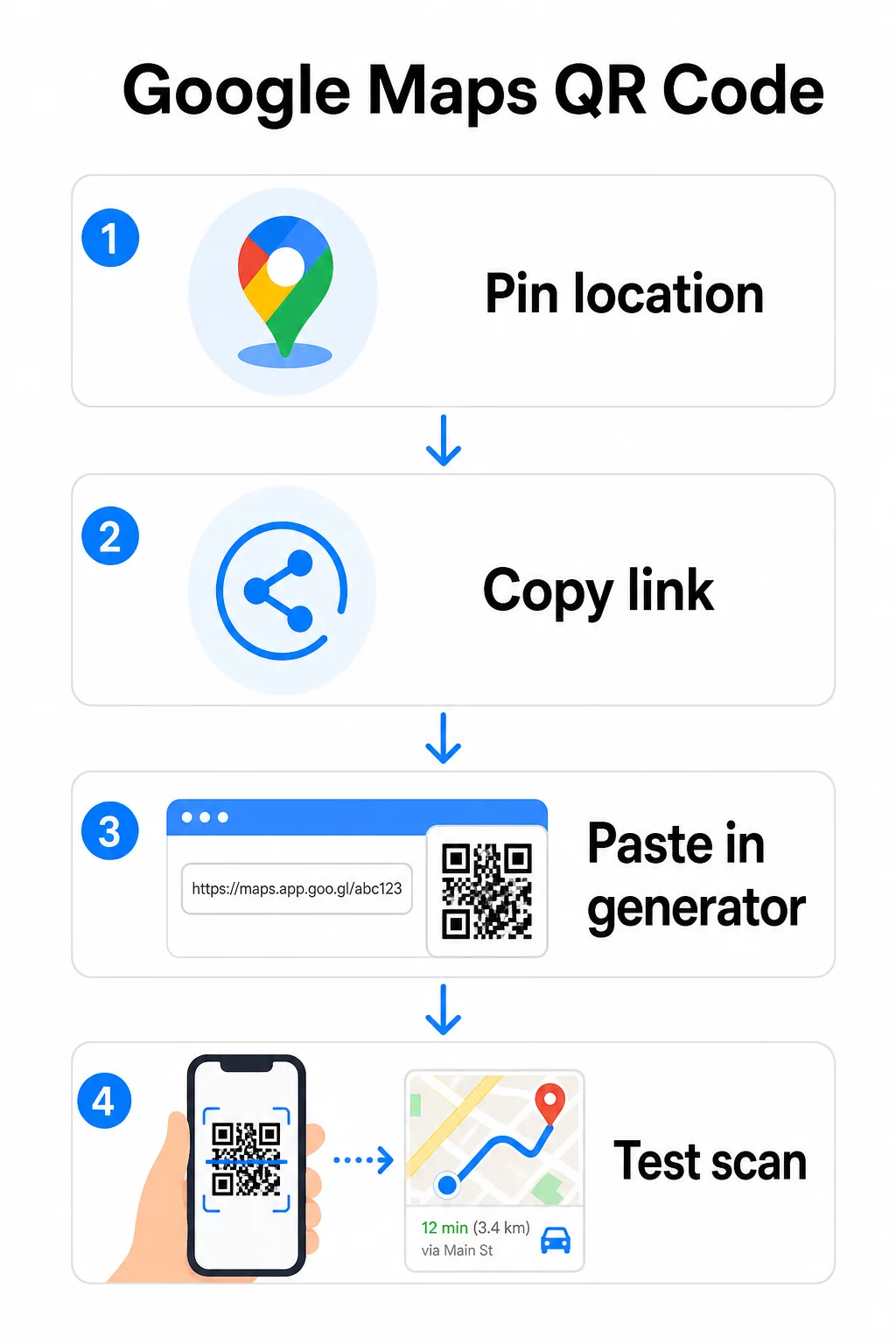
How to Create a QR Code for Google Maps

Learn how to create a QR code for Google Maps. This guide covers how to get your location link, customize the design, and test the code for reliable scanning.
Updated on 6 月 10, 2026
目录

Need to help customers find your location without making them type an address? Manual address entry creates friction – and frustrated visitors. This guide walks you through turning any Google Maps location into a scannable QR code in minutes.

Getting Your Google Maps Location Link

Before you generate anything, you need the right link from Google Maps. The link you copy determines exactly where users land when they scan, so precision here matters.

Find and Pin Your Location

Open Google Maps and search for your destination. You can enter a business name like “Starbucks Times Square,” a full street address, or a recognizable landmark. If the location has no formal address – an outdoor venue, a park entrance, a parking lot – press and hold on mobile (or click on desktop) to drop a pin at the exact spot.

Once pinned, zoom in and confirm the marker sits at the right point. If you’re directing people to a specific entrance rather than the general building footprint, adjust accordingly. This extra step prevents confusion when visitors arrive.

Copy the Location Link

With your location confirmed, tap or click the 分享 button:

  • On mobile: Tap the location name at the bottom of the screen, then tap the Share icon (upward arrow) and select “Copy to Clipboard.”
  • On desktop: Click Share in the information panel or under the three-dot menu, then select “Copy Link.”

The copied URL is typically a shortened link like `maps.app.goo.gl/xyz123`. Shorter links produce cleaner, less dense QR codes that scan more reliably. Before moving on, paste the link into a browser to confirm it opens the correct location.

Different link types serve different purposes:

Link Type What It Does Example Use Case
Place Link Opens a specific business or address Sharing a storefront or office
Search Link Displays results for a search query Showing “restaurants near the venue”
Directions Link Opens a pre-set navigation route Routing guests from an airport to a hotel

对于 QR codes used for directions and address sharing, a Place Link or Directions Link usually works best – they skip the search step and drop the user directly into navigation.

Generating Your QR Code

With your link ready, visit the 谷歌地图二维码生成器 and paste your URL into the input field. Select the QR code type – “Link” or “Maps” – and the code generates instantly.

QR code steps

For a permanent location with no need to change the destination, a 静态二维码 is free and never expires. Download it as a PNG and you’re ready to use it.

Need to update your location or track scan data? 使用 Pageloot QR码生成器 to create a dynamic code that lets you change the destination anytime from your dashboard – no reprinting required.

Static vs. Dynamic: Which Do You Need?

A static QR code encodes the Google Maps link directly into the pattern. It’s permanent, free, and works without any account. The trade-off: if your location changes, you need to generate and reprint a new code.

A dynamic QR code stores a short redirect URL instead. You control where that redirect points from your Pageloot dashboard. This means:

  • You can update the destination without touching the printed code
  • You get real-time analytics – scan counts, device types, geographic locations, and timing
  • You can test and swap destination links for seasonal events or temporary venues

If you’re printing codes on permanent signage, static works fine. For campaigns, events, pop-up locations, or any situation where the destination might change, dynamic codes are the practical choice.

Customizing Your QR Code

A plain black-and-white QR code works, but a branded one performs better. Pageloot’s customization options let you:

  • Add your company logo to the center of the code
  • Change colors to match your brand palette (keep dark patterns on a light background for reliable scanning)
  • Choose from different module shapes: Round, Dash, or Diamond
  • Add a Call-to-Action frame with text like “Scan for Directions” or “Find Us on Maps”

When adding a logo or colors, use error correction level Q or H. These settings allow the QR code to remain scannable even if up to 25–30% of the pattern is obscured by a logo or minor damage. Keep logos to no more than 30% of the code’s total area and ensure they don’t overlap the three corner “finder” squares.

For print materials, download your code as an SVG, PDF, or EPS file. These vector formats stay sharp at any size – critical for large-format printing like posters or storefront signage.

Want a fully branded location code?链接二维码生成器 supports custom colors, logos, and frame styles with a 14-day free trial – no credit card required.

Testing Before You Publish

Always test your QR code before committing it to print or a live campaign. A broken or misdirected code damages trust and wastes print costs.

Run through this checklist:

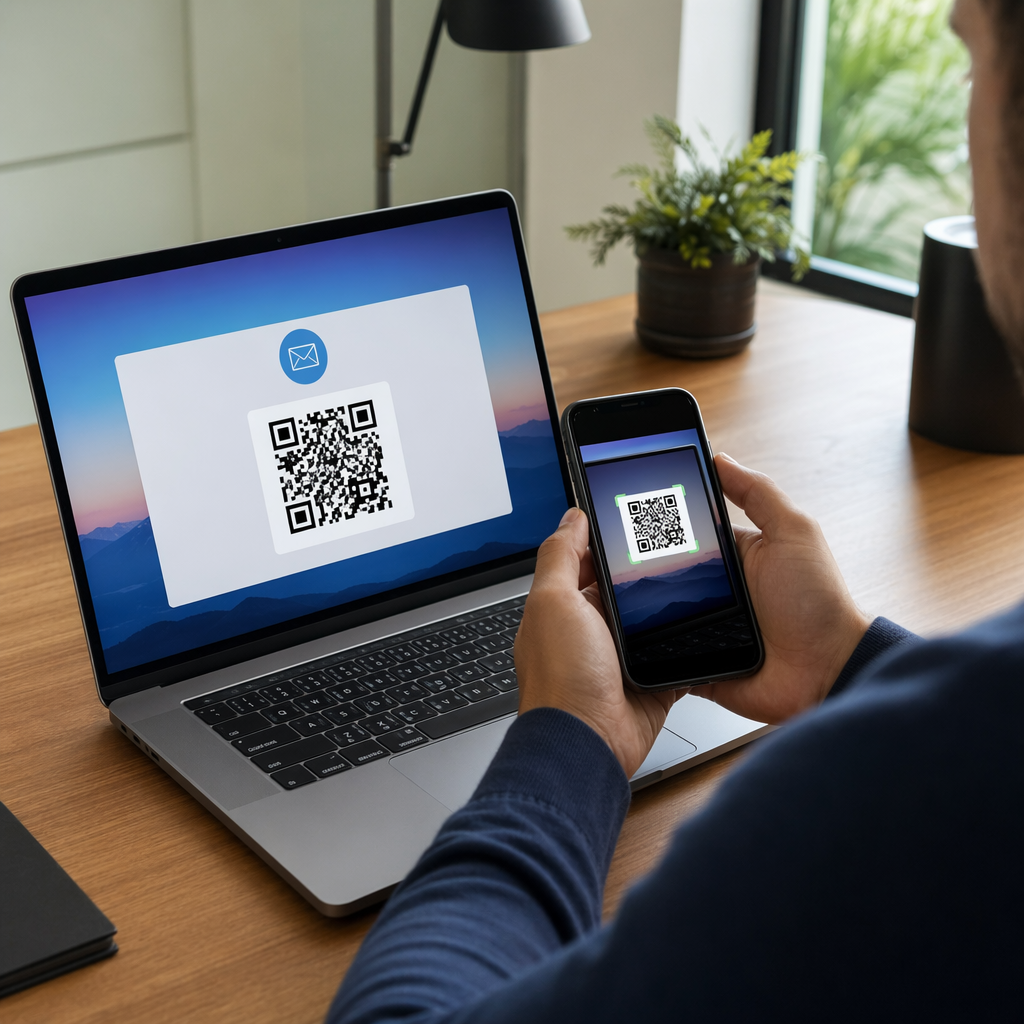
  • Scan with your phone’s native camera app on both iOS and Android
  • Confirm the link opens the correct location in Google Maps
  • Test on a device without the Google Maps app installed – it should redirect to Google Maps in the browser
  • Scan from multiple distances and under different lighting conditions
  • If you’ve customized the design, confirm the corner finder squares and quiet zone (the blank border around the code) are unobstructed

For print use, a minimum size of 2 × 2 inches (approximately 5 × 5 cm) ensures most devices can scan reliably at close range. For materials viewed from a distance – posters, banners, window displays – scale up proportionally. A general guideline: the code should be at least one-tenth the distance from which people will scan it.

Common issues and fixes:

Scanning Problem Fix
Blurry or pixelated code Export as SVG, PDF, or EPS for print
Scanner fails to recognize code Increase contrast; dark foreground on light background
Logo blocks scanning Ensure logo doesn’t cover corner squares; use higher error correction
Code too small Increase to at least 2 × 2 inches for physical materials
Link opens the wrong location Re-verify the copied Share link in Google Maps before generating

For more detail on sizing, contrast, and placement standards, see 二维码可读性的最佳实践QR code usability guidelines.

Where to Use Google Maps QR Codes

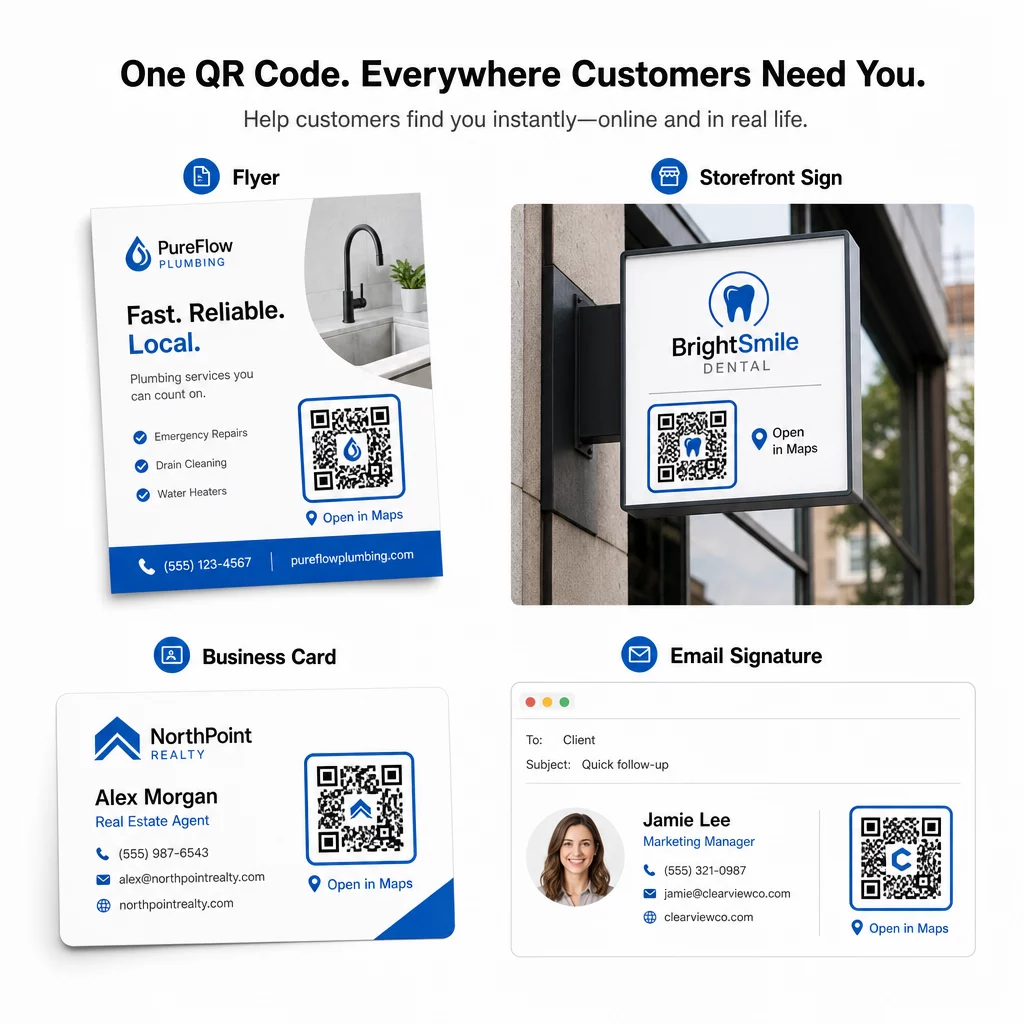
Once tested, your QR code is ready to deploy across print and digital channels:

Print materials:

  • Business cards – replace printed addresses with a scannable code
  • Flyers and brochures – guide event guests directly to the venue
  • Storefront windows and door signs – help customers find parking or alternate entrances
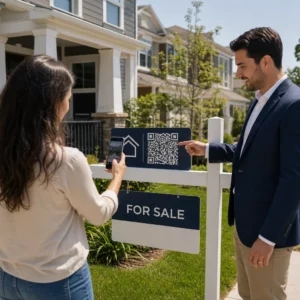
  • Real estate signage – direct buyers to open house locations
  • Product packaging – link customers to your physical retail location

Digital channels:

  • Email signatures – replace static addresses with a scannable location code
  • Social media posts and Stories – promote a new location or event venue
  • Website footers – let visitors open directions in one tap
  • Digital menus – help diners find a second location or catering office

In every placement, include a clear call-to-action near the code. “Scan for Directions” or “Open in Maps” tells users exactly what happens when they scan, which increases engagement. For guidance on positioning and sizing across different materials, the QR code placement guide for marketing covers format-specific recommendations in detail.

二维码放置示例

Pageloot Plan Comparison

功能 Free Plan 专业方案 Custom/Enterprise
二维码类型 Static Only Dynamic & Static Dynamic & Static
Editable Links 没有
扫描分析 Real-time (location, device) Full history & expert insights
Annual Scan Limit Unlimited (static) 250,000 Custom
定制化 Basic (colors, logo) Advanced design options Full brand integration
Monthly Price $0 $38.34 $106.52

The free plan covers permanent static codes with no expiration and unlimited scans. Paid plans unlock dynamic editing, real-time analytics, and advanced customization. A Starter plan begins at $4.86/month with 2 dynamic codes and 15,000 annual scans – suitable for small businesses testing the format. All paid plans include a 14-day free trial with no credit card required.

As Lucas Jansen, a real estate developer who uses Pageloot’s location QR codes, put it:

“This is an excellent tool and the QR codes take you to just where you want.”

For permanent locations, a free static code is the simplest path. For anything that requires updates, tracking, or campaign measurement, dynamic codes give you the flexibility and data to improve over time. Start by copying your Google Maps link, generating your code at the 谷歌地图二维码生成器, and testing it on a real device before it goes live.

常见问题

Which Google Maps link type should I use for my QR code?

For most uses, copy the Place Link from the Share button in Google Maps – it opens the exact location directly in Google Maps or a browser. If you want to send users straight into turn-by-turn navigation from a fixed starting point, use a Directions Link instead. Always paste the link into a browser first to confirm it resolves to the right spot before generating the code.

How do I make sure the QR code opens the exact pinned location?

After pinning your location in Google Maps, use the Share button and copy the URL it provides. This link is tied to the specific pin coordinates, not just a general search. Avoid copying the URL from your browser address bar while browsing the map – that version may not reliably resolve to the pinned point. Paste the Share link into a browser to verify before generating the QR code.

What file format should I use when printing a QR code?

Use a vector format – SVG, EPS, or PDF – for any print application. Vector files scale to any size without losing sharpness, unlike PNG or JPEG exports which can appear pixelated at large print dimensions. For print materials, also ensure your resolution is at least 300 DPI and that the code measures at least 2 × 2 inches for reliable close-range scanning.

关于作者

Siim Kostabi 是 Pageloot 的内容主管,负责撰写关于我们创新型二维码生成器服务的文章。凭借五年多来在二维码领域积累的深厚专业知识,Siim 是该领域的专家。他致力于利用二维码技术简化和增强数字交互,并取得了显著的成果。.

类别
了解更多关于
QR QR码的#1解决方案

如果您需要在线创建QR码,则可以 制作二维码 就在这里免费!
Pageloot是 #1转到解决方案 创建和扫描QR码。

受到超过 20,000 个品牌的信赖,可获得更多销售、评论和关注者。

客户徽标
受到顶级品牌的信赖
评分为 4.8(共 5)

4.86 / 5 星评级

雨果·劳伦特
雨果·劳伦特
餐馆老板
有史以来最容易和最可靠的QR码生成器。PDF文件可以立即上传。我们的餐厅菜单现在是数字化的。
卢卡斯-詹森
卢卡斯-詹森
房地产开发商
这是一个很好的工具,二维码带你到你想要的地方。我们只使用位置二维码,但有许多有用的功能。
艾玛-莫雷蒂
艾玛-莫雷蒂
零售产品
易于使用和快速。它工作得很好,创造了一个完美的图像,所以员工可以下载我的vCard。
雨果·劳伦特
雨果·劳伦特
餐馆老板
有史以来最容易和最可靠的QR码生成器。PDF文件可以立即上传。我们的餐厅菜单现在是数字化的。
卢卡斯-詹森
卢卡斯-詹森
房地产开发商
这是一个很好的工具,二维码带你到你想要的地方。我们只使用位置二维码,但有许多有用的功能。
艾玛-莫雷蒂
艾玛-莫雷蒂
零售产品
易于使用和快速。它工作得很好,创造了一个完美的图像,所以员工可以下载我的vCard。
查看更多QR码
客户扫描二维码
营销 转换次数
扫描二维码衬衫
开启QR码 服装
将一切转化为数字体验 不到3分钟。

免费试用 14 天。

无需信用卡。

首次购买可享受 30% 折扣

使用代码:

分享您的 MP3 文件

注册以创建 PDF QR 码

上传和显示你需要的一切。

  • 音频文件
  • 播客
  • 音乐

注册即可享 14 天免费试用。.
试用期结束后,二维码将失效。.

注册以创建音频 mp3 二维码

使用边框获得更多扫描

注册以向您的二维码添加更多框架

呼叫行动框架帮助您的客户与QR码轻松互动。试试吧!

注册即可享 14 天免费试用。.
试用期结束后,二维码将失效。.

注册以向您的二维码添加更多框架

使用形状添加更多样式

注册以创建更多形状

二维码不一定是方形的。试着改变它以适应你的品牌形象。

注册即可享 14 天免费试用。.
试用期结束后,二维码将失效。.

注册以创建更多形状

为您的二维码添加徽标

注册以将您的徽标添加到二维码中

通过在二维码上添加你的标志和品牌,使你的二维码脱颖而出。

注册即可享 14 天免费试用。.
试用期结束后,二维码将失效。.

注册以将您的徽标添加到二维码中

智能应用商店重定向

注册以创建应用商店二维码

将您的应用程序链接添加到我们的智能应用程序商店QR码。用户会根据他们的设备被重新定向。

注册即可享 14 天免费试用。.
试用期结束后,二维码将失效。.

注册以创建应用商店二维码

将图片上传到二维码

注册以创建图像二维码

轻松分享你的图像。在几秒钟内动态地改变任何图像。

注册即可享 14 天免费试用。.
试用期结束后,二维码将失效。.

注册以创建图像二维码

分享您的 PDF 文件

注册以创建 PDF QR 码

上传和显示你需要的一切。

  • 菜单和价格表
  • 使用说明
  • 任何文件

注册即可享 14 天免费试用。.
试用期结束后,二维码将失效。.

注册以创建 PDF QR 码

稍后编辑,无需打印

注册即可编辑您的二维码,无需再次打印

动态QR码让你改变你的QR码的内容,而不需要打印新的QR码。

注册即可享 14 天免费试用。.
试用期结束后,二维码将失效。.

注册即可编辑您的二维码,无需再次打印

何时?何地?追踪您的二维码扫描

注册以追踪您的二维码

发现你的哪些二维码收到了最多的扫描,以及什么最能让你的客户兴奋。

注册即可享 14 天免费试用。.
试用期结束后,二维码将失效。.

注册以追踪您的二维码

提供可打印文件

注册以创建 PDF 和 SVG 等矢量二维码

.EPS, .PDF, .SVG

想下载高清分辨率的QR码吗?获得矢量或像素格式,可随时打印。

注册即可享 14 天免费试用。.
试用期结束后,二维码将失效。.

注册以创建 PDF 和 SVG 等矢量二维码

请等待。您的二维码是 正在加载... 正在加载...

打造专属

注册以保存您的二维码以供日后使用

通过创建具有不同颜色、标识和行动呼吁框架的出色的QR码,获得更多的扫描。

注册即可享 14 天免费试用。.
试用期结束后,二维码将失效。.

注册以保存您的二维码以供日后使用