Are your customers struggling to scan the QR codes on your marketing materials? A code that fails to scan creates immediate frustration, damages trust, and wastes your printing budget. This checklist details key design and UX practices to ensure your QR codes scan reliably across every device and environment.
Size Codes Proportionally to Scanning Distance
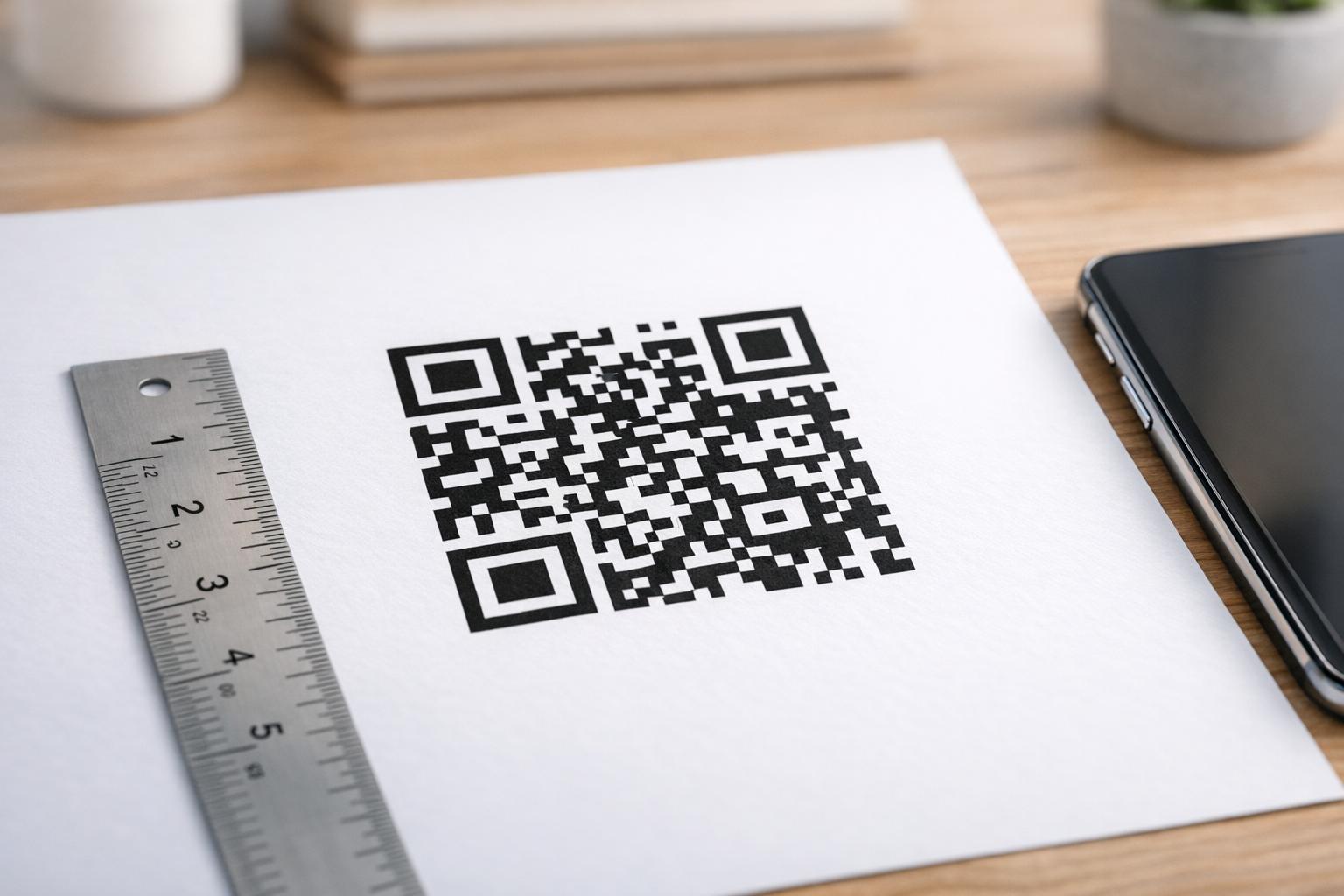
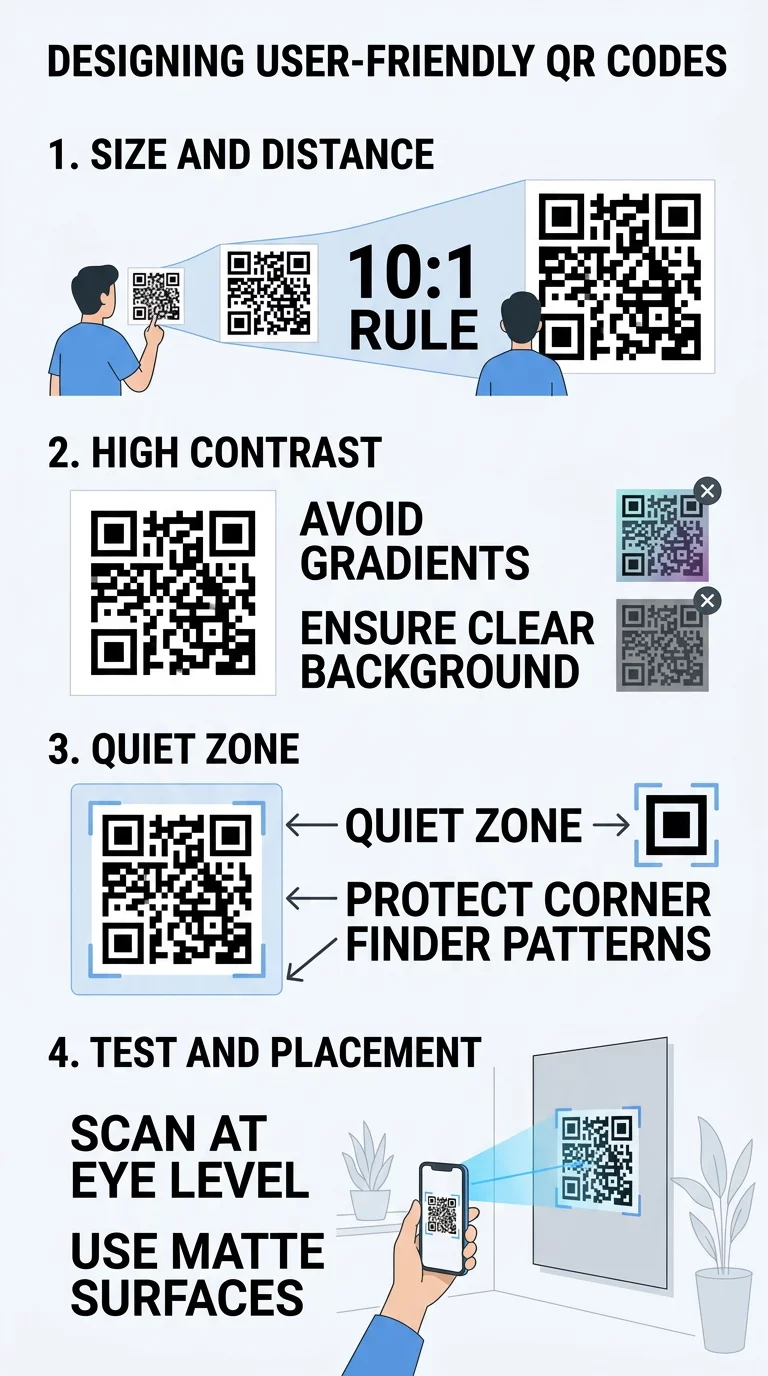
The most common reason for scanning failure is a code that is too small for a smartphone camera sensor to resolve. You must balance the physical dimensions of your code with the distance from which users will attempt to scan it. For close-up items like business cards, product labels, or table tents, a printed QR code should never measure smaller than 0.8 x 0.8 inches (2 x 2 cm).
To determine the correct dimensions for larger items, apply the standard 10:1 scanning ratio: the distance between the user and the code should be roughly ten times the width of the code. If people scan a promotional poster from 10 feet away, the code should be approximately 1 foot wide. Because dense information requires smaller individual modules, reviewing a detailed guide to QR code sizing helps ensure your code retains sufficient resolution during physical printing.
Maintain High Color Contrast
Scanners read information by measuring the light reflected back from alternating light and dark modules. When contrast is insufficient, the camera software cannot distinguish individual data points from the background. To keep scanning effortless, always place a dark foreground on a light background. Darker pigments absorb light while lighter areas reflect it, producing the sharp visual separation digital sensors require.
While some modern mobile operating systems can decode inverted codes, many older devices and third-party apps fail to recognize them. Follow these design practices to ensure broad compatibility:
- Maintain a minimum contrast ratio of 4.5:1 to ensure universal accessibility across varying light levels.
- Avoid gradients or drop shadows inside the code grid, as mid-tones distort module edges.
- Choose reliable pairings such as black on white, which provides the highest possible 21:1 contrast ratio.
- Test custom brand colors in bright daylight and low indoor lighting to verify colors do not wash out.
For detailed recommendations on selecting brand palettes that remain functionally compliant, consult these QR code color contrast best practices.
Protect the Quiet Zone and Finder Patterns
Every QR code requires a clear, unobstructed border known as the “quiet zone.” Defined by ISO/IEC 18004 standards, this margin must be at least four modules wide on all four sides. The quiet zone signals to the scanner where surrounding graphics stop and the data matrix begins. Crowding this border with typography, illustrations, or packaging folds makes it difficult for the camera to isolate the code.
You must also protect the three finder patterns – the prominent squares located in the top-left, top-right, and bottom-left corners. Scanners use these markers to detect orientation, distance, and skew angle. Obscuring or altering these corner elements is one of the quickest ways to cause a total scan failure.
Choose the Right Error Correction Level
QR codes feature built-in redundancy through the Reed-Solomon error correction algorithm, allowing them to remain readable even if parts are scratched, dirty, or obscured. You can choose from four standard recovery levels depending on the physical environment:
- Level L (Low): Recovers up to 7% of lost data; creates the least dense grid for indoor digital displays.
- Level M (Medium): Recovers up to 15% of lost data; serves as the standard choice for general marketing collateral.
- Level Q (Quartile): Recovers up to 25% of lost data; recommended for outdoor displays, vehicles, and industrial settings.
- Level H (High): Recovers up to 30% of lost data; essential when placing design elements over the code.
Reviewing how error correction works in editable QR codes helps you balance durability against data density. Higher error correction increases the number of modules, making the grid denser. However, Level H is necessary if you intend to use a QR code generator with logo, as the embedded graphic covers part of the readable data area.
Use Dynamic Codes to Reduce Data Density
Static QR codes embed information directly into the matrix. The more characters you encode – such as lengthy URLs with complex tracking parameters – the denser the pattern becomes, making the code harder for cameras to read at a distance. Dynamic QR codes solve this problem by directing users to a short redirect URL. This keeps the matrix clean, simple, and composed of larger modules that scan rapidly.
Dynamic codes also allow you to update the linked destination or file at any time without reprinting marketing assets. This capability prevents costly reprint mistakes; for example, Marriott Aruba saved roughly $150,000 by transitioning to dynamic codes across their digital and print menus. In addition, dynamic codes capture real-time scan analytics, providing data on scan counts, device types, and geographic locations.
Build Trackable Dynamic QR Codes Need to update your destinations on the fly and monitor real-time scan analytics? Use our QR code generator to design high-resolution, fully customizable codes.
Optimize Surface Placement and Call-to-Action Messaging
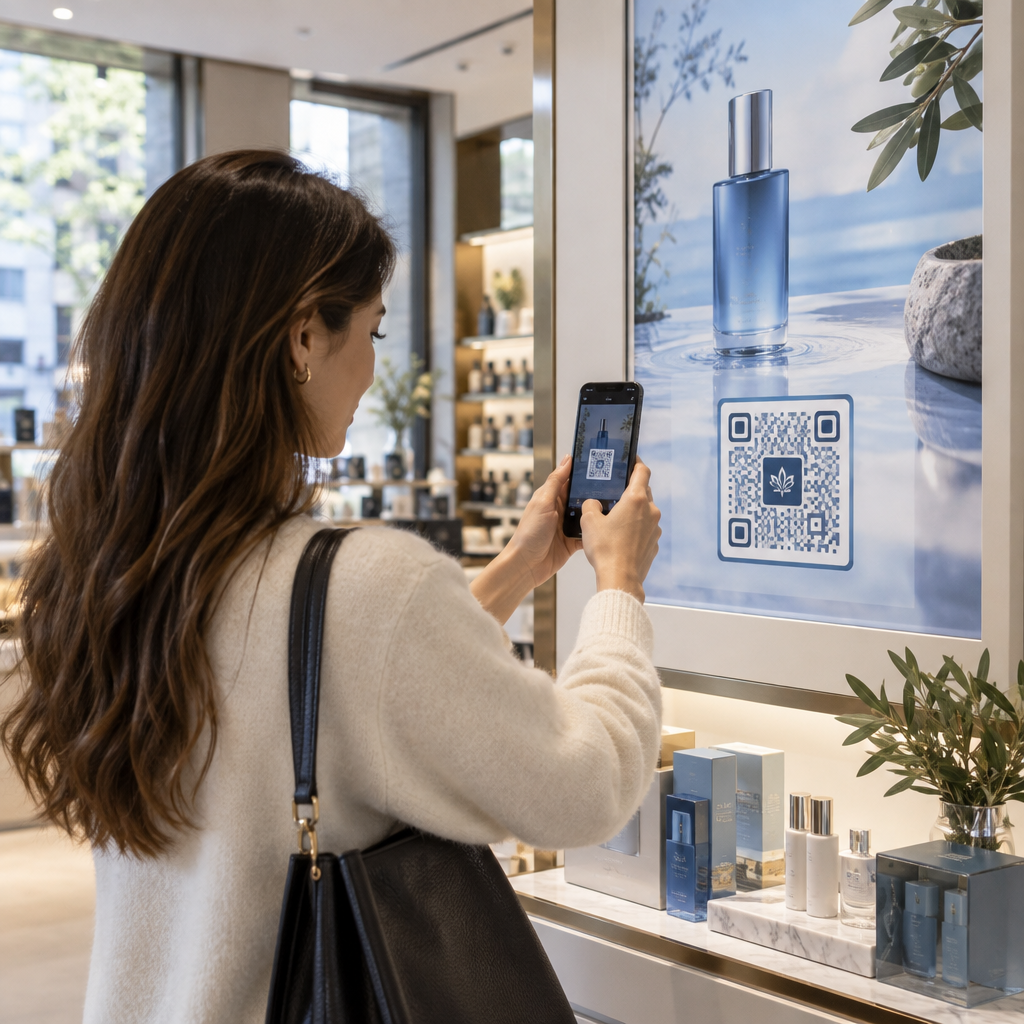
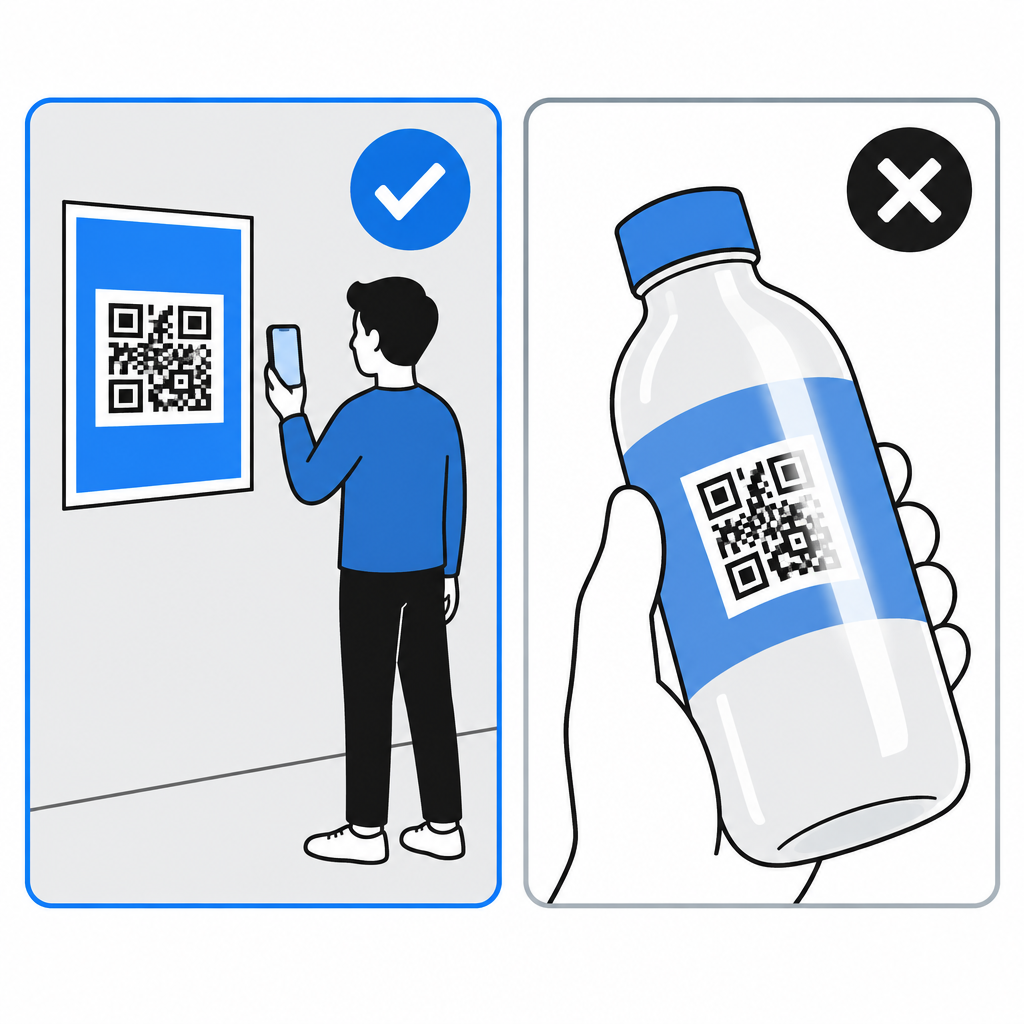
Even a properly generated QR code fails if placed in an awkward position. Position printed codes at natural eye level – typically between 3.5 and 5.5 feet from the ground – so users do not have to stoop or stretch to scan them. Avoid placing codes over packaging folds, textured surfaces, or curved surfaces like small beverage bottles, which warp the finder patterns. Choose matte finishes over glossy coatings to eliminate reflections and glare that interfere with camera sensors.
Pair every code with an action-oriented call to action (CTA). Generic phrases like “Scan here” fail to communicate value to the user. Instead, use explicit instructions such as “Scan to view menu,” “Scan for 20% off,” or “Scan for assembly instructions.” For expanded placement strategies across retail, packaging, and outdoor advertising, review this guide to QR code placement in marketing.
Test Across Real Devices and Environments
Never send a QR code design to print without conducting physical tests across multiple devices and environments. A code that works smoothly on a flagship smartphone screen may fail on an older device with a lower-resolution camera or slower focus mechanism.
Follow these validation steps before finalizing your campaign:
- Test scannability using native camera apps and an online QR code scanner across both iOS and Android hardware.
- Review scan behavior at intended distances and varied angles under both bright and dim lighting.
- Ensure the destination page loads in under three seconds and displays a fully responsive mobile layout.
- Export all print assets as scalable vector files (such as SVG or EPS) to preserve sharp edges at any scale.
Incorporating structured testing QR codes for mobile usability guarantees a consistent user journey from the physical scan to the digital destination. For a complete technical benchmark, verify your layout against standard best practices for QR code readability.
Delivering a Seamless Scanning Experience
Designing an effective QR code requires treating the code as an interactive user experience rather than a decorative graphic. By pairing appropriate sizing and high color contrast with clear quiet zones, dynamic routing, and prominent CTAs, you eliminate friction for your audience. Implement this checklist across every campaign asset to protect your print budget and maximize customer engagement.
Frequently Asked Questions
The practical minimum size for a printed QR code is 0.8 x 0.8 inches (2 x 2 cm) for close-range scanning on smooth surfaces. If your code encodes more data or uses higher error correction, increase the size to at least 1.2 x 1.2 inches (3 x 3 cm) to maintain scannability.
Standard barcode readers and older smartphone camera algorithms are programmed to detect dark patterns set against a light background. Light modules placed on a dark background can confuse these edge-detection sensors, causing the scan to fail.
Yes, provided you use a dynamic QR code. Dynamic codes point to a short redirect URL, allowing you to change the final destination link at any time through your dashboard without altering or reprinting the physical code.