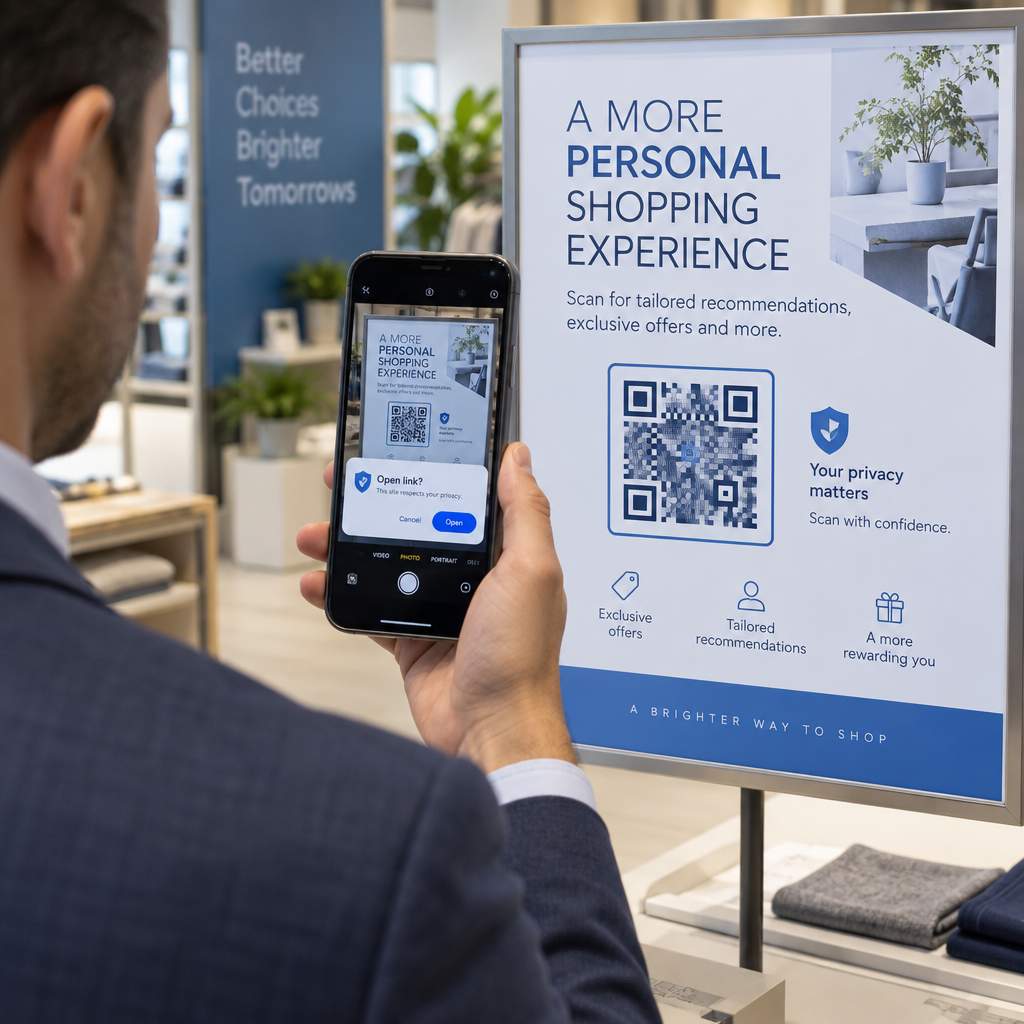
Adakah anda cuba mengubah saiz kod QR hanya untuk berakhir dengan hasil yang kabur, tidak boleh diimbas? Mendapatkan dimensi yang salah – atau menggunakan format fail yang salah – boleh menjadikan kod QR anda tidak berguna sama sekali selepas dicetak. Panduan ini membimbing anda dengan tepat cara mengubah saiz kod QR dengan betul, meliputi format fail, peraturan saiz, keperluan resolusi, dan kesilapan paling biasa yang perlu dielakkan.
Mengapa Mengubah Saiz Kod QR Menjadi Salah
Kebanyakan masalah kualiti kod QR berpunca daripada satu daripada dua isu: bermula dengan format fail yang salah atau menskalakan imej melebihi apa yang boleh disokong oleh resolusinya.
Apabila anda mengambil imej raster resolusi rendah – JPEG atau PNG kecil – dan meregangkannya lebih besar dalam perisian reka bentuk anda, pengimbas perlu membaca modul yang kabur, tidak jelas dan bukannya petak hitam-putih yang jelas. Meregangkan kod QR resolusi rendah adalah salah satu cara paling boleh dipercayai untuk menghasilkan hasil cetakan yang kabur, tidak boleh diimbas. Terdapat juga masalah yang kurang jelas: mengubah saiz boleh secara tidak sengaja memesongkan perkadaran kod atau menyingkirkan zon senyap – margin putih jernih yang mengelilingi kod – yang menyebabkan pengimbas salah membaca atau terlepas sepenuhnya corak tersebut. Memahami titik kegagalan ini sebelum anda mengubah saiz adalah laluan paling langsung kepada kod yang benar-benar berfungsi.
Vektor lwn. Raster: Keputusan Format Fail Yang Paling Penting
Pilihan paling berkesan yang anda buat apabila mengubah saiz kod QR ialah sama ada anda bekerja dengan fail vektor atau raster.
Format vektor (SVG, EPS, PDF) menyimpan kod QR sebagai arahan matematik dan bukannya grid piksel tetap. Ini bermakna ia boleh diskalakan kepada sebarang saiz – daripada setem pos hingga papan iklan – tanpa kehilangan ketajaman atau kejelasan. Untuk apa-apa yang akan dicetak, vektor adalah pilihan yang betul.
Format raster (PNG, JPEG, BMP) menyimpan kod sebagai grid piksel dengan had resolusi tetap. Sebaik sahaja anda menskalakannya melebihi resolusi asalnya, perisian perlu mencipta data piksel, yang menghasilkan kekaburan. JPEG amat bermasalah kerana algoritma pemampatannya melicinkan tepi, secara langsung menjejaskan kontras tajam yang diperlukan oleh pengimbas QR untuk membaca setiap modul.
| Format | Skala Tanpa Kehilangan | Disyorkan Untuk | Nota |
|---|---|---|---|
| SVG | ya | Cetak, format besar | Terbaik secara keseluruhan untuk mengubah saiz |
| EPS | ya | Cetakan profesional | Standard dalam aliran kerja reka bentuk cetakan |
| ya | Cetak, perkongsian | Memelihara data vektor | |
| PNG | Tidak (resolusi tetap) | Web, paparan digital | Boleh diterima pada resolusi tinggi |
| JPEG | Tidak (pemampatan hilang) | Tiada satu pun | Elakkan sepenuhnya untuk kod QR |
Apabila anda memuat turun kod QR untuk dicetak, sentiasa pilih SVG atau EPS. Apabila anda memerlukan fail raster untuk skrin digital atau platform yang tidak menerima format vektor, eksport PNG resolusi tinggi – jangan sekali-kali JPEG.
Cipta Kod QR Sedia Cetak dalam Format Yang Betul Jana kod QR anda dan muat turunnya sebagai fail SVG, EPS, atau PDF sedia cetak menggunakan Penjana Kod Pageloot QR. Tiada perisian reka bentuk diperlukan.
Peraturan Resolusi untuk Fail Raster
Jika anda bekerja dengan PNG untuk cetakan, resolusi – diukur dalam DPI (titik per inci) – menentukan sama ada kod kekal tajam pada saiz cetakan akhirnya.
Standard minimum untuk cetakan ialah 300 DPI pada dimensi cetakan akhir. Ini bermakna dimensi piksel fail imej anda mesti sepadan dengan saiz fizikal yang dimaksudkan pada ketumpatan tersebut. Contohnya:
- Kod QR dicetak pada 1 inci × 1 inci memerlukan sekurang-kurangnya 300 × 300 piksel
- Kod QR dicetak pada 4 inci × 4 inci memerlukan sekurang-kurangnya 1,200 × 1,200 piksel
Jika fail anda tidak memenuhi ambang ini pada saiz sasaran anda, modul individu – petak kecil yang membawa data QR – akan kabur bersama. Pada ketika itu, pengimbas tidak lagi dapat membezakan gelap daripada terang, dan kod tersebut gagal. Untuk skrin digital, minimum kira-kira 240 × 240 piksel adalah garis panduan praktikal untuk kod paparan pada skrin, walaupun lebih besar sentiasa lebih selamat untuk zum dan keserasian merentas peranti. Penyelesaian yang lebih bersih untuk cetakan adalah dengan melangkau raster sepenuhnya dan menggunakan fail vektor, yang memberikan anda skalabiliti tak terhingga tanpa kebimbangan resolusi.
Cara Mengubah Saiz Kod QR Langkah demi Langkah
Langkah 1: Mulakan dengan Fail Sumber yang Betul
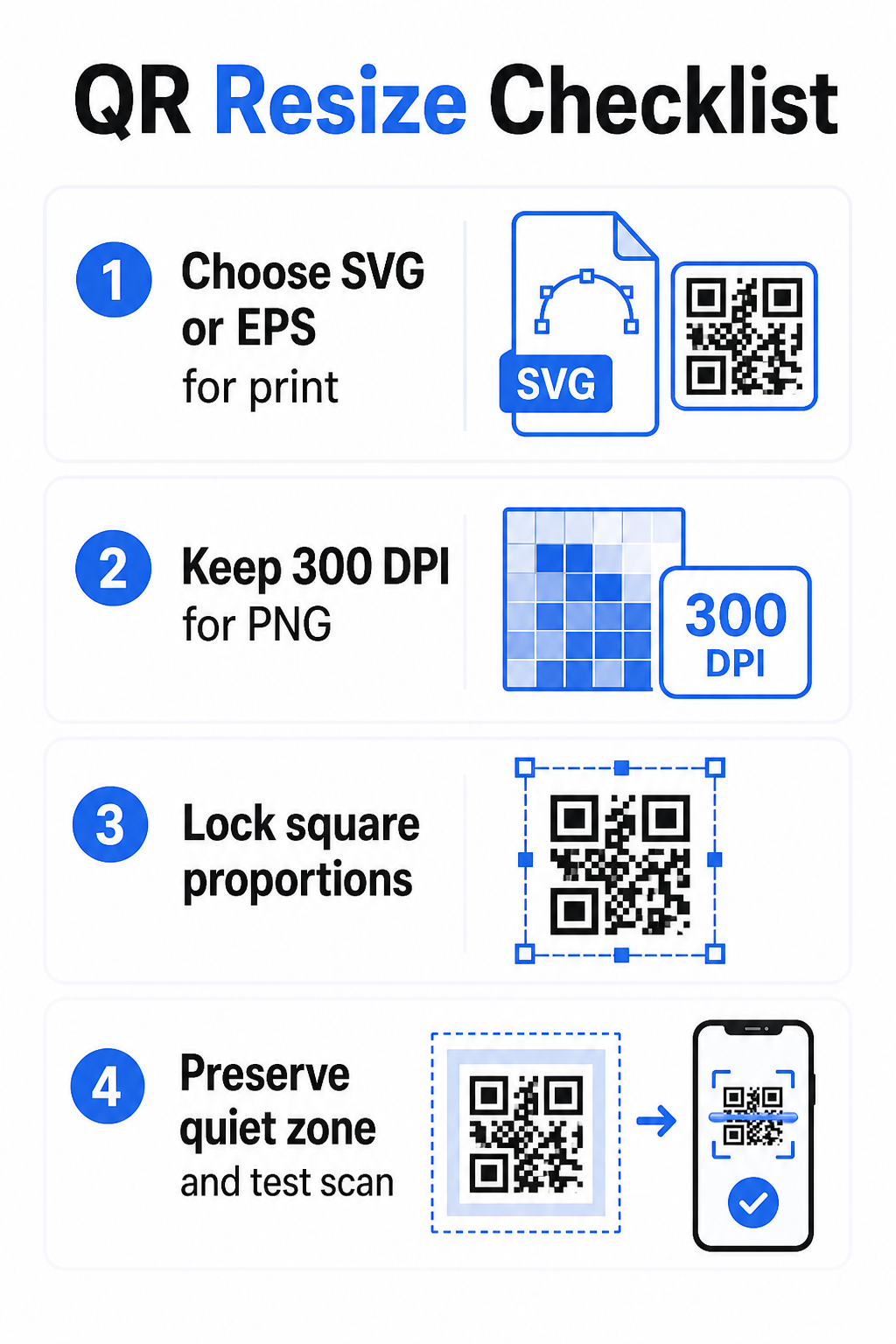
Muat turun atau eksport kod QR anda dalam format SVG atau EPS jika ia akan dicetak. Jika anda hanya mempunyai fail raster, sahkan bahawa dimensi piksel menyokong 300 DPI pada saiz cetakan sasaran anda sebelum mengubah saiz. Kod QR PNG boleh berfungsi dengan baik untuk penempatan digital apabila dieksport pada resolusi yang mencukupi – anda boleh menciptanya secara langsung dengan Penjana kod QR PNG dan gunakannya di mana sahaja ketelusan atau keserasian raster diperlukan.
Langkah 2: Skala Secara Berkadar
Sentiasa kekalkan nisbah aspek asal apabila mengubah saiz semula. Kod QR adalah segi empat sama mengikut definisi, dan meregangkannya secara mendatar atau menegak akan memesongkan modul daripada segi empat sama menjadi segi empat tepat, yang boleh mengelirukan atau mengalahkan pengimbas. Dalam mana-mana aplikasi reka bentuk – Illustrator, Canva, InDesign, Photoshop – kunci nisbah aspek sebelum menyeret pemegang sudut. Walaupun herotan yang halus sudah cukup untuk menyebabkan masalah dengan pelaksanaan pengimbas yang lebih ketat.
Langkah 3: Pelihara Zon Senyap
Zon senyap adalah sempadan putih yang jelas mengelilingi kod QR pada keempat-empat sisi. Piawaian ISO/IEC 18004 menetapkan bahawa margin ini mestilah sekurang-kurangnya empat modul lebar pada setiap sisi. Apabila anda mengubah saiz semula kod QR dan meletakkannya dalam reka bentuk yang lebih besar, zon ini sering kali menjadi perkara pertama yang dipangkas atau diceroboh oleh elemen reka bentuk lain. Jika setiap modul dalam kod anda adalah 2 mm lebar, zon senyap anda mestilah sekurang-kurangnya 8 mm pada semua sisi. Anggap ruang ini sebagai tidak boleh dirunding – mengeluarkannya akan memecahkan pengecaman pengimbas.
Langkah 4: Semak Kontras Selepas Mengubah Saiz Semula
Mengubah saiz semula pada latar belakang berwarna atau bertekstur boleh mengurangkan kontras berkesan antara modul kod dan persekitarannya. Pengimbas bergantung pada perbezaan antara kawasan gelap dan terang untuk membaca kod. Gabungan paling selamat kekal modul gelap pada latar belakang terang – hitam pada putih menyediakan nisbah kontras 21:1. Sasarkan nisbah kontras minimum sebanyak 4:1 antara warna latar depan dan latar belakang, dan elakkan meletakkan kod pada kecerunan, corak sibuk, atau permukaan reflektif. Untuk panduan terperinci, lihat amalan terbaik kontras warna kod QR.
Langkah 5: Uji Sebelum Mencetak
Cetak bukti pada saiz yang tepat dan bahan yang tepat, kemudian uji dengan pelbagai peranti – kedua-dua iOS dan Android – sebelum melakukan pengeluaran penuh. Uji pada jarak pengimbasan sebenar yang akan dialami pengguna. Kod yang mengimbas dengan sempurna pada jarak lengan mungkin gagal pada jarak ia sebenarnya diletakkan. Lihat cara menguji kod QR untuk kebolehgunaan mudah alih untuk senarai semak ujian penuh.
Garis Panduan Saiz Minimum dan Maksimum
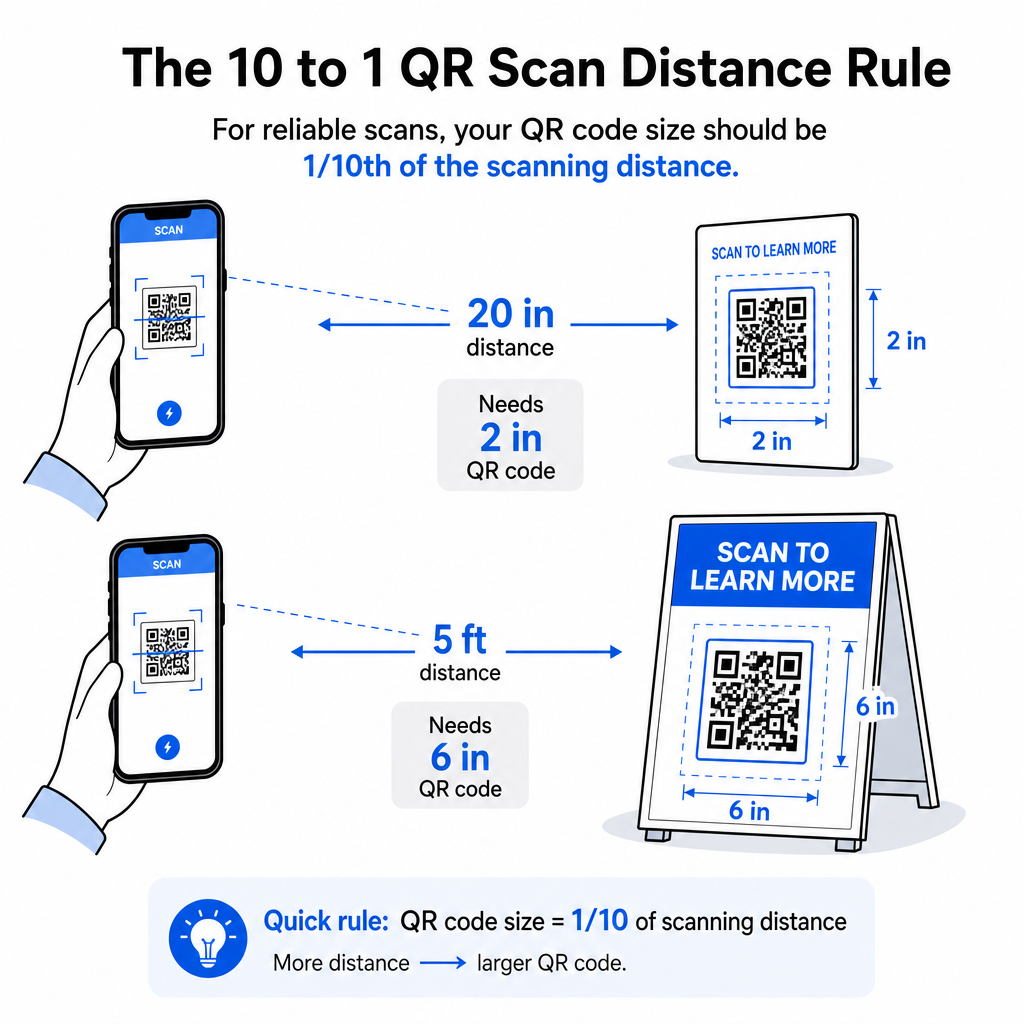
Mengubah saiz semula kod QR secara bertanggungjawab bermakna mengetahui had saiz untuk kes penggunaan khusus anda. Peraturan utama adalah nisbah jarak-ke-saiz 10:1: jarak pengimbasan maksimum yang dimaksudkan hendaklah kira-kira sepuluh kali lebar kod QR. Kod yang diimbas dari jarak 20 inci hendaklah sekurang-kurangnya 2 inci lebar; satu yang diimbas dari jarak 5 kaki hendaklah sekurang-kurangnya 6 inci lebar; kod papan iklan yang diimbas dari jarak 30 kaki hendaklah sekurang-kurangnya 36 inci lebar.
Untuk aplikasi cetakan biasa, berikut adalah titik permulaan yang boleh dipercayai:
| Gunakan Kes | Saiz Minimum yang Disyorkan |
|---|---|
| Kad perniagaan | 0.8 × 0.8 in (2 × 2 cm) |
| Risalah dan brosur | 1.2 × 1.2 in (3 × 3 cm) |
| Poster dan papan tanda | 6 × 1.6 inci (4 × 4 cm) |
| Papan iklan dan sepanduk | 16 × 16 inci (40 × 40 cm) atau lebih besar |
Untuk aplikasi kad perniagaan, 0.8 × 0.8 inci adalah minimum praktikal untuk pengimbasan jarak dekat yang boleh dipercayai – mengecilkan lagi meningkatkan risiko kegagalan imbasan dengan ketara. Lihat panduan saiz kod QR untuk kad perniagaan untuk cadangan khusus mengenai format itu. Tiada had saiz atas rasmi; skala mengikut keperluan berdasarkan jarak pengimbasan. Untuk pecahan komprehensif merentasi setiap kes penggunaan, panduan saiz kod QR meliputi segala-galanya daripada kad perniagaan hingga papan iklan. Anda juga boleh meneroka bagaimana saiz kod QR mempengaruhi keterlihatan untuk memahami hubungan yang lebih luas antara dimensi dan kejayaan imbasan.
Perlukan Kod QR untuk Kad Perniagaan Anda? Menggunakan Kad perniagaan digital dengan kod QR untuk mencipta kod yang bersaiz dan direka untuk percetakan kad perniagaan, dengan eksport SVG disertakan.
Bagaimana Ketumpatan Data Mempengaruhi Pengubahan Saiz Semula
Satu faktor yang merumitkan pengubahan saiz semula adalah ketumpatan data – jumlah maklumat yang dikodkan dalam kod QR. Semakin banyak data yang terkandung dalam kod QR, semakin padat grid modulnya. Grid yang lebih padat memerlukan saiz fizikal yang lebih besar untuk memastikan modul individu boleh dibaca pada tahap kamera.
Kod QR yang mengekod URL panjang dengan parameter penjejakan mengandungi lebih banyak data daripada yang menunjuk ke URL pengalihan pendek. Apabila anda mengecilkan kod berketumpatan tinggi, modul menjadi terlalu kecil untuk kebanyakan kamera telefon pintar untuk menyelesaikan dengan pasti. Kod QR dinamik menyelesaikan masalah ini secara langsung. Daripada mengekod URL destinasi penuh, kod dinamik mengekod pengalihan dalaman pendek, mengekalkan ketumpatan data kod rendah tanpa mengira ke mana ia menunjuk. Ini bermakna anda boleh mencetak kod lebih kecil tanpa mengorbankan kebolehimbasan – dan mengemas kini destinasi kemudian tanpa mencetak semula.
Pembetulan Ralat dan Toleransi Pengubahan Saiz Semula
Kod QR termasuk pembetulan ralat terbina dalam yang membolehkan ia kekal boleh diimbas walaupun rosak separa atau terhalang. Piawaian ISO/IEC 18004 mentakrifkan empat tahap:
| Tahap | Keupayaan Pemulihan |
|---|---|
| L (Rendah) | ~7% data |
| M (Sederhana) | ~15% data |
| Q (Kuartil) | ~25% data |
| H (Tinggi) | ~30% data |
Jika anda mengubah saiz kod QR kepada saiz yang lebih kecil, atau menambah logo di tengah kod, meningkatkan tahap pembetulan ralat memberikan anda penampan terhadap kerosakan peringkat modul atau ketidaktepatan pengimbasan. Tahap Q atau H sesuai untuk kod berjenama atau yang sangat disesuaikan. Ingat bahawa pembetulan ralat yang lebih tinggi meningkatkan ketumpatan data, yang mungkin memerlukan saiz minimum yang sedikit lebih besar untuk mengimbangi.
Kesilapan Biasa Mengubah Saiz yang Perlu Dielakkan
- Menggunakan tangkapan skrin sebagai fail sumber anda. Tangkapan skrin adalah tangkapan raster resolusi rendah. Membesarkannya untuk cetakan adalah salah satu punca paling biasa kod QR yang tidak boleh diimbas.
- Meregangkan kod secara tidak berkadaran. Walaupun sedikit herotan mendatar atau menegak mengubah bentuk modul daripada segi empat sama kepada segi empat tepat, yang boleh menghalang pengimbas daripada membaca kod dengan betul.
- Memangkas zon senyap. Mengubah saiz dalam susun atur reka bentuk yang ketat sering mengakibatkan elemen lain menceroboh zon senyap. Kekalkan sekurang-kurangnya empat modul ruang kosong di semua sisi – margin ini adalah keperluan teknikal, bukan pilihan gaya.
- Mengandaikan kod yang berfungsi pada skrin akan berfungsi dalam cetakan. Paparan skrin dan output cetakan adalah persekitaran yang berbeza. Kod yang kelihatan tajam pada 72 DPI di skrin mungkin dicetak kabur pada 300 DPI jika resolusi fail asas tidak menyokongnya.
- Tidak menguji selepas mengubah saiz. Sentiasa sahkan kebolehimbasan pada bahan akhir, pada saiz akhir, dari jarak imbasan yang dimaksudkan.
Untuk panduan yang lebih mendalam, panduan resolusi cetakan kod QR dan amalan terbaik untuk kebolehbacaan kod QR meliputi butiran khusus cetakan yang perlu diketahui sebelum anda pergi ke pengeluaran.
Saiz untuk Bahan Cetakan Berbeza
Permukaan yang anda cetak mempengaruhi seberapa besar kod QR anda perlu, berasingan daripada pertimbangan jarak imbasan. Permukaan kasar, bertekstur, atau melengkung boleh memesongkan modul dan mengurangkan kontras yang berkesan, memerlukan anda untuk meningkatkan skala melebihi apa yang dicadangkan oleh peraturan 10:1 sahaja.
- Kertas licin atau kad stok – Garis panduan saiz standard terpakai; kemasan matte lebih disukai daripada berkilat untuk mengurangkan silau dan pantulan
- Kadbod beralun – Tambah 10–25% kepada saiz minimum untuk mengimbangi tekstur permukaan dan ketidakteraturan tepi
- Fabrik – Poliester licin boleh menggunakan minimum standard; tekstil kasar atau regang sering memerlukan kod 25–50% lebih besar
- Logam atau kaca – Reflektiviti tinggi menyebabkan masalah pengimbasan; gunakan permukaan matte atau lapisan vinil dan tingkatkan saiz kod
Untuk pecahan penuh mengikut jenis bahan, lihat saiz kod QR untuk bahan cetakan yang berbeza, dan untuk panduan tentang bagaimana kaedah pencetakan itu sendiri mempengaruhi kualiti output, bagaimana teknik percetakan mempengaruhi kebolehimbasan kod QR berbaloi dibaca sebelum anda membuat pesanan cetakan. Untuk keputusan penempatan yang melangkaui saiz, Panduan penempatan kod QR untuk pemasaran meliputi penempatan mengikut jenis bahan dan konteks kempen.
Mengubah saiz kod QR dengan betul bermakna memilih format fail yang betul sebelum anda mengubah saiz, mengekalkan perkadaran dan margin zon senyap sepanjang masa, dan mengesahkan output anda memenuhi piawaian resolusi dan kontras pada saiz cetakan atau paparan akhir. Bermula dengan fail vektor menghilangkan kebanyakan risiko sepenuhnya – ia berskala bersih dalam mana-mana arah tanpa had resolusi yang dikenakan oleh imej raster. Jika anda membina kod QR untuk kempen berterusan, menggunakan kod QR dinamik memberikan anda kelebihan tambahan untuk mengemas kini destinasi selepas mencetak, jadi keputusan saiz atau penempatan hari ini tidak mengunci anda kepada kos pencetakan semula di kemudian hari.
Soalan lazim
SVG, EPS, atau PDF adalah format terbaik untuk mengubah saiz kerana ia berasaskan vektor dan boleh diskalakan kepada sebarang saiz tanpa kehilangan ketajaman. PNG boleh diterima untuk kegunaan digital apabila dieksport pada resolusi tinggi. JPEG harus dielakkan sepenuhnya – pemampatannya melicinkan tepi tajam yang diperlukan oleh pengimbas untuk membezakan setiap modul.
Minimum praktikal untuk kebanyakan aplikasi cetakan jarak dekat ialah 0.8 × 0.8 inci (2 × 2 cm). Mengecilkan saiz meningkatkan risiko kegagalan imbasan. Untuk pengimbasan pada jarak yang lebih jauh, gunakan peraturan 10:1: lebar kod hendaklah sekurang-kurangnya satu persepuluh daripada jarak imbasan maksimum yang dimaksudkan – jadi kod yang diimbas dari jarak 20 inci hendaklah sekurang-kurangnya 2 inci lebar.
Tidak – data yang dikodkan dan tahap pembetulan ralat ditetapkan apabila kod itu dijana. Pengubahan saiz hanya mengubah dimensi fizikal atau piksel imej itu. Apa yang boleh dipengaruhi oleh pengubahan saiz adalah sama ada modul kekal jelas dan boleh dibezakan pada saiz baharu, itulah sebabnya mengekalkan 300 DPI untuk cetakan, memelihara margin zon senyap, dan penskalaan secara berkadar adalah semua langkah penting.