ホーム > ガイド > How to Resize a QR Code Without Losing Scan Quality
Sharp QR print

How to Resize a QR Code Without Losing Scan Quality

Learn how to resize a QR code without losing scan quality. Follow our guide on vector formats, DPI requirements, and scaling rules for reliable print results.
Updated on 7月 2, 2026
目次

Are you trying to resize a QR code only to end up with a blurry, unscannable result? Getting the dimensions wrong – or using the wrong file format – can make your QR code completely useless after printing. This guide walks you through exactly how to resize a QR code correctly, covering file formats, size rules, resolution requirements, and the most common mistakes to avoid.

Why Resizing a QR Code Goes Wrong

Most QR code quality problems come down to one of two issues: starting with the wrong file format or scaling an image beyond what its resolution can support.

When you take a low-resolution raster image – a JPEG or a small PNG – and stretch it larger in your design software, the scanner has to read blurry, indistinct modules instead of crisp black-and-white squares. Stretching a low-resolution QR code is one of the most reliable ways to produce a blurry, unscannable print result. There’s also a less obvious problem: resizing can unintentionally distort the code’s proportions or strip away the quiet zone – the clear white margin surrounding the code – which causes scanners to misread or completely miss the pattern. Understanding these failure points before you resize is the most direct path to a code that actually works.

Vector vs. Raster: The File Format Decision That Matters Most

The single most impactful choice you make when resizing a QR code is whether you’re working with a vector or raster file.

Vector formats (SVG, EPS, PDF) store the QR code as mathematical instructions rather than a fixed grid of pixels. This means they scale to any size – from a postage stamp to a billboard – without any loss of sharpness or clarity. For anything going to print, vector is the correct choice.

Raster formats (PNG, JPEG, BMP) store the code as a pixel grid with a fixed resolution ceiling. Once you scale them above their original resolution, the software has to invent pixel data, which produces blurring. JPEG is particularly problematic because its compression algorithm smooths edges, directly undermining the sharp contrast a QR scanner needs to read each module.

フォーマット Scales Without Loss こんな人におすすめ 備考
SVG はい Print, large format Best overall for resizing
EPS はい Professional print Standard in print design workflows
PDF はい Print, sharing Preserves vector data
PNG No (fixed resolution) Web, digital display Acceptable at high resolution
JPEG No (lossy compression) Neither Avoid entirely for QR codes

When you download a QR code for printing, always select SVG or EPS. When you need a raster file for a digital screen or a platform that doesn’t accept vector formats, export a high-resolution PNG – never a JPEG.

Create Print-Ready QR Codes in the Right Format Generate your QR code and download it as a print-ready SVG, EPS, or PDF file using the Pageloot QRコードジェネレータ. No design software required.

Resolution Rules for Raster Files

If you’re working with a PNG for print, resolution – measured in DPI (dots per inch) – determines whether the code stays sharp at its final printed size.

The minimum standard for print is 300 DPI at the final printed dimensions. This means the pixel dimensions of your image file must match the intended physical size at that density. For example:

  • A QR code printed at 1 inch × 1 inch needs at least 300 × 300 pixels
  • A QR code printed at 4 inches × 4 inches needs at least 1,200 × 1,200 pixels

If your file doesn’t meet this threshold at your target size, the individual modules – the tiny squares that carry the QR data – will blur together. At that point, the scanner can no longer distinguish dark from light, and the code fails. For digital screens, a minimum of roughly 240 × 240 pixels is a practical guideline for on-screen display codes, though larger is always safer for zoom and cross-device compatibility. The cleaner solution for print is to skip raster entirely and use a vector file, which gives you infinite scalability with zero resolution concerns.

How to Resize a QR Code Step by Step

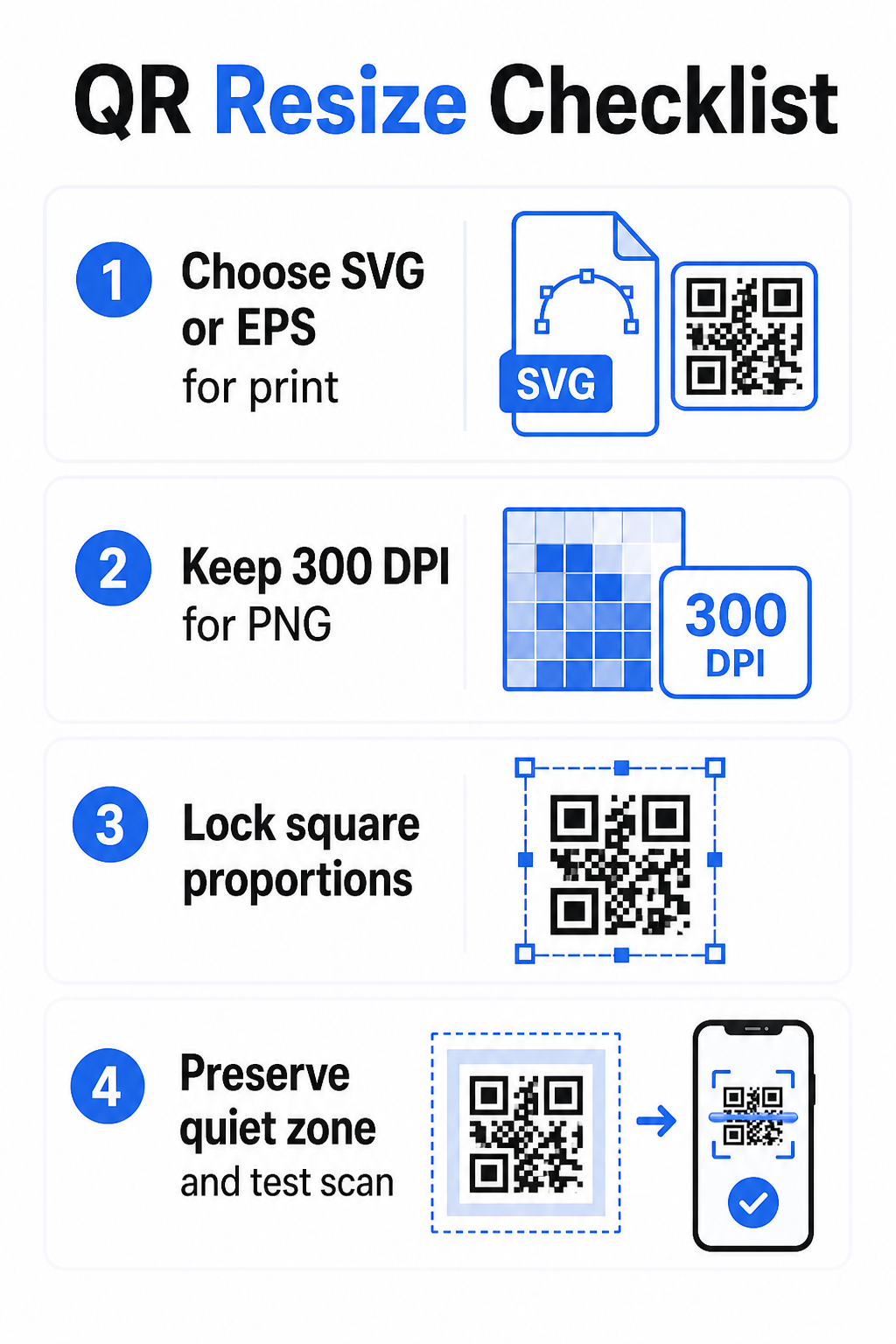
Step 1: Start with the Right Source File

Download or export your QR code in SVG or EPS format if it’s going to print. If you only have a raster file, verify that the pixel dimensions support 300 DPI at your target print size before resizing. A PNG QR code can work well for digital placements when exported at sufficient resolution – you can create one directly with a PNG QRコードジェネレーター and use it wherever transparency or raster compatibility is required.

QR resizing steps

Step 2: Scale Proportionally

Always maintain the original aspect ratio when resizing. QR codes are square by definition, and stretching them horizontally or vertically distorts the modules from squares into rectangles, which can confuse or defeat scanners. In any design application – Illustrator, Canva, InDesign, Photoshop – lock the aspect ratio before dragging a corner handle. Even a subtle distortion is enough to cause problems with stricter scanner implementations.

Step 3: Preserve the Quiet Zone

The quiet zone is the clear white border surrounding the QR code on all four sides. The ISO/IEC 18004 standard specifies that this margin must be at least four modules wide on every side. When you resize a QR code and place it within a larger design, this zone is frequently the first thing that gets cropped or encroached upon by other design elements. If each module in your code is 2 mm wide, your quiet zone must be at least 8 mm on all sides. Treat this space as non-negotiable – removing it breaks scanner recognition.

Step 4: Check Contrast After Resizing

Resizing onto a colored or textured background can reduce the effective contrast between the code’s modules and its surroundings. Scanners rely on the difference between dark and light areas to read the code. The safest combination remains dark modules on a light background – black on white provides a 21:1 contrast ratio. Aim for a minimum contrast ratio of 4:1 between foreground and background colors, and avoid placing the code on gradients, busy patterns, or reflective surfaces. For detailed guidance, see QRコードの色のコントラストに関するベストプラクティス.

Step 5: Test Before Printing

Print a proof at the exact intended size on the exact intended material, then test with multiple devices – both iOS and Android – before committing to a full production run. Test at the actual scanning distance users will experience. A code that scans perfectly at arm’s length may fail at the distance it’s actually placed. See how to test QR codes for mobile usability for a full testing checklist.

Minimum and Maximum Size Guidelines

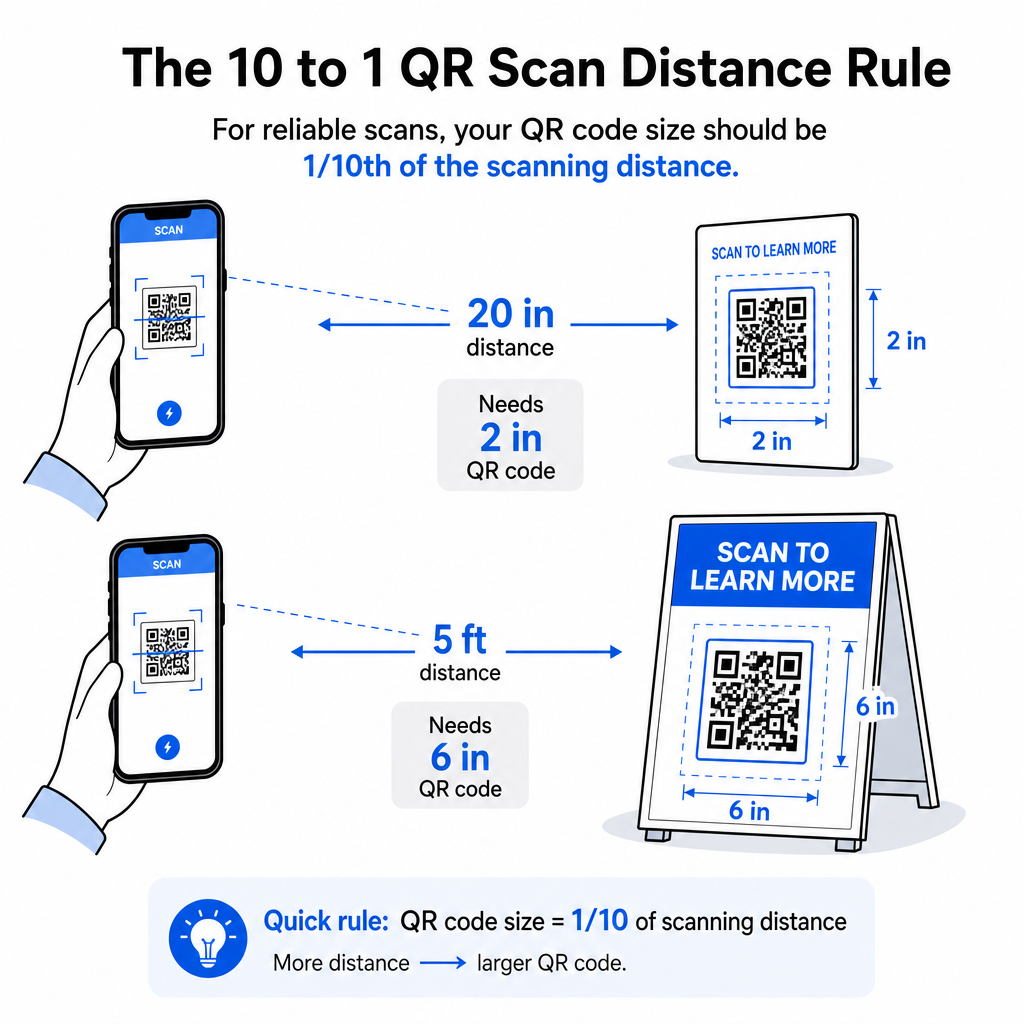
Resizing a QR code responsibly means knowing the size boundaries for your specific use case. The core rule is the 10:1の距離対サイズ比: the maximum intended scanning distance should be approximately ten times the width of the QR code. A code scanned from 20 inches away should be at least 2 inches wide; one scanned from 5 feet away should be at least 6 inches wide; a billboard code scanned from 30 feet away should be at least 36 inches wide.

QR size rule

For common print applications, here are reliable starting points:

使用事例 Minimum Recommended Size
名刺 0.8 × 0.8インチ (2 × 2 cm)
Flyers and brochures 1.2 × 1.2インチ (3 × 3 cm)
Posters and signage 1.6 × 1.6 in (4 × 4 cm)
Billboards and banners 16 × 16 in (40 × 40 cm) or larger

For business card applications, 0.8 × 0.8 inches is the practical minimum for reliable close-range scanning – going smaller increases the risk of scan failure significantly. See the guide to QR code sizes for business cards for specific recommendations on that format. There is no official upper size limit; scale up as needed based on the scanning distance. For a comprehensive breakdown across every use case, the QRコードサイズガイド covers everything from business cards to billboards. You can also explore QRコードのサイズが視認性にどのように影響するか to understand the broader relationship between dimensions and scan success.

Need a QR Code for Your Business Card? を使用しています。 名刺QRコードジェネレーター to create a code sized and designed for business card printing, with SVG export included.

How Data Density Affects Resizing

One factor that complicates resizing is data density – the amount of information encoded in the QR code. The more data a QR code contains, the denser its grid of modules becomes. Denser grids require larger physical sizes to keep individual modules readable at the camera level.

A QR code encoding a long URL with tracking parameters contains far more data than one pointing to a short redirect URL. When you shrink a high-density code, the modules become too small for most smartphone cameras to resolve reliably. Dynamic QR codes solve this problem directly. Instead of encoding a full destination URL, a dynamic code encodes a short internal redirect, keeping the code’s data density low regardless of where it points. This means you can print the code smaller without sacrificing scannability – and update the destination later without reprinting.

Error Correction and Resizing Tolerance

QR codes include built-in error correction that allows them to remain scannable even when partially damaged or obscured. The ISO/IEC 18004 standard defines four levels:

レベル Recovery Capability
L(低) ~7% of data
M(ミディアム) ~15% of data
Q(四分位数) ~25% of data
H(ハイ) ~30% of data

If you’re resizing a QR code to a smaller size, or adding a logo to the center of the code, increasing the error correction level gives you a buffer against module-level damage or scanning imprecision. Level Q or H is appropriate for branded or heavily customized codes. Keep in mind that higher error correction increases data density, which may require a slightly larger minimum size to compensate.

Common Resizing Mistakes to Avoid

  • Using a screenshot as your source file. Screenshots are low-resolution raster captures. Enlarging them for print is one of the most common causes of unscannable QR codes.
  • Stretching the code non-proportionally. Even a slight horizontal or vertical distortion changes module shapes from squares to rectangles, which can prevent scanners from reading the code correctly.
  • Cropping the quiet zone. Resizing within a tight design layout often results in other elements encroaching on the quiet zone. Keep at least four modules of clear space on all sides – this margin is a technical requirement, not a stylistic choice.
  • Assuming a code that works on screen will work in print. Screen display and printed output are different environments. A code that looks sharp at 72 DPI on screen may print blurry at 300 DPI if the underlying file resolution doesn’t support it.
  • Not testing after resizing. Always verify scannability on the final material, at the final size, from the intended scanning distance.

For more in-depth guidance, the QRコード印刷解像度ガイド そして QRコードの読みやすさに関するベストプラクティス cover the print-specific details worth knowing before you go to production.

Sizing for Different Printing Materials

The surface you’re printing on affects how large your QR code needs to be, separate from scanning distance considerations. Rough, textured, or curved surfaces can distort modules and reduce effective contrast, requiring you to scale up beyond what the 10:1 rule alone would suggest.

  • Smooth paper or cardstock – Standard size guidelines apply; matte finishes are preferred over glossy to reduce glare and reflections
  • Corrugated cardboard – Add 10–25% to the minimum size to compensate for surface texture and edge irregularities
  • 布地 – Smooth polyester can use standard minimums; rough or stretchy textiles often require 25–50% larger codes
  • Metal or glass – High reflectivity causes scanning problems; use matte surfaces or vinyl overlays and increase the code size

For a full breakdown by material type, see 異なる印刷素材におけるQRコードのサイズ設定, and for guidance on how the printing method itself affects output quality, 印刷技術がQRコードのスキャン可能性にどのように影響するか is worth reading before you place a print order. For placement decisions that go beyond sizing, the QR code placement guide for marketing covers positioning by material type and campaign context.

Properly resizing a QR code means choosing the right file format before you resize, maintaining proportions and quiet zone margins throughout, and verifying your output meets resolution and contrast standards at the final printed or displayed size. Starting with a vector file removes most of the risk entirely – it scales cleanly in any direction without the resolution ceiling that raster images impose. If you’re building QR codes for ongoing campaigns, using a ダイナミックQRコード gives you the additional advantage of updating the destination after printing, so a sizing or placement decision today doesn’t lock you into reprinting costs down the road.

よくある質問

What is the best file format for resizing a QR code?

SVG, EPS, or PDF are the best formats for resizing because they are vector-based and scale to any size without losing sharpness. PNG is acceptable for digital use when exported at high resolution. JPEG should be avoided entirely – its compression smooths the sharp edges that scanners need to distinguish each module.

How small can a QR code be and still scan reliably?

The practical minimum for most close-range print applications is 0.8 × 0.8 inches (2 × 2 cm). Going smaller increases the risk of scan failure. For scanning at greater distances, apply the 10:1 rule: the code’s width should be at least one-tenth of the maximum intended scanning distance – so a code scanned from 20 inches away should be at least 2 inches wide.

Does resizing a QR code affect its error correction or data?

No – the encoded data and error correction level are fixed when the code is generated. Resizing changes only the physical or pixel dimensions of the image. What resizing can affect is whether the modules remain clear and distinguishable at the new size, which is why maintaining 300 DPI for print, preserving the quiet zone margins, and scaling proportionally are all essential steps.

著者について

Siim KostabiはPagelootのコンテンツリードです。Pagelootの革新的なQRコード生成サービスについて執筆しています。5年以上にわたるQRコードに関する深い専門知識を持つSiimは、この分野の専門家です。QRテクノロジーを活用してデジタルインタラクションを簡素化・拡張する上で、大きな進歩を遂げています。.

カテゴリー
について詳しくはこちら
テーブルのQRをスキャンするゲスト
のQRコードを作る 注文システム
✅ QRコードの#1ソリューション

オンラインでQRコードを作成する必要がある場合は QRコードを作る ここで無料で
ページルートは #1のGo-Toソリューション でQRコードを作成してスキャンすることができます。

BL-0300

ブログジェネ

売上、レビュー、フォロワーを増やすために 20,000 を超えるブランドから信頼されています。

クライアントのロゴ
トップブランドから信頼される
5 のうち 4.8 と評価しました

4.86 / 5つ星評価

ユーゴ・ローラン
ユーゴ・ローラン
レストランオーナー
最も簡単で信頼性の高いQRコードジェネレータです。PDFファイルを即座にアップロードできます。レストランのメニューがデジタル化されました。
ルーカス・ジャンセン
ルーカス・ジャンセン
不動産開発業者
これは優れたツールで、QRコードでちょうど欲しいところに連れて行ってくれます。私たちは位置情報のQRコードしか使っていませんが、とても便利な機能がたくさんあります。
エマ・モレッティ
エマ・モレッティ
小売製品
使いやすいし、早い。素晴らしい機能で、完璧な画像を作成してくれるので、社員は私のvCardをダウンロードすることができます。
ユーゴ・ローラン
ユーゴ・ローラン
レストランオーナー
最も簡単で信頼性の高いQRコードジェネレータです。PDFファイルを即座にアップロードできます。レストランのメニューがデジタル化されました。
ルーカス・ジャンセン
ルーカス・ジャンセン
不動産開発業者
これは優れたツールで、QRコードでちょうど欲しいところに連れて行ってくれます。私たちは位置情報のQRコードしか使っていませんが、とても便利な機能がたくさんあります。
エマ・モレッティ
エマ・モレッティ
小売製品
使いやすいし、早い。素晴らしい機能で、完璧な画像を作成してくれるので、社員は私のvCardをダウンロードすることができます。
QRコードをもっと見る
ノートパソコンのQRコードスキャン
QRコードをスキャンして PCとMac
化粧品用QRコードメーカー
のQRコード ビューティープロダクツ
あらゆるものをデジタル体験に変えよう 3分以内に。

14日間の無料トライアル。

クレジットカードは必要ありません。

初回購入で30%オフ

次のコードを使用してください:

MP3ファイルを共有

PDF QRコードを作成するにはサインアップしてください

必要なものをすべてアップロードして表示する。

  • オーディオファイル
  • ポッドキャスト
  • 音楽

サインアップで14日間無料トライアル。.
トライアル終了後、QRコードは期限切れになります。.

オーディオmp3 QRコードを作成するにはサインアップしてください

フレームでより多くのスキャンを獲得

QRコードにフレームを追加するにはサインアップしてください

コールトゥアクションフレームは、お客様が簡単にQRコードと対話できるようにします。ぜひお試しください。

サインアップで14日間無料トライアル。.
トライアル終了後、QRコードは期限切れになります。.

QRコードにフレームを追加するにはサインアップしてください

シェイプでスタイルを追加

より多くの図形を作成するにはサインアップしてください

QRコードは四角いものである必要はありません。あなたのブランドのイメージに合わせて変えてみてください。

サインアップで14日間無料トライアル。.
トライアル終了後、QRコードは期限切れになります。.

より多くの図形を作成するにはサインアップしてください

QRコードにロゴを追加

QRコードにロゴを追加するにはサインアップしてください

QRコードにロゴやブランドを入れることで、目立たせることができます。

サインアップで14日間無料トライアル。.
トライアル終了後、QRコードは期限切れになります。.

QRコードにロゴを追加するにはサインアップしてください

スマートなApp Storeリダイレクト

アプリストアのQRコードを作成するにはサインアップしてください

スマートなApp StoreのQRコードに、あなたのアプリのリンクを追加します。ユーザーは、デバイスに応じてリダイレクトされます。

サインアップで14日間無料トライアル。.
トライアル終了後、QRコードは期限切れになります。.

アプリストアのQRコードを作成するにはサインアップしてください

QRコードに画像をアップロード

画像QRコードを作成するにはサインアップしてください

画像を簡単に共有できます。どんな画像も、数秒でダイナミックに変化します。

サインアップで14日間無料トライアル。.
トライアル終了後、QRコードは期限切れになります。.

画像QRコードを作成するにはサインアップしてください

PDFファイルを共有

PDF QRコードを作成するにはサインアップしてください

必要なものをすべてアップロードして表示する。

  • メニュー&プライスリスト
  • 指示
  • 任意の書類

サインアップで14日間無料トライアル。.
トライアル終了後、QRコードは期限切れになります。.

PDF QRコードを作成するにはサインアップしてください

印刷せずに後で編集

再度印刷せずにQRコードを編集するにはサインアップしてください

ダイナミックQRコードは、新たにQRコードを印刷することなく、QRコードの内容を変更することができます。

サインアップで14日間無料トライアル。.
トライアル終了後、QRコードは期限切れになります。.

再度印刷せずにQRコードを編集するにはサインアップしてください

いつ?どこで?QRコードのスキャンを追跡

QRコードを追跡するにはサインアップしてください

どのQRコードが最も多くスキャンされ、何が最も顧客を喜ばせているのかを知ることができます。

サインアップで14日間無料トライアル。.
トライアル終了後、QRコードは期限切れになります。.

QRコードを追跡するにはサインアップしてください

印刷可能なファイルが利用可能

PDFやSVGのようなベクターQRコードを作成するにはサインアップしてください

.eps、.pdf、.svg

QRコードをHD解像度でダウンロードしたいですか?すぐに印刷できるベクターまたはピクセル形式を入手しましょう。

サインアップで14日間無料トライアル。.
トライアル終了後、QRコードは期限切れになります。.

PDFやSVGのようなベクターQRコードを作成するにはサインアップしてください

しばらくお待ちください。あなたのQRコードは ロード... ロード...

あなただけのものに

サインアップしてQRコードを後で保存してください

異なる色、ロゴ、コールトゥアクションフレームで素晴らしいQRコードを作成することで、より多くのスキャンを得ることができます。

サインアップで14日間無料トライアル。.
トライアル終了後、QRコードは期限切れになります。.

サインアップしてQRコードを後で保存してください