Pokúšate sa zmeniť veľkosť QR kódu len aby ste skončili s rozmazaným, neskenovateľným výsledkom? Získanie nesprávnych rozmerov – alebo použitie nesprávneho formátu súboru – môže urobiť váš QR kód po vytlačení úplne nepoužiteľným. Táto príručka vás prevedie presne tým, ako správne zmeniť veľkosť QR kódu, pokrývajúc formáty súborov, pravidlá veľkosti, požiadavky na rozlíšenie a najčastejšie chyby, ktorým sa treba vyhnúť.
Prečo sa zmena veľkosti QR kódu pokazí
Väčšina problémov s kvalitou QR kódu spočíva v jednom z dvoch problémov: začatie s nesprávnym formátom súboru alebo zväčšenie obrázka nad rámec toho, čo jeho rozlíšenie dokáže podporiť.
Keď vezmete rastrový obrázok s nízkym rozlíšením – JPEG alebo malý PNG – a roztiahnete ho vo svojom dizajnovom softvéri, skener musí čítať rozmazané, nejasné moduly namiesto ostrých čiernobielych štvorcov. Roztiahnutie QR kódu s nízkym rozlíšením je jedným z najspoľahlivejších spôsobov, ako vytvoriť rozmazaný, neskenovateľný výsledok tlače. Existuje aj menej zjavný problém: zmena veľkosti môže neúmyselne skresliť proporcie kódu alebo odstrániť tichú zónu – jasný biely okraj obklopujúci kód – čo spôsobuje, že skenery vzor nesprávne prečítajú alebo ho úplne minú. Pochopenie týchto bodov zlyhania predtým, ako zmeníte veľkosť, je najpriamejšou cestou ku kódu, ktorý skutočne funguje.
Vektor vs. Raster: Rozhodnutie o formáte súboru, ktoré je najdôležitejšie
Jediná najvplyvnejšia voľba, ktorú urobíte pri zmene veľkosti QR kódu, je, či pracujete s vektorovým alebo rastrovým súborom.
Vektorové formáty (SVG, EPS, PDF) ukladajú QR kód ako matematické inštrukcie namiesto pevnej mriežky pixelov. To znamená, že sa škálujú na akúkoľvek veľkosť – od poštovej známky po billboard – bez straty ostrosti alebo jasnosti. Pre čokoľvek, čo ide do tlače, je vektor správnou voľbou.
Rastrové formáty (PNG, JPEG, BMP) ukladajú kód ako pixelovú mriežku s pevným stropom rozlíšenia. Akonáhle ich zväčšíte nad ich pôvodné rozlíšenie, softvér musí vymyslieť pixelové dáta, čo spôsobuje rozmazanie. JPEG je obzvlášť problematický, pretože jeho kompresný algoritmus vyhladzuje okraje, priamo podkopávajúc ostrý kontrast, ktorý QR skener potrebuje na prečítanie každého modulu.
| Formát | Škáluje bez straty | Odporúčané pre | Poznámky |
|---|---|---|---|
| SVG | Áno | Tlač, veľký formát | Celkovo najlepšie pre zmenu veľkosti |
| EPS | Áno | Profesionálna tlač | Štandard v pracovných postupoch tlačového dizajnu |
| Áno | Tlač, zdieľanie | Zachováva vektorové dáta | |
| PNG | Nie (pevné rozlíšenie) | Web, digitálny displej | Prijateľné pri vysokom rozlíšení |
| JPEG | Nie (stratová kompresia) | Ani jedno | Úplne sa vyhnite pre QR kódy |
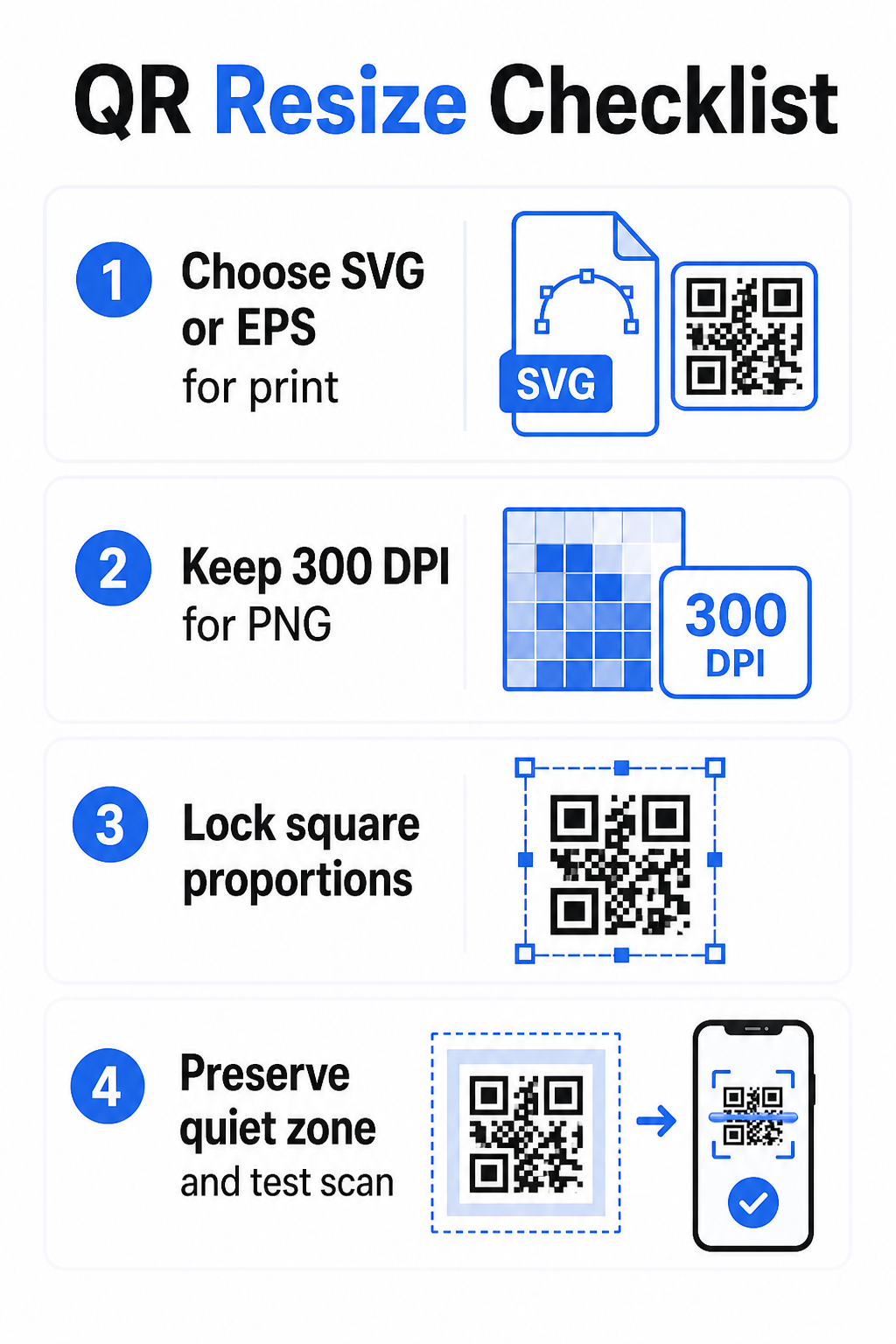
Keď si stiahnete QR kód na tlač, vždy vyberte SVG alebo EPS. Keď potrebujete rastrový súbor pre digitálnu obrazovku alebo platformu, ktorá neprijíma vektorové formáty, exportujte PNG s vysokým rozlíšením – nikdy JPEG.
Vytvorte QR kódy pripravené na tlač v správnom formáte Vygenerujte si QR kód a stiahnite si ho ako súbor SVG, EPS alebo PDF pripravený na tlač pomocou Generátor QR kódov Pageloot. Nie je potrebný žiadny dizajnový softvér.
Pravidlá rozlíšenia pre rastrové súbory
Ak pracujete s PNG pre tlač, rozlíšenie – merané v DPI (bodoch na palec) – určuje, či kód zostane ostrý pri svojej konečnej vytlačenej veľkosti.
Minimálny štandard pre tlač je 300 DPI pri konečných vytlačených rozmeroch. To znamená, že pixelové rozmery vášho obrazového súboru musia zodpovedať zamýšľanej fyzickej veľkosti pri danej hustote. Napríklad:
- QR kód vytlačený na 1 palec × 1 palec potrebuje aspoň 300 × 300 pixelov
- QR kód vytlačený na 4 palce × 4 palce potrebuje aspoň 1 200 × 1 200 pixelov
Ak váš súbor nespĺňa túto hranicu pri vašej cieľovej veľkosti, jednotlivé moduly – malé štvorce, ktoré nesú QR dáta – sa rozmažú. V tom bode skener už nedokáže rozlíšiť tmavé od svetlého a kód zlyhá. Pre digitálne obrazovky je minimum približne 240 × 240 pixelov je praktickým usmernením pre kódy zobrazené na obrazovke, hoci väčšie je vždy bezpečnejšie pre priblíženie a kompatibilitu medzi zariadeniami. Čistejšie riešenie pre tlač je úplne preskočiť raster a použiť vektorový súbor, čo vám poskytuje nekonečnú škálovateľnosť s nulovými obavami o rozlíšenie.
Ako zmeniť veľkosť QR kódu krok za krokom
Krok 1: Začnite so správnym zdrojovým súborom
Stiahnite alebo exportujte svoj QR kód vo formáte SVG alebo EPS, ak ho idete tlačiť. Ak máte len rastrový súbor, overte, či pixelové rozmery podporujú 300 DPI pri vašej cieľovej veľkosti tlače pred zmenou veľkosti. PNG QR kód môže dobre fungovať pre digitálne umiestnenia, ak je exportovaný s dostatočným rozlíšením – môžete si ho vytvoriť priamo pomocou Generátor QR kódu PNG a použite ho všade tam, kde je potrebná transparentnosť alebo kompatibilita s rastrom.
Krok 2: Škálovať proporcionálne
Vždy zachovajte pôvodný pomer strán pri zmene veľkosti. QR kódy sú podľa definície štvorcové a ich roztiahnutie horizontálne alebo vertikálne deformuje moduly zo štvorcov na obdĺžniky, čo môže zmiasť alebo znemožniť skenerom ich prečítanie. V akejkoľvek dizajnovej aplikácii – Illustrator, Canva, InDesign, Photoshop – uzamknite pomer strán pred ťahaním rohového úchytu. Aj jemné skreslenie stačí na to, aby spôsobilo problémy pri prísnejších implementáciách skenerov.
Krok 3: Zachovajte tichú zónu
Tichá zóna je jasný biely okraj obklopujúci QR kód zo všetkých štyroch strán. Norma ISO/IEC 18004 špecifikuje, že tento okraj musí byť na každej strane široký aspoň štyri moduly. Keď zmeníte veľkosť QR kódu a umiestnite ho do väčšieho dizajnu, táto zóna je často prvá vec, ktorá sa oreže alebo naruší inými dizajnovými prvkami. Ak je každý modul vo vašom kóde široký 2 mm, vaša tichá zóna musí byť na všetkých stranách široká aspoň 8 mm. Považujte tento priestor za nevyhnutný – jeho odstránenie naruší rozpoznávanie skenerom.
Krok 4: Skontrolujte kontrast po zmene veľkosti
Zmena veľkosti na farebnom alebo textúrovanom pozadí môže znížiť efektívny kontrast medzi modulmi kódu a jeho okolím. Skenery sa spoliehajú na rozdiel medzi tmavými a svetlými oblasťami na prečítanie kódu. Najbezpečnejšou kombináciou zostávajú tmavé moduly na svetlom pozadí – čierna na bielej poskytuje kontrastný pomer 21:1. Snažte sa o minimálny kontrastný pomer 4:1 medzi farbami popredia a pozadia a vyhnite sa umiestňovaniu kódu na prechody, rušné vzory alebo reflexné povrchy. Podrobné pokyny nájdete v osvedčené postupy pre farebný kontrast QR kódov.
Krok 5: Otestujte pred tlačou
Vytlačte skúšobnú verziu v presnej zamýšľanej veľkosti na presne zamýšľanom materiáli a potom otestujte s viacerými zariadeniami – iOS aj Android – predtým, ako sa zaviazate k plnej produkčnej sérii. Testujte v skutočnej vzdialenosti skenovania, ktorú používatelia zažijú. Kód, ktorý sa dokonale naskenuje na dĺžku paže, môže zlyhať vo vzdialenosti, v ktorej je skutočne umiestnený. Pozrite si ako testovať QR kódy pre mobilnú použiteľnosť pre kompletný kontrolný zoznam testovania.
Pokyny pre minimálnu a maximálnu veľkosť
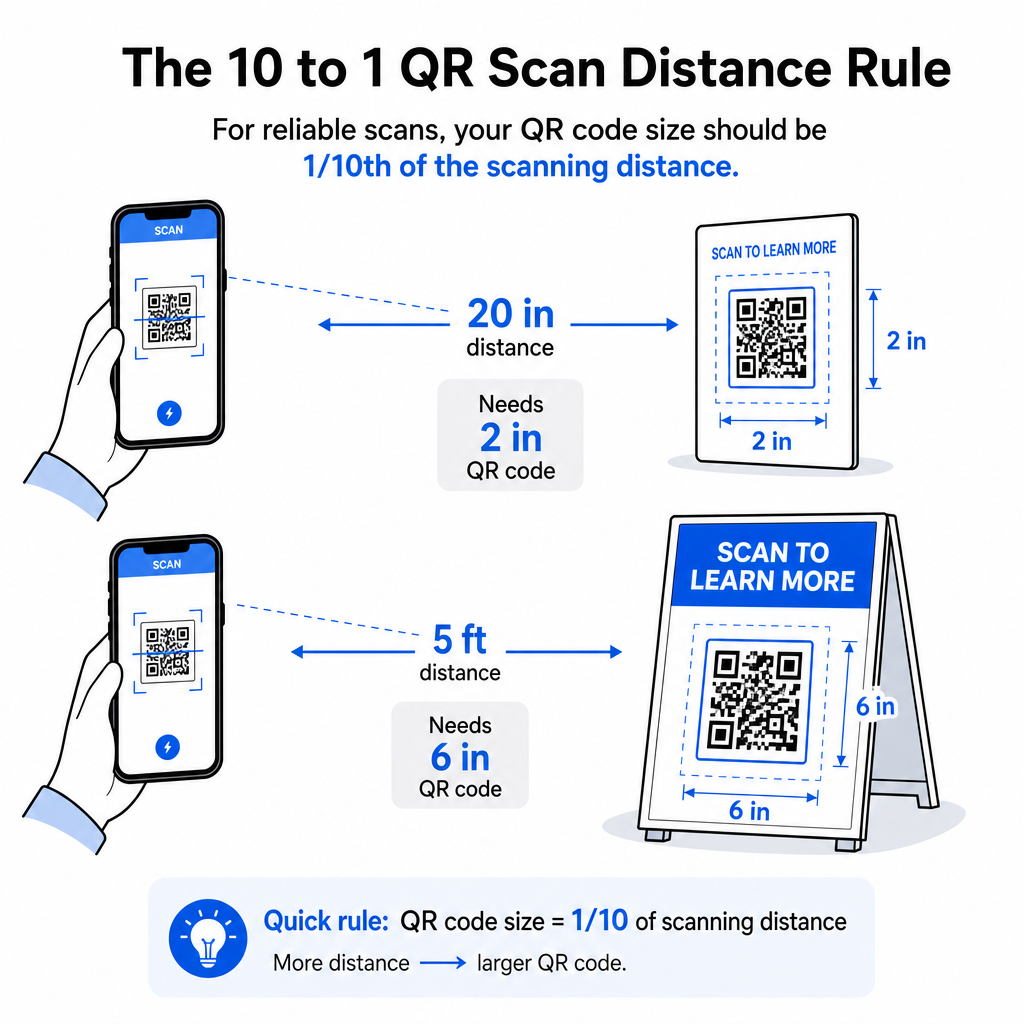
Zodpovedná zmena veľkosti QR kódu znamená poznať hranice veľkosti pre váš konkrétny prípad použitia. Základné pravidlo je pomer vzdialenosti k veľkosti 10:1: maximálna zamýšľaná vzdialenosť skenovania by mala byť približne desaťnásobok šírky QR kódu. Kód skenovaný z 20 palcov by mal byť široký aspoň 2 palce; kód skenovaný z 5 stôp by mal byť široký aspoň 6 palcov; billboardový kód skenovaný z 30 stôp by mal byť široký aspoň 36 palcov.
Pre bežné tlačové aplikácie sú tu spoľahlivé východiskové body:
| Prípad použitia | Minimálna odporúčaná veľkosť |
|---|---|
| Vizitky | 0,8 × 0,8 palca (2 × 2 cm) |
| Letáky a brožúry | 1,2 × 1,2 palca (3 × 3 cm) |
| Plagáty a značenie | 1,6 × 1,6 palca (4 × 4 cm) |
| Billboardy a bannery | 16 × 16 palcov (40 × 40 cm) alebo väčšie |
Pre aplikácie vizitiek je 0,8 × 0,8 palca praktickým minimom pre spoľahlivé skenovanie zblízka – zmenšenie výrazne zvyšuje riziko zlyhania skenovania. Pozrite si sprievodcu veľkosťami QR kódov pre vizitky pre konkrétne odporúčania pre tento formát. Neexistuje žiadny oficiálny horný limit veľkosti; zväčšujte podľa potreby na základe vzdialenosti skenovania. Pre komplexný rozpis pre každý prípad použitia, príručke veľkosti QR kódov pokrýva všetko od vizitiek po billboardy. Môžete tiež preskúmať ako veľkosť QR kódu ovplyvňuje viditeľnosť aby ste pochopili širší vzťah medzi rozmermi a úspešnosťou skenovania.
Potrebujete QR kód pre svoju vizitku? Použi Digitálna vizitka s QR kódom: generátor na vytvorenie kódu dimenzovaného a navrhnutého pre tlač vizitiek, s exportom SVG v cene.
Ako hustota dát ovplyvňuje zmenu veľkosti
Jedným z faktorov, ktorý komplikuje zmenu veľkosti, je hustota dát – množstvo informácií zakódovaných v QR kóde. Čím viac dát QR kód obsahuje, tým hustejšia je jeho mriežka modulov. Hustejšie mriežky vyžadujú väčšie fyzické rozmery, aby boli jednotlivé moduly čitateľné na úrovni kamery.
QR kód, ktorý kóduje dlhú URL s parametrami sledovania, obsahuje oveľa viac dát ako ten, ktorý odkazuje na krátku presmerovaciu URL. Keď zmenšíte kód s vysokou hustotou, moduly sa stanú príliš malými na to, aby ich väčšina fotoaparátov smartfónov spoľahlivo rozpoznala. Dynamické QR kódy riešia tento problém priamo. Namiesto kódovania celej cieľovej URL dynamický kód kóduje krátke interné presmerovanie, čím udržuje hustotu dát kódu nízku bez ohľadu na to, kam odkazuje. To znamená, že kód môžete vytlačiť menší bez obetovania skenovateľnosti – a cieľ aktualizovať neskôr bez opätovnej tlače.
Korekcia chýb a tolerancia zmeny veľkosti
QR kódy obsahujú vstavanú korekciu chýb, ktorá im umožňuje zostať skenovateľnými aj v prípade čiastočného poškodenia alebo zakrytia. Norma ISO/IEC 18004 definuje štyri úrovne:
| Úroveň | Schopnosť obnovy |
|---|---|
| L (nízka) | ~7% dát |
| M (stredná) | ~15% dát |
| Q (kvartil) | ~25% dát |
| H (vysoká) | ~30% dát |
Ak meníte veľkosť QR kódu na menšiu veľkosť alebo pridávate logo do stredu kódu, zvýšenie úrovne opravy chýb vám poskytne nárazník proti poškodeniu na úrovni modulu alebo nepresnosti skenovania. Úroveň Q alebo H je vhodná pre značkové alebo silne prispôsobené kódy. Majte na pamäti, že vyššia oprava chýb zvyšuje hustotu údajov, čo môže vyžadovať mierne väčšiu minimálnu veľkosť na kompenzáciu.
Časté chyby pri zmene veľkosti, ktorým sa treba vyhnúť
- Použitie snímky obrazovky ako zdrojového súboru. Snímky obrazovky sú rastrové záznamy s nízkym rozlíšením. Ich zväčšenie pre tlač je jednou z najčastejších príčin neskenovateľných QR kódov.
- Neproporcionálne rozťahovanie kódu. Aj mierne horizontálne alebo vertikálne skreslenie mení tvary modulov zo štvorcov na obdĺžniky, čo môže zabrániť skenerom správne prečítať kód.
- Orezanie tichej zóny. Zmena veľkosti v rámci tesného dizajnového rozloženia často vedie k tomu, že iné prvky zasahujú do tichej zóny. Udržujte aspoň štyri moduly voľného priestoru na všetkých stranách – táto marža je technická požiadavka, nie štylistická voľba.
- Predpoklad, že kód, ktorý funguje na obrazovke, bude fungovať v tlači. Zobrazenie na obrazovke a tlačený výstup sú rôzne prostredia. Kód, ktorý vyzerá ostro pri 72 DPI na obrazovke, sa môže vytlačiť rozmazane pri 300 DPI, ak to základné rozlíšenie súboru nepodporuje.
- Netestovanie po zmene veľkosti. Vždy overte skenovateľnosť na finálnom materiáli, v konečnej veľkosti, z zamýšľanej skenovacej vzdialenosti.
Pre podrobnejšie usmernenie, the sprievodcovi rozlíšením tlače QR kódov a osvedčených postupov pre čitateľnosť QR kódov pokrývajú detaily špecifické pre tlač, ktoré stojí za to vedieť pred spustením výroby.
Dimenzovanie pre rôzne tlačové materiály
Povrch, na ktorý tlačíte, ovplyvňuje, aký veľký musí byť váš QR kód, nezávisle od úvah o skenovacej vzdialenosti. Drsné, textúrované alebo zakrivené povrchy môžu skresliť moduly a znížiť efektívny kontrast, čo si vyžaduje zväčšenie nad rámec toho, čo by naznačovalo samotné pravidlo 10:1.
- Hladký papier alebo kartón – Platia štandardné pokyny pre veľkosť; matné povrchy sú preferované pred lesklými na zníženie odleskov a odrazov
- Vlnitá lepenka – Pridajte 10–25% k minimálnej veľkosti na kompenzáciu textúry povrchu a nepravidelností okrajov
- Látka – Hladký polyester môže používať štandardné minimá; drsné alebo elastické textílie často vyžadujú o 25–50% väčšie kódy
- Kov alebo sklo – Vysoká odrazivosť spôsobuje problémy so skenovaním; použite matné povrchy alebo vinylové prekrytia a zväčšite veľkosť kódu
Pre úplný rozpis podľa typu materiálu, pozrite dimenzovaní QR kódu pre rôzne tlačové materiály, a pre usmernenie, ako samotná metóda tlače ovplyvňuje kvalitu výstupu, ako tlačové techniky ovplyvňujú skenovateľnosť QR kódov sa oplatí prečítať predtým, ako zadáte objednávku tlače. Pre rozhodnutia o umiestnení, ktoré presahujú dimenzovanie, the Sprievodca umiestnením QR kódu pre marketing pokrýva umiestnenie podľa typu materiálu a kontextu kampane.
Správna zmena veľkosti QR kódu znamená výber správneho formátu súboru pred zmenou veľkosti, zachovanie proporcií a okrajov tichej zóny počas celého procesu a overenie, či váš výstup spĺňa štandardy rozlíšenia a kontrastu pri konečnej vytlačenej alebo zobrazenej veľkosti. Začatie s vektorovým súborom úplne odstraňuje väčšinu rizík – škáluje sa čisto v akomkoľvek smere bez obmedzenia rozlíšenia, ktoré ukladajú rastrové obrázky. Ak vytvárate QR kódy pre prebiehajúce kampane, použitie dynamický QR kód vám dáva dodatočnú výhodu aktualizácie cieľa po tlači, takže rozhodnutie o veľkosti alebo umiestnení dnes vás nezaväzuje k nákladom na opätovnú tlač v budúcnosti.
Často kladené otázky
SVG, EPS, alebo PDF sú najlepšie formáty na zmenu veľkosti, pretože sú vektorové a škálujú sa na akúkoľvek veľkosť bez straty ostrosti. PNG je prijateľné pre digitálne použitie, ak je exportované vo vysokom rozlíšení. JPEG by sa mal úplne vyhnúť – jeho kompresia vyhladzuje ostré hrany, ktoré skenery potrebujú na rozlíšenie každého modulu.
Praktické minimum pre väčšinu tlačových aplikácií na krátke vzdialenosti je 0,8 × 0,8 palca (2 × 2 cm). Zmenšenie zvyšuje riziko zlyhania skenovania. Pre skenovanie na väčšie vzdialenosti použite pravidlo 10:1: šírka kódu by mala byť aspoň jedna desatina maximálnej zamýšľanej skenovacej vzdialenosti – takže kód skenovaný z 20 palcov by mal byť široký aspoň 2 palce.
Nie – zakódované dáta a úroveň korekcie chýb sú pevne dané, keď sa kód generuje. Zmena veľkosti mení len fyzické alebo pixelové rozmery obrázka. Čo môže zmena veľkosti ovplyvniť, je, či moduly zostanú jasné a rozlíšiteľné pri novej veľkosti, preto je udržiavanie 300 DPI pre tlač, zachovanie okrajov tichej zóny a proporcionálne škálovanie všetko nevyhnutnými krokmi.