Czy próbujesz zmienić rozmiar kodu QR tylko po to, by uzyskać rozmazany, niemożliwy do zeskanowania wynik? Błędne wymiary – lub użycie niewłaściwego formatu pliku – może sprawić, że Twój kod QR będzie całkowicie bezużyteczny po wydrukowaniu. Ten przewodnik dokładnie pokaże Ci, jak prawidłowo zmienić rozmiar kodu QR, obejmując formaty plików, zasady rozmiaru, wymagania dotyczące rozdzielczości i najczęstsze błędy, których należy unikać.
Dlaczego zmiana rozmiaru kodu QR idzie źle
Większość problemów z jakością kodu QR sprowadza się do jednej z dwóch kwestii: rozpoczęcia od niewłaściwego formatu pliku lub skalowania obrazu poza możliwości jego rozdzielczości.
Kiedy bierzesz obraz rastrowy o niskiej rozdzielczości – JPEG lub mały PNG – i rozciągasz go w swoim oprogramowaniu do projektowania, skaner musi odczytywać rozmazane, niewyraźne moduły zamiast wyraźnych czarno-białych kwadratów. Rozciąganie kodu QR o niskiej rozdzielczości to jeden z najbardziej niezawodnych sposobów na uzyskanie rozmazanego, niemożliwego do zeskanowania wyniku wydruku. Istnieje również mniej oczywisty problem: zmiana rozmiaru może nieumyślnie zniekształcić proporcje kodu lub usunąć strefę ciszy – wyraźny biały margines otaczający kod – co powoduje, że skanery błędnie odczytują lub całkowicie pomijają wzór. Zrozumienie tych punktów awarii przed zmianą rozmiaru to najbardziej bezpośrednia droga do kodu, który faktycznie działa.
Wektor kontra Raster: Decyzja o formacie pliku, która ma największe znaczenie
Najważniejszy wybór, jakiego dokonujesz, zmieniając rozmiar kodu QR, to, czy pracujesz z plikiem wektorowym, czy rastrowym.
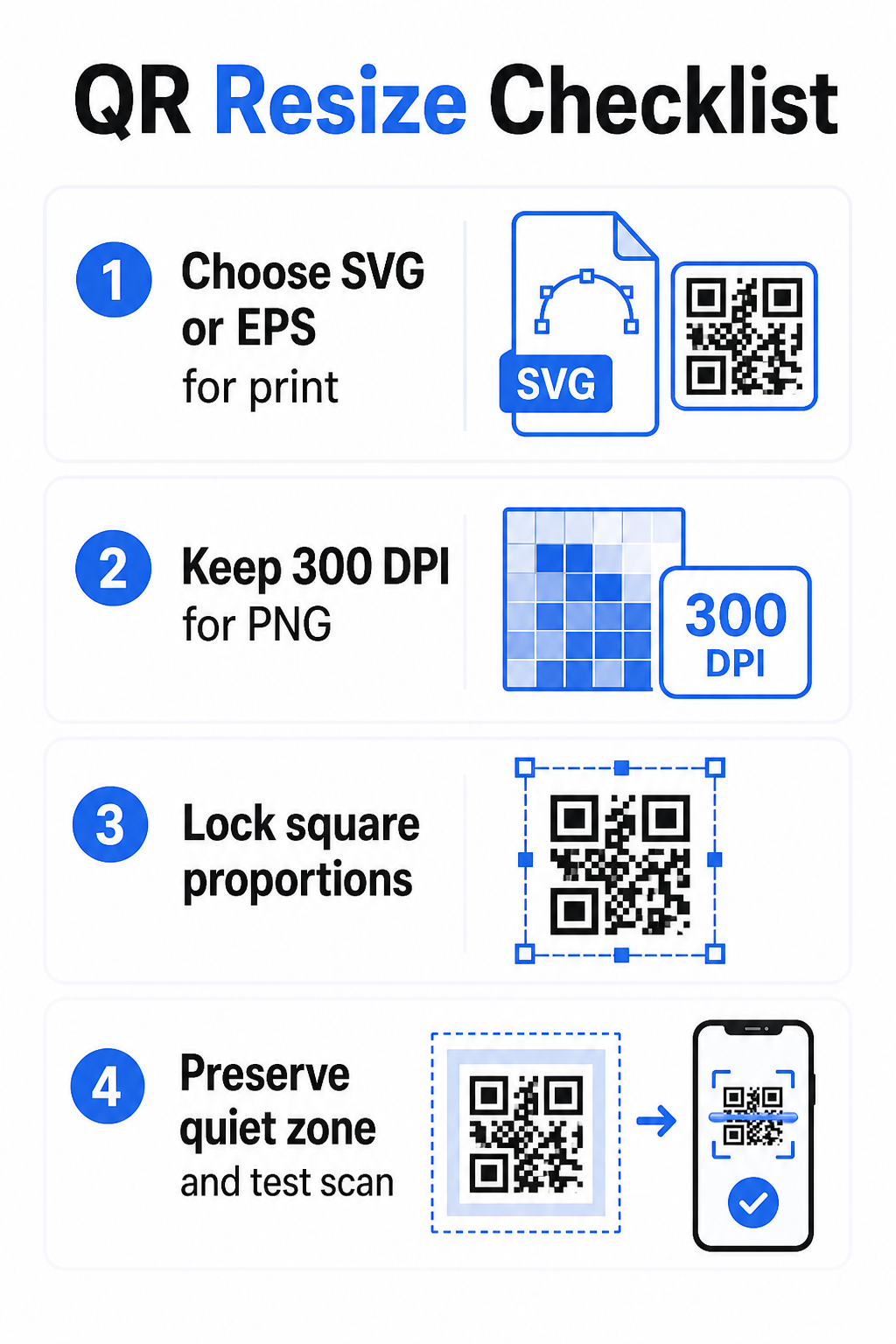
Formaty wektorowe (SVG, EPS, PDF) przechowują kod QR jako instrukcje matematyczne zamiast stałej siatki pikseli. Oznacza to, że skalują się do dowolnego rozmiaru – od znaczka pocztowego po billboard – bez utraty ostrości czy klarowności. Do wszystkiego, co idzie do druku, wektor jest właściwym wyborem.
Formaty rastrowe (PNG, JPEG, BMP) przechowują kod jako siatkę pikseli z ustaloną górną granicą rozdzielczości. Gdy skalujesz je powyżej ich oryginalnej rozdzielczości, oprogramowanie musi wymyślać dane pikseli, co powoduje rozmycie. JPEG jest szczególnie problematyczny, ponieważ jego algorytm kompresji wygładza krawędzie, bezpośrednio podważając ostry kontrast, którego skaner QR potrzebuje do odczytania każdego modułu.
| Format | Skaluje się bez strat | Zalecane dla | Uwagi |
|---|---|---|---|
| SVG | Tak | Druk, duży format | Najlepszy ogólnie do zmiany rozmiaru |
| EPS | Tak | Druk profesjonalny | Standard w przepływach pracy projektowania do druku |
| Tak | Druk, udostępnianie | Zachowuje dane wektorowe | |
| PNG | Nie (stała rozdzielczość) | Internet, wyświetlacz cyfrowy | Akceptowalny w wysokiej rozdzielczości |
| JPEG | Nie (kompresja stratna) | Żaden | Całkowicie unikać dla kodów QR |
Kiedy pobierasz kod QR do druku, zawsze wybieraj SVG lub EPS. Kiedy potrzebujesz pliku rastrowego do wyświetlania cyfrowego lub na platformę, która nie akceptuje formatów wektorowych, eksportuj PNG w wysokiej rozdzielczości – nigdy JPEG.
Twórz kody QR gotowe do druku w odpowiednim formacie Wygeneruj swój kod QR i pobierz go jako gotowy do druku plik SVG, EPS lub PDF, używając Pageloot Generator kodów QR. Nie jest wymagane żadne oprogramowanie do projektowania.
Zasady rozdzielczości dla plików rastrowych
Jeśli pracujesz z plikiem PNG do druku, rozdzielczość – mierzona w DPI (punktach na cal) – określa, czy kod pozostanie ostry w swoim ostatecznym rozmiarze wydruku.
Minimalny standard dla druku to 300 DPI przy ostatecznych wymiarach wydruku. Oznacza to, że wymiary pikselowe Twojego pliku obrazu muszą odpowiadać zamierzonemu rozmiarowi fizycznemu przy tej gęstości. Na przykład:
- Kod QR wydrukowany w rozmiarze 1 cal × 1 cal potrzebuje co najmniej 300 × 300 pikseli
- Kod QR wydrukowany w rozmiarze 4 cale × 4 cale potrzebuje co najmniej 1200 × 1200 pikseli
Jeśli Twój plik nie spełnia tego progu w docelowym rozmiarze, poszczególne moduły – maleńkie kwadraty, które przenoszą dane QR – rozmyją się. W tym momencie skaner nie będzie już w stanie odróżnić ciemnego od jasnego, a kod zawiedzie. Dla ekranów cyfrowych, minimum około 240 × 240 pikseli jest praktyczną wytyczną dla kodów wyświetlanych na ekranie, choć większy rozmiar jest zawsze bezpieczniejszy dla powiększania i kompatybilności między urządzeniami. Czystrze rozwiązanie dla druku to całkowite pominięcie rastra i użycie pliku wektorowego, co zapewnia nieskończoną skalowalność bez żadnych obaw o rozdzielczość.
Jak zmienić rozmiar kodu QR krok po kroku
Krok 1: Zacznij od właściwego pliku źródłowego
Pobierz lub wyeksportuj swój kod QR w formacie SVG lub EPS, jeśli ma być drukowany. Jeśli masz tylko plik rastrowy, sprawdź, czy wymiary pikselowe obsługują 300 DPI w docelowym rozmiarze wydruku przed zmianą rozmiaru. Kod QR w formacie PNG może dobrze działać w cyfrowych umieszczeniach, gdy jest eksportowany w wystarczającej rozdzielczości – możesz go utworzyć bezpośrednio za pomocą Generator kodów QR PNG i używać go wszędzie tam, gdzie wymagana jest przezroczystość lub kompatybilność rastrowa.
Krok 2: Skaluj proporcjonalnie
Zawsze zachowuj oryginalne proporcje obrazu podczas zmiany rozmiaru. Kody QR są z definicji kwadratowe, a rozciąganie ich w poziomie lub w pionie zniekształca moduły z kwadratów w prostokąty, co może zmylić lub uniemożliwić skanowanie. W każdej aplikacji projektowej – Illustrator, Canva, InDesign, Photoshop – zablokuj proporcje obrazu przed przeciągnięciem uchwytu narożnego. Nawet subtelne zniekształcenie wystarczy, aby spowodować problemy z bardziej rygorystycznymi implementacjami skanerów.
Krok 3: Zachowaj strefę ciszy
Strefa ciszy to wyraźna biała ramka otaczająca kod QR ze wszystkich czterech stron. Norma ISO/IEC 18004 określa, że ten margines musi mieć co najmniej cztery moduły szerokości z każdej strony. Gdy zmieniasz rozmiar kodu QR i umieszczasz go w większym projekcie, ta strefa jest często pierwszą rzeczą, która zostaje przycięta lub naruszona przez inne elementy projektu. Jeśli każdy moduł w twoim kodzie ma 2 mm szerokości, twoja strefa ciszy musi mieć co najmniej 8 mm z każdej strony. Traktuj tę przestrzeń jako nienegocjowalną – jej usunięcie uniemożliwia rozpoznanie przez skaner.
Krok 4: Sprawdź kontrast po zmianie rozmiaru
Zmiana rozmiaru na kolorowym lub teksturowanym tle może zmniejszyć efektywny kontrast między modułami kodu a jego otoczeniem. Skanery polegają na różnicy między ciemnymi a jasnymi obszarami, aby odczytać kod. Najbezpieczniejszą kombinacją pozostają ciemne moduły na jasnym tle – czarny na białym zapewnia współczynnik kontrastu 21:1. Dąż do minimalnego współczynnika kontrastu 4:1 między kolorami pierwszego planu a tła i unikaj umieszczania kodu na gradientach, wzorach o dużym natężeniu lub powierzchniach odblaskowych. Szczegółowe wskazówki znajdziesz w najlepszymi praktykami kontrastu kolorów kodów QR.
Krok 5: Testuj przed drukowaniem
Wydrukuj próbę w dokładnie zamierzonym rozmiarze na dokładnie zamierzonym materiale, a następnie przetestuj na wielu urządzeniach – zarówno iOS, jak i Android – przed rozpoczęciem pełnej produkcji. Testuj z rzeczywistej odległości skanowania, jakiej doświadczą użytkownicy. Kod, który skanuje się idealnie z odległości ramienia, może zawieść z odległości, w której jest faktycznie umieszczony. Zobacz Jak testować kody QR pod kątem użyteczności mobilnej aby uzyskać pełną listę kontrolną testów.
Wytyczne dotyczące minimalnego i maksymalnego rozmiaru
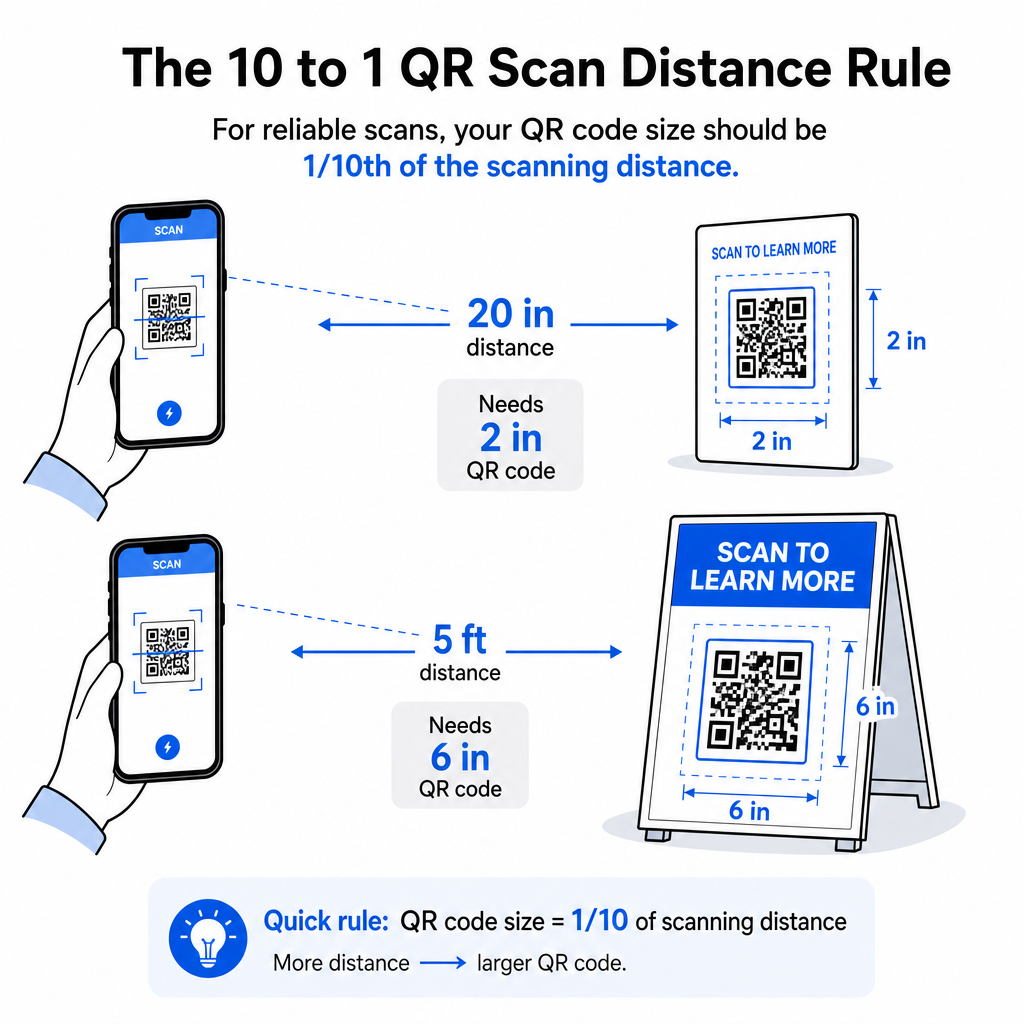
Odpowiedzialna zmiana rozmiaru kodu QR oznacza znajomość granic rozmiaru dla twojego konkretnego przypadku użycia. Podstawowa zasada to stosunek odległości do rozmiaru 10:1: maksymalna zamierzona odległość skanowania powinna wynosić około dziesięciokrotność szerokości kodu QR. Kod skanowany z odległości 20 cali powinien mieć co najmniej 2 cale szerokości; kod skanowany z odległości 5 stóp powinien mieć co najmniej 6 cali szerokości; kod billboardowy skanowany z odległości 30 stóp powinien mieć co najmniej 36 cali szerokości.
Dla typowych zastosowań drukowanych, oto niezawodne punkty wyjścia:
| Skrzynia użytkowa | Minimalny zalecany rozmiar |
|---|---|
| Wizytówki | 0,8 × 0,8 cala (2 × 2 cm) |
| Ulotki i broszury | 1,2 × 1,2 cala (3 × 3 cm) |
| Plakaty i oznakowanie | 1,6 × 1,6 cala (4 × 4 cm) |
| Billboardy i banery | 16 × 16 cali (40 × 40 cm) lub większy |
Dla zastosowań na wizytówkach, 0,8 × 0,8 cala to praktyczne minimum dla niezawodnego skanowania z bliskiej odległości – zmniejszanie rozmiaru znacznie zwiększa ryzyko niepowodzenia skanowania. Zobacz przewodnik po rozmiarach kodów QR dla wizytówek aby uzyskać szczegółowe zalecenia dotyczące tego formatu. Nie ma oficjalnego górnego limitu rozmiaru; skaluj w górę w zależności od odległości skanowania. Aby uzyskać kompleksowy przegląd dla każdego przypadku użycia, przewodniku po rozmiarach kodów QR obejmuje wszystko, od wizytówek po billboardy. Możesz również zbadać jak rozmiar kodu QR wpływa na widoczność aby zrozumieć szerszy związek między wymiarami a sukcesem skanowania.
Potrzebujesz kodu QR do swojej wizytówki? Użyj Generator kodów QR do wizytówek aby stworzyć kod o rozmiarze i projekcie przeznaczonym do druku wizytówek, z wliczonym eksportem SVG.
Jak gęstość danych wpływa na zmianę rozmiaru
Jednym z czynników, który komplikuje zmianę rozmiaru, jest gęstość danych – ilość informacji zakodowanych w kodzie QR. Im więcej danych zawiera kod QR, tym gęstsza staje się jego siatka modułów. Gęstsze siatki wymagają większych rozmiarów fizycznych, aby poszczególne moduły były czytelne na poziomie kamery.
Kod QR kodujący długi adres URL z parametrami śledzenia zawiera znacznie więcej danych niż ten wskazujący na krótki adres URL przekierowania. Gdy zmniejszasz kod o wysokiej gęstości, moduły stają się zbyt małe, aby większość aparatów smartfonów mogła je niezawodnie odczytać. Dynamiczne kody QR rozwiązują ten problem bezpośrednio. Zamiast kodować pełny adres URL docelowy, dynamiczny kod koduje krótkie wewnętrzne przekierowanie, utrzymując niską gęstość danych kodu, niezależnie od tego, dokąd wskazuje. Oznacza to, że możesz wydrukować kod mniejszy bez poświęcania możliwości skanowania – i zaktualizować miejsce docelowe później bez ponownego drukowania.
Korekcja błędów i tolerancja zmiany rozmiaru
Kody QR zawierają wbudowaną korekcję błędów, która pozwala im pozostać skanowalnymi nawet po częściowym uszkodzeniu lub zasłonięciu. Norma ISO/IEC 18004 definiuje cztery poziomy:
| Poziom | Zdolność odzyskiwania |
|---|---|
| L (Niski) | ~7% danych |
| M (średni) | ~15% danych |
| Q (kwartyl) | ~25% danych |
| H (Wysoki) | ~30% danych |
Jeśli zmieniasz rozmiar kodu QR na mniejszy lub dodajesz logo do środka kodu, zwiększenie poziomu korekcji błędów daje bufor przed uszkodzeniami na poziomie modułów lub niedokładnością skanowania. Poziom Q lub H jest odpowiedni dla kodów markowych lub mocno spersonalizowanych. Pamiętaj, że wyższa korekcja błędów zwiększa gęstość danych, co może wymagać nieco większego minimalnego rozmiaru w celu kompensacji.
Częste błędy przy zmianie rozmiaru, których należy unikać
- Używanie zrzutu ekranu jako pliku źródłowego. Zrzuty ekranu to przechwyty rastrowe o niskiej rozdzielczości. Powiększanie ich do druku jest jedną z najczęstszych przyczyn nieczytelnych kodów QR.
- Rozciąganie kodu nieproporcjonalnie. Nawet niewielkie poziome lub pionowe zniekształcenie zmienia kształty modułów z kwadratów na prostokąty, co może uniemożliwić skanerom poprawne odczytanie kodu.
- Kadrowanie strefy ciszy. Zmiana rozmiaru w ciasnym układzie projektu często powoduje, że inne elementy wkraczają na strefę ciszy. Zachowaj co najmniej cztery moduły wolnej przestrzeni ze wszystkich stron – ten margines jest wymogiem technicznym, a nie wyborem stylistycznym.
- Zakładanie, że kod, który działa na ekranie, będzie działał w druku. Wyświetlanie na ekranie i wydruk to różne środowiska. Kod, który wygląda ostro przy 72 DPI na ekranie, może wydrukować się rozmyty przy 300 DPI, jeśli podstawowa rozdzielczość pliku tego nie obsługuje.
- Brak testowania po zmianie rozmiaru. Zawsze weryfikuj możliwość skanowania na końcowym materiale, w końcowym rozmiarze, z zamierzonej odległości skanowania.
Aby uzyskać bardziej szczegółowe wskazówki, przewodniku po rozdzielczości druku kodów QR oraz najlepszymi praktykami w zakresie czytelności kodów QR obejmują szczegóły specyficzne dla druku, które warto znać przed przystąpieniem do produkcji.
Dobór rozmiaru dla różnych materiałów do druku
Powierzchnia, na której drukujesz, wpływa na to, jak duży musi być Twój kod QR, niezależnie od kwestii odległości skanowania. Szorstkie, teksturowane lub zakrzywione powierzchnie mogą zniekształcać moduły i zmniejszać efektywny kontrast, wymagając skalowania poza to, co sugerowałaby sama zasada 10:1.
- Gładki papier lub karton – Obowiązują standardowe wytyczne dotyczące rozmiaru; matowe wykończenia są preferowane zamiast błyszczących, aby zmniejszyć odblaski i odbicia
- Tektura falista – Dodaj 10–25% do minimalnego rozmiaru, aby skompensować teksturę powierzchni i nieregularności krawędzi
- Tkanina – Gładki poliester może używać standardowych minimów; szorstkie lub rozciągliwe tekstylia często wymagają kodów większych o 25–50%
- Metal lub szkło – Wysoka refleksyjność powoduje problemy ze skanowaniem; użyj matowych powierzchni lub nakładek winylowych i zwiększ rozmiar kodu
Aby uzyskać pełne zestawienie według typu materiału, zobacz rozmiaru kodu QR dla różnych materiałów do druku, a w celu uzyskania wskazówek, jak sama metoda druku wpływa na jakość wydruku, jak techniki druku wpływają na skanowalność kodów QR warto przeczytać przed złożeniem zamówienia na druk. W przypadku decyzji dotyczących umiejscowienia, które wykraczają poza dobór rozmiaru, Przewodnik po umieszczaniu kodów QR w marketingu obejmuje pozycjonowanie według typu materiału i kontekstu kampanii.
Prawidłowa zmiana rozmiaru kodu QR oznacza wybór odpowiedniego formatu pliku przed zmianą rozmiaru, zachowanie proporcji i marginesów strefy ciszy przez cały czas oraz weryfikację, czy Twój wydruk spełnia standardy rozdzielczości i kontrastu w końcowym rozmiarze wydrukowanym lub wyświetlonym. Rozpoczęcie od pliku wektorowego całkowicie eliminuje większość ryzyka – skaluje się on czysto w dowolnym kierunku bez ograniczeń rozdzielczości, które narzucają obrazy rastrowe. Jeśli tworzysz kody QR do bieżących kampanii, użycie dynamiczny kod QR daje dodatkową zaletę aktualizacji miejsca docelowego po wydrukowaniu, dzięki czemu dzisiejsza decyzja o rozmiarze lub umiejscowieniu nie wiąże Cię z kosztami ponownego druku w przyszłości.
Najczęściej zadawane pytania
SVG, EPS lub PDF są najlepszymi formatami do zmiany rozmiaru, ponieważ są wektorowe i skalują się do dowolnego rozmiaru bez utraty ostrości. PNG jest akceptowalny do użytku cyfrowego, gdy jest eksportowany w wysokiej rozdzielczości. Format JPEG należy całkowicie unikać – jego kompresja wygładza ostre krawędzie, których skanery potrzebują do rozróżnienia każdego modułu.
Praktyczne minimum dla większości zastosowań druku z bliskiej odległości to 0,8 × 0,8 cala (2 × 2 cm). Zmniejszanie rozmiaru zwiększa ryzyko niepowodzenia skanowania. W przypadku skanowania z większych odległości zastosuj zasadę 10:1: szerokość kodu powinna wynosić co najmniej jedną dziesiątą maksymalnej zamierzonej odległości skanowania – więc kod skanowany z odległości 20 cali powinien mieć co najmniej 2 cale szerokości.
Nie – zakodowane dane i poziom korekcji błędów są stałe, gdy kod jest generowany. Zmiana rozmiaru zmienia tylko fizyczne lub pikselowe wymiary obrazu. To, na co zmiana rozmiaru może wpłynąć, to czy moduły pozostaną wyraźne i rozróżnialne w nowym rozmiarze, dlatego utrzymanie 300 DPI do druku, zachowanie marginesów strefy ciszy i proporcjonalne skalowanie są wszystkimi niezbędnymi krokami.