Apakah Anda mencoba mengubah ukuran kode QR hanya untuk berakhir dengan hasil yang buram, tidak dapat dipindai? Salah mengatur dimensi – atau menggunakan format file yang salah – dapat membuat kode QR Anda sama sekali tidak berguna setelah dicetak. Panduan ini memandu Anda tentang cara mengubah ukuran kode QR dengan benar, mencakup format file, aturan ukuran, persyaratan resolusi, dan kesalahan paling umum yang harus dihindari.
Mengapa Mengubah Ukuran Kode QR Menjadi Salah
Sebagian besar masalah kualitas kode QR bermuara pada salah satu dari dua masalah: memulai dengan format file yang salah atau menskalakan gambar melebihi apa yang dapat didukung oleh resolusinya.
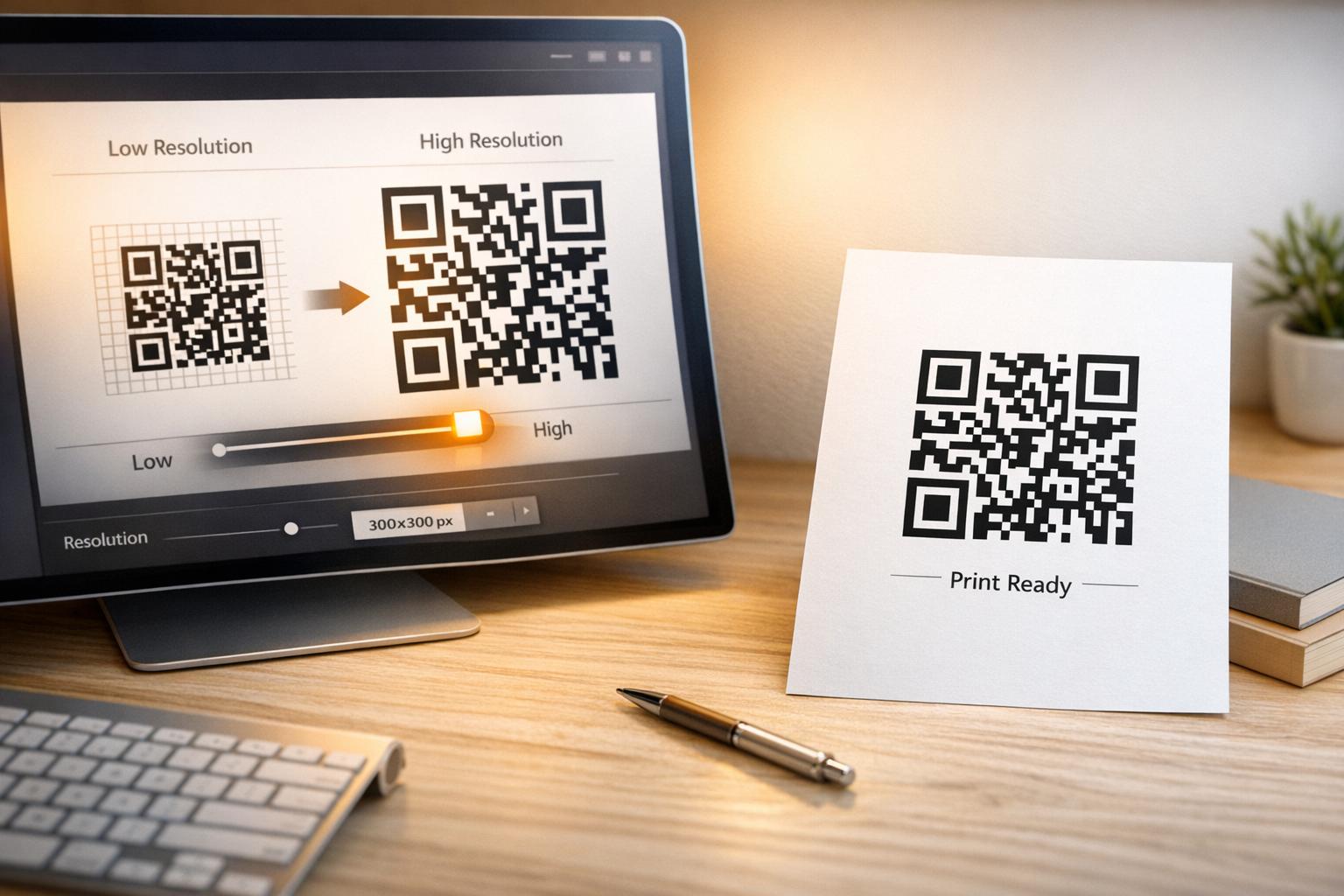
Ketika Anda mengambil gambar raster beresolusi rendah – JPEG atau PNG kecil – dan meregangkannya lebih besar di perangkat lunak desain Anda, pemindai harus membaca modul yang buram, tidak jelas alih-alih kotak hitam-putih yang tajam. Meregangkan kode QR beresolusi rendah adalah salah satu cara paling andal untuk menghasilkan hasil cetak yang buram, tidak dapat dipindai. Ada juga masalah yang kurang jelas: mengubah ukuran dapat secara tidak sengaja mendistorsi proporsi kode atau menghilangkan zona tenang – margin putih jernih yang mengelilingi kode – yang menyebabkan pemindai salah membaca atau sama sekali tidak mengenali pola tersebut. Memahami titik-titik kegagalan ini sebelum Anda mengubah ukuran adalah jalur paling langsung menuju kode yang benar-benar berfungsi.
Vektor vs. Raster: Keputusan Format File yang Paling Penting
Pilihan paling berdampak yang Anda buat saat mengubah ukuran kode QR adalah apakah Anda bekerja dengan file vektor atau raster.
Format vektor (SVG, EPS, PDF) menyimpan kode QR sebagai instruksi matematis daripada kisi piksel tetap. Ini berarti mereka dapat diskalakan ke ukuran berapa pun – dari prangko hingga papan reklame – tanpa kehilangan ketajaman atau kejelasan. Untuk apa pun yang akan dicetak, vektor adalah pilihan yang tepat.
Format raster (PNG, JPEG, BMP) menyimpan kode sebagai kisi piksel dengan batas resolusi tetap. Setelah Anda menskalakannya di atas resolusi aslinya, perangkat lunak harus menciptakan data piksel, yang menghasilkan keburaman. JPEG sangat bermasalah karena algoritma kompresinya menghaluskan tepi, secara langsung merusak kontras tajam yang dibutuhkan pemindai QR untuk membaca setiap modul.
| Format | Skala Tanpa Kehilangan | Direkomendasikan untuk | Catatan |
|---|---|---|---|
| SVG | Ya. | Cetak, format besar | Terbaik secara keseluruhan untuk mengubah ukuran |
| EPS | Ya. | Cetak profesional | Standar dalam alur kerja desain cetak |
| Ya. | Cetak, berbagi | Mempertahankan data vektor | |
| PNG | Tidak (resolusi tetap) | Web, tampilan digital | Dapat diterima pada resolusi tinggi |
| JPEG | Tidak (kompresi lossy) | Tidak keduanya | Hindari sepenuhnya untuk kode QR |
Saat Anda mengunduh kode QR untuk dicetak, selalu pilih SVG atau EPS. Saat Anda membutuhkan file raster untuk layar digital atau platform yang tidak menerima format vektor, ekspor PNG beresolusi tinggi – jangan pernah JPEG.
Buat Kode QR Siap Cetak dalam Format yang Tepat Hasilkan kode QR Anda dan unduh sebagai file SVG, EPS, atau PDF siap cetak menggunakan Pembuat Kode QR Pageloot. Tidak diperlukan perangkat lunak desain.
Aturan Resolusi untuk File Raster
Jika Anda bekerja dengan PNG untuk dicetak, resolusi – diukur dalam DPI (titik per inci) – menentukan apakah kode tetap tajam pada ukuran cetak akhirnya.
Standar minimum untuk cetak adalah 300 DPI pada dimensi cetak akhir. Ini berarti dimensi piksel file gambar Anda harus sesuai dengan ukuran fisik yang dimaksudkan pada kepadatan tersebut. Contohnya:
- Kode QR dicetak pada 1 inci × 1 inci membutuhkan setidaknya 300 × 300 piksel
- Kode QR dicetak pada 4 inci × 4 inci membutuhkan setidaknya 200 × 1.200 piksel
Jika file Anda tidak memenuhi ambang batas ini pada ukuran target Anda, modul individual – kotak-kotak kecil yang membawa data QR – akan menjadi buram. Pada titik itu, pemindai tidak dapat lagi membedakan gelap dari terang, dan kode gagal. Untuk layar digital, minimum sekitar 240 × 240 piksel adalah pedoman praktis untuk kode tampilan di layar, meskipun lebih besar selalu lebih aman untuk zoom dan kompatibilitas lintas perangkat. Solusi yang lebih bersih untuk cetak adalah melewati raster sepenuhnya dan menggunakan file vektor, yang memberi Anda skalabilitas tak terbatas tanpa masalah resolusi.
Cara Mengubah Ukuran Kode QR Langkah demi Langkah
Langkah 1: Mulai dengan File Sumber yang Tepat
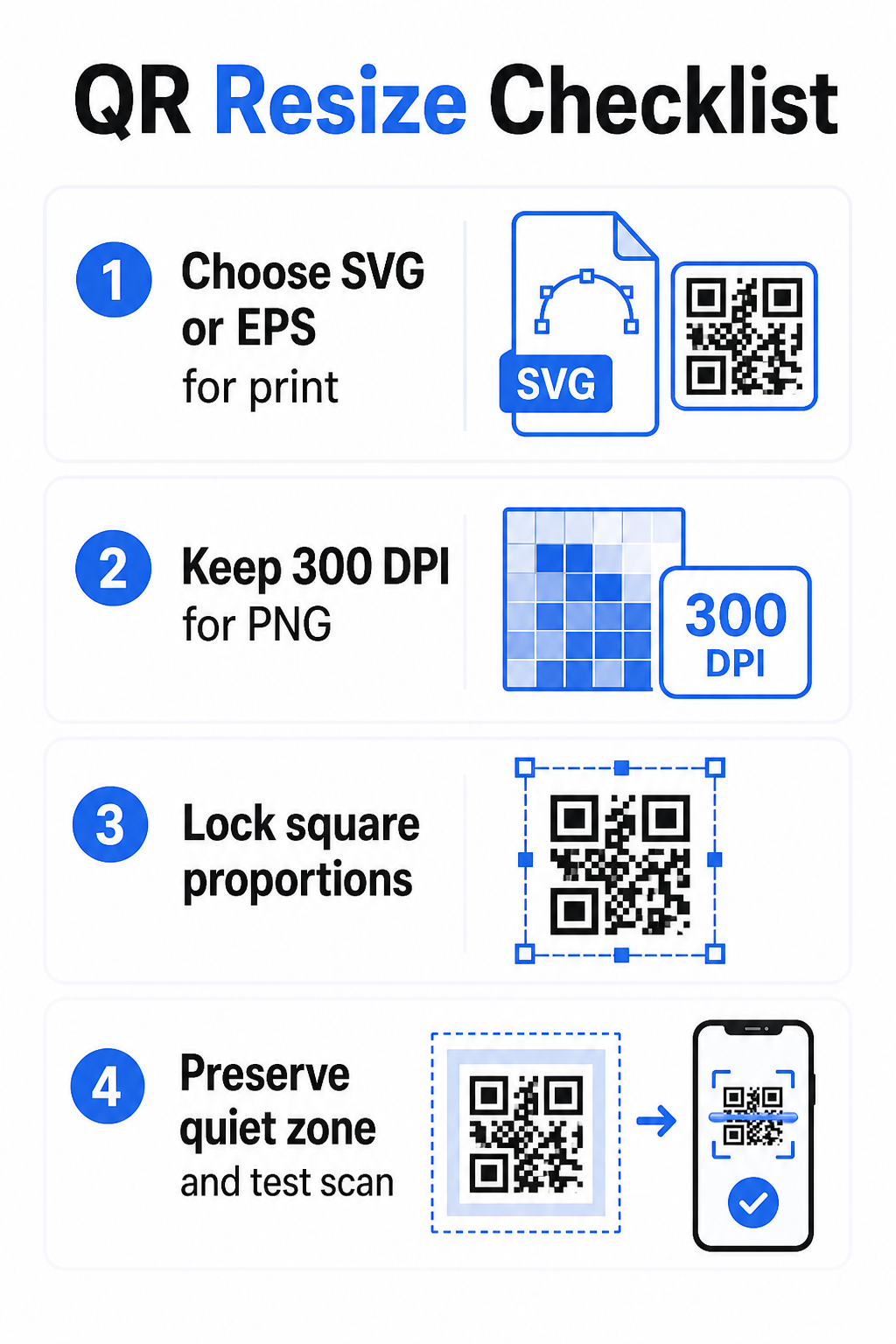
Unduh atau ekspor kode QR Anda dalam format SVG atau EPS jika akan dicetak. Jika Anda hanya memiliki file raster, verifikasi bahwa dimensi piksel mendukung 300 DPI pada ukuran cetak target Anda sebelum mengubah ukuran. Kode QR PNG dapat berfungsi dengan baik untuk penempatan digital saat diekspor pada resolusi yang memadai – Anda dapat membuatnya langsung dengan Generator QR Code PNG dan menggunakannya di mana pun transparansi atau kompatibilitas raster diperlukan.
Langkah 2: Skala Secara Proporsional
Selalu pertahankan rasio aspek asli saat mengubah ukuran. Kode QR secara definisi berbentuk persegi, dan meregangkannya secara horizontal atau vertikal mendistorsi modul-modul dari persegi menjadi persegi panjang, yang dapat membingungkan atau mengalahkan pemindai. Dalam aplikasi desain apa pun – Illustrator, Canva, InDesign, Photoshop – kunci rasio aspek sebelum menyeret pegangan sudut. Bahkan distorsi yang halus cukup untuk menyebabkan masalah dengan implementasi pemindai yang lebih ketat.
Langkah 3: Pertahankan Zona Tenang
Zona tenang adalah batas putih bersih yang mengelilingi kode QR di keempat sisinya. Standar ISO/IEC 18004 menetapkan bahwa margin ini harus setidaknya selebar empat modul di setiap sisi. Saat Anda mengubah ukuran kode QR dan menempatkannya dalam desain yang lebih besar, zona ini seringkali menjadi hal pertama yang terpotong atau dilanggar oleh elemen desain lainnya. Jika setiap modul dalam kode Anda selebar 2 mm, zona tenang Anda harus setidaknya 8 mm di semua sisi. Perlakukan ruang ini sebagai hal yang tidak dapat ditawar – menghapusnya akan merusak pengenalan pemindai.
Langkah 4: Periksa Kontras Setelah Mengubah Ukuran
Mengubah ukuran ke latar belakang berwarna atau bertekstur dapat mengurangi kontras efektif antara modul-modul kode dan lingkungannya. Pemindai mengandalkan perbedaan antara area gelap dan terang untuk membaca kode. Kombinasi teraman tetap modul gelap pada latar belakang terang – hitam di atas putih memberikan rasio kontras 21:1. Targetkan rasio kontras minimum sebesar 4:1 antara warna latar depan dan latar belakang, dan hindari menempatkan kode pada gradien, pola ramai, atau permukaan reflektif. Untuk panduan terperinci, lihat praktik terbaik kontras warna kode QR.
Langkah 5: Uji Sebelum Mencetak
Cetak bukti pada ukuran yang tepat yang dimaksudkan pada bahan yang tepat yang dimaksudkan, kemudian uji dengan beberapa perangkat – baik iOS maupun Android – sebelum berkomitmen pada produksi penuh. Uji pada jarak pemindaian sebenarnya yang akan dialami pengguna. Kode yang memindai dengan sempurna pada jarak lengan mungkin gagal pada jarak sebenarnya ditempatkan. Lihat Cara Menguji QR Code untuk Kemudahan Penggunaan di Ponsel untuk daftar periksa pengujian lengkap.
Panduan Ukuran Minimum dan Maksimum
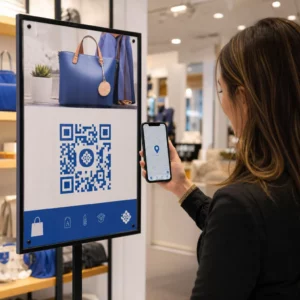
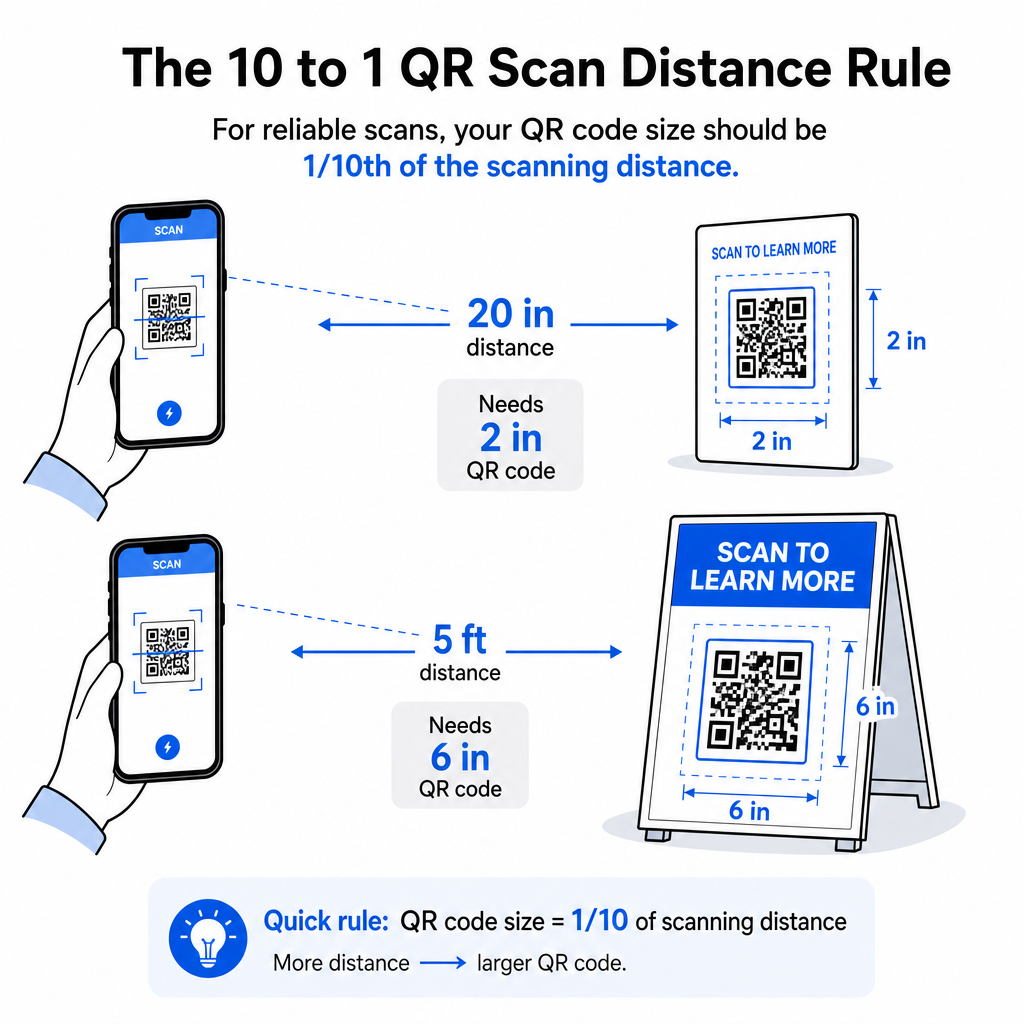
Mengubah ukuran kode QR secara bertanggung jawab berarti mengetahui batas ukuran untuk kasus penggunaan spesifik Anda. Aturan intinya adalah rasio jarak-ke-ukuran 10:1: jarak pemindaian maksimum yang dimaksudkan harus sekitar sepuluh kali lebar kode QR. Kode yang dipindai dari jarak 20 inci harus setidaknya selebar 2 inci; satu yang dipindai dari jarak 5 kaki harus setidaknya selebar 6 inci; kode papan reklame yang dipindai dari jarak 30 kaki harus setidaknya selebar 36 inci.
Untuk aplikasi cetak umum, berikut adalah titik awal yang dapat diandalkan:
| Gunakan Kasing | Ukuran Minimum yang Direkomendasikan |
|---|---|
| Kartu nama | 0,8 × 0,8 inci (2 × 2 cm) |
| Pamflet dan brosur | 1,2 × 1,2 inci (3 × 3 cm) |
| Poster dan papan nama | 6 × 1.6 inci (4 × 4 cm) |
| Papan reklame dan spanduk | 16 × 16 inci (40 × 40 cm) atau lebih besar |
Untuk aplikasi kartu nama, 0.8 × 0.8 inci adalah minimum praktis untuk pemindaian jarak dekat yang andal – mengurangi ukuran akan meningkatkan risiko kegagalan pemindaian secara signifikan. Lihat panduan ukuran kode QR untuk kartu nama untuk rekomendasi spesifik pada format tersebut. Tidak ada batas ukuran atas resmi; skalakan sesuai kebutuhan berdasarkan jarak pemindaian. Untuk rincian komprehensif di setiap kasus penggunaan, panduan ukuran kode QR mencakup segalanya mulai dari kartu nama hingga papan reklame. Anda juga dapat menjelajahi bagaimana ukuran kode QR memengaruhi visibilitas untuk memahami hubungan yang lebih luas antara dimensi dan keberhasilan pemindaian.
Butuh Kode QR untuk Kartu Nama Anda? Menggunakan Generator kode QR kartu nama untuk membuat kode yang ukurannya dan dirancang untuk pencetakan kartu nama, dengan ekspor SVG disertakan.
Bagaimana Kepadatan Data Mempengaruhi Pengubahan Ukuran
Salah satu faktor yang mempersulit pengubahan ukuran adalah kepadatan data – jumlah informasi yang dikodekan dalam kode QR. Semakin banyak data yang terkandung dalam kode QR, semakin padat kisi modulnya. Kisi yang lebih padat memerlukan ukuran fisik yang lebih besar untuk menjaga modul individual tetap terbaca pada tingkat kamera.
Kode QR yang mengkodekan URL panjang dengan parameter pelacakan mengandung data jauh lebih banyak daripada yang menunjuk ke URL pengalihan pendek. Saat Anda mengecilkan kode berdensitas tinggi, modul-modul menjadi terlalu kecil bagi sebagian besar kamera ponsel pintar untuk dipecahkan dengan andal. Kode QR dinamis menyelesaikan masalah ini secara langsung. Alih-alih mengkodekan URL tujuan lengkap, kode dinamis mengkodekan pengalihan internal pendek, menjaga kepadatan data kode tetap rendah terlepas dari ke mana ia menunjuk. Ini berarti Anda dapat mencetak kode lebih kecil tanpa mengorbankan kemampuan pindai – dan memperbarui tujuan nanti tanpa mencetak ulang.
Koreksi Kesalahan dan Toleransi Pengubahan Ukuran
Kode QR menyertakan koreksi kesalahan bawaan yang memungkinkan mereka tetap dapat dipindai bahkan ketika sebagian rusak atau terhalang. Standar ISO/IEC 18004 mendefinisikan empat tingkat:
| Tingkat | Kemampuan Pemulihan |
|---|---|
| L (Rendah) | ~7% data |
| M (Sedang) | ~15% data |
| Q (Kuartil) | ~25% data |
| H (Tinggi) | ~30% data |
Jika Anda mengubah ukuran kode QR ke ukuran yang lebih kecil, atau menambahkan logo ke pusat kode, meningkatkan tingkat koreksi kesalahan memberi Anda penyangga terhadap kerusakan tingkat modul atau ketidaktepatan pemindaian. Tingkat Q atau H sesuai untuk kode bermerek atau yang sangat disesuaikan. Perlu diingat bahwa koreksi kesalahan yang lebih tinggi meningkatkan kepadatan data, yang mungkin memerlukan ukuran minimum yang sedikit lebih besar untuk mengkompensasi.
Kesalahan Umum dalam Mengubah Ukuran yang Harus Dihindari
- Menggunakan tangkapan layar sebagai file sumber Anda. Tangkapan layar adalah tangkapan raster beresolusi rendah. Memperbesarnya untuk dicetak adalah salah satu penyebab paling umum kode QR yang tidak dapat dipindai.
- Meregangkan kode secara tidak proporsional. Bahkan sedikit distorsi horizontal atau vertikal mengubah bentuk modul dari persegi menjadi persegi panjang, yang dapat mencegah pemindai membaca kode dengan benar.
- Memotong zona tenang. Mengubah ukuran dalam tata letak desain yang ketat seringkali mengakibatkan elemen lain melanggar zona tenang. Pertahankan setidaknya empat modul ruang kosong di semua sisi – margin ini adalah persyaratan teknis, bukan pilihan gaya.
- Mengasumsikan kode yang berfungsi di layar akan berfungsi saat dicetak. Tampilan layar dan hasil cetak adalah lingkungan yang berbeda. Kode yang terlihat tajam pada 72 DPI di layar mungkin tercetak buram pada 300 DPI jika resolusi file dasarnya tidak mendukungnya.
- Tidak menguji setelah mengubah ukuran. Selalu verifikasi kemampuan pindai pada bahan akhir, pada ukuran akhir, dari jarak pemindaian yang dimaksudkan.
Untuk panduan yang lebih mendalam, panduan resolusi cetak kode QR dan praktik terbaik untuk keterbacaan kode QR mencakup detail khusus cetak yang perlu diketahui sebelum Anda masuk ke produksi.
Penentuan Ukuran untuk Bahan Cetak yang Berbeda
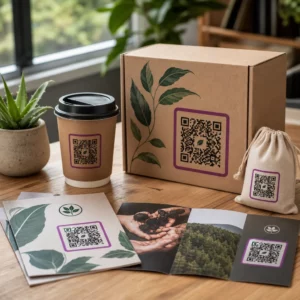
Permukaan tempat Anda mencetak memengaruhi seberapa besar kode QR Anda perlu, terpisah dari pertimbangan jarak pemindaian. Permukaan yang kasar, bertekstur, atau melengkung dapat mendistorsi modul dan mengurangi kontras efektif, mengharuskan Anda untuk memperbesar melebihi apa yang disarankan oleh aturan 10:1 saja.
- Kertas halus atau karton – Pedoman ukuran standar berlaku; finishing matte lebih disukai daripada glossy untuk mengurangi silau dan pantulan
- Kardus bergelombang – Tambahkan 10–25% ke ukuran minimum untuk mengkompensasi tekstur permukaan dan ketidakaturan tepi
- Kain – Poliester halus dapat menggunakan minimum standar; tekstil kasar atau elastis seringkali memerlukan kode 25–50% lebih besar
- Logam atau kaca – Reflektivitas tinggi menyebabkan masalah pemindaian; gunakan permukaan matte atau lapisan vinil dan tingkatkan ukuran kode
Untuk rincian lengkap berdasarkan jenis bahan, lihat ukuran kode QR untuk berbagai bahan cetak, dan untuk panduan tentang bagaimana metode pencetakan itu sendiri memengaruhi kualitas output, bagaimana teknik pencetakan memengaruhi kemampuan pindai kode QR layak dibaca sebelum Anda melakukan pemesanan cetak. Untuk keputusan penempatan yang melampaui penentuan ukuran, Panduan penempatan kode QR untuk pemasaran mencakup penentuan posisi berdasarkan jenis bahan dan konteks kampanye.
Mengubah ukuran kode QR dengan benar berarti memilih format file yang tepat sebelum Anda mengubah ukuran, mempertahankan proporsi dan margin zona tenang di seluruh proses, dan memverifikasi bahwa output Anda memenuhi standar resolusi dan kontras pada ukuran cetak atau tampilan akhir. Memulai dengan file vektor menghilangkan sebagian besar risiko sepenuhnya – itu dapat diskalakan dengan bersih ke segala arah tanpa batasan resolusi yang diberlakukan oleh gambar raster. Jika Anda membuat kode QR untuk kampanye yang sedang berlangsung, menggunakan kode QR dinamis memberi Anda keuntungan tambahan untuk memperbarui tujuan setelah dicetak, sehingga keputusan penentuan ukuran atau penempatan hari ini tidak mengunci Anda pada biaya pencetakan ulang di kemudian hari.
Pertanyaan yang sering diajukan
SVG, EPS, atau PDF adalah format terbaik untuk mengubah ukuran karena berbasis vektor dan dapat diskalakan ke ukuran berapa pun tanpa kehilangan ketajaman. PNG dapat diterima untuk penggunaan digital saat diekspor pada resolusi tinggi. JPEG harus dihindari sepenuhnya – kompresinya menghaluskan tepi tajam yang dibutuhkan pemindai untuk membedakan setiap modul.
Minimum praktis untuk sebagian besar aplikasi cetak jarak dekat adalah 0,8 × 0,8 inci (2 × 2 cm). Mengurangi ukuran meningkatkan risiko kegagalan pemindaian. Untuk pemindaian pada jarak yang lebih jauh, terapkan aturan 10:1: lebar kode harus setidaknya sepersepuluh dari jarak pemindaian maksimum yang dimaksudkan – jadi kode yang dipindai dari jarak 20 inci harus memiliki lebar setidaknya 2 inci.
Tidak – data yang dienkode dan tingkat koreksi kesalahan ditetapkan saat kode dibuat. Mengubah ukuran hanya mengubah dimensi fisik atau piksel gambar. Yang dapat dipengaruhi oleh pengubahan ukuran adalah apakah modul tetap jelas dan dapat dibedakan pada ukuran baru, itulah sebabnya menjaga 300 DPI untuk cetak, mempertahankan margin zona tenang, dan menskalakan secara proporsional adalah semua langkah penting.