Probeer je een QR-code te vergroten of verkleinen alleen om te eindigen met een wazig, onscanbaar resultaat? De afmetingen verkeerd krijgen – of het verkeerde bestandsformaat gebruiken – kan je QR-code volledig nutteloos maken na het afdrukken. Deze gids leidt je precies door hoe je een QR-code correct kunt vergroten of verkleinen, waarbij bestandsformaten, groteregels, resolutievereisten en de meest voorkomende fouten om te vermijden worden behandeld.
Waarom het vergroten of verkleinen van een QR-code misgaat
De meeste kwaliteitsproblemen met QR-codes komen neer op een van de twee problemen: beginnen met het verkeerde bestandsformaat of een afbeelding schalen voorbij wat de resolutie kan ondersteunen.
Wanneer je een rasterafbeelding met lage resolutie neemt – een JPEG of een kleine PNG – en deze groter uitrekt in je ontwerpsoftware, moet de scanner wazige, onduidelijke modules lezen in plaats van scherpe zwart-wit vierkanten. Het uitrekken van een QR-code met lage resolutie is een van de meest betrouwbare manieren om een wazig, onscanbaar afdrukresultaat. Er is ook een minder voor de hand liggend probleem: vergroten of verkleinen kan onbedoeld de verhoudingen van de code vervormen of de stille zone wegnemen – de heldere witte marge rond de code – wat ertoe leidt dat scanners het patroon verkeerd lezen of volledig missen. Het begrijpen van deze faalpunten voordat je vergroot of verkleint, is de meest directe weg naar een code die daadwerkelijk werkt.
Vector vs. Raster: De bestandsformaatbeslissing die het meest telt
De meest impactvolle keuze die je maakt bij het vergroten of verkleinen van een QR-code is of je werkt met een vector- of rasterbestand.
Vectorformaten (SVG, EPS, PDF) slaan de QR-code op als wiskundige instructies in plaats van een vast raster van pixels. Dit betekent dat ze schalen naar elke grootte – van een postzegel tot een billboard – zonder enig verlies van scherpte of helderheid. Voor alles wat gedrukt moet worden, is vector de juiste keuze.
Rasterformaten (PNG, JPEG, BMP) slaan de code op als een pixelraster met een vast resolutieplafond. Zodra je ze boven hun oorspronkelijke resolutie schaalt, moet de software pixelgegevens 'uitvinden', wat vervaging veroorzaakt. JPEG is bijzonder problematisch omdat het compressiealgoritme randen gladstrijkt, wat het scherpe contrast dat een QR-scanner nodig heeft om elke module te lezen, direct ondermijnt.
| Formaat | Schaalt zonder verlies | Aanbevolen voor | Opmerkingen |
|---|---|---|---|
| SVG | Ja | Print, groot formaat | Over het algemeen het beste voor vergroten/verkleinen |
| EPS | Ja | Professionele print | Standaard in printontwerpworkflows |
| Ja | Print, delen | Behoudt vectorgegevens | |
| PNG | Nee (vaste resolutie) | Web, digitaal display | Acceptabel bij hoge resolutie |
| JPEG | Nee (lossy compressie) | Geen van beide | Volledig vermijden voor QR-codes |
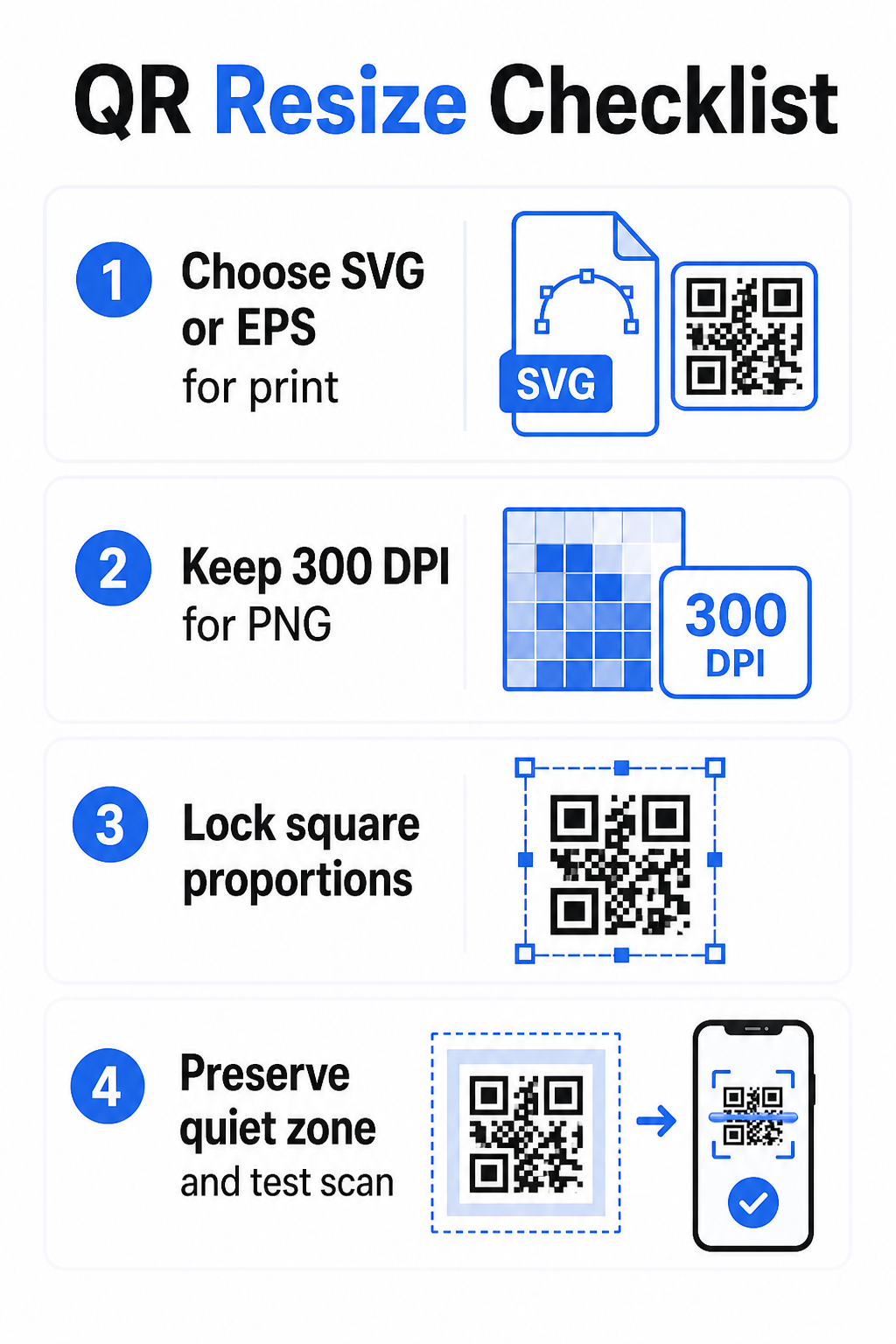
Wanneer je een QR-code downloadt om af te drukken, selecteer dan altijd SVG of EPS. Wanneer je een rasterbestand nodig hebt voor een digitaal scherm of een platform dat geen vectorformaten accepteert, exporteer dan een PNG met hoge resolutie – nooit een JPEG.
Maak printklare QR-codes in het juiste formaat Genereer je QR-code en download deze als een printklaar SVG-, EPS- of PDF-bestand met behulp van de Pageloot QR-codegenerator. Geen ontwerpsoftware vereist.
Resolutieregels voor rasterbestanden
Als je werkt met een PNG voor print, bepaalt resolutie – gemeten in DPI (dots per inch) – of de code scherp blijft op zijn uiteindelijke afgedrukte formaat.
De minimale standaard voor print is 300 DPI bij de uiteindelijke afgedrukte afmetingen. Dit betekent dat de pixelafmetingen van je afbeeldingsbestand moeten overeenkomen met de beoogde fysieke grootte bij die dichtheid. Bijvoorbeeld:
- Een QR-code afgedrukt op 1 inch x 1 inch heeft minimaal nodig 300 x 300 pixels
- Een QR-code afgedrukt op 4 inch × 4 inch heeft minimaal nodig 200 × 1.200 pixels
Als je bestand niet aan deze drempel voldoet bij je doelgrootte, zullen de individuele modules – de kleine vierkantjes die de QR-gegevens dragen – vervagen. Op dat moment kan de scanner geen onderscheid meer maken tussen donker en licht, en faalt de code. Voor digitale schermen is een minimum van ongeveer 240 x 240 pixels een praktische richtlijn voor codes op het scherm, hoewel groter altijd veiliger is voor zoom en compatibiliteit tussen apparaten. De schonere oplossing voor print is om raster volledig over te slaan en een vectorbestand te gebruiken, wat je oneindige schaalbaarheid geeft zonder resolutieproblemen.
Hoe een QR-code stap voor stap te vergroten of verkleinen
Stap 1: Begin met het juiste bronbestand
Download of exporteer je QR-code in SVG- of EPS-formaat als deze gedrukt moet worden. Als je alleen een rasterbestand hebt, controleer dan of de pixelafmetingen 300 DPI ondersteunen bij je doelprintformaat voordat je vergroot of verkleint. Een PNG QR-code kan goed werken voor digitale plaatsingen wanneer geëxporteerd met voldoende resolutie – je kunt er direct een maken met een PNG QR code maken en gebruik deze overal waar transparantie of rastercompatibiliteit vereist is.
Stap 2: Proportioneel schalen
Behoud altijd de oorspronkelijke beeldverhouding bij het wijzigen van de grootte. QR-codes zijn per definitie vierkant, en het horizontaal of verticaal uitrekken ervan vervormt de modules van vierkanten naar rechthoeken, wat scanners kan verwarren of onbruikbaar maken. Vergrendel in elke ontwerptoepassing – Illustrator, Canva, InDesign, Photoshop – de beeldverhouding voordat u een hoekgreep sleept. Zelfs een subtiele vervorming is voldoende om problemen te veroorzaken bij strengere scannerimplementaties.
Stap 3: Behoud de rustzone
De rustzone is de heldere witte rand die de QR-code aan alle vier de zijden omringt. De ISO/IEC 18004-standaard specificeert dat deze marge aan elke zijde minstens vier modules breed moet zijn. Wanneer u een QR-code wijzigt en deze binnen een groter ontwerp plaatst, is deze zone vaak het eerste dat wordt bijgesneden of aangetast door andere ontwerpelementen. Als elke module in uw code 2 mm breed is, moet uw rustzone aan alle zijden minstens 8 mm zijn. Beschouw deze ruimte als niet-onderhandelbaar – het verwijderen ervan verbreekt de scannerherkenning.
Stap 4: Controleer het contrast na het wijzigen van de grootte
Het wijzigen van de grootte op een gekleurde of gestructureerde achtergrond kan het effectieve contrast tussen de modules van de code en de omgeving verminderen. Scanners vertrouwen op het verschil tussen donkere en lichte gebieden om de code te lezen. De veiligste combinatie blijft donkere modules op een lichte achtergrond – zwart op wit biedt een contrastverhouding van 21:1. Streef naar een minimale contrastverhouding van 4:1 tussen voorgrond- en achtergrondkleuren, en vermijd het plaatsen van de code op verlopen, drukke patronen of reflecterende oppervlakken. Voor gedetailleerde richtlijnen, zie best practices voor kleurcontrast van QR-codes.
Stap 5: Test vóór het afdrukken
Druk een proefdruk af op de exact beoogde grootte op het exact beoogde materiaal, en test vervolgens met meerdere apparaten – zowel iOS als Android – voordat u een volledige productierun start. Test op de werkelijke scanafstand die gebruikers zullen ervaren. Een code die perfect scant op armlengte, kan falen op de afstand waarop deze daadwerkelijk is geplaatst. Zie QR-code testen: gebruiksvriendelijk op mobiel voor een volledige testchecklist.
Richtlijnen voor minimale en maximale grootte
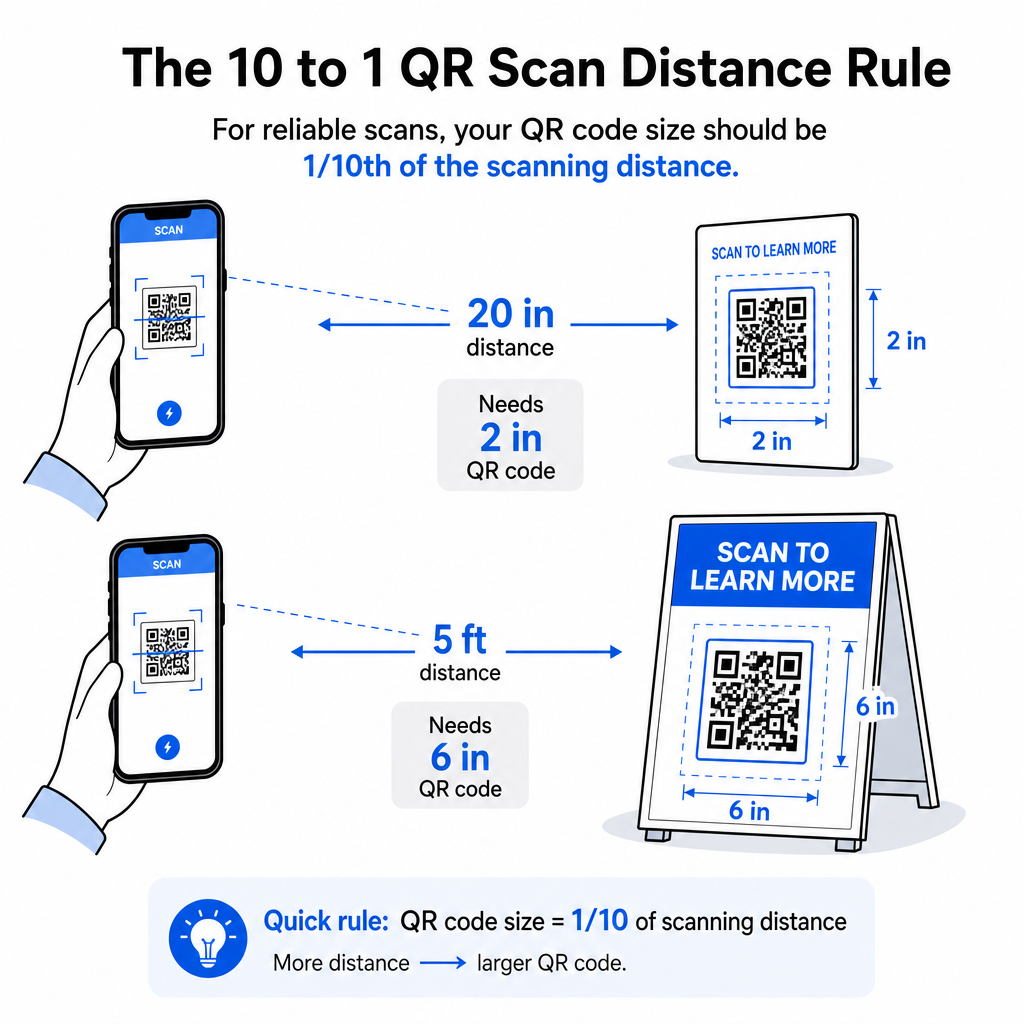
Het verantwoord wijzigen van de grootte van een QR-code betekent het kennen van de groottelimieten voor uw specifieke gebruikssituatie. De kernregel is de 10:1 afstand-tot-grootte verhouding: de maximaal beoogde scanafstand moet ongeveer tien keer de breedte van de QR-code zijn. Een code die vanaf 20 inch afstand wordt gescand, moet minstens 2 inch breed zijn; een code die vanaf 5 voet afstand wordt gescand, moet minstens 6 inch breed zijn; een billboardcode die vanaf 30 voet afstand wordt gescand, moet minstens 36 inch breed zijn.
Voor gangbare printtoepassingen zijn hier betrouwbare uitgangspunten:
| Gebruiksgeval | Minimaal aanbevolen formaat |
|---|---|
| Visitekaartjes | 0.8 × 0.8 in (2 × 2 cm) |
| Flyers en brochures | 1.2 × 1.2 in (3 × 3 cm) |
| Posters en bewegwijzering | 1,6 × 1,6 inch (4 × 4 cm) |
| Billboards en spandoeken | 16 × 16 inch (40 × 40 cm) of groter |
Voor visitekaartjestoepassingen is 0,8 × 0,8 inch het praktische minimum voor betrouwbaar scannen op korte afstand – kleiner gaan vergroot het risico op scanfouten aanzienlijk. Zie de gids voor QR-codeformaten voor visitekaartjes voor specifieke aanbevelingen voor dat formaat. Er is geen officiële bovengrens voor de grootte; schaal omhoog indien nodig op basis van de scanafstand. Voor een uitgebreide uitsplitsing per gebruikssituatie, de gids voor QR-codeformaten behandelt alles van visitekaartjes tot billboards. U kunt ook verkennen hoe de grootte van de QR-code de zichtbaarheid beïnvloedt om de bredere relatie tussen afmetingen en scansucces te begrijpen.
Een QR-code nodig voor uw visitekaartje? Gebruik de QR-code voor visitekaartjes maken om een code te maken die is geformatteerd en ontworpen voor het afdrukken van visitekaartjes, inclusief SVG-export.
Hoe gegevensdichtheid het wijzigen van de grootte beïnvloedt
Een factor die het wijzigen van de grootte bemoeilijkt, is de gegevensdichtheid – de hoeveelheid informatie die in de QR-code is gecodeerd. Hoe meer gegevens een QR-code bevat, hoe dichter het raster van modules wordt. Dichter raster vereist grotere fysieke formaten om individuele modules leesbaar te houden op cameraniveau.
Een QR-code die een lange URL met trackingparameters codeert, bevat veel meer gegevens dan een die naar een korte omleidings-URL verwijst. Wanneer u een code met hoge dichtheid verkleint, worden de modules te klein voor de meeste smartphonecamera's om betrouwbaar te kunnen oplossen. Dynamische QR-codes lossen dit probleem direct op. In plaats van een volledige bestemmings-URL te coderen, codeert een dynamische code een korte interne omleiding, waardoor de gegevensdichtheid van de code laag blijft, ongeacht waar deze naartoe verwijst. Dit betekent dat u de code kleiner kunt afdrukken zonder in te boeten aan scanbaarheid – en de bestemming later kunt bijwerken zonder opnieuw af te drukken.
Foutcorrectie en tolerantie bij het wijzigen van de grootte
QR-codes bevatten ingebouwde foutcorrectie waardoor ze scanbaar blijven, zelfs wanneer ze gedeeltelijk beschadigd of verduisterd zijn. De ISO/IEC 18004-standaard definieert vier niveaus:
| Niveau | Herstelvermogen |
|---|---|
| L (Laag) | ~7% van de gegevens |
| M (Gemiddeld) | ~15% van de gegevens |
| Q (kwartiel) | ~25% van de gegevens |
| H (Hoog) | ~30% van de gegevens |
Als u de grootte van een QR-code wijzigt naar een kleiner formaat, of een logo toevoegt aan het midden van de code, verhoogt het foutcorrectieniveau de buffer tegen schade op moduleniveau of onnauwkeurigheid bij het scannen. Niveau Q of H is geschikt voor codes met branding of zwaar aangepaste codes. Houd er rekening mee dat een hogere foutcorrectie de gegevensdichtheid verhoogt, wat een iets grotere minimale grootte kan vereisen ter compensatie.
Veelvoorkomende fouten bij het wijzigen van de grootte om te vermijden
- Een screenshot gebruiken als uw bronbestand. Screenshots zijn rasteropnamen met een lage resolutie. Het vergroten ervan voor afdrukken is een van de meest voorkomende oorzaken van onscanbare QR-codes.
- De code niet-proportioneel uitrekken. Zelfs een lichte horizontale of verticale vervorming verandert modulevormen van vierkanten in rechthoeken, wat kan voorkomen dat scanners de code correct lezen.
- De rustzone bijsnijden. Het wijzigen van de grootte binnen een strakke ontwerplay-out resulteert vaak in andere elementen die de rustzone binnendringen. Houd aan alle zijden ten minste vier modules vrije ruimte – deze marge is een technische vereiste, geen stilistische keuze.
- Ervan uitgaande dat een code die op het scherm werkt ook in print zal werken. Schermweergave en afgedrukte uitvoer zijn verschillende omgevingen. Een code die er scherp uitziet bij 72 DPI op het scherm kan wazig afdrukken bij 300 DPI als de onderliggende bestandsresolutie dit niet ondersteunt.
- Niet testen na het wijzigen van de grootte. Controleer altijd de scanbaarheid op het uiteindelijke materiaal, op het uiteindelijke formaat, vanaf de beoogde scanafstand.
Voor meer diepgaande begeleiding, de handleiding voor de afdrukresolutie van QR-codes en best practices voor de leesbaarheid van QR-codes behandelen de printspecifieke details die de moeite waard zijn om te weten voordat u in productie gaat.
Formaatbepaling voor verschillende printmaterialen
Het oppervlak waarop u print, beïnvloedt hoe groot uw QR-code moet zijn, los van overwegingen met betrekking tot de scanafstand. Ruwe, gestructureerde of gebogen oppervlakken kunnen modules vervormen en het effectieve contrast verminderen, waardoor u verder moet opschalen dan wat de 10:1-regel alleen zou suggereren.
- Glad papier of karton – Standaard richtlijnen voor de grootte zijn van toepassing; matte afwerkingen hebben de voorkeur boven glanzende om schittering en reflecties te verminderen
- Golfkarton – Voeg 10–25% toe aan de minimale grootte ter compensatie van oppervlaktestructuur en onregelmatigheden aan de randen
- Stof – Glad polyester kan standaard minimums gebruiken; ruwe of rekbare textielsoorten vereisen vaak 25–50% grotere codes
- Metaal of glas – Hoge reflectiviteit veroorzaakt scanproblemen; gebruik matte oppervlakken of vinyloverlays en vergroot de code grootte
Voor een volledig overzicht per materiaalsoort, zie QR-code formaat voor verschillende printmaterialen, en voor begeleiding over hoe de printmethode zelf de uitvoerkwaliteit beïnvloedt, hoe printtechnieken de scanbaarheid van QR-codes beïnvloeden is de moeite waard om te lezen voordat u een printopdracht plaatst. Voor plaatsingsbeslissingen die verder gaan dan de grootte, de QR-code plaatsingsgids voor marketing behandelt positionering per materiaalsoort en campagnecontext.
Het correct wijzigen van de grootte van een QR-code betekent het kiezen van het juiste bestandsformaat voordat u de grootte wijzigt, het handhaven van proporties en rustzonemarges gedurende het hele proces, en het controleren of uw uitvoer voldoet aan de resolutie- en contraststandaarden op het uiteindelijke afgedrukte of weergegeven formaat. Beginnen met een vectorbestand elimineert het grootste deel van het risico volledig – het schaalt schoon in elke richting zonder het resolutieplafond dat rasterafbeeldingen opleggen. Als u QR-codes bouwt voor lopende campagnes, het gebruik van een dynamische QR-code geeft u het extra voordeel van het bijwerken van de bestemming na het afdrukken, zodat een beslissing over grootte of plaatsing vandaag u niet vastzet aan herdrukkosten in de toekomst.
Veelgestelde vragen
SVG, EPS of PDF zijn de beste formaten voor het aanpassen van de grootte omdat ze vectorgebaseerd zijn en naar elke grootte schalen zonder scherpte te verliezen. PNG is acceptabel voor digitaal gebruik wanneer geëxporteerd met hoge resolutie. JPEG moet volledig worden vermeden – de compressie ervan maakt de scherpe randen glad die scanners nodig hebben om elke module te onderscheiden.
Het praktische minimum voor de meeste printtoepassingen op korte afstand is 0,8 × 0,8 inch (2 × 2 cm). Kleiner gaan verhoogt het risico op scanfouten. Voor scannen op grotere afstanden, pas de 10:1-regel toe: de breedte van de code moet ten minste een tiende zijn van de maximaal beoogde scanafstand – dus een code gescand vanaf 20 inch afstand moet ten minste 2 inch breed zijn.
Nee – de gecodeerde gegevens en het foutcorrectieniveau zijn vast wanneer de code wordt gegenereerd. Het formaat wijzigen verandert alleen de fysieke of pixelafmetingen van de afbeelding. Wat het formaat wijzigen wel kan beïnvloeden, is of de modules duidelijk en onderscheidbaar blijven op het nieuwe formaat, daarom zijn het handhaven van 300 DPI voor afdrukken, het behouden van de stille zone marges, en proportioneel schalen allemaal essentiële stappen.