คุณกำลังพยายามปรับขนาด QR โค้ด แต่กลับได้ผลลัพธ์ที่เบลอและสแกนไม่ได้ใช่หรือไม่? การกำหนดขนาดผิดพลาด – หรือการใช้รูปแบบไฟล์ที่ไม่ถูกต้อง – อาจทำให้ QR โค้ดของคุณไร้ประโยชน์โดยสิ้นเชิงหลังจากการพิมพ์ คู่มือนี้จะแนะนำคุณอย่างละเอียดถึงวิธีการปรับขนาด QR โค้ดอย่างถูกต้อง ครอบคลุมถึงรูปแบบไฟล์ กฎขนาด ข้อกำหนดความละเอียด และข้อผิดพลาดทั่วไปที่ควรหลีกเลี่ยง.
ทำไมการปรับขนาด QR โค้ดถึงผิดพลาด
ปัญหาคุณภาพของ QR โค้ดส่วนใหญ่เกิดจากหนึ่งในสองประเด็น: การเริ่มต้นด้วยรูปแบบไฟล์ที่ไม่ถูกต้อง หรือการปรับขนาดรูปภาพเกินกว่าที่ความละเอียดจะรองรับได้.
เมื่อคุณนำรูปภาพแรสเตอร์ความละเอียดต่ำ – เช่น JPEG หรือ PNG ขนาดเล็ก – และยืดให้ใหญ่ขึ้นในซอฟต์แวร์ออกแบบของคุณ เครื่องสแกนจะต้องอ่านโมดูลที่เบลอและไม่ชัดเจน แทนที่จะเป็นสี่เหลี่ยมขาวดำที่คมชัด การยืด QR โค้ดความละเอียดต่ำเป็นหนึ่งในวิธีที่น่าเชื่อถือที่สุดในการสร้าง ผลลัพธ์การพิมพ์ที่เบลอและสแกนไม่ได้. นอกจากนี้ยังมีปัญหาที่ชัดเจนน้อยกว่า: การปรับขนาดอาจบิดเบือนสัดส่วนของโค้ดโดยไม่ตั้งใจ หรือลบโซนเงียบออกไป – ซึ่งเป็นขอบสีขาวที่ชัดเจนล้อมรอบโค้ด – ซึ่งทำให้เครื่องสแกนอ่านผิดพลาดหรือพลาดรูปแบบไปโดยสิ้นเชิง การทำความเข้าใจจุดที่ผิดพลาดเหล่านี้ก่อนที่คุณจะปรับขนาดเป็นเส้นทางที่ตรงที่สุดสู่โค้ดที่ใช้งานได้จริง.
เวกเตอร์เทียบกับแรสเตอร์: การตัดสินใจเรื่องรูปแบบไฟล์ที่สำคัญที่สุด
ทางเลือกที่ส่งผลกระทบมากที่สุดที่คุณทำเมื่อปรับขนาด QR โค้ดคือการที่คุณทำงานกับไฟล์เวกเตอร์หรือแรสเตอร์.
รูปแบบเวกเตอร์ (SVG, EPS, PDF) จัดเก็บ QR โค้ดเป็นคำสั่งทางคณิตศาสตร์ แทนที่จะเป็นตารางพิกเซลคงที่ ซึ่งหมายความว่าสามารถปรับขนาดได้ทุกขนาด – ตั้งแต่แสตมป์ไปจนถึงป้ายโฆษณา – โดยไม่สูญเสียความคมชัดหรือความชัดเจน สำหรับสิ่งใดก็ตามที่จะนำไปพิมพ์ เวกเตอร์คือตัวเลือกที่ถูกต้อง.
รูปแบบแรสเตอร์ (PNG, JPEG, BMP) จัดเก็บโค้ดเป็นตารางพิกเซลที่มีเพดานความละเอียดคงที่ เมื่อคุณปรับขนาดเกินความละเอียดดั้งเดิม ซอฟต์แวร์จะต้องสร้างข้อมูลพิกเซล ซึ่งทำให้เกิดการเบลอ JPEG มีปัญหาเป็นพิเศษเนื่องจากอัลกอริทึมการบีบอัดทำให้ขอบเรียบ ซึ่งบ่อนทำลายความคมชัดสูงที่เครื่องสแกน QR ต้องการเพื่ออ่านแต่ละโมดูลโดยตรง.
| รูปแบบ | ปรับขนาดได้โดยไม่สูญเสียคุณภาพ | แนะนำสำหรับ | หมายเหตุ |
|---|---|---|---|
| SVG | ใช่ | การพิมพ์, รูปแบบขนาดใหญ่ | ดีที่สุดโดยรวมสำหรับการปรับขนาด |
| อีพีเอส | ใช่ | การพิมพ์ระดับมืออาชีพ | มาตรฐานในขั้นตอนการทำงานออกแบบสิ่งพิมพ์ |
| ไฟล์ PDF | ใช่ | การพิมพ์, การแบ่งปัน | รักษาข้อมูลเวกเตอร์ |
| PNG | ไม่ (ความละเอียดคงที่) | เว็บ, การแสดงผลดิจิทัล | ยอมรับได้ที่ความละเอียดสูง |
| เจเพ็ก | ไม่ (การบีบอัดแบบสูญเสีย) | ไม่ใช่ทั้งสองอย่าง | หลีกเลี่ยงโดยสิ้นเชิงสำหรับ QR โค้ด |
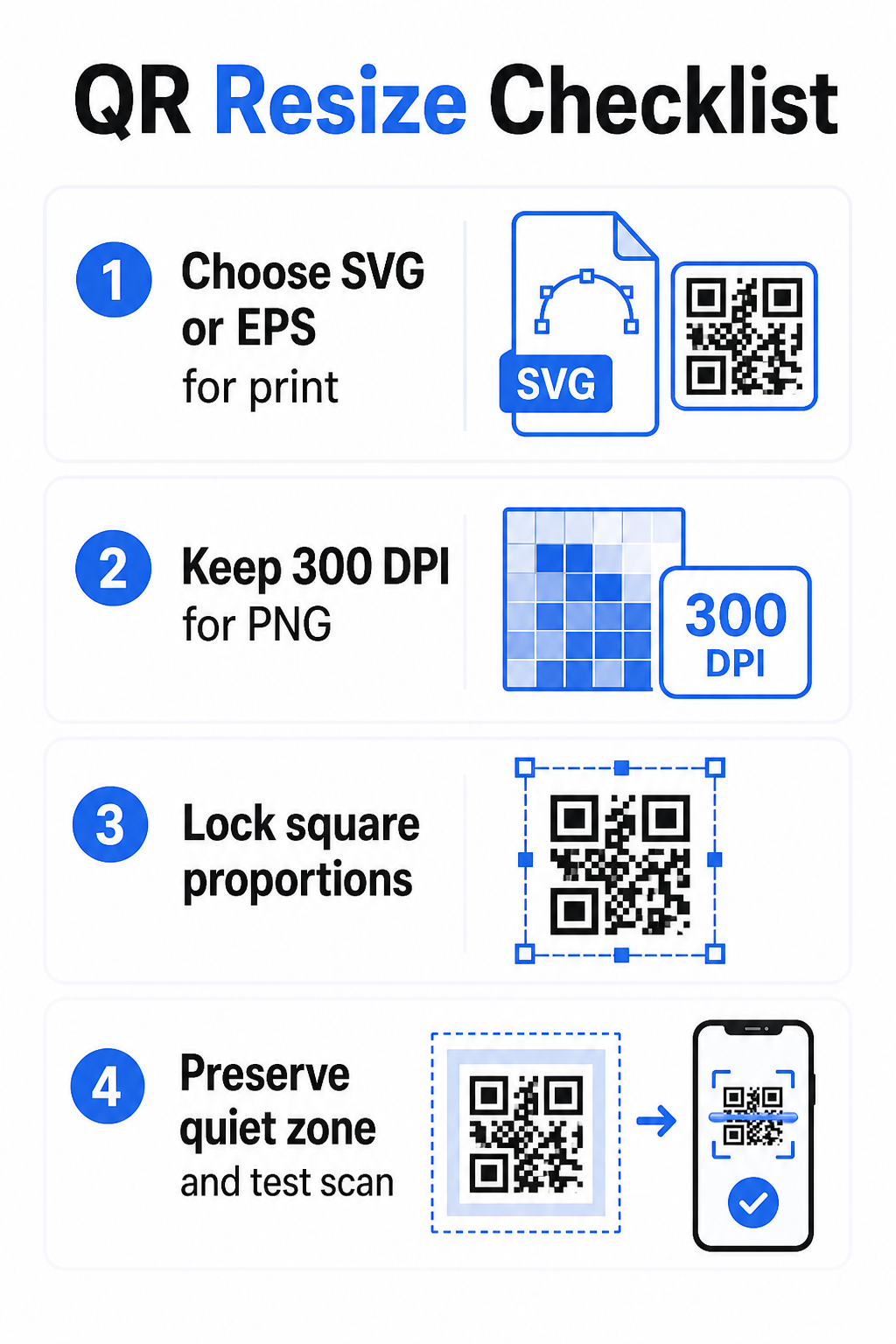
เมื่อคุณดาวน์โหลด QR โค้ดสำหรับการพิมพ์ ให้เลือก SVG หรือ EPS เสมอ เมื่อคุณต้องการไฟล์แรสเตอร์สำหรับหน้าจอดิจิทัลหรือแพลตฟอร์มที่ไม่รองรับรูปแบบเวกเตอร์ ให้ส่งออก PNG ความละเอียดสูง – ห้ามใช้ JPEG เด็ดขาด.
สร้าง QR โค้ดพร้อมพิมพ์ในรูปแบบที่ถูกต้อง สร้าง QR โค้ดของคุณและดาวน์โหลดเป็นไฟล์ SVG, EPS หรือ PDF ที่พร้อมพิมพ์โดยใช้ Pageloot เครื่องสร้างรหัส QR. ไม่ต้องใช้ซอฟต์แวร์ออกแบบ.
กฎความละเอียดสำหรับไฟล์แรสเตอร์
หากคุณทำงานกับ PNG สำหรับการพิมพ์ ความละเอียด – วัดเป็น DPI (จุดต่อนิ้ว) – จะเป็นตัวกำหนดว่าโค้ดยังคงคมชัดที่ขนาดที่พิมพ์ออกมาสุดท้ายหรือไม่.
มาตรฐานขั้นต่ำสำหรับการพิมพ์คือ 300 DPI ที่ขนาดที่พิมพ์ออกมาสุดท้าย. ซึ่งหมายความว่าขนาดพิกเซลของไฟล์ภาพของคุณต้องตรงกับขนาดทางกายภาพที่ต้องการที่ความหนาแน่นนั้น ตัวอย่างเช่น:
- QR โค้ดที่พิมพ์ที่ 1 นิ้ว × 1 นิ้ว ต้องการอย่างน้อย 300 × 300 พิกเซล
- QR โค้ดที่พิมพ์ที่ 4 นิ้ว × 4 นิ้ว ต้องการอย่างน้อย 1,200 × 1,200 พิกเซล
หากไฟล์ของคุณไม่ตรงตามเกณฑ์นี้ที่ขนาดเป้าหมาย โมดูลแต่ละส่วน – สี่เหลี่ยมเล็กๆ ที่บรรจุข้อมูล QR – จะเบลอเข้าด้วยกัน ณ จุดนั้น เครื่องสแกนจะไม่สามารถแยกความมืดออกจากความสว่างได้ และโค้ดจะล้มเหลว สำหรับหน้าจอดิจิทัล ขั้นต่ำประมาณ 240 × 240 พิกเซล เป็นแนวทางปฏิบัติสำหรับโค้ดที่แสดงบนหน้าจอ แม้ว่าขนาดที่ใหญ่กว่าจะปลอดภัยกว่าเสมอสำหรับการซูมและความเข้ากันได้ข้ามอุปกรณ์ วิธีแก้ปัญหาที่สะอาดกว่าสำหรับการพิมพ์คือการข้ามแรสเตอร์ไปโดยสิ้นเชิงและใช้ไฟล์เวกเตอร์ ซึ่งให้ความสามารถในการปรับขนาดได้ไม่จำกัดโดยไม่มีข้อกังวลเรื่องความละเอียด.
วิธีปรับขนาด QR โค้ดทีละขั้นตอน
ขั้นตอนที่ 1: เริ่มต้นด้วยไฟล์ต้นฉบับที่ถูกต้อง
ดาวน์โหลดหรือส่งออก QR โค้ดของคุณในรูปแบบ SVG หรือ EPS หากจะนำไปพิมพ์ หากคุณมีเพียงไฟล์แรสเตอร์ ให้ตรวจสอบว่าขนาดพิกเซลรองรับ 300 DPI ที่ขนาดพิมพ์เป้าหมายของคุณก่อนที่จะปรับขนาด QR โค้ด PNG สามารถทำงานได้ดีสำหรับการจัดวางแบบดิจิทัลเมื่อส่งออกด้วยความละเอียดที่เพียงพอ – คุณสามารถสร้างได้โดยตรงด้วย QR Code PNG และใช้ได้ทุกที่ที่ต้องการความโปร่งใสหรือความเข้ากันได้กับแรสเตอร์.
ขั้นตอนที่ 2: ปรับขนาดตามสัดส่วน
รักษาอัตราส่วนภาพเดิมเสมอเมื่อปรับขนาดใหม่ โค้ด QR เป็นสี่เหลี่ยมจัตุรัสตามคำจำกัดความ และการยืดในแนวนอนหรือแนวตั้งจะบิดเบือนโมดูลจากสี่เหลี่ยมจัตุรัสให้กลายเป็นสี่เหลี่ยมผืนผ้า ซึ่งอาจทำให้เครื่องสแกนสับสนหรืออ่านไม่ได้ ในแอปพลิเคชันออกแบบใดๆ – Illustrator, Canva, InDesign, Photoshop – ให้ล็อกอัตราส่วนภาพก่อนลากจุดจับมุม แม้แต่การบิดเบือนเพียงเล็กน้อยก็เพียงพอที่จะทำให้เกิดปัญหากับการใช้งานเครื่องสแกนที่เข้มงวดมากขึ้น.
ขั้นตอนที่ 3: รักษา Quiet Zone
Quiet zone คือขอบสีขาวที่ชัดเจนล้อมรอบโค้ด QR ทั้งสี่ด้าน มาตรฐาน ISO/IEC 18004 ระบุว่าขอบนี้ต้องมีความกว้างอย่างน้อยสี่โมดูลในแต่ละด้าน เมื่อคุณปรับขนาดโค้ด QR และวางไว้ในการออกแบบที่ใหญ่ขึ้น โซนนี้มักจะเป็นสิ่งแรกที่ถูกตัดออกหรือถูกรุกล้ำโดยองค์ประกอบการออกแบบอื่นๆ หากแต่ละโมดูลในโค้ดของคุณกว้าง 2 มม. quiet zone ของคุณต้องกว้างอย่างน้อย 8 มม. ในทุกด้าน ถือว่าพื้นที่นี้เป็นสิ่งที่ไม่สามารถต่อรองได้ – การลบออกจะทำให้การจดจำของเครื่องสแกนเสียไป.
ขั้นตอนที่ 4: ตรวจสอบคอนทราสต์หลังการปรับขนาดใหม่
การปรับขนาดใหม่บนพื้นหลังที่มีสีหรือพื้นผิวอาจลดคอนทราสต์ที่มีประสิทธิภาพระหว่างโมดูลของโค้ดกับสภาพแวดล้อม เครื่องสแกนอาศัยความแตกต่างระหว่างพื้นที่มืดและสว่างเพื่ออ่านโค้ด การผสมผสานที่ปลอดภัยที่สุดยังคงเป็นโมดูลสีเข้มบนพื้นหลังสีอ่อน – สีดำบนสีขาวให้ อัตราส่วนคอนทราสต์ 21:1 ตั้งเป้าสำหรับอัตราส่วนคอนทราสต์ขั้นต่ำที่ 4:1 ระหว่างสีพื้นหน้าและพื้นหลัง และหลีกเลี่ยงการวางโค้ดบนพื้นหลังแบบไล่ระดับสี ลวดลายที่ซับซ้อน หรือพื้นผิวสะท้อนแสง สำหรับคำแนะนำโดยละเอียด โปรดดู แนวทางปฏิบัติที่ดีที่สุดสำหรับความคมชัดของสีรหัส QR.
ขั้นตอนที่ 5: ทดสอบก่อนพิมพ์
พิมพ์ตัวอย่างที่ขนาดที่ต้องการและบนวัสดุที่ต้องการ จากนั้นทดสอบด้วยอุปกรณ์หลายเครื่อง – ทั้ง iOS และ Android – ก่อนที่จะดำเนินการผลิตเต็มรูปแบบ ทดสอบที่ระยะการสแกนจริงที่ผู้ใช้จะพบเจอ โค้ดที่สแกนได้อย่างสมบูรณ์แบบในระยะแขนอาจล้มเหลวในระยะที่วางไว้จริง ดู วิธีทดสอบโค้ด QR สำหรับการใช้งานบนมือถือ สำหรับรายการตรวจสอบการทดสอบฉบับเต็ม.
แนวทางขนาดขั้นต่ำและสูงสุด
การปรับขนาดโค้ด QR อย่างมีความรับผิดชอบหมายถึงการรู้ขอบเขตขนาดสำหรับกรณีการใช้งานเฉพาะของคุณ กฎหลักคือ อัตราส่วนระยะทางต่อขนาด 10:1: ระยะการสแกนที่ตั้งใจไว้สูงสุดควรเป็นประมาณสิบเท่าของความกว้างของโค้ด QR โค้ดที่สแกนจากระยะ 20 นิ้วควรมีความกว้างอย่างน้อย 2 นิ้ว โค้ดที่สแกนจากระยะ 5 ฟุตควรมีความกว้างอย่างน้อย 6 นิ้ว โค้ดบนป้ายบิลบอร์ดที่สแกนจากระยะ 30 ฟุตควรมีความกว้างอย่างน้อย 36 นิ้ว.
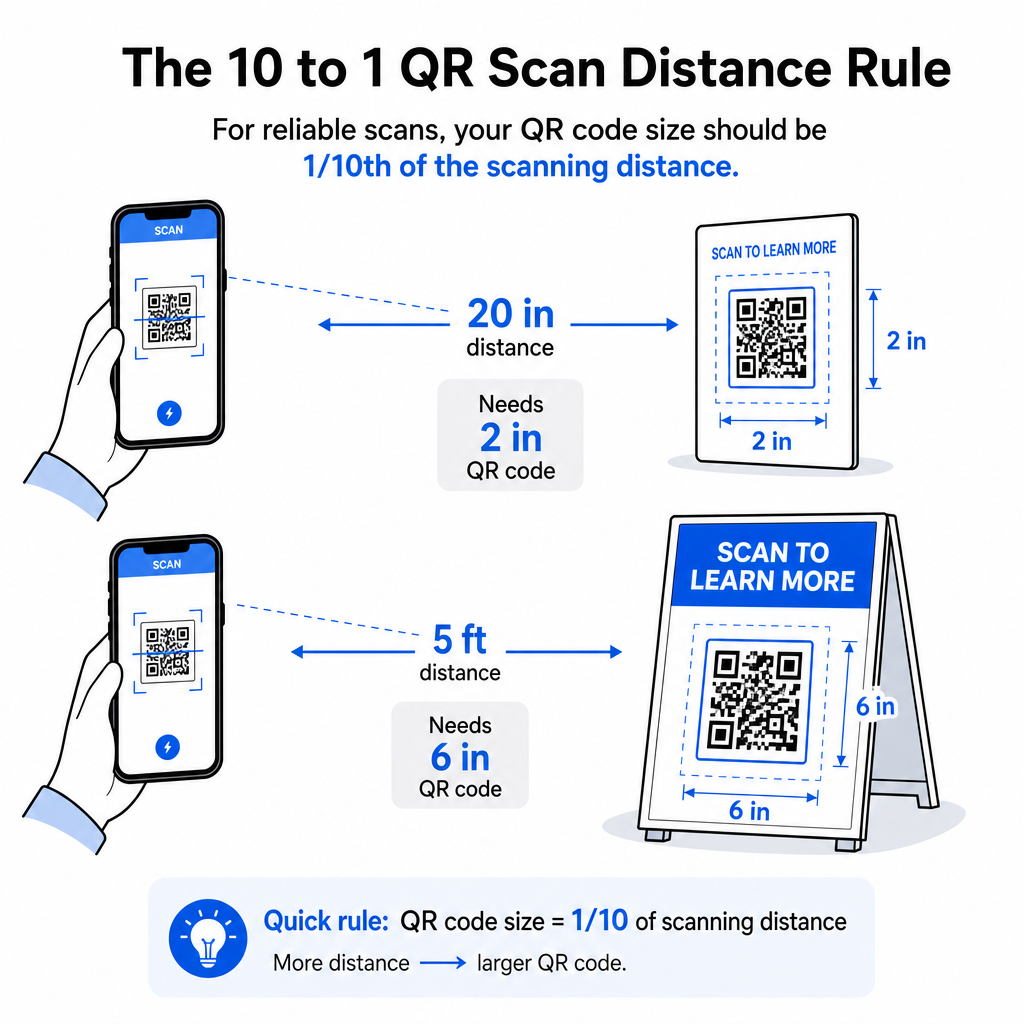
สำหรับการใช้งานสิ่งพิมพ์ทั่วไป นี่คือจุดเริ่มต้นที่เชื่อถือได้:
| ใช้ Case | ขนาดที่แนะนำขั้นต่ำ |
|---|---|
| นามบัตร | 0.8 × 0.8 นิ้ว (2 × 2 ซม.) |
| ใบปลิวและโบรชัวร์ | 1.2 × 1.2 นิ้ว (3 × 3 ซม.) |
| โปสเตอร์และป้าย | 6 × 1.6 นิ้ว (4 × 4 ซม.) |
| ป้ายบิลบอร์ดและแบนเนอร์ | 16 × 16 นิ้ว (40 × 40 ซม.) หรือใหญ่กว่า |
สำหรับการใช้งานบนนามบัตร ขนาด 0.8 × 0.8 นิ้วเป็นขนาดขั้นต่ำที่ใช้งานได้จริงสำหรับการสแกนระยะใกล้ที่เชื่อถือได้ – การลดขนาดลงจะเพิ่มความเสี่ยงที่การสแกนจะล้มเหลวอย่างมาก ดู คู่มือขนาดโค้ด QR สำหรับนามบัตร สำหรับคำแนะนำเฉพาะเกี่ยวกับรูปแบบนั้น ไม่มีขีดจำกัดขนาดสูงสุดอย่างเป็นทางการ สามารถปรับขนาดขึ้นได้ตามความจำเป็นโดยพิจารณาจากระยะการสแกน สำหรับรายละเอียดที่ครอบคลุมในทุกกรณีการใช้งาน คู่มือขนาดรหัส QR ครอบคลุมทุกอย่างตั้งแต่นามบัตรไปจนถึงป้ายบิลบอร์ด คุณยังสามารถสำรวจ ว่าขนาดรหัส QR ส่งผลต่อการมองเห็นอย่างไร เพื่อทำความเข้าใจความสัมพันธ์ที่กว้างขึ้นระหว่างขนาดและความสำเร็จในการสแกน.
ต้องการโค้ด QR สำหรับนามบัตรของคุณหรือไม่? ใช้ สร้าง QR Code นามบัตร ฟรี เพื่อสร้างโค้ดที่มีขนาดและออกแบบมาสำหรับการพิมพ์นามบัตร พร้อมการส่งออก SVG.
ความหนาแน่นของข้อมูลส่งผลต่อการปรับขนาดใหม่อย่างไร
ปัจจัยหนึ่งที่ทำให้การปรับขนาดใหม่ซับซ้อนคือความหนาแน่นของข้อมูล – ปริมาณข้อมูลที่เข้ารหัสในโค้ด QR ยิ่งโค้ด QR มีข้อมูลมากเท่าไหร่ ตารางโมดูลก็จะยิ่งหนาแน่นขึ้นเท่านั้น ตารางที่หนาแน่นขึ้นต้องใช้ขนาดทางกายภาพที่ใหญ่ขึ้นเพื่อรักษาให้แต่ละโมดูลสามารถอ่านได้ในระดับกล้อง.
โค้ด QR ที่เข้ารหัส URL ยาวพร้อมพารามิเตอร์การติดตามมีข้อมูลมากกว่าโค้ดที่ชี้ไปยัง URL เปลี่ยนเส้นทางสั้นๆ มาก เมื่อคุณย่อโค้ดที่มีความหนาแน่นสูง โมดูลจะเล็กเกินไปสำหรับกล้องสมาร์ทโฟนส่วนใหญ่ที่จะอ่านได้อย่างน่าเชื่อถือ โค้ด QR แบบไดนามิกแก้ปัญหานี้ได้โดยตรง แทนที่จะเข้ารหัส URL ปลายทางแบบเต็ม โค้ดแบบไดนามิกจะเข้ารหัสการเปลี่ยนเส้นทางภายในแบบสั้น ทำให้ความหนาแน่นของข้อมูลของโค้ดต่ำไม่ว่าจะชี้ไปที่ใด ซึ่งหมายความว่าคุณสามารถพิมพ์โค้ดให้เล็กลงได้โดยไม่ลดทอนความสามารถในการสแกน – และอัปเดตปลายทางในภายหลังได้โดยไม่ต้องพิมพ์ใหม่.
การแก้ไขข้อผิดพลาดและความทนทานต่อการปรับขนาดใหม่
โค้ด QR มีการแก้ไขข้อผิดพลาดในตัวที่ช่วยให้สามารถสแกนได้แม้ว่าจะเสียหายบางส่วนหรือถูกบดบัง มาตรฐาน ISO/IEC 18004 กำหนดสี่ระดับ:
| ระดับ | ความสามารถในการกู้คืน |
|---|---|
| L (ต่ำ) | ข้อมูลประมาณ 7% |
| เอ็ม (กลาง) | ข้อมูลประมาณ 15% |
| Q (ควอร์ไทล์) | ข้อมูลประมาณ 25% |
| เอช (สูง) | ข้อมูลประมาณ 30% |
หากคุณกำลังปรับขนาดโค้ด QR ให้เล็กลง หรือเพิ่มโลโก้ไปที่ตรงกลางของโค้ด การเพิ่มระดับการแก้ไขข้อผิดพลาดจะช่วยให้คุณมีบัฟเฟอร์ป้องกันความเสียหายระดับโมดูล หรือความไม่แม่นยำในการสแกน ระดับ Q หรือ H เหมาะสมสำหรับโค้ดที่มีแบรนด์ หรือปรับแต่งสูง โปรดจำไว้ว่าการแก้ไขข้อผิดพลาดที่สูงขึ้นจะเพิ่มความหนาแน่นของข้อมูล ซึ่งอาจต้องใช้ขนาดขั้นต่ำที่ใหญ่ขึ้นเล็กน้อยเพื่อชดเชย.
ข้อผิดพลาดทั่วไปในการปรับขนาดที่ควรหลีกเลี่ยง
- การใช้ภาพหน้าจอเป็นไฟล์ต้นฉบับของคุณ. ภาพหน้าจอคือภาพแรสเตอร์ความละเอียดต่ำ การขยายภาพเหล่านี้เพื่อพิมพ์เป็นหนึ่งในสาเหตุที่พบบ่อยที่สุดของโค้ด QR ที่สแกนไม่ได้.
- การยืดโค้ดโดยไม่สมส่วน. แม้แต่การบิดเบือนในแนวนอนหรือแนวตั้งเพียงเล็กน้อยก็เปลี่ยนรูปร่างโมดูลจากสี่เหลี่ยมจัตุรัสเป็นสี่เหลี่ยมผืนผ้า ซึ่งสามารถป้องกันไม่ให้เครื่องสแกนอ่านโค้ดได้อย่างถูกต้อง.
- การตัดขอบพื้นที่ว่าง (quiet zone). การปรับขนาดภายในเลย์เอาต์การออกแบบที่จำกัดมักส่งผลให้องค์ประกอบอื่น ๆ ล้ำเข้ามาในพื้นที่ว่าง เว้นพื้นที่ว่างอย่างน้อยสี่โมดูลในทุกด้าน – ระยะขอบนี้เป็นข้อกำหนดทางเทคนิค ไม่ใช่ทางเลือกด้านสไตล์.
- การสมมติว่าโค้ดที่ทำงานบนหน้าจอจะทำงานได้ดีเมื่อพิมพ์. การแสดงผลบนหน้าจอและผลลัพธ์ที่พิมพ์ออกมาเป็นสภาพแวดล้อมที่แตกต่างกัน โค้ดที่ดูคมชัดที่ 72 DPI บนหน้าจออาจพิมพ์ออกมาเบลอที่ 300 DPI หากความละเอียดของไฟล์ต้นฉบับไม่รองรับ.
- ไม่ทดสอบหลังการปรับขนาด. ตรวจสอบความสามารถในการสแกนเสมอ บนวัสดุสุดท้าย ที่ขนาดสุดท้าย จากระยะการสแกนที่ตั้งใจไว้.
สำหรับคำแนะนำเชิงลึกเพิ่มเติม ที่ คู่มือความละเอียดการพิมพ์รหัส QR และ แนวทางปฏิบัติที่ดีที่สุดสำหรับการอ่านรหัส QR ครอบคลุมรายละเอียดเฉพาะสำหรับการพิมพ์ที่ควรรู้ก่อนที่คุณจะเริ่มการผลิต.
การกำหนดขนาดสำหรับวัสดุการพิมพ์ที่แตกต่างกัน
พื้นผิวที่คุณกำลังพิมพ์ส่งผลต่อขนาดที่โค้ด QR ของคุณต้องมี แยกจากการพิจารณาระยะการสแกน พื้นผิวที่หยาบ มีพื้นผิว หรือโค้งงอสามารถบิดเบือนโมดูลและลดคอนทราสต์ที่มีประสิทธิภาพ ทำให้คุณต้องขยายขนาดเกินกว่าที่กฎ 10:1 เพียงอย่างเดียวจะแนะนำ.
- กระดาษเรียบหรือกระดาษแข็ง – ใช้แนวทางขนาดมาตรฐาน; พื้นผิวแบบด้านเป็นที่นิยมมากกว่าแบบมันเงาเพื่อลดแสงสะท้อนและการสะท้อน
- กระดาษลูกฟูก – เพิ่ม 10–25% เข้าไปในขนาดขั้นต่ำเพื่อชดเชยพื้นผิวที่ไม่เรียบและความผิดปกติของขอบ
- ผ้า – โพลีเอสเตอร์เรียบสามารถใช้ขนาดขั้นต่ำมาตรฐานได้; สิ่งทอที่หยาบหรือยืดหยุ่นมักต้องใช้โค้ดที่ใหญ่ขึ้น 25–50%
- โลหะหรือแก้ว – การสะท้อนแสงสูงทำให้เกิดปัญหาในการสแกน; ใช้พื้นผิวด้านหรือแผ่นไวนิลทับ และเพิ่มขนาดโค้ด
สำหรับรายละเอียดทั้งหมดตามประเภทวัสดุ โปรดดู การปรับขนาดรหัส QR สำหรับวัสดุการพิมพ์ที่แตกต่างกัน, และสำหรับคำแนะนำเกี่ยวกับวิธีการพิมพ์เองส่งผลต่อคุณภาพผลลัพธ์อย่างไร, ผลกระทบของเทคนิคการพิมพ์ต่อความสามารถในการสแกนรหัส QR คุ้มค่าที่จะอ่านก่อนที่คุณจะสั่งพิมพ์ สำหรับการตัดสินใจเรื่องตำแหน่งที่นอกเหนือจากการกำหนดขนาด ที่ คู่มือการวางรหัส QR สำหรับการตลาด ครอบคลุมการจัดตำแหน่งตามประเภทวัสดุและบริบทของแคมเปญ.
การปรับขนาดโค้ด QR อย่างถูกต้องหมายถึงการเลือกรูปแบบไฟล์ที่ถูกต้องก่อนที่คุณจะปรับขนาด การรักษาสัดส่วนและระยะขอบพื้นที่ว่างตลอดเวลา และการตรวจสอบว่าผลลัพธ์ของคุณตรงตามมาตรฐานความละเอียดและคอนทราสต์ที่ขนาดที่พิมพ์หรือแสดงผลสุดท้าย การเริ่มต้นด้วยไฟล์เวกเตอร์จะช่วยขจัดความเสี่ยงส่วนใหญ่โดยสิ้นเชิง – มันสามารถปรับขนาดได้อย่างสะอาดในทุกทิศทางโดยไม่มีข้อจำกัดด้านความละเอียดที่ภาพแรสเตอร์กำหนด หากคุณกำลังสร้างโค้ด QR สำหรับแคมเปญที่กำลังดำเนินอยู่ การใช้ รหัส QR แบบไดนามิก ให้ข้อได้เปรียบเพิ่มเติมในการอัปเดตปลายทางหลังการพิมพ์ ดังนั้นการตัดสินใจเรื่องขนาดหรือตำแหน่งในวันนี้จะไม่ทำให้คุณต้องเสียค่าใช้จ่ายในการพิมพ์ซ้ำในอนาคต.
คำถามที่พบบ่อย
SVG, EPS, หรือ PDF เป็นรูปแบบที่ดีที่สุดสำหรับการปรับขนาดใหม่ เพราะเป็นแบบอิงเวกเตอร์ และปรับขนาดได้ทุกขนาดโดยไม่สูญเสียความคมชัด PNG เป็นที่ยอมรับได้สำหรับการใช้งานดิจิทัลเมื่อส่งออกที่ความละเอียดสูง JPEG ควรหลีกเลี่ยงโดยสิ้นเชิง – การบีบอัดของมันทำให้ขอบคมเรียบที่เครื่องสแกนจำเป็นต้องแยกแยะแต่ละโมดูล.
ขนาดขั้นต่ำที่ใช้งานได้จริงสำหรับการใช้งานพิมพ์ระยะใกล้ส่วนใหญ่คือ 0.8 × 0.8 นิ้ว (2 × 2 ซม.) การทำขนาดให้เล็กลงจะเพิ่มความเสี่ยงที่การสแกนจะล้มเหลว สำหรับการสแกนในระยะที่ไกลขึ้น ให้ใช้กฎ 10:1: ความกว้างของโค้ดควรมีอย่างน้อยหนึ่งในสิบของระยะการสแกนสูงสุดที่ตั้งใจไว้ – ดังนั้นโค้ดที่สแกนจากระยะ 20 นิ้ว ควรมีความกว้างอย่างน้อย 2 นิ้ว.
ไม่ – ข้อมูลที่เข้ารหัสและระดับการแก้ไขข้อผิดพลาดถูกกำหนดตายตัวเมื่อมีการสร้างโค้ด การปรับขนาดเปลี่ยนเฉพาะขนาดทางกายภาพหรือขนาดพิกเซลของภาพเท่านั้น สิ่งที่การปรับขนาดอาจส่งผลกระทบคือว่าโมดูลยังคงชัดเจนและแยกแยะได้ที่ขนาดใหม่ ซึ่งเป็นเหตุผลว่าทำไมการรักษา 300 DPI สำหรับการพิมพ์ การรักษาระยะขอบโซนเงียบ และการปรับขนาดตามสัดส่วน ล้วนเป็นขั้นตอนที่จำเป็น.