Está a tentar redimensionar um código QR apenas para acabar com um resultado desfocado e ilegível? Obter as dimensões erradas – ou usar o formato de ficheiro errado – pode tornar o seu código QR completamente inútil após a impressão. Este guia explica-lhe exatamente como redimensionar um código QR corretamente, abrangendo formatos de ficheiro, regras de tamanho, requisitos de resolução e os erros mais comuns a evitar.
Por que o Redimensionamento de um Código QR Corre Mal
A maioria dos problemas de qualidade do código QR resumem-se a uma de duas questões: começar com o formato de ficheiro errado ou escalar uma imagem para além do que a sua resolução pode suportar.
Quando se pega numa imagem raster de baixa resolução – um JPEG ou um PNG pequeno – e se estica para aumentar o tamanho no seu software de design, o scanner tem de ler módulos desfocados e indistintos em vez de quadrados nítidos a preto e branco. Esticar um código QR de baixa resolução é uma das formas mais fiáveis de produzir um resultado de impressão desfocado e ilegível. Há também um problema menos óbvio: o redimensionamento pode distorcer involuntariamente as proporções do código ou remover a zona de silêncio – a margem branca clara que rodeia o código – o que faz com que os scanners leiam mal ou percam completamente o padrão. Compreender estes pontos de falha antes de redimensionar é o caminho mais direto para um código que realmente funciona.
Vetor vs. Raster: A Decisão do Formato de Ficheiro Mais Importante
A escolha mais impactante que faz ao redimensionar um código QR é se está a trabalhar com um ficheiro vetorial ou raster.
Formatos vetoriais (SVG, EPS, PDF) armazenam o código QR como instruções matemáticas em vez de uma grelha fixa de píxeis. Isto significa que escalam para qualquer tamanho – de um selo a um outdoor – sem qualquer perda de nitidez ou clareza. Para qualquer coisa que vá para impressão, o vetor é a escolha correta.
Formatos raster (PNG, JPEG, BMP) armazenam o código como uma grelha de píxeis com um limite de resolução fixo. Assim que os escala acima da sua resolução original, o software tem de inventar dados de píxeis, o que produz desfocagem. O JPEG é particularmente problemático porque o seu algoritmo de compressão suaviza as arestas, minando diretamente o contraste nítido que um scanner de QR precisa para ler cada módulo.
| Formato | Escala Sem Perda | Recomendado para | Notas |
|---|---|---|---|
| SVG | Sim | Impressão, grande formato | Melhor no geral para redimensionamento |
| EPS | Sim | Impressão profissional | Padrão em fluxos de trabalho de design de impressão |
| Sim | Impressão, partilha | Preserva dados vetoriais | |
| PNG | Não (resolução fixa) | Web, ecrã digital | Aceitável em alta resolução |
| JPEG | Não (compressão com perdas) | Nenhum | Evitar totalmente para códigos QR |
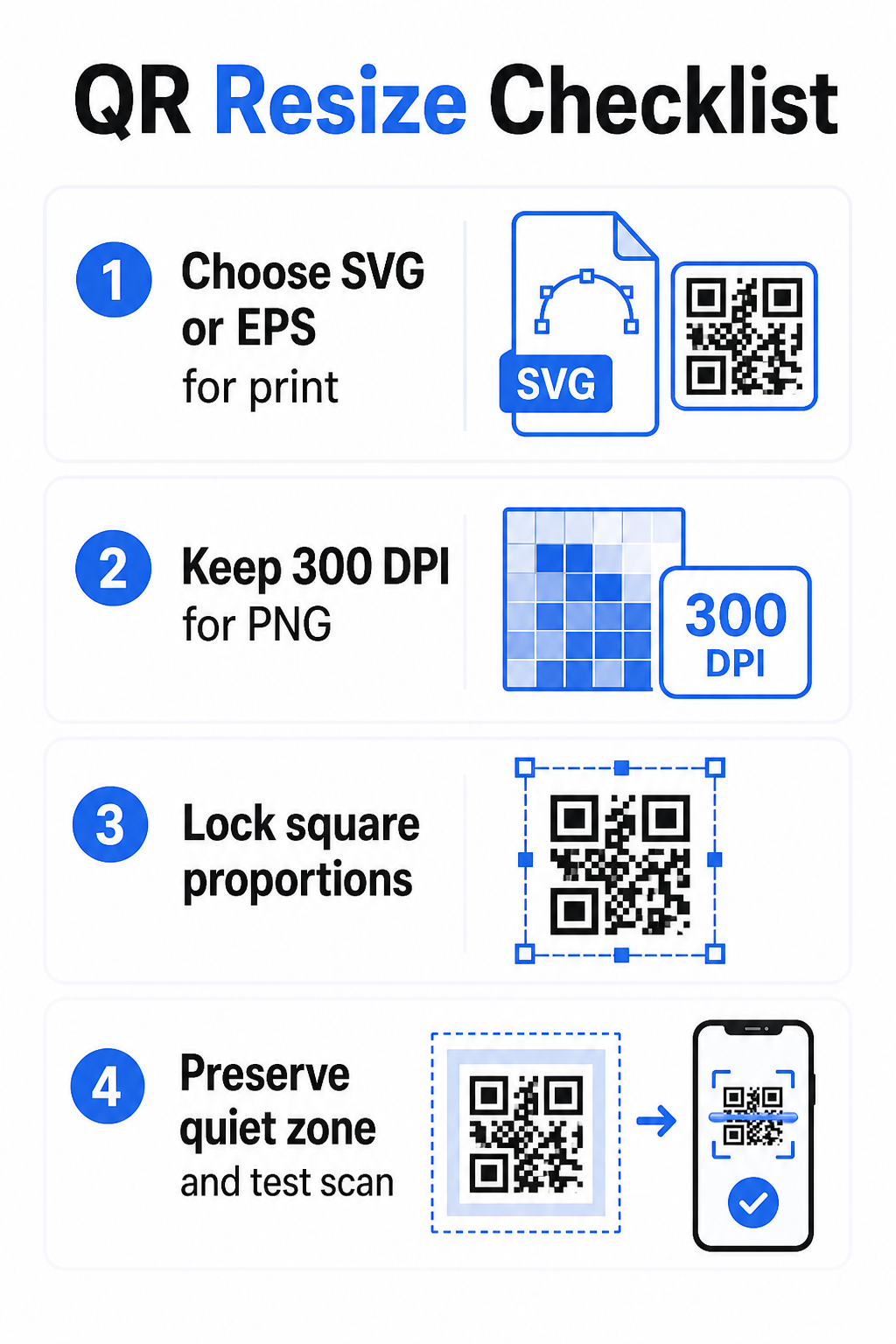
Quando descarrega um código QR para impressão, selecione sempre SVG ou EPS. Quando precisa de um ficheiro raster para um ecrã digital ou uma plataforma que não aceita formatos vetoriais, exporte um PNG de alta resolução – nunca um JPEG.
Crie Códigos QR Prontos para Impressão no Formato Correto Gere o seu código QR e descarregue-o como um ficheiro SVG, EPS ou PDF pronto para impressão usando o Gerador de Código QR Pageloot. .
Regras de Resolução para Ficheiros Raster
Se está a trabalhar com um PNG para impressão, a resolução – medida em DPI (pontos por polegada) – determina se o código permanece nítido no seu tamanho final impresso.
O padrão mínimo para impressão é 300 DPI nas dimensões finais impressas. Isto significa que as dimensões em píxeis do seu ficheiro de imagem devem corresponder ao tamanho físico pretendido nessa densidade. Por exemplo:
- Um código QR impresso em 1 polegada × 1 polegada precisa de pelo menos 300 × 300 píxeis
- Um código QR impresso em 4 polegadas × 4 polegadas precisa de pelo menos 200 × 1.200 píxeis
Se o seu ficheiro não cumpre este limiar no seu tamanho alvo, os módulos individuais – os pequenos quadrados que transportam os dados QR – ficarão desfocados. Nesse ponto, o scanner já não consegue distinguir o escuro do claro, e o código falha. Para ecrãs digitais, um mínimo de aproximadamente 240 × 240 píxeis é uma diretriz prática para códigos de exibição no ecrã, embora maior seja sempre mais seguro para zoom e compatibilidade entre dispositivos. A solução mais limpa para impressão é ignorar completamente o raster e usar um ficheiro vetorial, o que lhe dá escalabilidade infinita sem preocupações com a resolução.
Como Redimensionar um Código QR Passo a Passo
Passo 1: Comece com o Ficheiro Fonte Correto
Descarregue ou exporte o seu código QR em formato SVG ou EPS se for para impressão. Se tiver apenas um ficheiro raster, verifique se as dimensões em píxeis suportam 300 DPI no seu tamanho de impressão alvo antes de redimensionar. Um código QR PNG pode funcionar bem para colocações digitais quando exportado com resolução suficiente – pode criar um diretamente com um Gerador de QR Code PNG e usá-lo onde quer que a transparência ou a compatibilidade raster seja necessária.
Passo 2: Escalar Proporcionalmente
Sempre mantenha a proporção original ao redimensionar. Os códigos QR são quadrados por definição, e esticá-los horizontal ou verticalmente distorce os módulos de quadrados para retângulos, o que pode confundir ou inviabilizar os scanners. Em qualquer aplicação de design – Illustrator, Canva, InDesign, Photoshop – bloqueie a proporção antes de arrastar um canto. Mesmo uma distorção sutil é suficiente para causar problemas com implementações de scanner mais rigorosas.
Passo 3: Preserve a Zona de Silêncio
A zona de silêncio é a borda branca clara que rodeia o código QR nos quatro lados. A norma ISO/IEC 18004 especifica que esta margem deve ter pelo menos quatro módulos de largura em cada lado. Quando você redimensiona um código QR e o coloca dentro de um design maior, esta zona é frequentemente a primeira coisa que é cortada ou invadida por outros elementos de design. Se cada módulo do seu código tiver 2 mm de largura, a sua zona de silêncio deve ter pelo menos 8 mm em todos os lados. Trate este espaço como não negociável – removê-lo quebra o reconhecimento do scanner.
Passo 4: Verifique o Contraste Após o Redimensionamento
Redimensionar para um fundo colorido ou texturizado pode reduzir o contraste efetivo entre os módulos do código e o seu entorno. Os scanners dependem da diferença entre áreas escuras e claras para ler o código. A combinação mais segura continua sendo módulos escuros em um fundo claro – preto no branco oferece uma taxa de contraste de 21:1. Procure uma taxa de contraste mínima de 4:1 entre as cores de primeiro plano e de fundo, e evite colocar o código em gradientes, padrões complexos ou superfícies reflexivas. Para orientações detalhadas, consulte melhores práticas de contraste de cores para códigos QR.
Passo 5: Teste Antes de Imprimir
Imprima uma prova no tamanho exato pretendido e no material exato pretendido, depois teste com vários dispositivos – tanto iOS quanto Android – antes de se comprometer com uma produção completa. Teste na distância de digitalização real que os usuários experimentarão. Um código que digitaliza perfeitamente à distância de um braço pode falhar na distância em que é realmente colocado. Veja Como testar QR Codes para uso em celulares para uma lista de verificação de teste completa.
Diretrizes de Tamanho Mínimo e Máximo
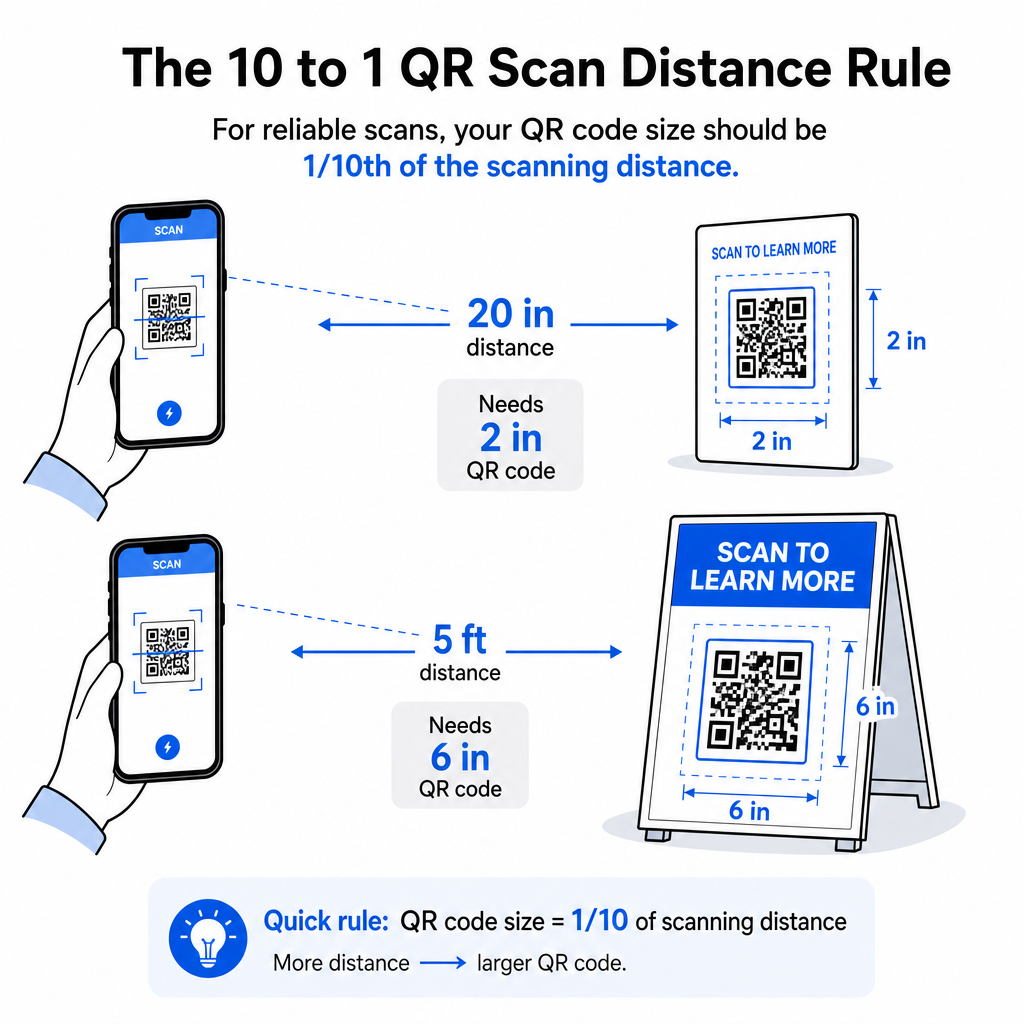
Redimensionar um código QR de forma responsável significa conhecer os limites de tamanho para o seu caso de uso específico. A regra principal é a proporção de distância para tamanho de 10:1: a distância máxima de digitalização pretendida deve ser aproximadamente dez vezes a largura do código QR. Um código digitalizado a 20 polegadas de distância deve ter pelo menos 2 polegadas de largura; um digitalizado a 5 pés de distância deve ter pelo menos 6 polegadas de largura; um código de outdoor digitalizado a 30 pés de distância deve ter pelo menos 36 polegadas de largura.
Para aplicações de impressão comuns, aqui estão pontos de partida confiáveis:
| Estojo de Uso | Tamanho Mínimo Recomendado |
|---|---|
| Cartões de visita | 0,8 × 0,8 pol (2 × 2 cm) |
| Folhetos e brochuras | 1,2 × 1,2 pol (3 × 3 cm) |
| Cartazes e sinalização | 1,6 × 1,6 pol (4 × 4 cm) |
| Outdoors e banners | 16 × 16 pol (40 × 40 cm) ou maior |
Para aplicações em cartões de visita, 0,8 × 0,8 polegadas é o mínimo prático para uma digitalização confiável de perto – diminuir o tamanho aumenta significativamente o risco de falha na digitalização. Veja o guia de tamanhos de código QR para cartões de visita para recomendações específicas sobre esse formato. Não há limite de tamanho superior oficial; aumente conforme necessário com base na distância de digitalização. Para uma análise abrangente em cada caso de uso, o guia de tamanho de código QR cobre tudo, desde cartões de visita a outdoors. Você também pode explorar como o tamanho do código QR impacta a visibilidade para entender a relação mais ampla entre dimensões e sucesso na digitalização.
Precisa de um Código QR para o Seu Cartão de Visita? Use o Gerador de QR Code para cartão de visita para criar um código dimensionado e projetado para impressão de cartões de visita, com exportação SVG incluída.
Como a Densidade de Dados Afeta o Redimensionamento
Um fator que complica o redimensionamento é a densidade de dados – a quantidade de informação codificada no código QR. Quanto mais dados um código QR contém, mais densa se torna a sua grade de módulos. Grades mais densas exigem tamanhos físicos maiores para manter os módulos individuais legíveis no nível da câmera.
Um código QR que codifica uma URL longa com parâmetros de rastreamento contém muito mais dados do que um que aponta para uma URL de redirecionamento curta. Quando você encolhe um código de alta densidade, os módulos tornam-se muito pequenos para a maioria das câmeras de smartphone resolverem de forma confiável. Os códigos QR dinâmicos resolvem este problema diretamente. Em vez de codificar uma URL de destino completa, um código dinâmico codifica um redirecionamento interno curto, mantendo a densidade de dados do código baixa, independentemente para onde ele aponta. Isso significa que você pode imprimir o código menor sem sacrificar a capacidade de digitalização – e atualizar o destino mais tarde sem reimprimir.
Correção de Erros e Tolerância de Redimensionamento
Os códigos QR incluem correção de erros incorporada que lhes permite permanecer digitalizáveis mesmo quando parcialmente danificados ou obscurecidos. A norma ISO/IEC 18004 define quatro níveis:
| Nível | Capacidade de Recuperação |
|---|---|
| L (Baixo) | ~7% dos dados |
| M (Médio) | ~15% dos dados |
| Q (Quartil) | ~25% dos dados |
| H (Alto) | ~30% dos dados |
Se você está redimensionando um código QR para um tamanho menor, ou adicionando um logotipo ao centro do código, aumentar o nível de correção de erros oferece uma proteção contra danos no nível do módulo ou imprecisão na leitura. O Nível Q ou H é apropriado para códigos de marca ou altamente personalizados. Tenha em mente que uma correção de erros mais alta aumenta a densidade de dados, o que pode exigir um tamanho mínimo ligeiramente maior para compensar.
Erros Comuns de Redimensionamento a Evitar
- Usar uma captura de tela como seu arquivo de origem. Capturas de tela são capturas raster de baixa resolução. Ampliá-las para impressão é uma das causas mais comuns de códigos QR não escaneáveis.
- Esticar o código de forma não proporcional. Mesmo uma ligeira distorção horizontal ou vertical muda as formas dos módulos de quadrados para retângulos, o que pode impedir que os scanners leiam o código corretamente.
- Cortar a zona de silêncio. Redimensionar dentro de um layout de design apertado frequentemente resulta em outros elementos invadindo a zona de silêncio. Mantenha pelo menos quatro módulos de espaço livre em todos os lados – esta margem é um requisito técnico, não uma escolha estilística.
- Assumir que um código que funciona na tela funcionará na impressão. A exibição na tela e a saída impressa são ambientes diferentes. Um código que parece nítido a 72 DPI na tela pode imprimir borrado a 300 DPI se a resolução do arquivo subjacente não o suportar.
- Não testar após o redimensionamento. Sempre verifique a escaneabilidade no material final, no tamanho final, a partir da distância de leitura pretendida.
Para orientação mais aprofundada, o guia de resolução de impressão de código QR e melhores práticas para legibilidade de códigos QR cobrem os detalhes específicos da impressão que vale a pena saber antes de ir para a produção.
Dimensionamento para Diferentes Materiais de Impressão
A superfície em que você está imprimindo afeta o quão grande seu código QR precisa ser, separadamente das considerações de distância de leitura. Superfícies ásperas, texturizadas ou curvas podem distorcer módulos e reduzir o contraste efetivo, exigindo que você aumente a escala além do que a regra 10:1 por si só sugeriria.
- Papel liso ou cartolina – As diretrizes de tamanho padrão se aplicam; acabamentos foscos são preferidos em relação aos brilhantes para reduzir o brilho e os reflexos
- Papelão ondulado – Adicione 10–25% ao tamanho mínimo para compensar a textura da superfície e irregularidades das bordas
- Tecido – Poliéster liso pode usar mínimos padrão; têxteis ásperos ou elásticos frequentemente exigem códigos 25–50% maiores
- Metal ou vidro – Alta refletividade causa problemas de leitura; use superfícies foscas ou sobreposições de vinil e aumente o tamanho do código
Para uma análise completa por tipo de material, consulte dimensionamento de códigos QR para diferentes materiais de impressão, e para orientação sobre como o próprio método de impressão afeta a qualidade da saída, como as técnicas de impressão impactam a escaneabilidade do código QR vale a pena ler antes de fazer um pedido de impressão. Para decisões de posicionamento que vão além do dimensionamento, o Guia de posicionamento de código QR para marketing cobre o posicionamento por tipo de material e contexto da campanha.
Redimensionar corretamente um código QR significa escolher o formato de arquivo correto antes de redimensionar, mantendo as proporções e as margens da zona de silêncio em todo o processo, e verificando se sua saída atende aos padrões de resolução e contraste no tamanho final impresso ou exibido. Começar com um arquivo vetorial remove a maior parte do risco inteiramente – ele escala de forma limpa em qualquer direção sem o limite de resolução que as imagens raster impõem. Se você está construindo códigos QR para campanhas contínuas, usar um código QR dinâmico oferece a vantagem adicional de atualizar o destino após a impressão, para que uma decisão de dimensionamento ou posicionamento hoje não o prenda a custos de reimpressão no futuro.
Perguntas frequentes
SVG, EPS, ou PDF são os melhores formatos para redimensionar porque são baseados em vetor e escalam para qualquer tamanho sem perder a nitidez. PNG é aceitável para uso digital quando exportado em alta resolução. JPEG deve ser evitado inteiramente – sua compressão suaviza as bordas nítidas que os scanners precisam para distinguir cada módulo.
O mínimo prático para a maioria das aplicações de impressão de curto alcance é de 0,8 × 0,8 polegadas (2 × 2 cm). Ir menor aumenta o risco de falha na leitura. Para leitura a distâncias maiores, aplique a regra 10:1: a largura do código deve ser de pelo menos um décimo da distância máxima de leitura pretendida – então um código lido a 20 polegadas de distância deve ter pelo menos 2 polegadas de largura.
Não – os dados codificados e o nível de correção de erros são fixos quando o código é gerado. O redimensionamento altera apenas as dimensões físicas ou de pixel da imagem. O que o redimensionamento pode afetar é se os módulos permanecem claros e distinguíveis no novo tamanho, e é por isso que manter 300 DPI para impressão, preservar as margens da zona silenciosa e escalar proporcionalmente são todos passos essenciais.