Stai cercando di ridimensionare un codice QR solo per ritrovarti con un risultato sfocato e non scansionabile? Sbagliare le dimensioni – o usare il formato di file sbagliato – può rendere il tuo codice QR completamente inutile dopo la stampa. Questa guida ti illustra esattamente come ridimensionare un codice QR correttamente, coprendo formati di file, regole di dimensione, requisiti di risoluzione e gli errori più comuni da evitare.
Perché il ridimensionamento di un codice QR va storto
La maggior parte dei problemi di qualità dei codici QR si riducono a uno di due problemi: iniziare con il formato di file sbagliato o scalare un'immagine oltre ciò che la sua risoluzione può supportare.
Quando prendi un'immagine raster a bassa risoluzione – un JPEG o un piccolo PNG – e la ingrandisci nel tuo software di progettazione, lo scanner deve leggere moduli sfocati e indistinti invece di quadrati nitidi in bianco e nero. Allungare un codice QR a bassa risoluzione è uno dei modi più affidabili per produrre un risultato di stampa sfocato e non scansionabile. C'è anche un problema meno ovvio: il ridimensionamento può distorcere involontariamente le proporzioni del codice o rimuovere la zona di silenzio (quiet zone) – il margine bianco chiaro che circonda il codice – il che fa sì che gli scanner leggano male o manchino completamente il modello. Comprendere questi punti di fallimento prima di ridimensionare è il percorso più diretto per un codice che funzioni effettivamente.
Vettoriale vs. Raster: La decisione sul formato di file che conta di più
La scelta più significativa che fai quando ridimensioni un codice QR è se stai lavorando con un file vettoriale o raster.
Formati vettoriali (SVG, EPS, PDF) memorizzano il codice QR come istruzioni matematiche piuttosto che una griglia fissa di pixel. Ciò significa che si adattano a qualsiasi dimensione – da un francobollo a un cartellone pubblicitario – senza alcuna perdita di nitidezza o chiarezza. Per qualsiasi cosa destinata alla stampa, il vettoriale è la scelta corretta.
Formati raster (PNG, JPEG, BMP) memorizzano il codice come una griglia di pixel con un limite di risoluzione fisso. Una volta che li scali oltre la loro risoluzione originale, il software deve inventare dati pixel, il che produce sfocatura. JPEG è particolarmente problematico perché il suo algoritmo di compressione leviga i bordi, minando direttamente il contrasto netto di cui uno scanner QR ha bisogno per leggere ogni modulo.
| Formato | Scala senza perdita | Consigliato per | Note |
|---|---|---|---|
| SVG | Sì | Stampa, grande formato | Migliore in assoluto per il ridimensionamento |
| EPS | Sì | Stampa professionale | Standard nei flussi di lavoro di progettazione per la stampa |
| Sì | Stampa, condivisione | Preserva i dati vettoriali | |
| PNG | No (risoluzione fissa) | Web, display digitale | Accettabile ad alta risoluzione |
| JPEG | No (compressione con perdita) | Nessuno dei due | Evitare completamente per i codici QR |
Quando scarichi un codice QR per la stampa, seleziona sempre SVG o EPS. Quando hai bisogno di un file raster per uno schermo digitale o una piattaforma che non accetta formati vettoriali, esporta un PNG ad alta risoluzione – mai un JPEG.
Crea codici QR pronti per la stampa nel formato giusto Genera il tuo codice QR e scaricalo come file SVG, EPS o PDF pronto per la stampa usando il Generatore di codici QR di Pageloot. .
Regole di risoluzione per i file raster
Se stai lavorando con un PNG per la stampa, la risoluzione – misurata in DPI (punti per pollice) – determina se il codice rimane nitido alla sua dimensione di stampa finale.
Lo standard minimo per la stampa è 300 DPI alle dimensioni di stampa finali. Ciò significa che le dimensioni in pixel del tuo file immagine devono corrispondere alla dimensione fisica prevista a quella densità. Ad esempio:
- Un codice QR stampato a 1 pollice × 1 pollice richiede almeno 300 × 300 pixel
- Un codice QR stampato a 4 pollici × 4 pollici richiede almeno 200 × 1.200 pixel
Se il tuo file non soddisfa questa soglia alla dimensione desiderata, i singoli moduli – i piccoli quadrati che trasportano i dati QR – si sfoceranno insieme. A quel punto, lo scanner non può più distinguere il buio dalla luce, e il codice fallisce. Per gli schermi digitali, un minimo di circa 240 × 240 pixel è una linea guida pratica per i codici visualizzati su schermo, anche se più grande è sempre più sicuro per lo zoom e la compatibilità tra dispositivi. La soluzione più pulita per la stampa è saltare completamente il raster e usare un file vettoriale, che ti offre scalabilità infinita senza preoccupazioni di risoluzione.
Come ridimensionare un codice QR passo dopo passo
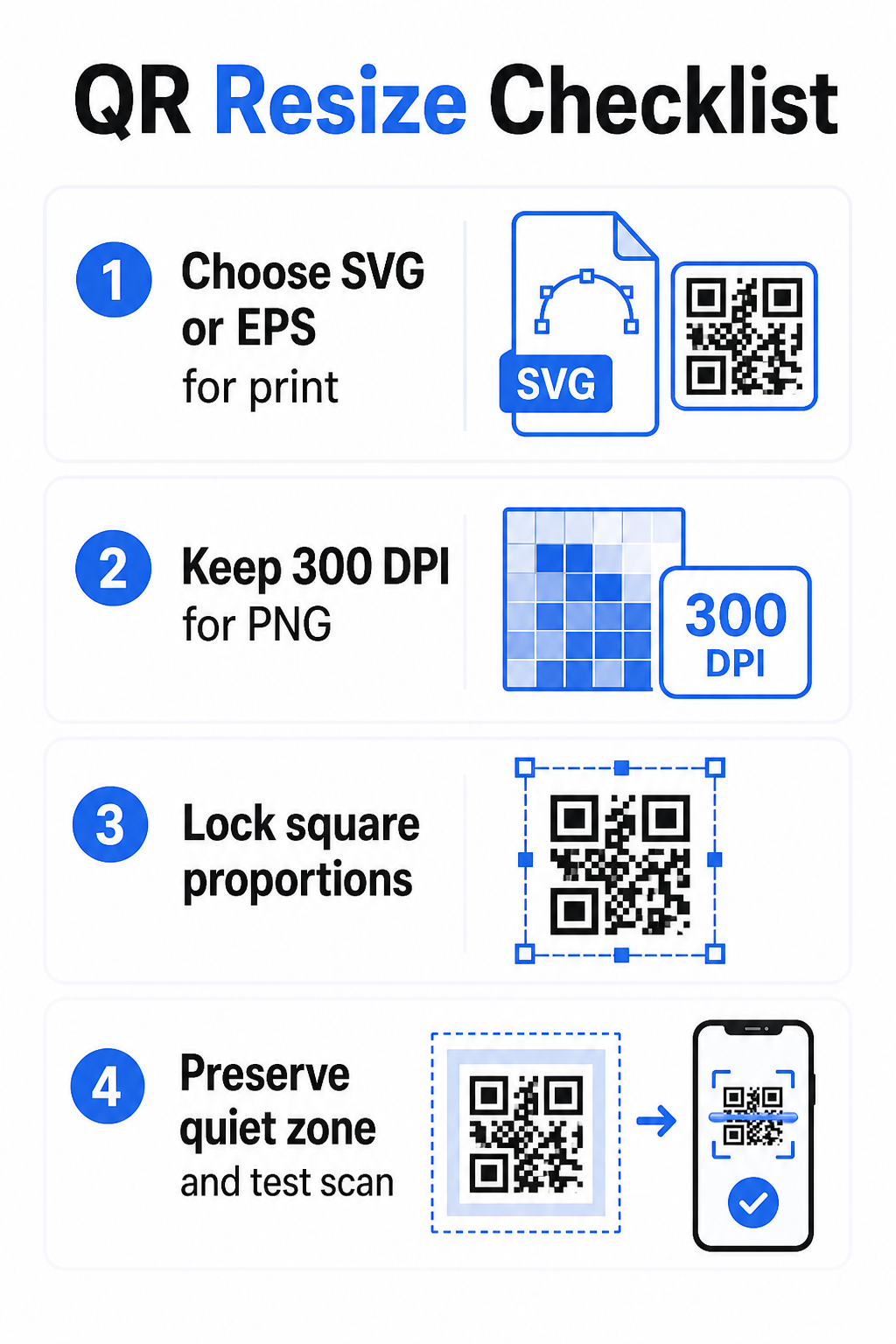
Passo 1: Inizia con il file sorgente giusto
Scarica o esporta il tuo codice QR in formato SVG o EPS se è destinato alla stampa. Se hai solo un file raster, verifica che le dimensioni in pixel supportino 300 DPI alla dimensione di stampa desiderata prima di ridimensionare. Un codice QR PNG può funzionare bene per posizionamenti digitali se esportato a risoluzione sufficiente – puoi crearne uno direttamente con un Generatore di QR code PNG e usarlo ovunque sia richiesta trasparenza o compatibilità raster.
Passo 2: Scala proporzionalmente
Mantenere sempre il rapporto di aspetto originale quando si ridimensiona. I codici QR sono quadrati per definizione, e allungarli orizzontalmente o verticalmente distorce i moduli da quadrati a rettangoli, il che può confondere o impedire agli scanner di leggerli. In qualsiasi applicazione di design – Illustrator, Canva, InDesign, Photoshop – bloccare il rapporto di aspetto prima di trascinare una maniglia d'angolo. Anche una sottile distorsione è sufficiente a causare problemi con implementazioni di scanner più rigorose.
Passo 3: Preservare la Zona Silenziosa
La zona silenziosa è il bordo bianco chiaro che circonda il codice QR su tutti e quattro i lati. Lo standard ISO/IEC 18004 specifica che questo margine deve essere largo almeno quattro moduli su ogni lato. Quando si ridimensiona un codice QR e lo si posiziona all'interno di un design più grande, questa zona è spesso la prima cosa che viene ritagliata o invasa da altri elementi di design. Se ogni modulo nel tuo codice è largo 2 mm, la tua zona silenziosa deve essere di almeno 8 mm su tutti i lati. Tratta questo spazio come non negoziabile – rimuoverlo interrompe il riconoscimento dello scanner.
Passo 4: Controllare il Contrasto Dopo il Ridimensionamento
Ridimensionare su uno sfondo colorato o testurizzato può ridurre il contrasto effettivo tra i moduli del codice e l'ambiente circostante. Gli scanner si basano sulla differenza tra aree scure e chiare per leggere il codice. La combinazione più sicura rimane moduli scuri su uno sfondo chiaro – nero su bianco fornisce un rapporto di contrasto di 21:1. Puntare a un rapporto di contrasto minimo di 4:1 tra i colori di primo piano e di sfondo, ed evitare di posizionare il codice su sfumature, motivi complessi o superfici riflettenti. Per una guida dettagliata, vedere migliori pratiche di contrasto cromatico dei codici QR.
Passo 5: Testare Prima della Stampa
Stampare una prova nella dimensione esatta prevista sul materiale esatto previsto, quindi testare con più dispositivi – sia iOS che Android – prima di impegnarsi in una produzione completa. Testare alla distanza di scansione effettiva che gli utenti sperimenteranno. Un codice che scansiona perfettamente a distanza di un braccio potrebbe fallire alla distanza in cui è effettivamente posizionato. Vedere Prova QR code: come testarli per l'usabilità da mobile per una checklist di test completa.
Linee Guida per le Dimensioni Minime e Massime
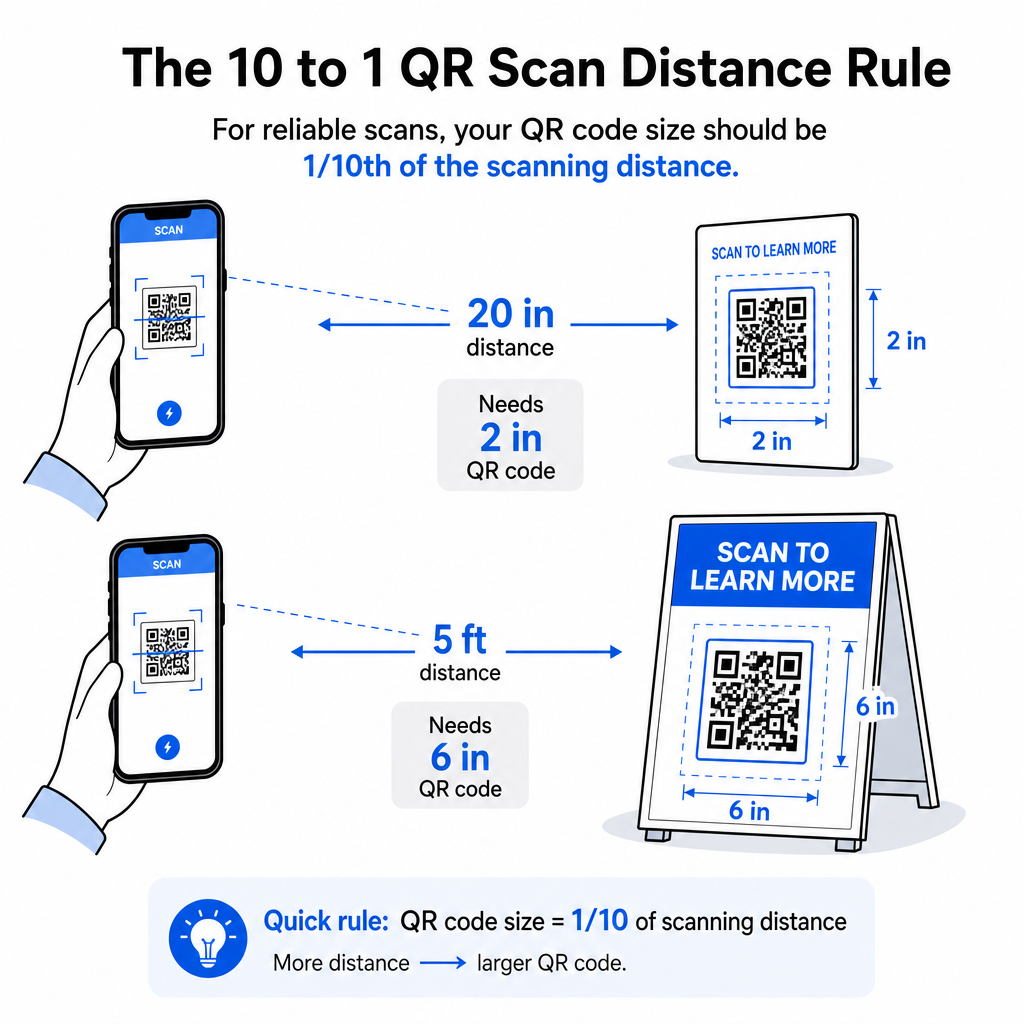
Ridimensionare un codice QR in modo responsabile significa conoscere i limiti di dimensione per il tuo caso d'uso specifico. La regola fondamentale è la rapporto distanza-dimensione 10:1: la distanza massima di scansione prevista dovrebbe essere circa dieci volte la larghezza del codice QR. Un codice scansionato da 20 pollici di distanza dovrebbe essere largo almeno 2 pollici; uno scansionato da 5 piedi di distanza dovrebbe essere largo almeno 6 pollici; un codice per cartellone scansionato da 30 piedi di distanza dovrebbe essere largo almeno 36 pollici.
Per le applicazioni di stampa comuni, ecco dei punti di partenza affidabili:
| Caso d'uso | Dimensione Minima Raccomandata |
|---|---|
| Biglietti da visita | 0,8 × 0,8 pollici (2 × 2 cm) |
| Volantini e brochure | 1,2 × 1,2 pollici (3 × 3 cm) |
| Poster e segnaletica | 1,6 × 1,6 pollici (4 × 4 cm) |
| Cartelloni e striscioni | 16 × 16 pollici (40 × 40 cm) o più grandi |
Per le applicazioni di biglietti da visita, 0,8 × 0,8 pollici è il minimo pratico per una scansione affidabile a distanza ravvicinata – andare più piccolo aumenta significativamente il rischio di fallimento della scansione. Vedere la guida alle dimensioni dei codici QR per biglietti da visita per raccomandazioni specifiche su quel formato. Non esiste un limite di dimensione superiore ufficiale; ingrandire secondo necessità in base alla distanza di scansione. Per una ripartizione completa per ogni caso d'uso, il guida alle dimensioni dei codici QR copre tutto, dai biglietti da visita ai cartelloni pubblicitari. Puoi anche esplorare come la dimensione del codice QR influisce sulla visibilità per comprendere la relazione più ampia tra dimensioni e successo della scansione.
Hai Bisogno di un Codice QR per il Tuo Biglietto da Visita? Utilizzare il Generatore di QR code per biglietti da visita per creare un codice dimensionato e progettato per la stampa di biglietti da visita, con esportazione SVG inclusa.
Come la Densità dei Dati Influisce sul Ridimensionamento
Un fattore che complica il ridimensionamento è la densità dei dati – la quantità di informazioni codificate nel codice QR. Più dati contiene un codice QR, più densa diventa la sua griglia di moduli. Griglie più dense richiedono dimensioni fisiche maggiori per mantenere i singoli moduli leggibili a livello di fotocamera.
Un codice QR che codifica un URL lungo con parametri di tracciamento contiene molti più dati rispetto a uno che punta a un URL di reindirizzamento breve. Quando si rimpicciolisce un codice ad alta densità, i moduli diventano troppo piccoli per la maggior parte delle fotocamere degli smartphone per risolverli in modo affidabile. I codici QR dinamici risolvono questo problema direttamente. Invece di codificare un URL di destinazione completo, un codice dinamico codifica un breve reindirizzamento interno, mantenendo bassa la densità dei dati del codice indipendentemente da dove punta. Ciò significa che puoi stampare il codice più piccolo senza sacrificare la scansionabilità – e aggiornare la destinazione in seguito senza ristampare.
Correzione degli Errori e Tolleranza al Ridimensionamento
I codici QR includono una correzione degli errori integrata che consente loro di rimanere scansionabili anche quando parzialmente danneggiati o oscurati. Lo standard ISO/IEC 18004 definisce quattro livelli:
| Livello | Capacità di Recupero |
|---|---|
| L (Basso) | ~7% dei dati |
| M (Medio) | ~15% dei dati |
| Q (Quartile) | ~25% dei dati |
| H (Alto) | ~30% dei dati |
Se stai ridimensionando un codice QR a una dimensione più piccola, o aggiungendo un logo al centro del codice, aumentare il livello di correzione degli errori ti offre un cuscinetto contro danni a livello di modulo o imprecisioni di scansione. Il livello Q o H è appropriato per codici con marchio o fortemente personalizzati. Tieni presente che una maggiore correzione degli errori aumenta la densità dei dati, il che potrebbe richiedere una dimensione minima leggermente maggiore per compensare.
Errori comuni di ridimensionamento da evitare
- Usare uno screenshot come file sorgente. Gli screenshot sono acquisizioni raster a bassa risoluzione. Ingrandirli per la stampa è una delle cause più comuni di codici QR non scansionabili.
- Allungare il codice in modo non proporzionale. Anche una leggera distorsione orizzontale o verticale cambia la forma dei moduli da quadrati a rettangoli, il che può impedire agli scanner di leggere correttamente il codice.
- Ritagliare la zona di silenzio. Il ridimensionamento all'interno di un layout di design stretto spesso fa sì che altri elementi invadano la zona di silenzio. Mantieni almeno quattro moduli di spazio libero su tutti i lati – questo margine è un requisito tecnico, non una scelta stilistica.
- Supporre che un codice che funziona sullo schermo funzionerà in stampa. La visualizzazione su schermo e l'output stampato sono ambienti diversi. Un codice che appare nitido a 72 DPI sullo schermo potrebbe stampare sfocato a 300 DPI se la risoluzione del file sottostante non lo supporta.
- Non testare dopo il ridimensionamento. Verifica sempre la scansionabilità sul materiale finale, alla dimensione finale, dalla distanza di scansione prevista.
Per una guida più approfondita, il guida alla risoluzione di stampa dei codici QR e le migliori pratiche per la leggibilità dei codici QR coprono i dettagli specifici della stampa che vale la pena conoscere prima di andare in produzione.
Dimensionamento per diversi materiali di stampa
La superficie su cui stai stampando influisce su quanto grande deve essere il tuo codice QR, a prescindere dalle considerazioni sulla distanza di scansione. Superfici ruvide, texturizzate o curve possono distorcere i moduli e ridurre il contrasto effettivo, richiedendoti di ingrandire oltre quanto suggerirebbe la sola regola 10:1.
- Carta liscia o cartoncino – Si applicano le linee guida sulle dimensioni standard; le finiture opache sono preferite rispetto a quelle lucide per ridurre l'abbagliamento e i riflessi
- Cartone ondulato – Aggiungi il 10–25% alla dimensione minima per compensare la texture della superficie e le irregolarità dei bordi
- Tessuto – Il poliestere liscio può utilizzare i minimi standard; i tessuti ruvidi o elastici spesso richiedono codici più grandi del 25–50%
- Metallo o vetro – L'alta riflettività causa problemi di scansione; usa superfici opache o rivestimenti in vinile e aumenta la dimensione del codice
Per una ripartizione completa per tipo di materiale, vedi dimensionamento del codice QR per diversi materiali di stampa, e per una guida su come il metodo di stampa stesso influisce sulla qualità dell'output, come le tecniche di stampa influenzano la scansionabilità dei codici QR vale la pena leggere prima di effettuare un ordine di stampa. Per decisioni di posizionamento che vanno oltre il dimensionamento, il Guida al posizionamento dei codici QR per il marketing copre il posizionamento per tipo di materiale e contesto della campagna.
Ridimensionare correttamente un codice QR significa scegliere il formato di file giusto prima di ridimensionare, mantenendo proporzioni e margini della zona di silenzio per tutto il processo, e verificando che l'output soddisfi gli standard di risoluzione e contrasto alla dimensione finale stampata o visualizzata. Iniziare con un file vettoriale rimuove la maggior parte del rischio interamente – si scala in modo pulito in qualsiasi direzione senza il limite di risoluzione imposto dalle immagini raster. Se stai creando codici QR per campagne in corso, usando un codice QR dinamico ti offre il vantaggio aggiuntivo di aggiornare la destinazione dopo la stampa, in modo che una decisione di dimensionamento o posizionamento oggi non ti vincoli a costi di ristampa in futuro.
Domande frequenti
SVG, EPS, o PDF sono i migliori formati per il ridimensionamento perché sono basati su vettori e si adattano a qualsiasi dimensione senza perdere nitidezza. PNG è accettabile per l'uso digitale se esportato ad alta risoluzione. JPEG dovrebbe essere evitato del tutto – la sua compressione leviga i bordi netti di cui gli scanner hanno bisogno per distinguere ogni modulo.
Il minimo pratico per la maggior parte delle applicazioni di stampa a distanza ravvicinata è di 0,8 × 0,8 pollici (2 × 2 cm). Andare più piccolo aumenta il rischio di fallimento della scansione. Per la scansione a distanze maggiori, applica la regola 10:1: la larghezza del codice dovrebbe essere almeno un decimo della massima distanza di scansione prevista – quindi un codice scansionato da 20 pollici di distanza dovrebbe essere largo almeno 2 pollici.
No – i dati codificati e il livello di correzione degli errori sono fissi quando il codice è generato. Il ridimensionamento cambia solo le dimensioni fisiche o in pixel dell'immagine. Ciò che il ridimensionamento può influenzare è se i moduli rimangono chiari e distinguibili alla nuova dimensione, motivo per cui mantenere 300 DPI per la stampa, preservare i margini della zona di silenzio e scalare proporzionalmente sono tutti passaggi essenziali.