Prøver du å endre størrelse på en QR-kode bare for å ende opp med et uklart, uleselig resultat? Å få dimensjonene feil – eller bruke feil filformat – kan gjøre QR-koden din fullstendig ubrukelig etter utskrift. Denne guiden viser deg nøyaktig hvordan du endrer størrelse på en QR-kode riktig, og dekker filformater, størrelsesregler, oppløsningskrav og de vanligste feilene du bør unngå.
Hvorfor endring av størrelse på en QR-kode går galt
De fleste kvalitetsproblemer med QR-koder skyldes ett av to problemer: å starte med feil filformat eller å skalere et bilde utover det oppløsningen kan støtte.
Når du tar et lavoppløselig rasterbilde – en JPEG eller en liten PNG – og strekker det større i designprogramvaren din, må skanneren lese uklare, utydelige moduler i stedet for skarpe svart-hvitt-ruter. Å strekke en lavoppløselig QR-kode er en av de mest pålitelige måtene å produsere et uklart, uleselig utskriftsresultat. Det er også et mindre åpenbart problem: endring av størrelse kan utilsiktet forvrenge kodens proporsjoner eller fjerne den stille sonen – den klare hvite margingen som omgir koden – noe som fører til at skannere feilleser eller fullstendig overser mønsteret. Å forstå disse feilpunktene før du endrer størrelse er den mest direkte veien til en kode som faktisk fungerer.
Vektor vs. Raster: Filformatbeslutningen som betyr mest
Det enkeltstående mest innflytelsesrike valget du tar når du endrer størrelse på en QR-kode, er om du jobber med en vektor- eller rasterfil.
Vektorformater (SVG, EPS, PDF) lagrer QR-koden som matematiske instruksjoner i stedet for et fast rutenett av piksler. Dette betyr at de skalerer til hvilken som helst størrelse – fra et frimerke til en reklametavle – uten tap av skarphet eller klarhet. For alt som skal til utskrift, er vektor det riktige valget.
Rasterformater (PNG, JPEG, BMP) lagrer koden som et pikselrutenett med et fast oppløsningstak. Når du skalerer dem over deres opprinnelige oppløsning, må programvaren finne opp pikseldata, noe som produserer uskarphet. JPEG er spesielt problematisk fordi komprimeringsalgoritmen glatter ut kanter, noe som direkte undergraver den skarpe kontrasten en QR-skanner trenger for å lese hver modul.
| Format | Skalerer uten tap | Anbefalt for | Notater |
|---|---|---|---|
| SVG | Ja | Utskrift, stort format | Best totalt sett for endring av størrelse |
| EPS | Ja | Profesjonell utskrift | Standard i arbeidsflyter for utskriftsdesign |
| Ja | Utskrift, deling | Bevarer vektordata | |
| PNG | Nei (fast oppløsning) | Nett, digital skjerm | Akseptabelt ved høy oppløsning |
| JPEG | Nei (tapsgivende komprimering) | Ingen av delene | Unngå helt for QR-koder |
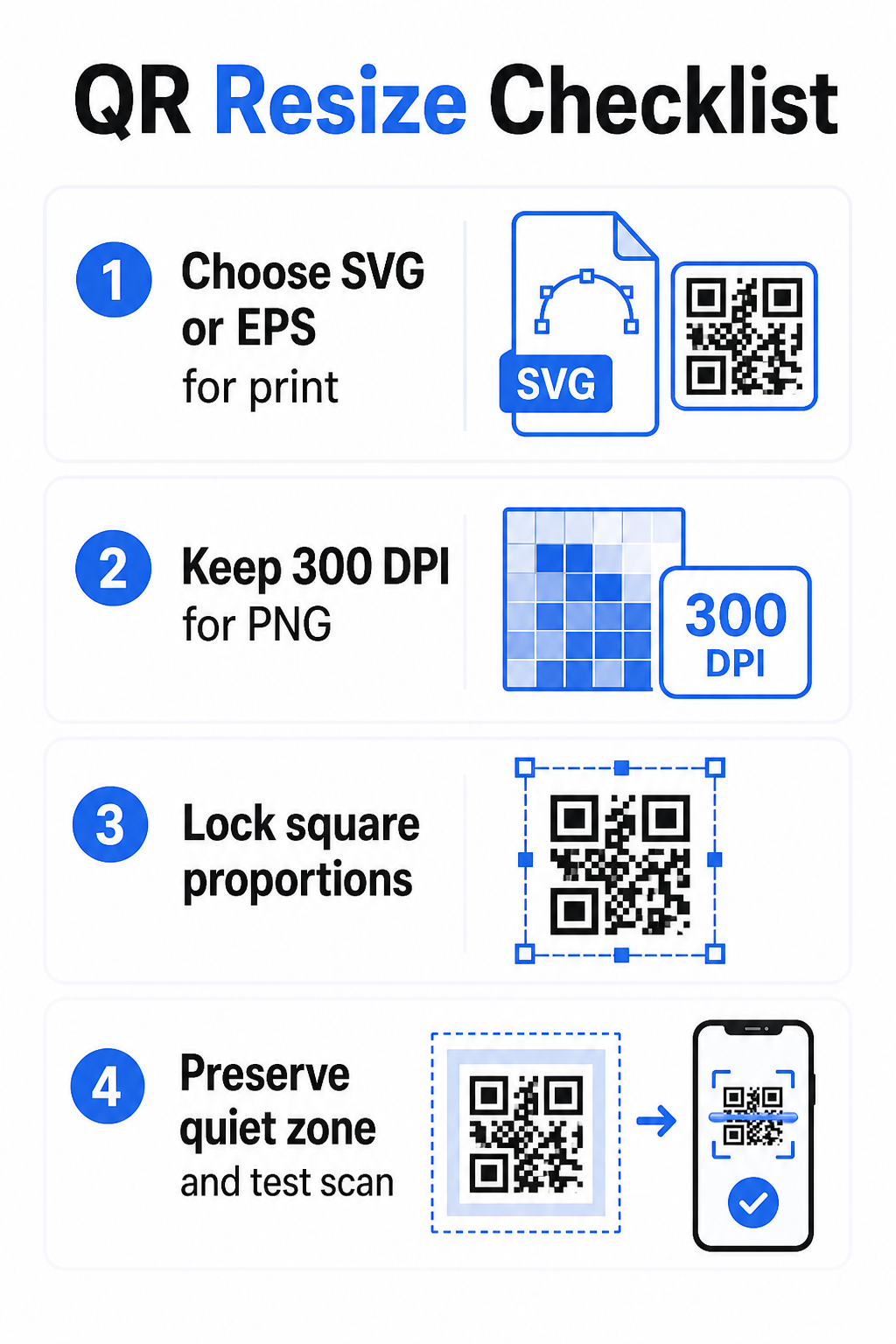
Når du laster ned en QR-kode for utskrift, velg alltid SVG eller EPS. Når du trenger en rasterfil for en digital skjerm eller en plattform som ikke aksepterer vektorformater, eksporter en høyoppløselig PNG – aldri en JPEG.
Opprett utskriftsklare QR-koder i riktig format Generer QR-koden din og last den ned som en utskriftsklar SVG-, EPS- eller PDF-fil ved å bruke Pageloot QR-kodegenerator. Ingen designprogramvare kreves.
Oppløsningsregler for rasterfiler
Hvis du jobber med en PNG for utskrift, bestemmer oppløsningen – målt i DPI (punkter per tomme) – om koden forblir skarp i sin endelige utskrevne størrelse.
Minimumsstandarden for utskrift er 300 DPI ved de endelige utskrevne dimensjonene. Dette betyr at pikseldimensjonene til bildefilen din må samsvare med den tiltenkte fysiske størrelsen ved den tettheten. For eksempel:
- En QR-kode skrevet ut på 1 tomme × 1 tomme trenger minst 300 × 300 piksler
- En QR-kode skrevet ut på 4 tommer × 4 tommer trenger minst 1 200 × 1 200 piksler
Hvis filen din ikke oppfyller denne terskelen ved mål størrelsen din, vil de individuelle modulene – de små rutene som bærer QR-dataene – flyte sammen. På det tidspunktet kan skanneren ikke lenger skille mørkt fra lyst, og koden mislykkes. For digitale skjermer er et minimum på omtrent 240 × 240 piksler er en praktisk retningslinje for koder som vises på skjerm, selv om større alltid er tryggere for zoom og kompatibilitet på tvers av enheter. Den renere løsningen for utskrift er å hoppe over raster helt og bruke en vektorfil, som gir deg uendelig skalerbarhet uten oppløsningsbekymringer.
Hvordan endre størrelse på en QR-kode trinn for trinn
Trinn 1: Start med riktig kildefil
Last ned eller eksporter QR-koden din i SVG- eller EPS-format hvis den skal skrives ut. Hvis du bare har en rasterfil, kontroller at pikseldimensjonene støtter 300 DPI ved din målte utskriftsstørrelse før du endrer størrelse. En PNG QR-kode kan fungere bra for digitale plasseringer når den eksporteres med tilstrekkelig oppløsning – du kan opprette en direkte med en PNG QR-kode generator og bruke den der gjennomsiktighet eller rasterkompatibilitet er påkrevd.
Trinn 2: Skaler proporsjonalt
Oppretthold alltid det originale sideforholdet ved endring av størrelse. QR-koder er kvadratiske per definisjon, og å strekke dem horisontalt eller vertikalt forvrenger modulene fra kvadrater til rektangler, noe som kan forvirre eller hindre skannere. I enhver designapplikasjon – Illustrator, Canva, InDesign, Photoshop – lås sideforholdet før du drar i et hjørnehåndtak. Selv en subtil forvrengning er nok til å forårsake problemer med strengere skannerimplementeringer.
Trinn 3: Bevar den stille sonen
Den stille sonen er den klare hvite kanten som omgir QR-koden på alle fire sider. ISO/IEC 18004-standarden spesifiserer at denne margenen må være minst fire moduler bred på hver side. Når du endrer størrelsen på en QR-kode og plasserer den i et større design, er denne sonen ofte det første som blir beskåret eller inntatt av andre designelementer. Hvis hver modul i koden din er 2 mm bred, må den stille sonen din være minst 8 mm på alle sider. Behandle denne plassen som ikke-forhandlingsbar – fjerning av den bryter skannergjenkjenning.
Trinn 4: Kontroller kontrast etter endring av størrelse
Endring av størrelse på en farget eller teksturert bakgrunn kan redusere den effektive kontrasten mellom kodens moduler og omgivelsene. Skannere er avhengige av forskjellen mellom mørke og lyse områder for å lese koden. Den sikreste kombinasjonen forblir mørke moduler på en lys bakgrunn – svart på hvitt gir et kontrastforhold på 21:1. Sikt på et minimum kontrastforhold på 4:1 mellom forgrunns- og bakgrunnsfarger, og unngå å plassere koden på gradienter, travle mønstre eller reflekterende overflater. For detaljert veiledning, se beste praksis for fargekontrast i QR-koder.
Trinn 5: Test før utskrift
Skriv ut en prøve i nøyaktig tiltenkt størrelse på nøyaktig tiltenkt materiale, og test deretter med flere enheter – både iOS og Android – før du forplikter deg til en full produksjonskjøring. Test på den faktiske skanneavstanden brukere vil oppleve. En kode som skanner perfekt på armlengdes avstand, kan mislykkes på avstanden den faktisk er plassert. Se Slik tester du QR-koder for mobilbruk for en komplett sjekkliste for testing.
Retningslinjer for minimums- og maksimumsstørrelse
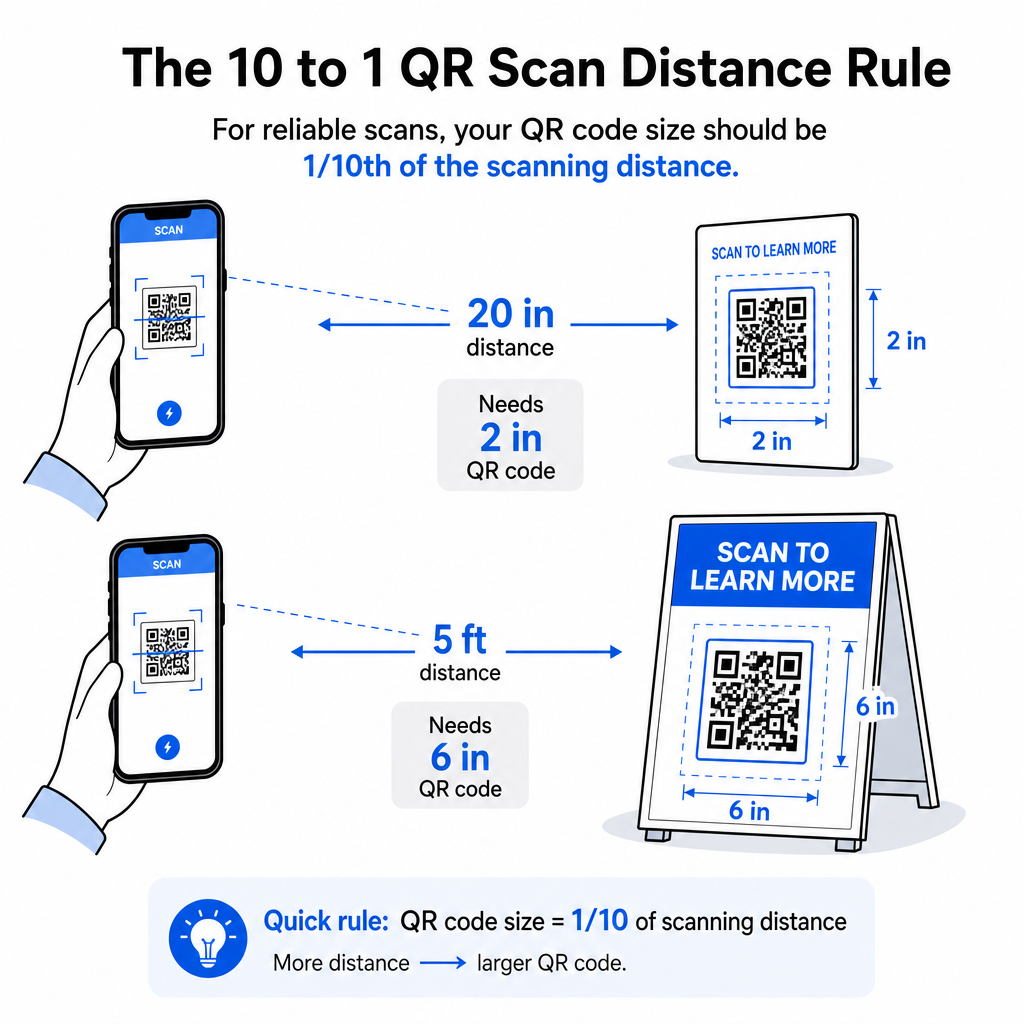
Å endre størrelsen på en QR-kode på en ansvarlig måte betyr å kjenne størrelsesgrensene for ditt spesifikke bruksområde. Kjerneregelen er 10:1 avstand-til-størrelse-forholdet: den maksimale tiltenkte skanneavstanden bør være omtrent ti ganger bredden på QR-koden. En kode skannet fra 20 tommer unna bør være minst 2 tommer bred; en skannet fra 5 fot unna bør være minst 6 tommer bred; en billboard-kode skannet fra 30 fot unna bør være minst 36 tommer bred.
For vanlige utskriftsapplikasjoner er her pålitelige utgangspunkter:
| Bruk sak | Minimum anbefalt størrelse |
|---|---|
| Visittkort | 0,8 × 0,8 tommer (2 × 2 cm) |
| Flyers og brosjyrer | 1,2 × 1,2 tommer (3 × 3 cm) |
| Plakater og skilting | 6 × 1.6 tommer (4 × 4 cm) |
| Reklametavler og bannere | 16 × 16 tommer (40 × 40 cm) eller større |
For visittkortapplikasjoner er 0.8 × 0.8 tommer det praktiske minimum for pålitelig nærområdeskanning – å gå mindre øker risikoen for skannefeil betydelig. Se veiledning for QR-kodestørrelser for visittkort for spesifikke anbefalinger for det formatet. Det er ingen offisiell øvre størrelsesgrense; skaler opp etter behov basert på skanneavstanden. For en omfattende oversikt over hvert bruksområde, dekker størrelsesguide for QR-koder alt fra visittkort til reklametavler. Du kan også utforske hvordan QR-kodestørrelse påvirker synligheten for å forstå det bredere forholdet mellom dimensjoner og skannesuksess.
Trenger du en QR-kode for visittkortet ditt? Bruke QR-kode visittkort generator for å lage en kode dimensjonert og designet for visittkortutskrift, med SVG-eksport inkludert.
Hvordan datatetthet påvirker endring av størrelse
En faktor som kompliserer endring av størrelse er datatetthet – mengden informasjon kodet i QR-koden. Jo mer data en QR-kode inneholder, desto tettere blir rutenettet av moduler. Tettere rutenett krever større fysiske størrelser for å holde individuelle moduler lesbare på kameranivå.
En QR-kode som koder en lang URL med sporingsparametere inneholder langt mer data enn en som peker til en kort omdirigerings-URL. Når du krymper en kode med høy tetthet, blir modulene for små for de fleste smarttelefonkameraer til å løse pålitelig. Dynamiske QR-koder løser dette problemet direkte. I stedet for å kode en full destinasjons-URL, koder en dynamisk kode en kort intern omdirigering, og holder kodens datatetthet lav uavhengig av hvor den peker. Dette betyr at du kan skrive ut koden mindre uten å ofre skannbarheten – og oppdatere destinasjonen senere uten å skrive ut på nytt.
Feilkorreksjon og toleranse for endring av størrelse
QR-koder inkluderer innebygd feilkorreksjon som gjør at de forblir skannbare selv når de er delvis skadet eller skjult. ISO/IEC 18004-standarden definerer fire nivåer:
| Nivå | Gjenopprettingskapasitet |
|---|---|
| L (lav) | ~7% av data |
| M (middels) | ~15% av data |
| Q (kvartil) | ~25% av data |
| H (høy) | ~30% av data |
Hvis du endrer størrelsen på en QR-kode til en mindre størrelse, eller legger til en logo i midten av koden, gir økt feilrettingsnivå deg en buffer mot skade på modulnivå eller unøyaktighet ved skanning. Nivå Q eller H er passende for merkede eller sterkt tilpassede koder. Husk at høyere feilretting øker datatettheten, noe som kan kreve en litt større minimumsstørrelse for å kompensere.
Vanlige feil ved endring av størrelse som bør unngås
- Bruk av et skjermbilde som kildefil. Skjermbilder er lavoppløselige rasteropptak. Å forstørre dem for utskrift er en av de vanligste årsakene til uskannbare QR-koder.
- Strekke koden ikke-proporsjonalt. Selv en liten horisontal eller vertikal forvrengning endrer modulformer fra firkanter til rektangler, noe som kan hindre skannere i å lese koden riktig.
- Beskjæring av den stille sonen. Endring av størrelse innenfor et stramt designoppsett resulterer ofte i at andre elementer trenger inn i den stille sonen. Hold minst fire moduler med klar plass på alle sider – denne margen er et teknisk krav, ikke et stilistisk valg.
- Anta at en kode som fungerer på skjerm vil fungere på trykk. Skjermvisning og utskrevet resultat er forskjellige miljøer. En kode som ser skarp ut ved 72 DPI på skjerm kan skrives ut uskarpt ved 300 DPI hvis den underliggende filoppløsningen ikke støtter det.
- Ikke testing etter endring av størrelse. Verifiser alltid skannbarhet på det endelige materialet, i den endelige størrelsen, fra den tiltenkte skanneavstanden.
For mer dyptgående veiledning, veiledning for utskriftsoppløsning for QR-kode og beste praksis for lesbarhet av QR-koder dekker de utskriftsspesifikke detaljene verdt å vite før du går til produksjon.
Størrelse for forskjellige utskriftsmaterialer
Overflaten du skriver ut på, påvirker hvor stor QR-koden din må være, uavhengig av skanneavstandsbetraktninger. Grove, teksturerte eller buede overflater kan forvrenge moduler og redusere effektiv kontrast, noe som krever at du skalerer opp utover det 10:1-regelen alene ville antyde.
- Glatt papir eller kartong – Standard størrelsesretningslinjer gjelder; matte overflater foretrekkes fremfor blanke for å redusere gjenskinn og refleksjoner
- Bølgepapp – Legg til 10–25% til minimumsstørrelsen for å kompensere for overflatetekstur og uregelmessigheter i kantene
- Stoff – Glatt polyester kan bruke standard minimumsstørrelser; grove eller elastiske tekstiler krever ofte 25–50% større koder
- Metall eller glass – Høy reflektivitet forårsaker skanneproblemer; bruk matte overflater eller vinylbelegg og øk kodestørrelsen
For en fullstendig oversikt etter materialtype, se QR-kodestørrelse for ulike trykkmaterialer, og for veiledning om hvordan selve utskriftsmetoden påvirker utskriftskvaliteten, hvordan utskriftsteknikker påvirker QR-kodens skannbarhet er verdt å lese før du legger inn en utskriftsbestilling. For plasseringsbeslutninger som går utover størrelse, Veiledning for plassering av QR-koder for markedsføring dekker posisjonering etter materialtype og kampanjekontekst.
Riktig endring av størrelse på en QR-kode betyr å velge riktig filformat før du endrer størrelse, opprettholde proporsjoner og stille sonemarginer gjennomgående, og verifisere at utdataene dine oppfyller oppløsnings- og kontraststandarder ved den endelige utskrevne eller viste størrelsen. Å starte med en vektorfil fjerner det meste av risikoen helt – den skalerer rent i alle retninger uten oppløsningstaket som rasterbilder pålegger. Hvis du bygger QR-koder for pågående kampanjer, gir bruk av en dynamisk QR-kode gir deg den ekstra fordelen av å oppdatere destinasjonen etter utskrift, slik at en størrelses- eller plasseringsbeslutning i dag ikke låser deg til nyutskriftskostnader i fremtiden.
Ofte stilte spørsmål
SVG, EPS, eller PDF er de beste formatene for skalering fordi de er vektorbaserte og skalerer til enhver størrelse uten å miste skarphet. PNG er akseptabelt for digital bruk når eksportert i høy oppløsning. JPEG bør unngås helt – komprimeringen glatter ut de skarpe kantene som skannere trenger for å skille hver modul.
Det praktiske minimumet for de fleste nærområdeutskriftsapplikasjoner er 0,8 × 0,8 tommer (2 × 2 cm). Å gå mindre øker risikoen for skannefeil. For skanning på større avstander, bruk 10:1-regelen: kodens bredde bør være minst en tidel av den maksimale tiltenkte skanneavstanden – så en kode skannet fra 20 tommer unna bør være minst 2 tommer bred.
Nei – de kodede dataene og feilrettingsnivået er faste når koden genereres. Størrelsesendring endrer bare de fysiske eller pikseldimensjonene til bildet. Det størrelsesendring kan påvirke er om modulene forblir klare og tydelige ved den nye størrelsen, som er grunnen til at å opprettholde 300 DPI for utskrift, å bevare de stille sonemarginene, og å skalere proporsjonalt er alle essensielle trinn.