Essayez-vous de redimensionner un code QR pour vous retrouver avec un résultat flou et inscanable ? Se tromper de dimensions – ou utiliser le mauvais format de fichier – peut rendre votre code QR complètement inutile après l'impression. Ce guide vous explique exactement comment redimensionner un code QR correctement, couvrant les formats de fichier, les règles de taille, les exigences de résolution et les erreurs les plus courantes à éviter.
Pourquoi le redimensionnement d'un code QR tourne mal
La plupart des problèmes de qualité des codes QR se résument à l'un des deux problèmes suivants : commencer avec le mauvais format de fichier ou mettre à l'échelle une image au-delà de ce que sa résolution peut supporter.
Lorsque vous prenez une image matricielle basse résolution – un JPEG ou un petit PNG – et que vous l'étirez pour l'agrandir dans votre logiciel de conception, le scanner doit lire des modules flous et indistincts au lieu de carrés nets noirs et blancs. Étirer un code QR basse résolution est l'un des moyens les plus fiables de produire un résultat d'impression flou et inscanable. Il y a aussi un problème moins évident : le redimensionnement peut involontairement déformer les proportions du code ou supprimer la zone de silence – la marge blanche claire entourant le code – ce qui amène les scanners à mal lire ou à manquer complètement le motif. Comprendre ces points de défaillance avant de redimensionner est le chemin le plus direct vers un code qui fonctionne réellement.
Vecteur vs. Matriciel : La décision de format de fichier qui compte le plus
Le choix le plus impactant que vous faites lors du redimensionnement d'un code QR est de savoir si vous travaillez avec un fichier vectoriel ou matriciel.
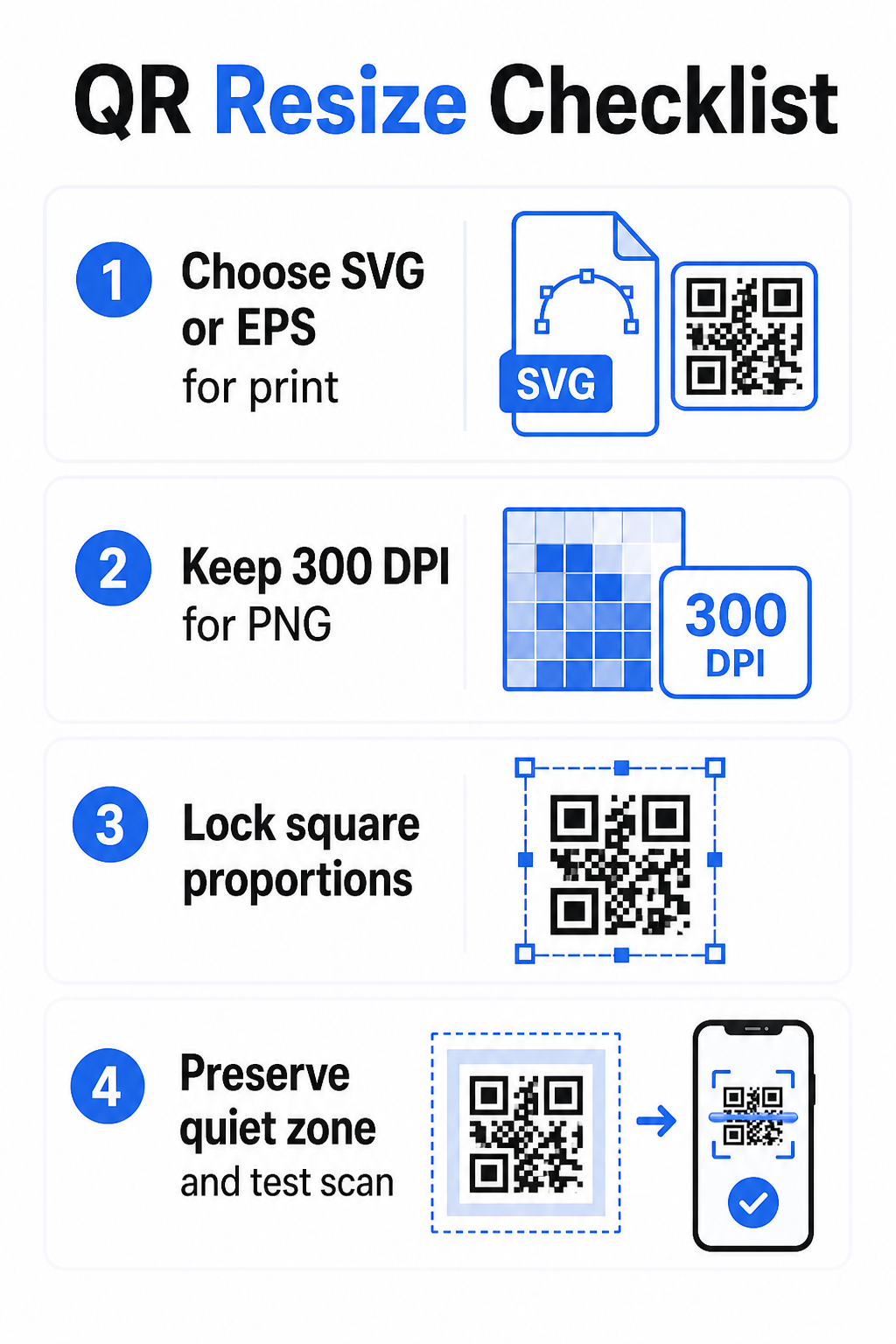
Formats vectoriels (SVG, EPS, PDF) stockent le code QR sous forme d'instructions mathématiques plutôt que d'une grille fixe de pixels. Cela signifie qu'ils s'adaptent à n'importe quelle taille – d'un timbre-poste à un panneau d'affichage – sans aucune perte de netteté ou de clarté. Pour tout ce qui est destiné à l'impression, le format vectoriel est le bon choix.
Formats matriciels (PNG, JPEG, BMP) stockent le code sous forme de grille de pixels avec un plafond de résolution fixe. Une fois que vous les mettez à l'échelle au-delà de leur résolution originale, le logiciel doit inventer des données de pixels, ce qui produit du flou. Le JPEG est particulièrement problématique car son algorithme de compression lisse les bords, sapant directement le contraste net dont un scanner QR a besoin pour lire chaque module.
| Format | S'adapte sans perte | Recommandé pour | Notes |
|---|---|---|---|
| SVG | Oui | Impression, grand format | Meilleur dans l'ensemble pour le redimensionnement |
| EPS | Oui | Impression professionnelle | Standard dans les flux de travail de conception d'impression |
| Oui | Impression, partage | Préserve les données vectorielles | |
| PNG | Non (résolution fixe) | Web, affichage numérique | Acceptable à haute résolution |
| JPEG | Non (compression avec perte) | Aucun des deux | À éviter entièrement pour les codes QR |
Lorsque vous téléchargez un code QR pour l'impression, sélectionnez toujours SVG ou EPS. Lorsque vous avez besoin d'un fichier matriciel pour un écran numérique ou une plateforme qui n'accepte pas les formats vectoriels, exportez un PNG haute résolution – jamais un JPEG.
Créez des codes QR prêts à imprimer dans le bon format Générez votre code QR et téléchargez-le au format SVG, EPS ou PDF prêt à imprimer en utilisant le Générateur de code QR Pageloot. Aucun logiciel de conception requis.
Règles de résolution pour les fichiers matriciels
Si vous travaillez avec un PNG pour l'impression, la résolution – mesurée en DPI (points par pouce) – détermine si le code reste net à sa taille d'impression finale.
La norme minimale pour l'impression est de 300 DPI aux dimensions d'impression finales. Cela signifie que les dimensions en pixels de votre fichier image doivent correspondre à la taille physique prévue à cette densité. Par exemple :
- Un code QR imprimé à 1 pouce × 1 pouce nécessite au moins 300 x 300 pixels
- Un code QR imprimé à 4 pouces × 4 pouces nécessite au moins 1 200 × 1 200 pixels
Si votre fichier ne respecte pas ce seuil à votre taille cible, les modules individuels – les minuscules carrés qui transportent les données QR – se flouteront. À ce stade, le scanner ne peut plus distinguer le foncé du clair, et le code échoue. Pour les écrans numériques, un minimum d'environ 240 x 240 pixels est une ligne directrice pratique pour les codes d'affichage à l'écran, bien qu'une taille plus grande soit toujours plus sûre pour le zoom et la compatibilité multi-appareils. La solution plus propre pour l'impression est d'ignorer entièrement le matriciel et d'utiliser un fichier vectoriel, ce qui vous offre une évolutivité infinie sans aucun souci de résolution.
Comment redimensionner un code QR étape par étape
Étape 1 : Commencez avec le bon fichier source
Téléchargez ou exportez votre code QR au format SVG ou EPS s'il est destiné à l'impression. Si vous n'avez qu'un fichier matriciel, vérifiez que les dimensions en pixels supportent 300 DPI à votre taille d'impression cible avant de redimensionner. Un code QR PNG peut bien fonctionner pour les placements numériques lorsqu'il est exporté à une résolution suffisante – vous pouvez en créer un directement avec un Générateur de QR code PNG et utilisez-le partout où la transparence ou la compatibilité matricielle est requise.
Étape 2 : Mettre à l'échelle proportionnellement
Toujours maintenir le rapport d'aspect original lors du redimensionnement. Les codes QR sont carrés par définition, et les étirer horizontalement ou verticalement déforme les modules de carrés en rectangles, ce qui peut perturber ou empêcher les scanners de les lire. Dans toute application de conception – Illustrator, Canva, InDesign, Photoshop – verrouillez le rapport d'aspect avant de faire glisser une poignée de coin. Même une légère distorsion est suffisante pour causer des problèmes avec les implémentations de scanner plus strictes.
Étape 3 : Préserver la zone de silence
La zone de silence est la bordure blanche claire entourant le code QR sur les quatre côtés. La norme ISO/IEC 18004 spécifie que cette marge doit être d'au moins quatre modules de large de chaque côté. Lorsque vous redimensionnez un code QR et le placez dans une conception plus grande, cette zone est fréquemment la première chose qui est recadrée ou empiétée par d'autres éléments de conception. Si chaque module de votre code mesure 2 mm de large, votre zone de silence doit être d'au moins 8 mm de tous les côtés. Traitez cet espace comme non négociable – le supprimer interrompt la reconnaissance du scanner.
Étape 4 : Vérifier le contraste après le redimensionnement
Le redimensionnement sur un fond coloré ou texturé peut réduire le contraste effectif entre les modules du code et son environnement. Les scanners se basent sur la différence entre les zones sombres et claires pour lire le code. La combinaison la plus sûre reste des modules sombres sur un fond clair – le noir sur blanc offre un rapport de contraste de 21:1. Visez un rapport de contraste minimum de 4:1 entre les couleurs de premier plan et d'arrière-plan, et évitez de placer le code sur des dégradés, des motifs chargés ou des surfaces réfléchissantes. Pour des conseils détaillés, voir meilleures pratiques de contraste des couleurs des codes QR.
Étape 5 : Tester avant l'impression
Imprimez une épreuve à la taille exacte prévue sur le matériau exact prévu, puis testez avec plusieurs appareils – iOS et Android – avant de vous engager dans une production complète. Testez à la distance de numérisation réelle que les utilisateurs expérimenteront. Un code qui scanne parfaitement à bout de bras peut échouer à la distance où il est réellement placé. Voir Tester ses QR codes pour l'usage mobile : le guide pour une liste de contrôle complète des tests.
Directives de taille minimale et maximale
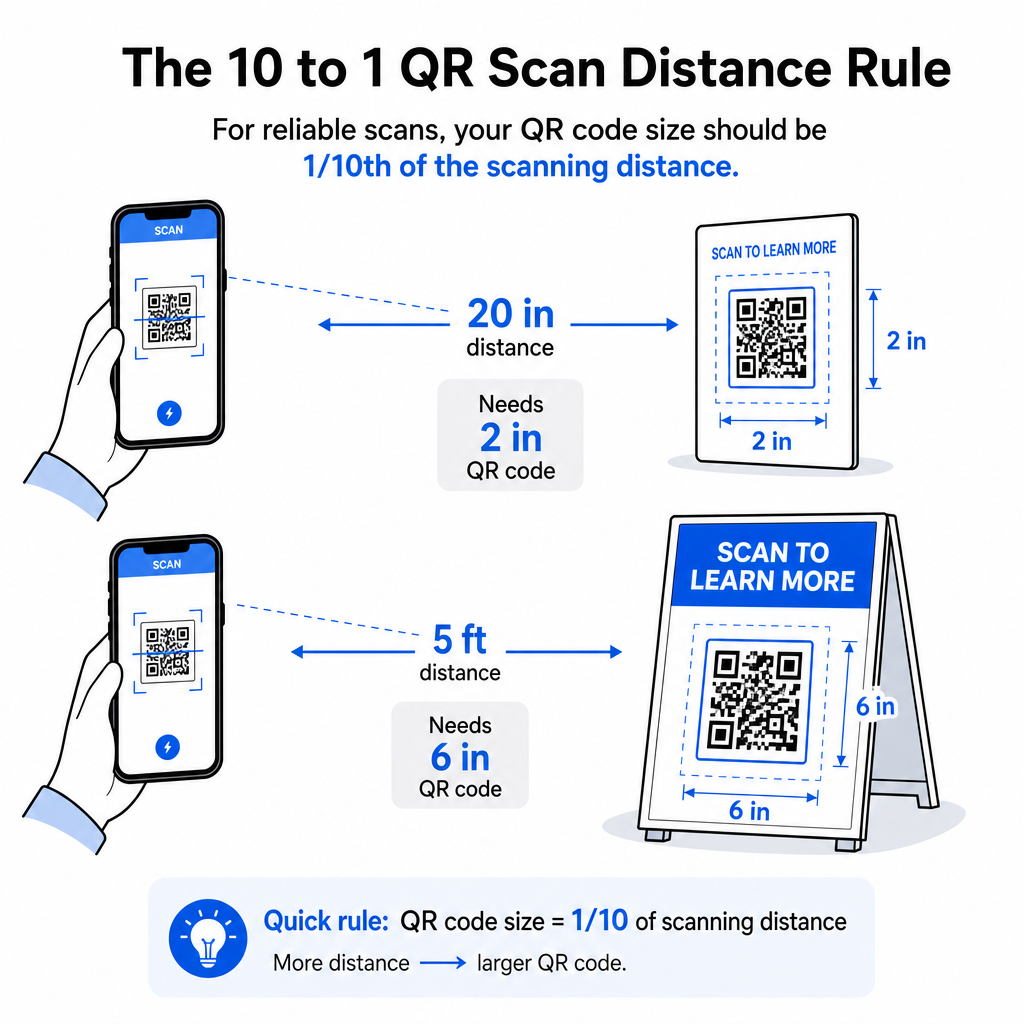
Redimensionner un code QR de manière responsable signifie connaître les limites de taille pour votre cas d'utilisation spécifique. La règle fondamentale est la suivante : rapport distance/taille de 10:1: la distance de numérisation maximale prévue doit être environ dix fois la largeur du code QR. Un code scanné à 20 pouces de distance doit mesurer au moins 2 pouces de large ; un scanné à 5 pieds de distance doit mesurer au moins 6 pouces de large ; un code de panneau d'affichage scanné à 30 pieds de distance doit mesurer au moins 36 pouces de large.
Pour les applications d'impression courantes, voici des points de départ fiables :
| Cas d'utilisation | Taille minimale recommandée |
|---|---|
| Cartes de visite | 0,8 × 0,8 in (2 × 2 cm) |
| Flyers et brochures | 1,2 × 1,2 in (3 × 3 cm) |
| Affiches et signalisation | 1,6 × 1,6 po (4 × 4 cm) |
| Panneaux d'affichage et bannières | 16 × 16 po (40 × 40 cm) ou plus |
Pour les applications de cartes de visite, 0,8 × 0,8 pouces est le minimum pratique pour une numérisation fiable à courte portée – aller plus petit augmente considérablement le risque d'échec de la numérisation. Voir le guide des tailles de codes QR pour les cartes de visite pour des recommandations spécifiques sur ce format. Il n'y a pas de limite de taille supérieure officielle ; adaptez la taille selon les besoins en fonction de la distance de numérisation. Pour une analyse complète de chaque cas d'utilisation, le guide des tailles de codes QR couvre tout, des cartes de visite aux panneaux d'affichage. Vous pouvez également explorer comment la taille du code QR impacte la visibilité pour comprendre la relation plus large entre les dimensions et le succès de la numérisation.
Besoin d'un code QR pour votre carte de visite ? Utilisez le Générateur de QR code pour carte de visite pour créer un code dimensionné et conçu pour l'impression de cartes de visite, avec exportation SVG incluse.
Comment la densité des données affecte le redimensionnement
Un facteur qui complique le redimensionnement est la densité des données – la quantité d'informations encodées dans le code QR. Plus un code QR contient de données, plus sa grille de modules devient dense. Les grilles plus denses nécessitent des tailles physiques plus grandes pour que les modules individuels restent lisibles au niveau de la caméra.
Un code QR encodant une longue URL avec des paramètres de suivi contient beaucoup plus de données qu'un code pointant vers une courte URL de redirection. Lorsque vous réduisez un code à haute densité, les modules deviennent trop petits pour que la plupart des caméras de smartphone puissent les résoudre de manière fiable. Les codes QR dynamiques résolvent ce problème directement. Au lieu d'encoder une URL de destination complète, un code dynamique encode une courte redirection interne, maintenant la densité des données du code faible, quel que soit l'endroit où il pointe. Cela signifie que vous pouvez imprimer le code plus petit sans sacrifier la scannabilité – et mettre à jour la destination plus tard sans réimprimer.
Correction d'erreurs et tolérance au redimensionnement
Les codes QR incluent une correction d'erreurs intégrée qui leur permet de rester scannables même lorsqu'ils sont partiellement endommagés ou obscurcis. La norme ISO/IEC 18004 définit quatre niveaux :
| Niveau | Capacité de récupération |
|---|---|
| L (faible) | ~7% des données |
| M (Moyen) | ~15% des données |
| Q (Quartile) | ~25% des données |
| H (Haut) | ~30% des données |
Si vous redimensionnez un code QR à une taille plus petite, ou si vous ajoutez un logo au centre du code, augmenter le niveau de correction d'erreur vous offre une marge de manœuvre contre les dommages au niveau des modules ou l'imprécision de la numérisation. Le niveau Q ou H est approprié pour les codes de marque ou fortement personnalisés. Gardez à l'esprit qu'une correction d'erreur plus élevée augmente la densité des données, ce qui peut exiger une taille minimale légèrement plus grande pour compenser.
Erreurs courantes de redimensionnement à éviter
- Utiliser une capture d'écran comme fichier source. Les captures d'écran sont des captures raster basse résolution. Les agrandir pour l'impression est l'une des causes les plus courantes de codes QR non scannables.
- Étirement non proportionnel du code. Même une légère distorsion horizontale ou verticale modifie la forme des modules des carrés en rectangles, ce qui peut empêcher les scanners de lire le code correctement.
- Recadrage de la zone de silence. Le redimensionnement dans une mise en page serrée entraîne souvent d'autres éléments empiétant sur la zone de silence. Gardez au moins quatre modules d'espace clair sur tous les côtés – cette marge est une exigence technique, pas un choix stylistique.
- Supposer qu'un code qui fonctionne à l'écran fonctionnera à l'impression. L'affichage à l'écran et la sortie imprimée sont des environnements différents. Un code qui semble net à 72 DPI à l'écran peut imprimer flou à 300 DPI si la résolution du fichier sous-jacent ne le supporte pas.
- Ne pas tester après redimensionnement. Vérifiez toujours la scannabilité sur le matériau final, à la taille finale, à partir de la distance de numérisation prévue.
Pour des conseils plus approfondis, le guide de résolution d'impression de code QR et les meilleures pratiques pour la lisibilité des codes QR couvrent les détails spécifiques à l'impression à connaître avant de passer à la production.
Dimensionnement pour différents matériaux d'impression
La surface sur laquelle vous imprimez affecte la taille que votre code QR doit avoir, indépendamment des considérations de distance de numérisation. Les surfaces rugueuses, texturées ou incurvées peuvent déformer les modules et réduire le contraste effectif, vous obligeant à augmenter l'échelle au-delà de ce que la règle 10:1 seule suggérerait.
- Papier lisse ou carton – Les directives de taille standard s'appliquent ; les finitions mates sont préférées aux brillantes pour réduire l'éblouissement et les reflets
- Carton ondulé – Ajoutez 10 à 25 % à la taille minimale pour compenser la texture de la surface et les irrégularités des bords
- Tissu – Le polyester lisse peut utiliser les minimums standard ; les textiles rugueux ou extensibles nécessitent souvent des codes 25 à 50 % plus grands
- Métal ou verre – Une réflectivité élevée cause des problèmes de numérisation ; utilisez des surfaces mates ou des superpositions de vinyle et augmentez la taille du code
Pour une ventilation complète par type de matériau, voir le dimensionnement des codes QR pour différents matériaux d'impression, et pour des conseils sur la façon dont la méthode d'impression elle-même affecte la qualité de la sortie, comment les techniques d'impression impactent la scannabilité des codes QR vaut la peine d'être lu avant de passer une commande d'impression. Pour les décisions de placement qui vont au-delà du dimensionnement, le Guide de placement des codes QR pour le marketing couvre le positionnement par type de matériau et contexte de campagne.
Redimensionner correctement un code QR signifie choisir le bon format de fichier avant de redimensionner, maintenir les proportions et les marges de la zone de silence tout au long du processus, et vérifier que votre sortie respecte les normes de résolution et de contraste à la taille finale imprimée ou affichée. Commencer avec un fichier vectoriel élimine entièrement la plupart des risques – il s'adapte proprement dans n'importe quelle direction sans le plafond de résolution qu'imposent les images raster. Si vous créez des codes QR pour des campagnes en cours, utiliser un code QR dynamique vous donne l'avantage supplémentaire de mettre à jour la destination après l'impression, ainsi une décision de dimensionnement ou de placement aujourd'hui ne vous enferme pas dans des coûts de réimpression à l'avenir.
Questions fréquentes
SVG, EPS, ou PDF sont les meilleurs formats pour le redimensionnement car ils sont basés sur des vecteurs et s'adaptent à n'importe quelle taille sans perdre en netteté. Le PNG est acceptable pour une utilisation numérique lorsqu'il est exporté en haute résolution. Le JPEG devrait être entièrement évité – sa compression lisse les bords nets dont les scanners ont besoin pour distinguer chaque module.
Le minimum pratique pour la plupart des applications d'impression à courte portée est de 0,8 × 0,8 pouces (2 × 2 cm). Aller plus petit augmente le risque d'échec de la numérisation. Pour la numérisation à de plus grandes distances, appliquez la règle 10:1 : la largeur du code doit être au moins un dixième de la distance de numérisation maximale prévue – donc un code scanné à 20 pouces de distance devrait mesurer au moins 2 pouces de large.
Non – les données encodées et le niveau de correction d'erreur sont fixés lorsque le code est généré. Le redimensionnement ne modifie que les dimensions physiques ou en pixels de l'image. Ce que le redimensionnement peut affecter est de savoir si les modules restent clairs et distincts à la nouvelle taille, c'est pourquoi le maintien de 300 DPI pour l'impression, la préservation des marges de la zone de silence, et la mise à l'échelle proportionnelle sont toutes des étapes essentielles.