Försöker du ändra storlek på en QR-kod bara för att sluta med ett suddigt, oskannbart resultat? Att få dimensionerna fel – eller använda fel filformat – kan göra din QR-kod helt oanvändbar efter utskrift. Denna guide går igenom exakt hur du ändrar storlek på en QR-kod korrekt, och täcker filformat, storleksregler, upplösningskrav och de vanligaste misstagen att undvika.
Varför ändring av storlek på en QR-kod går fel
De flesta problem med QR-kodkvalitet beror på en av två problem: att börja med fel filformat eller att skala en bild bortom vad dess upplösning kan stödja.
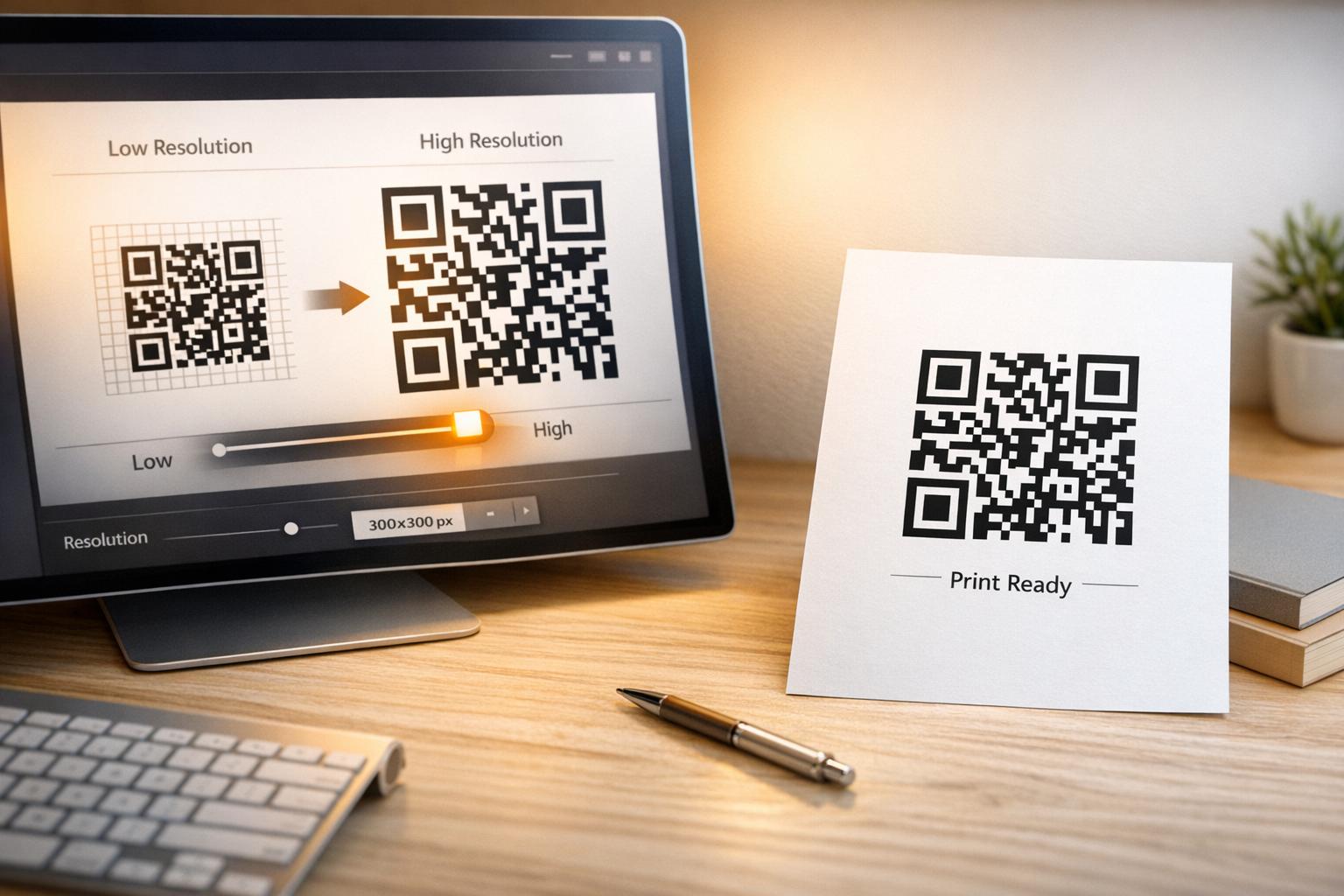
När du tar en lågupplöst rasterbild – en JPEG eller en liten PNG – och sträcker ut den större i din designprogramvara, måste skannern läsa suddiga, otydliga moduler istället för skarpa svartvita rutor. Att sträcka ut en lågupplöst QR-kod är ett av de mest pålitliga sätten att producera ett suddigt, oskannbart utskriftsresultat. Det finns också ett mindre uppenbart problem: ändring av storlek kan oavsiktligt förvränga kodens proportioner eller ta bort den tysta zonen – den tydliga vita marginalen som omger koden – vilket gör att skannrar läser fel eller helt missar mönstret. Att förstå dessa felpunkter innan du ändrar storlek är den mest direkta vägen till en kod som faktiskt fungerar.
Vektor vs. Raster: Filformatbeslutet som betyder mest
Det enskilt mest betydelsefulla valet du gör när du ändrar storlek på en QR-kod är om du arbetar med en vektor- eller rasterfil.
Vektorformat (SVG, EPS, PDF) lagrar QR-koden som matematiska instruktioner snarare än ett fast rutnät av pixlar. Detta innebär att de skalas till vilken storlek som helst – från ett frimärke till en reklamskylt – utan någon förlust av skärpa eller klarhet. För allt som ska skrivas ut är vektor det korrekta valet.
Rasterformat (PNG, JPEG, BMP) lagrar koden som ett pixelrutnät med ett fast upplösningstak. När du skalar dem över deras ursprungliga upplösning, måste programvaran uppfinna pixeldata, vilket ger oskärpa. JPEG är särskilt problematiskt eftersom dess komprimeringsalgoritm jämnar ut kanter, vilket direkt undergräver den skarpa kontrast en QR-skanner behöver för att läsa varje modul.
| Formatera | Skalas utan förlust | Rekommenderas för | Noter |
|---|---|---|---|
| SVG | Ja | Utskrift, stort format | Bäst överlag för storleksändring |
| EPS | Ja | Professionell utskrift | Standard i arbetsflöden för tryckdesign |
| Ja | Utskrift, delning | Bevarar vektordata | |
| PNG | Nej (fast upplösning) | Webb, digital display | Acceptabelt vid hög upplösning |
| JPEG | Nej (förstörande komprimering) | Ingetdera | Undvik helt för QR-koder |
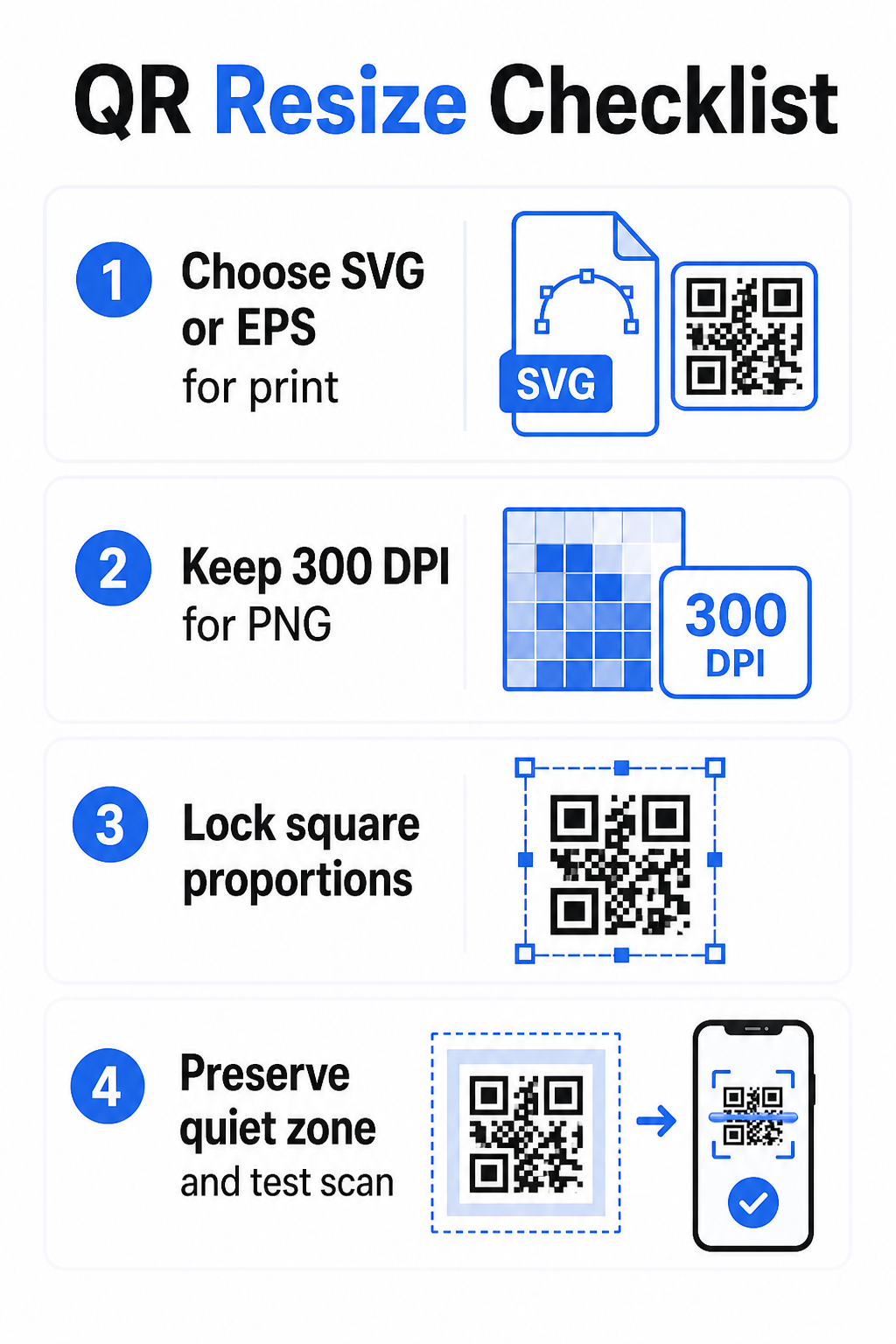
När du laddar ner en QR-kod för utskrift, välj alltid SVG eller EPS. När du behöver en rasterfil för en digital skärm eller en plattform som inte accepterar vektorformat, exportera en högupplöst PNG – aldrig en JPEG.
Skapa utskriftsklara QR-koder i rätt format Generera din QR-kod och ladda ner den som en utskriftsklar SVG-, EPS- eller PDF-fil med hjälp av Pageloot QR-kodgenerator. Ingen designprogramvara krävs.
Upplösningsregler för rasterfiler
Om du arbetar med en PNG för utskrift, avgör upplösning – mätt i DPI (punkter per tum) – om koden förblir skarp vid sin slutliga utskriftsstorlek.
Minimistandarden för utskrift är 300 DPI vid de slutliga utskriftsdimensionerna. Detta innebär att pixeldimensionerna för din bildfil måste matcha den avsedda fysiska storleken vid den densiteten. Till exempel:
- En QR-kod utskriven vid 1 tum × 1 tum behöver minst 300 × 300 pixlar
- En QR-kod utskriven vid 4 tum × 4 tum behöver minst 1 200 × 1 200 pixlar
Om din fil inte uppfyller detta tröskelvärde vid din målstorlek, kommer de individuella modulerna – de små rutorna som bär QR-datan – att suddas ut. Vid den punkten kan skannern inte längre skilja mörkt från ljust, och koden misslyckas. För digitala skärmar, ett minimum av ungefär 240 × 240 pixlar är en praktisk riktlinje för koder på skärmen, även om större alltid är säkrare för zoom och kompatibilitet mellan enheter. Den renare lösningen för utskrift är att helt hoppa över raster och använda en vektorfil, vilket ger dig oändlig skalbarhet utan upplösningsproblem.
Hur man ändrar storlek på en QR-kod steg för steg
Steg 1: Börja med rätt källfil
Ladda ner eller exportera din QR-kod i SVG- eller EPS-format om den ska skrivas ut. Om du bara har en rasterfil, verifiera att pixeldimensionerna stöder 300 DPI vid din målutskriftsstorlek innan du ändrar storlek. En PNG QR-kod kan fungera bra för digitala placeringar när den exporteras med tillräcklig upplösning – du kan skapa en direkt med en QR-kodgenerator för PNG och använd den där transparens eller rasterkompatibilitet krävs.
Steg 2: Skala proportionerligt
Bibehåll alltid det ursprungliga bildförhållandet vid storleksändring. QR-koder är per definition kvadratiska, och att sträcka dem horisontellt eller vertikalt förvränger modulerna från kvadrater till rektanglar, vilket kan förvirra eller omöjliggöra skanning för skannrar. I alla designapplikationer – Illustrator, Canva, InDesign, Photoshop – lås bildförhållandet innan du drar ett hörnhandtag. Även en subtil förvrängning är tillräckligt för att orsaka problem med striktare skannerimplementeringar.
Steg 3: Bevara den tysta zonen
Den tysta zonen är den tydliga vita kanten som omger QR-koden på alla fyra sidor. ISO/IEC 18004-standarden specificerar att denna marginal måste vara minst fyra moduler bred på varje sida. När du ändrar storlek på en QR-kod och placerar den i en större design, är denna zon ofta det första som beskärs eller inkräktas på av andra designelement. Om varje modul i din kod är 2 mm bred, måste din tysta zon vara minst 8 mm på alla sidor. Behandla detta utrymme som icke-förhandlingsbart – att ta bort det bryter skannerigenkänningen.
Steg 4: Kontrollera kontrasten efter storleksändring
Att ändra storlek på en färgad eller texturerad bakgrund kan minska den effektiva kontrasten mellan kodens moduler och dess omgivning. Skannrar förlitar sig på skillnaden mellan mörka och ljusa områden för att läsa koden. Den säkraste kombinationen förblir mörka moduler på en ljus bakgrund – svart på vitt ger ett kontrastförhållande på 21:1. Sikta på ett minsta kontrastförhållande på 4:1 mellan förgrunds- och bakgrundsfärger, och undvik att placera koden på gradienter, upptagna mönster eller reflekterande ytor. För detaljerad vägledning, se bästa praxis för färgkontrast i QR-koder.
Steg 5: Testa före utskrift
Skriv ut ett prov i exakt avsedd storlek på exakt avsett material, testa sedan med flera enheter – både iOS och Android – innan du påbörjar en full produktionskörning. Testa på det faktiska skanningsavstånd som användarna kommer att uppleva. En kod som skannar perfekt på armlängds avstånd kan misslyckas på det avstånd den faktiskt är placerad. Se Testa QR-koder för mobil användbarhet för en fullständig testchecklista.
Riktlinjer för minsta och största storlek
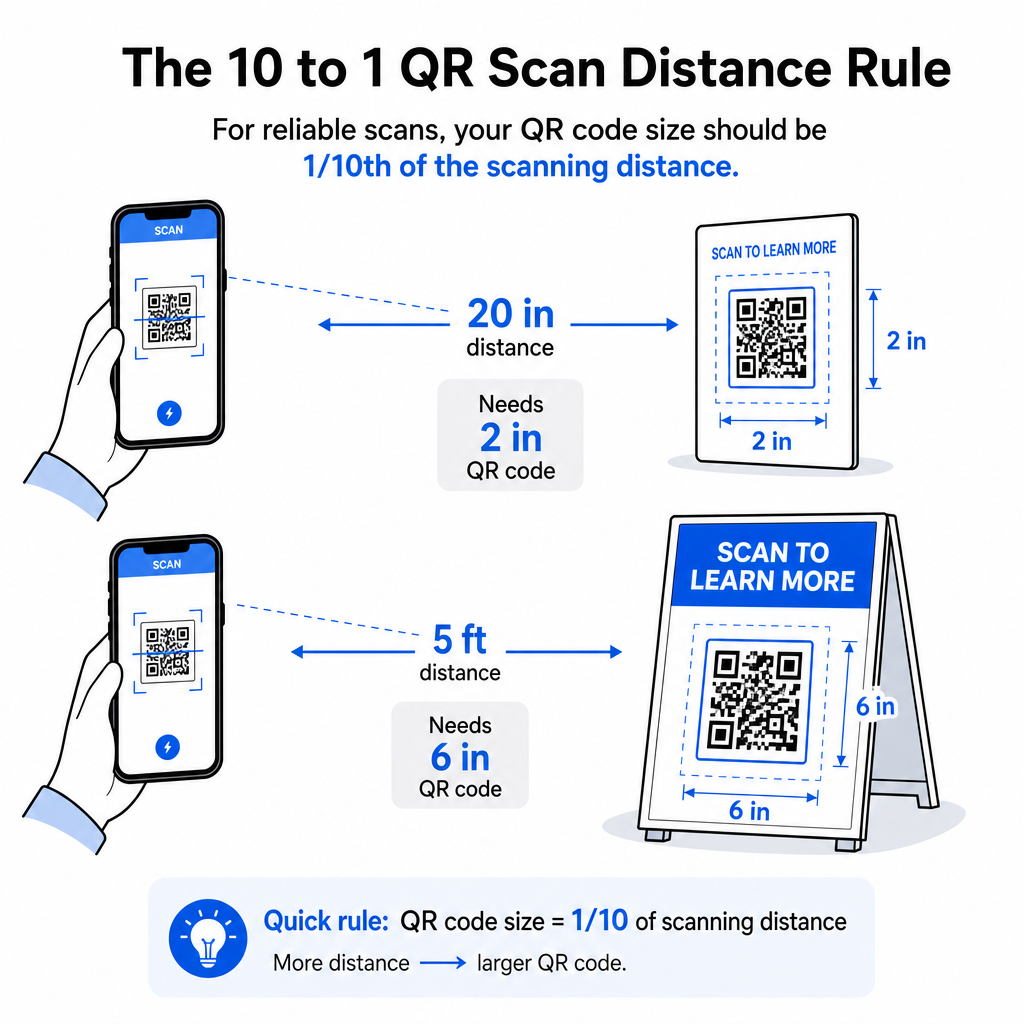
Att ändra storlek på en QR-kod på ett ansvarsfullt sätt innebär att känna till storleksgränserna för ditt specifika användningsfall. Kärnregeln är förhållandet 10:1 mellan avstånd och storlek: det maximala avsedda skanningsavståndet bör vara ungefär tio gånger bredden på QR-koden. En kod som skannas från 20 tums avstånd bör vara minst 2 tum bred; en som skannas från 5 fots avstånd bör vara minst 6 tum bred; en billboardkod som skannas från 30 fots avstånd bör vara minst 36 tum bred.
För vanliga utskriftsapplikationer är här pålitliga utgångspunkter:
| Användningsfall | Minsta rekommenderade storlek |
|---|---|
| Visitkort | 0,8 × 0,8 tum (2 × 2 cm) |
| Flyers och broschyrer | 1,2 × 1,2 tum (3 × 3 cm) |
| Affischer och skyltar | 1,6 × 1,6 tum (4 × 4 cm) |
| Billboards och banderoller | 16 × 16 tum (40 × 40 cm) eller större |
För visitkortsapplikationer är 0,8 × 0,8 tum det praktiska minimumet för tillförlitlig närskanning – att gå mindre ökar risken för skanningsfel avsevärt. Se guide till QR-kodstorlekar för visitkort för specifika rekommendationer för det formatet. Det finns ingen officiell övre storleksgräns; skala upp efter behov baserat på skanningsavståndet. För en omfattande genomgång av varje användningsfall, täcker storleksguide för QR-koder allt från visitkort till billboards. Du kan också utforska hur QR-kodens storlek påverkar synligheten för att förstå det bredare sambandet mellan dimensioner och skanningsframgång.
Behöver du en QR-kod för ditt visitkort? Använd QR-kod för visitkort för att skapa en kod anpassad och designad för visitkortsutskrift, med SVG-export inkluderad.
Hur datatäthet påverkar storleksändring
En faktor som komplicerar storleksändring är datatäthet – mängden information som är kodad i QR-koden. Ju mer data en QR-kod innehåller, desto tätare blir dess modulnät. Tätare nät kräver större fysiska storlekar för att hålla enskilda moduler läsbara på kameranivå.
En QR-kod som kodar en lång URL med spårningsparametrar innehåller betydligt mer data än en som pekar på en kort omdirigerings-URL. När du krymper en kod med hög densitet blir modulerna för små för de flesta smartphonekameror att lösa upp tillförlitligt. Dynamiska QR-koder löser detta problem direkt. Istället för att koda en fullständig destinations-URL, kodar en dynamisk kod en kort intern omdirigering, vilket håller kodens datatäthet låg oavsett vart den pekar. Detta innebär att du kan skriva ut koden mindre utan att offra skanningsbarheten – och uppdatera destinationen senare utan att skriva ut igen.
Felkorrigering och tolerans vid storleksändring
QR-koder inkluderar inbyggd felkorrigering som gör att de förblir skanningsbara även när de är delvis skadade eller dolda. ISO/IEC 18004-standarden definierar fyra nivåer:
| Nivå | Återställningsförmåga |
|---|---|
| L (låg) | ~7% av data |
| M (medelstor) | ~15% av data |
| Q (kvartil) | ~25% av data |
| H (hög) | ~30% av data |
Om du ändrar storlek på en QR-kod till en mindre storlek, eller lägger till en logotyp i mitten av koden, ger en ökning av felkorrigeringsnivån dig en buffert mot skador på modulnivå eller skanningsfel. Nivå Q eller H är lämplig för varumärkesmärkta eller kraftigt anpassade koder. Tänk på att högre felkorrigering ökar datatätheten, vilket kan kräva en något större minimistorlek för att kompensera.
Vanliga misstag vid storleksändring att undvika
- Att använda en skärmdump som din källfil. Skärmdumpar är rasterbilder med låg upplösning. Att förstora dem för utskrift är en av de vanligaste orsakerna till oskannbara QR-koder.
- Att sträcka koden oproportionerligt. Även en liten horisontell eller vertikal förvrängning ändrar modulernas former från kvadrater till rektanglar, vilket kan förhindra skannrar från att läsa koden korrekt.
- Att beskära den tysta zonen. Storleksändring inom en snäv designlayout resulterar ofta i att andra element inkräktar på den tysta zonen. Håll minst fyra moduler med fritt utrymme på alla sidor – denna marginal är ett tekniskt krav, inte ett stilistiskt val.
- Att anta att en kod som fungerar på skärmen kommer att fungera i tryck. Skärmvisning och tryckt utdata är olika miljöer. En kod som ser skarp ut vid 72 DPI på skärmen kan skrivas ut suddigt vid 300 DPI om den underliggande filupplösningen inte stöder det.
- Att inte testa efter storleksändring. Verifiera alltid skanningsbarheten på det slutliga materialet, i den slutliga storleken, från det avsedda skanningsavståndet.
För mer djupgående vägledning, se 10. guide för utskriftsupplösning för QR-koder och bästa praxis för läsbarhet av QR-koder täcker de utskriftsspecifika detaljerna värda att känna till innan du går till produktion.
Storleksanpassning för olika tryckmaterial
Ytan du trycker på påverkar hur stor din QR-kod behöver vara, separat från överväganden om skanningsavstånd. Grova, texturerade eller böjda ytor kan förvränga moduler och minska effektiv kontrast, vilket kräver att du skalar upp utöver vad 10:1-regeln ensam skulle föreslå.
- Slätt papper eller kartong – Standardstorleksriktlinjer gäller; matta ytor föredras framför glansiga för att minska bländning och reflektioner
- Wellpapp – Lägg till 10–25% till minimistorleken för att kompensera för ytstruktur och oregelbundenheter i kanterna
- Tyg – Slät polyester kan använda standardminimum; grova eller stretchiga textilier kräver ofta 25–50% större koder
- Metall eller glas – Hög reflektivitet orsakar skanningsproblem; använd matta ytor eller vinylöverlägg och öka kodstorleken
För en fullständig uppdelning per materialtyp, se QR-kodstorlek för olika tryckmaterial, och för vägledning om hur själva utskriftsmetoden påverkar utskriftskvaliteten, 15. hur trycktekniker påverkar QR-kodens skanningsbarhet är värd att läsa innan du lägger en tryckorder. För placeringsbeslut som går utöver storleksanpassning, se Placeringsguide för QR-koder för marknadsföring täcker positionering efter materialtyp och kampanjkontext.
Att korrekt ändra storlek på en QR-kod innebär att välja rätt filformat innan du ändrar storlek, bibehålla proportioner och marginaler för den tysta zonen genomgående, och verifiera att din utdata uppfyller upplösnings- och kontraststandarder vid den slutliga tryckta eller visade storleken. Att börja med en vektorfil tar bort det mesta av risken helt – den skalas rent i vilken riktning som helst utan den upplösningsgräns som rasterbilder ålägger. Om du bygger QR-koder för pågående kampanjer, ger användning av en dynamisk QR-kod dig den ytterligare fördelen att uppdatera destinationen efter utskrift, så ett storleks- eller placeringsbeslut idag låser dig inte till omtryckskostnader i framtiden.
Vanliga frågor
SVG, EPS, eller PDF är de bästa formaten för storleksändring eftersom de är vektorbaserade och skalas till valfri storlek utan att förlora skärpa. PNG är acceptabelt för digital användning när det exporteras i hög upplösning. JPEG bör undvikas helt – dess komprimering jämnar ut de skarpa kanter som skannrar behöver för att särskilja varje modul.
Det praktiska minimumet för de flesta utskriftsapplikationer på nära håll är 0,8 × 0,8 tum (2 × 2 cm). Att gå mindre ökar risken för skanningsfel. För skanning på större avstånd, tillämpa 10:1-regeln: kodens bredd bör vara minst en tiondel av det maximala avsedda skanningsavståndet – så en kod skannad från 20 tums avstånd bör vara minst 2 tum bred.
Nej – den kodade datan och felkorrigeringsnivån är fasta när koden genereras. Ändring av storlek ändrar endast bildens fysiska eller pixeldimensioner. Vad storleksändring kan påverka är huruvida modulerna förblir tydliga och urskiljbara vid den nya storleken, vilket är anledningen till att bibehålla 300 DPI för utskrift, bevara de tysta zonmarginalerna och proportionerlig skalning är alla väsentliga steg.