Forsøger du at ændre størrelse på en QR-kode, kun for at ende med et sløret, ugenkendeligt resultat? At få dimensionerne forkert – eller at bruge det forkerte filformat – kan gøre din QR-kode fuldstændig ubrugelig efter udskrivning. Denne guide fører dig igennem præcis, hvordan du ændrer størrelse på en QR-kode korrekt, dækker filformater, størrelsesregler, opløsningskrav og de mest almindelige fejl, der skal undgås.
Hvorfor ændring af størrelse på en QR-kode går galt
De fleste QR-kodekvalitetsproblemer skyldes et af to problemer: at starte med det forkerte filformat eller at skalere et billede ud over, hvad dets opløsning kan understøtte.
Når du tager et lavopløseligt rasterbillede – en JPEG eller en lille PNG – og strækker det større i din designsoftware, skal skanneren læse slørede, utydelige moduler i stedet for skarpe sort-hvide firkanter. At strække en lavopløselig QR-kode er en af de mest pålidelige måder at producere et sløret, ugenkendeligt printresultat. Der er også et mindre åbenlyst problem: ændring af størrelse kan utilsigtet forvrænge kodens proportioner eller fjerne den stille zone – den klare hvide margen, der omgiver koden – hvilket får skannere til at fejlfortolke eller helt overse mønsteret. At forstå disse fejlpunkter, før du ændrer størrelse, er den mest direkte vej til en kode, der faktisk virker.
Vektor vs. Raster: Filformatbeslutningen, der betyder mest
Det enkeltstående mest indflydelsesrige valg, du træffer, når du ændrer størrelse på en QR-kode, er, om du arbejder med en vektor- eller rasterfil.
Vektorformater (SVG, EPS, PDF) lagrer QR-koden som matematiske instruktioner snarere end et fast gitter af pixels. Dette betyder, at de skalerer til enhver størrelse – fra et frimærke til en billboard – uden tab af skarphed eller klarhed. For alt, der skal printes, er vektor det korrekte valg.
Rasterformater (PNG, JPEG, BMP) lagrer koden som et pixelgitter med et fast opløsningsloft. Når du skalerer dem over deres oprindelige opløsning, skal softwaren opfinde pixeldata, hvilket producerer sløring. JPEG er særligt problematisk, fordi dens komprimeringsalgoritme udglatter kanter, direkte underminerer den skarpe kontrast, en QR-skanner har brug for for at læse hvert modul.
| Format | Skalerer uden tab | Anbefales til | Noter |
|---|---|---|---|
| SVG | Ja | Print, stort format | Bedst samlet set til ændring af størrelse |
| EPS | Ja | Professionelt print | Standard i printdesign-arbejdsgange |
| Ja | Print, deling | Bevare vektor data | |
| PNG | Nej (fast opløsning) | Web, digital visning | Acceptabel ved høj opløsning |
| JPEG | Nej (tabsgivende komprimering) | Ingen af delene | Undgå helt til QR-koder |
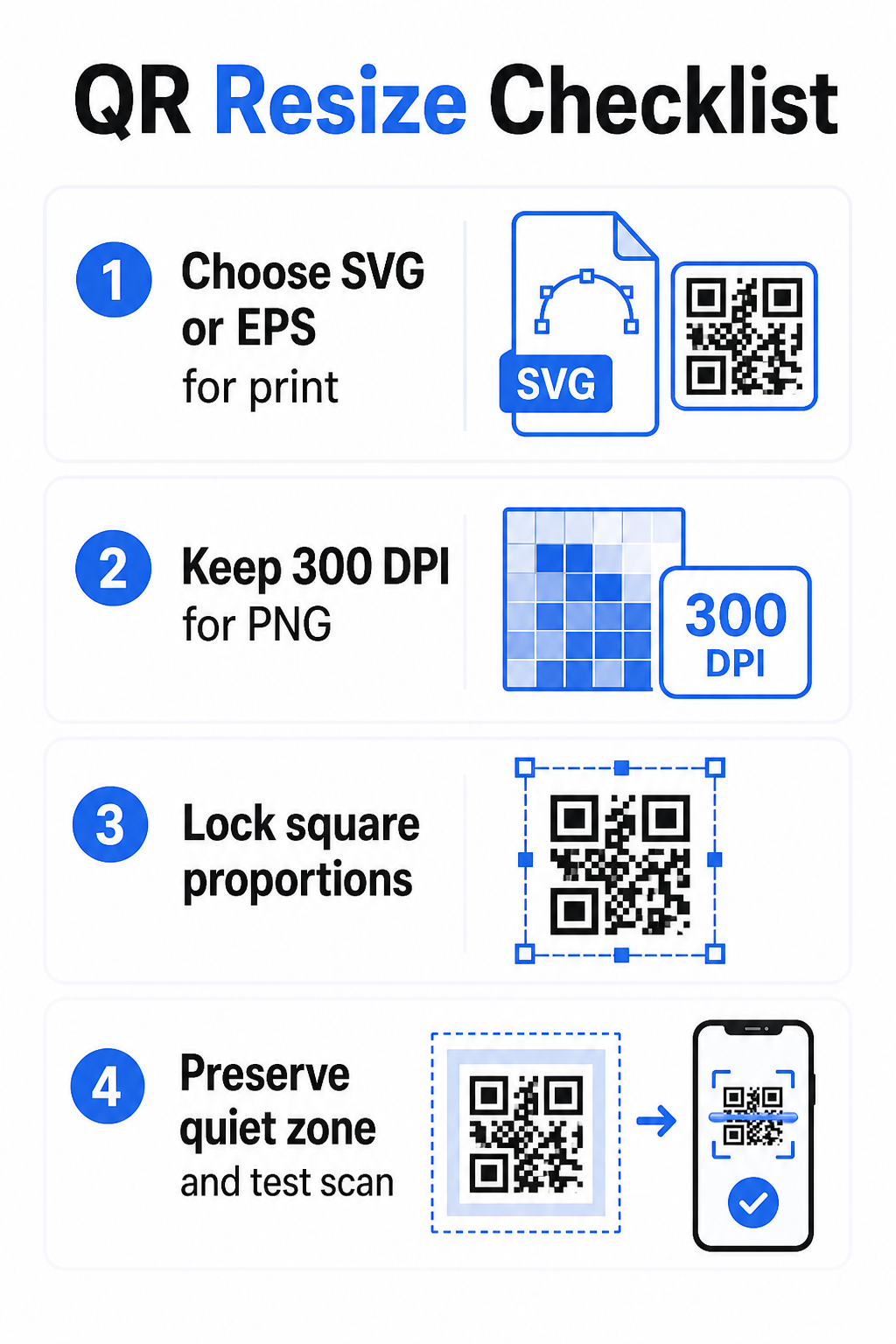
Når du downloader en QR-kode til udskrivning, skal du altid vælge SVG eller EPS. Når du har brug for en rasterfil til en digital skærm eller en platform, der ikke accepterer vektorformater, eksporter en højopløselig PNG – aldrig en JPEG.
Opret printklare QR-koder i det rigtige format Generer din QR-kode og download den som en printklar SVG-, EPS- eller PDF-fil ved hjælp af Pageloot QR-kodegenerator. Ingen designsoftware påkrævet.
Opløsningsregler for rasterfiler
Hvis du arbejder med en PNG til print, bestemmer opløsning – målt i DPI (dots per inch) – om koden forbliver skarp ved dens endelige printede størrelse.
Minimumsstandarden for print er 300 DPI ved de endelige printede dimensioner. Dette betyder, at pixeldimensionerne på din billedfil skal matche den tilsigtede fysiske størrelse ved den tæthed. For eksempel:
- En QR-kode printet ved 1 tomme × 1 tomme kræver mindst 300 × 300 pixels
- En QR-kode printet ved 4 tommer × 4 tommer kræver mindst 200 × 1.200 pixels
Hvis din fil ikke opfylder denne tærskel ved din målte størrelse, vil de individuelle moduler – de små firkanter, der bærer QR-dataene – sløre sammen. På det tidspunkt kan skanneren ikke længere skelne mørkt fra lyst, og koden fejler. For digitale skærme er et minimum på cirka 240 × 240 pixels er en praktisk retningslinje for skærmvisningskoder, selvom større altid er sikrere for zoom og kompatibilitet på tværs af enheder. Den renere løsning til print er helt at springe raster over og bruge en vektorfil, hvilket giver dig uendelig skalerbarhed uden opløsningsbekymringer.
Sådan ændrer du størrelse på en QR-kode trin for trin
Trin 1: Start med den rigtige kildefil
Download eller eksporter din QR-kode i SVG- eller EPS-format, hvis den skal printes. Hvis du kun har en rasterfil, bekræft, at pixeldimensionerne understøtter 300 DPI ved din målte printstørrelse, før du ændrer størrelse. En PNG QR-kode kan fungere godt til digitale placeringer, når den eksporteres med tilstrækkelig opløsning – du kan oprette en direkte med en PNG QR-kode generator og brug den, hvor gennemsigtighed eller rasterkompatibilitet er påkrævet.
Trin 2: Skaler proportionalt
Oprethold altid det originale billedformat ved ændring af størrelse. QR-koder er per definition kvadratiske, og at strække dem horisontalt eller vertikalt forvrænger modulerne fra kvadrater til rektangler, hvilket kan forvirre eller forhindre scannere. I enhver designapplikation – Illustrator, Canva, InDesign, Photoshop – lås billedformatet, før du trækker i et hjørnehåndtag. Selv en subtil forvrængning er nok til at forårsage problemer med strengere scannerimplementeringer.
Trin 3: Bevar den stille zone
Den stille zone er den klare hvide kant, der omgiver QR-koden på alle fire sider. ISO/IEC 18004-standarden specificerer, at denne margen skal være mindst fire moduler bred på hver side. Når du ændrer størrelsen på en QR-kode og placerer den inden for et større design, er denne zone ofte det første, der bliver beskåret eller inddraget af andre designelementer. Hvis hvert modul i din kode er 2 mm bredt, skal din stille zone være mindst 8 mm på alle sider. Betragt dette rum som ikke-forhandlingsbart – fjernelse af det ødelægger scannergenkendelsen.
Trin 4: Kontroller kontrast efter ændring af størrelse
Ændring af størrelse på en farvet eller tekstureret baggrund kan reducere den effektive kontrast mellem kodens moduler og dens omgivelser. Scannere er afhængige af forskellen mellem mørke og lyse områder for at læse koden. Den sikreste kombination forbliver mørke moduler på en lys baggrund – sort på hvid giver et kontrastforhold på 21:1. Sigt efter et minimumskontrastforhold på 4:1 mellem forgrunds- og baggrundsfarver, og undgå at placere koden på gradienter, travle mønstre eller reflekterende overflader. For detaljeret vejledning, se bedste praksis for farvekontrast i QR-koder.
Trin 5: Test før udskrivning
Udskriv et prøvetryk i den nøjagtige tilsigtede størrelse på det nøjagtige tilsigtede materiale, test derefter med flere enheder – både iOS og Android – før du forpligter dig til en fuld produktionskørsel. Test ved den faktiske scanningsafstand, som brugerne vil opleve. En kode, der scanner perfekt på armslængde, kan fejle på den afstand, den faktisk er placeret. Se Sådan tester du QR-koder for brugervenlighed på mobil for en komplet testtjekliste.
Retningslinjer for minimums- og maksimumstørrelse
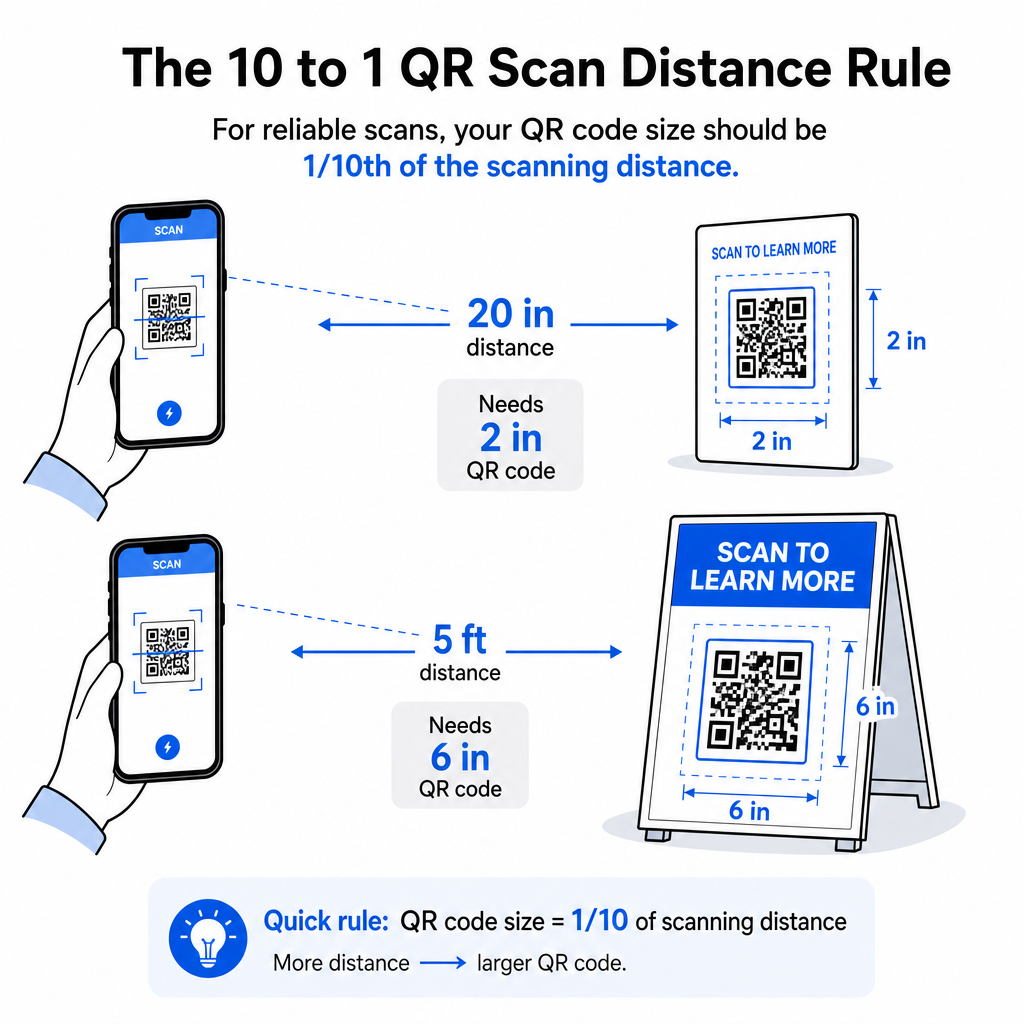
Ansvarlig ændring af størrelse på en QR-kode betyder, at man kender størrelsesgrænserne for ens specifikke brugssituation. Kerne reglen er 10:1 afstands-til-størrelse-forholdet: den maksimale tilsigtede scanningsafstand skal være cirka ti gange bredden af QR-koden. En kode scannet fra 20 tommer væk skal være mindst 2 tommer bred; en scannet fra 5 fod væk skal være mindst 6 tommer bred; en billboard-kode scannet fra 30 fod væk skal være mindst 36 tommer bred.
For almindelige printapplikationer er her pålidelige udgangspunkter:
| Brug sag | Minimum anbefalet størrelse |
|---|---|
| Visitkort | 0,8 × 0,8 tommer (2 × 2 cm) |
| Flyers og brochurer | 1,2 × 1,2 tommer (3 × 3 cm) |
| Plakater og skiltning | 6 × 1.6 in (4 × 4 cm) |
| Billboards og bannere | 16 × 16 in (40 × 40 cm) eller større |
For visitkortapplikationer er 0,8 × 0,8 tommer det praktiske minimum for pålidelig scanning på tæt hold – at gå mindre øger risikoen for scanningsfejl betydeligt. Se guide til QR-kodestørrelser for visitkort for specifikke anbefalinger om det format. Der er ingen officiel øvre størrelsesgrænse; skaler op efter behov baseret på scanningsafstanden. For en omfattende oversigt over alle brugssituationer, er guide til QR-kodestørrelse dækker alt fra visitkort til billboards. Du kan også udforske hvordan QR-kodens størrelse påvirker synligheden for at forstå det bredere forhold mellem dimensioner og scanningssucces.
Har du brug for en QR-kode til dit visitkort? Brug QR-kode visitkort generator for at oprette en kode, der er dimensioneret og designet til visitkortudskrivning, med SVG-eksport inkluderet.
Hvordan datatæthed påvirker ændring af størrelse
En faktor, der komplicerer ændring af størrelse, er datatæthed – mængden af information kodet i QR-koden. Jo mere data en QR-kode indeholder, jo tættere bliver dens gitter af moduler. Tættere gitre kræver større fysiske størrelser for at holde individuelle moduler læsbare på kameraniveau.
En QR-kode, der koder en lang URL med sporingsparametre, indeholder langt mere data end en, der peger på en kort omdirigerings-URL. Når du krymper en kode med høj tæthed, bliver modulerne for små til, at de fleste smartphonekameraer kan opløse dem pålideligt. Dynamiske QR-koder løser dette problem direkte. I stedet for at kode en fuld destinations-URL koder en dynamisk kode en kort intern omdirigering, hvilket holder kodens datatæthed lav, uanset hvor den peger hen. Dette betyder, at du kan printe koden mindre uden at ofre scanningsmuligheden – og opdatere destinationen senere uden at genprinte.
Fejlkorrektion og tolerance ved ændring af størrelse
QR-koder inkluderer indbygget fejlkorrektion, der gør det muligt for dem at forblive scanningsbare, selv når de er delvist beskadigede eller skjulte. ISO/IEC 18004-standarden definerer fire niveauer:
| Niveau | Gendannelsesevne |
|---|---|
| L (lav) | ~7% af data |
| M (Medium) | ~15% af data |
| Q (kvartil) | ~25% af data |
| H (høj) | ~30% af data |
Hvis du ændrer størrelse på en QR-kode til en mindre størrelse, eller tilføjer et logo til midten af koden, giver en øgning af fejlkorrektionsniveauet dig en buffer mod skader på modulniveau eller scanningsunøjagtighed. Niveau Q eller H er passende til brandede eller stærkt tilpassede koder. Husk på, at højere fejlkorrektion øger datatætheden, hvilket kan kræve en lidt større minimumsstørrelse for at kompensere.
Almindelige fejl ved størrelsesændring, der skal undgås
- Brug af et skærmbillede som din kildefil. Skærmbilleder er rasteroptagelser med lav opløsning. Forstørrelse af dem til print er en af de mest almindelige årsager til uskannbare QR-koder.
- Strækning af koden ikke-proportionalt. Selv en lille horisontal eller vertikal forvrængning ændrer modulformer fra firkanter til rektangler, hvilket kan forhindre scannere i at læse koden korrekt.
- Beskæring af den stille zone. Størrelsesændring inden for et stramt designlayout resulterer ofte i, at andre elementer trænger ind i den stille zone. Hold mindst fire moduler med fri plads på alle sider – denne margen er et teknisk krav, ikke et stilistisk valg.
- Antagelse af, at en kode, der virker på skærmen, vil virke i print. Skærmvisning og printet output er forskellige miljøer. En kode, der ser skarp ud ved 72 DPI på skærmen, kan printe sløret ved 300 DPI, hvis den underliggende filopløsning ikke understøtter det.
- Ikke testet efter størrelsesændring. Verificer altid scannbarhed på det endelige materiale, i den endelige størrelse, fra den tilsigtede scanningsafstand.
For mere dybdegående vejledning, vejledning til QR-kode printopløsning og bedste praksis for QR-kodelæsbarhed dækker de printspecifikke detaljer, der er værd at kende, før du går i produktion.
Størrelse til forskellige printmaterialer
Overfladen du printer på, påvirker, hvor stor din QR-kode skal være, adskilt fra overvejelser om scanningsafstand. Ru, teksturerede eller buede overflader kan forvrænge moduler og reducere effektiv kontrast, hvilket kræver, at du skalerer op ud over, hvad 10:1-reglen alene ville foreslå.
- Glat papir eller karton – Standardstørrelsesretningslinjer gælder; matte overflader foretrækkes frem for blanke for at reducere genskin og refleksioner
- Bølgepap – Tilføj 10–25% til minimumsstørrelsen for at kompensere for overfladetekstur og kanturegelmæssigheder
- Stof – Glat polyester kan bruge standardminimummer; ru eller strækbare tekstiler kræver ofte 25–50% større koder
- Metal eller glas – Høj reflektivitet forårsager scanningsproblemer; brug matte overflader eller vinyloverlays og øg kodestørrelsen
For en fuld oversigt efter materialetype, se QR-kodestørrelse til forskellige printmaterialer, og for vejledning om, hvordan selve printmetoden påvirker outputkvaliteten, hvordan printteknikker påvirker QR-kodens scanbarhed er værd at læse, før du afgiver en printordre. For placeringsbeslutninger, der går ud over størrelse, Vejledning til placering af QR-koder i marketing dækker placering efter materialetype og kampagnekontekst.
Korrekt størrelsesændring af en QR-kode betyder at vælge det rigtige filformat, før du ændrer størrelse, opretholde proportioner og stille zone-margener hele vejen igennem, og verificere, at dit output opfylder opløsnings- og kontraststandarder i den endelige printede eller viste størrelse. At starte med en vektorfil fjerner det meste af risikoen helt – den skalerer rent i enhver retning uden det opløsningsloft, som rasterbilleder pålægger. Hvis du bygger QR-koder til igangværende kampagner, giver brug af en dynamisk QR-kode dig den yderligere fordel ved at opdatere destinationen efter print, så en størrelses- eller placeringsbeslutning i dag ikke låser dig fast i genprintomkostninger senere.
Ofte stillede spørgsmål
SVG, EPS eller PDF er de bedste formater til skalering, fordi de er vektorbaserede og kan skaleres til enhver størrelse uden at miste skarphed. PNG er acceptabelt til digital brug, når det eksporteres i høj opløsning. JPEG bør undgås helt – dets komprimering udglatter de skarpe kanter, som scannere skal bruge for at skelne hver modul.
Det praktiske minimum for de fleste printapplikationer på kort afstand er 0,8 × 0,8 tommer (2 × 2 cm). At gå mindre øger risikoen for scanningsfejl. For scanning på større afstande, anvend 10:1-reglen: kodens bredde skal være mindst en tiendedel af den maksimale tilsigtede scanningsafstand – så en kode scannet fra 20 tommer væk skal være mindst 2 tommer bred.
Nej – de kodede data og fejlkorrektionsniveauet er fastsat, når koden genereres. Ændring af størrelse ændrer kun billedets fysiske eller pixeldimensioner. Hvad ændring af størrelse kan påvirke, er hvorvidt modulerne forbliver klare og tydelige ved den nye størrelse, hvilket er grunden til, at opretholdelse af 300 DPI til print, bevarelse af de stille zonemargener og proportional skalering alle er væsentlige trin.