Kas proovite muuta QR-koodi suurust, et lõpuks saada udune, skaneerimatu tulemus? Mõõtmete valesti määramine – või vale failivormingu kasutamine – võib muuta teie QR-koodi pärast printimist täiesti kasutuks. See juhend selgitab täpselt, kuidas QR-koodi õigesti suurust muuta, käsitledes failivorminguid, suuruse reegleid, eraldusvõime nõudeid ja kõige levinumaid vigu, mida vältida.
Miks QR-koodi suuruse muutmine ebaõnnestub
Enamik QR-koodi kvaliteediprobleeme taandub ühele kahest probleemist: alustades vale failivorminguga või skaleerides pilti kaugemale sellest, mida selle eraldusvõime toetada suudab.
Kui võtate madala eraldusvõimega rasterpildi – JPEG või väikese PNG – ja venitate seda oma disainitarkvaras suuremaks, peab skanner lugema udused, ebaselged moodulid teravate mustvalgete ruutude asemel. Madala eraldusvõimega QR-koodi venitamise on üks usaldusväärsemaid viise, kuidas toota udune, skaneerimatu prinditulemus. On ka vähem ilmne probleem: suuruse muutmine võib tahtmatult moonutada koodi proportsioone või eemaldada vaikse tsooni – koodi ümbritseva selge valge marginaali –, mis põhjustab skannerite valesti lugemise või mustri täieliku möödalugemise. Nende ebaõnnestumispunktide mõistmine enne suuruse muutmist on kõige otsesem tee koodini, mis tegelikult töötab.
Vektor vs. Raster: Failivormingu otsus, mis loeb kõige rohkem
Kõige olulisem valik, mille teete QR-koodi suurust muutes, on see, kas töötate vektori- või rasterfailiga.
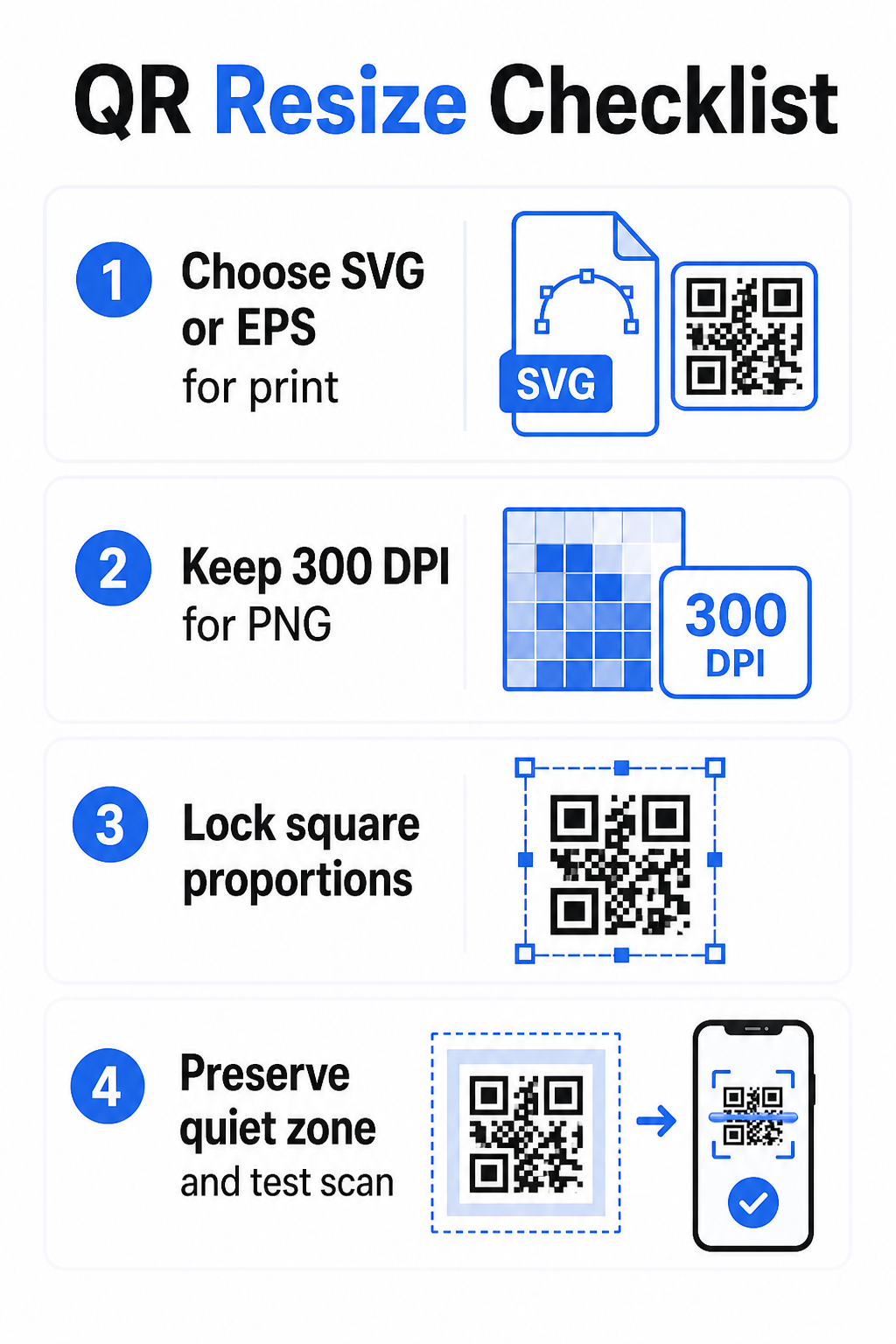
Vektorvormingud (SVG, EPS, PDF) salvestavad QR-koodi matemaatiliste juhistena, mitte fikseeritud pikslivõrguna. See tähendab, et need skaleeruvad mis tahes suurusele – postmargist stendini – ilma teravuse või selguse kadumiseta. Kõige printimiseks mineva puhul on vektor õige valik.
Rastervormingud (PNG, JPEG, BMP) salvestab koodi pikslivõrguna fikseeritud resolutsioonipiiranguga. Kui neid skaleerida üle nende algse resolutsiooni, peab tarkvara looma pikslite andmeid, mis tekitab hägusust. JPEG on eriti problemaatiline, sest selle tihendusalgoritm silub servi, õõnestades otseselt teravat kontrasti, mida QR-skanner vajab iga mooduli lugemiseks.
| Vorming | Skaleerub kadudeta | Soovitatav | Märkused |
|---|---|---|---|
| SVG | Jah | Print, suurformaat | Parim üldiselt suuruse muutmiseks |
| EPS | Jah | Professionaalne trükk | Standard trükidisaini töövoogudes |
| Jah | Print, jagamine | Säilitab vektordandmed | |
| PNG | Ei (fikseeritud resolutsioon) | Veeb, digitaalne ekraan | Vastuvõetav kõrge resolutsiooniga |
| JPEG | Ei (kadudega tihendus) | Kumbki mitte | Vältida täielikult QR-koodide puhul |
Kui laadite alla QR-koodi printimiseks, valige alati SVG või EPS. Kui vajate rasterfaili digitaalse ekraani jaoks või platvormi jaoks, mis ei aktsepteeri vektorformaate, eksportige kõrge resolutsiooniga PNG – mitte kunagi JPEG.
Looge printimiseks valmis QR-koode õiges formaadis Genereerige oma QR-kood ja laadige see alla printimiseks valmis SVG, EPS või PDF-failina, kasutades Pageloot QR-koodi generaator. Disainitarkvara pole vaja.
Resolutsiooni reeglid rasterfailidele
Kui töötate PNG-ga printimiseks, määrab resolutsioon – mõõdetuna DPI-des (punkti tolli kohta) – selle, kas kood jääb teravaks oma lõplikul prinditud suurusel.
Minimaalne standard printimiseks on 300 DPI lõplikel prinditud mõõtmetel. See tähendab, et teie pildifaili pikslite mõõtmed peavad vastama kavandatud füüsilisele suurusele selle tiheduse juures. Näiteks:
- QR-kood, mis on prinditud suurusega 1 toll × 1 toll vajab vähemalt 300 × 300 pikslit
- QR-kood, mis on prinditud suurusega 4 tolli × 4 tolli vajab vähemalt 1200 × 1200 pikslit
Kui teie fail ei vasta sellele lävele teie sihtsuuruses, siis üksikud moodulid – pisikesed ruudud, mis kannavad QR-andmeid – hägustuvad kokku. Sel hetkel ei suuda skanner enam eristada tumedat heledast ja kood ebaõnnestub. Digitaalsete ekraanide puhul on minimaalselt umbes 240 × 240 pikslit on praktiline juhis ekraanil kuvatavate koodide jaoks, kuigi suurem on alati ohutum suumimise ja seadmetevahelise ühilduvuse jaoks. Puhtam lahendus printimiseks on raster täielikult vahele jätta ja kasutada vektorfaili, mis annab teile piiramatu skaleeritavuse ilma resolutsiooniprobleemideta.
Kuidas QR-koodi suurust samm-sammult muuta
samm: Alustage õige lähtefailiga
Laadige alla või eksportige oma QR-kood SVG- või EPS-vormingus, kui see läheb printimiseks. Kui teil on ainult rasterfail, veenduge enne suuruse muutmist, et pikslite mõõtmed toetavad 300 DPI-d teie sihtprindisuuruses. PNG QR-kood võib digitaalsete paigutuste jaoks hästi töötada, kui see on eksporditud piisava resolutsiooniga – saate selle luua otse QR koodi loomine PNG-vormingus ja kasutada seda kõikjal, kus on vaja läbipaistvust või rasterühilduvust.
samm: Skaleerige proportsionaalselt
Säilitage alati algne kuvasuhe suuruse muutmisel. QR-koodid on definitsiooni järgi ruudukujulised ja nende horisontaalne või vertikaalne venitus moonutab mooduleid ruutudest ristkülikuteks, mis võib skannereid segadusse ajada või nende tööd takistada. Mis tahes disainirakenduses – Illustrator, Canva, InDesign, Photoshop – lukustage kuvasuhe enne nurga käepideme lohistamist. Isegi peen moonutus on piisav, et tekitada probleeme rangemate skannerite rakendustega.
samm: Säilitage vaikne tsoon
Vaikne tsoon on selge valge äär, mis ümbritseb QR-koodi kõigil neljal küljel. ISO/IEC 18004 standard sätestab, et see veeris peab olema igal küljel vähemalt neli moodulit lai. Kui muudate QR-koodi suurust ja paigutate selle suuremasse kujundusse, on see tsoon sageli esimene asi, mis kärbitakse või millele teised kujunduselemendid peale tungivad. Kui iga moodul teie koodis on 2 mm lai, peab teie vaikne tsoon olema igal küljel vähemalt 8 mm. Käsitlege seda ruumi läbirääkimatuna – selle eemaldamine rikub skanneri tuvastuse.
samm: Kontrollige kontrasti pärast suuruse muutmist
Suuruse muutmine värvilisele või tekstuursele taustale võib vähendada koodi moodulite ja selle ümbruse vahelist efektiivset kontrasti. Skannerid tuginevad koodi lugemiseks tumedate ja heledate alade erinevusele. Kõige ohutum kombinatsioon jääb tumedate moodulitega heledal taustal – must valgel annab kontrastsussuhte 21:1. Püüdke saavutada minimaalne kontrastsussuhe 4:1 esiplaanil ja taustavärvide vahel, ja vältige koodi paigutamist gradientidele, tihedatele mustritele või peegeldavatele pindadele. Üksikasjaliku juhendi leiate siit: QR-koodi värvikontrasti parimaid tavasid.
samm: Testige enne printimist
Printige proovitrükk täpselt kavandatud suuruses ja täpselt kavandatud materjalile, seejärel testige mitme seadmega – nii iOS-i kui ka Androidiga – enne täieliku tootmistsükli alustamist. Testige tegelikul skannimiskaugusel, mida kasutajad kogevad. Kood, mis skannib ideaalselt käeulatuses, võib ebaõnnestuda kaugusel, kuhu see tegelikult paigutatakse. Vaata kuidas testida QR-koode mobiilse kasutatavuse osas täieliku testimise kontrollnimekirja jaoks.
Minimaalse ja maksimaalse suuruse juhised
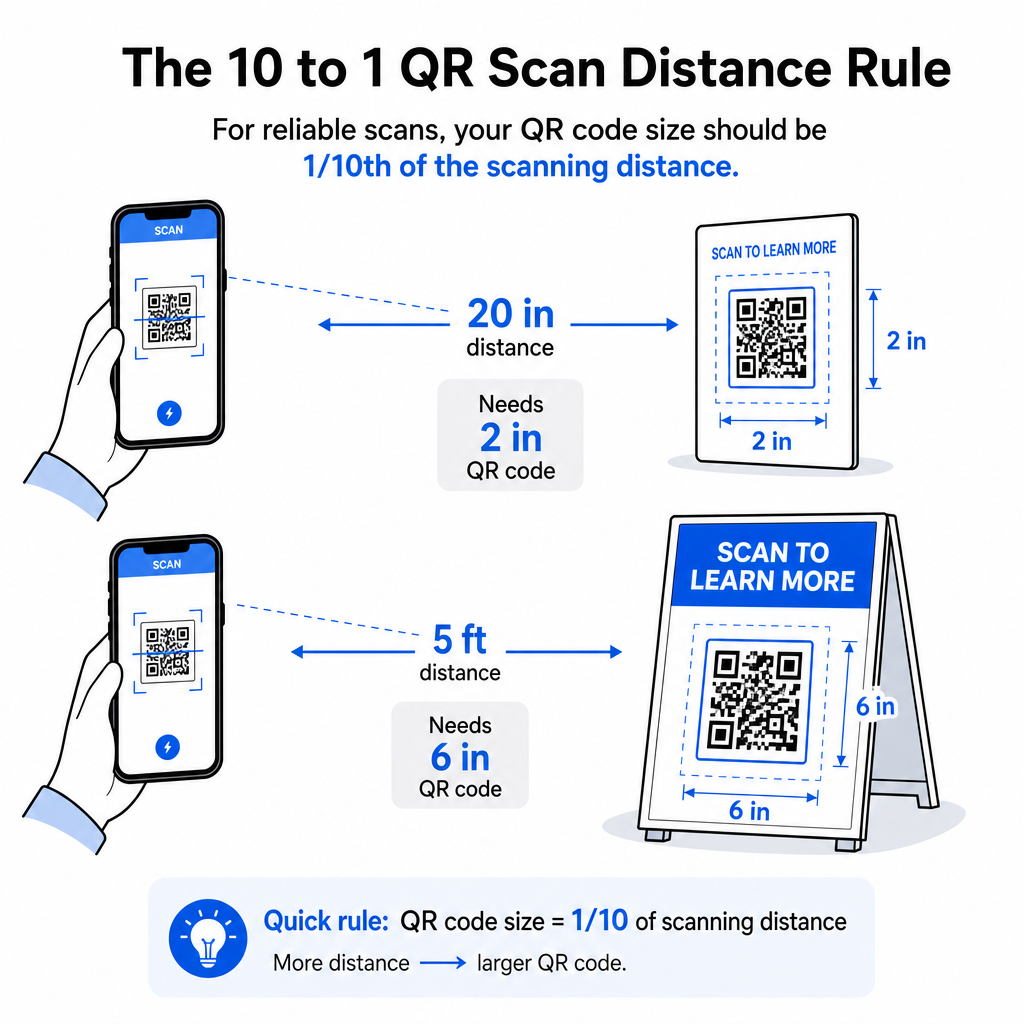
QR-koodi vastutustundlik suuruse muutmine tähendab oma konkreetse kasutusjuhtumi suuruse piiride tundmist. Põhireegel on 10:1 kauguse ja suuruse suhe: maksimaalne kavandatud skannimiskaugus peaks olema umbes kümme korda QR-koodi laiusest. Kood, mis skannitakse 20 tolli kauguselt, peaks olema vähemalt 2 tolli lai; kood, mis skannitakse 5 jala kauguselt, peaks olema vähemalt 6 tolli lai; stendikood, mis skannitakse 30 jala kauguselt, peaks olema vähemalt 36 tolli lai.
Levinud printimisrakenduste jaoks on siin usaldusväärsed lähtepunktid:
| Kasutusjuhtum | Minimaalne soovitatav suurus |
|---|---|
| Visiitkaardid | 0.8 × 0.8 in (2 × 2 cm) |
| Flaierid ja brošüürid | 1.2 × 1.2 in (3 × 3 cm) |
| Plakatid ja sildid | 1,6 × 1,6 tolli (4 × 4 cm) |
| Stendid ja bännerid | 16 × 16 tolli (40 × 40 cm) või suurem |
Visiitkaardirakenduste puhul on 0,8 × 0,8 tolli praktiline miinimum usaldusväärseks lähiskannimiseks – väiksemaks minnes suureneb skannimise ebaõnnestumise oht oluliselt. Vaata QR-koodi suuruste juhendit visiitkaartide jaoks selle formaadi spetsiifiliste soovituste jaoks. Ametlikku ülemist suurusepiirangut ei ole; suurendage vastavalt vajadusele skannimiskauguse alusel. Iga kasutusjuhtumi põhjaliku ülevaate saamiseks on QR-koodi suuruse juhendist hõlmab kõike visiitkaartidest stendideni. Saate uurida ka kuidas QR-koodi suurus mõjutab nähtavust et mõista mõõtmete ja skannimise edukuse vahelist laiemat seost.
Vajate QR-koodi oma visiitkaardile? Kasuta Firma visiitkaart QR-koodiga et luua visiitkaardi printimiseks sobiva suurusega ja kujundusega kood, koos SVG ekspordiga.
Kuidas andmetihedus mõjutab suuruse muutmist
Üks tegur, mis suuruse muutmist keerulisemaks teeb, on andmetihedus – QR-koodi kodeeritud teabe hulk. Mida rohkem andmeid QR-kood sisaldab, seda tihedamaks muutub selle moodulite võrk. Tihedamad võrgud nõuavad suuremaid füüsilisi suurusi, et hoida üksikud moodulid kaamera tasandil loetavatena.
QR-kood, mis kodeerib pika URL-i jälgimisparameetritega, sisaldab palju rohkem andmeid kui see, mis osutab lühikesele ümbersuunamise URL-ile. Kui tiheda andmetihedusega koodi kahandada, muutuvad moodulid enamiku nutitelefonikaamerate jaoks liiga väikesteks, et neid usaldusväärselt tuvastada. Dünaamilised QR-koodid lahendavad selle probleemi otse. Täieliku sihtkoha URL-i kodeerimise asemel kodeerib dünaamiline kood lühikese sisemise ümbersuunamise, hoides koodi andmetiheduse madalana, olenemata sellest, kuhu see osutab. See tähendab, et saate koodi printida väiksemana, ohverdamata skannitavust – ja värskendada sihtkohta hiljem ilma uuesti printimata.
Veaparandus ja suuruse muutmise tolerants
QR-koodid sisaldavad sisseehitatud veaparandust, mis võimaldab neil jääda skannitavaks isegi osaliselt kahjustatuna või varjatuna. ISO/IEC 18004 standard määratleb neli taset:
| Tase | Taastamisvõime |
|---|---|
| L (madal) | ~7% andmetest |
| M (keskmine) | ~15% andmetest |
| Q (kvartiil) | ~25% andmetest |
| H (kõrge) | ~30% andmetest |
Kui muudate QR-koodi suurust väiksemaks või lisate koodi keskele logo, annab veaparandustaseme tõstmine puhvri moodulitaseme kahjustuste või skaneerimise ebatäpsuse vastu. Tase Q või H sobib kaubamärgiga või tugevalt kohandatud koodide jaoks. Pidage meeles, et kõrgem veaparandus suurendab andmetihedust, mis võib nõuda veidi suuremat minimaalset suurust kompenseerimiseks.
Levinud suuruse muutmise vead, mida vältida
- Ekraanipildi kasutamine lähtefailina. Ekraanipildid on madala eraldusvõimega rasterpildid. Nende suurendamine printimiseks on üks levinumaid skaneerimatute QR-koodide põhjuseid.
- Koodi ebaproportsionaalne venitus. Isegi kerge horisontaalne või vertikaalne moonutus muudab moodulite kuju ruutudest ristkülikuteks, mis võib takistada skanneritel koodi õigesti lugemast.
- Vaikse tsooni kärpimine. Tihedas kujunduses suuruse muutmine toob sageli kaasa teiste elementide tungimise vaiksesse tsooni. Hoidke igal küljel vähemalt neli moodulit vaba ruumi – see veeris on tehniline nõue, mitte stiilivalik.
- Eeldades, et ekraanil töötav kood töötab ka trükis. Ekraanikuva ja trükitud väljund on erinevad keskkonnad. Kood, mis näeb ekraanil 72 DPI juures terav välja, võib 300 DPI juures trükis hägune olla, kui alusfaili resolutsioon seda ei toeta.
- Pärast suuruse muutmist testimata jätmine. Kontrollige alati skannitavust lõplikul materjalil, lõplikus suuruses ja kavandatud skannimiskauguselt.
Põhjalikuma juhendamise saamiseks 10. QR-koodi printimise eraldusvõime juhendist ja QR-koodi loetavuse parimaid tavasid käsitlevad trükispetsiifilisi detaile, mida tasub teada enne tootmisse minekut.
Suuruse määramine erinevatele trükimaterjalidele
Pind, millele trükite, mõjutab QR-koodi vajalikku suurust, sõltumata skannimiskauguse kaalutlustest. Karedad, tekstuuriga või kumerad pinnad võivad moonutada mooduleid ja vähendada efektiivset kontrasti, nõudes suurendamist kaugemale sellest, mida ainuüksi 10:1 reegel soovitaks.
- Sile paber või kartong – Kehtivad standardsed suuruse juhised; läike ja peegelduste vähendamiseks eelistatakse matte viimistlusi läikivatele
- Lainepapp – Lisage miinimumsuurusele 10–25% pinna tekstuuri ja servade ebakorrapärasuste kompenseerimiseks
- Kangas – Sile polüester võib kasutada standardseid miinimume; karedad või venivad tekstiilid vajavad sageli 25–50% suuremaid koode
- Metall või klaas – Kõrge peegelduvus põhjustab skannimisprobleeme; kasutage matte pindu või vinüülkatteid ja suurendage koodi suurust
Materjalitüübi täieliku jaotuse leiate siit: QR-koodi suuruse määramine erinevatele trükimaterjalidele, ja juhiste saamiseks selle kohta, kuidas trükimeetod ise väljundi kvaliteeti mõjutab, 15. kuidas printimistehnikad mõjutavad QR-koodi skannitavust tasub lugeda enne trükitellimuse esitamist. Paigutusotsuste puhul, mis ulatuvad kaugemale suuruse määramisest, QR-koodi paigutamise juhend turunduseks käsitleb positsioneerimist materjalitüübi ja kampaania konteksti järgi.
QR-koodi õige suuruse muutmine tähendab õige failivormingu valimist enne suuruse muutmist, proportsioonide ja vaikse tsooni veeriste säilitamist kogu protsessi vältel ning väljundi vastavuse kontrollimist resolutsiooni- ja kontrastistandarditele lõplikul trükitud või kuvatud suurusel. Vektorfailiga alustamine eemaldab suurema osa riskist täielikult – see skaleerub puhtalt igas suunas ilma rastripiltide poolt kehtestatud resolutsiooni piiranguta. Kui loote QR-koode käimasolevate kampaaniate jaoks, siis kasutades dünaamiline QR-kood annab teile lisaks eelise sihtkoha värskendamiseks pärast printimist, nii et tänane suuruse või paigutuse otsus ei seo teid tulevikus uuesti printimise kuludega.
Korduma kippuvad küsimused
SVG, EPS, või PDF on parimad vormingud suuruse muutmiseks, sest need on vektoripõhised ja skaleeruvad mis tahes suuruseks teravust kaotamata. PNG on vastuvõetav digitaalseks kasutamiseks, kui eksporditud kõrge resolutsiooniga. JPEG-i tuleks täielikult vältida – selle tihendus silub teravad servad, mida skannerid vajavad iga mooduli eristamiseks.
Enamiku lähitrükirakenduste praktiline miinimum on 0,8 × 0,8 tolli (2 × 2 cm). Väiksemaks minemine suurendab skannimisvea riski. Suuremate vahemaade tagant skannimiseks rakendage 10:1 reeglit: koodi laius peaks olema vähemalt üks kümnendik maksimaalsest kavandatud skannimiskaugusest – seega peaks 20 tolli kauguselt skannitud kood olema vähemalt 2 tolli lai.
Ei – kodeeritud andmed ja veaparanduse tase on fikseeritud, kui kood genereeritakse. Suuruse muutmine muudab ainult pildi füüsilisi või pikslite mõõtmeid. Mida suuruse muutmine võib mõjutada, on see, kas moodulid jäävad uues suuruses selgeks ja eristatavaks, mistõttu on 300 DPI säilitamine printimiseks, vaikse tsooni marginaalide säilitamine ja proportsionaalselt skaleerimine kõik olulised sammud.