¿Estás intentando redimensionar un código QR solo para terminar con un resultado borroso e ilegible? Equivocarse en las dimensiones – o usar el formato de archivo incorrecto – puede hacer que tu código QR sea completamente inútil después de imprimir. Esta guía te explica exactamente cómo redimensionar un código QR correctamente, cubriendo formatos de archivo, reglas de tamaño, requisitos de resolución y los errores más comunes a evitar.
Por qué redimensionar un código QR sale mal
La mayoría de los problemas de calidad del código QR se reducen a uno de dos problemas: empezar con el formato de archivo incorrecto o escalar una imagen más allá de lo que su resolución puede soportar.
Cuando tomas una imagen ráster de baja resolución – un JPEG o un PNG pequeño – y la estiras para hacerla más grande en tu software de diseño, el escáner tiene que leer módulos borrosos e indistintos en lugar de cuadrados nítidos en blanco y negro. Estirar un código QR de baja resolución es una de las formas más fiables de producir un resultado de impresión borroso e ileerible. También hay un problema menos obvio: redimensionar puede distorsionar involuntariamente las proporciones del código o eliminar la zona tranquila – el margen blanco claro que rodea el código – lo que hace que los escáneres lo lean mal o no detecten el patrón por completo. Comprender estos puntos de fallo antes de redimensionar es el camino más directo hacia un código que realmente funciona.
Vectorial vs. Ráster: La decisión del formato de archivo más importante
La elección más impactante que haces al redimensionar un código QR es si estás trabajando con un archivo vectorial o ráster.
Formatos vectoriales (SVG, EPS, PDF) almacenan el código QR como instrucciones matemáticas en lugar de una cuadrícula fija de píxeles. Esto significa que escalan a cualquier tamaño – desde un sello de correos hasta una valla publicitaria – sin ninguna pérdida de nitidez o claridad. Para cualquier cosa que vaya a imprimirse, vectorial es la elección correcta.
Formatos ráster (PNG, JPEG, BMP) almacenan el código como una cuadrícula de píxeles con un límite de resolución fijo. Una vez que los escalas por encima de su resolución original, el software tiene que inventar datos de píxeles, lo que produce desenfoque. JPEG es particularmente problemático porque su algoritmo de compresión suaviza los bordes, socavando directamente el contraste nítido que un escáner de QR necesita para leer cada módulo.
| Formato | Escala sin pérdida | Recomendado para | Notas |
|---|---|---|---|
| SVG | Sí | Impresión, gran formato | Mejor en general para redimensionar |
| EPS | Sí | Impresión profesional | Estándar en flujos de trabajo de diseño de impresión |
| Sí | Impresión, compartir | Conserva datos vectoriales | |
| PNG | No (resolución fija) | Web, pantalla digital | Aceptable en alta resolución |
| JPEG | No (compresión con pérdida) | Ninguno | Evitar por completo para códigos QR |
Cuando descargues un código QR para imprimir, selecciona siempre SVG o EPS. Cuando necesites un archivo ráster para una pantalla digital o una plataforma que no acepte formatos vectoriales, exporta un PNG de alta resolución – nunca un JPEG.
Crear códigos QR listos para imprimir en el formato correcto Genera tu código QR y descárgalo como un archivo SVG, EPS o PDF listo para imprimir usando el Generador de códigos QR de Pageloot. No se requiere software de diseño.
Reglas de resolución para archivos ráster
Si estás trabajando con un PNG para imprimir, la resolución – medida en PPP (puntos por pulgada) – determina si el código se mantiene nítido en su tamaño final impreso.
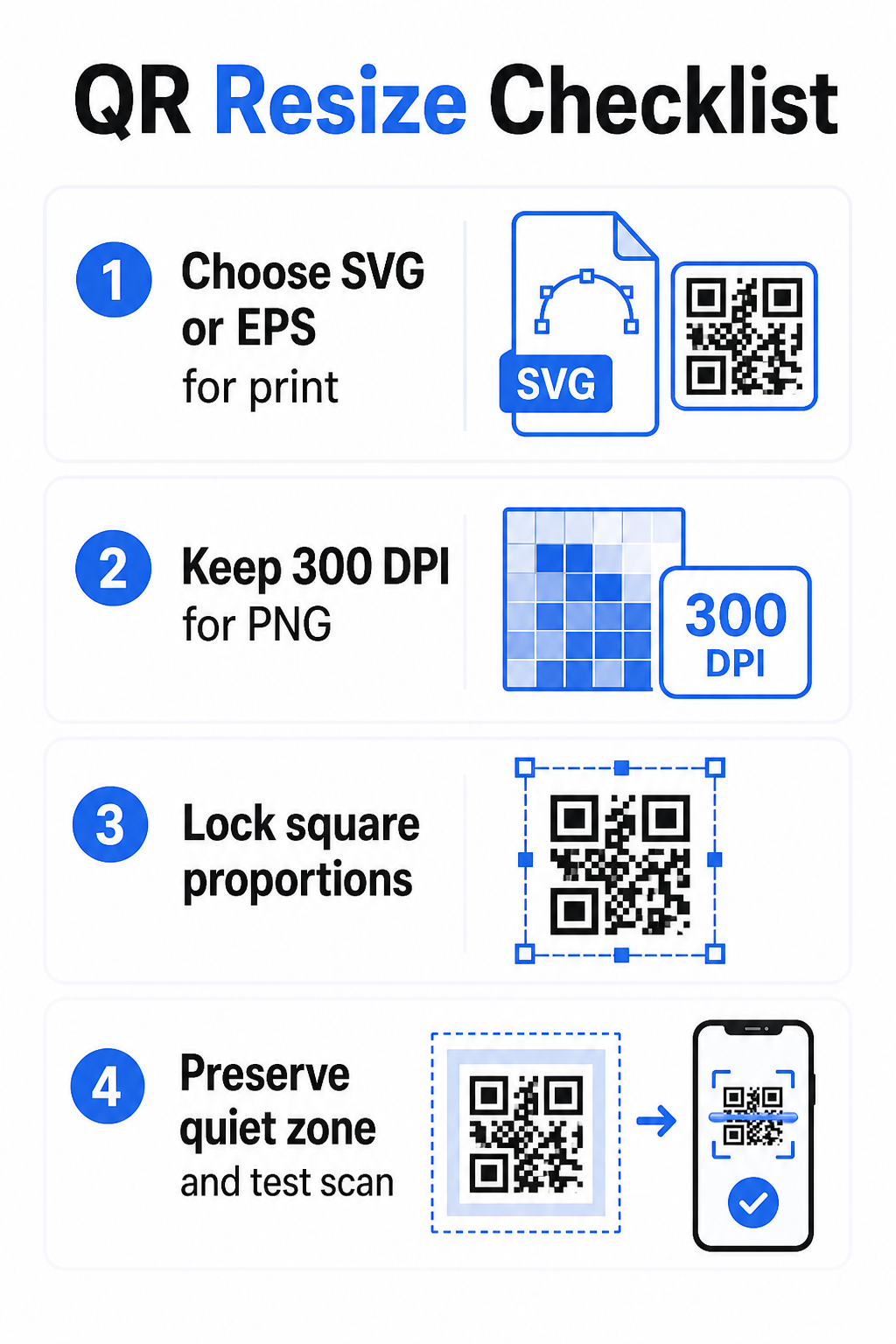
El estándar mínimo para impresión es 300 PPP en las dimensiones finales impresas. Esto significa que las dimensiones en píxeles de tu archivo de imagen deben coincidir con el tamaño físico deseado a esa densidad. Por ejemplo:
- Un código QR impreso a 1 pulgada × 1 pulgada necesita al menos 300 × 300 píxeles
- Un código QR impreso a 4 pulgadas × 4 pulgadas necesita al menos 1,200 × 1,200 píxeles
Si tu archivo no cumple este umbral en tu tamaño objetivo, los módulos individuales – los pequeños cuadrados que llevan los datos QR – se difuminarán. En ese punto, el escáner ya no puede distinguir el oscuro del claro, y el código falla. Para pantallas digitales, un mínimo de aproximadamente 240 × 240 píxeles es una pauta práctica para códigos de visualización en pantalla, aunque más grande siempre es más seguro para el zoom y la compatibilidad entre dispositivos. La solución más limpia para imprimir es omitir el ráster por completo y usar un archivo vectorial, lo que te da escalabilidad infinita con cero preocupaciones de resolución.
Cómo redimensionar un código QR paso a paso
Paso 1: Empezar con el archivo fuente correcto
Descarga o exporta tu código QR en formato SVG o EPS si va a imprimirse. Si solo tienes un archivo ráster, verifica que las dimensiones en píxeles soportan 300 PPP en tu tamaño de impresión objetivo antes de redimensionar. Un código QR PNG puede funcionar bien para ubicaciones digitales cuando se exporta con resolución suficiente – puedes crear uno directamente con un Generador de código QR en PNG y usarlo donde se requiera transparencia o compatibilidad ráster.
Paso 2: Escalar proporcionalmente
Siempre mantenga la relación de aspecto original al redimensionar. Los códigos QR son cuadrados por definición, y estirarlos horizontal o verticalmente distorsiona los módulos de cuadrados a rectángulos, lo que puede confundir o anular los escáneres. En cualquier aplicación de diseño – Illustrator, Canva, InDesign, Photoshop – bloquee la relación de aspecto antes de arrastrar un controlador de esquina. Incluso una distorsión sutil es suficiente para causar problemas con implementaciones de escáner más estrictas.
Paso 3: Preserve la Zona de Silencio
La zona de silencio es el borde blanco claro que rodea el código QR por los cuatro lados. El estándar ISO/IEC 18004 especifica que este margen debe tener al menos cuatro módulos de ancho en cada lado. Cuando redimensiona un código QR y lo coloca dentro de un diseño más grande, esta zona es frecuentemente lo primero que se recorta o es invadido por otros elementos de diseño. Si cada módulo en su código tiene 2 mm de ancho, su zona de silencio debe ser de al menos 8 mm en todos los lados. Trate este espacio como no negociable – eliminarlo rompe el reconocimiento del escáner.
Paso 4: Verifique el Contraste Después de Redimensionar
Redimensionar sobre un fondo de color o texturizado puede reducir el contraste efectivo entre los módulos del código y su entorno. Los escáneres se basan en la diferencia entre áreas oscuras y claras para leer el código. La combinación más segura sigue siendo módulos oscuros sobre un fondo claro – negro sobre blanco proporciona una relación de contraste de 21:1. Apunte a una relación de contraste mínima de 4:1 entre los colores de primer plano y de fondo, y evite colocar el código en degradados, patrones recargados o superficies reflectantes. Para una guía detallada, consulte mejores prácticas de contraste de color de códigos QR.
Paso 5: Pruebe Antes de Imprimir
Imprima una prueba en el tamaño exacto previsto sobre el material exacto previsto, luego pruebe con múltiples dispositivos – tanto iOS como Android – antes de comprometerse con una producción completa. Pruebe a la distancia de escaneo real que experimentarán los usuarios. Un código que escanea perfectamente a la distancia de un brazo puede fallar a la distancia a la que realmente está colocado. Consulte Cómo probar códigos QR para la usabilidad en móvil para una lista de verificación de pruebas completa.
Pautas de Tamaño Mínimo y Máximo
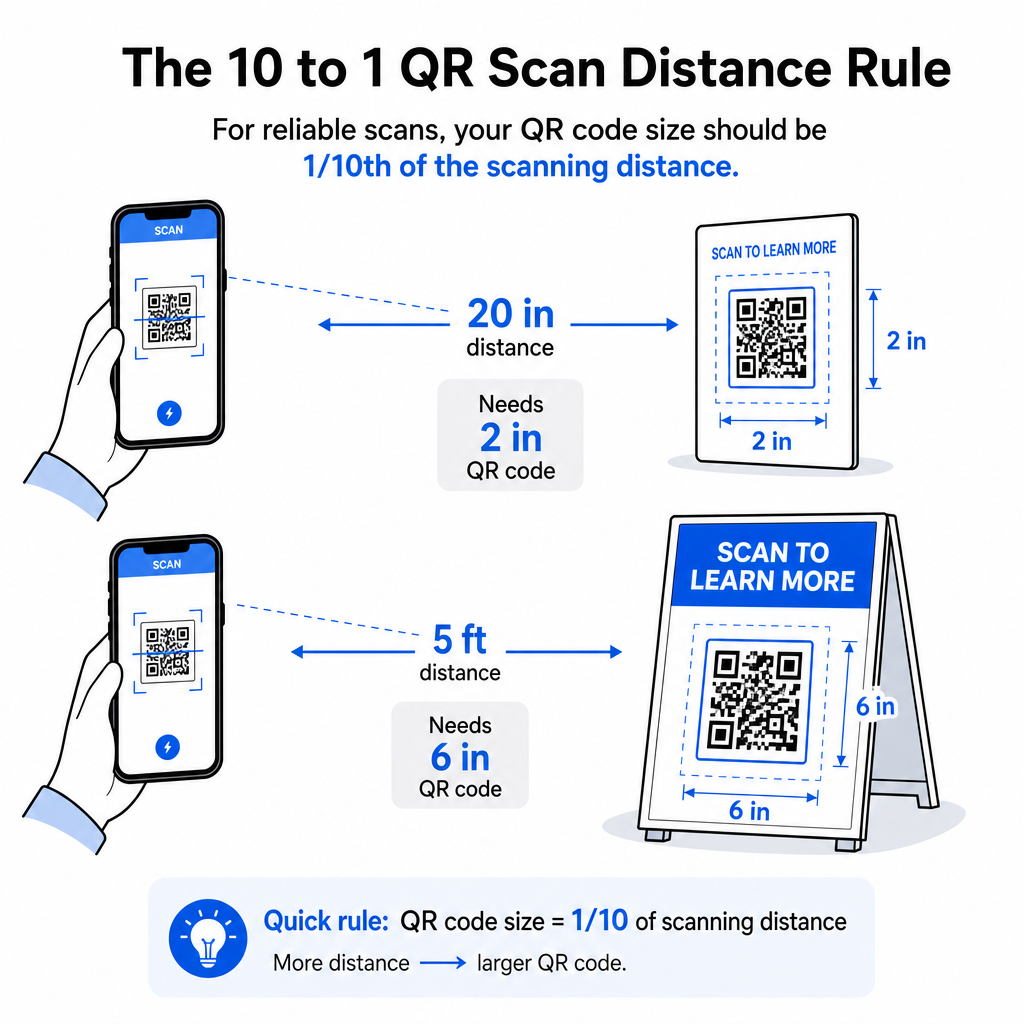
Redimensionar un código QR de manera responsable significa conocer los límites de tamaño para su caso de uso específico. La regla principal es la relación distancia-tamaño 10:1: la distancia máxima de escaneo prevista debe ser aproximadamente diez veces el ancho del código QR. Un código escaneado desde 20 pulgadas de distancia debe tener al menos 2 pulgadas de ancho; uno escaneado desde 5 pies de distancia debe tener al menos 6 pulgadas de ancho; un código de valla publicitaria escaneado desde 30 pies de distancia debe tener al menos 36 pulgadas de ancho.
Para aplicaciones de impresión comunes, aquí hay puntos de partida fiables:
| Caso de uso | Tamaño Mínimo Recomendado |
|---|---|
| Tarjetas de visita | 0.8 × 0.8 in (2 × 2 cm) |
| Folletos y prospectos | 1.2 × 1.2 in (3 × 3 cm) |
| Carteles y señalización | 6 × 1.6 in (4 × 4 cm) |
| Vallas publicitarias y pancartas | 16 × 16 in (40 × 40 cm) o más grande |
Para aplicaciones de tarjetas de visita, 0.8 × 0.8 pulgadas es el mínimo práctico para un escaneo fiable a corta distancia – ir más pequeño aumenta significativamente el riesgo de fallo de escaneo. Consulte la guía de tamaños de códigos QR para tarjetas de visita para recomendaciones específicas sobre ese formato. No hay un límite de tamaño superior oficial; escale según sea necesario basándose en la distancia de escaneo. Para un desglose completo en cada caso de uso, el guía de tamaño de códigos QR cubre todo, desde tarjetas de visita hasta vallas publicitarias. También puede explorar cómo el tamaño del código QR afecta la visibilidad para comprender la relación más amplia entre las dimensiones y el éxito del escaneo.
¿Necesita un Código QR para Su Tarjeta de Visita? Use el Generador de QR para tarjetas de visita para crear un código dimensionado y diseñado para la impresión de tarjetas de visita, con exportación SVG incluida.
Cómo la Densidad de Datos Afecta el Redimensionamiento
Un factor que complica el redimensionamiento es la densidad de datos – la cantidad de información codificada en el código QR. Cuantos más datos contiene un código QR, más densa se vuelve su cuadrícula de módulos. Las cuadrículas más densas requieren tamaños físicos más grandes para mantener los módulos individuales legibles a nivel de cámara.
Un código QR que codifica una URL larga con parámetros de seguimiento contiene muchos más datos que uno que apunta a una URL de redirección corta. Cuando se reduce un código de alta densidad, los módulos se vuelven demasiado pequeños para que la mayoría de las cámaras de teléfonos inteligentes los resuelvan de manera fiable. Los códigos QR dinámicos resuelven este problema directamente. En lugar de codificar una URL de destino completa, un código dinámico codifica una redirección interna corta, manteniendo baja la densidad de datos del código independientemente de a dónde apunte. Esto significa que puede imprimir el código más pequeño sin sacrificar la escaneabilidad – y actualizar el destino más tarde sin reimprimir.
Corrección de Errores y Tolerancia al Redimensionamiento
Los códigos QR incluyen corrección de errores incorporada que les permite seguir siendo escaneables incluso cuando están parcialmente dañados u oscurecidos. El estándar ISO/IEC 18004 define cuatro niveles:
| Nivel | Capacidad de Recuperación |
|---|---|
| L (Bajo) | ~7% de datos |
| M (Medio) | ~15% de datos |
| Q (Cuartil) | ~25% de datos |
| H (Alto) | ~30% de datos |
Si está redimensionando un código QR a un tamaño más pequeño, o añadiendo un logotipo al centro del código, aumentar el nivel de corrección de errores le proporciona un margen contra daños a nivel de módulo o imprecisión de escaneo. El nivel Q o H es apropiado para códigos de marca o muy personalizados. Tenga en cuenta que una mayor corrección de errores aumenta la densidad de datos, lo que puede requerir un tamaño mínimo ligeramente mayor para compensar.
Errores comunes al redimensionar a evitar
- Usar una captura de pantalla como archivo fuente. Las capturas de pantalla son capturas ráster de baja resolución. Ampliarlas para imprimir es una de las causas más comunes de códigos QR no escaneables.
- Estirar el código de forma no proporcional. Incluso una ligera distorsión horizontal o vertical cambia las formas de los módulos de cuadrados a rectángulos, lo que puede impedir que los escáneres lean el código correctamente.
- Recortar la zona tranquila. Redimensionar dentro de un diseño ajustado a menudo resulta en que otros elementos invaden la zona tranquila. Mantenga al menos cuatro módulos de espacio libre en todos los lados – este margen es un requisito técnico, no una elección estilística.
- Asumir que un código que funciona en pantalla funcionará impreso. La visualización en pantalla y la salida impresa son entornos diferentes. Un código que se ve nítido a 72 DPI en pantalla puede imprimirse borroso a 300 DPI si la resolución del archivo subyacente no lo soporta.
- No probar después de redimensionar. Siempre verifique la escaneabilidad en el material final, al tamaño final, desde la distancia de escaneo prevista.
Para una guía más detallada, el guía de resolución de impresión de códigos QR y las mejores prácticas para la legibilidad de los códigos QR cubren los detalles específicos de impresión que vale la pena conocer antes de ir a producción.
Dimensionamiento para diferentes materiales de impresión
La superficie en la que imprime afecta el tamaño que debe tener su código QR, independientemente de las consideraciones de distancia de escaneo. Las superficies rugosas, texturizadas o curvas pueden distorsionar los módulos y reducir el contraste efectivo, lo que requiere que amplíe más allá de lo que la regla 10:1 por sí sola sugeriría.
- Papel liso o cartulina – Se aplican las pautas de tamaño estándar; se prefieren los acabados mate sobre los brillantes para reducir el deslumbramiento y los reflejos
- Cartón corrugado – Añada 10–25% al tamaño mínimo para compensar la textura de la superficie y las irregularidades de los bordes
- Tela – El poliéster liso puede usar mínimos estándar; los textiles rugosos o elásticos a menudo requieren códigos 25–50% más grandes
- Metal o vidrio – La alta reflectividad causa problemas de escaneo; use superficies mate o superposiciones de vinilo y aumente el tamaño del código
Para un desglose completo por tipo de material, vea dimensionamiento de códigos QR para diferentes materiales de impresión, y para obtener orientación sobre cómo el método de impresión en sí afecta la calidad de la salida, cómo las técnicas de impresión impactan la escaneabilidad del código QR vale la pena leer antes de realizar un pedido de impresión. Para decisiones de ubicación que van más allá del dimensionamiento, el Guía de colocación de códigos QR para marketing cubre el posicionamiento por tipo de material y contexto de campaña.
Redimensionar correctamente un código QR significa elegir el formato de archivo correcto antes de redimensionar, manteniendo las proporciones y los márgenes de la zona tranquila en todo momento, y verificando que su salida cumpla con los estándares de resolución y contraste en el tamaño final impreso o mostrado. Comenzar con un archivo vectorial elimina la mayor parte del riesgo por completo – se escala limpiamente en cualquier dirección sin el límite de resolución que imponen las imágenes ráster. Si está creando códigos QR para campañas en curso, usar un código QR dinámico le brinda la ventaja adicional de actualizar el destino después de la impresión, por lo que una decisión de tamaño o ubicación hoy no lo encierra en costos de reimpresión en el futuro.
Preguntas frecuentes
SVG, EPS, o PDF son los mejores formatos para redimensionar porque son basados en vectores y escalan a cualquier tamaño sin perder nitidez. PNG es aceptable para uso digital cuando se exporta a alta resolución. JPEG debe evitarse por completo – su compresión suaviza los bordes afilados que los escáneres necesitan para distinguir cada módulo.
El mínimo práctico para la mayoría de las aplicaciones de impresión de corto alcance es de 0.8 × 0.8 pulgadas (2 × 2 cm). Ir más pequeño aumenta el riesgo de fallo de escaneo. Para escanear a mayores distancias, aplique la regla 10:1: el ancho del código debe ser al menos una décima parte de la distancia máxima de escaneo prevista – por lo que un código escaneado desde 20 pulgadas de distancia debe tener al menos 2 pulgadas de ancho.
No – los datos codificados y el nivel de corrección de errores están fijos cuando se genera el código. El redimensionamiento cambia solo las dimensiones físicas o de píxeles de la imagen. Lo que el redimensionamiento puede afectar es si los módulos permanecen claros y distinguibles al nuevo tamaño, razón por la cual mantener 300 DPI para impresión, preservar los márgenes de la zona tranquila y escalar proporcionalmente son todos pasos esenciales.