Bir QR kodunu yeniden boyutlandırmaya çalışıyor, ancak bulanık, taranamayan bir sonuçla mı karşılaşıyorsunuz? Boyutları yanlış ayarlamak veya yanlış dosya formatı kullanmak, QR kodunuzu baskıdan sonra tamamen işe yaramaz hale getirebilir. Bu kılavuz, dosya formatlarını, boyut kurallarını, çözünürlük gereksinimlerini ve kaçınılması gereken en yaygın hataları kapsayarak bir QR kodunu doğru şekilde nasıl yeniden boyutlandıracağınızı adım adım anlatır.
Bir QR Kodunu Yeniden Boyutlandırmak Neden Yanlış Gider
Çoğu QR kodu kalite sorunu, iki sorundan birine dayanır: yanlış dosya formatıyla başlamak veya bir görüntüyü çözünürlüğünün destekleyebileceğinin ötesinde ölçeklendirmek.
Düşük çözünürlüklü bir raster görüntüyü (JPEG veya küçük bir PNG) alıp tasarım yazılımınızda daha büyük hale getirdiğinizde, tarayıcı net siyah-beyaz kareler yerine bulanık, belirsiz modülleri okumak zorunda kalır. Düşük çözünürlüklü bir QR kodunu germek, bulanık, taranamayan bir baskı sonucu. üretmenin en güvenilir yollarından biridir. Daha az belirgin bir sorun da var: yeniden boyutlandırma, kodun oranlarını istemeden bozabilir veya sessiz bölgeyi (kodu çevreleyen net beyaz kenar boşluğu) ortadan kaldırabilir, bu da tarayıcıların deseni yanlış okumasına veya tamamen kaçırmasına neden olur. Yeniden boyutlandırmadan önce bu hata noktalarını anlamak, gerçekten çalışan bir koda giden en doğrudan yoldur.
Vektör ve Raster: En Önemli Dosya Formatı Kararı
Bir QR kodunu yeniden boyutlandırırken yaptığınız en etkili tek seçim, bir vektör veya raster dosyasıyla çalışıp çalışmadığınızdır.
Vektör formatları (SVG, EPS, PDF) QR kodunu sabit bir piksel ızgarası yerine matematiksel talimatlar olarak saklar. Bu, bir posta pulundan bir reklam panosuna kadar herhangi bir boyuta, keskinlik veya netlik kaybı olmadan ölçeklenebilecekleri anlamına gelir. Baskıya gidecek her şey için vektör doğru seçimdir.
Raster formatları (PNG, JPEG, BMP) kodu sabit bir çözünürlük tavanına sahip bir piksel ızgarası olarak saklar. Onları orijinal çözünürlüklerinin üzerine ölçeklendirdiğinizde, yazılım piksel verileri uydurmak zorunda kalır, bu da bulanıklığa neden olur. JPEG özellikle sorunludur çünkü sıkıştırma algoritması kenarları yumuşatır, bir QR tarayıcısının her modülü okumak için ihtiyaç duyduğu keskin kontrastı doğrudan zayıflatır.
| Biçim | Kayıpsız Ölçeklenir | Şunlar için önerilir | Notlar |
|---|---|---|---|
| SVG | Evet | Baskı, büyük format | Yeniden boyutlandırma için genel olarak en iyisi |
| EPS | Evet | Profesyonel baskı | Baskı tasarım iş akışlarında standart |
| Evet | Baskı, paylaşım | Vektör verilerini korur | |
| PNG | Hayır (sabit çözünürlük) | Web, dijital ekran | Yüksek çözünürlükte kabul edilebilir |
| JPEG | Hayır (kayıplı sıkıştırma) | Hiçbiri | QR kodları için tamamen kaçının |
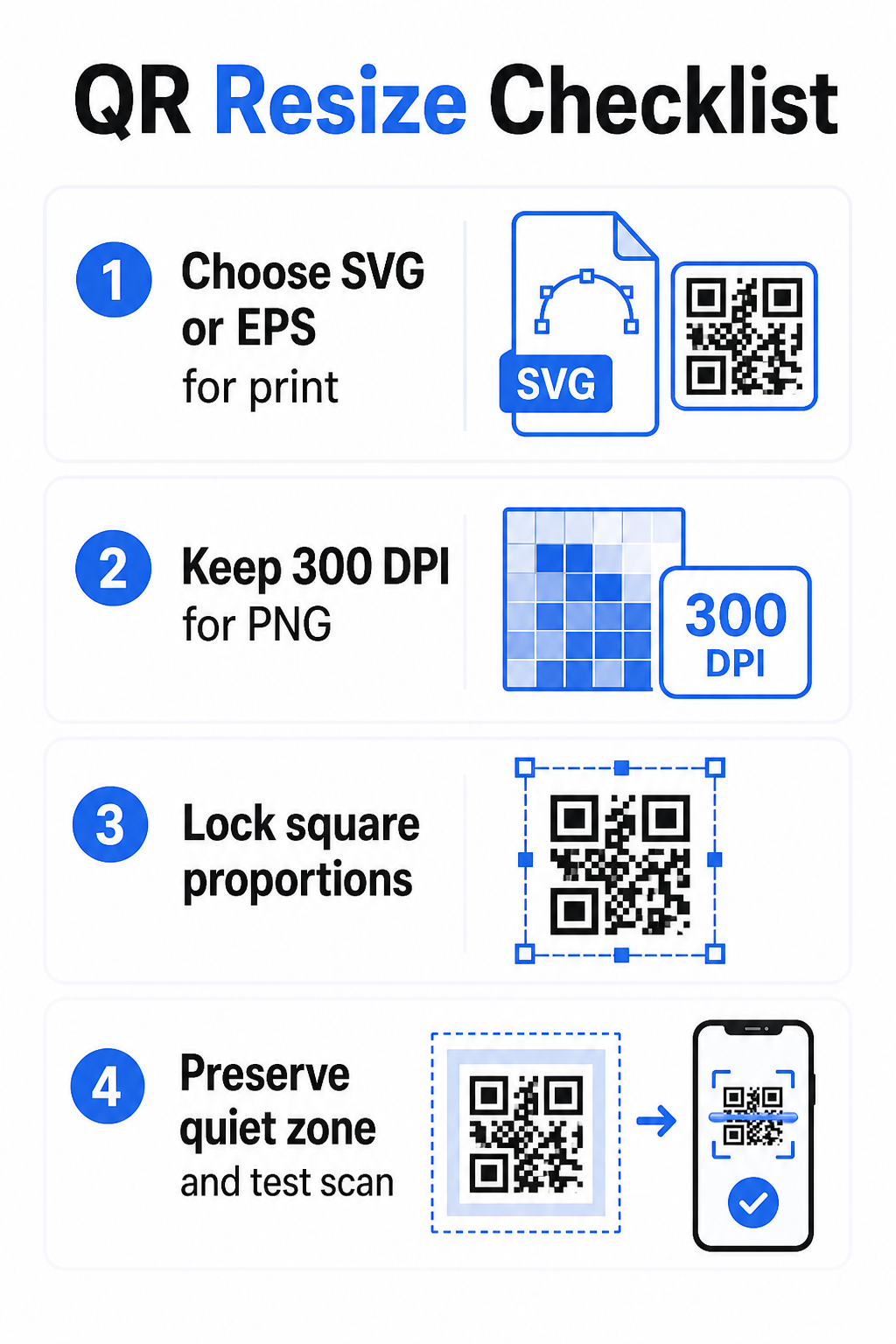
Baskı için bir QR kodu indirdiğinizde, her zaman SVG veya EPS seçin. Dijital bir ekran veya vektör formatlarını kabul etmeyen bir platform için bir raster dosyasına ihtiyacınız olduğunda, yüksek çözünürlüklü bir PNG dışa aktarın – asla bir JPEG değil.
Doğru Formatlarda Baskıya Hazır QR Kodları Oluşturun QR kodunuzu oluşturun ve baskıya hazır bir SVG, EPS veya PDF dosyası olarak indirin Pageloot QR Kodu Oluşturucu. Tasarım yazılımı gerekmez.
Raster Dosyaları için Çözünürlük Kuralları
Baskı için bir PNG ile çalışıyorsanız, çözünürlük (DPI (inç başına nokta) olarak ölçülür), kodun son baskı boyutunda keskin kalıp kalmayacağını belirler.
Baskı için minimum standart, son baskı boyutlarında 300 DPI'dır. Bu, görüntü dosyanızın piksel boyutlarının, o yoğunlukta hedeflenen fiziksel boyuta uyması gerektiği anlamına gelir. Örneğin:
- Şurada basılan bir QR kodu 1 inç × 1 inç en az 300 × 300 piksel
- Şurada basılan bir QR kodu 4 inç × 4 inç en az 200 × 1.200 piksel
Dosyanız hedef boyutunuzda bu eşiği karşılamıyorsa, tek tek modüller (QR verilerini taşıyan küçük kareler) birbirine karışacaktır. Bu noktada tarayıcı karanlığı ışıktan ayırt edemez ve kod başarısız olur. Dijital ekranlar için, yaklaşık olarak minimum 240 × 240 piksel ekran içi görüntüleme kodları için pratik bir kılavuzdur, ancak yakınlaştırma ve cihazlar arası uyumluluk için daha büyük olması her zaman daha güvenlidir. Baskı için daha temiz çözüm, raster'ı tamamen atlamak ve sıfır çözünürlük endişesiyle sonsuz ölçeklenebilirlik sağlayan bir vektör dosyası kullanmaktır.
Bir QR Kodu Adım Adım Nasıl Yeniden Boyutlandırılır
Adım 1: Doğru Kaynak Dosyasıyla Başlayın
Baskıya gidecekse QR kodunuzu SVG veya EPS formatında indirin veya dışa aktarın. Yalnızca bir raster dosyanız varsa, yeniden boyutlandırmadan önce piksel boyutlarının hedef baskı boyutunuzda 300 DPI'ı desteklediğini doğrulayın. Yeterli çözünürlükte dışa aktarıldığında bir PNG QR kodu dijital yerleşimler için iyi çalışabilir – doğrudan bir PNG QR Kod Oluşturucu ile oluşturabilir ve şeffaflık veya raster uyumluluğu gerektiğinde kullanabilirsiniz.
Adım 2: Orantılı Olarak Ölçeklendirin
Yeniden boyutlandırırken her zaman orijinal en boy oranını koruyun. QR kodları tanım gereği karedir ve bunları yatay veya dikey olarak germek, modülleri karelerden dikdörtgenlere dönüştürerek tarayıcıları karıştırabilir veya işlevsiz hale getirebilir. Herhangi bir tasarım uygulamasında – Illustrator, Canva, InDesign, Photoshop – bir köşe tutamacını sürüklemeden önce en boy oranını kilitleyin. Hafif bir bozulma bile daha katı tarayıcı uygulamalarında sorunlara neden olmak için yeterlidir.
Adım 3: Sessiz Bölgeyi Koruyun
Sessiz bölge, QR kodunu dört bir yandan çevreleyen net beyaz sınırdır. ISO/IEC 18004 standardı, bu kenar boşluğunun her tarafta en az dört modül genişliğinde olması gerektiğini belirtir. Bir QR kodunu yeniden boyutlandırıp daha büyük bir tasarımın içine yerleştirdiğinizde, bu bölge genellikle kırpılan veya diğer tasarım öğeleri tarafından ihlal edilen ilk şeydir. Kodunuzdaki her modül 2 mm genişliğindeyse, sessiz bölgeniz her tarafta en az 8 mm olmalıdır. Bu alanı tartışılamaz olarak kabul edin – kaldırmak tarayıcı tanımını bozar.
Adım 4: Yeniden Boyutlandırma Sonrası Kontrastı Kontrol Edin
Renkli veya dokulu bir arka plan üzerine yeniden boyutlandırma, kodun modülleri ile çevresi arasındaki etkili kontrastı azaltabilir. Tarayıcılar, kodu okumak için koyu ve açık alanlar arasındaki farka güvenir. En güvenli kombinasyon, açık bir arka plan üzerinde koyu modüllerdir – siyah üzerine beyaz 21:1 kontrast oranı sağlar. Minimum kontrast oranını hedefleyin 4:1 ön plan ve arka plan renkleri arasında, ve kodu gradyanlar, yoğun desenler veya yansıtıcı yüzeyler üzerine yerleştirmekten kaçının. Ayrıntılı rehberlik için bkz. QR kodu renk kontrastı en iyi uygulamaları.
Adım 5: Yazdırmadan Önce Test Edin
Tam olarak amaçlanan boyutta, tam olarak amaçlanan malzeme üzerine bir prova yazdırın, ardından tam bir üretim çalışmasına başlamadan önce birden fazla cihazla – hem iOS hem de Android – test edin. Kullanıcıların deneyimleyeceği gerçek tarama mesafesinde test edin. Kol mesafesinden mükemmel bir şekilde taranan bir kod, aslında yerleştirildiği mesafede başarısız olabilir. Bkz. Mobil Kullanılabilirlik İçin QR Kodlar Nasıl Test Edilir tam bir test kontrol listesi için.
Minimum ve Maksimum Boyut Yönergeleri
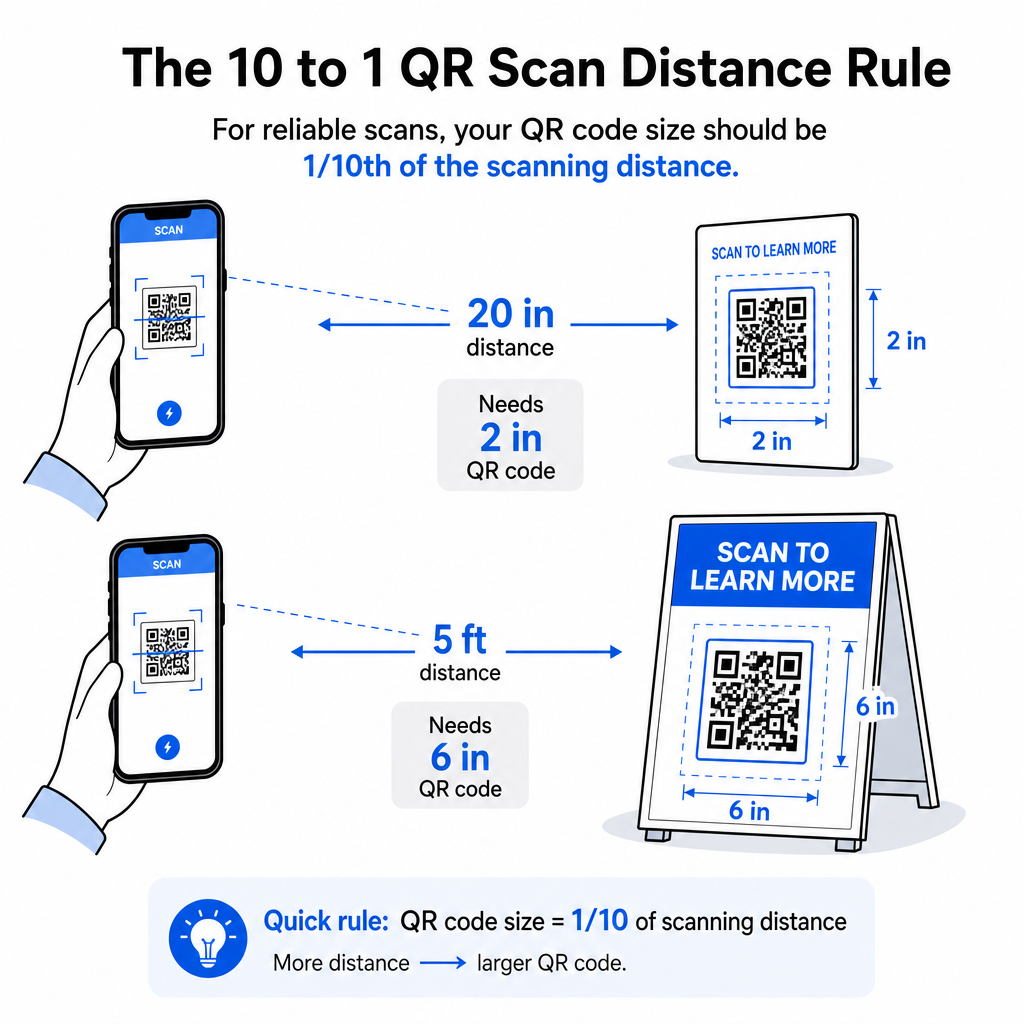
Bir QR kodunu sorumlu bir şekilde yeniden boyutlandırmak, belirli kullanım durumunuz için boyut sınırlarını bilmek anlamına gelir. Temel kural şudur: 10:1 mesafe-boyut oranı: maksimum amaçlanan tarama mesafesi, QR kodunun genişliğinin yaklaşık on katı olmalıdır. 20 inç uzaktan taranan bir kod en az 2 inç genişliğinde olmalıdır; 5 fit uzaktan taranan bir kod en az 6 inç genişliğinde olmalıdır; 30 fit uzaktan taranan bir billboard kodu en az 36 inç genişliğinde olmalıdır.
Yaygın baskı uygulamaları için güvenilir başlangıç noktaları şunlardır:
| Kullanım Örneği | Minimum Önerilen Boyut |
|---|---|
| Kartvizitler | 0.8 × 0.8 inç (2 × 2 cm) |
| El ilanları ve broşürler | 1.2 × 1.2 inç (3 × 3 cm) |
| Posterler ve tabelalar | 6 × 1.6 in (4 × 4 cm) |
| Billboardlar ve afişler | 16 × 16 in (40 × 40 cm) veya daha büyük |
Kartvizit uygulamaları için, 0.8 × 0.8 inç, güvenilir yakın mesafe taraması için pratik minimumdur – daha küçüğe gitmek tarama hatası riskini önemli ölçüde artırır. Bkz. kartvizitler için QR kodu boyutları rehberi bu formatla ilgili özel öneriler için. Resmi bir üst boyut sınırı yoktur; tarama mesafesine göre gerektiği gibi ölçeklendirin. Her kullanım durumu için kapsamlı bir döküm için, QR kodu boyut kılavuzu kartvizitlerden billboardlara kadar her şeyi kapsar. Ayrıca keşfedebilirsiniz QR kodu boyutunun görünürlüğü nasıl etkilediğini boyutlar ve tarama başarısı arasındaki daha geniş ilişkiyi anlamak için.
Kartvizitiniz İçin Bir QR Kodu mu Lazım? Kullan QR Kodlu Kartvizit Oluşturucu SVG dışa aktarımı dahil olmak üzere, kartvizit baskısı için boyutlandırılmış ve tasarlanmış bir kod oluşturmak için.
Veri Yoğunluğu Yeniden Boyutlandırmayı Nasıl Etkiler
Yeniden boyutlandırmayı karmaşıklaştıran bir faktör, veri yoğunluğudur – QR kodunda kodlanmış bilgi miktarı. Bir QR kodu ne kadar çok veri içerirse, modül ızgarası o kadar yoğunlaşır. Daha yoğun ızgaralar, tek tek modülleri kamera düzeyinde okunabilir tutmak için daha büyük fiziksel boyutlar gerektirir.
İzleme parametreleri içeren uzun bir URL'yi kodlayan bir QR kodu, kısa bir yönlendirme URL'sine işaret eden bir koddan çok daha fazla veri içerir. Yüksek yoğunluklu bir kodu küçülttüğünüzde, modüller çoğu akıllı telefon kamerasının güvenilir bir şekilde çözebilmesi için çok küçük hale gelir. Dinamik QR kodları bu sorunu doğrudan çözer. Tam bir hedef URL'yi kodlamak yerine, dinamik bir kod kısa bir dahili yönlendirme kodlar, bu da kodun veri yoğunluğunu nereye işaret ettiğine bakılmaksızın düşük tutar. Bu, kodu taranabilirliğinden ödün vermeden daha küçük yazdırabileceğiniz – ve hedefi daha sonra yeniden yazdırmadan güncelleyebileceğiniz anlamına gelir.
Hata Düzeltme ve Yeniden Boyutlandırma Toleransı
QR kodları, kısmen hasar görmüş veya gizlenmiş olsalar bile taranabilir kalmalarını sağlayan yerleşik hata düzeltme içerir. ISO/IEC 18004 standardı dört seviye tanımlar:
| Seviye | Kurtarma Yeteneği |
|---|---|
| L (Düşük) | ~%7 veri |
| M (Orta) | ~ veri |
| Q (Çeyreklik) | ~ veri |
| H (Yüksek) | ~ veri |
Bir QR kodu daha küçük bir boyuta yeniden boyutlandırıyorsanız veya kodun merkezine bir logo ekliyorsanız, hata düzeltme seviyesini artırmak size modül düzeyindeki hasara veya tarama hassasiyetsizliğine karşı bir tampon sağlar. Q veya H seviyesi, markalı veya yoğun şekilde özelleştirilmiş kodlar için uygundur. Daha yüksek hata düzeltmenin veri yoğunluğunu artırdığını ve bunun telafi etmek için biraz daha büyük bir minimum boyut gerektirebileceğini unutmayın.
Kaçınılması Gereken Yaygın Yeniden Boyutlandırma Hataları
- Kaynak dosyanız olarak bir ekran görüntüsü kullanmak. Ekran görüntüleri düşük çözünürlüklü raster yakalamalardır. Bunları baskı için büyütmek, taranamayan QR kodlarının en yaygın nedenlerinden biridir.
- Kodu orantısız bir şekilde germek. Hafif bir yatay veya dikey bozulma bile modül şekillerini karelerden dikdörtgenlere dönüştürür, bu da tarayıcıların kodu doğru bir şekilde okumasını engelleyebilir.
- Sessiz bölgeyi kırpmak. Sıkı bir tasarım düzeni içinde yeniden boyutlandırma, genellikle diğer öğelerin sessiz bölgeye tecavüz etmesine neden olur. Her tarafta en az dört modül boş alan bırakın – bu kenar boşluğu stilistik bir seçim değil, teknik bir gerekliliktir.
- Ekranda çalışan bir kodun baskıda da çalışacağını varsaymak. Ekran görüntüsü ve basılı çıktı farklı ortamlardır. Ekranda 72 DPI'da keskin görünen bir kod, temel dosya çözünürlüğü bunu desteklemiyorsa 300 DPI'da bulanık basılabilir.
- Yeniden boyutlandırmadan sonra test etmemek. Her zaman nihai malzemede, nihai boyutta, amaçlanan tarama mesafesinden taranabilirliği doğrulayın.
Daha ayrıntılı rehberlik için, QR kodu baskı çözünürlüğü rehberi ve QR kodu okunabilirliği için en iyi uygulamaları üretime geçmeden önce bilmeye değer baskıya özel ayrıntıları kapsar.
Farklı Baskı Malzemeleri İçin Boyutlandırma
Üzerine baskı yaptığınız yüzey, tarama mesafesi değerlendirmelerinden ayrı olarak QR kodunuzun ne kadar büyük olması gerektiğini etkiler. Pürüzlü, dokulu veya kavisli yüzeyler modülleri bozabilir ve etkili kontrastı azaltabilir, bu da sizi 10:1 kuralının tek başına önereceğinden daha fazla büyütmeye zorlar.
- Pürüzsüz kağıt veya karton – Standart boyut yönergeleri geçerlidir; parlamayı ve yansımaları azaltmak için mat yüzeyler parlak olanlara tercih edilir
- Oluklu mukavva – Yüzey dokusunu ve kenar düzensizliklerini telafi etmek için minimum boyuta –25 ekleyin
- Kumaş – Pürüzsüz polyester standart minimumları kullanabilir; pürüzlü veya esnek tekstiller genellikle –50 daha büyük kodlar gerektirir
- Metal veya cam – Yüksek yansıtıcılık tarama sorunlarına neden olur; mat yüzeyler veya vinil kaplamalar kullanın ve kod boyutunu artırın
Malzeme türüne göre tam bir döküm için, bakınız farklı baskı malzemeleri için QR kodu boyutlandırma, ve baskı yönteminin çıktının kalitesini nasıl etkilediğine dair rehberlik için, baskı tekniklerinin QR kodu taranabilirliğini nasıl etkilediği baskı siparişi vermeden önce okumaya değerdir. Boyutlandırmanın ötesine geçen yerleştirme kararları için, Pazarlama için QR kodu yerleştirme rehberi malzeme türüne ve kampanya bağlamına göre konumlandırmayı kapsar.
Bir QR kodunu doğru şekilde yeniden boyutlandırmak, yeniden boyutlandırmadan önce doğru dosya formatını seçmek, baştan sona oranları ve sessiz bölge kenar boşluklarını korumak ve çıktınızın nihai basılı veya görüntülenen boyutta çözünürlük ve kontrast standartlarını karşıladığını doğrulamak anlamına gelir. Bir vektör dosyasıyla başlamak, riskin çoğunu tamamen ortadan kaldırır – raster görüntülerin dayattığı çözünürlük tavanı olmadan herhangi bir yönde temiz bir şekilde ölçeklenir. Devam eden kampanyalar için QR kodları oluşturuyorsanız, bir dinamik QR kodu kullanmak, baskıdan sonra hedefi güncelleme ek avantajını sağlar, böylece bugünkü bir boyutlandırma veya yerleştirme kararı sizi ileride yeniden baskı maliyetlerine kilitlenmenizi engeller.
Sıkça sorulan sorular
SVG, EPS veya PDF, vektör tabanlı oldukları ve keskinlik kaybetmeden herhangi bir boyuta ölçeklenebildikleri için yeniden boyutlandırma için en iyi formatlardır. PNG, yüksek çözünürlükte dışa aktarıldığında dijital kullanım için kabul edilebilir. JPEG'den tamamen kaçınılmalıdır – sıkıştırması, tarayıcıların her modülü ayırt etmek için ihtiyaç duyduğu keskin kenarları yumuşatır.
Çoğu yakın mesafeli baskı uygulaması için pratik minimum 0.8 × 0.8 inçtir (2 × 2 cm). Daha küçüğe gitmek tarama hatası riskini artırır. Daha uzak mesafelerden tarama için 10:1 kuralını uygulayın: kodun genişliği, amaçlanan maksimum tarama mesafesinin en az onda biri olmalıdır – yani 20 inç uzaktan taranan bir kod en az 2 inç genişliğinde olmalıdır.
Hayır – kodlandığında kodun kodlanmış verileri ve hata düzeltme seviyesi sabittir. Yeniden boyutlandırma yalnızca görüntünün fiziksel veya piksel boyutlarını değiştirir. Yeniden boyutlandırmanın etkileyebileceği şey, modüllerin yeni boyutta net ve ayırt edilebilir kalıp kalmadığıdır; bu nedenle baskı için 300 DPI'yı korumak, sessiz bölge marjlarını muhafaza etmek ve orantılı olarak ölçeklendirmek temel adımlardır.